November 25, 2015 at 14:47
Android Autostart application at boot: theory and practice
A simple search on stackoverflow.com shows that the topic of receiving the ACTION_BOOT_COMPLETED message remains relevant to this day. As you can see, many beginners are faced with a problem: they do not receive the ACTION_BOOT_COMPLETED message in their applications. In this article I will try to summarize the data from the official documentation, the experience of many developers from stackoverflow.com, as well as my experience. So, how to defeat this "insidious enemy" called "ACTION_BOOT_COMPLETED"?
Looking at examples from an official source (for example, this and this ) and studying the recommendations on stackoverflow.com, the following rules can be distinguished:
Let's analyze the mistakes that beginners make when setting up the application and in the code.
In order for your application to start when it boots on all devices, the manifest should at least look like this:
The receiver code, as a rule, will be like this:
I hope this article will help beginners overcome the "insidious enemy" called "ACTION_BOOT_COMPLETED".
1. Theory
Looking at examples from an official source (for example, this and this ) and studying the recommendations on stackoverflow.com, the following rules can be distinguished:
- In the manifest in the "manifest" element, specify the permission:
- In the manifest in the application element, register your receiver to receive the ACTION_BOOT_COMPLETED message:
or
Use the correct full or relative class name of your broadcast receiver. Do not specify “enabled”, “exported”, etc. attributes in the receiver’s description without the need. There are enough settings and attributes by default. - Code of your broadcast receiver:
public class BootCompletedReceiver extends BroadcastReceiver {
    public BootCompletedReceiver() {
    }
    public void onReceive(Context context, Intent intent) {
        if (intent.getAction().equals(Intent.ACTION_BOOT_COMPLETED)) {
          // ваш код здесь
        }
    }
}
If your receiver is only used for the ACTION_BOOT_COMPLETED message, then an “if” check is not required. However, sometimes developers use the same receiver for different messages. In this case, filter the messages by checking them inside the onReceive method. - The application must be installed on the internal memory. Android OS is designed in such a way that the ACTION_BOOT_COMPLETED message is sent to applications before mounting external memory. Therefore, applications installed on external memory will never receive this message . To tell the system not to install the application on external memory, in the manifest you do NOT need to set the values of “auto” or “preferExternal” for the attribute “@android: installLocation”. By default, i.e. if this attribute is not specified, the OS will install your application only on internal memory. However, according to the official documentation, it’s better to explicitly indicate the value “internalOnly” so that you and other developers are not tempted to specify a different value in the future.
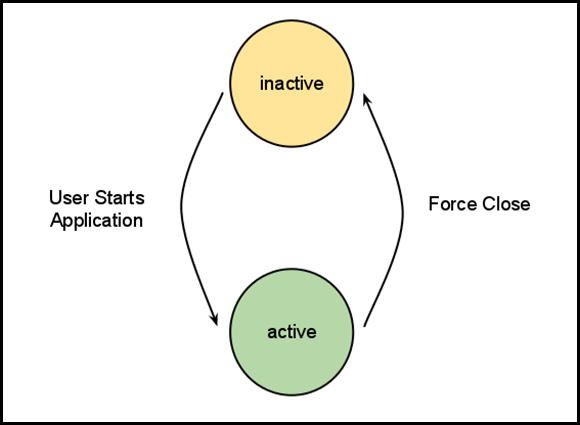
- After installation or forced stop (force stop), the application must be launched at least once for the system to “remember” this application to send it an ACTION_BOOT_COMPLETED message. This behavior was implemented in Android 3.1.for security. What is the point? All newly installed applications are in the “stopped” state (not to be confused with activity, since the OS controls this state for applications and activation in different ways). The application “leaves” this state when the user forcibly stops it in the phone settings. While the application is in this state, it will not be launched by the system for any reason (for example, through ACTION_BOOT_COMPLETED), excluding, of course, the launch by the user himself. Thanks to this innovation, a considerable part of the “virus and Trojans” stopped working, because it is no longer possible to start automatically after installation.
Exceptions are system applications: see. Note User kolipass . - Features of Fast boot mode on HTC devices. It is known that HTC-devices do not restart in the classical sense, but use the so-called. Fast boot mode (this is a form of hibernation), saving the state of the OS to disk. Therefore, the ACTION_BOOT_COMPLETED message is not sent by the system, as in reality, a reboot does not occur ( see here ). Instead of ACTION_BOOT_COMPLETED, the system can send the following messages:
In your application, specify the above messages in the “receiver” tag, in addition to ACTION_BOOT_COMPLETED. In addition, it is necessary to prescribe permission in addition to paragraph 1:
2. Practice: errors and operation features
Let's analyze the mistakes that beginners make when setting up the application and in the code.
- After installing or force stop, the application never started (see p. 1.5).
- The application is not installed on the internal memory, or the user manually transferred it to external memory (see section 1.4).
- For some developers, the reception began to work when they indicated the relative class name of the receiver.
- Also, some developers , while debugging the application, did not see their messages from the receiver in logcat. Use Toast to debug:
Toast toast = Toast.makeText(context.getApplicationContext(), context.getResources().getString(R.string.your_message), Toast.LENGTH_LONG); toast.show() - Typos or nonexistent messages inside the receiver tag:
- Incorrect position of elements in the application manifest:
- "Uses-permission" should be specified only as a direct descendant of the "manifest" element, it does not need to be specified / duplicated in the "receiver" tag;
- the receiver tag should only be specified as a direct descendant of the application element.
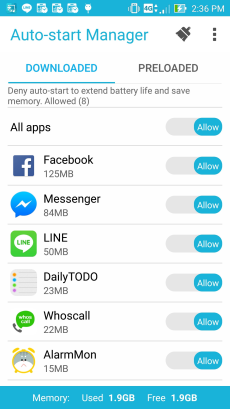
- Various task managers, optimizers, security applications, start-up managers, etc. can track the registration of the application for receiving ACTION_BOOT_COMPLETED and prohibit / allow its receipt at boot. Uninstall these applications or add your program as an exception in their settings.
- As stated above, some devices use Fast boot mode. You can try to disable this mode in the phone settings or take into account section 1.6.
- There is not one activity in the application, so after installation the user does not have the opportunity to run your application at least 1 time. Because of this, the ACTION_BOOT_COMPLETED message will not be sent to your application.
- Not errors, but still: extra, optional attributes are indicated in the receiver tag, for example (uses-permission, enabled, exported):
3. Debugging the receiver in the emulator and on real devices.
- In the terminal, do:
adb shell
Next, to send ACTION_BOOT_COMPLETED to all applications, type in the terminal:am broadcast -a android.intent.action.BOOT_COMPLETED
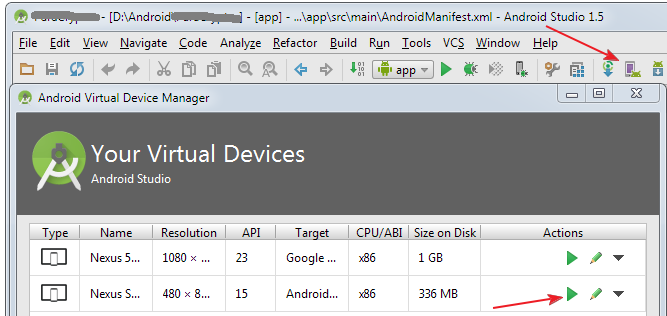
Or to send ACTION_BOOT_COMPLETED to a specific application, type in the terminal:am broadcast -a android.intent.action.BOOT_COMPLETED my.package.name - In the emulator: install your software by running it from the studio. In this case, the studio will collect your project, install the application and run it. After that, close the emulator (this is similar to turning off on a real device). To receive the ACTION_BOOT_COMPLETED message, start the emulator from the AVD manager, and not using the Run app button in the studio toolbar.Picture: how to start the emulator via AVD
After starting the emulator, in the Android Monitor tab, specify the emulator running and your application to view logcat logs.Picture: how to view logcat logs
Summary
In order for your application to start when it boots on all devices, the manifest should at least look like this:
The receiver code, as a rule, will be like this:
public class BootCompletedReceiver extends BroadcastReceiver {
  public BootCompletedReceiver() {
  }
  public void onReceive(Context context, Intent intent) {
    if (intent.getAction().equals(Intent.ACTION_BOOT_COMPLETED)) {
      Toast toast = Toast.makeText(context.getApplicationContext(),
              context.getResources().getString(R.string.your_message), Toast.LENGTH_LONG);
      toast.show();
      Log.d("myapp", context.getResources().getString(R.string.your_message);
      // ваш код здесь
    }
  }
}
I hope this article will help beginners overcome the "insidious enemy" called "ACTION_BOOT_COMPLETED".