August 25, 2015 at 10:05
Working with SQLite Database with SQLitePCL Wrapper

SQLite is an open-source cross-platform (Windows, iOS, Android, Python, Mono, etc.) database engine. It supports multiple tables, indexes, triggers, and views.
ACID transactions are supported (Atomicity / Atomicity, Consistency / Consistency, Isolation / Isolation, Durability / Reliability).
SQLitePCL is an open source Portable Class Library available at https://sqlitepcl.codeplex.com/, which allows you to work with SQLite databases in a single way in .Net applications and in WP, Windows Store, UAP, as well as Android / iOS (using Xamarin). In other words, this is the C library wrapper / wrapper that simplifies development and saves time. The wrapper is pretty new. Previously, you could use the sqlite-net wrapper for .Net and Windows Store applications .
Articles on how to use SQLite-net:
Working with data in WinRT. Part 2. Working with the database
using SQLite as an example. Using SQLite in C #
There is also an article on the hub that describes a slightly less well-known wrapper:
SQLite. Preparing for Windows 10 (Universal App Platform)
And earlier there was such an article about a wrapper called SQLite-net PCL:
SQLite is now for mobile applications in C # for any platform.
It would seem that this is SQLitePCL, especially since the project URL is the same, but in reality it turned out to be a wrapper with a completely different syntax.
We will still consider the current version of SQLitePCL.
First we need to add SQLite to the UAP project. You can do this this way:
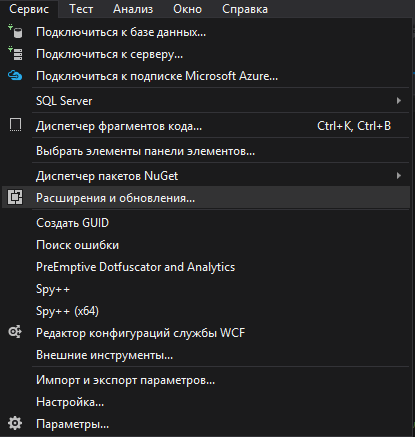
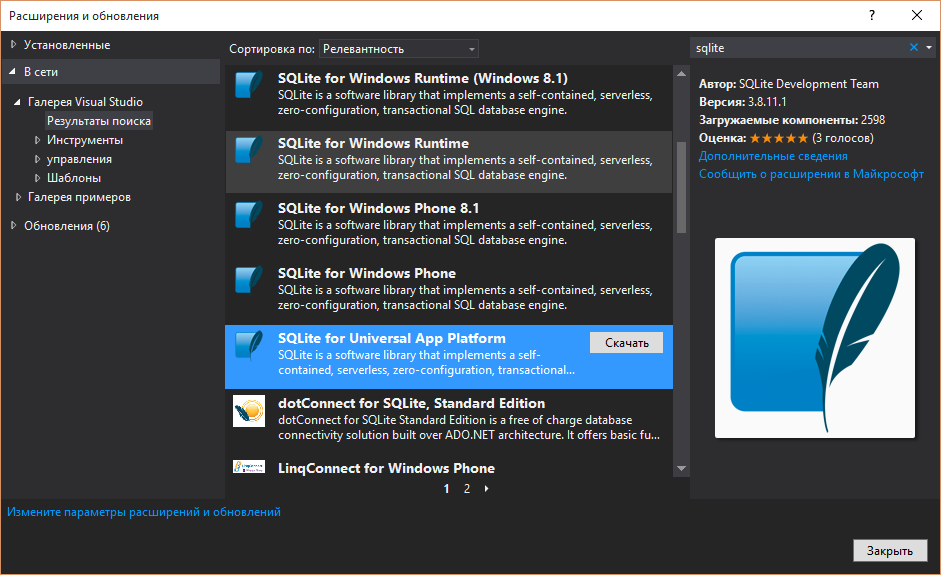
After installation, in order for the changes to take effect, you must restart Visual Studio.
Alternatively, you can download the .vsix extension from this link:
SQLite for Universal App Platform
or from the SQLite website by finding the .vsix file for the Universal App Platform
SQLite Download Page
Then install.
Now in the project you need to set the link to SQLite:
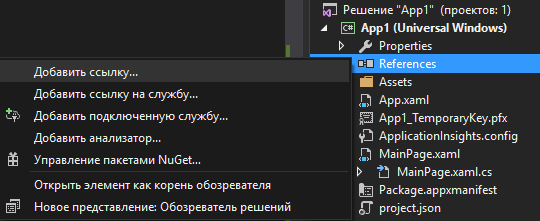
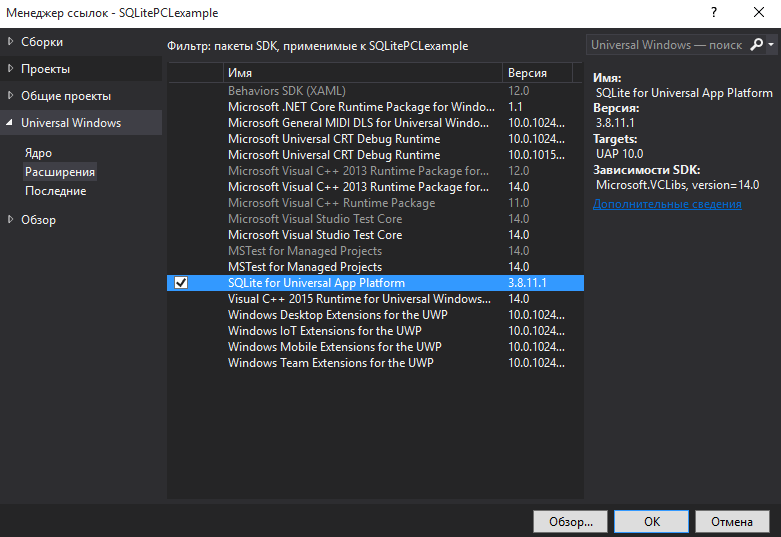
Tim Heuer, in his article on SQLite and Windows 8 applications, also recommends adding a link to the Microsoft Visual C ++ Runtime Package, saying that it is unlikely that the client machine will have C ++ Runtime, but if this link is not added, the application will fail certification tests before publication in the Windows Store.
We added the SQLite library and a link to it, now we need to add the SQLitePCL wrapper. We do this by going to the Tools - NuGet Package Manager - Managing NuGet packages for solution ... Find SQLitePCL by searching and install:
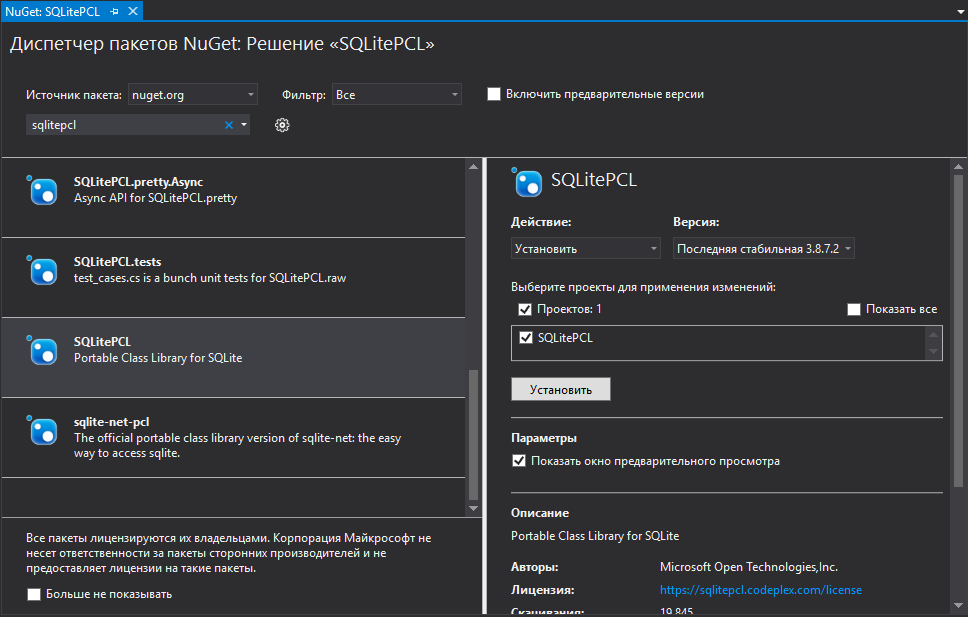
Either you can install PCL using the package manager console (Tools - NuGet Package Manager - Package Manager Console) using the command:
Install- Package SQLitePCL
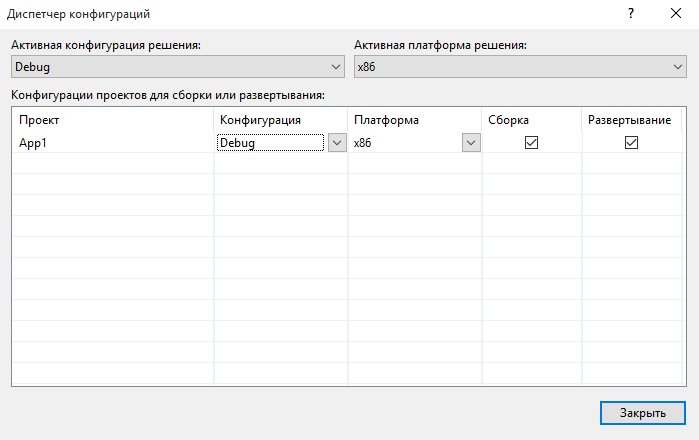
Now everything is ready to go. If suddenly your project displays a message when deploying that the deployment is skipped:

So it is necessary that in the configuration manager: the
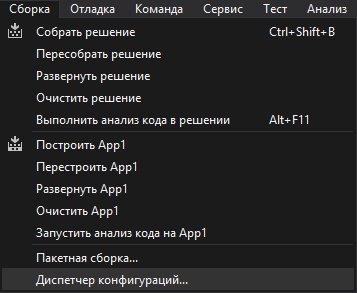
configuration was intended for deployment (and if necessary, for assembly):
A bit of introductory information about SQLite, which will be useful when you first get acquainted with this database:
Each row of SQLite tables (with the exception of WITHOUT ROWID tables) has a 64-bit signed integer key called ROWID. You can get the value of this column using one of the following register of independent aliases: "rowid", "oid" or "_rowid_".
According to information from the official site of SQLite Datatypes In SQLite Version 3, data is stored in one of the following classes:
NULL The value is NULL
INTEGER The value of a signed integer can be stored in 1,2,3,4,6 or 8 bytes depending on the value of the number.
REAL The value of a floating-point number is stored in an 8-byte IEEE floating-point number.
TEXTThe value is a text string that is stored using database encoding (UTF-8, UTF-16BE or UTF-16LE).
BLOB The value is blob data that is entered as it was entered.
A data class has a broader meaning than a data type. Let's say the INTEGER class contains 6 data types of various lengths.
There is no BOOLEAN type in SQLite databases. Instead of this type, the INTEGER type is used with values 1 and 0. The
time and date can be stored in the TEXT, REAL, or INTEGER types:
1. In the form of text as an ISO8601 string ("YYYY-MM-DD HH: MM: SS.SSS").
2. In the form of a REAL floating-point number as the number of days of the Julian calendar, starting to count from noon GMT on November 24, 4714 BC in accordance with the proleptic Gregorian calendar.
3. As an integer INTEGER as Unix time, is the number of seconds elapsed since 1970-01-01 00:00:00 UTC.
In order to achieve maximum compatibility with other databases, SQLite supports the so-called concept of type affinity - type affinity. There is a rule order matching data types of other databases and SQLite. Say, the first rule is that if the string “INT” is in the data type string of a foreign database, then this type will be mapped to the SQLite INTEGER type. If this rule is not met, then the second rule is checked whether the string of the data type contains the text “CHAR”, “CLOB” or “TEXT”. If it contains, then the data type is mapped to the SQLite TEXT type. And so on ...
And after such a relatively large introduction, most of the information of which in one or another part has already been encountered in Runet, finally we will move on to the code of examples of working with SQLitePCL
To work, we need to add a link to the namespace:
using SQLitePCL;
You can create a table in the database like this:
                using (var conn = new SQLiteConnection("Storage.db"))
                {
                    string sql = @"CREATE TABLE IF NOT EXISTS People (
                                                ID INTEGER NOT NULL PRIMARY KEY,
                                                FirstName NVARCHAR(50),
                                                LastName NVARCHUAR(50));";
                    using (var statement = conn.Prepare(sql))
                    {
                        statement.Step();
                    }
                }
The primary key column is specified using the PRIMARY KEY expression and there can only be one in the table.
UNIQUE is a constraint that requires only unique values in a column. There can be several such columns in a table.
NOT NULL is a constraint that prohibits the presence of NULL values in a column.
CHECK - sets the condition to be checked. Example:
CREATE TABLE IF NOT EXISTS People ( ID INTEGER NOT NULL PRIMARY KEY, FirstName TEXT CHECK (FirstName NOT IN ('Леша','Алешка')), LastName TEXT NOT NULL UNIQUE)
If the table has a foreign key, then you need to create an index for it. It is also advisable to create indexes to optimize the search speed of large tables. For primary key columns, an index is created automatically. You can create an index like this:
using (var statement = conn.Prepare(@"CREATE INDEX IF NOT EXISTS lastname_indx ON People (LastName)"))
                    {
                        statement.Step();
                    }
More information about SQL syntax for creating tables is available at: SQLite Query Language: CREATE TABLE
Of the minuses of SQLitePCL, it can be noted that it does not support the creation of foreign keys ( SQLite Foreign Key Support ).
If you need to add relationships between tables by creating them on the fly, then you can use some other wrapper. By the way, foreign keys in SQLite are disabled by default.
You can add an entry to the table with a simple query:
using (var statement = conn.Prepare("INSERT INTO People (FirstName, LastName) VALUES ('Конек', 'Горбунок')"))
                    {
                        statement.Step();
                    }
And you can use the parameters:
using (var statement = conn.Prepare("INSERT INTO People (FirstName, LastName) VALUES (?, ?)"))
                    {
                        statement.Bind(1, "Кощей");
                        statement.Bind(2, "Бессмертный");
                        statement.Step();
                    }
We can add the next user to the table using exactly the same construction, or we can perform the following actions inside Step using the following construction using :
// обнулить statement и его связи
    statement.Reset();
    statement.ClearBindings();
// сделать привязку с другими именами
      statement.Bind(1, "Елена");
      statement.Bind(2, "Прекрасная");
// Добавить данные
    statement.Step();
It is also possible to use an alias instead of specifying a parameter number:
using (var statement = conn.Prepare("INSERT INTO People (FirstName, LastName) VALUES (@fName, @lName)"))
                        {
                            statement.Bind("@fName", "Иванушка");
                            statement.Bind("@lName", "Дурачок");
                            statement.Step();
                        }
Removing is the same as adding or updating records:
         string fname ="Елена";
         using (var statement = conn.Prepare("DELETE FROM People WHERE FirstName=?"))
         {
               statement.Bind(1, fname);
               statement.Step();
         }
The process of reading records is slightly different:
using (var statement = conn.Prepare("SELECT LastName, FirstName FROM People WHERE FirstName='Кощей'"))
                    {
           while (statement.Step() == SQLiteResult.ROW)
            {
         txtInfo.Text = txtInfo.Text + (string)statement[0] + Environment.NewLine;
            }
                    }
Transactions can be triggered manually using “COMMIT TRANSACTION” or “ROLLBACK TRANSACTION”. To do this, before the list of queries, do:
                    using (var statement = conn.Prepare("BEGIN TRANSACTION"))
                    {
                        statement.Step();
                   }
And after requests we confirm with:
                    using (var statement = conn.Prepare("COMMIT TRANSACTION"))
                    {
                        statement.Step();
                   }
The desktop application database itself is located at
% USERPROFILE% \ AppData \ Local \ Packages \ {PackageId}
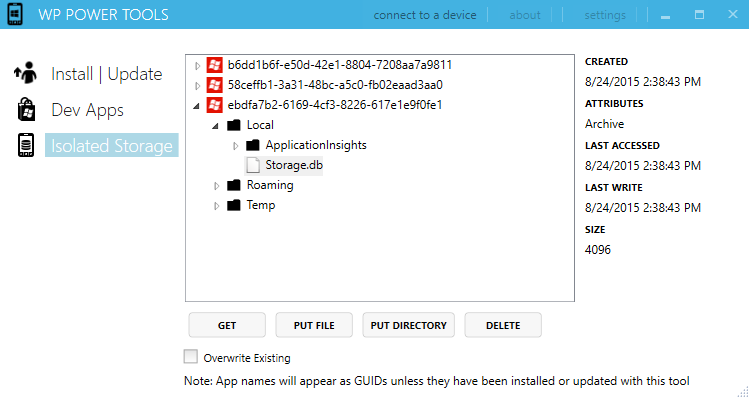
To view the database on a mobile device, a utility is required.
For example, you can use Power Tools for WP8.1.
I was able to use this utility to access SQLite databases on my Windows 10 phone:
on the official website you can find tools for working with SQLite.
I liked the Polish program SQLite Studio , which has support for the Russian language and does not require installation under Windows (.zip archive)
In addition, you can select the free SQLite2009 Pro Enterprise Manager
Personal version of SQLite Expertfree for personal and commercial use.
Materials that helped me:
MVA course “A Developer's Guide to Windows 10”
Article “The new Portable Class Library for SQLite”