August 13, 2015 at 11:47
Making a game with Gideros
- From the sandbox
- Tutorial
A long time ago there was an article about Gideros (game development on LUA), but I could not find a continuation. Therefore, I made a short article on how to develop games on Gideros Studio. Sources and apkshnik project at the end of the article. Continued under the cut.
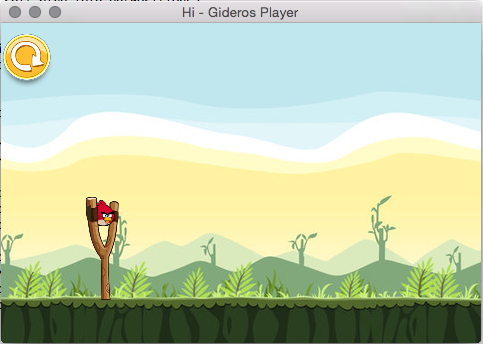
Everything is extremely simple, follow this link and download the necessary installer. In my case, Gideros 2015.08 is for OS X.
Now the standard procedure for dragging and dropping an application into Application.
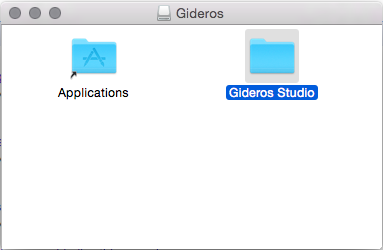
Go to the application and open Gideros Studio:

We will start with the classics, write “Hello, world!” On the screen.
First, create a project:
1. Click “Create New Project”:
2. Enter the name of the project (in my case, “Hi”):

3. Create a file for our script:
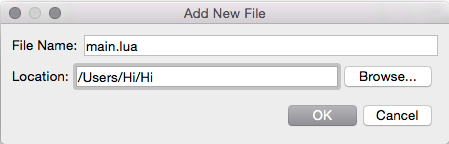
Well, the promised “Hello, world!”:
Click on the joystick and Gideros Player starts up:
Now we click on the blue triangle and our script is launched in the player.
To stop the project, click on the red octagon. Now let's do something more serious. For example, the likeness of Angry Birds.
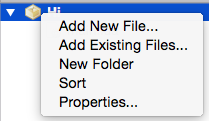
We need a SceneManager to switch between levels. We take it from here , we need the scenemanager.lua and easing.lua files . We load them into our project (for convenience, copy it to the project folder) using "Add Existing Files ...":
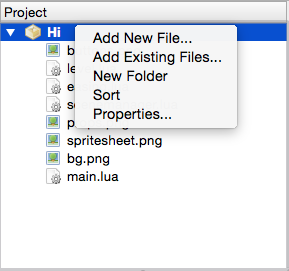
And select our scripts from the project folder.
Now we will prepare the images we need, follow the same procedure as with the scripts. We take them from here:
bg.png - yadi.sk/i/LLZpkzBliRDD9
buttons.png - yadi.sk/i/96GChQSAiRDCz
props.png - yadi.sk/i/JaM6n6ZqiRDD7
spritesheet.png - yadi.sk/i/n6siot
We create the main.lua script, which we use to run the level:
Now create our main script with the level level.lua:

That's it. Now I’ll tell you how to test directly on the device on the fly.
To do this, set on android smartphone folders Gideros apk file GiderosAndroidPlayer.apk and run. Now in Gideros Studio we select our device (the smartphone must be connected to the same Wi-Fi as the computer):

Here you can see that “stegges” is our computer, and “HTC One Mini 2” is our smartphone, select it . Well, now just press the start button in Gideros Studio and you can start playing.
Now let's compile our game to run on an android device. We go to the menu item “File” and select “Export project” (cmd + E), we see the following window.

Select "Android" from the drop-down list or bookmarks. We choose the environment for which the project will be exported, in our case Eclipse. Enter the name of the package.
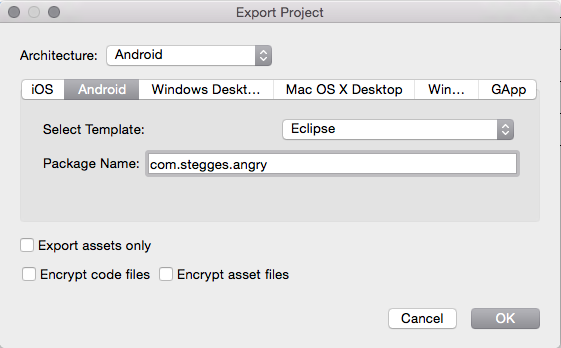
Click OK and select the folder where we export the project. Open Eclipse, RMB in Package Explorer -> Import -> Existing Android Code -> select the folder with our exported project -> Finish -> RMB on the project in Package Explorer -> Android Tools -> Export Signed App ... -> select our key for signature and select the folder for our apk. Done. I think I explained it intelligibly. I look forward to advice on the article and code. If there is a desire and mood, then I will do more lessons.
zip , Github )
Apkshnik project
And just in case, a player for Android
Installation
Everything is extremely simple, follow this link and download the necessary installer. In my case, Gideros 2015.08 is for OS X.
Now the standard procedure for dragging and dropping an application into Application.
Go to the application and open Gideros Studio:
Start screen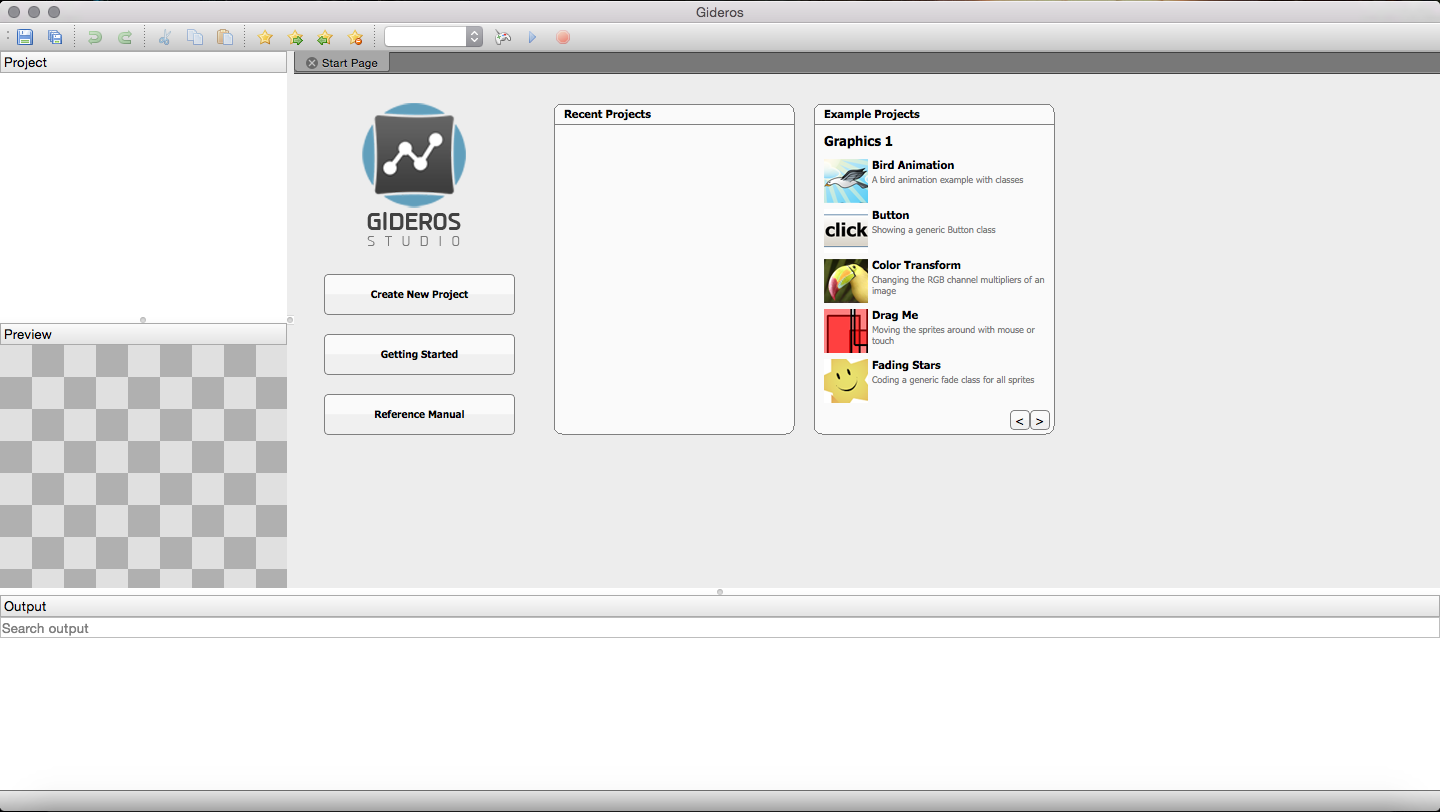
Make a simple game
We will start with the classics, write “Hello, world!” On the screen.
First, create a project:
1. Click “Create New Project”:
2. Enter the name of the project (in my case, “Hi”):
3. Create a file for our script:
Well, the promised “Hello, world!”:
The code
-- application:getDeviceHeight() - высота экрана
-- application:getDeviceWidth() - ширина экрана
-- textfield:getWidth() - ширина спрайта, т.е. текста
-- textfield:getHeight() - высота спрайта, т.е. текста
local half_height = application:getDeviceHeight() / 2
local half_width = application:getDeviceWidth() / 2
local textfield = TextField.new(nil, "Hello, world!")
textfield:setX(half_width - textfield:getWidth() / 2)
textfield:setY(half_height - textfield:getHeight() / 2)
stage:addChild(textfield)
Click on the joystick and Gideros Player starts up:
Screenshots
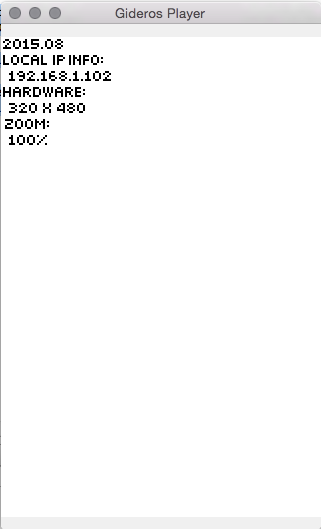
Now we click on the blue triangle and our script is launched in the player.
Screenshots

To stop the project, click on the red octagon. Now let's do something more serious. For example, the likeness of Angry Birds.
1. Preparation:
We need a SceneManager to switch between levels. We take it from here , we need the scenemanager.lua and easing.lua files . We load them into our project (for convenience, copy it to the project folder) using "Add Existing Files ...":
And select our scripts from the project folder.
Now we will prepare the images we need, follow the same procedure as with the scripts. We take them from here:
bg.png - yadi.sk/i/LLZpkzBliRDD9
buttons.png - yadi.sk/i/96GChQSAiRDCz
props.png - yadi.sk/i/JaM6n6ZqiRDD7
spritesheet.png - yadi.sk/i/n6siot
2. Just do it!
We create the main.lua script, which we use to run the level:
The code
application:setOrientation(application.LANDSCAPE_LEFT)
sceneManager = SceneManager.new({
	["level"] = level
})
stage:addChild(sceneManager)
--start level scene
sceneManager:changeScene("level", 1, SceneManager.flipWithFade, easing.outBack)
Now create our main script with the level level.lua:
The code
-- Add box2d physics library
require "box2d"
level = Core.class(Sprite)
function level:init()
	application:setOrientation(Application.LANDSCAPE_LEFT)
	local spritesheet = Texture.new("spritesheet.png")
	local props = Texture.new("props.png")
	local buttons = Texture.new("buttons.png")
	self.world = b2.World.new(0, 10, true)
	-- Globals for followed camera
	self.screenW = application:getContentWidth()*2
	self.screenH = application:getContentHeight()
	-- Add sprites
	self.catapult_l = Bitmap.new(TextureRegion.new(spritesheet, 834, 1, 43, 124))
	self.catapult_r = Bitmap.new(TextureRegion.new(spritesheet, 3, 1, 37, 199))
	self.bird_idle = Bitmap.new(TextureRegion.new(spritesheet, 903, 798, 46, 44))
	self.bg_image = Texture.new("bg.png", true, {wrap = Texture.REPEAT})
	self.square_prop = Bitmap.new(TextureRegion.new(props, 0, 1, 84, 84))
	self.triangle_prop = Bitmap.new(TextureRegion.new(props, 85, 1, 85, 83))
	self.restart = Bitmap.new(TextureRegion.new(buttons, 580, 295, 108, 108))
	-- Change scale of sprites
	self.bird_idle:setScale(0.6, 0.6, 0.6)
	setHalf({self.catapult_r,
		self.catapult_l,
		self.square_prop,
		self.triangle_prop,
		self.restart})
	-- Create background
	local bg = Bitmap.new(self.bg_image)
	bg:setPosition(0, 0);
	local bg1 = Bitmap.new(self.bg_image)
	bg1:setPosition(bg:getWidth(), 0);
	-- Add ground collision
	self:wall(application:getContentWidth(), application:getContentHeight() - 20, application:getContentWidth()*2, 40)
	-- Add props physics
	local square_body = self.world:createBody{type = b2.DYNAMIC_BODY}
	local square_shape = b2.PolygonShape.new()
	square_shape:set(0, 0,
		self.square_prop:getWidth(), 0,
		self.square_prop:getWidth(), self.square_prop:getHeight(),
		0, self.square_prop:getHeight())
	local square_fixture = square_body:createFixture{shape = square_shape, density = 1.0, friction = 0.1, restitution = 0.2}
	self.square_prop.body = square_body
	local triangle_body = self.world:createBody{type = b2.DYNAMIC_BODY}
	local triangle_shape = b2.PolygonShape.new()
	triangle_shape:set(self.triangle_prop:getWidth() / 2, 0,
		self.triangle_prop:getWidth(), self.triangle_prop:getHeight(),
		0, self.triangle_prop:getHeight())
	local triangle_fixture = triangle_body:createFixture{shape = triangle_shape, density = 1.0, friction = 0.1, restitution = 0.2}
	self.triangle_prop.body = triangle_body
	-- Place catapult
	self.catapult_r:setPosition(100, 178)
	self.catapult_l:setPosition(85, 174)
	-- Place bird
	self.bird_idle:setAnchorPoint(.5, .5)
	self.bird_idle:setPosition(100, 190)
	self.start_x, self.start_y = self.bird_idle:getPosition()
	-- Place props
	self.square_prop.body:setPosition(600, 200)
	self.triangle_prop.body:setPosition(600, 150)
	-- Place restart buttons
	self.restart:setAnchorPosition(0, 0)
	self.restart:setPosition(10, 10)
	self.restart:addEventListener(Event.MOUSE_DOWN, restartDown, self)
	self.restart:addEventListener(Event.MOUSE_UP, restartUp, self)
	-- Create elastic band for catapult
	local onBirdBandX = self.bird_idle:getX() - self.bird_idle:getWidth() / 2
	local onBirdBandY = self.bird_idle:getHeight() / 2
	self.band_l = Shape.new()
	self.band_l:setFillStyle(Shape.SOLID, 0x382E1C)
	self.band_l:beginPath(Shape.NON_ZERO)
	self.band_l:lineTo(onBirdBandX + 4, self.bird_idle:getY() - onBirdBandY + 5)
	self.band_l:lineTo(onBirdBandX + 4, self.bird_idle:getY() + onBirdBandY - 5)
	self.band_l:lineTo(87, 198)
	self.band_l:lineTo(85, 185)
	self.band_l:closePath()
	self.band_l:endPath()
	self.band_r = Shape.new()
	self.band_r:setFillStyle(Shape.SOLID, 0x382E1C)
	self.band_r:beginPath(Shape.NON_ZERO)
	self.band_r:lineTo(onBirdBandX + 4, self.bird_idle:getY() - onBirdBandY + 5)
	self.band_r:lineTo(onBirdBandX + 4, self.bird_idle:getY() + onBirdBandY - 5)
	self.band_r:lineTo(110, 198)
	self.band_r:lineTo(110, 187)
	self.band_r:closePath()
	self.band_r:endPath()
	-- Add drag events to bird
	self.bird_idle:addEventListener(Event.MOUSE_DOWN, onMouseDown, self)
	self.bird_idle:addEventListener(Event.MOUSE_MOVE, onMouseMove, self)
	self.bird_idle:addEventListener(Event.MOUSE_UP, onMouseUp, self)
	-- Add all elements to scene
	self:addChildAt(bg, 1)
	self:addChildAt(bg1, 2)
	self:addChildAt(self.catapult_r, 3)
	self:addChildAt(self.band_r, 4)
	self:addChildAt(self.bird_idle, 5)
	self:addChildAt(self.catapult_l, 6)
	self:addChildAt(self.band_l, 7)
	self:addChildAt(self.square_prop, 8)
	self:addChildAt(self.triangle_prop, 9)
	self:addChildAt(self.restart, 10)
	self:addEventListener(Event.ENTER_FRAME, self.onEnterFrame, self)
    self:addEventListener("exitBegin", self.onExitBegin, self)
end
function level:wall(x, y, width, height)
	local wall = Shape.new()
	wall:beginPath()
	wall:moveTo(-width/2,-height/2)
	wall:lineTo(width/2, -height/2)
	wall:lineTo(width/2, height/2)
	wall:lineTo(-width/2, height/2)
	wall:closePath()
	wall:endPath()
	wall:setPosition(x,y)
	local body = self.world:createBody{type = b2.STATIC_BODY}
	body:setPosition(wall:getX(), wall:getY())
	body:setAngle(wall:getRotation() * math.pi/180)
	local poly = b2.PolygonShape.new()
	poly:setAsBox(wall:getWidth()/2, wall:getHeight()/2)
	local fixture = body:createFixture{shape = poly, density = 1.0,
	friction = 1, restitution = 0}
	wall.body = body
	wall.body.type = "wall"
	stage:addChild(wall)
end
function setHalf(arr)
	for i = 1, #arr do
		arr[i]:setScale(.5, .5, .5)
	end
end
function onMouseDown(self, event)
	local bird = self.bird_idle
	if bird:hitTestPoint(event.x, event.y) and bird.isFly ~= true then
		bird.isFocus = true
		bird.x0, bird.y0 = event.x, event.y
		event:stopPropagation()
	end
end
function onMouseMove(self, event)
	-- if sprite touch and move finger, then change position of sprite
	local bird = self.bird_idle
	if bird.isFocus then
		if event.x > 20 and event.x < 140 then
			local dx = event.x - bird.x0
			bird:setX(bird:getX() + dx)
			bird.x0 = event.x
		end
		if event.y > 160 and event.y < 265 then
			local dy = event.y - bird.y0
			bird:setY(bird:getY() + dy)
			self.bird_idle.y0 = event.y
		end
		local onBirdBandX = self.bird_idle:getX() - self.bird_idle:getWidth() / 2
		local onBirdBandY = self.bird_idle:getHeight() / 2
		self.band_l:clear()
		self.band_l = Shape.new()
		self.band_l:setFillStyle(Shape.SOLID, 0x382E1C)
		self.band_l:beginPath(Shape.NON_ZERO)
		self.band_l:lineTo(onBirdBandX + 4, self.bird_idle:getY() - onBirdBandY + 5)
		self.band_l:lineTo(onBirdBandX + 4, self.bird_idle:getY() + onBirdBandY - 5)
		self.band_l:lineTo(87, 198)
		self.band_l:lineTo(85, 185)
		self.band_l:closePath()
		self.band_l:endPath()
		self:addChild(self.band_l)
		self.band_r:clear()
		self.band_r = Shape.new()
		self.band_r:setFillStyle(Shape.SOLID, 0x382E1C)
		self.band_r:beginPath(Shape.NON_ZERO)
		self.band_r:lineTo(onBirdBandX + 4, self.bird_idle:getY() - onBirdBandY + 5)
		self.band_r:lineTo(onBirdBandX + 4, self.bird_idle:getY() + onBirdBandY - 5)
		self.band_r:lineTo(110, 198)
		self.band_r:lineTo(110, 187)
		self.band_r:closePath()
		self.band_r:endPath()
		self:addChildAt(self.band_r, 4)
		event:stopPropagation()
	end
end
function onMouseUp(self, event)
	if self.bird_idle.isFocus and self.bird_idle.isFly ~= true then
		self.bird_idle.isFocus = false
		local bird_body = self.world:createBody{type = b2.DYNAMIC_BODY}
		local circle_shape = b2.CircleShape.new(0, 0, self.bird_idle:getWidth() / 2)
		local bird_fixture = bird_body:createFixture{shape = circle_shape, density = 1.0, friction = .5, restitution = 0}
		self.bird_idle.body = bird_body
		self.bird_idle.body:setPosition(self.bird_idle:getX() + self.bird_idle:getWidth() / 2, self.bird_idle:getY() + self.bird_idle:getHeight() / 2)
		self.bird_idle.body:applyForce((self.start_x - self.bird_idle:getX()) * 8, (self.start_y - self.bird_idle:getY()) * 8, self.bird_idle.body:getWorldCenter())
		self.bird_idle.isFly = true
		self.band_l:clear()
		self.band_r:clear()
		event:stopPropagation()
	end
end
function restartDown (self, event)
	if self.restart:hitTestPoint(event.x, event.y) then
		self.touch = true
		event:stopPropagation()
	end
end
function restartUp (self, event)
	if self.touch then
		sceneManager:changeScene("level", 1, SceneManager.flipWithFade, easing.outBack)
	end
end
function level:onEnterFrame()
	self.world:step(1/60, 8, 3)
	local screenW = application:getContentWidth()
	local screenH = application:getContentHeight()
	local offsetX = 0;
	local offsetY = 0;
	if((self.screenW - self.bird_idle:getX()) < screenW/2) then
		offsetX = -self.screenW + screenW
	elseif(self.bird_idle:getX() >= screenW/2) then
		offsetX = -(self.bird_idle:getX() - screenW/2)
	end
	self:setX(offsetX)
	if((self.screenH - self.bird_idle:getY()) < screenH/2) then
		offsetY = -self.screenH + screenH
	elseif(self.bird_idle:getY()>= screenH/2) then
		offsetY = -(self.bird_idle:getY() - screenH/2)
	end
	self:setY(offsetY)
	for i = 1, self:getNumChildren() do
		local sprite = self:getChildAt(i)
		if sprite.body then
			local body = sprite.body
			local bodyX, bodyY = body:getPosition()
			sprite:setPosition(bodyX, bodyY)
			sprite:setRotation(body:getAngle() * 180 / math.pi)
		end
	end
	-- Move intarface with camera
	self.restart:setX(-self:getX())
	if self.bird_idle:getX() < 0 or self.bird_idle:getX() > self.screenW then
		sceneManager:changeScene("level", 1, SceneManager.flipWithFade, easing.outBack)
	end
end
function level:onExitBegin()
    self:removeEventListener(Event.ENTER_FRAME, self.onEnterFrame, self)
end
That's it. Now I’ll tell you how to test directly on the device on the fly.
To do this, set on android smartphone folders Gideros apk file GiderosAndroidPlayer.apk and run. Now in Gideros Studio we select our device (the smartphone must be connected to the same Wi-Fi as the computer):
Here you can see that “stegges” is our computer, and “HTC One Mini 2” is our smartphone, select it . Well, now just press the start button in Gideros Studio and you can start playing.
We compile the project
Now let's compile our game to run on an android device. We go to the menu item “File” and select “Export project” (cmd + E), we see the following window.
Select "Android" from the drop-down list or bookmarks. We choose the environment for which the project will be exported, in our case Eclipse. Enter the name of the package.
Click OK and select the folder where we export the project. Open Eclipse, RMB in Package Explorer -> Import -> Existing Android Code -> select the folder with our exported project -> Finish -> RMB on the project in Package Explorer -> Android Tools -> Export Signed App ... -> select our key for signature and select the folder for our apk. Done. I think I explained it intelligibly. I look forward to advice on the article and code. If there is a desire and mood, then I will do more lessons.
zip , Github )
Apkshnik project
And just in case, a player for Android