Data storage on LTO-5 Ultrium cassettes with the LTFS file system
This article was written as a result of solving the problem of using the HP MSL8096 library to store data that is not in demand in the near future, but is important.
It turned out that the HP MSL8096 cassette library with 96 LTO-5 Ultrium cassettes was purchased (TotalCommander showed that each was 1,400,000,000,000 bytes) and Data Protector 7.0 from HP. For reasons unknown to me, the license key for Data Protector was lost and could not be found. There was a huge amount of tape library space that could be used to store archived data. Having rummaged around on Habré, I found an article “LTO Ultrium takes a terabyte barrier” , from which I received primary information about the LTFS file system. Next, experiments began, the result of which, in fact, I spread.
There is an LTFS file system for writing files to a cassette. A cassette mounted in the OS with this file system looks like a regular drive: you can work with it like a regular hard drive, only the access time to an arbitrary file is quite long and can be measured in tens of seconds. But the speed of sequential writing and reading of large files (video, images of hard disks from virtualizers) can reach 100 MB / s (the server’s disk system did not allow faster acceleration). A 4TB RAID array was assembled on the server and divided into sections corresponding to the size of the cassette (so as not to be annoying when only a few files need to be added from the folder and there is not enough space on the cassette). During archiving, the data was organized and recorded first on a partition, and then in a continuous stream to a cassette.
So. To connect the above library I needed: a server (IBM x3650 7979), a FiberChannel 4 Gbit controller (in my opinion it was Qualcomm), WindowsServer OS (in principle, no matter which one, I checked for 2003 and 2008R2).
1. Connect the tape library to the controller using an optical cable;
2. Install the drivers for the tape library (were on a disk with Data Protector or can be downloaded on the HP website);
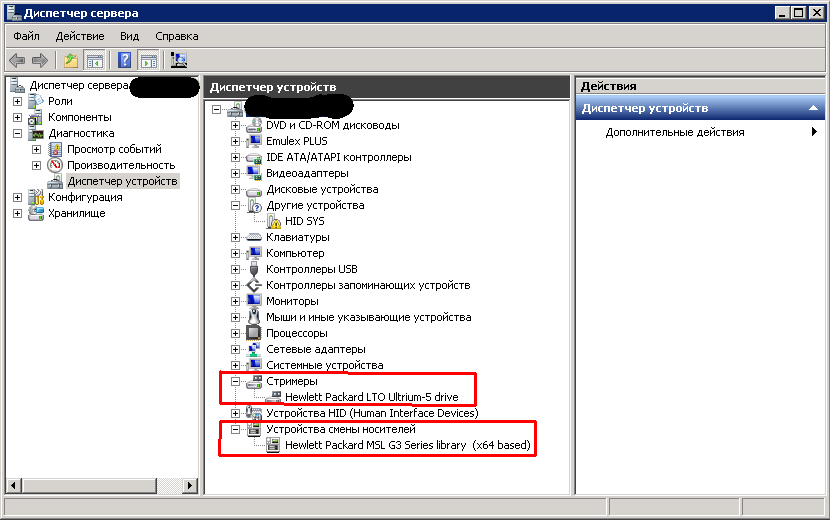
3. We look at "Management" and make sure that the library driver is installed. Of my two streamers, I saw only one.
4. Next, install LTFS Configuration (LTFS for Windows). When I investigated all this, I was able to download it only from the IBM website, after registering, now this software is also available on quantum.com (searched on Google for “lto5 ltfs”) and is available without registration.

1 - mounted cartridge
2 - select the tape drive (if there are several)
3 - select the drive letter under which the cartridge will be mounted
4 - the “Mount” button, after pressing it, a disk appears in the system representing the contents of the cartridge
5 - utilities for servicing the tapes (formatting check)
Using the library’s web interface, the robot loads the cartridge into the tape drive (Data Protector does everything by itself) and click “Create mapping” and wait (it takes up to several tens of seconds). If the cartridge is not formatted in LTFS, then the Configurator will offer to do this and specify the name and serial number of the cartridge.
After mounting, information on the mounted cartridge appears in the Existing mapping field, and the drop-down lists with the choice of device and drive letters become inactive.

After mounting, the cassette appears in the OS as a regular drive, on which you can write the necessary files using Explorer.
To unmount, you need to click the “Remove” button and wait (unmounting and stopping services may take more than one minute). It is necessary to wait, otherwise an unstoppable service will not allow you to mount another cartridge, or even lead to damage to information about the data on the cartridge, which is stored at the beginning of the cartridge in a special sector. The library robot simply refused to pull out the unmounted cartridge from the tape drive.
During operation, an error occurred on one of the cassettes and the cassette refused to be read. For such cases, a set of tools is provided, called by the “Cartridge utilities ...” button.

With this set you can format the cassette (which is convenient when a lot of small files are recorded on the cassette and you need to quickly clean it), check and fix it (this helped with the above error).
In addition to recording and reading from tapes, it was necessary to somehow remember which one was recorded on. I used Camel Disk Catalog , and I started cataloging directly from the cassette.
That was my experience in using the LTFS file system to move data to a long-term archive (I filled 13 tapes with archives).
It turned out that the HP MSL8096 cassette library with 96 LTO-5 Ultrium cassettes was purchased (TotalCommander showed that each was 1,400,000,000,000 bytes) and Data Protector 7.0 from HP. For reasons unknown to me, the license key for Data Protector was lost and could not be found. There was a huge amount of tape library space that could be used to store archived data. Having rummaged around on Habré, I found an article “LTO Ultrium takes a terabyte barrier” , from which I received primary information about the LTFS file system. Next, experiments began, the result of which, in fact, I spread.
There is an LTFS file system for writing files to a cassette. A cassette mounted in the OS with this file system looks like a regular drive: you can work with it like a regular hard drive, only the access time to an arbitrary file is quite long and can be measured in tens of seconds. But the speed of sequential writing and reading of large files (video, images of hard disks from virtualizers) can reach 100 MB / s (the server’s disk system did not allow faster acceleration). A 4TB RAID array was assembled on the server and divided into sections corresponding to the size of the cassette (so as not to be annoying when only a few files need to be added from the folder and there is not enough space on the cassette). During archiving, the data was organized and recorded first on a partition, and then in a continuous stream to a cassette.
So. To connect the above library I needed: a server (IBM x3650 7979), a FiberChannel 4 Gbit controller (in my opinion it was Qualcomm), WindowsServer OS (in principle, no matter which one, I checked for 2003 and 2008R2).
1. Connect the tape library to the controller using an optical cable;
2. Install the drivers for the tape library (were on a disk with Data Protector or can be downloaded on the HP website);
3. We look at "Management" and make sure that the library driver is installed. Of my two streamers, I saw only one.
4. Next, install LTFS Configuration (LTFS for Windows). When I investigated all this, I was able to download it only from the IBM website, after registering, now this software is also available on quantum.com (searched on Google for “lto5 ltfs”) and is available without registration.
1 - mounted cartridge
2 - select the tape drive (if there are several)
3 - select the drive letter under which the cartridge will be mounted
4 - the “Mount” button, after pressing it, a disk appears in the system representing the contents of the cartridge
5 - utilities for servicing the tapes (formatting check)
Using the library’s web interface, the robot loads the cartridge into the tape drive (Data Protector does everything by itself) and click “Create mapping” and wait (it takes up to several tens of seconds). If the cartridge is not formatted in LTFS, then the Configurator will offer to do this and specify the name and serial number of the cartridge.
After mounting, information on the mounted cartridge appears in the Existing mapping field, and the drop-down lists with the choice of device and drive letters become inactive.
After mounting, the cassette appears in the OS as a regular drive, on which you can write the necessary files using Explorer.
To unmount, you need to click the “Remove” button and wait (unmounting and stopping services may take more than one minute). It is necessary to wait, otherwise an unstoppable service will not allow you to mount another cartridge, or even lead to damage to information about the data on the cartridge, which is stored at the beginning of the cartridge in a special sector. The library robot simply refused to pull out the unmounted cartridge from the tape drive.
During operation, an error occurred on one of the cassettes and the cassette refused to be read. For such cases, a set of tools is provided, called by the “Cartridge utilities ...” button.
With this set you can format the cassette (which is convenient when a lot of small files are recorded on the cassette and you need to quickly clean it), check and fix it (this helped with the above error).
In addition to recording and reading from tapes, it was necessary to somehow remember which one was recorded on. I used Camel Disk Catalog , and I started cataloging directly from the cassette.
That was my experience in using the LTFS file system to move data to a long-term archive (I filled 13 tapes with archives).