
 April 23, 2015 at 06:35
Wireframesketcher features overview by creating a site layout
- Tutorial
 Wireframesketcher - designed for prototyping graphical interfaces .
 It can create interactive prototypes of websites and applications for both desktop computers and smartphones, as well as other mobile devices.
The authors position Wireframesketcher as a tool for professionals and they have every reason for it. The application is developed based on the Eclipse IDE or can be installed as a plug-in for Eclipse, and this provides cross-platform application (Linux / Mac / Windows) and makes it possible to use a large arsenal of tools developed for this IDE, including support for various version control systems and others plugins. As for version control, it is easy to implement, since XML text files are used to store project data. Also for Wireframesketcher there is a fairly extensive library of layouts, templates, widgets and icons.
In this article, I want to show an example of creating a prototype of a simple website in Wireframesketcher. In this case, the prototype will be understood as a combination of several linked interactive so-called wireframes for website pages (wireframes). In the future, for simplicity, I will use the "original" name "wireframe" abbreviated to "frame" in this context.
I chose Wireframesketcher since I use Linux to work and, in fact, I could not find anything better for this system, and sensible analogues are only for Mac and Windows.
Suppose you want to create a prototype site for a certain abstract company.
Naturally, I will not describe the creation of all possible pages of such a site, but I will only show a few pages to demonstrate the capabilities of Wireframesketcher.
So let's get started. If you already have some Eclipse installed (for example, PDT , then you can install Wireframesketcher as a plugin for your version of the IDE. If you do not have Eclipse installed, then you can download and install Wireframesketcher as a separate application for your operating system. I installed how the plugin, respectively, I will describe all further actions for this option, I think that for the application there will be practically no differences.
For those who are not familiar with Eclipse, I will give screenshots of the menu of this IDE, if there is no main menu in such a picture, this means that the context menu is shown, which is received by a “right” click on the item under it.
Create a new Wireframe Project, select Empty Project as the template and call it print_shop (you can choose any other name).

Next, create a screen (hereinafter screen) for the home page and call it home.
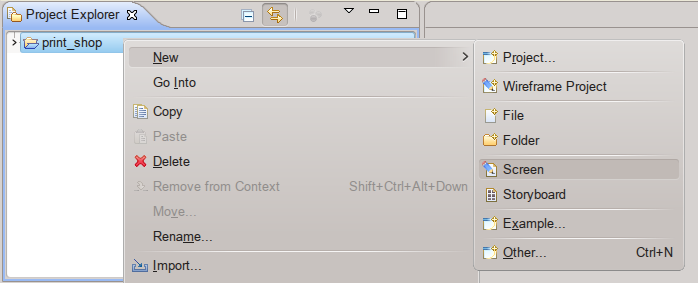
Screen in terms of Wireframesketcher is essentially a virtual screen on which we will create the page frame itself, respectively, for each page we need at least one screen, and sometimes several, to display the different state of the page in the process of interacting with the user.
At this stage, you can already create the project repository in any version control system that is convenient for you.
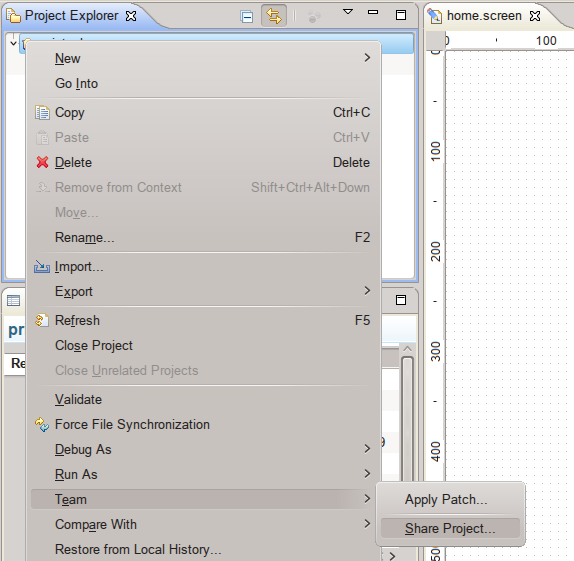
It is most convenient to do this using the plug-in that must be installed before , I use EGit , but you can choose any other.
Let's make the first commit

so that when you select a file in Project Explorer, the corresponding screen editing tab opens - I recommend that you click the Link with Editor icon. I also recommend turning on the display of the grid and the binding of objects to it, for this, click on “Default theme preferences” and select the appropriate settings.

And the last thing you can do is select the “Clean” display mode, then the lines of objects on the screen will be flat. I like this option more than imitation of a sketch by hand.

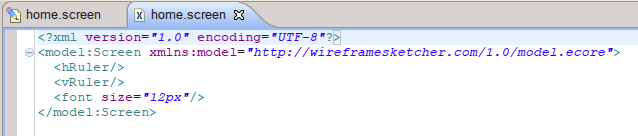
In the XML editor,
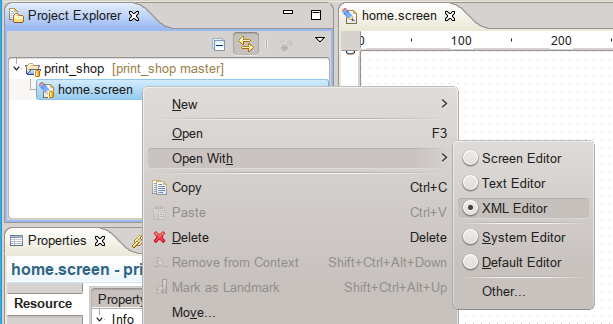
you can see the contents of the home.screen screen.
Let's create a frame for the home page. Look at the screenshot again , on the right is the Palette panel with a library of available objects. If desired, objects of other developers can be added to this library.or yours. “Pull” the Title object from the Text folder and the Browser object from the Containers folder onto the home page screen and set the parameters for its display. Because When I create frame layouts of the site’s pages, I’m only doing this to show what information and controls will be on the page and their approximate position, then at this stage I’m not very worried about the exact size and position of the objects, only their relative position and alignment, but you can choose your own strategy in this matter. To export the result to PDF format, I recommend choosing the sizes for Browser 800x600px and an indent somewhere of 12.48 px like here.

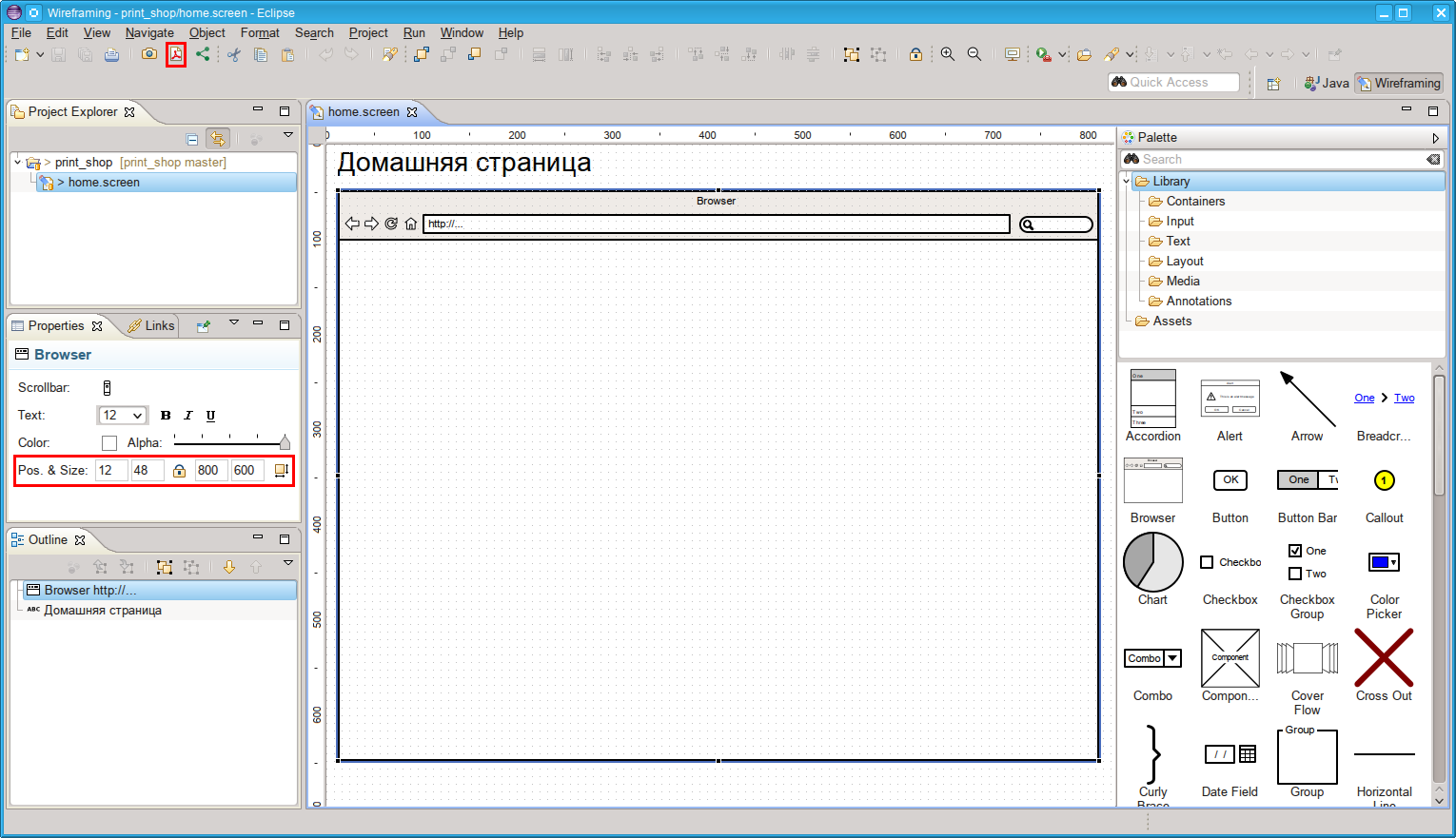
So you will have space on A4 format for placing headings and explanations in the fields if necessary.
Until you buy Wireframesketcher, when exporting to PDF, the text Trial Version will be displayed.
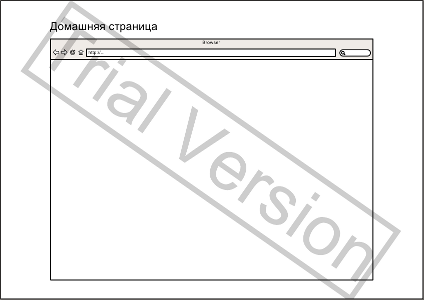
Now we will add typical objects from the Palette panel to the Browser of the home page: logo, company name, main page photo, text, navigation menu and news feed. Please note that all this is done solely for the purpose of familiarization, without any claim to design and a real practical need.
The logo can be made from Library / Layout / Shape.
Company name - Library / Text / Title.
Menu - Library / Text / Link Bar, immediately reduce the standard number of menu items: Home, Blog, Forum, About to three: Blog, Contacts, Subscription.
Because we will not put the real image on the page (although there is such an opportunity - you can insert any real image), we will use the Library / Layout / Placeholder for it with the corresponding explanation: “photo of the home page”.
Text - Library / Text / Lorem Ipsum, because at the moment there is no way to set the flow around the picture - we will simulate this using two text blocks and group them for reliability using either the toolbar icon, the object menu, or the context menu.
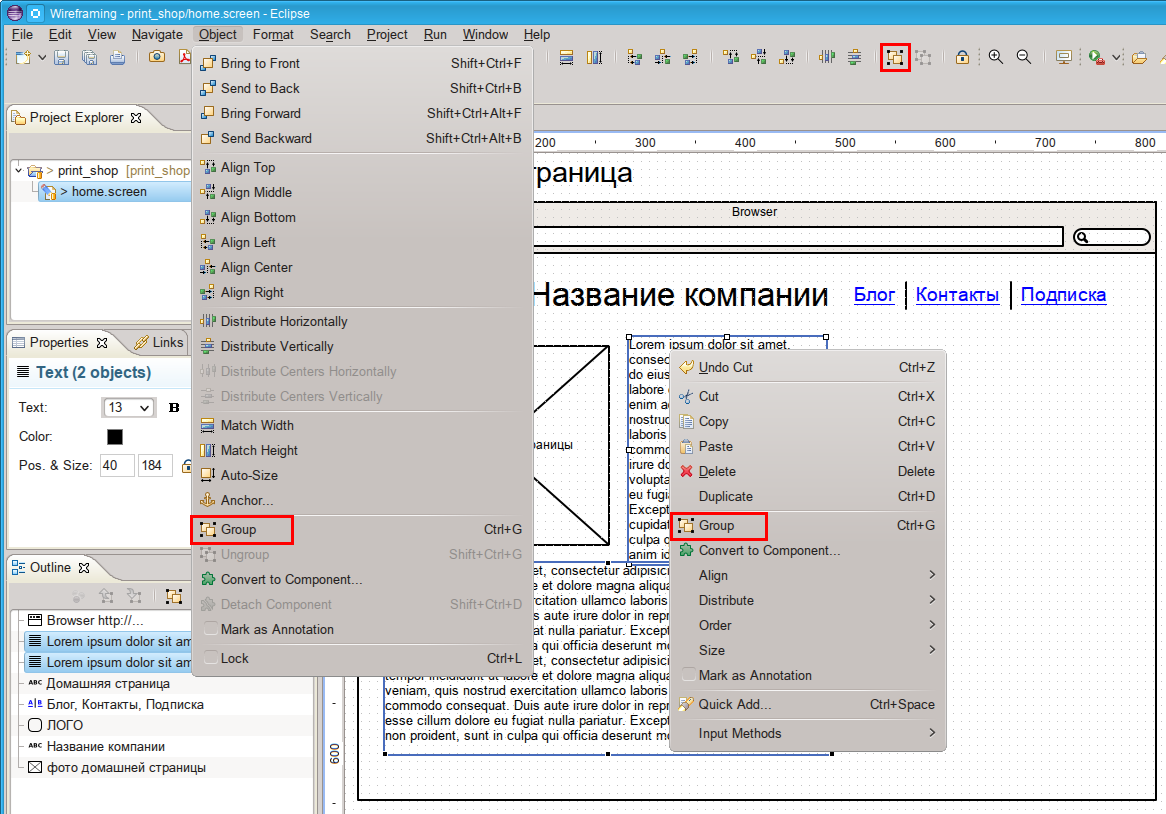
To work with objects in a group, double-click it, then the rest objects on the screen brighten and you can work with the selected group, for example, change its name or select any object of the group for editing

To return to editing the screen, double-click outside the group.
Separate the feed with a vertical line and create a news announcement.
I think you can already figure out for yourself how to do it. Those who do not like to work with the snap to the grid can use the snap to guides to facilitate the positioning of objects. To create a guide, double-click on the corresponding ruler at the edge of the screen editing area. After you group the objects of the news announcement, your screen will look something like this,

I specially removed the grid and added (for demonstration) guides to this screen.
For the final filling of the home page, it remains only to duplicate the announcement of the news several times. Of course, this can be done with the usual copy + paste, but it’s much more convenient to just drag the duplicated object to the right place while holding the [Ctrl] key, at this moment the + sign appears next to the arrow, which means that you are “pulling” a copy of the object. Suppose that you turned off snapping to both the grid and the guides and you got something similar to
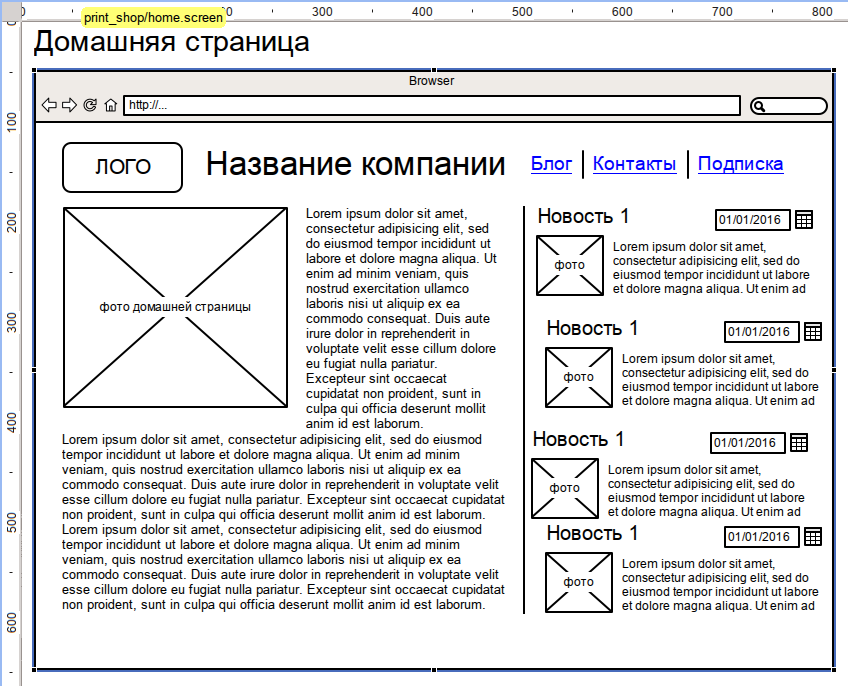
Now, to align the objects of the announcements to the left and evenly distribute them vertically, you can use the corresponding tools from the toolbar, for this you need to first select all the aligned objects in the right order
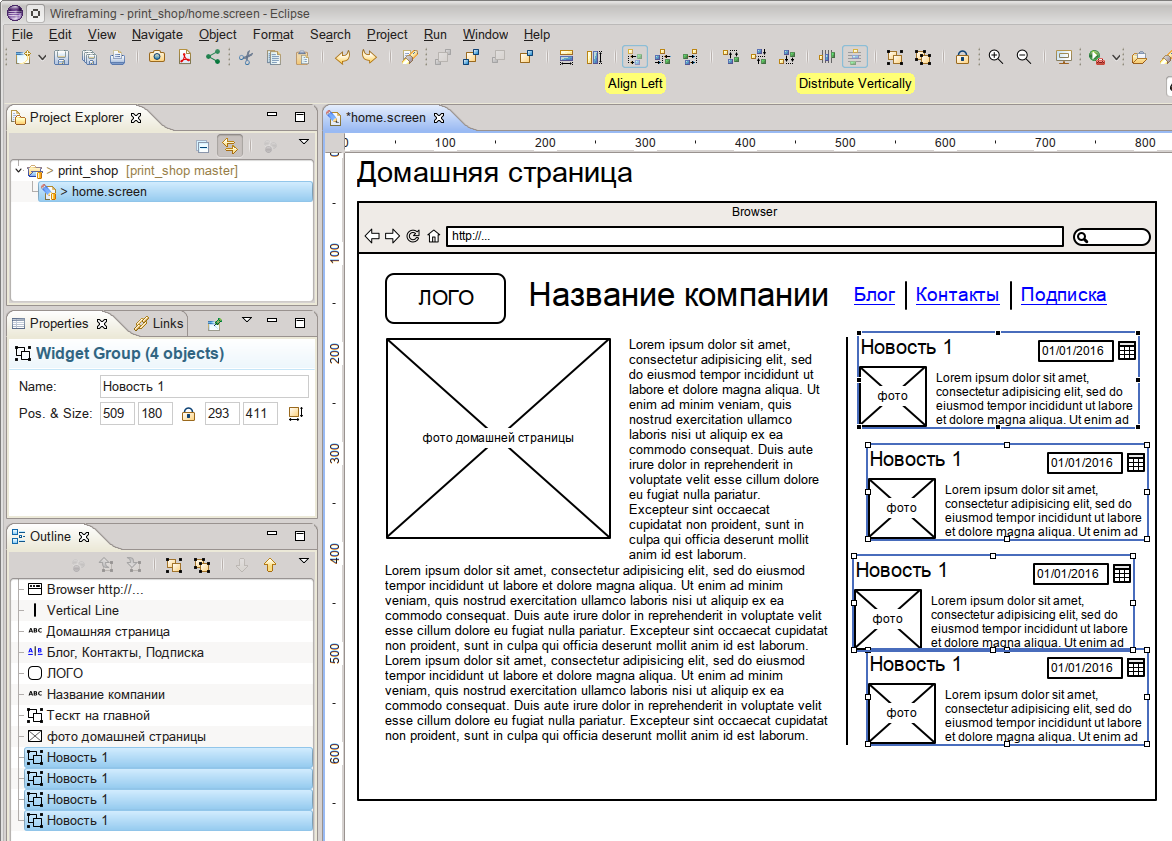
. Finally you should get a home page similar to this
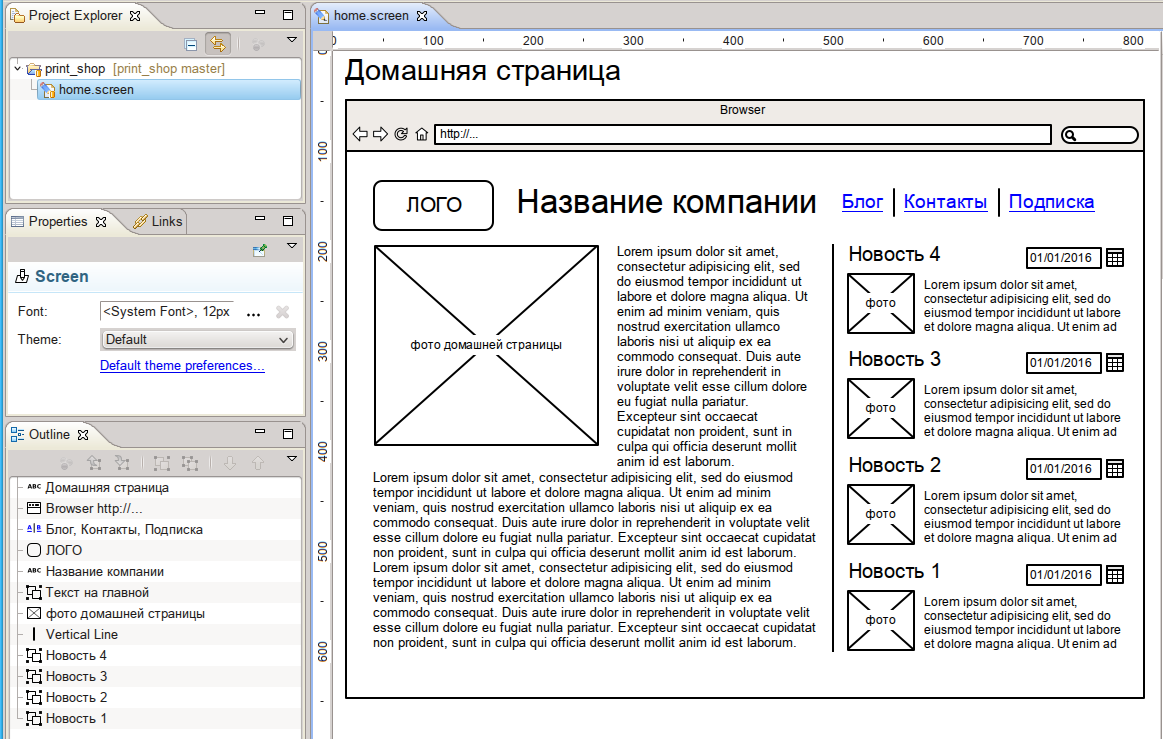
In order to show how the pages “link”, create a subscription page.
To do this, we clone the home page screen.
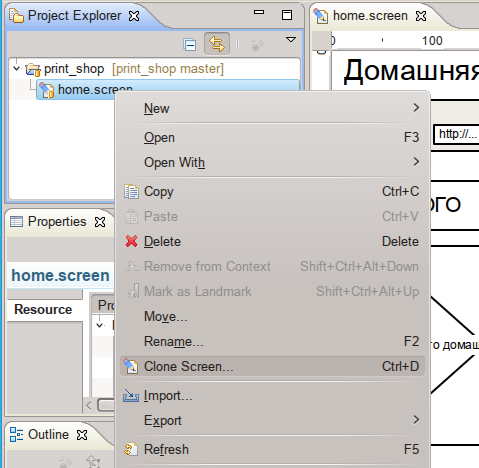
In fact, cloning is an analogue of + paste in just one action.
Rename the new screen to subscription.
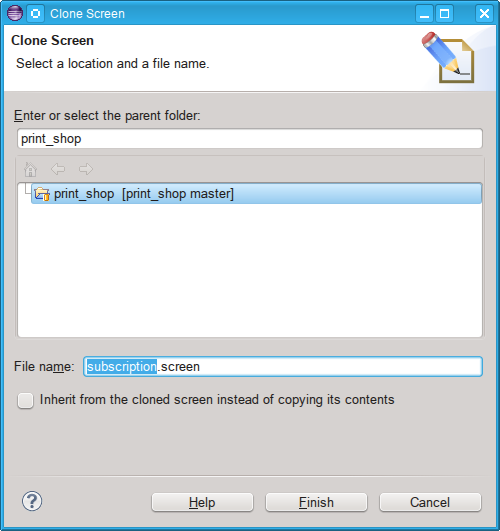
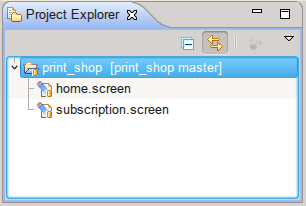
And don’t forget to make commits on time, the version control plugin with the help of decorating icons shows the current state of the files in the Project Explorer window, for example, before

and after the commit
On the subscription screen, delete all unnecessary objects except the logo, company name and menu - these objects make up the page title and will be repeated on each page of the site. Rename the general screen title to “Subscription Page”. Now that we already have two pages, it would be logical to add a link to the home page in the logo, and a link to the subscription page in the menu under “subscription”. But let's not rush, because if we start doing it right now, then in the future on each screen we will have to repeat such actions. Moreover, if we decide to change these links or for example the name of the company, then we will also have to do this on every screen. To simplify the work with repeating objects in Wireframesketcher, it is possible to create so-called component, and already place it on the pages. When changing a component file and saving it,
To create a title component, select the logo, name and menu, then use the context menu Convert to Component to

name this component page_header
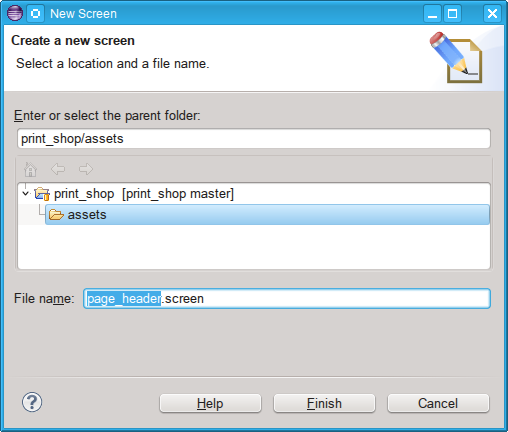
By default, all components are added to the assets project folder and become available in the Library / Assets folder of the Palette panel. Now that we have a new page_header component, we
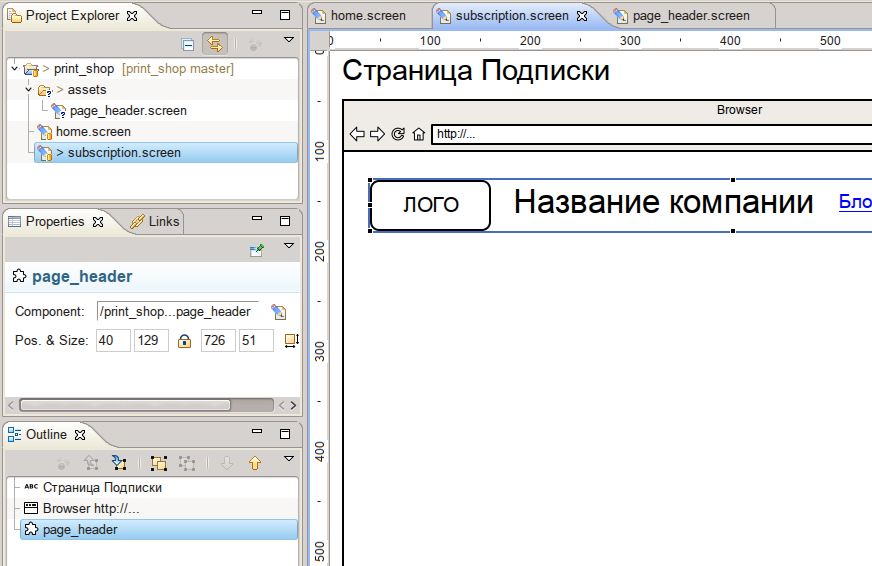
need to remove the logo objects, the name and the menu on the home screen and drag out the page_header component from the Library / Assets folder of the Palette panel.
If you "pull" it directly from the project assets folder, then such a component on the screen will not display correctly.
The component can be edited directly on the screen where it is located. To do this, just as for editing a group, double-click on the component. But at the same time, the original properties of the component overlap and the next time they change in the component, they will not be updated on this screen.
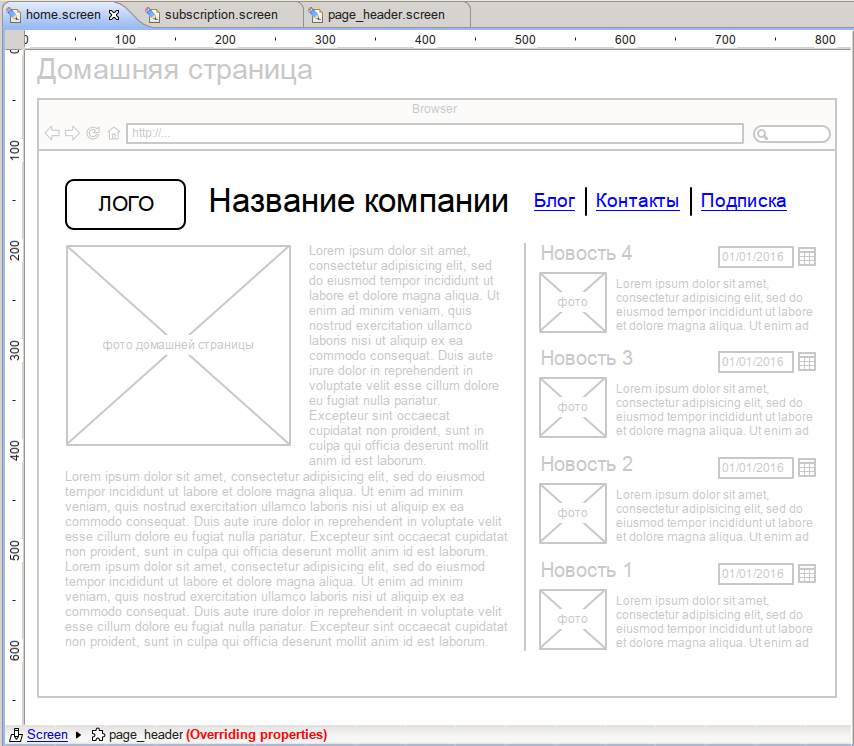
Now let's add a link to the home page screen in the logo on the component screen, select the logo for this and select home.screen in the Links panel
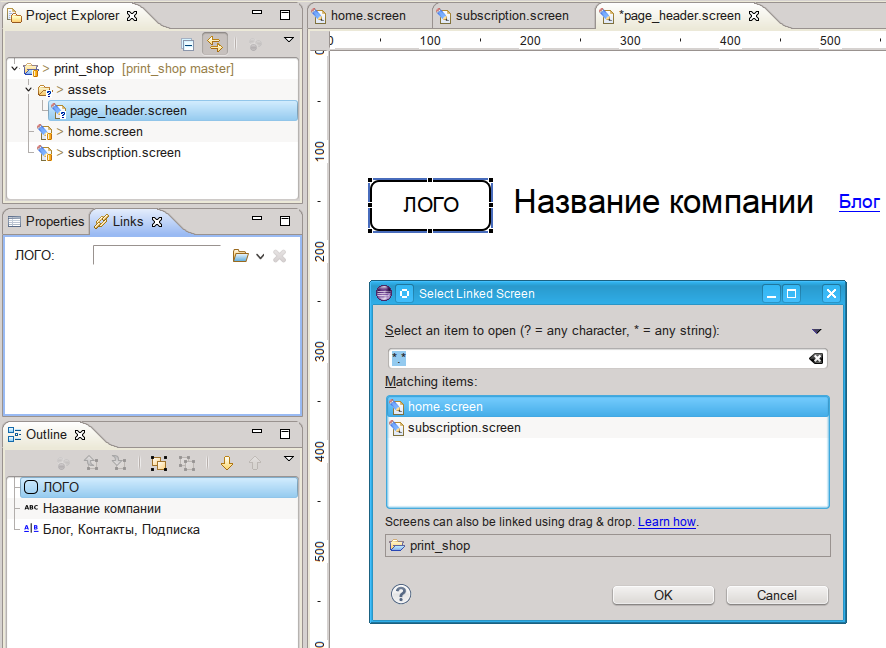
Next let's change the first menu item from “Blog” to “News” and for the “Subscription” item, set the link to the subscription screen

and then save the page_header component screen and check the changes on the home and subscription screens, we see that the corresponding yellow objects have appeared link icons.
If we switch to the Presentation viewing mode by pressing [F5] or selecting the main menu item,
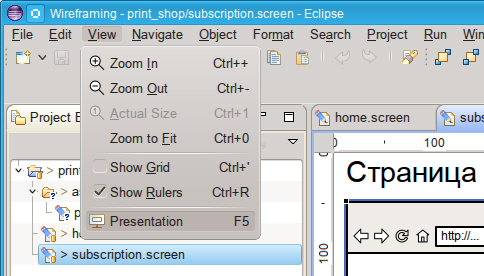
then when we click on these elements, we will go to the corresponding screen.
You can exit Presentation mode by pressing [Esc].
Now, on the subscription screen, you can add elements of the email address entry form for subscribing to the company newsletter. In addition, you need to create two more screens: subscription_success and subscription_fail - the first to display a page with a message about a successful subscription, the second with an error message when entering an invalid email.
To go to the screen with the subscription_fail error next to the “subscribe” button, I usually add a note with the corresponding text from the Library / Аnnotation / Note and indicate the link for this note to subscription_fail.screen. To make notes visible when viewing Presentation mode, you must turn off the Hide Annotation checkbox or press the [A] key.

Now let's move on to the main thing for which everything was started - to create a multi-page PDF presentation with linked pages. To do this, create the so-called. Storyboard storyboard by selecting the appropriate item in the main menu.
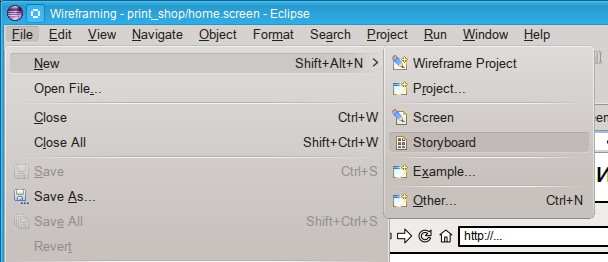
We also call it print_shop as the project.
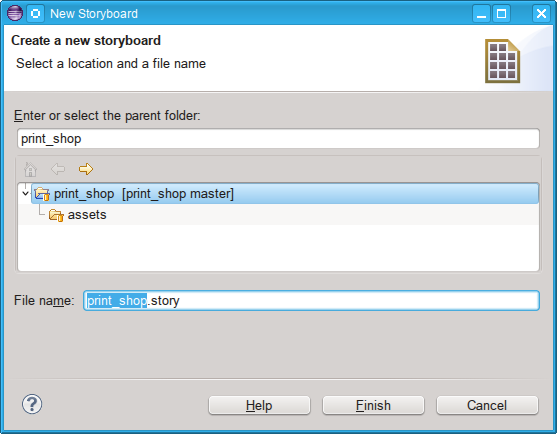
Then, by clicking on the green button “Add Screen”, we select all our screens
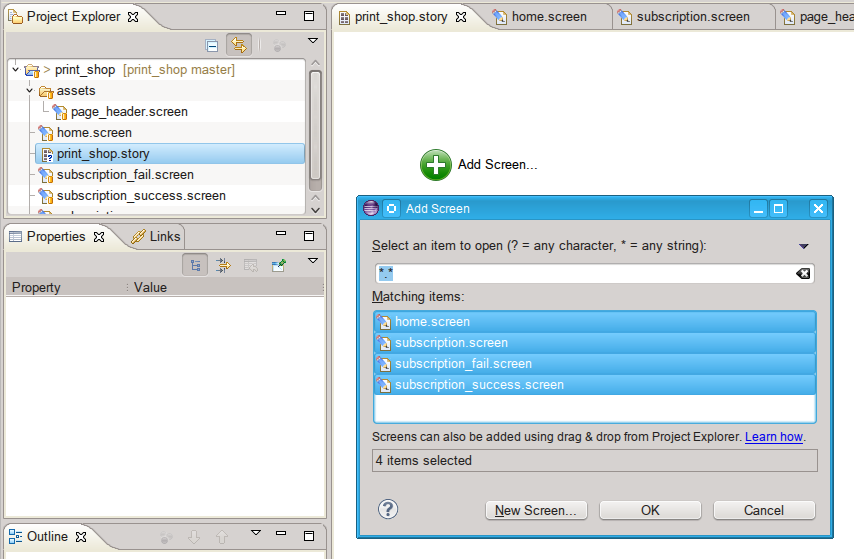
and get the finished Storyboard
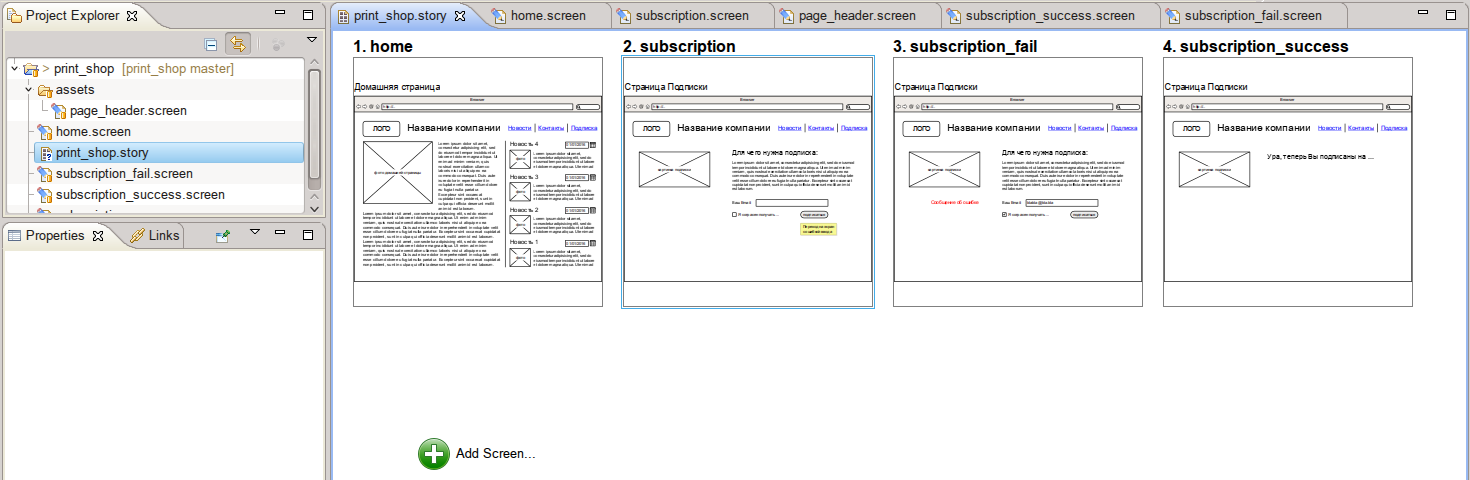
If you wish, you can play around with the layout of the screens in Screenflow,
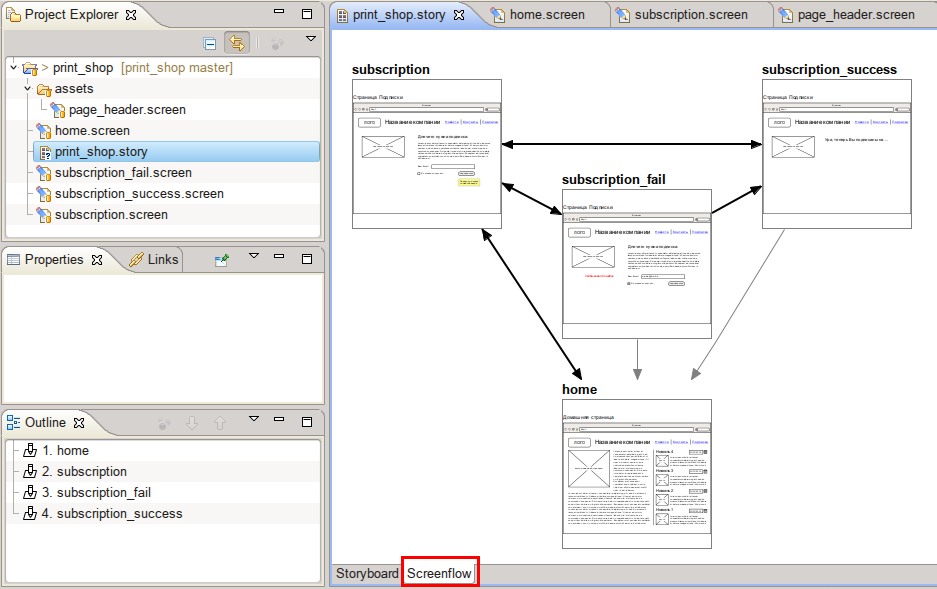
but for me personally it has no practical value, because I’m not going to export this diagram to PDF, especially since if there are several tens of screens in the presentation, this diagram will have a “mess” of arrows, as you don’t move them.
It remains to click on the export icon to PDF and select the export settings, I do as in this screenshot

If you have notes with alternative transition links, be sure to uncheck “Hide Annotation” otherwise these notes will not be visible in the final PDF. Click the “Export” button - voila - our PDF file is ready! Our prototype can be presented to the customer.
You can see the result here. Because PDF viewer Google disk “does not understand” links between pages - I recommend downloading the file and viewing it locally with links already.
To summarize briefly. There are other ways to create “wire” layouts in Linux, for example, Inkscape or LibreOffice Draw can do this even better, but Inkscape is not able to create multi-page files out of the box, and in LibreOffice Draw I have not yet been able to arrange links between pages of one document. Wireframesketcher does both of these + has a large library of ready-made objects + works with plugins of version control systems.
Wireframesketcher has many other useful features, for example, the finished result can be uploaded directly from the application to the network, etc. But I will tell about these opportunities in the following publications on this subject, unless of course it will be interesting to the audience of the habr.