November 8, 2014 at 15:15
Brackets for Doubters and Beginners
- Tutorial
SD: LF
Without plugins, Brackets is no better than other editors, but you should at least try it with them.
Introduction
Not so long ago, many articles were published on Habré in one way or another about the Brackets editor . Many people immediately had quite fair questions:
- Why is it better than I used% EDITOR_NAME%?
- Are there many plugins for it?
- Is it worth it to contact or is it better to use some well-known IDE or text editor?
I hope that after reading this article everyone will be able to find answers to these questions for themselves.
Functionality “out of the box”
Although Brackets is positioned as a text editor, in fact it more and more resembles a full-fledged IDE. Nevertheless, it should be said about what we get with the basic installation of this editor:
- Live Preview plugin - works only with Google Chrome. We make any changes to the code in the editor - changes are automatically displayed in the browser window
- syntax highlighting
- hints for editing CSS, JS and HTML files
- clumsy display of cyrillic text. They promise to fix it in one of the following releases. There are several workarounds now, more on that below.
It is a huge number of plugins that allows you to turn this text editor into a powerful processor for WEB development. Next will be a listing with a description of the features. I will not describe all the additions available in the catalog, I will focus only on the most, in my opinion, useful and interesting.
Brackets out of the box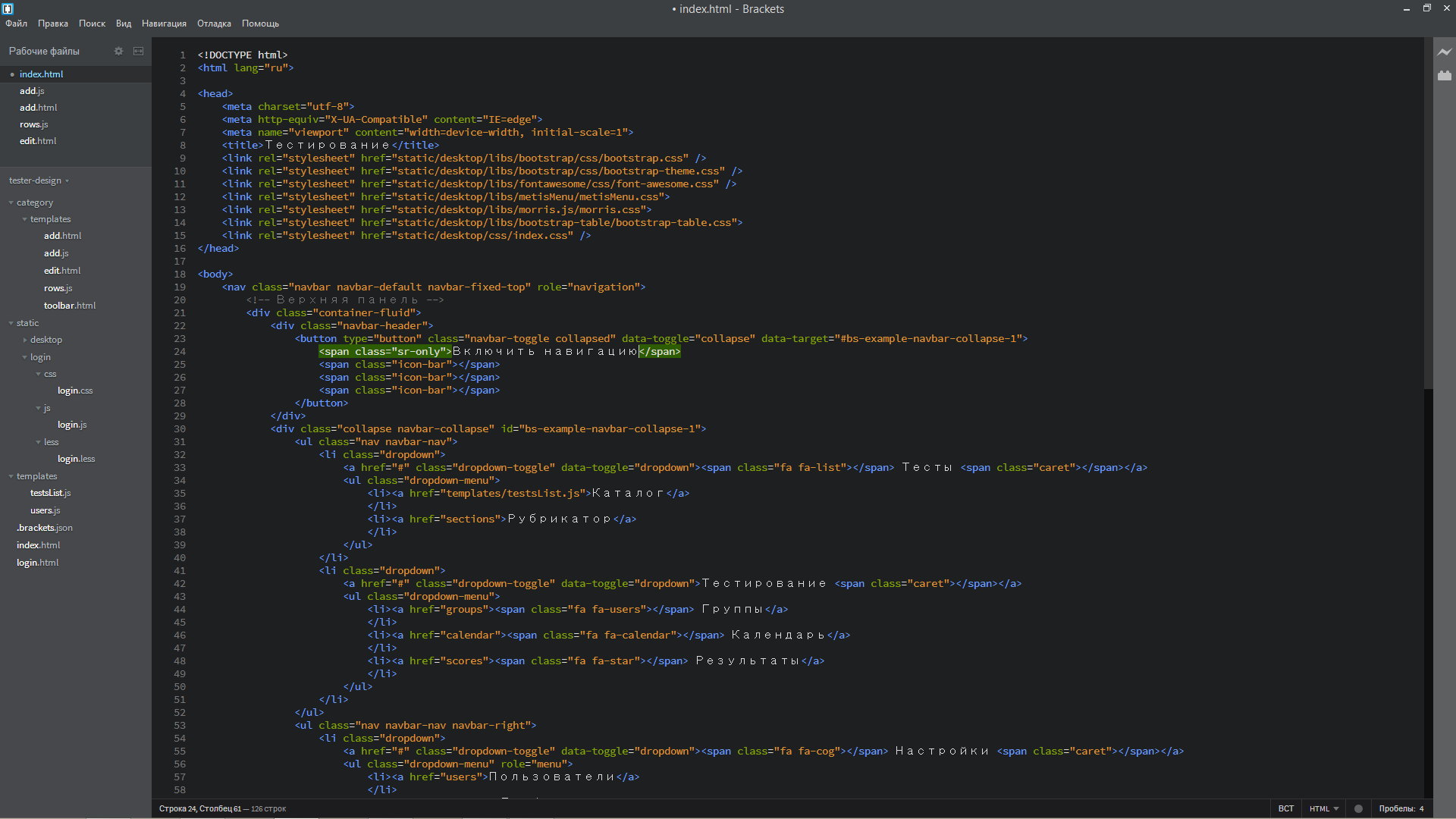
General purpose
Extensions Rating
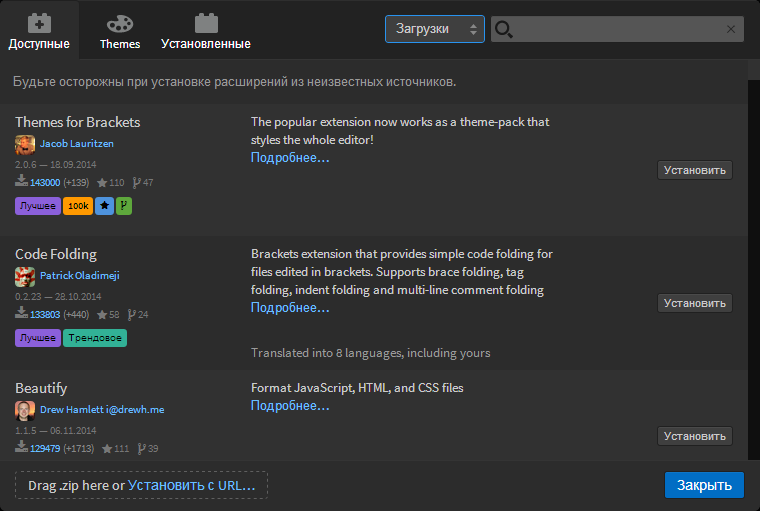
Beginners are advised to put this add-on the very first. It allows you to organize other add-ons in the catalog according to various criteria, also displays various additional information: the number of downloads, stars and forks on GitHub, which allows you to at least roughly evaluate the usefulness of this extension.
Before and after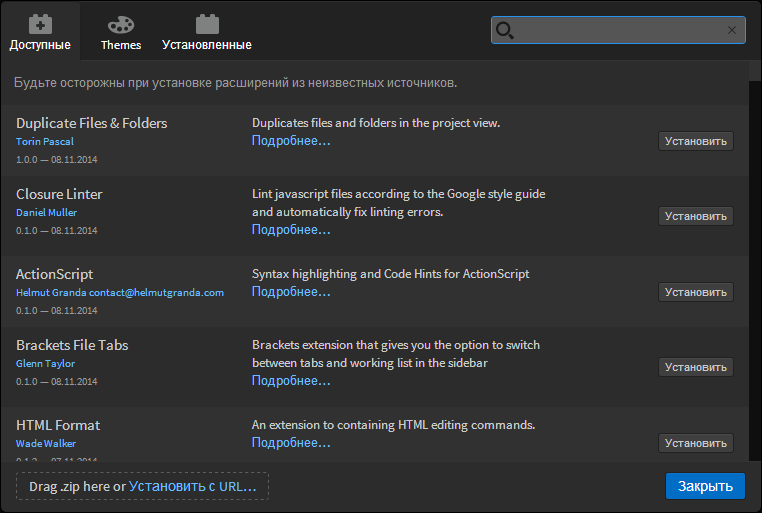
Brackets git
Everything is very clear from the name. A very useful extension for working with the well-known version control system.
Git at Brackets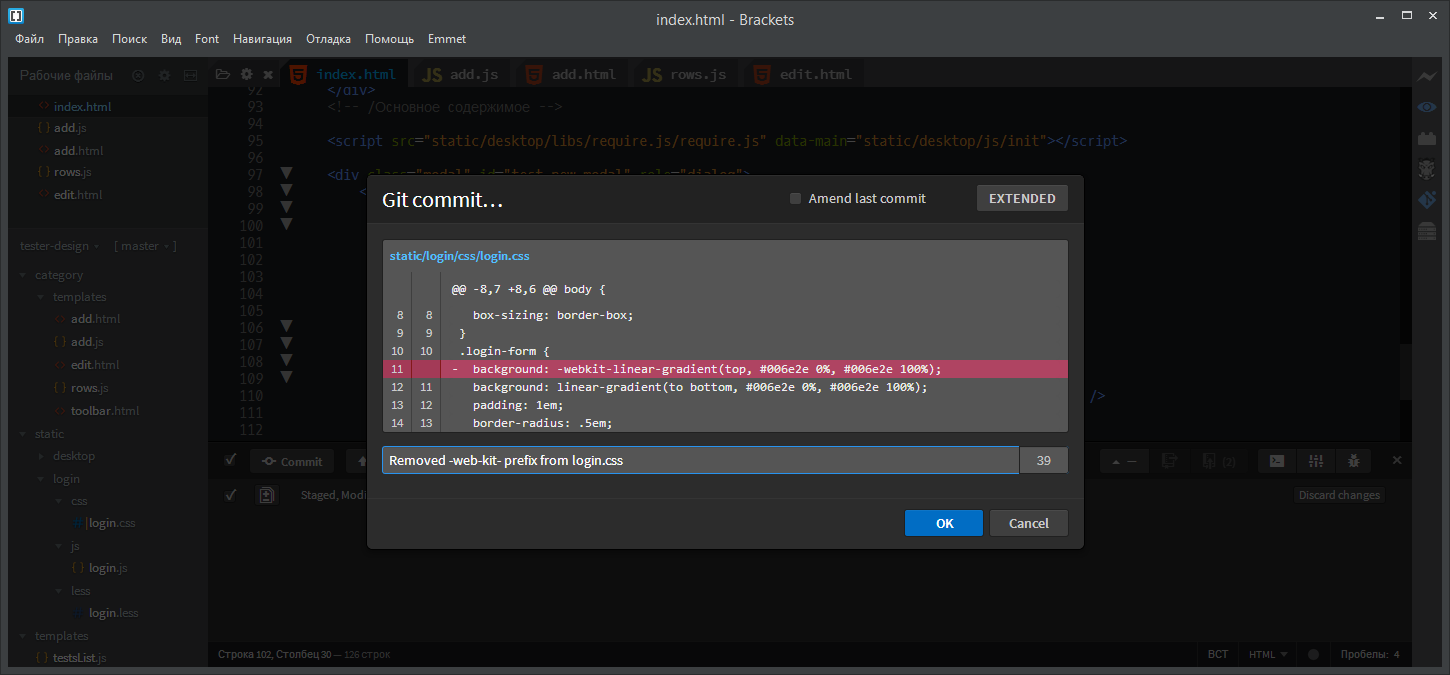
Code folding
Without this plugin in Brackets there is no such necessary functionality as folding code blocks. After setting to the left, next to line numbers, triangles will appear that allow you to collapse those fragments that are not needed now.
Code folding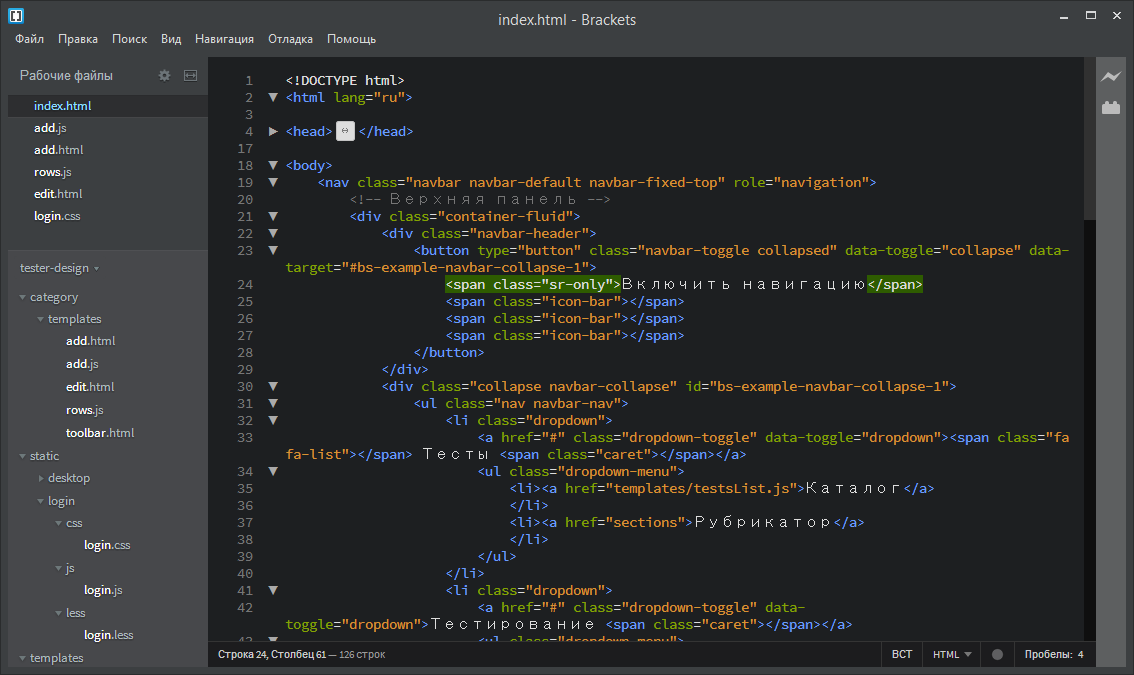
Emmet
Needs no introduction, but for beginners it will be interesting to learn about it. This plugin allows you to significantly speed up text input when editing LESS, CSS and HTML.
For example, we introduce the following construction:
button.btn.btn-primary{Кнопка}
After pressing the Tab key, it will be expanded into the following:
Move on:
div.btn-toolbar>(button.btn.btn-default{Кнопка})*3
by clicking will expand
I will not do further spoilers, it is better to read the reviews already available on Habré:
Goodbye, Zen Coding. Hi Emmet!
Emmet v1.0 has been released. I
also recommend the official instructions (in English).
Codeoverview
It includes a small panel on the right side of the editor window, where all the code is displayed “bird's-eye view”. You can quickly go to any interesting site.
In addition to the CodeOverview plugin, there is also a BluePrint in beta. Which is better - decide for yourself.
Code Review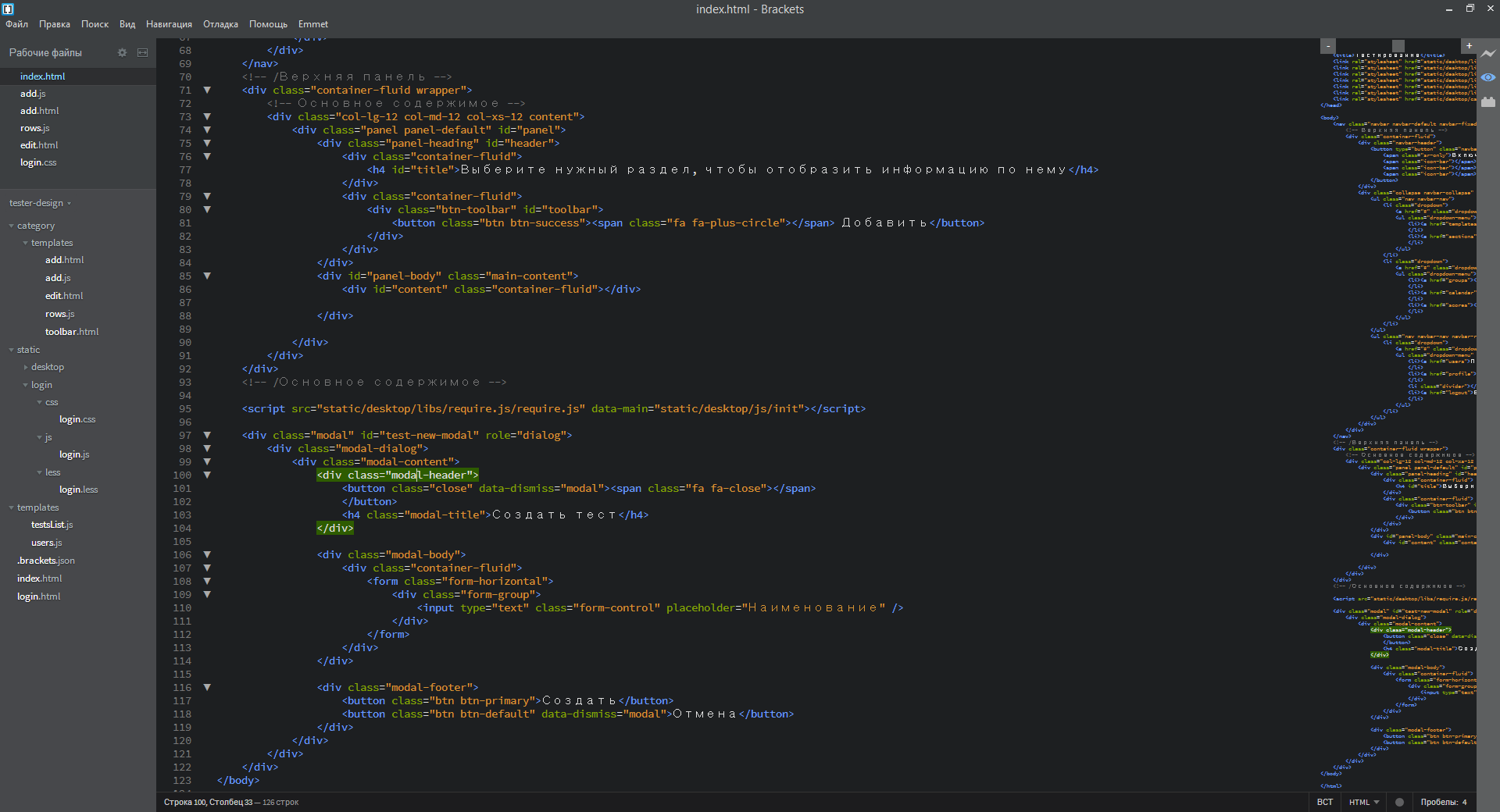
Documents toolbar
For those who are used to the tabbed interface and do not want to wean from it (instead, Brackets offers a list of open files above the tree).
Brackets fonts
Allows you to select from the list the font that will display the text in the editor. Pay attention to how Cyrillic characters began to be displayed. In addition, there are several more plugins with the same functionality. It is possible to open the menu item View / Themes, where you can manually specify which fonts should be used.
Fonts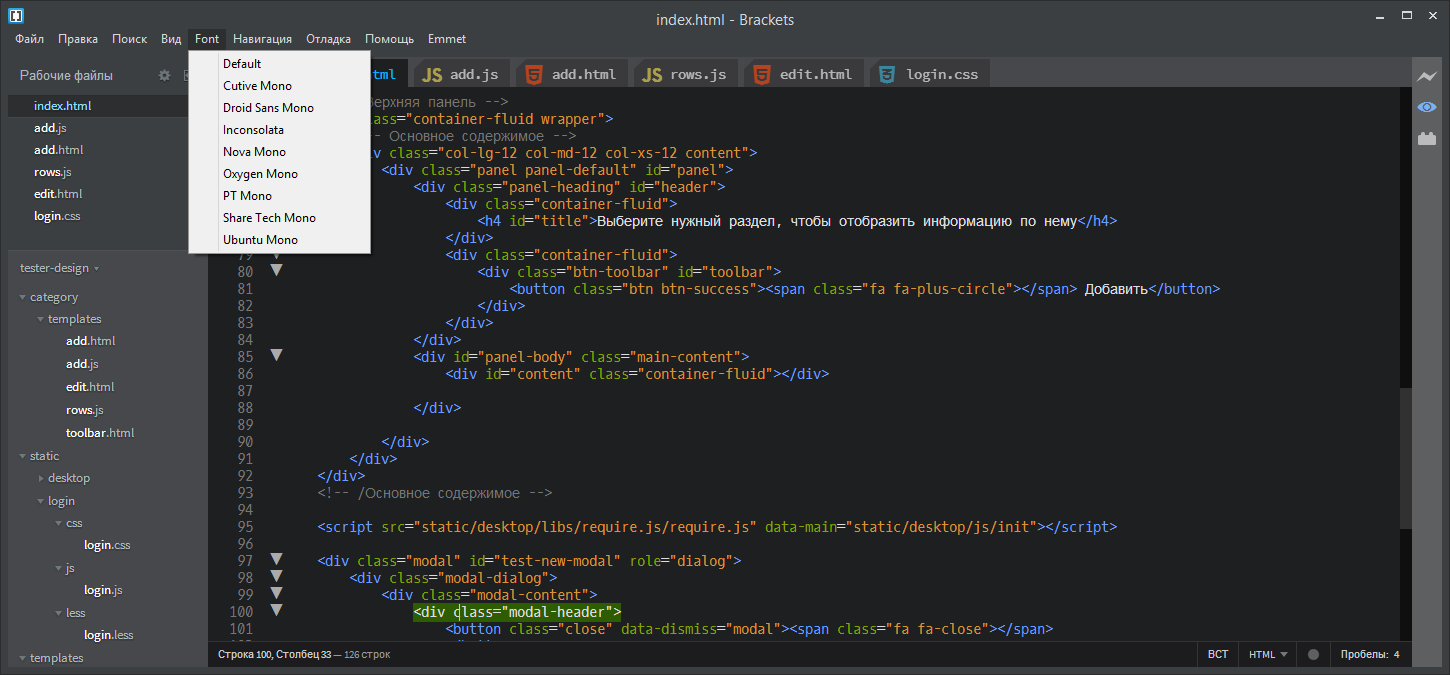
Http Server for Brackets
Starts a local HTTP server to debug your project. What is the difference from the built-in live preview?
- This is not a LivePreview, i.e. the page needs to be updated manually.
- You can access this server from any browser installed on the system. Developers for IE and Firefox rejoice.
Also in the extensions directory there is a Static Preview plugin, similar to LivePreview, but allowing you to do “live” editing in other browsers, but at the moment (November 8, 2014) it is “hanging” Brackets. To be more precise, it prevents the editor from completing his work normally - saving settings and a list of open files. Perhaps this error will be fixed soon, but the existing problems have personally pushed me away from this plugin.
Grunt for brackets
Brackets can offer a plugin for Grunt . Its setup is a separate topic, some even whole books have written about it. I only note from myself that now, in 2014, not to use Grunt or Gulp is a sign of bad taste and developer frivolity.
Beautify, Beautifer
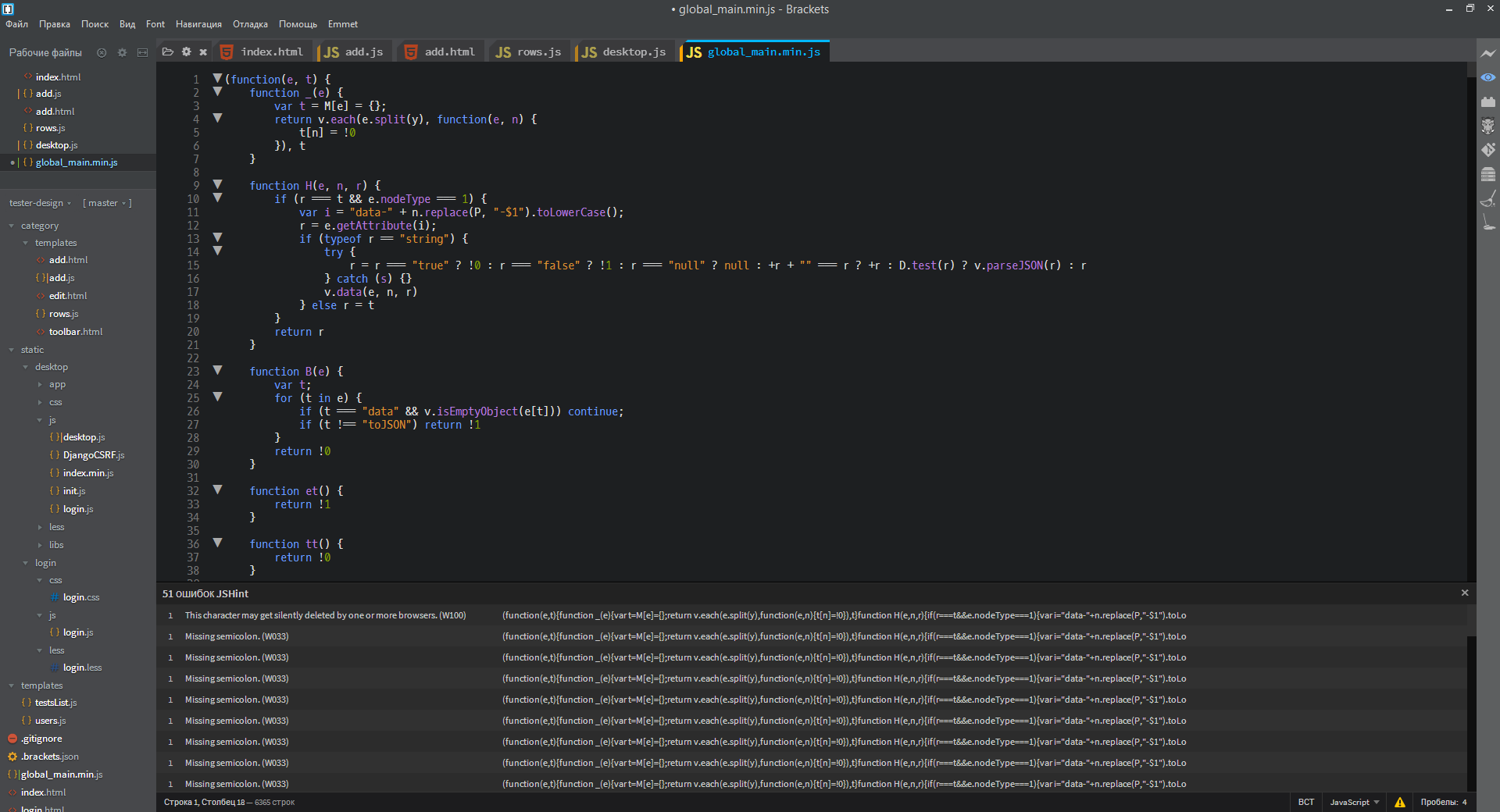
By simply pressing the key combination Ctrl + L or Ctrl + B, the poorly designed JS- or HTML-code turns into a well-designed one. On the pictures global_main.js Habré before and after applying this plugin. Do not use these plugins for LESS! They insert spaces after the colons, which makes the LESS file uncompiled.
Assistant, all in a meat grinder!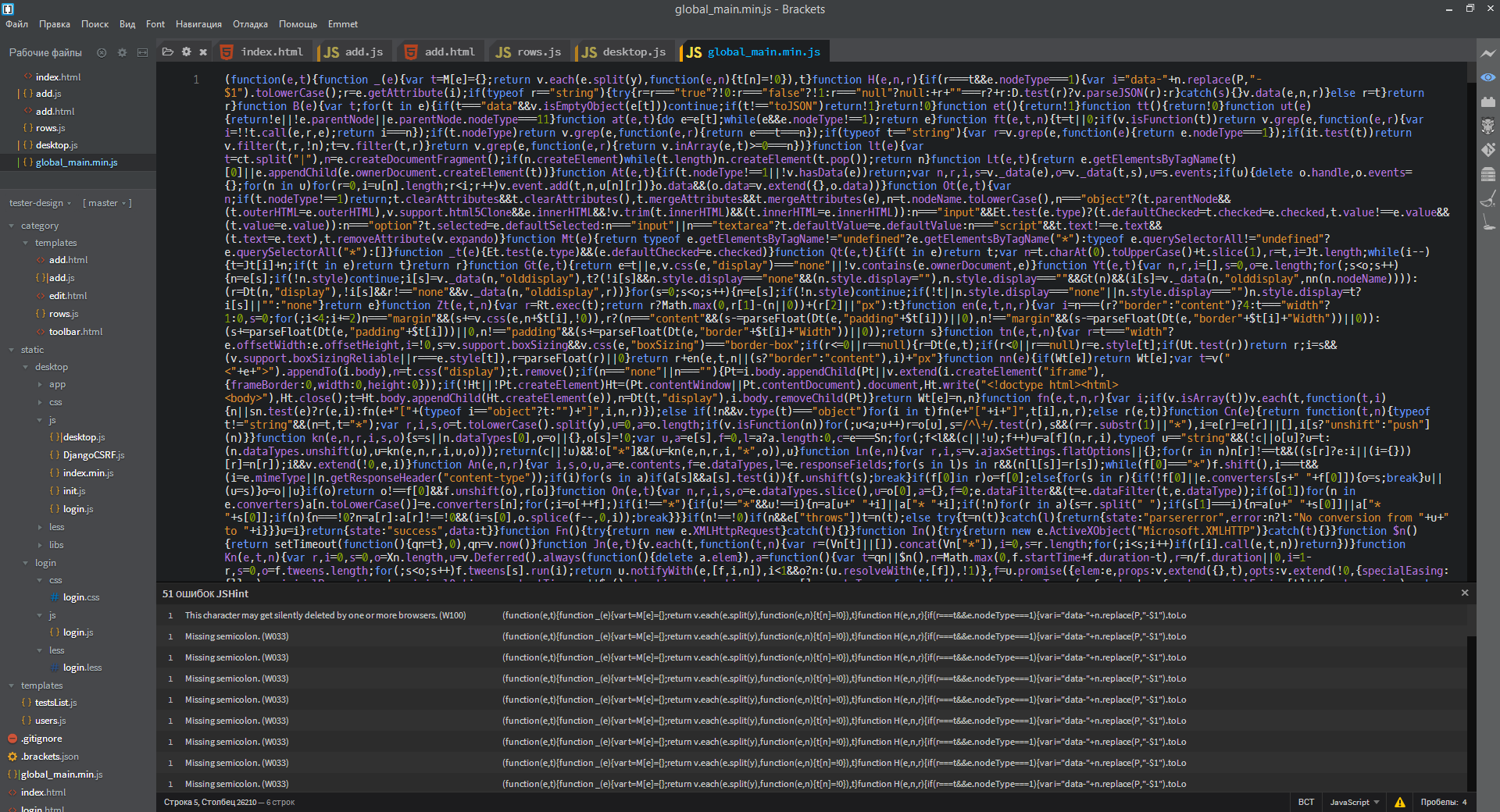
Quicksearch
Double-clicking on an expression highlights all its occurrences in the document. The author of the extension is inspired by Notepad ++, which does not hide.
Notepad ++? Not.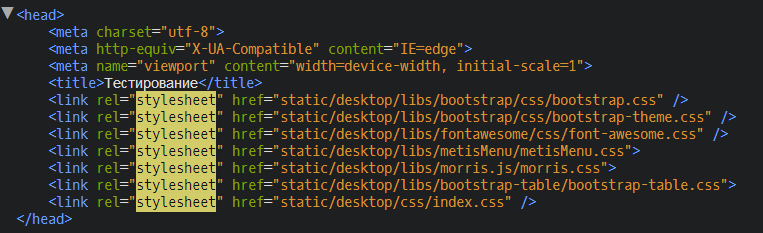
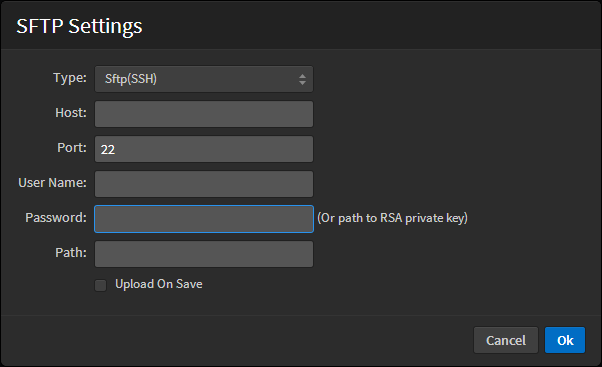
SFtpUpload, FTP-Sync
Allows uploading project files to the server via (S) FTP. They are able to authorize by key.
FTP Sync, SFtpUpload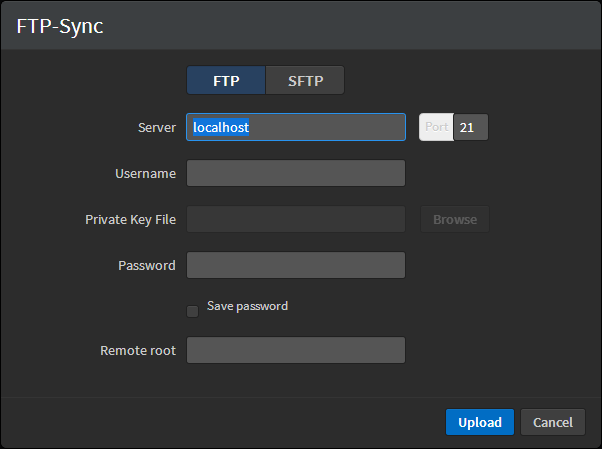
Layout designer
LESS Autocompile
For those who do not want a headache from editing CSS, LESS was invented long ago. This plugin allows you to automatically compile your .less files when saving. In the current state requires a little configuration.
- In the header of the .less file you need to write something like:
// out: ../css/login.css
if you need to redefine the output directory .css. Otherwise, the .css file will be created in the same place as the .less, which is not very good. All other LESS settings for the file are registered here. - In the project settings, you must explicitly specify which LESS files should be processed. To do this, add the following to .brackets.json or compile.json (both are in the root directory of the project, the first is automatically created by Brackets):
	{
	    "less": [
	        "static/login/less/login.less",
	        "static/desktop/less/index.less"
	       //И все остальные LESS-файлы
	    ]
	}
Brackets autoprefixer
I think this plugin needs no introduction. It inserts the necessary additions to the existing CSS file to support vendor prefixes and older browsers. Depending on the settings, you can get a variety of results. It has a fairly simple options window. The full list can be found on the project page on GitHub .
Minimalism Autoperefixer settings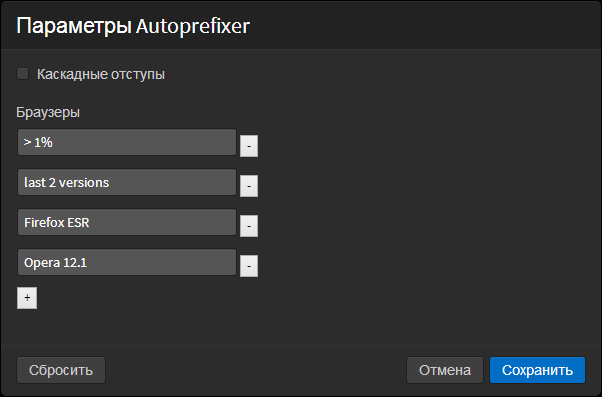
CSSLint, LESSLint, LESS StyleSheets Formatter
Three plugins designed to help improve your LESS and CSS code. They will indicate typical and not very mistakes. Example in the picture.
CSS errors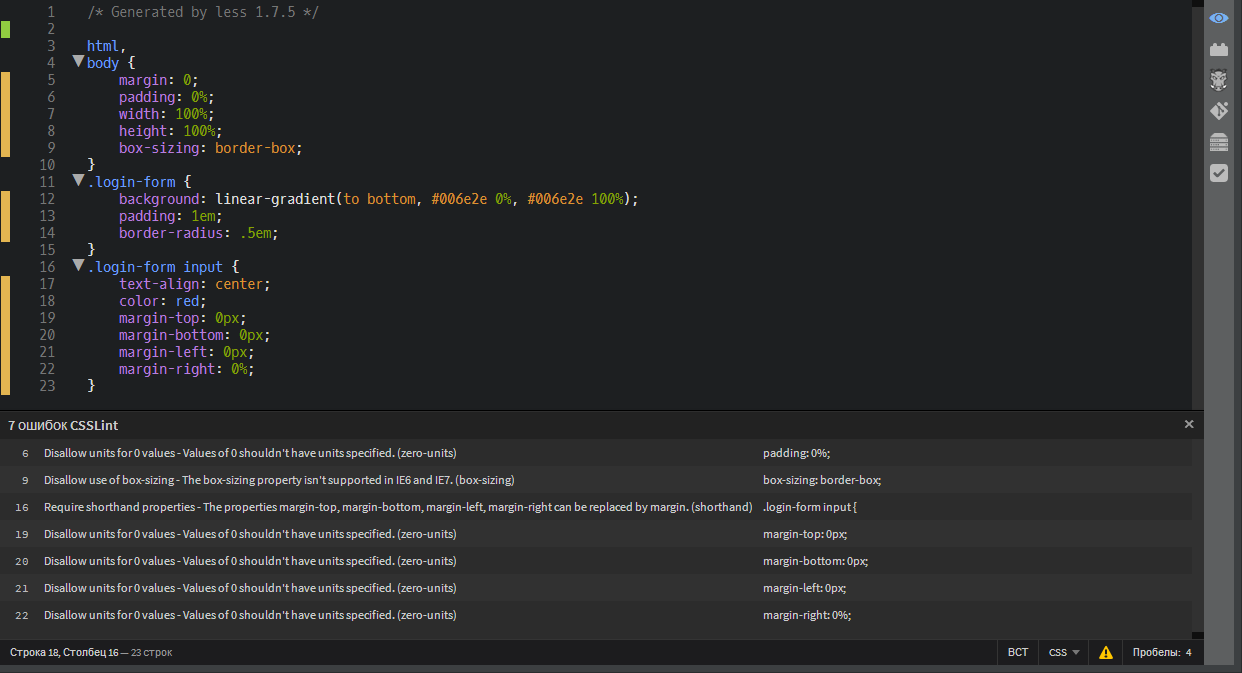
HTMLHint, More CSS Code Hints, More HTML5 Code Hints
Plugins just give more hints when editing HTML and CSS. Considering the speed with which various improvements and additions are added to the basic Brackets delivery, we should wait for the integration of the functionality of these plugins into the kernel.
ColorHints, Brackets Color Picker
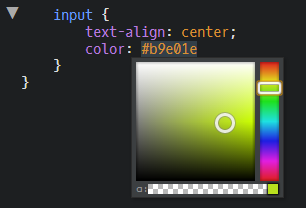
The first displays a hint when you hover over the code or color name in the editor, can also show gradients. The second displays a window with a palette to select the desired color. When editing LESS files, the window for selecting the color should be called up by Ctrl + Alt + K, if it did not appear automatically after entering the word color .
Tips for entering gradients and colors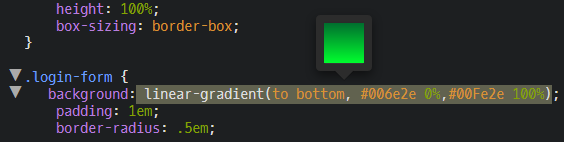
JavaScript developer
JSHint, JSLint, JSHint Configurator, JSLint Configurator
Extremely useful plugins for developers who not only impose, but also write code in JavaScript. You can choose between JSHint and JSLint, although you can use both (the second will be much more biased in your code). Configurators, as the name implies, allow you to configure different parameters for checking the code, for example, ignore the use of the requirejs function before it is declared.
Everyone already knows why each of the parameters is needed.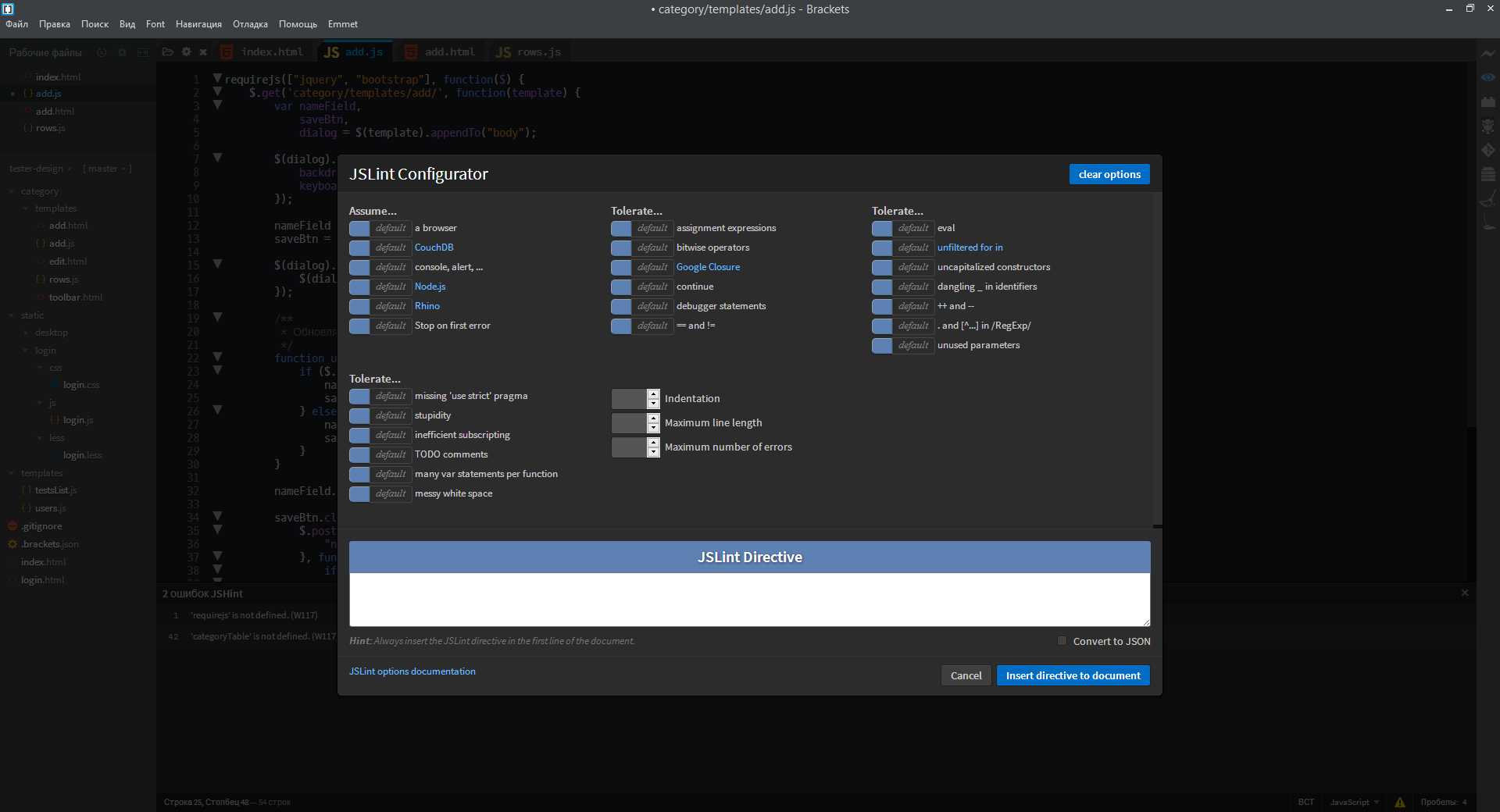
Funcdocr
The plugin allows you to quickly document JS features.
For example, you have the following code:
Desktop.prototype.addResizeHandler = function(handler) {
    if ($.isFunction(handler)) {
        this.resizeActions.push(handler);
    }
};
We stand before the function declaration and enter / **. After pressing Enter, FuncDocr will expand this comment, substituting blanks, where you just need to enter the necessary:
/**
 * [[Description]]
 * @param {[[Type]]} handler [[Description]]
 */
Desktop.prototype.addResizeHandler = function(handler) {
    if ($.isFunction(handler)) {
        this.resizeActions.push(handler);
    }
};
AngularJS Code Hints, AngularJS for Brackets
Add hints when entering Angular directives. I am new to this framework, but I hope these two plug-ins meet the expectations of specialists.
Rename JavaScript Identifier
We become the identifier, press Ctrl + R, enter a new name - all occurrences of the variable in the script are automatically renamed.
A spoon of tar
With all the variety of settings and parameters, there are some complaints about Brackets. The first and most important is speed. With a large number of plugins and a lot of plugins connected to the document, CSS begins to noticeably slow down the appearance of tooltips when editing documents. Sometimes for a long time you have to wait for the reaction of the editor when editing JS-scripts. The second is a rather inconvenient navigation tree. Third, some plugins are able to “hang” the editor, preventing it from closing normally and saving settings.
Только зарегистрированные пользователи могут участвовать в опросе. Войдите, пожалуйста.
После прочтения этой статьи Вы попробуете Brackets?
- 47.3%Да1129
- 20.3%Нет485
- 11.1%Уже пробовал, отвратительная студенческая поделка, по функционалу и на 10% не дотягивающая до моего любимого %EDITOR_NAME%265
- 19.2%Уже давно только его для вёрстки/JS и использую460
- 1.9%Кроме EMACS ничего не нужно46
Какие из представленных редакторов и IDE Вы используете сейчас?
- 8.8%Atom363
- 28%Brackets1147
- 5.1%Eclipse211
- 1.3% EMACS 57
- 1.8% Geany 77
- 7.3% NetBeans 302
- 26% Notepad ++ 1065
- 47.1% Sublime (Free, IDE) 1928
- 6.8% VIM 281
- 22.7% WebStorm 930