Shodan Search Examples
This article is intended for those who either did not hear about Shodan at all, or who heard, but did not understand how to use it. I did not find such materials in Russian, I gathered some of the information here , I added the rest from personal experience. I will give examples of the use of the “worst Internet search engine” named Shodan. The service was developed by web developer John Matherly and is primarily aimed at finding devices connected to the Internet.
Shodan polls device ports and draws conclusions about devices and services based on the received response banners. The search engine is paid, an annual subscription will cost $ 20, however, you can try it in action for this: after free registration, 50 search results are available. You will find the author’s history and biography yourself if it’s interesting, but for now let's get down to business:
Search results can be filtered using the following constructs:
In order to understand the first example, you need to remember how the basic HTTP response
codes are : HTTP status codes :
In this example, we will try to find cisco devices with a web interface for which access does not require authorization.
First, let's see what a typical “401 Unauthorized” banner of a cisco device looks like if we simply enter “cisco” in the search bar:
HTTP / 1.0 401 Unauthorized
Date: Thu, 20 Oct 1994 05:18:36 GMT
Server: cisco-IOS
Connection: close
Accept-Ranges: none
WWW-Authenticate: Basic realm = "level_15_access"
Note that the line "WWW-Authenticate: Basic realm =" level_15_access " indicates the need to enter a username and password.
In turn, an authorization device in which it is not required will return a banner with the status of 200 to us (for this, drive “200 cisco” in the search bar, and the Last-Modified line is a sure sign that this is “our client”:
HTTP / 1.0 200 OK
Date: Mon, 08 Sep 2014 22:28:16 GMT
Server: cisco-IOS
Connection: close
Transfer-Encoding: chunked
Content-Type: text / html
Expires: Mon, 08 Sep 2014 22:28:16 GMT
Last-Modified: Mon, 08 Sep 2014 22:28:16 GMT
Cache-Control: no-store, no-cache, must-revalidate
Accept-Ranges: none
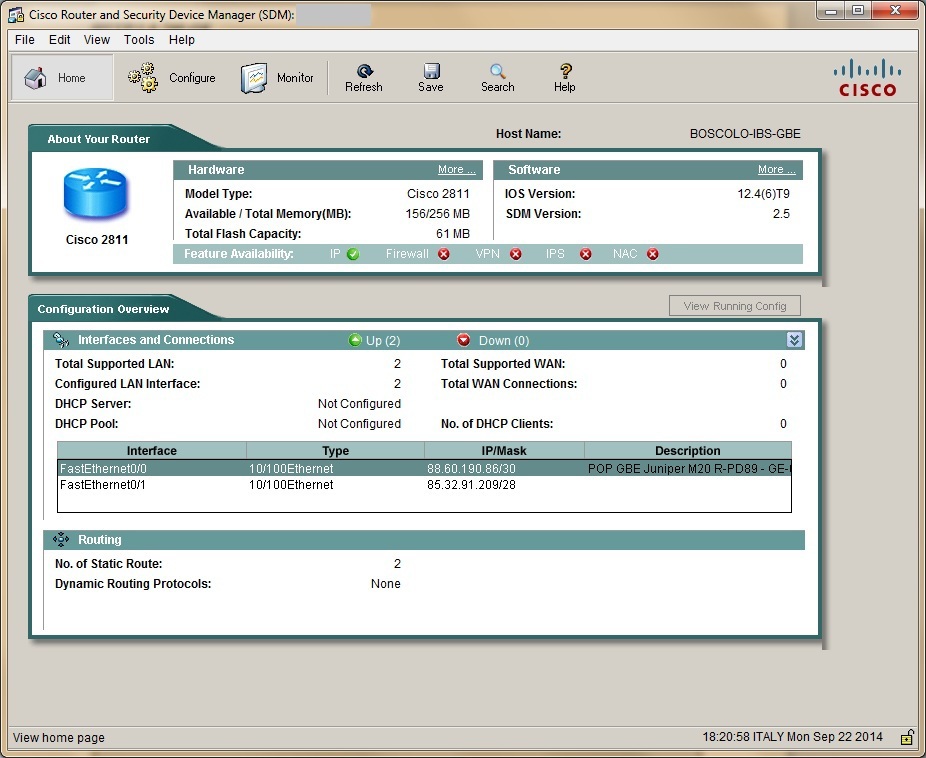
Just click on the ip-address: 80 link and we get to the device management web-console. I downloaded Cisco SDM for convenience.
A lot of devices with default logins and passwords are connected to the Internet, let's try to find something. To do this, write “default + password” in the search bar. Add port: 80 to select devices with www authentication.
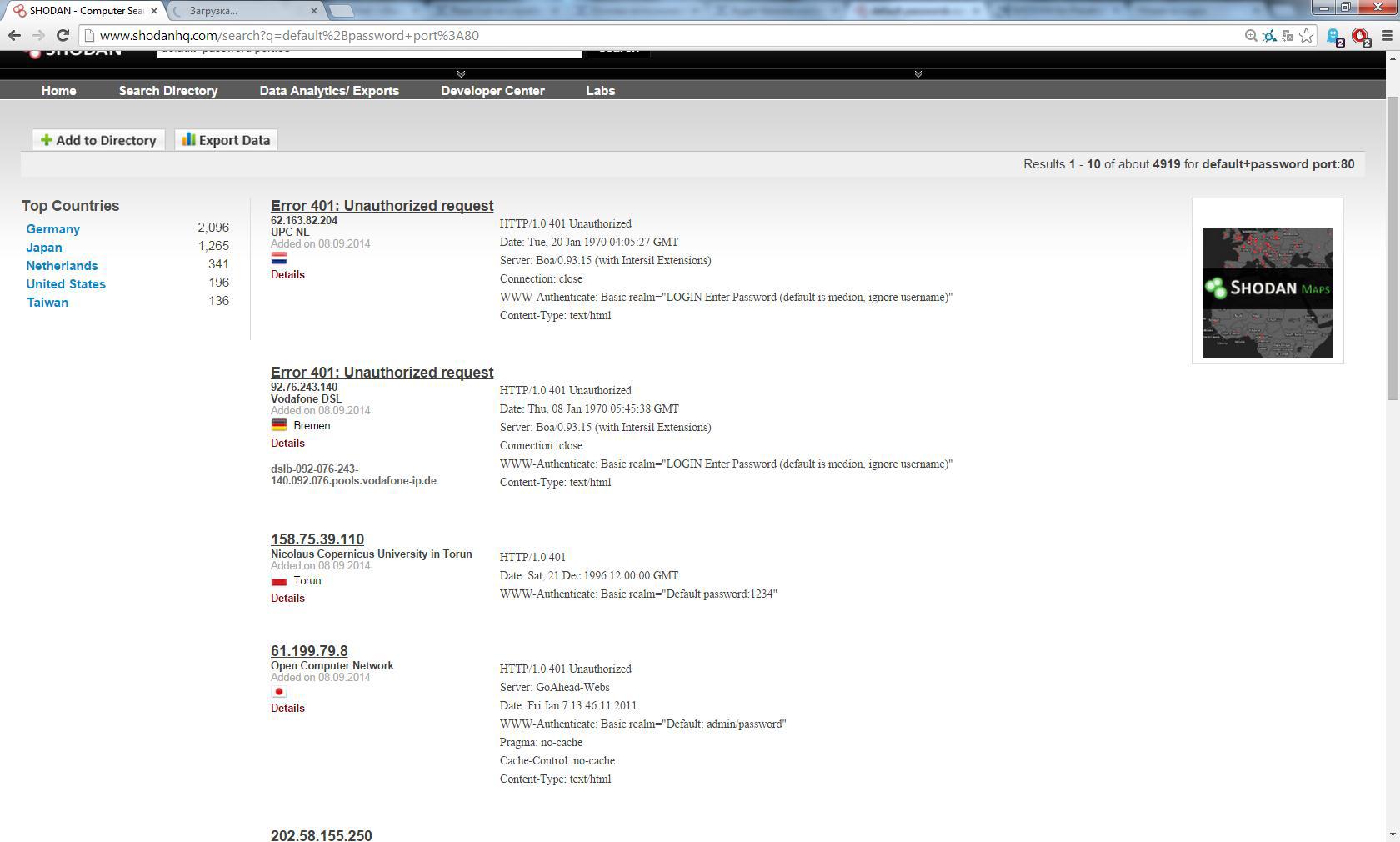
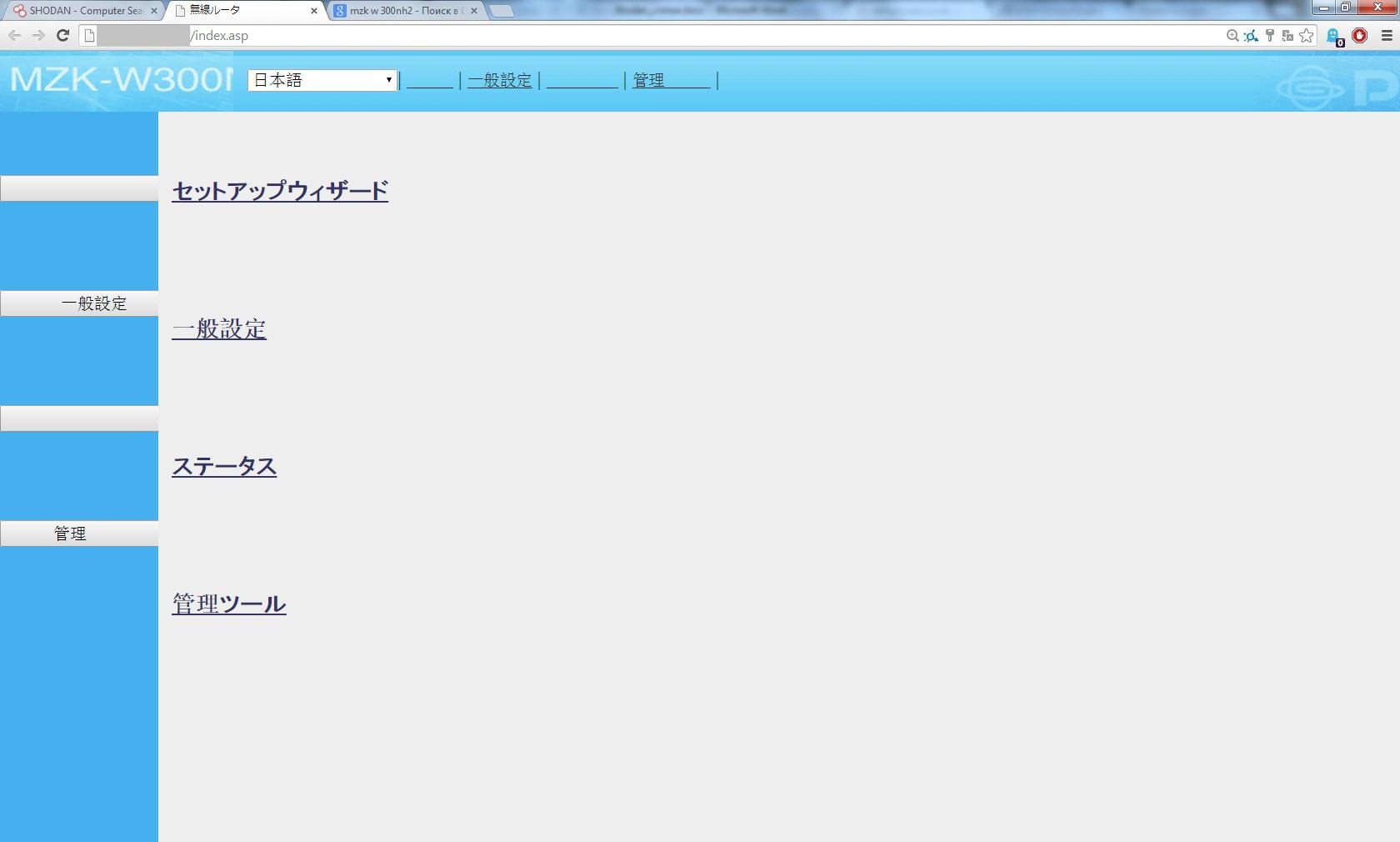
As a result, we will see many banners containing the desired phrase, and, as practice shows, a large percentage of devices will have a username / password of the form admin / password, admin / pass, etc.,
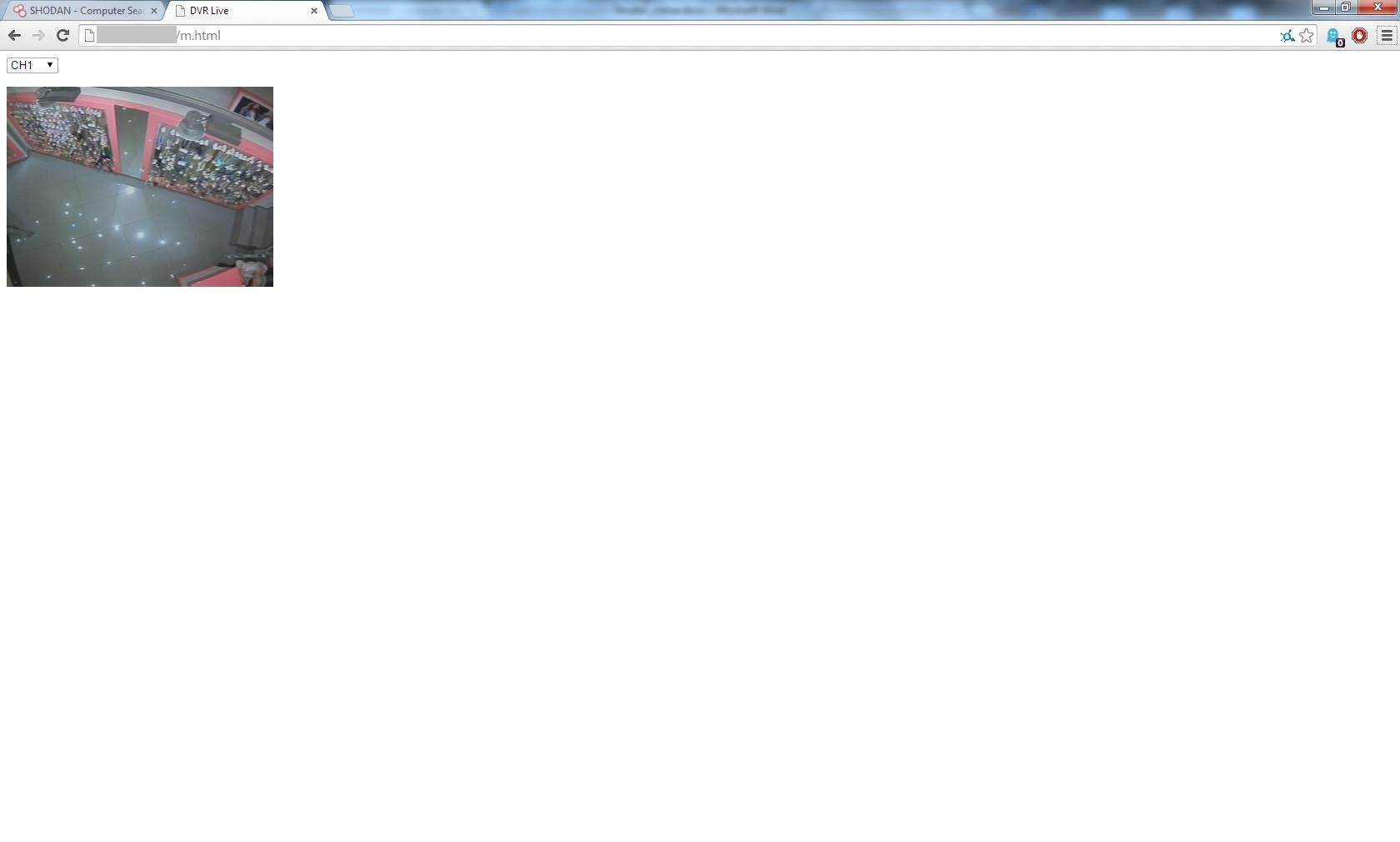
If in the case of network devices, users in most cases set more or less strong passwords, then things are much worse with the rest of the equipment. In this example, we will look at CCTV cameras. At work, I often have to deal with DVRs from DVR, some of which have access to the network. We write in the search bar: DVR port: 80 country: RU city: “Saint Petersburg” And we get a list of DVRs in St. Petersburg, about 200 devices were found.
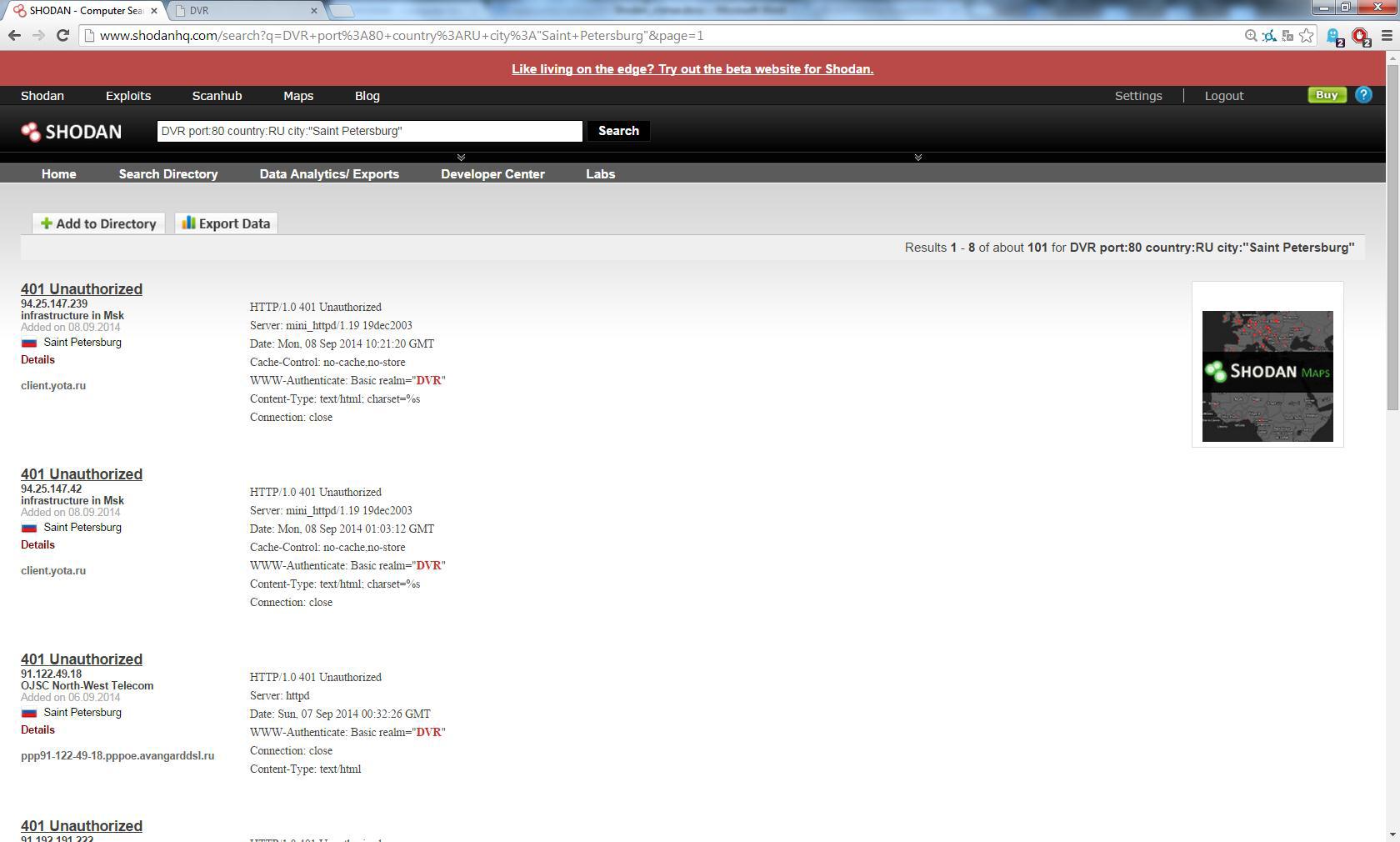
Standard accounts on such devices are admin and user, passwords: admin, user, 1111, 1234, 123456, 8888 (can be found in the instructions). Already on the first page the device with a standard account:
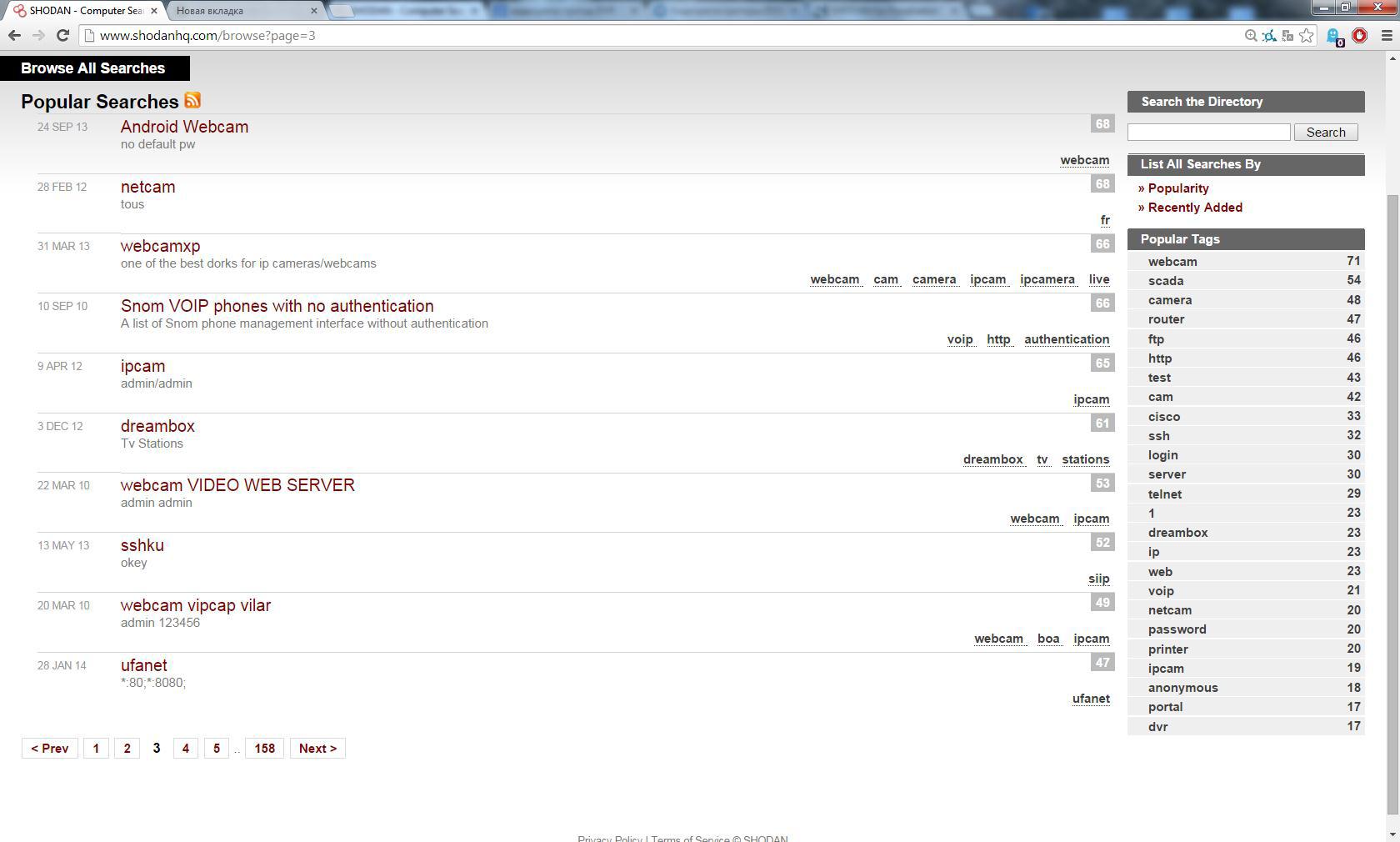
In the Popular Searches section, you can look at query options, for example, search for avtech ip-cameras in the United States: linux upnp avtech country: US, add the familiar filter port: 80 to it:
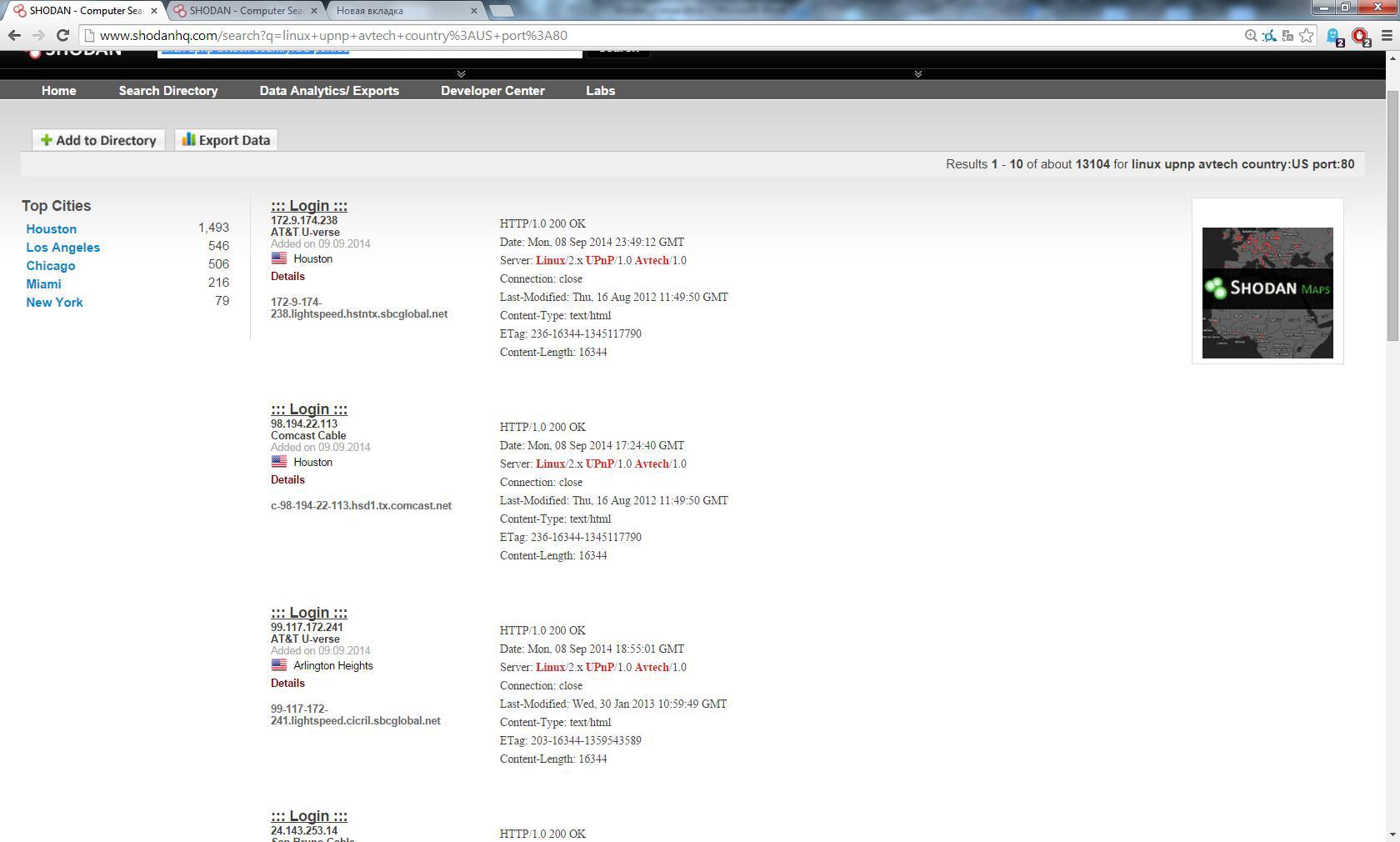
And again, the device appears on the first page of the search, which happened logged in using admin / admin:

Summing up, I want to once again remind all users: please set strong passwords on ALL devices connected to the network, if you do not have “secret” data in your DVR or smart-TV, this does not mean that these devices cannot become targets of intruders, even for fun.
http://www.scribd.com/doc/34507835/SHODAN-for-Penetration-Testers-The-Next-HOPE - Presentation with examples (English).
http://vimeo.com/13465839 - Video on use (English).
- John Matherly Twitter
- official user guide
Shodan polls device ports and draws conclusions about devices and services based on the received response banners. The search engine is paid, an annual subscription will cost $ 20, however, you can try it in action for this: after free registration, 50 search results are available. You will find the author’s history and biography yourself if it’s interesting, but for now let's get down to business:
Filters
Search results can be filtered using the following constructs:
- country: country, in the format RU, UK, US, etc., for example: nginx country: RU
- city: city, for example: nginx city: “Moscow” country: RU
- os: operating system, for example: microsoft-iis os: "windows 2003"
- port: port in the format 21, 80, 443, etc., for example: proftpd port: 21
- hostname: allows you to search based on the domain, for example: nginx hostname: .de
Example 1: Cisco Devices
In order to understand the first example, you need to remember how the basic HTTP response
codes are : HTTP status codes :
- 200 OK Request succeeded;
- 301 MovedPermanently Assigned a new permanentURI;
- 302 FoundResides under a different URI;
- 401 Unauthorized Request requires authentication;
- 403 ForbiddenRequest is denied regardlessof authentication.
In this example, we will try to find cisco devices with a web interface for which access does not require authorization.
First, let's see what a typical “401 Unauthorized” banner of a cisco device looks like if we simply enter “cisco” in the search bar:
HTTP / 1.0 401 Unauthorized
Date: Thu, 20 Oct 1994 05:18:36 GMT
Server: cisco-IOS
Connection: close
Accept-Ranges: none
WWW-Authenticate: Basic realm = "level_15_access"
Note that the line "WWW-Authenticate: Basic realm =" level_15_access " indicates the need to enter a username and password.
In turn, an authorization device in which it is not required will return a banner with the status of 200 to us (for this, drive “200 cisco” in the search bar, and the Last-Modified line is a sure sign that this is “our client”:
HTTP / 1.0 200 OK
Date: Mon, 08 Sep 2014 22:28:16 GMT
Server: cisco-IOS
Connection: close
Transfer-Encoding: chunked
Content-Type: text / html
Expires: Mon, 08 Sep 2014 22:28:16 GMT
Last-Modified: Mon, 08 Sep 2014 22:28:16 GMT
Cache-Control: no-store, no-cache, must-revalidate
Accept-Ranges: none
Just click on the ip-address: 80 link and we get to the device management web-console. I downloaded Cisco SDM for convenience.
Example 2: Default Passwords
A lot of devices with default logins and passwords are connected to the Internet, let's try to find something. To do this, write “default + password” in the search bar. Add port: 80 to select devices with www authentication.
As a result, we will see many banners containing the desired phrase, and, as practice shows, a large percentage of devices will have a username / password of the form admin / password, admin / pass, etc.,
Example 3: Security Cameras
If in the case of network devices, users in most cases set more or less strong passwords, then things are much worse with the rest of the equipment. In this example, we will look at CCTV cameras. At work, I often have to deal with DVRs from DVR, some of which have access to the network. We write in the search bar: DVR port: 80 country: RU city: “Saint Petersburg” And we get a list of DVRs in St. Petersburg, about 200 devices were found.
Standard accounts on such devices are admin and user, passwords: admin, user, 1111, 1234, 123456, 8888 (can be found in the instructions). Already on the first page the device with a standard account:
Example 4: Popular Queries
In the Popular Searches section, you can look at query options, for example, search for avtech ip-cameras in the United States: linux upnp avtech country: US, add the familiar filter port: 80 to it:
And again, the device appears on the first page of the search, which happened logged in using admin / admin:
Summary
Summing up, I want to once again remind all users: please set strong passwords on ALL devices connected to the network, if you do not have “secret” data in your DVR or smart-TV, this does not mean that these devices cannot become targets of intruders, even for fun.
References
http://www.scribd.com/doc/34507835/SHODAN-for-Penetration-Testers-The-Next-HOPE - Presentation with examples (English).
http://vimeo.com/13465839 - Video on use (English).
- John Matherly Twitter
- official user guide