
Experience replacing Microsoft Outlook with Mozilla Thunderbird with an Exchange server
Task
There is a company with Windows Server servers. They raised DNS, WINS, Active Directory, CA, Exchange. Office with Outlook is installed on user places for information exchange, since departments do not have direct communication and the ability to record to external media is significantly limited. All licensed. Quite a typical situation for medium-sized companies.
In the context of cost savings, the question arose of a sufficient replacement of the Microsoft Office component - Outlook. Outlook has many advantages: pass-through authentication, a convenient and intuitive interface, automatic archiving, flexible and full integration with Exchange, which includes dynamic address books, shared folders and more. Replacing such a product is quite difficult without loss of functionality.
Implementation
After some comparisons, Mozilla Thunderbird (currently version 31) was chosen as an alternative client as a free, open source project that supports IMAP and LDAP address book, as well as the ability to use add-ons.
Password
The password is wired to the client and can be viewed in the settings. Yes, this reduces security, but Thunderbird mail users have guest domain accounts and are not administrators on local computers. In addition, it is planned to introduce a centralized setting, where viewing the password will be blocked. It was deemed acceptable.
Mail account
Thunderbird does not work correctly with Russian Windows logins. Therefore, you first have to rename the domain logins of Thunderbird users to the English equivalent. It is recommended to make logins exactly like mail, to simplify the configuration, although this is not necessary, especially if the host is a domain, it does not matter.
The Exchange server has IIS for accessing mail through a web interface - Outlook Web Access. A convenient thing for remote work with mail, provided that the mail for some period is stored on the server. But the lack of the ability to archive mail from the browser does not allow to make this mode of operation permanent, since the hardware resources of the Exchange server are not unlimited, and it is not intended for storage. Thunderbird has several modes to help.account settings . The easiest way is to make an autoconfig DNS alias (CNAME) on an Exchange server: autoconfig.company.loc . And on the server itself in IIS, create a mail folder with the config-v1.1.xml file . The contents of the file are quite simple to configure and described on the Mozilla website . In my case, it turned out this:
company.loc Company Exchange Server Company e-mail mail.company.loc 993 SSL NTLM %EMAILLOCALPART% mail.company.loc 143 STARTTLS NTLM %EMAILLOCALPART% mail.company.loc 995 SSL NTLM %EMAILLOCALPART% true true 14 mail.company.loc 587 STARTTLS NTLM %EMAILLOCALPART% It is worth making the mail folder virtual and explicitly disabling the SSL requirement for it.
It is worth mentioning that here, like many, the name of the domain from the outside differs from the name of the local domain inside the perimeter. But mail should be named the same everywhere. Therefore, inside Exchange, accounts have two addresses: external and internal. External is used by default. (Exchange also knows how to use different DNS for internal and external forwarding). Hence the subtlety; user addresses are specified external during configuration; therefore, only % EMAILLOCALPART% is used for the user name in the configuration file . In addition, the autoconfig alias (CNAME) must also be created in a copy of the external domain of the root zone of the local DNS.
It can be seen that I decided to use two types of mail access: IMAP and POP3. The fact is that sometimes very active users with a very large amount of mail come across. If such a user does not use mail anywhere except for his PC at the workplace (do not forget about OWA), then in the case of Outlook local folders are created and assigned as the main for all accounts. Thus, all mail will be deleted from the Exchange server and stored directly on the user's PC, which will not require any additional archiving, but will bind the user to the PC and increase the likelihood of mail loss in case of damage to the hard disk. Otherwise, you need to individually configure the limits on Exchange for such users, which I am trying to avoid in every possible way. But you can’t foresee everything. Therefore, Thunderbird also left the possibility of simple work with mail in the form of POP3. Although still not useful, frankly.
All this will allow you to quickly choose the necessary access method when setting up an account in Thunderbird. If the host is a member of the AD domain, then it’s better to fine tune it by choosing the Kerberos / GSSAPI authentication method and not specify the password in the form.
Access to Exchange via IMAP and POP3 is very simple to configure and does not require much consideration. Unless it is in addition necessary to configure the certificate with appropriate masks of a server name for connectors. It also required some additional configuration of the SMTP connector with TLS on Exchange 2007:
Get-ReceiveConnector “Client TLS” | Add-ADPermission –User “authenticated users” -ExtendedRights ms-Exch-SMTP-Accept-Authoritative-Domain-Sender
Otherwise, Thunderbird could not access SMTP as unauthorized.
Profile and Certificate
The first launch of the freshly installed Thunderbird client is made with the -p switch to specify the path for the mail profile. The default mail profile is created on the system partition, which is unacceptable to us. The key allows you to specify a folder on the user section for storing the Thunderbird profile (in our case, the d: \ Mail folder). First, you should make sure that the user has the right to change this folder (NTFS rights).
"c:\Program Files (x86)\Mozilla Thunderbird\thunderbird.exe" -p
It is worth recalling that the command needs to be executed from a user context, not an administrative one. There were precedents.
The first step in setting up a running client is to reject the offers of the setup wizard and add the organization root certificate to Thunderbird, because for some reason Thunderbird does not use the system certificate base.
LDAP Address Book
Then you need to configure the LDAP address book. There are a lot of materials on this topic on the Internet, but I have not found a single full-fledged document with adequate parameters, so I bring my own here.
1. Open the Address Book window .
2. We call Tools -> Settings -> Compilation -> Auto-complete addresses and check the Directory Server.
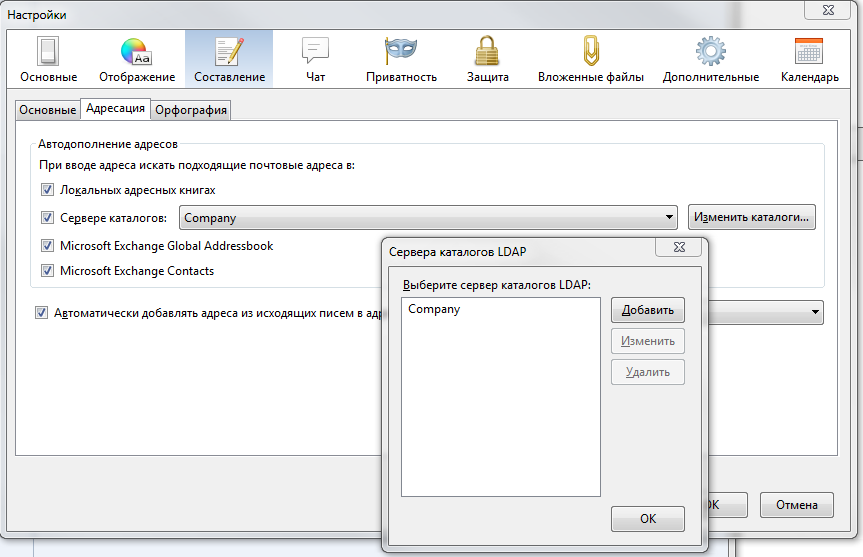
The Microsoft Exchange Global Addressbook and Contacts switches in the picture are available due to the tested ExQuilla add- on - connection to Exchange via http. The result - the speed of work is unsatisfactory with a large amount of mail.
3. Actually create a connection to LDAP:
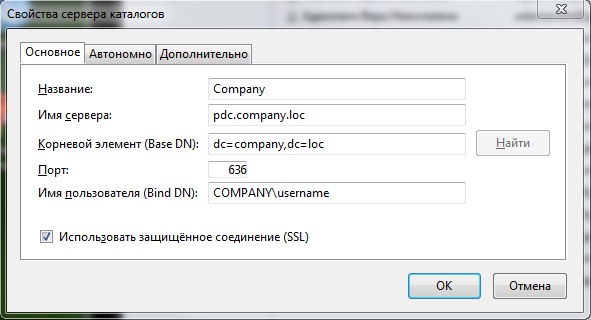
Everything is obvious. Non- SSL Port : 3268. Keep in mind that configuring with SSL is significantly slower.
Next, we switch to the Advanced tab :
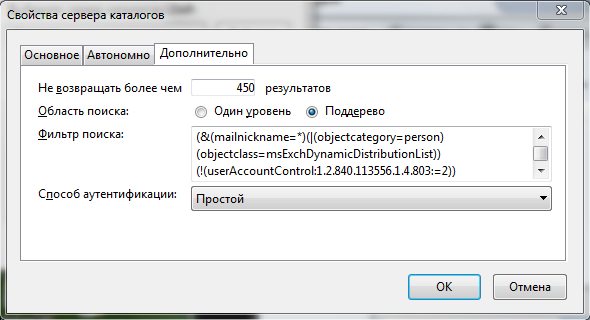
Here we must say that the number of displayed results was selected based on the number of Exchange client licenses plus Active Directory contacts with groups and a small margin. The authentication method is better to select “Simple” if the PC is not a member of the AD domain, otherwise I recommend Kerberos (GSSAPI), and you must remove the username on the “Basic” tab.
About the filter. The most interesting. I use dynamic mailing lists in Exchange, in addition, Active Directory has many temporarily or permanently disabled accounts, and also some accounts are excluded from visibility in the address book for various needs, plus contacts. It turns out the following filter:
(&(mailnickname=*)(|(objectcategory=person)(objectclass=msExchDynamicDistributionList))(!(userAccountControl:1.2.840.113556.1.4.803:=2))(!(msExchHideFromAddressLists=TRUE)))
Close the dialogs. Now open the newly created address book and type @ in the search bar without pressing Enter, since the input will go to the password dialog. In the dialog, type the user password and check the Save password box . A mailing list should appear. It works quite well. It is enough to start typing the name or address of the recipient in the line To: a new letter to get a list of possible options.
Attention! If in Active Directory you have limited the list of hosts for the account to which it can go, then to access LDAP on the PDC you will need to add the controller name to this list.
Further. Create a user account. If everything is pre-configured correctly, then the option with the correct settings will be offered instantly.
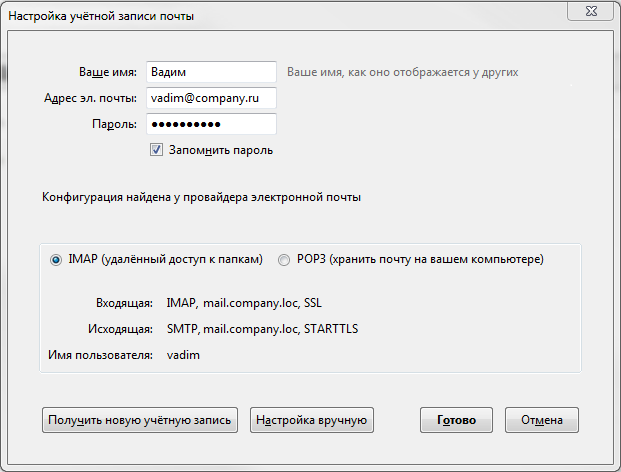
It remains to click done and, if the root certificate was previously connected, we will receive the connected mail. Otherwise, you will have to confirm each certificate.
Archiving and other add-ons
Configure signed folders. While synchronization is in progress, we configure archiving to local folders: Account settings -> Copies and folders -> Message archives - Store archived messages in: - Archives folder to: Local folders. Archiving can be divided into folders of years, months. In normal mode, Thunderbird can only archive messages manually. Auto-archiving can be achieved by installing a special add-on (plugin) Awesome Auto Archive . It is configured quite simply.
I also install the following additions:
- MinimizeToTray revived - Minimize the current window to tray
- Lightning - Organizer
We get a workable email client. Access to shared folders can be obtained through OWA by creating a link in the browser or on the desktop to the corresponding OWA section:
https: //mail.company.loc/Public
Import PST
Now to the question of importing previously archived Outlook mail into Thunderbird . The described method with installing 30-day Outlook does not work. Thunderbird falls out, throwing an exception. Many different configurations tested. In addition, import on Windows x64 is excluded. I had to go a roundabout way. There is a working way, but it is quite saturated with manipulations.
- Download free Outlook Viewer application that can read .pst files - Outlook archives. Installed on a PC for manipulation.
- A client pst is taken over the network, opened and letters are exported to a folder with subfolders (subfolders can be inside the archive) in the EML format with attachments. This is half the battle!
- Then, in a temporarily installed Thunderbird with the ImportExportTools add-on installed, create a local folder, for example , Outlook Archive and, right-click on it, call up the add-on import menu:
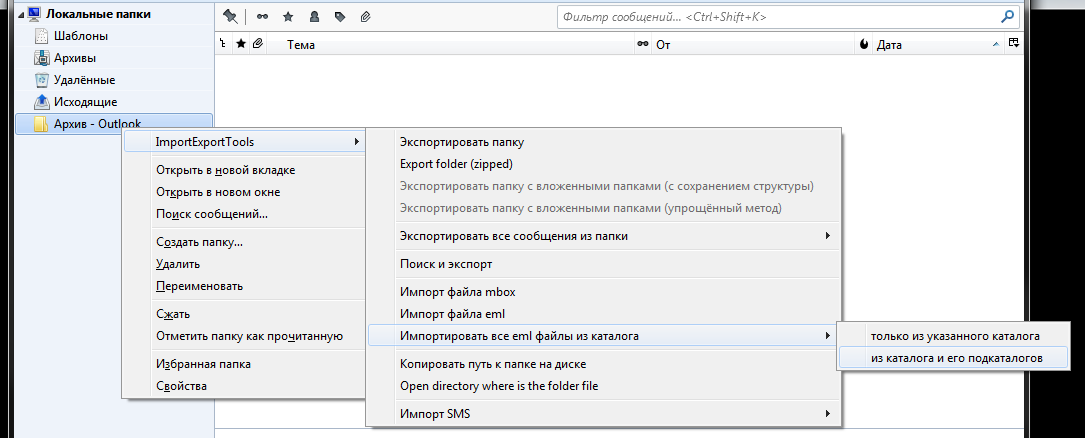
- Select the folder with previously exported letters and import.
- Now, right-click on the Archive-Outlook folder, call the properties of the folder and see where it is. Having defined, we transfer (files with the name of the folder, and subdirectories with the name of the folder) on the user's PC to the user profile in local folders. Our mail folder from the archive should appear in the user in Thunderbird after the restart.
I think to introduce a centralized user configuration.
Run-in work is still underway, so I can make additions and changes.