December 25, 2013 at 00:55
School bell on the Raspberry Pi with remote control
 Good day, dear Khabrovites. It is no secret that single-board Linux computers based on SoC are widely used today among both amateurs and more or less professional users. More and more tasks can be solved with the help of microcomputers, and even those tasks that were previously solved exclusively with the help of microcontrollers. It would seem that the use of a full-fledged, albeit small computer for solving simple problems is still an overkill, but let's figure it out, is it so bad? This article is the answer to our little dispute with the habrovchanin devzona about this.
Background
It would seem that there may be a more obvious niche for the use of microcontrollers than the automation of a school bell? That is exactly what an unknown developer thought about 5-7 years ago when he was assembling such a wonderful device.

Collected, apparently, on the MK 8050 series, it has onboard real-time clocks, knows how to display this time on a makeshift LED matrix, and most importantly, knows how to pull the relay, including the school bell, in time. The device has been working safely for many years, there were no complaints about it. However, everything flows and changes, and once a simple Kharkov school with in-depth study of something there decided to undergo re-certification at the Lyceum with an even more in-depth study of that same one. Such re-certification, among other things, requires a transition from 45-minute lessons to pairs consisting of two academic hours of 40 minutes. And then trouble came. The developer of watches on MK safely
After examining the patient, it came to the understanding that it would not be possible to remake it in less than a couple of weeks to the customer's requirements. Essentially, you need to rewrite the code from scratch. And, suddenly, in the evening of the same day, a DHL courier brought me another Raspberry. Then the idea came up to make my watch, and not just a watch, but with magic. After all, we have a whole microcomputer with full Linux on board, hands are untied, the possibilities are endless!
Formulation of the problem
In the morning, after negotiating with the customer, the task was set as follows: the device should be configured using any PC, without additional software (expensive), be able to pull up the exact time from the Internet (you can synchronize hours by calls, all calls are accurate to the second), be able to work autonomously, and, as an additional option for the future, they should be able to receive call configurations from a remote server. For example, a district can independently lay out a call config for educational institutions of a certain type. The task is set, we proceed to implementation.
To implement the project, we need the following:
- A demon that can pull the right GPIO foot at the right time
- Web interface for configuring call times
- Real time clock
- Power electronics for managing school calls
I deliberately miss the initial configuration of Raspberry Pi, the Internet is full of materials for installing the distribution kit, setting up the network, time zone, etc.
So let's get started.
Real time clock
As a real-time clock for the device, I took a small scarf on the DS1302, simply because I found it in a bunch of junk ordered from China. A wonderful article was found on the network that describes the connection of these particular watches to the raspberry. The connection is pretty simple.

On the same page, software is available for download, capable of receiving and writing data to these RTCs. I redid the software a bit for myself, in order to visualize the RTC readings before synchronizing with the system time.
Correctly, the watch should be updated in case of successful synchronization of the raspberry time with the NTP server, and if there is no access to the NTP server, then the raspberry system clock should be synchronized with the real time clock. Such an algorithm is necessary, since the DS1302 has the habit of crawling for a couple of seconds a day, which is unpleasant. However, I did not find how to force ntpd to run the script after successful synchronization. Therefore such a crutch was born:
/ usr / local / bin / update_rtc
#!/bin/bash
LOG="/var/log/rtc-sync.log"
DATE=`date`
sleep 30
echo "*** $DATE" >>$LOG
until ping -nq -c3 8.8.8.8; do
    echo "No network, updating system clock from RTC." >>$LOG
    rtc-pi 2>&1
    exit
done
echo "Network detected. Updating RTC." >>$LOG
date +%Y%m%d%H%M%S |xargs ./rtc-pi 2>&1
/etc/init.d/rtc
#!/bin/sh
# /etc/init.d/rtc
### BEGIN INIT INFO
# Provides:          RTC controll
# Required-Start:    $remote_fs $syslog
# Required-Stop:     $remote_fs $syslog
# Default-Start:     2 3 4 5
# Default-Stop:      0 1 6
# Short-Description: Simple script to start RTC sync
# Description:       A simple script from prostosergik  which will run script that synchronizes RTC module clock with system clock at startup.
### END INIT INFO
case "$1" in
  start)
    echo "RTC sync..."
    /usr/local/bin/update_rtc& 2>&1
    ;;
  stop)
    echo "Stopping RTC Sync..."
    # kill application you want to stop
    killall update_rtc
    ;;
  *)
    echo "Usage: /etc/init.d/rtc {start|stop}"
    exit 1
    ;;
esac
exit 0
... and activate autoload:
sudo update-rc.d rtc defaultsThese two files allow you to synchronize the raspberry’s system clock with RTC if a network is not found after loading, or update the time in RTC if a network is detected. 30 seconds after boot ntpd should already have time to update the system clock. In the worst case, the last time Raspberry was turned on will be written to RTC. I know that this solution is far from ideal, but could not come up with a better one. The only thing that comes to mind is to add a line to the crowns to update RTC once every 2-3 hours, in order to be sure that in real-time hours there are more or less accurate data. If the esteemed community will tell you the best solution - I will only be glad.
Web server
There was no thought for a long time. The main task of the server is to display two pages and process one POST request. The textbook implementation of a web server in Python is simply self-explanatory.
webserver.py
#!/usr/bin/python
# -*- coding: utf-8 -*-
import cgi, re, json
from BaseHTTPServer import BaseHTTPRequestHandler, HTTPServer
import collections
from config import *
class MainRequestHandler(BaseHTTPRequestHandler):
def do_GET(self):
if self.path == '/':
lessons = readSchedule()
schedule = ''
for lesson in lessons:
schedule += u"Час "+lesson+": "+lessons[lesson].get('start', '--:--') + " - " + lessons[lesson].get('end', '--:--') + "
"
data = {
'schedule': schedule.encode('utf-8')
}
TemplateOut(self, 'index.html', data)
return
elif self.path == '/form.html':
lessons = readSchedule()
form = ''
for lesson in lessons:
form += u" - """
data = {
'form': form.encode('utf-8')
}
TemplateOut(self, 'form.html', data)
return
elif self.path == '/remote.html':
lessons = readScheduleRemote()
form = ''
for lesson in lessons:
form += u" - """
data = {
'form': form.encode('utf-8')
}
TemplateOut(self, 'form.html', data)
return
else:
try:
TemplateOut(self, self.path)
except IOError:
self.send_error(404, 'File Not Found: %s' % self.path)
def do_POST(self):
# Parse the form data posted
form = cgi.FieldStorage(
fp=self.rfile,
headers=self.headers,
environ={
'REQUEST_METHOD':'POST',
'CONTENT_TYPE':self.headers['Content-Type'],
}
)
lessons = {}
if self.path.endswith('save'):
# Echo back information about what was posted in the form
for field in form.keys():
field_item = form[field]
if type(field_item) == type([]):
pass # no arrays processing now
else:
if field_item.filename:
pass #no files now.
else:
if re.match('lesson_([\d]+)_(start|end)', field):
(lesson, state) = re.findall('lesson_([\d]+)_(start|end)', field)[0]
try:
lessons[lesson]
except Exception:
lessons[lesson] = {}
lessons[lesson][state] = field_item.value
# printlessons
json_s = json.dumps(lessons)
if json_s:
try:
f = open(JSON_FILE, 'w+')
f.write(json_s)
f.close()
HTMLOut(self, 'Saved OK.' + JS_REDIRECT)
except IOError, e:
# raise e
HTMLOut(self, 'Error saving. IO error. '+e.message)
else:
HTMLOut(self, 'Json Error.')
else:
self.send_error(404, 'Wrong POST url: %s' % self.path)
return
def Redirect(request, location):
request.send_response(301)
request.send_header('Location', location)
request.end_headers()
return
def Headers200(request):
request.send_response(200)
request.send_header('Content-type', 'text/html')
request.end_headers()
return
def TemplateOut(request, out_file, data = {}):
f = open(SCRIPT_DIR + out_file)
out = f.read()
f.close()
#tiny template engine
for key, var in data.items():
out = out.replace("{{"+key+"}}", var)
HTMLOut(request, out)
def HTMLOut(request, html):
Headers200(request)
f = open(SCRIPT_DIR + 'base.html')
out = f.read()
f.close()
out = out.replace("{{content}}", html)
request.wfile.write(out)
def readSchedule():
try:
f = open(JSON_FILE, 'r')
json_s = f.read()
f.close()
except IOError:
return []
try:
lessons = json.loads(json_s)
except Exception:
return []
lessons = collections.OrderedDict(sorted(lessons.items()))
return lessons
def readScheduleRemote():
import urllib2
try:
response = urllib2.urlopen(REMOTE_URL)
json_s = response.read()
except Exception:
return []
try:
lessons = json.loads(json_s)
except Exception:
return []
lessons = collections.OrderedDict(sorted(lessons.items()))
return lessons
def main():
try:
server = HTTPServer(('', 8088), MainRequestHandler)
print 'Started httpserver...'
server.serve_forever()
except KeyboardInterrupt:
print '^C received, shutting down server.'
server.socket.close()
if __name__ == '__main__':
main()
Out of boredom and for better extensibility, a simple template engine was even added. Please note that the interpreter is registered at the beginning of the script, so after setting the execution rights, the script can be launched directly from the command line.
What this script does, I think, is understandable without comment. The GET request processor simply gives the client two forms and the main page, filling the variable with data about the current schedule. The POST request handler saves data from the form to a JSON file, which is the base of calls.
Actually, the school bell manager
Due GPIO wonderful library for Python, blinking
daemon.py
#!/usr/bin/python
# -*- coding: utf-8 -*-
import time
import threading
import json
import RPi.GPIO as GPIO
from config import *
GPIO.setmode(GPIO.BCM)
GPIO.setwarnings(False)
GPIO.setup(25, GPIO.OUT)
GPIO.output(25, False)
def read_schedule():
    schedule = []
    try:
        f = open(JSON_FILE, 'r')
        json_s = f.read()
        f.close()
        try:
            json_data = json.loads(json_s)
        except Exception, e:
            json_data = []
        for lesson in json_data.values():
            start = lesson.get('start', False)
            end = lesson.get('end', False)
            if start is not False:
                # print start.split(":")
                (s_h, s_m) = start.split(":")
                schedule.append({'h': int(s_h), 'm':int(s_m)})
                del s_h
                del s_m
            if end is not False:
                (e_h, e_m) = end.split(":")
                schedule.append({'h': int(e_h), 'm':int(e_m)})
                del e_h
                del e_m
        return schedule
        # schedule
    except IOError, e:
        return []
    except Exception, e:
        return []
class Alarm(threading.Thread):
    def __init__(self):
        super(Alarm, self).__init__()
        self.schedule = read_schedule()
        self.keep_running = True
    def run(self):
        try:
            while self.keep_running:
                now = time.localtime()
                for schedule_item in self.schedule:
                    if now.tm_hour == schedule_item['h'] and now.tm_min == schedule_item['m']:
                        print "Ring start..."
                        GPIO.output(25, True)
                        time.sleep(5)
                        print "Ring end..."
                        GPIO.output(25, False)
                        self.schedule = read_schedule() #reload schedule if it was changed
                        time.sleep(55) # more than 1 minute
                #print "Check at "+str(now.tm_hour)+':'+str(now.tm_min)+':'+str(now.tm_sec)
                time.sleep(1)
        except Exception, e:
            raise e
            # return
    def die(self):
        self.keep_running = False
alarm = Alarm()
def main():
    try:
        alarm.start()
        print 'Started daemon...'
        while True:
            continue
    except KeyboardInterrupt:
        print '^C received, shutting down daemon.'
        alarm.die()
if __name__ == '__main__':
    main()
The script creates a new thread in which it checks the time every second. If the time is found in the schedule file, then turn on the call for 5 seconds (apply a high level to the 25 GPIO leg). After each call, we re-read the schedule, in case it has been changed from the web interface. Everything is transparent and simple.
Demonize and train a viewing dog
Using the analogy with RTC autorun, we create the following files:
/etc/init.d/schedule_daemon
#!/bin/sh
### BEGIN INIT INFO
# Provides:          schedule_daemon
# Required-Start:    $remote_fs $syslog
# Required-Stop:     $remote_fs $syslog
# Default-Start:     2 3 4 5
# Default-Stop:      0 1 6
# description: School Ring Schedule daemon
# processname: School Ring Schedule daemon
### END INIT INFO
export SCHEDULE_ROOT=/home/pi/ring_app
export PATH=$PATH:$SCHEDULE_ROOT
SERVICE_PID=`ps -ef | grep daemon.py | grep -v grep | awk 'END{print $2}'`
usage() {
        echo "service schedule_daemon {start|stop|status}"
        exit 0
}
case $1 in
    start)
        if [ $SERVICE_PID ];then
            echo "Service is already running. PID: $SERVICE_PID"
        else
            $SCHEDULE_ROOT/daemon.py& 2>&1
        fi
        ;;
    stop)
        if [ $SERVICE_PID ];then
            kill -9 $SERVICE_PID
        else
            echo "Service is not running"
        fi
        ;;
    status)
        if [ $SERVICE_PID ];then
            echo "Running. PID: $SERVICE_PID"
        else
            echo "Not running"
        fi
        ;;
    *) usage
        ;;
esac
/etc/init.d/schedule_webserver
#!/bin/sh
### BEGIN INIT INFO
# Provides:          schedule_webserver
# Required-Start:    $remote_fs $syslog
# Required-Stop:     $remote_fs $syslog
# Default-Start:     2 3 4 5
# Default-Stop:      0 1 6
# description: School Ring Schedule web-server
# processname: School Ring Schedule web-server
### END INIT INFO
export SCHEDULE_ROOT=/home/pi/ring_app
export PATH=$PATH:$SCHEDULE_ROOT
SERVICE_PID=`ps -ef | grep webserver.py | grep -v grep | awk 'END{print $2}'`
usage() {
        echo "service schedule_webserver {start|stop|status}"
        exit 0
}
case $1 in
    start)
        if [ $SERVICE_PID ];then
            echo "Service is already running. PID: $SERVICE_PID"
        else
            $SCHEDULE_ROOT/webserver.py& 2>&1
        fi
        ;;
    stop)
        if [ $SERVICE_PID ];then
            kill -9 $SERVICE_PID
        else
            echo "Service is not running"
        fi
        ;;
    status)
        if [ $SERVICE_PID ];then
            echo "Running. PID: $SERVICE_PID"
        else
            echo "Not running"
        fi
        ;;
    *) usage
        ;;
esac
And scripts of “watch dogs” for them. These scripts check if the service is running, and, if necessary, start it.
/etc/init.d/schedule_daemon_wd
#!/bin/sh
### BEGIN INIT INFO
# Provides:          schedule_daemon_wd
# Required-Start:    $remote_fs $syslog
# Required-Stop:     $remote_fs $syslog
# Default-Start:     2 3 4 5
# Default-Stop:      0 1 6
# description: School Ring Schedule daemon watchdog
# processname: School Ring Schedule daemon watchdog
### END INIT INFO
export SCHEDULE_ROOT=/home/pi/ring_app
export PATH=$PATH:$SCHEDULE_ROOT
SERVICE_PID=`ps -ef | grep daemon.py | grep -v grep | awk '{print $2}'`
check_service() {
        if [ -z $SERVICE_PID ];then
            service schedule_daemon start
        fi
}
check_service
usage() {
    echo "schedule_daemon_wd {start|stop|status}"
    exit 0
}
case $1 in
    start )
        if [ $SERVICE_PID ];then
            echo "schedule_daemon is already running. PID: $SERVICE_PID"
        else
            service schedule_daemon start
        fi
        ;;
    stop )
        if [ $SERVICE_PID ];then
            service schedule_daemon stop
        else
            echo "schedule_daemon is already stopped"
        fi
        ;;
    status)
        if [ $SERVICE_PID ];then
            echo "schedule_daemon is running. PID: $SERVICE_PID"
        else
            echo "schedule_daemon is not running"
        fi
        ;;
    *) usage
        ;;
esac
/etc/init.d/schedule_webserver_wd
#!/bin/sh
### BEGIN INIT INFO
# Provides:          schedule_webserver_wd
# Required-Start:    $remote_fs $syslog
# Required-Stop:     $remote_fs $syslog
# Default-Start:     2 3 4 5
# Default-Stop:      0 1 6
# description: School Ring Schedule web-server watchdog
# processname: School Ring Schedule web-server watchdog
### END INIT INFO
export SCHEDULE_ROOT=/home/pi/ring_app
export PATH=$PATH:$SCHEDULE_ROOT
SERVICE_PID=`ps -ef | grep webserver.py | grep -v grep | awk '{print $2}'`
check_service() {
        if [ -z $SERVICE_PID ];then
            service schedule_webserver start
        fi
}
check_service
usage() {
    echo "schedule_webserver_wd {start|stop|status}"
    exit 0
}
case $1 in
    start )
        if [ $SERVICE_PID ];then
            echo "schedule_webserver is already running. PID: $SERVICE_PID"
        else
            service schedule_webserver start
        fi
        ;;
    stop )
        if [ $SERVICE_PID ];then
            service schedule_webserver stop
        else
            echo "schedule_webserver is already stopped"
        fi
        ;;
    status)
        if [ $SERVICE_PID ];then
            echo "schedule_webserver is running. PID: $SERVICE_PID"
        else
            echo "schedule_webserver is not running"
        fi
        ;;
    *) usage
        ;;
esac
Similarly, we make these scripts automatically load at system startup:
sudo update-rc.d schedule_daemon_wd defaults
sudo update-rc.d schedule_webserver_wd defaults
And add new tasks to the crowns:
/etc/cron.d/wd.cron
#Watchdog tasks
* * * * * /etc/init.d/schedule_daemon_wd
* * * * * /etc/init.d/schedule_webserver_wd
Now we can be sure that both demons have started and will work stably. Do not forget to add a new line at the end of wd.cron, otherwise crond will ignore it!
A bit about power electronics
The entire power unit is assembled completely standard. The total power of calls in the school is about 0.5 kW, so the BC137X triac paired with the MOC3061 optocoupler is quite enough for switching this farm. As practice has shown, 3.3 volts of a logical unit is enough to confidently turn on the optocoupler.
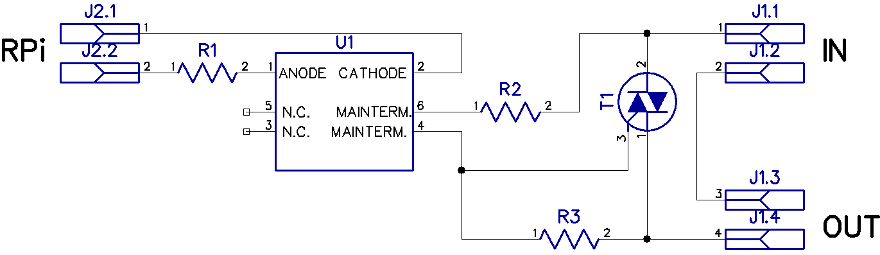
It would be possible to apply a relay here, but somehow I do not trust the contacts when there are such wonderful semiconductors. I don’t intentionally post the photo of the layout, as it didn’t come to a beautiful installation.
What is missing
Of course, having a full-fledged Linux computer at your disposal, you can "twist" the functionality indefinitely, and the development time will be relatively small. It is this circumstance that speaks in favor of using microcomputers to solve problems that the microcontroller would seem to cope with. However, I’ll still list what, in my opinion, the current implementation lacks:
First , security. It would be worth bothering with a simple HTTP-Auth at least, or, after adding a little script, make a password database for entering the “admin panel” of the system. Yes, and it’s worth working on data filtering, both before and after submitting the form.
Secondly, you need to add the add / remove academics. hours into shape. The attentive reader noticed that this can be done simply by adding the necessary fields to the form on the client side using, for example, a simple JavaScript code.
Thirdly , I so wanted to make a “panic button” on the main one, which would launch a call in 5-10 seconds. Let it be a small task for the inquiring minds of readers, fortunately, everything necessary for this is in the article.
Fourth , there is not enough uninterruptible power supply unit. Due to the customer’s refusal to develop, we never reached him.
How it all ended
Unfortunately, the Kharkov gymnasium with in-depth study of something there decided that collecting 3 hryvnias from each parent is very, very difficult, and in the end we were given a turn from the gate, so the implementation stopped at the current prototype, which does not contain some important for finite system of elements. But the time spent on development was not in vain. I hope that the experience in developing applications for working with iron in Python will come in handy more than once in my life, especially since the construction of a house is completed on a suburban area, in which it is possible to manage everything from a single think tank. If I could manage the call, then I can turn on the light bulbs according to the schedule.
Afterword
I hope, dear readers, I managed to convey to you the main idea. The use of microcomputers for seemingly trivial tasks can take their implementation to a whole new level, and instead of the simplest implementations, proprietary protocols and complex support, we get a flexible system with almost infinite extensibility, which in the future will result not only in usability, but also significant cost savings.
A little more than three hours were spent on the implementation of the above. Bringing to mind that is requires as much. Traditionally, I’ll ask you not to kick hard for the crooked code in some places and possible errors. This is my first article on Habré, and the first realized project in Python. Always welcome amendments, suggestions and suggestions. Screenshots and video work will lay out on demand.
I look forward to the implementation of such functionality by the comrade devzona , but only based on Arduino. I’m sure I have something to learn from him in terms of developing devices on microcontrollers. The article promises to be truly exciting.