
Custom Transition Animations Between Activity on Android
- From the sandbox
- Tutorial
Good afternoon! In this article, we will look at the process of creating custom animations of transitions between Activity in Android using ObjectAnimator and AnimatorSet. Everyone who is interested - welcome to cat.

PS: the article is written mainly for beginner developers.
All source code is available on GitHub.
We will consider 2 types of transitional animations:
For the demonstration, 2 types of animation were selected: simultaneous animation of several objects (door leaves) and sequential animation of several objects (folding a sheet of paper)
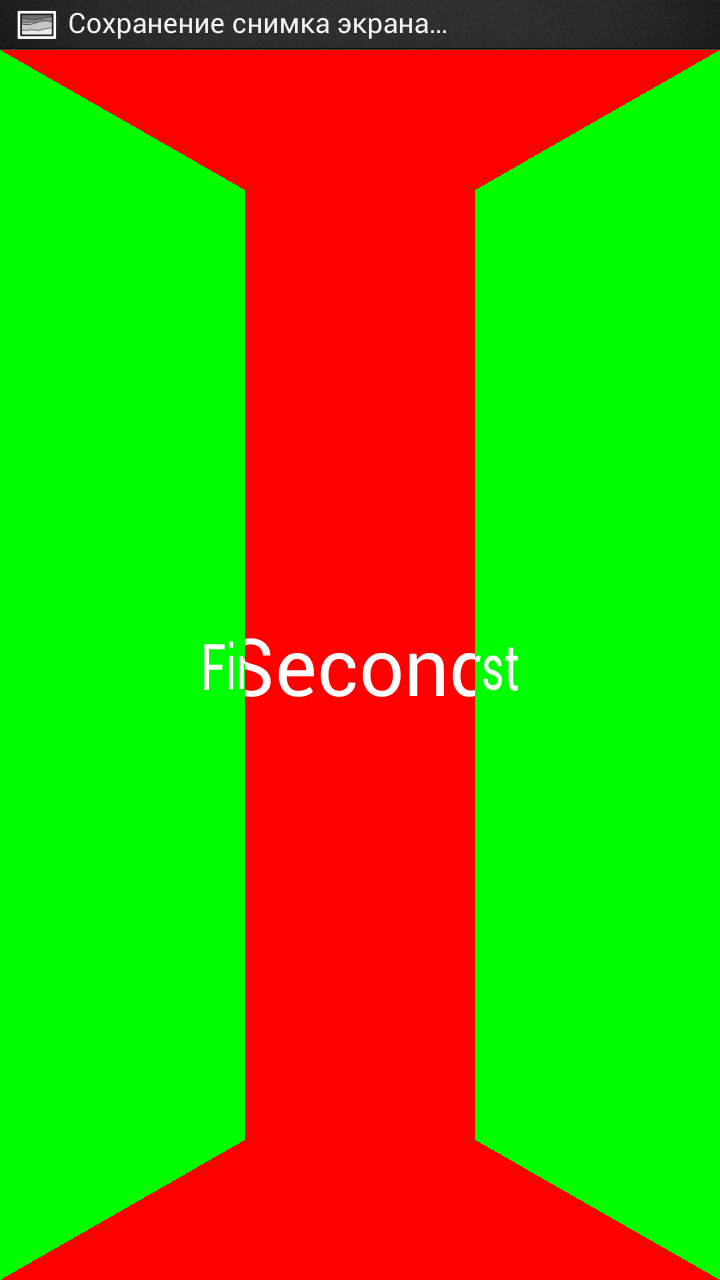
So, create 3 Activity: FirstActivity, SecondActivity and ThirdActivity.
FirstActivity Code:
first.xml:
FirstActivity.java:
The getBitmap function returns the Bitmap of the current window. When clicking on the main element of Activity, create a new Intent, and as Extra we set our Bitmap, converted to a byte array. Then we launch SecondActivity.
SecondActivity Code:
second.xml:
As the main element of our Activity, we set FrameLayout, which contains 2 LinearLayout. The first one contains all the necessary content (in our case, it is a TextView). In the second are 2 ImageViews that divide the screen in half. We need them for animation.
For animation, we need to take the following steps:
In the onCreate function, we get the Bitmap from Extras, divide it into 2 Bitmap using Bitmap.createBitmap (), and set the resulting images to ImageView. After that, register an Observer that will monitor the onDraw ImageView event and is called only once before the first rendering of the object. In it, we start the animation of the opening Activity.
The animation itself is described in the startEnterAnimation () function. Using the setPivotX () and setPivotY () functions, we set the points around which our images will rotate. Next, we define the rotation animations ourselves using the ObjectAnimator object.
ObjectAnimator is a system component introduced with Android 3.0. It helps to animate some property of any object. In this case, we animate the rotationX property of the float type of the left object.
Next, we create the AnimatorSet set of animations, set the animation duration to 500 ms and tell him that we will simultaneously play 2 animations.
The closing animation of an Activity is set similarly. To run it, we redefine the Activity onBackPressed () function. In it, we start the closing animation, not forgetting to add a listener with the finish () function.
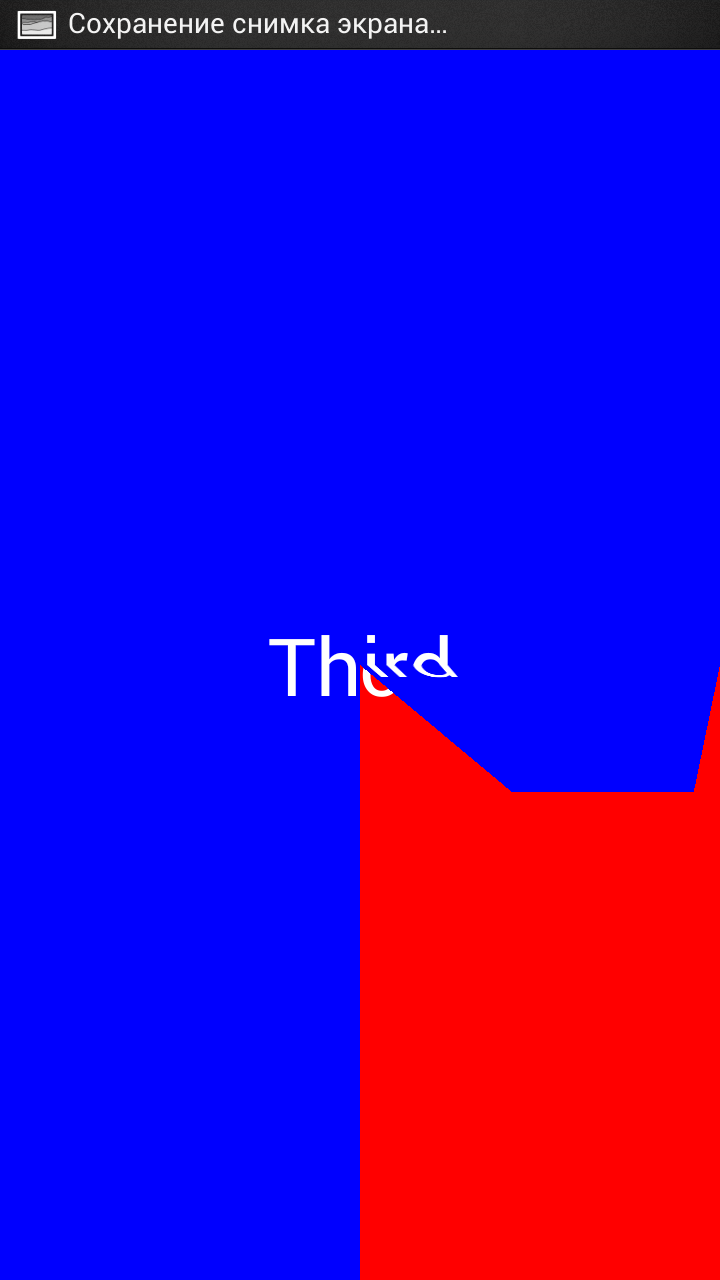
In order to animate a new Activity against the background of the old, we do not need to transfer anything to the new Activity. You just need to make the ACtivity background transparent. To do this, we change the ThirdActivity theme to Transparent in the AndroidManifest file, and add this theme to styles.xml
The animation process itself will be as follows:
All animation is launched using the same AnimatorSet, only they are set using the playSequentially function. This means that all animations will run sequentially one after another.
The closing animation of an Activity is done similarly, only in the reverse order.
We looked at 2 ways to create transient animations between Activity. All the code in the article is adapted for a system version higher than 3.0, but it can easily be adapted for earlier versions, starting with 1.6, using the NineOldAndroids library from the well-known Jake Wharton. The only thing I would like to focus on is setting relative points for rotation and magnification. In this library, they are installed using the AnimatorProxy object.
That's all, if you like this article - I will continue publishing on the topic of creating animations in the Android OS.
PS: the article is written mainly for beginner developers.
All source code is available on GitHub.
We will consider 2 types of transitional animations:
- animating the old Activity against the background of the new
- animating a new Activity against the background of the old
For the demonstration, 2 types of animation were selected: simultaneous animation of several objects (door leaves) and sequential animation of several objects (folding a sheet of paper)
Animation of an old Activity
So, create 3 Activity: FirstActivity, SecondActivity and ThirdActivity.
FirstActivity Code:
first.xml:
FirstActivity.java:
public class FirstActivity extends Activity {
    @Override
    public void onCreate(Bundle savedInstanceState) {
        super.onCreate(savedInstanceState);
        setContentView(R.layout.first);
        LinearLayout click = (LinearLayout) findViewById(R.id.click_layout);
        click.setOnClickListener(new View.OnClickListener() {
            @Override
            public void onClick(View v) {
                Bitmap bmp = getBitmap();
                ByteArrayOutputStream stream = new ByteArrayOutputStream();
                bmp.compress(Bitmap.CompressFormat.PNG, 100, stream);
                byte[] byteArray = stream.toByteArray();
                Intent intent = new Intent(FirstActivity.this, SecondActivity.class);
                intent.putExtra("picture", byteArray);
                startActivity(intent);
                overridePendingTransition(0,0);
            }
        });
    }
    private Bitmap getBitmap(){
        View root = getWindow().getDecorView().findViewById(android.R.id.content);
        root.setDrawingCacheEnabled(true);
        return root.getDrawingCache();
    }
}
The getBitmap function returns the Bitmap of the current window. When clicking on the main element of Activity, create a new Intent, and as Extra we set our Bitmap, converted to a byte array. Then we launch SecondActivity.
SecondActivity Code:
second.xml:
As the main element of our Activity, we set FrameLayout, which contains 2 LinearLayout. The first one contains all the necessary content (in our case, it is a TextView). In the second are 2 ImageViews that divide the screen in half. We need them for animation.
For animation, we need to take the following steps:
- Create a Bitmap from a byte array passed from the first Activity
- Split Bitmap into 2 parts and load them into the corresponding ImageView
- Using AnimatorSet, simultaneously play the rotation animation of both ImageViews
public void onCreate(Bundle savedInstanceState) {
        super.onCreate(savedInstanceState);
        setContentView(R.layout.second);
        Bundle extras = getIntent().getExtras();
        byte[] byteArray = extras.getByteArray("picture");
        Bitmap bmp = BitmapFactory.decodeByteArray(byteArray, 0, byteArray.length);
        left = (ImageView) findViewById(R.id.left_image);
        right = (ImageView) findViewById(R.id.right_image);
        int centerWidth = bmp.getWidth()/2;
        Bitmap bmpLeft,bmpRight;
        bmpLeft = Bitmap.createBitmap(bmp,0,0,centerWidth,bmp.getHeight());
        bmpRight = Bitmap.createBitmap(bmp,centerWidth,0,bmp.getWidth() - centerWidth,bmp.getHeight());
        left.setImageBitmap(bmpLeft);
        right.setImageBitmap(bmpRight);
        ViewTreeObserver observer = left.getViewTreeObserver();
        observer.addOnPreDrawListener(new ViewTreeObserver.OnPreDrawListener() {
            @Override
            public boolean onPreDraw() {
                left.getViewTreeObserver().removeOnPreDrawListener(this);
                startEnterAnimation();
                return true;  //To change body of implemented methods use File | Settings | File Templates.
            }
        });
    }
In the onCreate function, we get the Bitmap from Extras, divide it into 2 Bitmap using Bitmap.createBitmap (), and set the resulting images to ImageView. After that, register an Observer that will monitor the onDraw ImageView event and is called only once before the first rendering of the object. In it, we start the animation of the opening Activity.
private void startEnterAnimation() {
        left.setPivotY(left.getHeight()/2);
        left.setPivotX(0);
        right.setPivotY(left.getHeight()/2);
        right.setPivotX(right.getWidth());
        Animator leftAnim = ObjectAnimator.ofFloat(left, "rotationY", 0, 90);
        Animator rightAnim = ObjectAnimator.ofFloat(right, "rotationY", 0, -90);
        AnimatorSet set = new AnimatorSet();
        set.setDuration(500);
        set.playTogether(leftAnim, rightAnim);
        set.start();
    }
The animation itself is described in the startEnterAnimation () function. Using the setPivotX () and setPivotY () functions, we set the points around which our images will rotate. Next, we define the rotation animations ourselves using the ObjectAnimator object.
ObjectAnimator is a system component introduced with Android 3.0. It helps to animate some property of any object. In this case, we animate the rotationX property of the float type of the left object.
Next, we create the AnimatorSet set of animations, set the animation duration to 500 ms and tell him that we will simultaneously play 2 animations.
The closing animation of an Activity is set similarly. To run it, we redefine the Activity onBackPressed () function. In it, we start the closing animation, not forgetting to add a listener with the finish () function.
Animation of a new Activity
In order to animate a new Activity against the background of the old, we do not need to transfer anything to the new Activity. You just need to make the ACtivity background transparent. To do this, we change the ThirdActivity theme to Transparent in the AndroidManifest file, and add this theme to styles.xml
The animation process itself will be as follows:
- using the OnPreDrawListener observer and the getBitmap function, we get the Bitmap of our Layout, after which we make it invisible and start the animation of the opening Activity
- divide the resulting Bitmap into 4 parts, set each part to the corresponding Bitmap, and then make all images except the initial one invisible
- the opening animation will be similar to the previous one, except that after finishing the animation of each piece of the image, we need to make the next piece of the image visible
- Well, at the end of the entire animation, we make the Layout visible from the contents of this Activity, and hide the images
All animation is launched using the same AnimatorSet, only they are set using the playSequentially function. This means that all animations will run sequentially one after another.
The closing animation of an Activity is done similarly, only in the reverse order.
Conclusion
We looked at 2 ways to create transient animations between Activity. All the code in the article is adapted for a system version higher than 3.0, but it can easily be adapted for earlier versions, starting with 1.6, using the NineOldAndroids library from the well-known Jake Wharton. The only thing I would like to focus on is setting relative points for rotation and magnification. In this library, they are installed using the AnimatorProxy object.
That's all, if you like this article - I will continue publishing on the topic of creating animations in the Android OS.