September 13, 2013 at 19:12
Versioning, Notifications, Inbox, and Folders in Microsoft SharePoint 2013
In this article, I’ll talk about useful, in my opinion, versioning functions, notifications, incoming e-mail messages and folders in Microsoft SharePoint 2013, which do not require additional development, but can effectively help in your work. Along the way, I will focus on the principles of working with Microsoft SharePoint 2013 and related functionality. The idea for this article was prompted by communication with my friends who use Microsoft SharePoint in their work, quite a long time ago, but they use only a small part of its capabilities. I will try to change that.
How to enable versioning?
By default, versioning is disabled to save disk space. If you are creating a new library, click on the “Advanced Options” button, in the Documents Versions History section, select “Yes”. For an existing library, you can enable versioning through the Library> Library Settings> Versioning settings tab. In the “Document Version History” section, select the appropriate option from three options:
There is also a checkmark to set the limit for stored major and draft versions, the default value is 511 versions for each type. To enable versioning, you must have permission to change the properties of the library.

Basic / Draft versions, what to choose?
In this matter, the logic is simple, if you often edit documents, make many small changes to them, or if several people work on the same document, then you better choose the storage of the main and draft versions. In this case, all your small changes will be stored as drafts, and after the completion of the main work on the document, it will be logical to publish the main version. In the remaining cases, only the main version is sufficient.
What gives versioning? 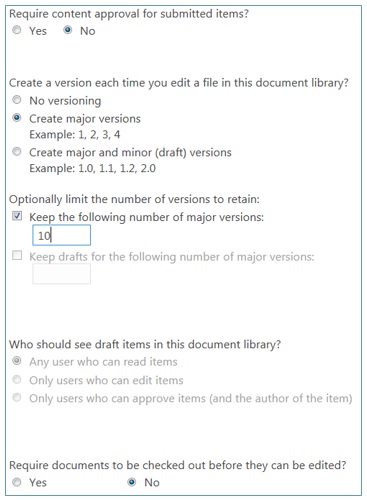
Simultaneous work on a document - provides the ability to edit any document, in parallel with other users, your changes will be saved as a separate version as well as changes of other users. After that, you can compare and merge versions using the appropriate MS Office application (Word, Excel, PowerPoint, OneNote).
Managing the display of changed information and content approval, how it works? For example, you are working on a document, and until you finish it, it makes no sense to show it to the public, but you still keep draft versions along with the main one. This is configured where the version is Library> Library Settings> Versioning settings. The content approval function is convenient if, to publish a document, approval of a responsible person, for example, a department head, or a project manager is necessary. Until the document is approved, ordinary users will not be able to see the changes.
Check-out / check-in
This function delegates exclusive rights to change, to the user who opened the document for editing, making check-out. No one else will be able to edit the document until the document is returned back to the library using the Check-in function, while the document, or rather its previous version, will still be readable by any user of your library.

Versioning in lists
The lists also have the ability to configure versioning. There are minor differences based on the difference in content types. When setting versioning, the last item “Require documents to be checked out before they can be edited?” Is missing from the lists.
When is versioning appropriate?
Notifications
 To be aware of changes in a particular library or document, you can configure the sending of notifications by mail. And you can set up a notification for your colleagues and all this is absolutely automatic. Select the item by which you want to receive notifications and in the context menu click on the item "Alert me" with a bell. By default, your name will be in the Send Alerts To field, but you can add any of your colleagues. You can also choose which notifications to report and how often to send notifications.

How to manage your notifications?
Under the “Alert me” icon in the drop-down menu, you can select “Manage my alerts”.
In what cases is it advisable to use notifications?
Incoming Email
In some cases, it is very useful to automatically receive and store letters in a place publicly accessible to employees. For example, daily reports, summaries, exchange rates, messages from the Central Bank, everything that robots generate automatically and send each employee in the morning to the mailbox. The standard document library has the ability to configure automatic reception of messages with subsequent processing. The following options are offered for processing letters: Save message attachments in the root folder / in a folder with a name identical to the subject of the letter / in a folder with a name identical to the sender’s name, and also save the original letter or an invitation to a meeting. If you select the overwrite document checkbox with the new version, you will get an actual link to a fresh document, and all previous versions will be urged on to the current document.

To configure incoming mail, go to the target library, then Library> Library Settings> Incoming e-mail settings in the Communications column. In the settings, you must specify the name of the mail box to which mail will arrive and select the settings that are suitable for you. Anyone can think of a name for the box, SharePoint will create it for you.
Perhaps in the beginning, you will not have the “Incoming e-mail settings” option in the document library settings, contact your system administrator to activate this function at the server level.
In SharePoint, there is also the ability to create folders in the document library and do everything in the usual way, but with some features. Folders in a SharePoint library are useful for fine-tuning access rights, managing metadata, or displaying a document library in the familiar form of Windows Explorer, but sometimes this is not enough to search or sort. In SharePoint, in this case there is a solution in the form of metadata or custom columns. The principle is that it is much easier to search / sort / manage documents if you have several grouping / sorting options. For example, incoming / outgoing, region, customer name, importance, responsible employee, status: at work, pending, sent to the client, under consideration, etc.
To display the list of documents, views are used, where you can configure sorting, grouping, and filtering based on previously created columns.
In each case, it makes sense to think through the approach individually, using a few simple tips: make the folder hierarchy extremely simple and concise; take advantage of all possible approaches.
Versioning
Versioning is not a new function, but it is not often remembered. In fact, the proper use of this feature will help save your time and nerves.How to enable versioning?
By default, versioning is disabled to save disk space. If you are creating a new library, click on the “Advanced Options” button, in the Documents Versions History section, select “Yes”. For an existing library, you can enable versioning through the Library> Library Settings> Versioning settings tab. In the “Document Version History” section, select the appropriate option from three options:
- No versioning - versioning is disabled
- Create major versions - store only major versions, for example 1.0; 2.0 etc.
- Create major and minor (draft) versions - store major and draft versions, 1.1; 1.2; 2.1 etc.
There is also a checkmark to set the limit for stored major and draft versions, the default value is 511 versions for each type. To enable versioning, you must have permission to change the properties of the library.
Basic / Draft versions, what to choose?
In this matter, the logic is simple, if you often edit documents, make many small changes to them, or if several people work on the same document, then you better choose the storage of the main and draft versions. In this case, all your small changes will be stored as drafts, and after the completion of the main work on the document, it will be logical to publish the main version. In the remaining cases, only the main version is sufficient.
What gives versioning?
- Versioning will help you keep a certain number of versions (main / draft)
- Ability to restore any previously saved version
- View previous versions
- Collaborative / simultaneous work on a document
- Control the display of changed information using the Content approval function and the option to display draft versions
Simultaneous work on a document - provides the ability to edit any document, in parallel with other users, your changes will be saved as a separate version as well as changes of other users. After that, you can compare and merge versions using the appropriate MS Office application (Word, Excel, PowerPoint, OneNote).
Managing the display of changed information and content approval, how it works? For example, you are working on a document, and until you finish it, it makes no sense to show it to the public, but you still keep draft versions along with the main one. This is configured where the version is Library> Library Settings> Versioning settings. The content approval function is convenient if, to publish a document, approval of a responsible person, for example, a department head, or a project manager is necessary. Until the document is approved, ordinary users will not be able to see the changes.
Check-out / check-in
This function delegates exclusive rights to change, to the user who opened the document for editing, making check-out. No one else will be able to edit the document until the document is returned back to the library using the Check-in function, while the document, or rather its previous version, will still be readable by any user of your library.
Versioning in lists
The lists also have the ability to configure versioning. There are minor differences based on the difference in content types. When setting versioning, the last item “Require documents to be checked out before they can be edited?” Is missing from the lists.
When is versioning appropriate?
- If you make frequent changes to the content and it’s important for you to be able to roll back the changes
- If you are working collectively on the same document
- When is it important to keep track of who, when, and what changes have made
- When you need to approve a document before publishing it
Notifications
To be aware of changes in a particular library or document, you can configure the sending of notifications by mail. And you can set up a notification for your colleagues and all this is absolutely automatic. Select the item by which you want to receive notifications and in the context menu click on the item "Alert me" with a bell. By default, your name will be in the Send Alerts To field, but you can add any of your colleagues. You can also choose which notifications to report and how often to send notifications. How to manage your notifications?
Under the “Alert me” icon in the drop-down menu, you can select “Manage my alerts”.
In what cases is it advisable to use notifications?
- If you want to track changes on a specific object or sheet / library. It is very useful if your work depends on someone else, or vice versa, someone depends on your changes.
- If you need to inform a certain number of people about changes, for example, updating project documentation or requirements. In this case, versioning is also useful as it will be easier for the team to find out what changes were made
- If you want to configure informing the user about the results of his actions. For example, a user has signed up for a training, and the system will send him a confirmation that he is registered
Incoming Email
In some cases, it is very useful to automatically receive and store letters in a place publicly accessible to employees. For example, daily reports, summaries, exchange rates, messages from the Central Bank, everything that robots generate automatically and send each employee in the morning to the mailbox. The standard document library has the ability to configure automatic reception of messages with subsequent processing. The following options are offered for processing letters: Save message attachments in the root folder / in a folder with a name identical to the subject of the letter / in a folder with a name identical to the sender’s name, and also save the original letter or an invitation to a meeting. If you select the overwrite document checkbox with the new version, you will get an actual link to a fresh document, and all previous versions will be urged on to the current document.To configure incoming mail, go to the target library, then Library> Library Settings> Incoming e-mail settings in the Communications column. In the settings, you must specify the name of the mail box to which mail will arrive and select the settings that are suitable for you. Anyone can think of a name for the box, SharePoint will create it for you.
Perhaps in the beginning, you will not have the “Incoming e-mail settings” option in the document library settings, contact your system administrator to activate this function at the server level.
Folders
Many are used to the fact that documents are stored in folders, usually network folders, and folders in folders, thereby creating a logical hierarchy corresponding to the content / purpose of the documents. This approach works until the structure expands and the time comes to find something ...In SharePoint, there is also the ability to create folders in the document library and do everything in the usual way, but with some features. Folders in a SharePoint library are useful for fine-tuning access rights, managing metadata, or displaying a document library in the familiar form of Windows Explorer, but sometimes this is not enough to search or sort. In SharePoint, in this case there is a solution in the form of metadata or custom columns. The principle is that it is much easier to search / sort / manage documents if you have several grouping / sorting options. For example, incoming / outgoing, region, customer name, importance, responsible employee, status: at work, pending, sent to the client, under consideration, etc.
To display the list of documents, views are used, where you can configure sorting, grouping, and filtering based on previously created columns.
In each case, it makes sense to think through the approach individually, using a few simple tips: make the folder hierarchy extremely simple and concise; take advantage of all possible approaches.