Working with mail through Emacs and Wanderlust
Let's try today to configure the Wanderlust email client for emacs and learn the basics of its use. The guide will be as simple as possible - setting up one Gmail account, but taking into account all the basic nuances. If you didn’t succeed with Gnus, then you should still try this client, it is much easier to configure and work.
Your OS is preferably Linux or * BSD. Otherwise, you may have problems setting up SSL, which requires Gmail.
Unfortunately, the author of Wanderlust did not bother to create an elpa package, so installing the client through the standard emacs package manager will fail. In the repositories of your distribution package is called wl or wl-beta. The latter option is preferable. You will also need the gnutls-bin package. So in the case of debian or ubuntu:
Now you need to add Wanderlust to emacs startup, this is done by adding the line to the end of your .emacs:
If you are a seasoned user of emacs, then you will determine where to put your account settings, if you do not want to think about it, just add the following code to the end of your .emacs file (you can’t dig into it - just replace those 3 lines that are responsible for your account record):
Now restart emacs and type Mx wl. After the restart, Wanderlust will require a password from IMAP, and will also show a brief help about itself, which can be closed like any buffer.
Do not be alarmed, but the first thing you will see is something unremarkable, like:
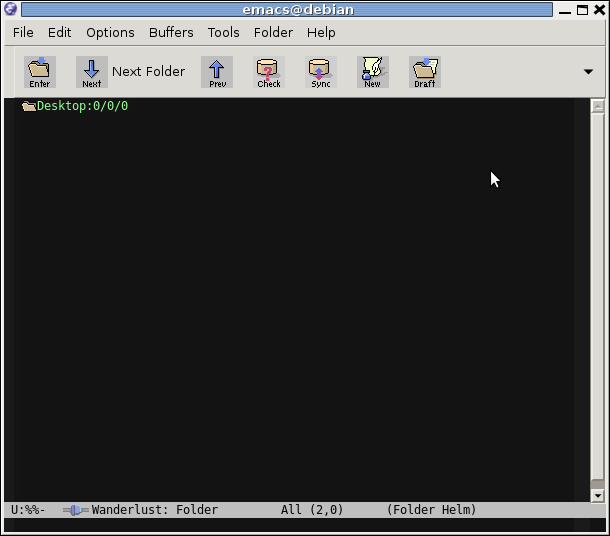
To see your mail, press "g". Wanderlust prompts you to select the folder from which you want to view letters. In this case, just pressing Enter will select the% inbox folder. If you entered the password correctly, you should see a list of letters.
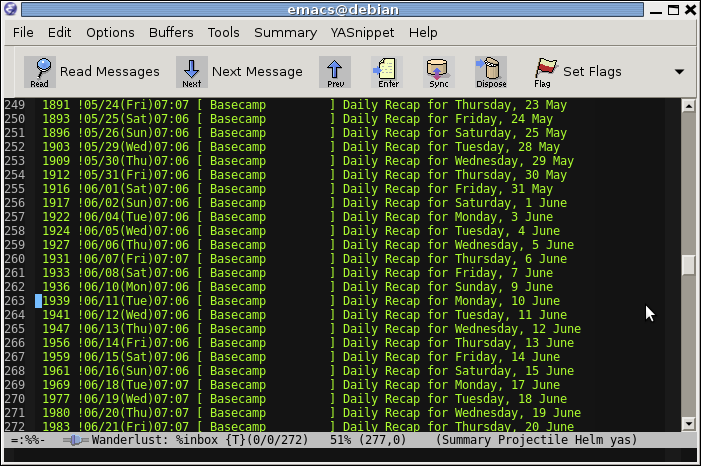
To quickly hide / show the message viewing window, press “v”. To filter messages by any field, click "?".
The article discusses the necessary minimum for working with mail (at least for the average user) in emacs using Wanderlust. Unfortunately, so far only work with one account has been considered. When I manage to make a configuration that combines work with both IMAP and POP3 accounts, then perhaps the following article will be released.
Your OS is preferably Linux or * BSD. Otherwise, you may have problems setting up SSL, which requires Gmail.
Install Wanderlust
Unfortunately, the author of Wanderlust did not bother to create an elpa package, so installing the client through the standard emacs package manager will fail. In the repositories of your distribution package is called wl or wl-beta. The latter option is preferable. You will also need the gnutls-bin package. So in the case of debian or ubuntu:
  aptitude install gnutls-bin semi apel flim
  aptitude install wl-beta
Now you need to add Wanderlust to emacs startup, this is done by adding the line to the end of your .emacs:
(autoload 'wl "wl" "Wanderlust" t)
Set up an account
If you are a seasoned user of emacs, then you will determine where to put your account settings, if you do not want to think about it, just add the following code to the end of your .emacs file (you can’t dig into it - just replace those 3 lines that are responsible for your account record):
;; эта часть настроек для доступа к Gmail по IMAP
(setq elmo-imap4-default-server "imap.gmail.com"
      elmo-imap4-default-user "ваш_адрес@gmail.com"
      elmo-imap4-default-authenticate-type 'clear
      elmo-imap4-default-port '993
      elmo-imap4-default-stream-type 'ssl
      elmo-imap4-use-modified-utf7 t)
;; тут настройки отвечающие за SMTP
(setq wl-smtp-connection-type 'starttls
      wl-smtp-posting-port 587
      wl-smtp-authenticate-type "plain"
      wl-smtp-posting-user "ваш_адрес_без[email protected]_на_конце"
      wl-smtp-posting-server "smtp.gmail.com"
      wl-local-domain "gmail.com"
      wl-message-id-domain "smtp.gmail.com")
(setq wl-from "Имя которое получатели ваших писем увидят в поле From <ваш_адрес@gmail.com>"
    ;; настройки папок IMAP
    ;; если у вас в настройках gmail стоит русский язык то копируйте все как есть
    ;; gmail создает имена папок в зависимости от локали
    wl-default-folder "%inbox"
    wl-draft-folder   "%[Gmail]/Черновики"
    wl-trash-folder   "%[Gmail]/Корзина"
    wl-fcc            "%[Gmail]/Отправленные"
    wl-fcc-force-as-read    t
    wl-default-spec "%")
Now restart emacs and type Mx wl. After the restart, Wanderlust will require a password from IMAP, and will also show a brief help about itself, which can be closed like any buffer.
First start
Do not be alarmed, but the first thing you will see is something unremarkable, like:
To see your mail, press "g". Wanderlust prompts you to select the folder from which you want to view letters. In this case, just pressing Enter will select the% inbox folder. If you entered the password correctly, you should see a list of letters.
To quickly hide / show the message viewing window, press “v”. To filter messages by any field, click "?".
Post Creation
- To reply to a letter, select it with the cursor and press a (or A if you want to reply with full quotation).
- to write a new letter press w
- To attach a file to an editable letter, press Cc Cx TAB
- To send a finished message, click Cc Cc
Message Operations
- Sorting is performed using the wl-summary-sort function - a list of possible fields for sorting can be seen by pressing TAB.
- Deleting a message is done by pressing d opposite it, and then - x
- You can highlight the lines with the messages you want to delete. To delete, press m D x
- To save the message to a file, to view it in another client, press e. Attachments from letters are saved in the same way - you just need to open the letter and go to the place where the attached file is located and press e
- To copy the message to another folder, press O
Conclusion
The article discusses the necessary minimum for working with mail (at least for the average user) in emacs using Wanderlust. Unfortunately, so far only work with one account has been considered. When I manage to make a configuration that combines work with both IMAP and POP3 accounts, then perhaps the following article will be released.