
 July 4, 2013 at 11:39
Homemade Ergonomic CatBoard Keyboard] [
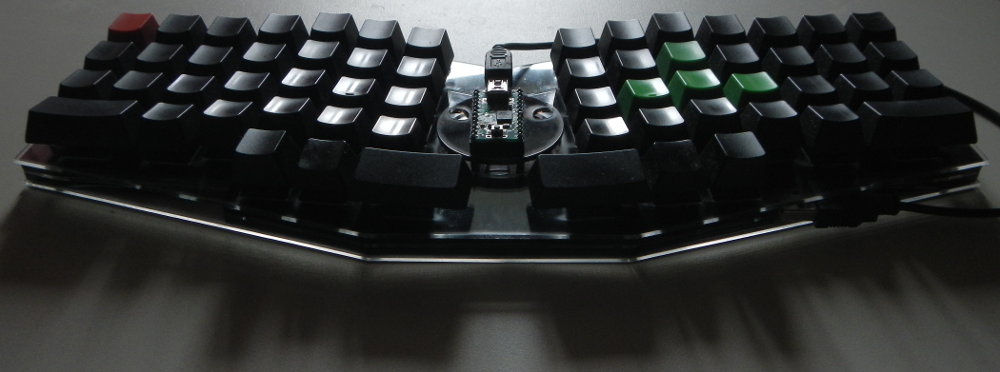
CatBoard is a home-made ergonomic compact keyboard with open source code, has many non-standard solutions, such as: non-standard hardware layout with standard keyboard combinations; fast auto repeat of the pressed key; Fn layer with cursor keys, numeric keypad, function keys; separate keys for switching layouts; more convenient arrangement of Ctrl and Shift; separate AltTab button; Macintosh compatibility mode, which allows you to work on it in the same way as on a PC; the ability to flash without additional equipment; the ability to install on top of a laptop keyboard. Thanks to the open code, you can do anything with the keyboard, the new firmware is uploaded in a matter of seconds, so you can experiment right on the go.
Long historical part
It all started back in 2005, when I wanted to work on a truly ergonomic keyboard, but was not ready to order an expensive keyboard from abroad. I decided to develop a keyboard myself, because it’s easier to buy buttons, take a controller from any cheap keyboard, and just connect the buttons in the same way as it was done in this keyboard. At that time, I really liked the Kinesis Advantage keyboard , it’s almost ideal, but I thought it was worth starting production with a flat keyboard, like the Maltron Flat .
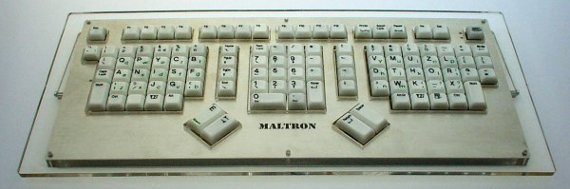
Maltron Flat Keyboard
I already knew how to type blindly, I learned with the Stamina keyboard simulator. Before that, I tried to learn at Solo, but he got so tired of me that I never finished my studies, went through all the exercises, but did not start typing blindly. But at Stamina it was easy to learn, and when the typing speed reached 200 characters per minute, I was able to start working without looking at the keyboard. I learned to print both Russian and English text at once, took turns in the exercises, thanks to this I was immediately able to fully start working with the blind method. I rearranged the buttons on my keyboard, thereby trolling my colleagues, it was interesting to even come up with different inscriptions on the keyboard, because the caps on the buttons are different on different rows, so I had to rearrange them only on my own row, and it was advisable not to touch the fj that had serifs (and they are important in touch typing so that you can put your hands in the starting position of the print without looking).
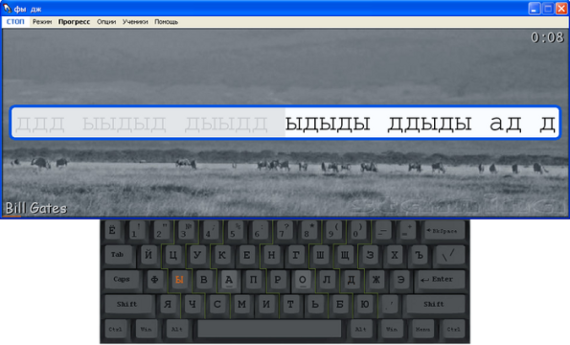
Stamina's keyboard simulator
Before doing anything, I found one Moscow company where I bought Cherry MX Black buttons with a margin, and a KBM-105 programmable keyboard for trading terminals for experiments (index 105 is the number of buttons, 15x7 matrix). Having drawn the layout of the buttons, I began to think how to make a case at home. I assembled various constructions from improvised materials, which it’s a shame to show now, in general, nothing worked, it was crooked and flimsy. Work on the manufacture of the case stalled, but on the programmable KBM-105 began to experiment with layouts.
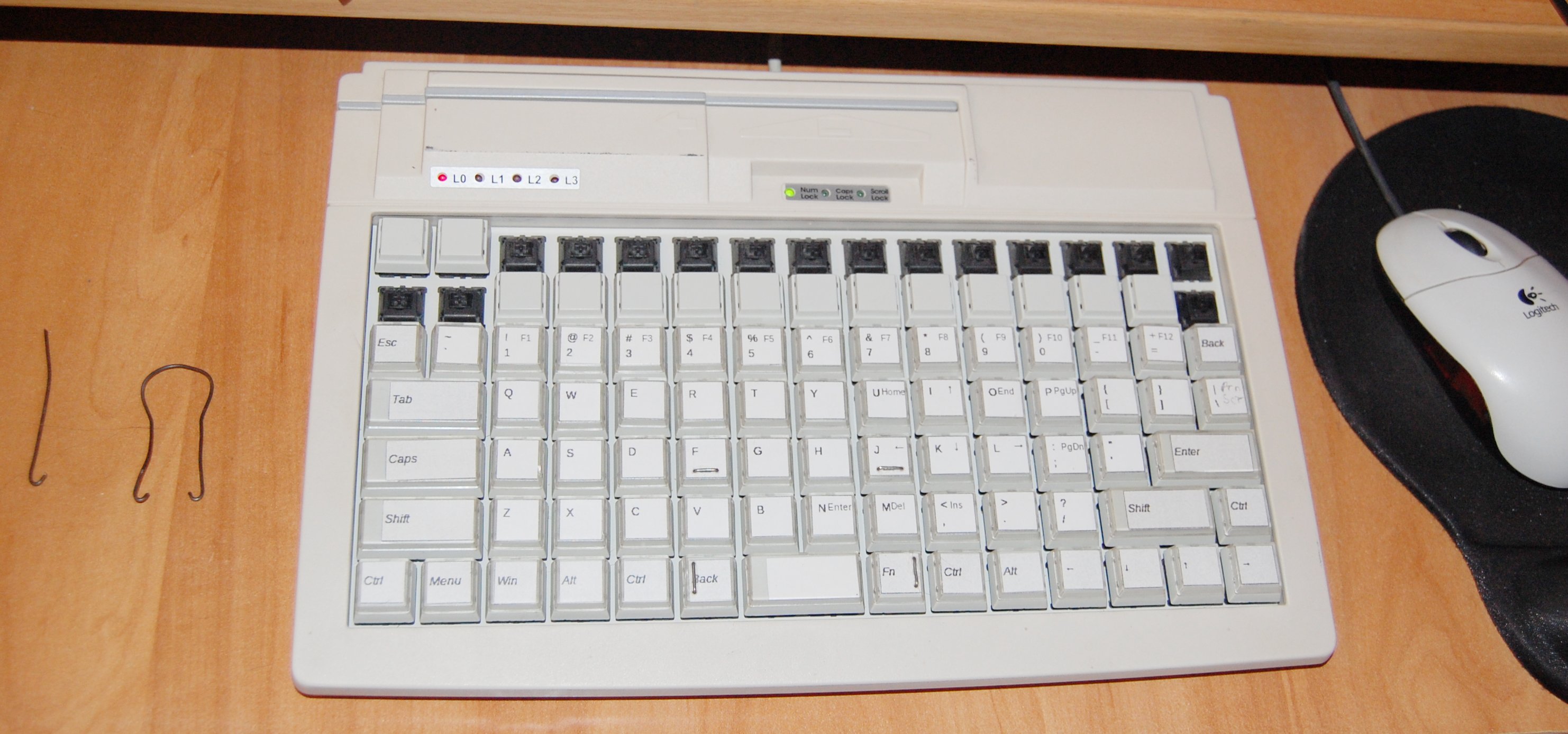
Programmable Keyboard KBM-105
A very unusual NSK 535 keyboard was being produced at that time., everything in it was revolutionary, and the alphabetical layout, and the ciphers on the thumbs. Looking at such a miracle, I even decided to print with such ciphers, but it seemed very revolutionary, and returned the ciphers back to the little fingers, since it’s possible to flash the KBM-105 keyboard very quickly, you can change the button layout several times a day.
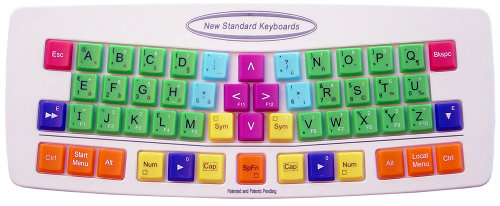
Keyboard NSK 535 R
I worked on this programmable keyboard at home for several years, while I had a standard keyboard at work, there were no problems working with two completely different keyboards, only it was much more pleasant to work with mine.
To quickly learn new layouts on a programmable keyboard, he even wrote the Klavarog keyboard simulator online ( http://klava.org/) so that you can work from any computer connected to the Internet without installing any programs, now everyone began to do so, and at that time online simulators, if they were, were only on Flash, and they did not work in Linux with Russian letters. At first it was a very simple simulator, there was not even a hint about the keys pressed, just a picture of the keyboard. Although so far it remains the simplest simulator, and at the same time very effective, because it was made for itself. Beginners are offered a mode that allows literally in a day to master the location of all the letters, you do not need to spend a week or two on passing the lessons, which add one studied button, as is done in almost all simulators.

Klavarog keyboard simulator
At some point in time, I decided that I would be developing a new keyboard, and the project would be open. Wiki created the site http://kbd.klava.org/ , where he began to collect information about different keyboards, and began to search for any information on keyboard development, because for my keyboard it was already necessary to make my own controller, the standard one was no longer suitable. It turned out that I did not know anything about making keyboards.
It also happened that I quit my office and began to work at home, and even on a laptop, the matrix programmable keyboard was used less and less. Over time, the fervor disappeared, the usual worries and affairs pushed the development of the keyboard into the background. But the idea was too obsessive, and I began to slowly think about how to remake the keyboard in a laptop, because it was physically impossible to remake it, so the software tools were used. First, I moved the cursor keys to the main alphabetical block, if you hold AltGr (right Alt), then some letters become arrows, at first they were VIM buttons
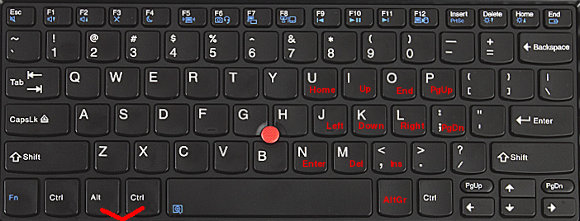
Modified laptop keyboard layout
At one time it turned out that there was no work, and I decided to change the hated QWERTY layout (how my little fingers hurt from it when learning touch typing) to a more ergonomic Dvorak, and with the help of his simulator began to study it. Just at that time, I made a special mode in Klavarog, in which it is proposed to type one short word many times in a row, first slowly, then quickly, driving a new layout into your memory is very effective. I’ve been busy for about a week, things went tight, the speed grew very slowly, but for some reason I forgot how to work in QWERTY, others didn’t have such a problem, but I was scared, suddenly I would have to do something urgent, and I forgot how to print , but I have not yet learned in Dvorak. And at this moment of timelessness, my old computer BK-0010/01, in which there was a phonetic layout of JCUKEN, catches my eye, in it, the Latin letters are located in the same place as the Russians similar in sound in the standard YTsUKEN layout. Nostalgia for BC times was so overwhelming that I decided to make this layout for myself and try to study it. I didn’t succeed in doing one to one, some frequently encountered letters were not very well located, and in the end I changed it pretty much, and I have good reasons for rearranging each key. But in general, it still remained phonetic, and for the most part coinciding with the old one. Having made the layout and flashing it into my operating system (I already started working in Ubuntu Linux at that time), I began to study it in the simulator. And then a miracle happened, the process went so fast that I brought the print speed to 200 characters per minute (again, these 200) in five days, and started working in a new layout.
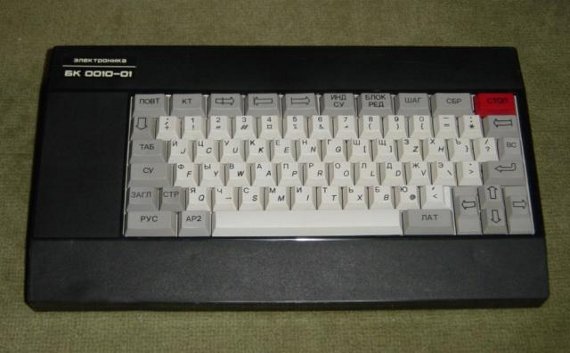
Keyboard of the Soviet computer BK 0010-01

Modified layout of JCUKEN
Now everything suited me, except for the arrangement of keys, and did not suit a long space, although on a laptop it is shorter than on ordinary keyboards, due to additional keys on the bottom row. It's time to make a keyboard, only it should be compact so that it can be placed on top of a laptop keyboard, and as small as possible in height. Since the keyboard should be located on top of the laptop, and on my Thinkpad right in the middle of the keyboard there is a touchpoint that is higher than the level of all buttons, I decided to make a hole on the bottom of the keyboard body, at first it was round, then I just added cat ears. From that moment on, my keyboard became CatBoard = ^. ^ =
I decided to make the case out of aluminum, and began to look for a production where I could cut out holes for the buttons with a laser, and the outline of the case. Nobody wants to get involved with small orders, most honestly write about the minimum order amount, some talk about it only after the order. To cut aluminum, you need a fairly powerful laser, which is not easy to find, so I decided to make a body of sheet plastic or plexiglass. And then, thanks to Habré, found mention of the first in Russia otkrvyshemsya fablabe . Contacted FabLab77 Laboratory Manager, met, I talked about my project, and got access to equipment with which you can do anything, limitless opportunities have opened up. It was also lucky that at that time the Americans from MIT came, and held a week-long seminar at which they taught how to work with all their equipment, only open software was used.
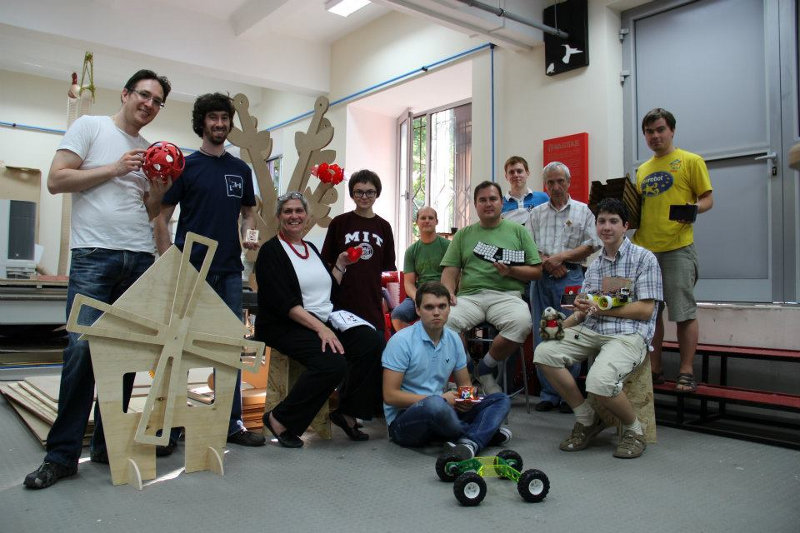
The last day of the MIT workshop in FabLab77
In search of an ergonomic arrangement of buttons, I made many layouts from plywood, on which I found the best location, and it turned out to be almost the same as in the Truly Ergonomic and ErgoDox keyboards (I did not know about its existence then) . Well, this is not surprising, because the hands of people are almost the same.
After the case was ready, and the arrangement of buttons completely suited me, I began to study how to make the controller. At the same time, he began to collect a home mini lab for soldering. I bought a power adjustable soldering iron, assembled a box in which I placed the Dremel 300 with an attachment turning it into a small drilling machine - Dremel Workstation 220. In this box I made a hinged lid that you can work on. Now the drawer always stands under the table, taking up a place in the apartment, and when you need to do something, I take it out and put it on the table.
At first, the controller decided to assemble it himself, at the same time assembling the programmer, made printed circuit boards on the Modela milling machine, soldered them, but it didn’t work, since the working programmer was only in the Fablab, I didn’t want to buy a new one, but I could tinker with the boards only at home. I learned that there are microcontrollers with hardware implementation of the USB protocol, a further search led me to ready-made controllers, such as Teensy, and our similar developments from Microsin , from which I purchased AVR-USB162 .
I decided to solder wires not directly to the controller, but through the connector that I installed inside the case. Having once again gone to fablab, he laser-cut the case, which he decided not to make with rounded edges, circling the blocks with buttons in straight lines, got the current keyboard design. The controller placed right on top of the case, it rests on a screw with a nut, and fitted washers, and the connector prevents the board from spinning. So that the wire does not rest on the laptop screen, I placed the controller closer to the middle of the keyboard. But what happens when they did not think about this problem:

Richard Stallman and his OLPC laptop with a HHKB keyboard
When developing the circuit, I realized that the buttons need to be connected via diodes so that there is no situation when, when you press several buttons in different rows and columns, the controller begins to think that the button is pressed from intersecting rows. Everyone knows this, but I didn’t know about it then. The Cherry MX buttons have an empty spot where you can install either a diode or an LED. In order not to solder the diodes from the outside, I installed a small KD522B diode in each button, though I messed up the polarity, they find the label location is not unified, it is necessary to look in the directory where the anode is and where is the cathode, therefore, when connecting the buttons to the controller, I took my error into account.
When everything was assembled, it only remained to flash the controller, at first I used the LUFA library, but I could not figure it out, because I had never programmed in C, and in fact I did not know this language. In search of another solution, I found a simple keyboard scan code where a library from Teensy was used. The code turned out to be full of errors, but fixing them was no longer difficult, the most important thing worked. I made the firmware in a couple of days, and the keyboard worked, I would never have thought that I could create it so quickly. Then of course there were weeks of tweaking it to mind, fixing bugs, adding previously unseen features. And I did it all already on the new keyboard.
Since the keyboard turned out to be divided, the hands are farther apart, and the palm rest on the laptop is not designed for this, so the hands began to rest against the corners of the laptop. I solved the problem with two mouse pads with gel pads, cut off the extra part of the mat, and got comfortable palm rests for the keyboard. Thanks to the straight line of the case, the pads were installed just perfect.

CatBoard Keyboard on Top of ASUS EEE PC 701 Laptop
What a pleasure it was, to finally start working on what I’ve assembled with my own hands, and does not have the drawbacks that I’m just tired of, because I work on the keyboard every day, and every day it makes me sad. Come to any computer store, and try to buy a keyboard in which there are no shifted rows, the legacy of mechanical typewriters, they simply do not. I would understand if the standard keyboards were perfectly ergonomic, but no, this standard is based only on the habit of people, and all new users are learning again on these antique keyboards (not in appearance, in fact).
At the same time, my main requirement is to use it on top of a laptop keyboard, my new keyboard performed, it will fit even on the smallest netbook - ASUS EEE PC 701, which has a screen with a diagonal of only 7 inches, as can be seen in the photo just above. Although I don’t work on this netbook, it’s quite possible that I’ll start using it somewhere on the road, because now I don’t need to use its small keyboard when I have to compress my fingers together to place them on small keys.
Initially, there were flat caps with a transparent cover, bought even with a programmable keyboard, later I put black caps from WASD Keyboardswhen I made an order for new buttons, this time already Cherry MX Blue (with a click) and Cherry MX Red (like black ones without a click, but softer).
I decided to collect the second keyboard because of the taut Cherry MX Black, they have a pressing force of more than 60 grams, blue and red from 45 grams. It was still normal to press them, but to keep them pressed, which is often required due to the presence of the Fn layer, it doesn’t work out anymore, the finger gets tired.
CatBoard Production] [joined by a suenot colleague whom they met at the Keyboard Players meeting, and one copy was asked to do for fablaba. Therefore, instead of soldering with wires, I decided to make printed circuit boards, two pieces for each keyboard, on the edge of the board a connector is inserted into which the controller is inserted, connecting both boards, although due to the lack of ports I had to connect the boards with five wires.

Eugene collects his white CatBoard] [
Milling such large boards for a very long time, I decided to pickle them. Usually they prepare it for etching using a photoresist or LUT, but I decided to do it with a laser, pasted a vinyl self-adhesive film to the board foil, laser cut the film along the contour of the tracks, removed the excess, and etched in a solution of ammonium persulfate. The boards were made of gettinax, and it was my mistake to cut them with metal scissors, they are quite fragile, in one place a piece broke off along with the track. I already drilled at home dremel, I did not want to mess with milling.

Board etching
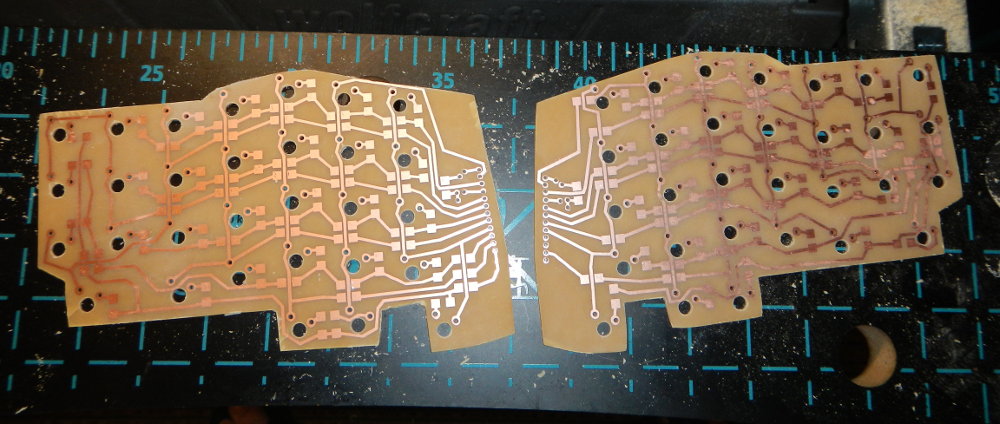
Drilled board
The use of 1.5 mm Plexiglas together with 3 mm colored plastic made it possible to make the keyboard case a little thinner than in the first keyboard, made of only 3 mm sheets, because of which I had to mill the tabs for the button latches. The controller took another model, more compact ( AVR-USB162MU ). Installed two LEDs, blue and red, which show the current keyboard layout.
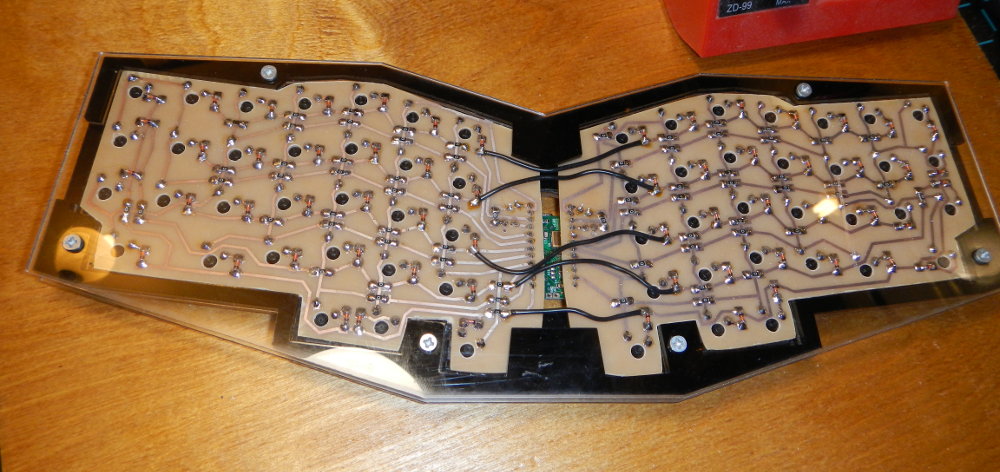
Bottom
view Keyboard layers are fastened with M3 threaded rivets with a notch and countersunk screws. Instead of threaded rivets, you can take more accessible exhaust rivets, knock out a nail from them, and cut the M3 thread inside.
Maltron Flat Keyboard
I already knew how to type blindly, I learned with the Stamina keyboard simulator. Before that, I tried to learn at Solo, but he got so tired of me that I never finished my studies, went through all the exercises, but did not start typing blindly. But at Stamina it was easy to learn, and when the typing speed reached 200 characters per minute, I was able to start working without looking at the keyboard. I learned to print both Russian and English text at once, took turns in the exercises, thanks to this I was immediately able to fully start working with the blind method. I rearranged the buttons on my keyboard, thereby trolling my colleagues, it was interesting to even come up with different inscriptions on the keyboard, because the caps on the buttons are different on different rows, so I had to rearrange them only on my own row, and it was advisable not to touch the fj that had serifs (and they are important in touch typing so that you can put your hands in the starting position of the print without looking).
Stamina's keyboard simulator
Before doing anything, I found one Moscow company where I bought Cherry MX Black buttons with a margin, and a KBM-105 programmable keyboard for trading terminals for experiments (index 105 is the number of buttons, 15x7 matrix). Having drawn the layout of the buttons, I began to think how to make a case at home. I assembled various constructions from improvised materials, which it’s a shame to show now, in general, nothing worked, it was crooked and flimsy. Work on the manufacture of the case stalled, but on the programmable KBM-105 began to experiment with layouts.
Programmable Keyboard KBM-105
A very unusual NSK 535 keyboard was being produced at that time., everything in it was revolutionary, and the alphabetical layout, and the ciphers on the thumbs. Looking at such a miracle, I even decided to print with such ciphers, but it seemed very revolutionary, and returned the ciphers back to the little fingers, since it’s possible to flash the KBM-105 keyboard very quickly, you can change the button layout several times a day.
Keyboard NSK 535 R
I worked on this programmable keyboard at home for several years, while I had a standard keyboard at work, there were no problems working with two completely different keyboards, only it was much more pleasant to work with mine.
To quickly learn new layouts on a programmable keyboard, he even wrote the Klavarog keyboard simulator online ( http://klava.org/) so that you can work from any computer connected to the Internet without installing any programs, now everyone began to do so, and at that time online simulators, if they were, were only on Flash, and they did not work in Linux with Russian letters. At first it was a very simple simulator, there was not even a hint about the keys pressed, just a picture of the keyboard. Although so far it remains the simplest simulator, and at the same time very effective, because it was made for itself. Beginners are offered a mode that allows literally in a day to master the location of all the letters, you do not need to spend a week or two on passing the lessons, which add one studied button, as is done in almost all simulators.
Klavarog keyboard simulator
At some point in time, I decided that I would be developing a new keyboard, and the project would be open. Wiki created the site http://kbd.klava.org/ , where he began to collect information about different keyboards, and began to search for any information on keyboard development, because for my keyboard it was already necessary to make my own controller, the standard one was no longer suitable. It turned out that I did not know anything about making keyboards.
It also happened that I quit my office and began to work at home, and even on a laptop, the matrix programmable keyboard was used less and less. Over time, the fervor disappeared, the usual worries and affairs pushed the development of the keyboard into the background. But the idea was too obsessive, and I began to slowly think about how to remake the keyboard in a laptop, because it was physically impossible to remake it, so the software tools were used. First, I moved the cursor keys to the main alphabetical block, if you hold AltGr (right Alt), then some letters become arrows, at first they were VIM buttons
hjkl, then I made it more familiar and convenientijkl, it turned out that when AltGr is held down, the arrows seem to jump under the fingers themselves. Then he placed the Ctrl key to the left of the space, shifting Alt to the left by one key, this turned out to be a very good solution . Under this thing, I even learned to work in Emacs, it turns out that on the ancient keyboards Ctrl was located on the site of the modern Caps Lock, it is clear why I did not like this editor before, this is due to the inconvenient location of Ctrl. It must be taken into account that this applies only to blind typing; when printing with two fingers, the location of the keys does not matter much, it's just a matter of habit. Modified laptop keyboard layout
At one time it turned out that there was no work, and I decided to change the hated QWERTY layout (how my little fingers hurt from it when learning touch typing) to a more ergonomic Dvorak, and with the help of his simulator began to study it. Just at that time, I made a special mode in Klavarog, in which it is proposed to type one short word many times in a row, first slowly, then quickly, driving a new layout into your memory is very effective. I’ve been busy for about a week, things went tight, the speed grew very slowly, but for some reason I forgot how to work in QWERTY, others didn’t have such a problem, but I was scared, suddenly I would have to do something urgent, and I forgot how to print , but I have not yet learned in Dvorak. And at this moment of timelessness, my old computer BK-0010/01, in which there was a phonetic layout of JCUKEN, catches my eye, in it, the Latin letters are located in the same place as the Russians similar in sound in the standard YTsUKEN layout. Nostalgia for BC times was so overwhelming that I decided to make this layout for myself and try to study it. I didn’t succeed in doing one to one, some frequently encountered letters were not very well located, and in the end I changed it pretty much, and I have good reasons for rearranging each key. But in general, it still remained phonetic, and for the most part coinciding with the old one. Having made the layout and flashing it into my operating system (I already started working in Ubuntu Linux at that time), I began to study it in the simulator. And then a miracle happened, the process went so fast that I brought the print speed to 200 characters per minute (again, these 200) in five days, and started working in a new layout.
Keyboard of the Soviet computer BK 0010-01
Modified layout of JCUKEN
Now everything suited me, except for the arrangement of keys, and did not suit a long space, although on a laptop it is shorter than on ordinary keyboards, due to additional keys on the bottom row. It's time to make a keyboard, only it should be compact so that it can be placed on top of a laptop keyboard, and as small as possible in height. Since the keyboard should be located on top of the laptop, and on my Thinkpad right in the middle of the keyboard there is a touchpoint that is higher than the level of all buttons, I decided to make a hole on the bottom of the keyboard body, at first it was round, then I just added cat ears. From that moment on, my keyboard became CatBoard = ^. ^ =
I decided to make the case out of aluminum, and began to look for a production where I could cut out holes for the buttons with a laser, and the outline of the case. Nobody wants to get involved with small orders, most honestly write about the minimum order amount, some talk about it only after the order. To cut aluminum, you need a fairly powerful laser, which is not easy to find, so I decided to make a body of sheet plastic or plexiglass. And then, thanks to Habré, found mention of the first in Russia otkrvyshemsya fablabe . Contacted FabLab77 Laboratory Manager, met, I talked about my project, and got access to equipment with which you can do anything, limitless opportunities have opened up. It was also lucky that at that time the Americans from MIT came, and held a week-long seminar at which they taught how to work with all their equipment, only open software was used.
The last day of the MIT workshop in FabLab77
In search of an ergonomic arrangement of buttons, I made many layouts from plywood, on which I found the best location, and it turned out to be almost the same as in the Truly Ergonomic and ErgoDox keyboards (I did not know about its existence then) . Well, this is not surprising, because the hands of people are almost the same.
After the case was ready, and the arrangement of buttons completely suited me, I began to study how to make the controller. At the same time, he began to collect a home mini lab for soldering. I bought a power adjustable soldering iron, assembled a box in which I placed the Dremel 300 with an attachment turning it into a small drilling machine - Dremel Workstation 220. In this box I made a hinged lid that you can work on. Now the drawer always stands under the table, taking up a place in the apartment, and when you need to do something, I take it out and put it on the table.
At first, the controller decided to assemble it himself, at the same time assembling the programmer, made printed circuit boards on the Modela milling machine, soldered them, but it didn’t work, since the working programmer was only in the Fablab, I didn’t want to buy a new one, but I could tinker with the boards only at home. I learned that there are microcontrollers with hardware implementation of the USB protocol, a further search led me to ready-made controllers, such as Teensy, and our similar developments from Microsin , from which I purchased AVR-USB162 .
I decided to solder wires not directly to the controller, but through the connector that I installed inside the case. Having once again gone to fablab, he laser-cut the case, which he decided not to make with rounded edges, circling the blocks with buttons in straight lines, got the current keyboard design. The controller placed right on top of the case, it rests on a screw with a nut, and fitted washers, and the connector prevents the board from spinning. So that the wire does not rest on the laptop screen, I placed the controller closer to the middle of the keyboard. But what happens when they did not think about this problem:
Richard Stallman and his OLPC laptop with a HHKB keyboard
When developing the circuit, I realized that the buttons need to be connected via diodes so that there is no situation when, when you press several buttons in different rows and columns, the controller begins to think that the button is pressed from intersecting rows. Everyone knows this, but I didn’t know about it then. The Cherry MX buttons have an empty spot where you can install either a diode or an LED. In order not to solder the diodes from the outside, I installed a small KD522B diode in each button, though I messed up the polarity, they find the label location is not unified, it is necessary to look in the directory where the anode is and where is the cathode, therefore, when connecting the buttons to the controller, I took my error into account.
When everything was assembled, it only remained to flash the controller, at first I used the LUFA library, but I could not figure it out, because I had never programmed in C, and in fact I did not know this language. In search of another solution, I found a simple keyboard scan code where a library from Teensy was used. The code turned out to be full of errors, but fixing them was no longer difficult, the most important thing worked. I made the firmware in a couple of days, and the keyboard worked, I would never have thought that I could create it so quickly. Then of course there were weeks of tweaking it to mind, fixing bugs, adding previously unseen features. And I did it all already on the new keyboard.
Since the keyboard turned out to be divided, the hands are farther apart, and the palm rest on the laptop is not designed for this, so the hands began to rest against the corners of the laptop. I solved the problem with two mouse pads with gel pads, cut off the extra part of the mat, and got comfortable palm rests for the keyboard. Thanks to the straight line of the case, the pads were installed just perfect.
CatBoard Keyboard on Top of ASUS EEE PC 701 Laptop
What a pleasure it was, to finally start working on what I’ve assembled with my own hands, and does not have the drawbacks that I’m just tired of, because I work on the keyboard every day, and every day it makes me sad. Come to any computer store, and try to buy a keyboard in which there are no shifted rows, the legacy of mechanical typewriters, they simply do not. I would understand if the standard keyboards were perfectly ergonomic, but no, this standard is based only on the habit of people, and all new users are learning again on these antique keyboards (not in appearance, in fact).
At the same time, my main requirement is to use it on top of a laptop keyboard, my new keyboard performed, it will fit even on the smallest netbook - ASUS EEE PC 701, which has a screen with a diagonal of only 7 inches, as can be seen in the photo just above. Although I don’t work on this netbook, it’s quite possible that I’ll start using it somewhere on the road, because now I don’t need to use its small keyboard when I have to compress my fingers together to place them on small keys.
Initially, there were flat caps with a transparent cover, bought even with a programmable keyboard, later I put black caps from WASD Keyboardswhen I made an order for new buttons, this time already Cherry MX Blue (with a click) and Cherry MX Red (like black ones without a click, but softer).
I decided to collect the second keyboard because of the taut Cherry MX Black, they have a pressing force of more than 60 grams, blue and red from 45 grams. It was still normal to press them, but to keep them pressed, which is often required due to the presence of the Fn layer, it doesn’t work out anymore, the finger gets tired.
CatBoard Production] [joined by a suenot colleague whom they met at the Keyboard Players meeting, and one copy was asked to do for fablaba. Therefore, instead of soldering with wires, I decided to make printed circuit boards, two pieces for each keyboard, on the edge of the board a connector is inserted into which the controller is inserted, connecting both boards, although due to the lack of ports I had to connect the boards with five wires.
Eugene collects his white CatBoard] [
Milling such large boards for a very long time, I decided to pickle them. Usually they prepare it for etching using a photoresist or LUT, but I decided to do it with a laser, pasted a vinyl self-adhesive film to the board foil, laser cut the film along the contour of the tracks, removed the excess, and etched in a solution of ammonium persulfate. The boards were made of gettinax, and it was my mistake to cut them with metal scissors, they are quite fragile, in one place a piece broke off along with the track. I already drilled at home dremel, I did not want to mess with milling.
Board etching
Drilled board
The use of 1.5 mm Plexiglas together with 3 mm colored plastic made it possible to make the keyboard case a little thinner than in the first keyboard, made of only 3 mm sheets, because of which I had to mill the tabs for the button latches. The controller took another model, more compact ( AVR-USB162MU ). Installed two LEDs, blue and red, which show the current keyboard layout.
Bottom
view Keyboard layers are fastened with M3 threaded rivets with a notch and countersunk screws. Instead of threaded rivets, you can take more accessible exhaust rivets, knock out a nail from them, and cut the M3 thread inside.

CatBoard] [
CatBoard Keyboard Features
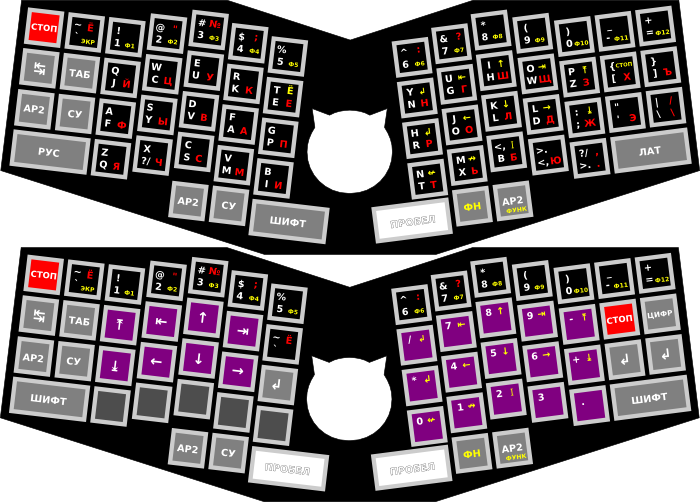
Самое главное, это Fn слой, тот, который работает при зажатой кнопке Fn под правым большим пальцем. Его наличие позволило сделать клавиатуру очень компактной, и при этом полнофункциональной. Аналогичное я делал и на обычной клавиатуре, перенастроив операционную систему, правда не во всех программах это работало, таких как Skype и Sublime Text. Сейчас же мало того, что стало работать с Fn слоем удобнее, за счёт правильного расположения кнопки Fn, так ещё и работает абсолютно во всех программах, да хоть даже в BIOS-е, ведь при зажатой Fn клавиатура отправляет совсем другие коды клавиш, вместо
ijkl отправляется нажатие стрелок, uo это Home и End, p; это Page Up и Page Down, h — Enter, nm — Backspace и Delete, ,- Insert. The entire digital series becomes functional, i.e. Fn + 1 is F1, Fn + 0 is F10, and Fn + - = is F11 and F12. 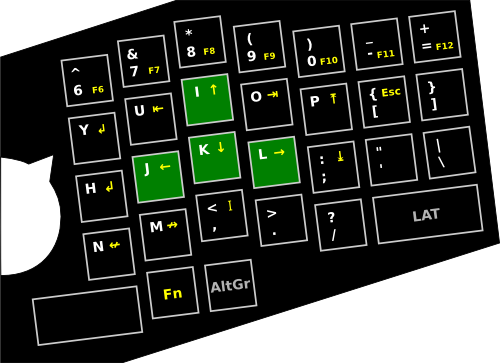
I have been pressing the spacebar for a long time only with my right hand, so it was decided to use the left spacebar as a shift. It turned out to be very convenient, because you can hold it when printing with the same hand, you do not need to alternate the little fingers, the letter on the left is the right little finger, the letter on the right is the left little finger. With this shift and Caps Lock is not needed, keep it pressed, and print as much as you like.
In place of the released ciphers, I hung up the language switching function, on the left - RUS, on the right - LAT, just like on old Soviet computers. At the same time, he left the function of the ciphers on these buttons, if you press it quickly once, the necessary layout will be turned on, and in other cases these are ciphers, and in some certain cases there may even be Ctrl.
To the left of the Tab button, I placed a separate AltTab button, when it is pressed, Alt is pressed, Tab is pressed and released, and Alt is held. To switch to the following windows, just click on the adjacent Tab, which is very convenient. However, if you press this new button while pressing Alt or Ctrl, then it will work like a regular Tab.
Ctrl and Alt are now pressed to a space, and Ctrl is closer to it. Thanks to separate buttons for switching layouts, and a separate AltTab button, I almost stopped using the Alt buttons.
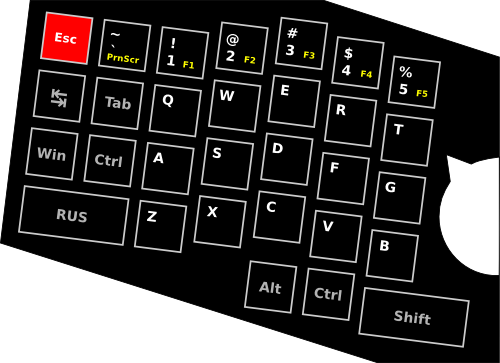
There is a fixed mode called by Fn + AltGr, in which a digital block appears on the right half of the keyboard, and the same block with arrows appears on the left half of the keyboard.
I have long dreamed of trying a fast auto-repeatkey pressed, which Jeff Raskin wrote about a long time ago. But I did even better, it doesn’t require a triple keystroke, but a double keystroke, and this works not due to a fixed time, but auto-tuning for the user. The faster the button is pressed twice and then held down, the faster it will start and will automatically repeat the keystroke. In this case, false positives are very rare, and do not depend on the speed of the user. Tests show that this auto-repeat is twice as fast as usual. At the same time, I got used to it so quickly that I stopped using the usual one, it seems to me too slow, it starts slowly, it works slowly, although of course the second parameter can be easily configured, but the first will not work, otherwise normal printing will result in false positives. The only problem,
In place of the Russian letter E, I placed the letter E, which will be typed while holding Fn. Now I always print E, you don’t have to reach for it now. In addition,
~in the English layout this way it turned out to be more convenient to type. Since I print not in QWERTY, but in JCUKEN, and there are separate buttons for switching languages, then I made my own non-standard layout of the hardware, and thanks to this it was possible to do something that no one had guessed to do before me, namely, keyboard shortcuts from QWERTY. Indeed, in order to leave comfortable Ctrl + XCV, they made the Colemak layout, and I get not only keyboard shortcuts for working with the clipboard, but all the others. After all, in my JCUKEN I placed V in place of W only because Ctrl + W was very uncomfortable, and often pressed it by accident, which led to unpleasant consequences. Now I’m going back to FYWA, and this became possible just because of the standard keyboard combinations.
With the advent of additional LEDs that display the current layout, they are clearly visible with side vision, and at the same time they do not interfere with work, nevertheless I made a function to turn them off, press Fn + Y, and the keyboard no longer glows.
Often you need to leave your computer, but since my keyboard doesn’t allow me to close my laptop without removing it, I made a keyboard lock function . By pressing Fn + RShift, the keyboard turns off the LEDs, stops accepting any keystrokes except the same combination, and sends Win + L, a combination that locks the operating system with a password, so that a stranger cannot use your computer in your absence.
Stitcheda keyboard without a programmer, directly through the same USB cable with which it is connected to the computer. Just press a button on the controller to activate the DFU bootloaderlocated at the end of the controller’s memory, and through a special program you can upload the compiled firmware to the beginning of the controller’s memory. I put a three-second pause in the download script, so I calmly send the data to the download and manage to activate the bootloader, i.e. I do not even need another keyboard for firmware to press Enter. Basically for this reason, I did not place the controller inside the keyboard case, but directly on top so that the bootloader button was available. Thanks to this, the keyboard case turned out to be as thin as possible, it would be difficult to squeeze the controller into it, and we would also have to bring the connector out, complicating the assembly.
My look at CatBoard
Since none of the manufactured keyboards suited me, because one of the main requirements was to use the keyboard on top of the laptop, I had to make the keyboard myself. Thanks to FabLab77, I was able to make several variants of the case, and experience different button layouts, as a result I came to the same button layout as in Truly Ergonomics and ErgoDox, unless the buttons under the thumbs are completely different, they do not cover the laptop’s touchpad , and did not cut back the extreme buttons on the left and right, the keyboard turned out to be the most compatible with the standard one. Although of course you have to relearn, especially the left hand, work with the navigation keys, and function keys.
It turned out to be a very convenient Russian keyboard, sharpened for typewriting (blind ten-finger printing) and programming, allowing you to use a non-standard English layout with standard keyboard combinations, while compatible with all operating systems and programs. I just created the first copy of the working keyboard on the New Year holidays this year, and I still work on it, I can’t switch to the usual one any more, or rather, I just don’t want to.
The controller memory is only half full (4 KB bootloader, and almost 4 KB keyboard controller), so there is still a lot of room for expanding the keyboard functionality. And most importantly, you can do it yourself, you don’t have to wait for someone to personally realize what I need. Only on your keyboard it became possible to realize what you had long dreamed of, and much more can be done, there are plenty of ideas.
Analogs
There are various really ergonomic keyboards, however, due to the high price and the need to get used to them, they are in low demand, unfortunately.
ErgoDox (Key64)
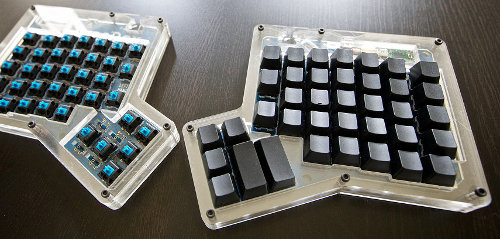
After I made the first version of CatBoard, I found out about the existence of a similar project, only already brought by enthusiasts to a joint release. This is a keyboard consisting of two halves connected by a wire. The printed circuit board is designed so that for the left and right half the same boards are used, only inverted.
Truly ergonomics
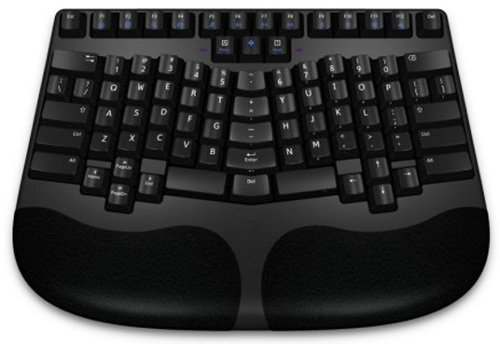
The palm rests are removable, making the keyboard even more compact.
New Stanadrd Keyboards (NSK 535 R)
This keyboard is too revolutionary, starting with the alphabetical layout, so it can not be used to enter Russian texts. Very not convenient location of the arrows.
Maltron
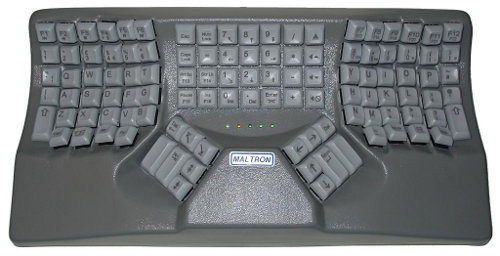
It is produced for a very long time, there are modifications for one hand. Pretty expensive.
Kinesis
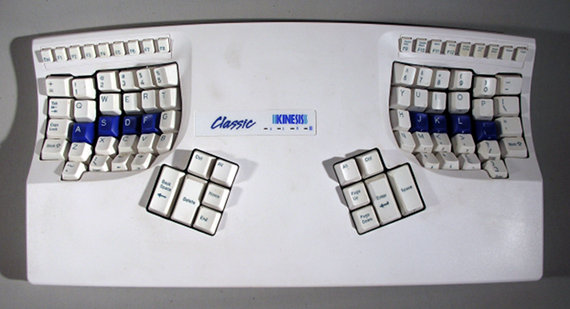
She starred in the movie Men in Black. One of the best and affordable keyboards is still evolving.
CatBoard from an old mechanical keyboard
Recently presented Alps White buttons from the old mechanical keyboard, already soldered from it. I also decided to assemble CatBoard from them, I will install them with wires, so it will be much faster than making a printed circuit board. The controller will be mounted on the keyboard body, and will be held by friction in the connector.


With the buttons and the ability to make a case, repeating the keyboard is pretty easy.
Future plans
I do not plan to produce such keyboards yet. Communication with all my friends showed that most do not even see the difference between a standard keyboard and a CatBoard, and even more so no one wants to relearn.
If you make such a keyboard relatively cheap (on tapes), you will need an order for a very large number of keyboards. On mechanical buttons cheaper than $ 100 can not be done in any way, and then, this is also with a large batch of production. Self-assembly of one keyboard will cost 5-6 tr.
If someone wants to get the same keyboard (or a similar one according to their design), and at the same time they can’t do it themselves, write to ibnteo@gmail.com, think of something together. And if you are going to collect it yourself, let alone write, or you can chat via Skype (text) - my Skype name is exactly the same as my nickname here.
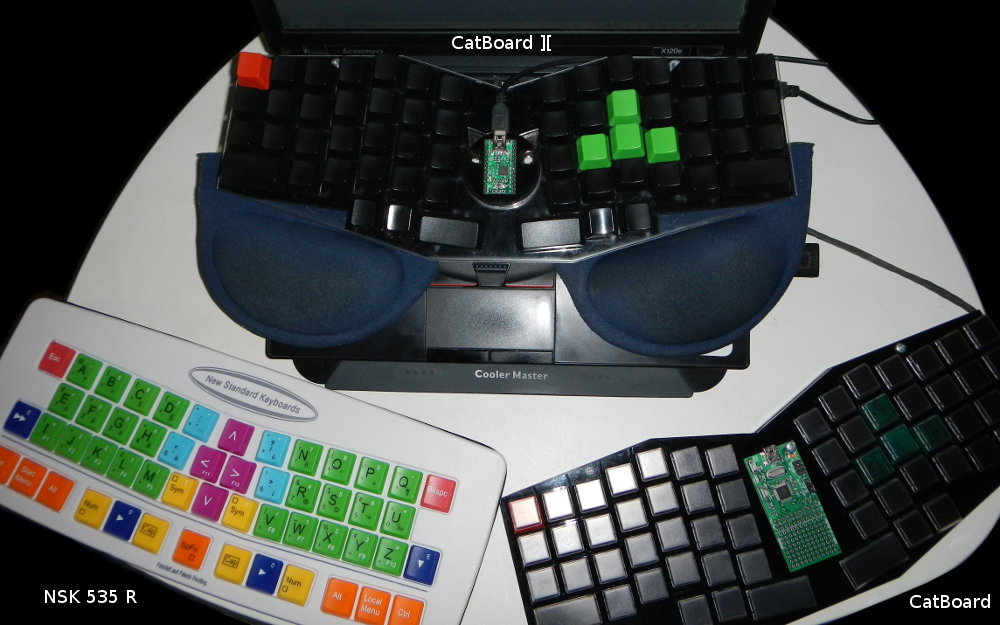
CatBoard] [, NSK 535 R, CatBoard
References
Project site: http://catboard.klava.org/
Source files: https://github.com/ibnteo/catboard
CatBoard blog: http://ibnteo.klava.org/tag/catboard
Cherry MX buttons and caps: http : //www.wasdkeyboards.com/
Controllers: http://microsin.ru/
Fasteners: http://www.krepmarket.ru/
Plexiglas: http://art-landia.ru/category/plexiglas/
FabLab: http : //fablab77.ru/
Diodes, LEDs, resistors, soldering equipment and materials were purchased at the Moscow Mitya radio market on the third floor: http://www.tkmitino.ru/
Some parts were purchased in Chip and Dip: http: / /www.chipdip.ru/
Keyboard simulator: http://klava.org/
Keyboard racks: http://klavogonki.ru/
English keyboard forums: http://geekhack.org/ , http://deskthority.net/