Drawings in MS Excel using Apache POI
Some time ago, an article appeared on the habr about an artist who paints pictures in MS Excel using its vector features. But long before that, I came across a story about phenomenal bitmap drawings in the same Excel, whose idea is based on pixel art. Those. someone simply reduces the size of the cells and uses the color fill to get a kind of mosaic. It looks quite impressive, although it certainly does not reach the vector drawings in quality.
Having seen such pictures, I, of course, doubted that someone had the perseverance to create them manually and decided to look for a way to automate “office work”. The task was not difficult to implement in Java, provided that the Apache POI library was useddesigned to work with proprietary Microsoft Office formats. Details under the cut.
So what we have. I set myself the task of creating an application for converting the most common JPG image (or, in principle, any other common format) to an Excel document. It’s worth mentioning the existing restrictions: the
width of the “picture” should not exceed 255 points (the maximum number of columns on the sheet), the
maximum number of design styles (in our case, the number of colors) is 4000.
So you either have to first find and prepare the picture (reduce the size and depth colors) or do it programmatically. We will go the second way :)
First, we sketch out the Main class of our program containing a single method:
Of course, wretched and hardcode, but for the demonstration will do.
Consider a class for reading pictures from a file. It contains a method for actually reading the picture and returns the result in the form of a map containing objects of the RGBColor type, which store information about the three components of the color of the point:
We also have a method for resizing a picture:
And a method for reducing color (I use eight-bit color, for other options see the source ):
We pass to the class that implements the record of the "picture" in the excel document. Here we have 2 methods, in the first of them we write to the file:
The colorToStyle map is used to store cell styles. Creating a new style, we associate it with a certain color and each time when filling in a new cell we check whether there is a ready-made style for the desired color, or whether it is necessary to create it.
And finally, a method for converting RGB colors to the HSSFColor format used by Apache POI. Note that the findSimilarColor () method is used, which tries to automatically match a similar color in the palette.
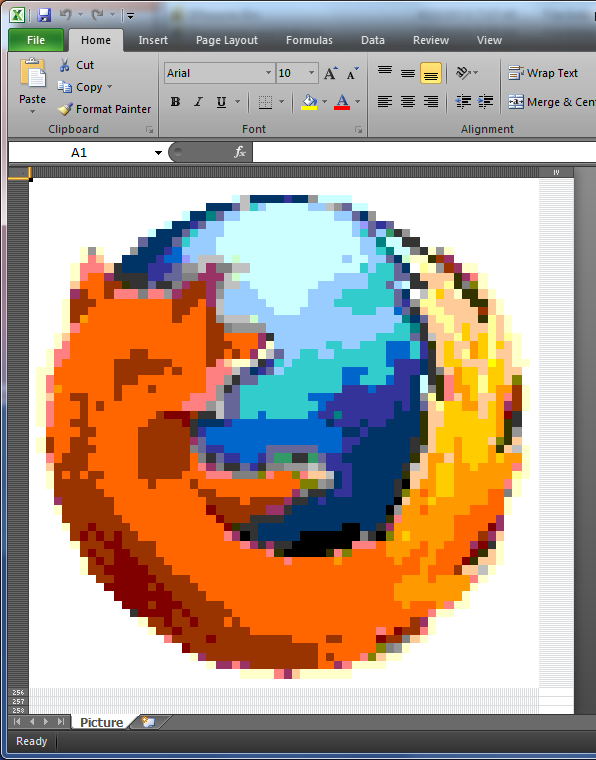
The results of "creativity":
Of course, such mosaics are far from a masterpiece, but with the right selection of colors in the image and its size, you can get pretty nice “drawings”. Whether Apache POI (or any other) is able to work with vector drawings in office documents, I do not know :(
Having seen such pictures, I, of course, doubted that someone had the perseverance to create them manually and decided to look for a way to automate “office work”. The task was not difficult to implement in Java, provided that the Apache POI library was useddesigned to work with proprietary Microsoft Office formats. Details under the cut.
So what we have. I set myself the task of creating an application for converting the most common JPG image (or, in principle, any other common format) to an Excel document. It’s worth mentioning the existing restrictions: the
width of the “picture” should not exceed 255 points (the maximum number of columns on the sheet), the
maximum number of design styles (in our case, the number of colors) is 4000.
So you either have to first find and prepare the picture (reduce the size and depth colors) or do it programmatically. We will go the second way :)
First, we sketch out the Main class of our program containing a single method:
public class Main {
    public static void main(String[] args) {
        IMGRead ir = new IMGRead();
        Map data = ir.read("C:\\picture.jpg");
        POIWrite pw = new POIWrite();
       pw.write(data);
    }
}
Of course, wretched and hardcode, but for the demonstration will do.
Consider a class for reading pictures from a file. It contains a method for actually reading the picture and returns the result in the form of a map containing objects of the RGBColor type, which store information about the three components of the color of the point:
public Map read(String fileName) {
        File file = new File(fileName);
        BufferedImage source, image;//source and resized images
        Map data = new TreeMap();
        try {
            source = ImageIO.read(file);//read picture from file
            int type = source.getType() == 0? BufferedImage.TYPE_INT_ARGB : source.getType();//get type
            image = resizeImage(source, type);//resize
            source = convert8(image);
            image = source; // :)
            // Getting pixel color for every pixel
            for (Integer y = 0; y < image.getHeight(); y++) {
                Object[] line = new Object[image.getWidth()];
                for (int x = 0; x < image.getWidth(); x++) {
                    int clr = image.getRGB(x, y);
                    int red = (clr & 0x00ff0000) >> 16;
                    int green = (clr & 0x0000ff00) >> 8;
                    int blue = clr & 0x000000ff;
                    line[x] = new RGBColor(red, green, blue);
                }
                data.put(String.format("%03d", y), line);
            }
        } catch (IOException e) {
            // TODO Auto-generated catch block
            e.printStackTrace();
        }
        return data;
    }
We also have a method for resizing a picture:
private static BufferedImage resizeImage(BufferedImage originalImage, int type) {
        BufferedImage resizedImage = new BufferedImage(IMG_WIDTH, IMG_HEIGHT, type);
        Graphics2D g = resizedImage.createGraphics();
        g.drawImage(originalImage, 0, 0, IMG_WIDTH, IMG_HEIGHT, null);
        g.dispose();
        return resizedImage;
    }
And a method for reducing color (I use eight-bit color, for other options see the source ):
public static BufferedImage convert8(BufferedImage src) {
        BufferedImage dest = new BufferedImage(src.getWidth(), src.getHeight(),
            BufferedImage.TYPE_BYTE_INDEXED);
        ColorConvertOp cco = new ColorConvertOp(src.getColorModel()
            .getColorSpace(), dest.getColorModel().getColorSpace(), null);
        cco.filter(src, dest);
        return dest;
      }
We pass to the class that implements the record of the "picture" in the excel document. Here we have 2 methods, in the first of them we write to the file:
public void write(Map data) {
        HSSFWorkbook workbook = new HSSFWorkbook();
        HSSFSheet sheet = workbook.createSheet("Picture");
        Map colorToStyle = new HashMap();
        HSSFCellStyle style;
        Set keyset = data.keySet();
        int rownum = 0;
        for (String key : keyset) {
            Row row = sheet.createRow(rownum++);
            row.setHeight((short) 50);
            Object[] objArr = data.get(key);
            int cellnum = 0;
            for (Object obj : objArr) {
                sheet.setColumnWidth(cellnum, 100);
                Cell cell = row.createCell(cellnum++);
                RGBColor rgb = (RGBColor) obj;
                try {
                    style = colorToStyle.get(rgb.toString());
                    cell.setCellStyle(style);
                } catch (Exception e) {
                    style = workbook.createCellStyle();
                    style.setFillPattern(HSSFCellStyle.SOLID_FOREGROUND);
                    style.setFillForegroundColor(setColor(workbook, rgb.getR(), rgb.getG(), rgb.getB()).getIndex());
                    colorToStyle.put(rgb.toString(), style);
                    cell.setCellStyle(style);
                }
            }
        }
        try {
            FileOutputStream out =
                    new FileOutputStream(new File("C:\\picture.xls"));
            workbook.write(out);
            out.close();
        } catch (FileNotFoundException e) {
            e.printStackTrace();
        } catch (IOException e) {
            e.printStackTrace();
        }
    }
The colorToStyle map is used to store cell styles. Creating a new style, we associate it with a certain color and each time when filling in a new cell we check whether there is a ready-made style for the desired color, or whether it is necessary to create it.
And finally, a method for converting RGB colors to the HSSFColor format used by Apache POI. Note that the findSimilarColor () method is used, which tries to automatically match a similar color in the palette.
public HSSFColor setColor(HSSFWorkbook workbook, byte r, byte g, byte b) {
        HSSFPalette palette = workbook.getCustomPalette();
        HSSFColor hssfColor = null;
        try {
            hssfColor = palette.findSimilarColor(r, g, b);
            if (hssfColor == null) {
                System.err.println("null " + r + " " + g + " " + b);
                palette.setColorAtIndex(HSSFColor.RED.index, r, g, b);
                hssfColor = palette.getColor(HSSFColor.RED.index);
            }
        } catch (Exception e) {
            e.printStackTrace();
        }
        return hssfColor;
    }
The results of "creativity":
- Firefox Icon
- A larger picture (Google Docs displays it as 2 parts, but when you download it you get a normal picture)
- GitHub project sources
Of course, such mosaics are far from a masterpiece, but with the right selection of colors in the image and its size, you can get pretty nice “drawings”. Whether Apache POI (or any other) is able to work with vector drawings in office documents, I do not know :(