July 17, 2012 at 09:23
GUI, not GUI - or how to enable and disable the graphical interface in Windows Server 2012
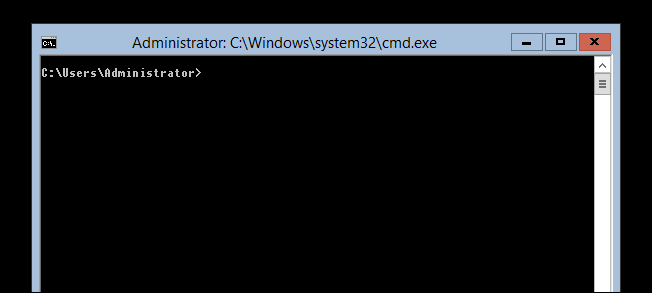
When the very first version of Server Core appeared, many administrators avoided it for the reason that they could only use the command line features, which is not always convenient. However, in Windows Server 2012 the situation has changed, it is now possible to use hybrid mode, i.e. both disabling and enabling the graphical interface are possible.
Disabling GUI
In Windows Server 2012, the GUI followed the example of the general architecture of the management interface and the operating system and became a feature. This in turn makes the process of removing the GUI simple to impossible. First you need to start “Server Manager”.

Click “Manage,” and then select “Remove Roles or Features” from the menu.

Next, click “Next” in order to skip the preliminary points of the setup wizard, then select the server you need from the available pool (in our case, it is DC1 server) and click “Next”.

Since the GUI is not a role, click “Next” to skip the role wizard and move on to the next section.

When you get to the feature wizard, you will need to uncheck the “User Interfaces and Infrastructure” check box, and then click “Next”.

Check the “Restart Destination Server” box and click “Remove”.
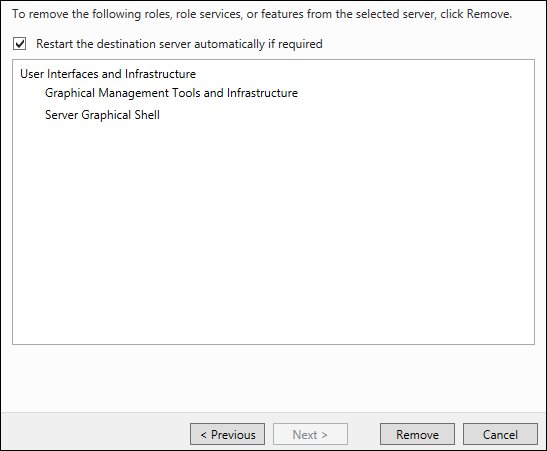
After this action, the GUI will be deleted.
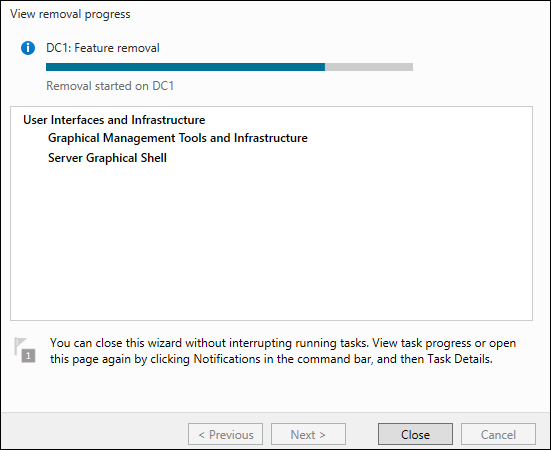
After deleting all the necessary data, the server will automatically restart.

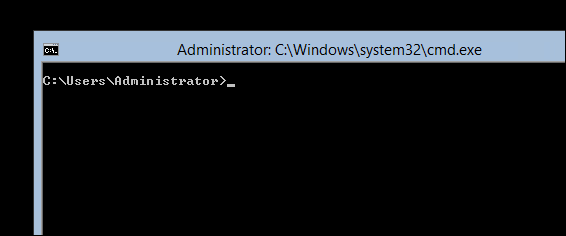
After the server boots up again, and you log in, from now on you can only use the command line to interact with the server.
Enable GUI
After we successfully removed the GUI, it would be nice to know how to get it back after all. To do this, we use the SConfig utility - so just type “sconfig” at the command prompt and press Enter.
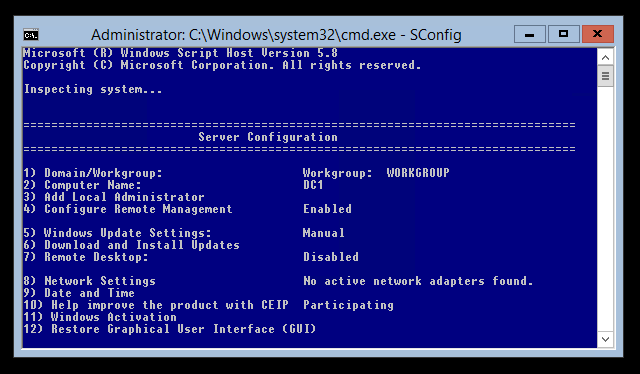
At the very bottom of the screen you can see menu item 12, which is just responsible for restoring the graphical interface - all that remains for us to do is type 12 and press "Enter".

A notification will appear on the screen that if the GUI is turned on, a server reboot will be required - boldly click “Yes” to complete the restore GUI operation.

After that, DISM will start, which will add the necessary files to activate the graphical shell.
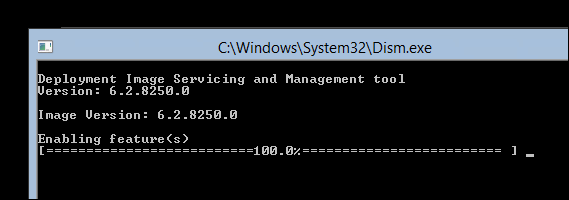
After the above process is complete, you will be prompted to restart the server, type “y” and press to restart.
Disabling GUI with PowerShell
We can also perform all of the above operations, both to remove and return the GUI much faster if we use PowerShell commands. To do this, open "Server Manager", click on "Tools" and start PowerShell.
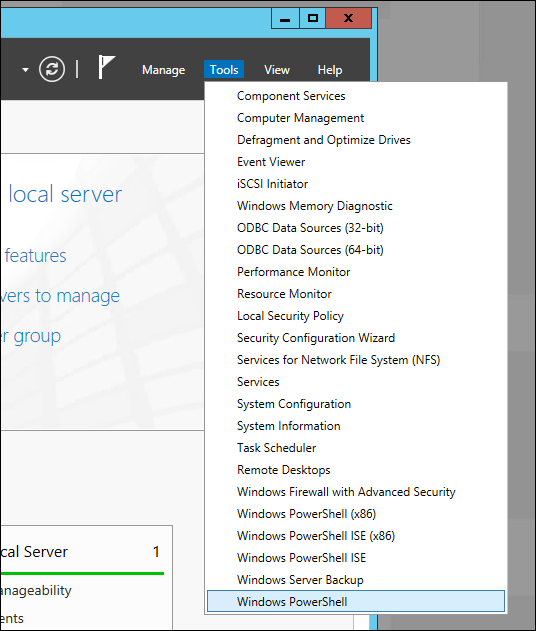
To remove the GUI, we use the Remove-WindowsFeature cmdlet:
Remove-WindowsFeature Server-Gui-Shell, Server-Gui-Mgmt-Infra
In turn, Remove-WindowsFeature is just an alias for the command, which means we can also use the following commands:
Uninstall -WindowsFeature Server-Gui-Shell, Server-Gui-Mgmt-Infra

After entering the command and pressing the Enter key, the procedure for removing the graphical interface will begin.
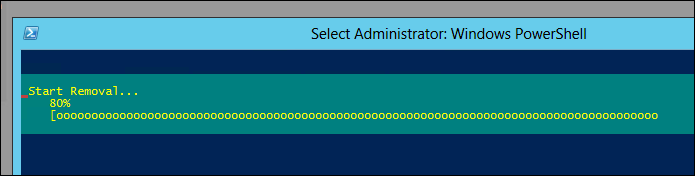
After the operation of deleting the binaries is completed, it will be necessary to reboot in order for the changes to take effect. We type the following command and press "Enter":
Shutdown –r -t 0
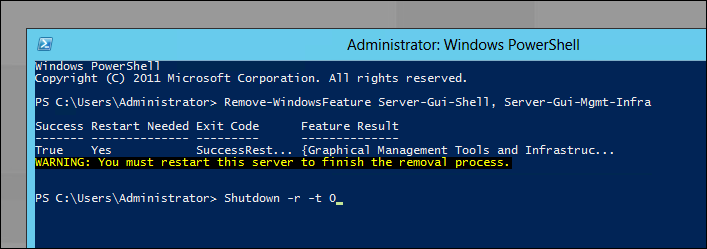
After rebooting, only the command line will be available for operation.

Enabling the GUI with PowerShell
The first thing we need to do is get into PowerShell, type PowerShell from the command line and press “Enter”.

Now we need the Add-WindowsFeature cmdlet to get the GUI back:
Add-WindowsFeature Server-Gui-Shell, Server-Gui-Mgmt-Infra
This is also an alias for the following commands:
Install-WindowsFeature Server-Gui-Shell, Server-Gui -Mgmt-Infra
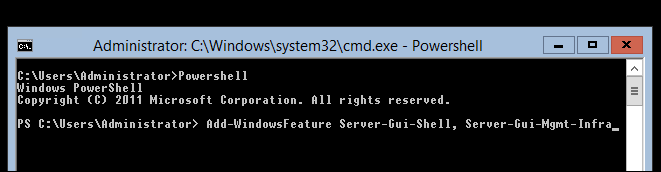
After completing the procedure for adding components, you must restart the server using the shutdown command:
Shutdown –r -t 0
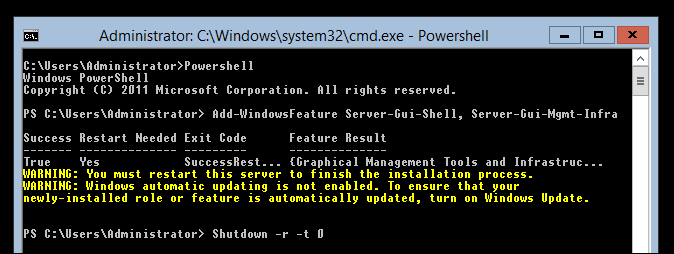
After the server reboots, the graphical interface will be available again.
PS> Download Windows Server 2012 RC here .
Sincerely,
George A. Hajiyev
Information Infrastructure Expert,
Microsoft