July 12, 2012 at 11:26
TFS Aggregator
- Tutorial
... Or how to automate some actions in TFS 2010.
I must say right away that for TFS 2012 the author promises to quickly release an updated version, however, in my opinion, given the fact that the API has not changed or has changed a little, this small project may well start on the new TFS 2012 RC.
My last articles ( one , two ) tell about the configuration of process templates for TFS, but these templates are torn off from each other, in fact, although they are connected in the work by relations such as: Child, Parent, Related To and so on. It would be logical to use this connection to add interactivity to the whole circuit, so that the elements are really connected, so that they really react to each other's states depending on the type of connection and state. In order to make some accumulative calculations in metrics, all these data are available and can be used in automatic mode, reducing the time of routine actions.
You can come up with a lot of scenarios when automation of state transitions in related elements would save time. In the standard scheme, when a state changes, it is possible to change the fields belonging to the same work item, but this is not enough.
For example, imagine a situation where a user story has a full set of artifacts and is ready to work, specific tasks have been created to implement this story. In this situation, the story is in the Ready For Development state , and all tasks are in the Proposed state . The developer takes the task to work, changes its state to Active . Next, he should change the state of the story to WIP(Work In Progress). However, this step can be automated! And automation, in turn, leads to greater order and beauty. Those. as soon as the developer took the task to work, the state of the whole story changed automatically !
Or another example, for example, it was decided to suspend work on the whole story, as new circumstances of the operation of a component suddenly became clear. Several tasks are in progress, some have not yet begun, some have been completed. When transferring the history to the Hold status , in a good way it is necessary to transfer all active tasks to the Hold status . Manually doing this would be somewhat tedious - this can also be automated. Or the opposite situation, when one task is put on Hold, and the whole story is put on hold.
It would also be useful functionality when all tasks are solved, then the status of the history automatically switches to the Resolved state .
It would also be nice to automatically calculate different metric data from children to parents. For example, the remaining work done. Or if there are various fields for evaluating work for testing and development, then you can automatically calculate the value of the field for the overall work.
Yes, as you can already guess, for these purposes you can use the server add-on for TFS 2010 - TFS Aggregator . Since this add-on works on the server side, the implementation of various rules will occur very quickly. The very first processing, of course, will take 7-10 seconds, since the connection will be established and cached. Other updates usually happen faster than you can update your client.
TFS Aggregator consists of only two files: a task execution library and an XML format configuration file.
After you download the add-on and unzip it, both files must be transferred to the TFS add-ons directory. It is usually located at: C: \ Program Files \ Microsoft Team Foundation Server 2010 \ Application Tier \ Web Services \ bin \ Plugins.
That's all. TFS monitors the specified directory, and when the file is copied, the server will load it into memory.
All settings are contained in the AggregatorItems.xml file. This file contains information about the connection and about all the rules that will be applied in the process.
So, consider the main components of the AggregatorItems.xml file:
The file header is not worth touching and changing.
AggregatorItems : the main element for configuration, the root element.
tfsServerUrl: address to the TFS server.
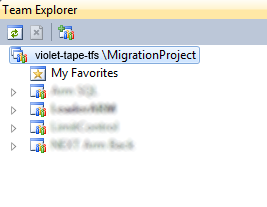
This line sets the address to the TFS server. Instead of tfs2010 dev, you must write the address to your server. At the same time, there is one more nuance: the address must lead to any collection of projects. If your project is not in the default collection, which is called DefaultCollection , then you must specify the name of the collection. For example, in my case, the project is in the MigrationProject collection, so the line will look like:
The name of the collection can be found in the studio when you select your project. For instance:
AggregatorItem : Indicates an aggregation rule.
operationType : Determines whether a mathematical operation will be performed or whether it will work with text variables. So far, only two values are available: Numeric or String. By default, Numeric is set. If the Numeric type is selected, then the working fields must be of the double or integer type.
operation : Indicates which mathematical operation will be applied to the participating fields. Currently supported only addition, subtraction, multiplication, division (Sum, Subtract, Multiply, Divide). By default, addition is selected.
linkType : indicates the type of link whether the parent or the same element will be the aggregation target. Accordingly, the possible values are: Self, Parent. The default will be Self.
linkLevel : If linkType is specified as Parent, then this parameter indicates how many parents go up. By default, the value is one.
workItemType : The name of the work item (Task, Bug, and so on) to which the rule will be applied.
TargetItem : Indicates the field in TFS to be updated. In a single copy may be in the rule.
name : The name of the field in TFS that is intended for the aggregation result.
SourceItem : Indicates the field in TFS that will be the data source. It can be used several times.
name : The name of the field in TFS from which the data will be taken.
Conditions : Determine the conditions that must be met when the aggregation is triggered. Optional field.
Condition : Defines the condition under which aggregation will occur.
leftField : The left operand of the expression. The field must be of the type specified in the Target Work Item. It is specified in the workItemType property.
operator : The comparison operator. For strings, two EqualTo statements, NotEqualTo, are defined. Additional numbers are defined for numbers: LessThan, GreaterThan, LessThanOrEqualTo, GreaterThanOrEqualTo. By default, EqualTo will be used.
rightValue : The value with which the data from leftFiled will be compared. Either this property must be defined, or rightField. Possible macros are $ NOW $ and $ NULL $.
rightField: The field must be of the type specified in the Target Work Item. Compared to the left operand. Will not be used if rightValue is specified.
Mappings : provides a list of values for string aggregations.
Mapping : represents a single element of possible aggregation. If the condition works, then the result of mapping will be the entry of the value from targetValue into the TargetItem for AggregationItem.
targetValue : The value to be used for the replacement.
Inclusive : This parameter is responsible for whether all (And) or any one (Or) value should be met from the SourceValue set in order for the mapping to work.
SourceValue : the possible values that the mapping must satisfy in order to trigger.
It should be noted here that when mentioning the field name from the work item, it is necessary to write the short name, and not with the namespace.
The definitions are finished on this, and concrete examples can be considered.
You can start with an example about the transition of history to the WIP state. The example is based on the diagram from recent articles.
It is indicated here that work will be carried out with strings, with the parent element, changes will begin at the Task level. The data source for the analysis of changes will be the State field ( SourceItem ) of the Task element ( workItemType ), the destination is also the State field ( TargetItem ), but the parent element ( linkType ). In this case, the parents can be either UserStory, or Bug, or some other element. The mapping section describes that the value should change to WIP ( targetValue ) if the value in the resource becomes Acitve.
It is important to understand that the conditions for state transition will still be checked by internal TFS tools. It will not be possible to switch from one state to another if such a transition is not described in the circuit. You cannot switch from one state to another if the transition conditions are not met, such as a completed Description field or Story Points. Those. This is not an overdrive and overwrite workflow environment. The final state should be achievable from the specified, taking into account all the rules.
Honestly, with this particular transition, I reset the AssignedTo field to NETWORK SERVICE, but this does not happen with other automated transitions. Wonders! I hope that the developers will help me in this problem, and I will tell you what was wrong.
Another example is the transition of the history to the Resloved state when all tasks are completed.
It is indicated here that work will be carried out with strings, with the parent element, changes will begin at the Task level. The data source for the analysis of changes will be the State field (SourceItem) of the Task element (workItemType), the destination is also the State field (TargetItem), but the parent element (linkType). The mapping section describes that the value should change to Resolved (targetValue) if the value in the resource becomes either Resolved, or Closed, or Abandoned.
These examples have worked for me with a bang, and it is very nice that they are, less actions now have to be performed when working with tasks.
I did not check the following group of examples, but there are no special doubts about their performance.
The following example automatically calculates the total estimated work of developers and testers. The result is recorded in the Estimated Work field in the task element itself.
More examples on the developers page, but they are all in the same vein.
The developers' plans are also large, although the project is done in free time. So, in the near future to make it possible aggregation from parent to descendants. In this situation, for example, it will be easier to change IterationPath and other things that are inherited / copied from the parent upon creation.
Consider creating an AggregatorItems file editor.
It also plans to make it possible to specify more than one element for workItemType.
Make it possible to use the difference in values in conditions, for example Today - 5 days. The same plan includes the possibility of using arbitrary coefficients in formulas. This is not possible at the moment, as the plugin code will search for fields with the name of the coefficient value.
Find a good way to not re-run conditions from the AggregatorItems file. Suppose some rule worked successfully, which resulted in changes that trigger the rule again. This time, changes are no longer happening and everything is fine. This, of course, is not fatal, since the result is still true, but unnecessary actions are annoying.
You have successfully unpacked everything, installed it in the correct directory, edited the settings file as necessary, and it didn’t work ...
Well, below is a small checklist to check if everything is actually done correctly:
In any case, if nothing works at all, make some simple rules file and try again.
If this didn’t work either, it is recommended that you export the settings for work items and the AggregatorItems.xml file to developers at [email protected] .
I really liked the plugin, I configured it for my needs and now I am glad how it works. It remains only to obtain information from the developers regarding the change of the AssignedTo field and in general everything will be very good.
I must say right away that for TFS 2012 the author promises to quickly release an updated version, however, in my opinion, given the fact that the API has not changed or has changed a little, this small project may well start on the new TFS 2012 RC.
Idea
My last articles ( one , two ) tell about the configuration of process templates for TFS, but these templates are torn off from each other, in fact, although they are connected in the work by relations such as: Child, Parent, Related To and so on. It would be logical to use this connection to add interactivity to the whole circuit, so that the elements are really connected, so that they really react to each other's states depending on the type of connection and state. In order to make some accumulative calculations in metrics, all these data are available and can be used in automatic mode, reducing the time of routine actions.
You can come up with a lot of scenarios when automation of state transitions in related elements would save time. In the standard scheme, when a state changes, it is possible to change the fields belonging to the same work item, but this is not enough.
For example, imagine a situation where a user story has a full set of artifacts and is ready to work, specific tasks have been created to implement this story. In this situation, the story is in the Ready For Development state , and all tasks are in the Proposed state . The developer takes the task to work, changes its state to Active . Next, he should change the state of the story to WIP(Work In Progress). However, this step can be automated! And automation, in turn, leads to greater order and beauty. Those. as soon as the developer took the task to work, the state of the whole story changed automatically !
Or another example, for example, it was decided to suspend work on the whole story, as new circumstances of the operation of a component suddenly became clear. Several tasks are in progress, some have not yet begun, some have been completed. When transferring the history to the Hold status , in a good way it is necessary to transfer all active tasks to the Hold status . Manually doing this would be somewhat tedious - this can also be automated. Or the opposite situation, when one task is put on Hold, and the whole story is put on hold.
It would also be useful functionality when all tasks are solved, then the status of the history automatically switches to the Resolved state .
It would also be nice to automatically calculate different metric data from children to parents. For example, the remaining work done. Or if there are various fields for evaluating work for testing and development, then you can automatically calculate the value of the field for the overall work.
Implementation
Yes, as you can already guess, for these purposes you can use the server add-on for TFS 2010 - TFS Aggregator . Since this add-on works on the server side, the implementation of various rules will occur very quickly. The very first processing, of course, will take 7-10 seconds, since the connection will be established and cached. Other updates usually happen faster than you can update your client.
Installation
TFS Aggregator consists of only two files: a task execution library and an XML format configuration file.
After you download the add-on and unzip it, both files must be transferred to the TFS add-ons directory. It is usually located at: C: \ Program Files \ Microsoft Team Foundation Server 2010 \ Application Tier \ Web Services \ bin \ Plugins.
That's all. TFS monitors the specified directory, and when the file is copied, the server will load it into memory.
Customization
All settings are contained in the AggregatorItems.xml file. This file contains information about the connection and about all the rules that will be applied in the process.
So, consider the main components of the AggregatorItems.xml file:
The file header is not worth touching and changing.
AggregatorItems : the main element for configuration, the root element.
tfsServerUrl: address to the TFS server.
This line sets the address to the TFS server. Instead of tfs2010 dev, you must write the address to your server. At the same time, there is one more nuance: the address must lead to any collection of projects. If your project is not in the default collection, which is called DefaultCollection , then you must specify the name of the collection. For example, in my case, the project is in the MigrationProject collection, so the line will look like:
The name of the collection can be found in the studio when you select your project. For instance:
AggregatorItem : Indicates an aggregation rule.
operationType : Determines whether a mathematical operation will be performed or whether it will work with text variables. So far, only two values are available: Numeric or String. By default, Numeric is set. If the Numeric type is selected, then the working fields must be of the double or integer type.
operation : Indicates which mathematical operation will be applied to the participating fields. Currently supported only addition, subtraction, multiplication, division (Sum, Subtract, Multiply, Divide). By default, addition is selected.
linkType : indicates the type of link whether the parent or the same element will be the aggregation target. Accordingly, the possible values are: Self, Parent. The default will be Self.
linkLevel : If linkType is specified as Parent, then this parameter indicates how many parents go up. By default, the value is one.
workItemType : The name of the work item (Task, Bug, and so on) to which the rule will be applied.
TargetItem : Indicates the field in TFS to be updated. In a single copy may be in the rule.
name : The name of the field in TFS that is intended for the aggregation result.
SourceItem : Indicates the field in TFS that will be the data source. It can be used several times.
name : The name of the field in TFS from which the data will be taken.
Conditions : Determine the conditions that must be met when the aggregation is triggered. Optional field.
Condition : Defines the condition under which aggregation will occur.
leftField : The left operand of the expression. The field must be of the type specified in the Target Work Item. It is specified in the workItemType property.
operator : The comparison operator. For strings, two EqualTo statements, NotEqualTo, are defined. Additional numbers are defined for numbers: LessThan, GreaterThan, LessThanOrEqualTo, GreaterThanOrEqualTo. By default, EqualTo will be used.
rightValue : The value with which the data from leftFiled will be compared. Either this property must be defined, or rightField. Possible macros are $ NOW $ and $ NULL $.
rightField: The field must be of the type specified in the Target Work Item. Compared to the left operand. Will not be used if rightValue is specified.
Mappings : provides a list of values for string aggregations.
Mapping : represents a single element of possible aggregation. If the condition works, then the result of mapping will be the entry of the value from targetValue into the TargetItem for AggregationItem.
targetValue : The value to be used for the replacement.
Inclusive : This parameter is responsible for whether all (And) or any one (Or) value should be met from the SourceValue set in order for the mapping to work.
Removed
SourceValue : the possible values that the mapping must satisfy in order to trigger.
It should be noted here that when mentioning the field name from the work item, it is necessary to write the short name, and not with the namespace.
The definitions are finished on this, and concrete examples can be considered.
Examples
You can start with an example about the transition of history to the WIP state. The example is based on the diagram from recent articles.
Active
It is indicated here that work will be carried out with strings, with the parent element, changes will begin at the Task level. The data source for the analysis of changes will be the State field ( SourceItem ) of the Task element ( workItemType ), the destination is also the State field ( TargetItem ), but the parent element ( linkType ). In this case, the parents can be either UserStory, or Bug, or some other element. The mapping section describes that the value should change to WIP ( targetValue ) if the value in the resource becomes Acitve.
It is important to understand that the conditions for state transition will still be checked by internal TFS tools. It will not be possible to switch from one state to another if such a transition is not described in the circuit. You cannot switch from one state to another if the transition conditions are not met, such as a completed Description field or Story Points. Those. This is not an overdrive and overwrite workflow environment. The final state should be achievable from the specified, taking into account all the rules.
Honestly, with this particular transition, I reset the AssignedTo field to NETWORK SERVICE, but this does not happen with other automated transitions. Wonders! I hope that the developers will help me in this problem, and I will tell you what was wrong.
Another example is the transition of the history to the Resloved state when all tasks are completed.
Resolved Closed Abandoned
It is indicated here that work will be carried out with strings, with the parent element, changes will begin at the Task level. The data source for the analysis of changes will be the State field (SourceItem) of the Task element (workItemType), the destination is also the State field (TargetItem), but the parent element (linkType). The mapping section describes that the value should change to Resolved (targetValue) if the value in the resource becomes either Resolved, or Closed, or Abandoned.
These examples have worked for me with a bang, and it is very nice that they are, less actions now have to be performed when working with tasks.
I did not check the following group of examples, but there are no special doubts about their performance.
The following example automatically calculates the total estimated work of developers and testers. The result is recorded in the Estimated Work field in the task element itself.
More examples on the developers page, but they are all in the same vein.
In the plans
The developers' plans are also large, although the project is done in free time. So, in the near future to make it possible aggregation from parent to descendants. In this situation, for example, it will be easier to change IterationPath and other things that are inherited / copied from the parent upon creation.
Consider creating an AggregatorItems file editor.
It also plans to make it possible to specify more than one element for workItemType.
Make it possible to use the difference in values in conditions, for example Today - 5 days. The same plan includes the possibility of using arbitrary coefficients in formulas. This is not possible at the moment, as the plugin code will search for fields with the name of the coefficient value.
Find a good way to not re-run conditions from the AggregatorItems file. Suppose some rule worked successfully, which resulted in changes that trigger the rule again. This time, changes are no longer happening and everything is fine. This, of course, is not fatal, since the result is still true, but unnecessary actions are annoying.
If the plugin does not work
You have successfully unpacked everything, installed it in the correct directory, edited the settings file as necessary, and it didn’t work ...
Well, below is a small checklist to check if everything is actually done correctly:
- You are using TFS 2010.
- Are all the elements mentioned in the aggregation rules containing Parent-Child links
- You have updated an item that requires the rule to be executed. TFS Aggregation only works when an item has been updated and the rule was able to determine this and all conditions have worked. In the future, perhaps this behavior will change.
- You updated the AggregatorItems.xml file and put the correct address to your server. At the same time, do not forget about the name of the collection of projects.
- You have copied both the dll and AggregatorItems.xml file into the TFS plugin directory.
- You specified the correct names for the elements, sources, and receivers of the data.
- The settings file is saved in utf-8 encoding. Notepad ++ calls her utf-8 without BOM. This as a whole should not be critical, but nonetheless.
In any case, if nothing works at all, make some simple rules file and try again.
If this didn’t work either, it is recommended that you export the settings for work items and the AggregatorItems.xml file to developers at [email protected] .
Total
I really liked the plugin, I configured it for my needs and now I am glad how it works. It remains only to obtain information from the developers regarding the change of the AssignedTo field and in general everything will be very good.