
 January 29, 2011 at 22:44
Working with forms, lists and tabs in Samsung Bada
Good day!
The topic summarizes basic information with code examples that illustrate working with some user controls and forms on the Samsung Bada platform. An example application with buttons, input fields and labels (Label) is available here . Who cares - we ask for a cat.
In the documentation for Bada, the form refers to the main area of the screen of a mobile device, which the application occupies and is divided into three parts:
The scheme of this (the picture from the documentation) is as follows:

Samsung Bada has several types of applications (including those based on Flash), but so far only form-based ones are considered here. How to work with them?
Let's look at the diagram (also from the documentation):
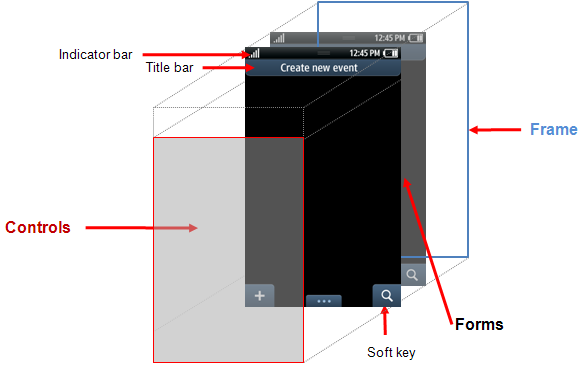
The basis of the Bada application is “Frame” - the main “window” of the application, which can be only one.
“Frame” controls its visual state using forms that can be any number (or rather, how much the hardware resources of the smartphone allow). Based on this, the order of working with forms looks like this:
It should be noted that forms in Bada can be created in two ways - either using a GUI designer or from code. Fond memories of Delphi make me start with the first option.
Having created a “form-based” application (there is a completely obvious wizard), you will immediately get a certain form on which the environment has already placed a button. Add another form and visually fill it with some controls - for this, in the Resources window of the environment, find the Forms node, right-click on it and in the obvious Insert Wizard, select the size of the new form to create. It will be displayed in resources as IDF_FORM2 (accurate to digits). You can change the visual properties of the form in the Properties tab of the development environment; Transfer some controls to the form from the GUI designer, so that the second form somehow differs from the first - a button, for example, or a timer.
Now the code.
In the header file of the form class, add the include to the projectto have the ability to work with the Application object and through it to influence the "Frame". Immediately in the protected section, add a link to the new form:
Let's go back to the implementation of the class, there we will find the ActionPerformed method with a template for processing event identifiers (for details, see the link to my first topic for beginners at the top) and write the following code:
What is happening there? We get a link to the “Frame” application, create a form from the project resources using its name (you could change it on the Properties tab), then add the form to the “Frame”, make it current and show it.
Now run the simulator, click on the button and see the new “second” form you created (everything seems to be obvious here, it seems, so I allow myself to not take screenshots). In the form shown, you can set the current first form (using SetCurrentForm) and thus go back.
The second option for creating the form is “programmatically”.
I’ll give you the code right away:
The actions that take place here are similar to the previous ones - first we declare and create the form, then set its visual properties (here we ask that the form has a heading, indicator (bar with charge level, etc.), we also want the form to have a softkey and an optional menu), we get a link to the application and add a form to it.
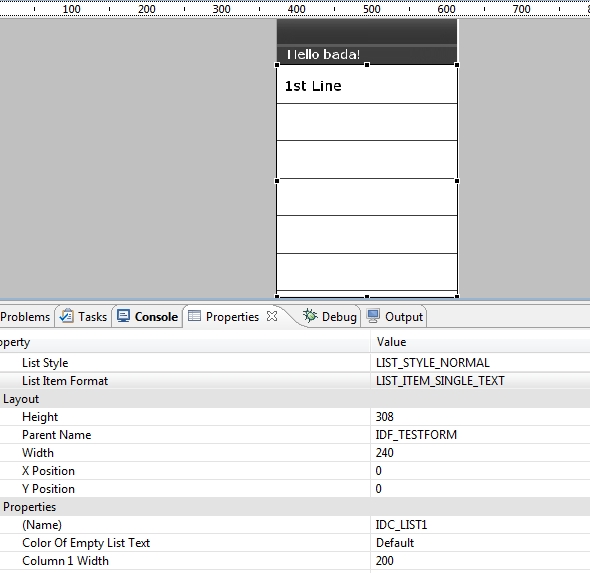
Let's see how to create a simple text list on the form - an extremely simplified version of the phone book, for example. To do this, there is a GUI component with the corresponding name List - it must be placed on the form in a way convenient for you (nevertheless, it usually takes the whole form :). Having a list on the form, go to the tab of its properties in the environment and change their values:
We get on the form something like this:
And, in fact, the code that needs to be added to the OnInitializing (void) form initialization method:
The first line is getting a link to the List itself, the next line is adding five elements to the list. The AddItem method of the list is declared in the SDK as follows:
- here pText1 and pText2 are a couple of lines, pBitmap1 and pBitmap2 are a couple of pictures and itemId is an identifier of a list item if you need to process clicking on it. Here, by the way, there is some mystery of the SDK developers - a couple of lines pText1 and pText2 may be needed for a list style called LIST_ITEM_DOUBLE_FULLTEXT_TEXT_IMAGE , which displays two lines and a certain picture, but why pBitmap2 is needed is a question, since there is no suitable style (which would be simultaneously displayed two pictures) I did not find. Although, maybe I still don’t understand something yet :)
We start the simulator and admire the result:
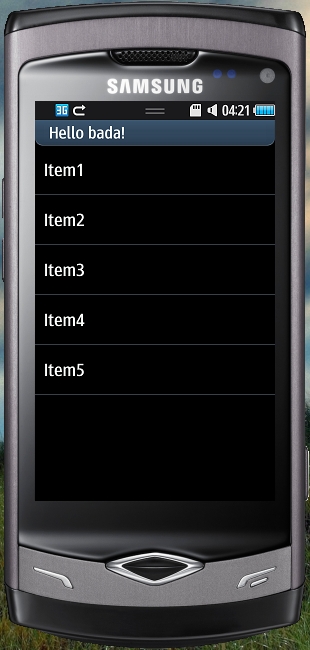
Of course, if the list items do not fit on the form, they can be scrolled.
Everything here is also quite simple. For the form that you want to provide “tabs” in its properties, you need to set Show Tab to one of the desired Text Tab or Icon Tab values (the meaning of the properties is obvious, isn't it?). At the top of the form there will be an empty space under the “tabs” pages, which we will add “programmatically” to the OnInitializing (void) form.
We start the simulator and see:

In my opinion, just :) But here we need to make a remark. It is already clear that “tabs” can have not only text, but also graphic headers, and at the same time 3 text and 4 graphic “tabs” can be visible on the screen. If there are more of them, then a cue is displayed next to it (“cue” - in SDK terms), which makes it possible to understand that “tabs” can be scrolled.
Thanks for attention! I hope this topic helps someone if it becomes necessary to work for Bada. Good luck;)
The topic summarizes basic information with code examples that illustrate working with some user controls and forms on the Samsung Bada platform. An example application with buttons, input fields and labels (Label) is available here . Who cares - we ask for a cat.
Forms
In the documentation for Bada, the form refers to the main area of the screen of a mobile device, which the application occupies and is divided into three parts:
- Indicator area - intended for system functions that display its current state, as well as signal, charge, etc.
- Client area - the main part of the screen, designed to display the graphic component of the application.
- Command area - the lower part of the screen, designed for soft buttons and the optional menu (Option menu)
The scheme of this (the picture from the documentation) is as follows:
Samsung Bada has several types of applications (including those based on Flash), but so far only form-based ones are considered here. How to work with them?
Let's look at the diagram (also from the documentation):
The basis of the Bada application is “Frame” - the main “window” of the application, which can be only one.
“Frame” controls its visual state using forms that can be any number (or rather, how much the hardware resources of the smartphone allow). Based on this, the order of working with forms looks like this:
- We get a link to Frame to be able to add a form to it and display it
- Actually, we create a form
- Attach to Frame, if necessary, make it current and "please draw"
It should be noted that forms in Bada can be created in two ways - either using a GUI designer or from code. Fond memories of Delphi make me start with the first option.
Having created a “form-based” application (there is a completely obvious wizard), you will immediately get a certain form on which the environment has already placed a button. Add another form and visually fill it with some controls - for this, in the Resources window of the environment, find the Forms node, right-click on it and in the obvious Insert Wizard, select the size of the new form to create. It will be displayed in resources as IDF_FORM2 (accurate to digits). You can change the visual properties of the form in the Properties tab of the development environment; Transfer some controls to the form from the GUI designer, so that the second form somehow differs from the first - a button, for example, or a timer.
Now the code.
In the header file of the form class, add the include to the project
Osp::Ui::Controls::Form *__newForm;
Let's go back to the implementation of the class, there we will find the ActionPerformed method with a template for processing event identifiers (for details, see the link to my first topic for beginners at the top) and write the following code:
 switch(actionId)
	{
	case ID_BUTTON_OK:
		{
			Frame *pFrame = Application::GetInstance()->GetAppFrame()->GetFrame();
			 __newForm = new Form();
			 __newForm->Construct(L"IDF_FORM1");
			 pFrame->AddControl(*__newForm);
			 pFrame->SetCurrentForm(*__newForm);
                        __newForm->Draw();
                       __newForm->Show();
		}
		break;
	default:
		break;
	}
What is happening there? We get a link to the “Frame” application, create a form from the project resources using its name (you could change it on the Properties tab), then add the form to the “Frame”, make it current and show it.
Now run the simulator, click on the button and see the new “second” form you created (everything seems to be obvious here, it seems, so I allow myself to not take screenshots). In the form shown, you can set the current first form (using SetCurrentForm) and thus go back.
The second option for creating the form is “programmatically”.
I’ll give you the code right away:
Form* pForm = new Form();
pForm->Construct(FORM_STYLE_TITLE | FORM_STYLE_INDICATOR | FORM_STYLE_SOFTKEY_0 | FORM_STYLE_OPTIONKEY);
Frame *pFrame = Application::GetInstance()->GetAppFrame()->GetFrame();
pFrame->AddControl(*pForm);
pForm->Draw();
pForm->Show();
The actions that take place here are similar to the previous ones - first we declare and create the form, then set its visual properties (here we ask that the form has a heading, indicator (bar with charge level, etc.), we also want the form to have a softkey and an optional menu), we get a link to the application and add a form to it.
Lists
Let's see how to create a simple text list on the form - an extremely simplified version of the phone book, for example. To do this, there is a GUI component with the corresponding name List - it must be placed on the form in a way convenient for you (nevertheless, it usually takes the whole form :). Having a list on the form, go to the tab of its properties in the environment and change their values:
- List Style on LIST_STYLE_NORMAL, making it clear to the system that we want to see a “normal” list, and not a numerical or with radio buttons (however, it’s quite possible to experiment here)
- List Item Format on LIST_ITEM_SINGLE_TEXT, this will lead to the creation of a simple list, without pictures
- Column1 Width is an obvious property, I set it to 200, that is, the width of the form
- Row 1 Height is a no less obvious property, I have it equal to 50 so that the list item is not too "thick"
We get on the form something like this:
And, in fact, the code that needs to be added to the OnInitializing (void) form initialization method:
        // сам список, находящийся на форме
        __pSimpleList = static_cast(GetControl(L"IDC_LIST1"));
       // добавляем  элементы списка
	__pSimpleList->AddItem(&String("Item1"), null, null, null, 0);
	__pSimpleList->AddItem(&String("Item2"), null, null, null, 1);
	__pSimpleList->AddItem(&String("Item3"), null, null, null, 2);
	__pSimpleList->AddItem(&String("Item4"), null, null, null, 3);
	__pSimpleList->AddItem(&String("Item5"), null, null, null, 4);
The first line is getting a link to the List itself, the next line is adding five elements to the list. The AddItem method of the list is declared in the SDK as follows:
result Osp::Ui::Controls::List::AddItem
        ( const Osp::Base::String *      pText1,
          const Osp::Base::String *     pText2,
          const Osp::Graphics::Bitmap *     pBitmap1,
          const Osp::Graphics::Bitmap *     pBitmap2,
          int   itemId = 0
              )
- here pText1 and pText2 are a couple of lines, pBitmap1 and pBitmap2 are a couple of pictures and itemId is an identifier of a list item if you need to process clicking on it. Here, by the way, there is some mystery of the SDK developers - a couple of lines pText1 and pText2 may be needed for a list style called LIST_ITEM_DOUBLE_FULLTEXT_TEXT_IMAGE , which displays two lines and a certain picture, but why pBitmap2 is needed is a question, since there is no suitable style (which would be simultaneously displayed two pictures) I did not find. Although, maybe I still don’t understand something yet :)
We start the simulator and admire the result:
Of course, if the list items do not fit on the form, they can be scrolled.
Tabs
Everything here is also quite simple. For the form that you want to provide “tabs” in its properties, you need to set Show Tab to one of the desired Text Tab or Icon Tab values (the meaning of the properties is obvious, isn't it?). At the top of the form there will be an empty space under the “tabs” pages, which we will add “programmatically” to the OnInitializing (void) form.
    // получаем ссылку на "табы"
    Tab* pTab = GetTab();
    // добавляем их, второй параметр - номер "таба"
    pTab->AddItem(L"1st", 0);
    pTab->AddItem(L"2nd", 1);
    pTab->AddItem(L"3d", 2);
We start the simulator and see:
In my opinion, just :) But here we need to make a remark. It is already clear that “tabs” can have not only text, but also graphic headers, and at the same time 3 text and 4 graphic “tabs” can be visible on the screen. If there are more of them, then a cue is displayed next to it (“cue” - in SDK terms), which makes it possible to understand that “tabs” can be scrolled.
Thanks for attention! I hope this topic helps someone if it becomes necessary to work for Bada. Good luck;)