January 13, 2009 at 00:39
Running VMware Player as a Windows Service
- Transfer
Do you want to run Vmware as a background process on a Windows computer?
None of the following has been approved by VMware. This guide only describes my use of VMware Player.
Translator: The next paragraph was added after questions appeared in the comments about why all this is necessary.
What could be the gain of this method? I did not check, but I think that the gain is in disk space and system resources (the distribution of the second server weighs about 600 MB, and the last player is more than three times less). We also remember that until recently the server lagged behind in supporting the latest generations of virtual machines.
Use VMWare products to create virtual machines. I used Workstation version 5.5 because it creates 5th generation virtual machines. If you are using another VMware product, make sure that your product will create a virtual machine that is compatible with VMWare Player .
(Translator's note: The easiest way is to use VMWare Server 2.0, which is completely free, along with VMWare Player. But you can also, of course, create a virtual machine on a modern version of Workstation 6.5)
(VMware Player will be used to start the virtual machine (since it’s free product!).
I also run VMware ACE as a service using the same methods as in the case of VMware Player.
The fifth generation of virtual machines allows you to automatically scale the RAM of a virtual target, taking into account the available physical memory, for this you only need to add a few parameters to the Vmx file.
memsize = "2048"
In this case, V. M. (virtual machine) will dispose of 2 GB of RAM, if any. On machines with less than 2 GB of RAM, the player will automatically adjust the amount used based on the available RAM. Memsize 2048 is not the limit. If you have more than 2 GB of memory installed, simply increase this number.
As far as I know, this is an undocumented function. I found this in the .vmx file of one virtual machine supplied by VMware.
On the machine on which the service will be executed (hereinafter referred to as the “target machine”), install VMware Player. This example uses version 1.0.1. Player cannot coexist with other VMware products on the same computer, so the target machine must be different from the machine when the virtual machine was created.
(Translator's note: this means a separate installation of the player, if you do not have Workstation installed, which includes the player. You can also simply remove VMWare Server from the computer after creating the virtual machine)
Find copies of instsrv.exe and Srvany.exe from the corresponding Windows Resource Kit. For example, I used the Windows 2003 Resource Kit. Copy instsrv.exe and Srvany.exe to% SYSTEMROOT% on the target machine.
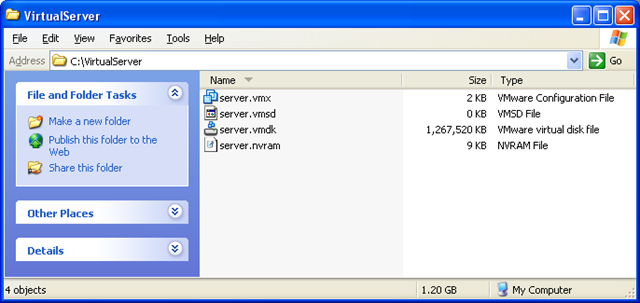
Copy the virtual machine files to a directory on the target computer. Not all files are needed, I only copied the files as shown below.
Add fields to the Vmx file so that VMware Player suppresses all “Ok” messages generated by the user interface and does not show the user interface.
server.vmx
The Hints.hideAll parameter was mentioned in the VMware article - At Your Service! in June 2004. The Msg.noOk parameter was found in the VMware forums.
Create the VirtualServer service on the target machine using instsrv.exe.
instsrv VirtualServer "% SYSTEMROOT% \ System32 \ srvany.exe"
Add registry keys for Srvany.exe so that it runs vmplayer.exe with your virtual machine. For a detailed explanation of creating custom services on Windows, see the Knowledge Base article How to Create a Custom Service.
VirtualServer.reg
To use another Vmware product, such as ACE, change the value of the Application key.
To use another virtual machine, change the value of "AppParameters".
Create a batch virtual machine startup file called start-vm.bat. This script first checks to see if the virtual machine files are installed and that the service is not running. Then it kills all old VMware processes and eliminates various state files from the last start of the virtual machine. At the end - the service of the virtual machine starts.
::
Create a batch file to stop the virtual machine called stop-vm.bat. The virtual service shutdown script kills any VMware processes associated with a running virtual machine.
::
Important: the virtual machine should be normal after a hard shutdown. Destroying the process of a virtual machine, as if you pulled a cord from a socket on a physical computer. If the state of the virtual machine does not matter, then you can use the nonpersistent disk function. Since the contents of the disk do not change while the virtual machine is running, such termination of the process will not be able to affect the state of the virtual disk.
Put the startup script in% SYSTEMROOT% \ System32 \ GroupPolicy \ Machine \ Scripts \ Startup. For this example, the startup script is the start-vm.bat file.
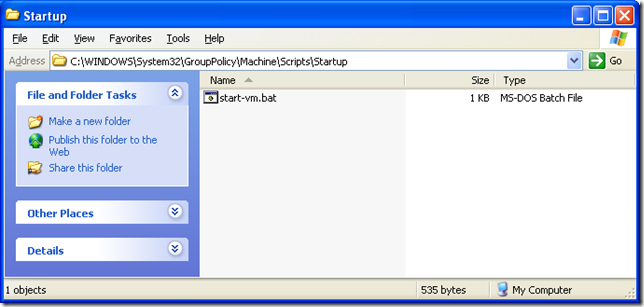
On the target machine, make start-vm.bat start when the system starts, adding it to the list of Group Policy autoruns. gpedit.msc is a group policy editor. Run the gpedit.msc command to open the Group Policy Editor (Translator's Note: Start - Run menu) ..
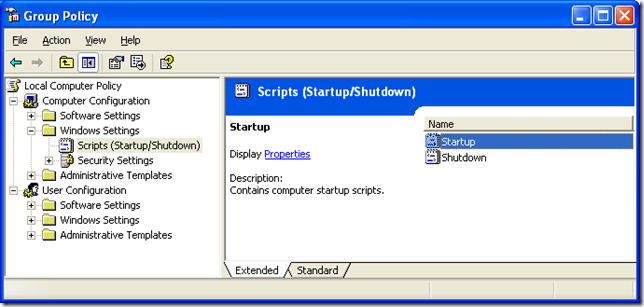
In the "Scripts (Startup / Shutdown)" section of the Group Policy Editor, open the Startup Properties window. Click the Add button and enter a name for the script starting a virtual machine.
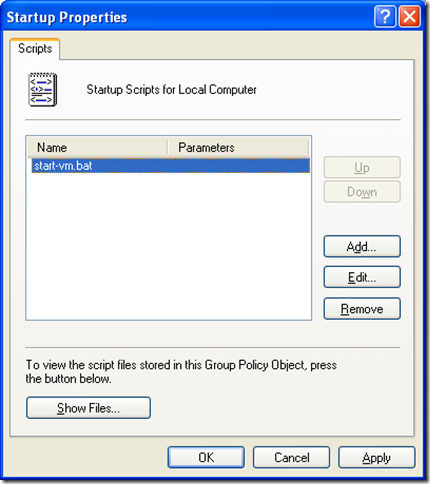
Follow steps 1-3 for Group Policy Shutdown, but use stop-vm.bat as the completion script. Adding Shutdown Group Policy is not strictly required, however it may be important to run stop-vm.bat if it contains more commands than just terminating the virtual machine process.
All. Use it.
None of the following has been approved by VMware. This guide only describes my use of VMware Player.
- Creating a virtual machine
- Install VMware Player
- Create VMware Player Service
- Starting virtual machines at Windows startup
Translator: The next paragraph was added after questions appeared in the comments about why all this is necessary.
What could be the gain of this method? I did not check, but I think that the gain is in disk space and system resources (the distribution of the second server weighs about 600 MB, and the last player is more than three times less). We also remember that until recently the server lagged behind in supporting the latest generations of virtual machines.
1.1 Creating a virtual machine
Use VMWare products to create virtual machines. I used Workstation version 5.5 because it creates 5th generation virtual machines. If you are using another VMware product, make sure that your product will create a virtual machine that is compatible with VMWare Player .
(Translator's note: The easiest way is to use VMWare Server 2.0, which is completely free, along with VMWare Player. But you can also, of course, create a virtual machine on a modern version of Workstation 6.5)
(VMware Player will be used to start the virtual machine (since it’s free product!).
I also run VMware ACE as a service using the same methods as in the case of VMware Player.
The fifth generation of virtual machines allows you to automatically scale the RAM of a virtual target, taking into account the available physical memory, for this you only need to add a few parameters to the Vmx file.
memsize = "2048"
MemAllowAutoScaleDown = "TRUE"
In this case, V. M. (virtual machine) will dispose of 2 GB of RAM, if any. On machines with less than 2 GB of RAM, the player will automatically adjust the amount used based on the available RAM. Memsize 2048 is not the limit. If you have more than 2 GB of memory installed, simply increase this number.
As far as I know, this is an undocumented function. I found this in the .vmx file of one virtual machine supplied by VMware.
1.2 Install VMware Player
On the machine on which the service will be executed (hereinafter referred to as the “target machine”), install VMware Player. This example uses version 1.0.1. Player cannot coexist with other VMware products on the same computer, so the target machine must be different from the machine when the virtual machine was created.
(Translator's note: this means a separate installation of the player, if you do not have Workstation installed, which includes the player. You can also simply remove VMWare Server from the computer after creating the virtual machine)
1.3 Creating the VMWare Player Service
Find copies of instsrv.exe and Srvany.exe from the corresponding Windows Resource Kit. For example, I used the Windows 2003 Resource Kit. Copy instsrv.exe and Srvany.exe to% SYSTEMROOT% on the target machine.
Copy the virtual machine files to a directory on the target computer. Not all files are needed, I only copied the files as shown below.
Add fields to the Vmx file so that VMware Player suppresses all “Ok” messages generated by the user interface and does not show the user interface.
server.vmx
.......
hints.hideAll = "TRUE"
msg.noOk = "TRUE"
... ...
The Hints.hideAll parameter was mentioned in the VMware article - At Your Service! in June 2004. The Msg.noOk parameter was found in the VMware forums.
Create the VirtualServer service on the target machine using instsrv.exe.
instsrv VirtualServer "% SYSTEMROOT% \ System32 \ srvany.exe"
Add registry keys for Srvany.exe so that it runs vmplayer.exe with your virtual machine. For a detailed explanation of creating custom services on Windows, see the Knowledge Base article How to Create a Custom Service.
VirtualServer.reg
Windows Registry Editor Version 5.00
[HKEY_LOCAL_MACHINE \ SYSTEM \ CurrentControlSet \ Services \ VirtualServer \ Parameters]
"Application" = "\" C: \\\\ Program Files \\\\ VMware \\\\ VMware Player \\\ \ vmplayer.exe \ ""
"AppParameters" = "\" C: \\\\ VirtualServer \\\\ server.vmx \ ""
"AppDirectory" = "\" C: \\\\ VirtualServre \\\\\ ""
To use another Vmware product, such as ACE, change the value of the Application key.
To use another virtual machine, change the value of "AppParameters".
Create a batch virtual machine startup file called start-vm.bat. This script first checks to see if the virtual machine files are installed and that the service is not running. Then it kills all old VMware processes and eliminates various state files from the last start of the virtual machine. At the end - the service of the virtual machine starts.
::
:: start-vm.bat
::
:: If the server isn't installed, then don't start it
if not exist C: \ VirtualServer goto noServer
:: If the service is already running, then skip starting it
net start | grep -q -i "VirtualServer"
if% ERRORLEVEL% == 0 goto noServer
:: To make sure that lingering processes are dead, force kill the process
taskkill / F / IM vmplayer.exe
taskkill / F / IM vmware-vmx.exe
:: Remove * .lck, * .vmss from the grid directory
del "C: \ VirtualServer \ *. Lck"
del "C: \ VirtualServer \ *. Vmss"
del "C: \ VirtualServer \ *. Vmem"
:: Start the server service
net start VirtualServer
: noServer
Create a batch file to stop the virtual machine called stop-vm.bat. The virtual service shutdown script kills any VMware processes associated with a running virtual machine.
::
:: stop-vm.bat
::
:: If the server isn't installed, then don't start it
if not exist C: \ VirtualServer goto noServer
:: Start the service
net stop VirtualServer
:: Force kill the processes
taskkill / F / IM vmplayer.exe
taskkill / F / IM vmware-vmx.exe
: noServer
Important: the virtual machine should be normal after a hard shutdown. Destroying the process of a virtual machine, as if you pulled a cord from a socket on a physical computer. If the state of the virtual machine does not matter, then you can use the nonpersistent disk function. Since the contents of the disk do not change while the virtual machine is running, such termination of the process will not be able to affect the state of the virtual disk.
1.4 Starting virtual machines at Windows startup
Put the startup script in% SYSTEMROOT% \ System32 \ GroupPolicy \ Machine \ Scripts \ Startup. For this example, the startup script is the start-vm.bat file.
On the target machine, make start-vm.bat start when the system starts, adding it to the list of Group Policy autoruns. gpedit.msc is a group policy editor. Run the gpedit.msc command to open the Group Policy Editor (Translator's Note: Start - Run menu) ..
In the "Scripts (Startup / Shutdown)" section of the Group Policy Editor, open the Startup Properties window. Click the Add button and enter a name for the script starting a virtual machine.
Follow steps 1-3 for Group Policy Shutdown, but use stop-vm.bat as the completion script. Adding Shutdown Group Policy is not strictly required, however it may be important to run stop-vm.bat if it contains more commands than just terminating the virtual machine process.
All. Use it.