April 15, 2008 at 15:30
Create a Mac-on-Stick with Mini vMac
- Transfer
Already few people can be surprised working with flash drives Linux, Windows, FireFox, AbiWord Thunderbird and other applications. What about a Mac 128K or Mac Plus on a USB stick? Despite some absurdity of the idea, the “portable” Mac has a practical application:
 For this project, let's call it Mac-on-Stick, we will need the following components:
Now that all the necessary components are at hand, we can begin. In the process of describing the installation, it is assumed that you are using Mac OS X, but most of the described actions will be correct for Windows.
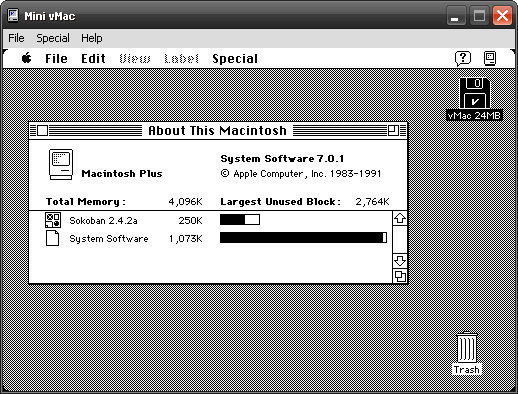
Figure 2: Mini vMac is up and running
To install applications on the mac, you must make the disk image mountable. To do this, you need the SetFType utility. Unpack it, and drag the hfs24M.DSK image onto the SetFType.dmg icon (make sure that Mini vMac is not running). Once you see the confirmation message, double-click on the hfs24M.DSK image. This mounts it on the Desktop, and you can copy the software you want onto it. While you are at it, you might want to rename the disk to something meaningful like 'Mini vMac'. Unmount the disk by throwing it into the Trash. Restart Mini vMac by dragging the hfs24M.DSK disk onto the Mini vMac icon. Now you can use the copied applications.
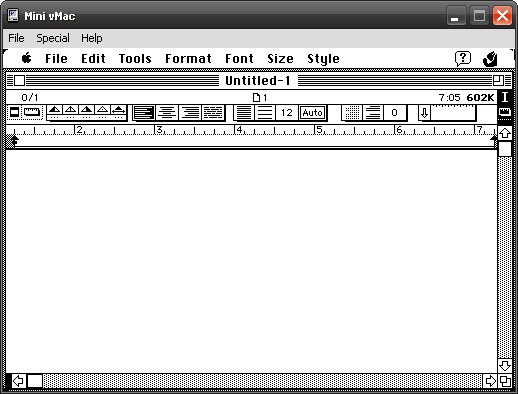
Figure 3: Running Nisus Compact
To use the disk image in Windows, you will need the HFVExplorer utility (included with Mac-on-Stick 0.2).
If you need a larger disk to work in Mini vMac, you can create it in a Mac OS X terminal or Linux console using the command: This creates a 52MB disk image, named hfs52M.dsk, in the current directory (count is the number of 512 byte blocks). Before you can mount it using the SetFType utility, you must format it in Mini vMac. Launch Mini vMac, drag the new disk image onto it, press the Initialize button when prompted, and give the new disk a name. Now you can mount the disk image.
If the prospect of installing a Mac-on-Stick from scratch is not impressive, then you can download a working kit through BitTorrent. The package comes with the following bundled applications:
- Play around with the old OS and applications without bothering with finding the old Mac.
- Surprise your friends, or show someone what the old Mac looked like.
- Use Mac on Windows or Linux.
For this project, let's call it Mac-on-Stick, we will need the following components:- Mini vMac emulator . This emulator is available for Mac OS (Classic and OS X), Windows, Linux, and even Pocket PC .
- ROM image. If you have a Macintosh Plus, 128K, or SE, you can copy the ROM from there using the CopyRoms utility . Otherwise, ROM can be downloaded .
- An empty disk image that will be the hard drive for our Mac.
- Operating system and system software. Fortunately, Apple is posting older versions of its software, including Mac OS up to version 7.5.5, on the Older Software Downloads page . This project uses System 7.0.1
- The software we are going to play with. To get started, you can see a list of old Mac software on the Mini vMac website .
- USB flash drive (Enough even 32MB).
Installation
Now that all the necessary components are at hand, we can begin. In the process of describing the installation, it is assumed that you are using Mac OS X, but most of the described actions will be correct for Windows.
- Create a directory
Mac-on-Stick. - Unpack the archive with Mini vMac and the file
vmac.romfile, then copy them to the directoryMac-on-Stick. - Unpack the archive
blanks-x.x.x.zipand the disk from it at our discretion. In order not to experience problems with free space, you can choose the largest available - archivehfs24M.zip. - Copy
hfs24M.DSKto the directoryMac-on-Stick. - Unpack the System_7.0.1.smi.bin archive and transfer the resulting images to a directory
Mac-on-Stick. - Drag
Install 1.imageto the Mini vMac icon. The Mini vMac launches and the installation process begins. - When the installer asks you to specify the drive on which to install the system, drag the file
hfs24M.DSKto the emulator window. - We continue the installation as usual, dragging the installation disk images onto the emulator window, as the installer requests them.
- When the installation is complete, click the Restart button, and drag the disk
hfs24M.DSKto the emulator. - If everything works, then copy the directory
Mac-on-Stickto the USB flash drive.
Figure 2: Mini vMac is up and running
Software installation
To install applications on the mac, you must make the disk image mountable. To do this, you need the SetFType utility. Unpack it, and drag the hfs24M.DSK image onto the SetFType.dmg icon (make sure that Mini vMac is not running). Once you see the confirmation message, double-click on the hfs24M.DSK image. This mounts it on the Desktop, and you can copy the software you want onto it. While you are at it, you might want to rename the disk to something meaningful like 'Mini vMac'. Unmount the disk by throwing it into the Trash. Restart Mini vMac by dragging the hfs24M.DSK disk onto the Mini vMac icon. Now you can use the copied applications.
Figure 3: Running Nisus Compact
To use the disk image in Windows, you will need the HFVExplorer utility (included with Mac-on-Stick 0.2).
Create a disk image
If you need a larger disk to work in Mini vMac, you can create it in a Mac OS X terminal or Linux console using the command: This creates a 52MB disk image, named hfs52M.dsk, in the current directory (count is the number of 512 byte blocks). Before you can mount it using the SetFType utility, you must format it in Mini vMac. Launch Mini vMac, drag the new disk image onto it, press the Initialize button when prompted, and give the new disk a name. Now you can mount the disk image.
dd if=/dev/zero of=hfs52M.dsk count=106496
Download Mac-on-Stick
If the prospect of installing a Mac-on-Stick from scratch is not impressive, then you can download a working kit through BitTorrent. The package comes with the following bundled applications:
| Title | Description |
|---|---|
| Quickpop | Assign hotkeys to applications, documents, control panels, etc. |
| BBEdit Lite | One of the most popular text editors for Mac OS |
| Tex-Edit | Styled feature-rich text editor |
| MORE | Powerful and flexible outliner |
| Excalibur | LaTeX-aware standalone spell checker |
| Glider | Paper plain game |
| Texris | Tetris clone for two players |
| Sokoban | Game of sokoban |
| Nisus compact | Powerful word processor |