Russification of the openGLCD library for Arduino
Writing Russian-language text on graphic displays with the ks0108 controller or its analogs still presents significant difficulties. The openGLCD library, which is recommended by the official Arduino sites, does not contain any Cyrillic fonts in the original configuration of the latest version at the moment, except for the cp437font8x8 font. In practice, it is of little use because it supports Win-1251 encoding in the Russian part . Consequently, in order to display characters in such a font, they must either be inserted into the text with octal or hexadecimal codes (and at the same time there are ambiguities with the lowercase letter "I", as the font creator himself points out in the commentary), or anyway write a separate conversion function like this made arduinecfor the library Adafruit-GFX.
Among other things, cp437font8x8 is large for 128x64 pixels. The optimal font size for auxiliary writing on this display is System5x7. Here we will focus on the Russification of the system font, although the reader can russify any other font on this model (especially if he has a bigger screen).
To begin with, let's get into the roots of the problem. The Arduino IDE is a regular Windows text editor that works in the universal UTF-8 encoding , like any other in modern versions of Windows (Notepad, for example). UTF-8 is an economical version of UNICODE multibyte encoding. In UTF-8, English-language characters, digits, comma-dots, brackets, and any other icons are represented by one byte that matches the standard ASCII character set . Therefore, their representation in the sketch code presents no difficulties: after compilation, the string of English characters is transferred to the downloaded hex file without changes and is understood by the 8-bit controller, as they say, “without translation”.
In the process of this transformation, each character, as in any program in any programming language, is represented directly in the form of its code, that is, the sequence number in the font table from which the program extracts the graphic outline of the corresponding character. In the openGLCD library's System5x7.h font file, the number of characters is represented by a font_Char_Count variable of type uint8_t , that is, it cannot exceed the value of one byte. Therefore, Cyrillic characters that occupy two bytes in UTF-8 cannot be transferred to the controller in the usual way.
The author did not go into the depths of library functions, but wrote an add-in for openGLCD as a function outstr () , which iterates through all the elements of the input line, passing them through the Switch operator . It catches Cyrillic characters from a string and replaces them with single-byte codes corresponding to the updated System5x7R.h font file .
For example, for the capital Russian letter “F”, the replacement string would be:
Here 0xA4 is the low byte of the letter F encoding in UTF-8 (see the link above). In accordance with this encoding, a new System5x7R.h font file has been compiled . In principle, with this approach, in the font, you can use any encoding of Russian characters and any other glyphs that you want to insert into the font. If only their total number does not exceed 128 pieces: from the beginning of the table to the character 0x7F (127 is the last character of the standard ASCII table) it is advisable to leave the font intact.
True, a couple of liberties with an ASCII table, I allowed myself. The fact is that in the original System5x7.h fontthe degree icon is placed in the last row of the table, occupying the 0x80 character, which already refers to the Cyrillic alphabet. In order not to violate the order of constructing the Cyrillic table in accordance with UTF-8, this line is removed from the file. And the degree icon is attached instead of the ASCII character “~” (number 0x7E), which in the font was still not used for its intended purpose. But such a replacement allows you to enter the degree icon in the text of the sketch directly from the keyboard as a "~" symbol.
Another liberty is due to the fact that the author does not tolerate crossed out zero - the archaic of the times of the ADC and monochrome text displays. Because zero in the modernized font is replaced by the glyph of the letter "O". Those who adhere to puristic principles can simply delete the System5x7R.h font in the file .this insert (the old glyph of the crossed zero is left commented out, its code is 0x30).
In the modernized openGLCD library , which you can download via the link at the end of the article, one more correction was made - the order of connecting pins for displays with a ks0108 controller was changed. Why the author of the library chose such an order (see the table on the link on the official website of Arduino ) is unknown. In the modernized version, the display is connected (for example, the popular MT-12864J was chosen) according to this scheme:
The variable resistor R1 is connected according to the manufacturer's recommendation , and the R2 resistor is used to limit the backlight current if it is connected not to a 5 V voltage, but directly to an input power source (Vin Arduino pin) with a higher voltage.
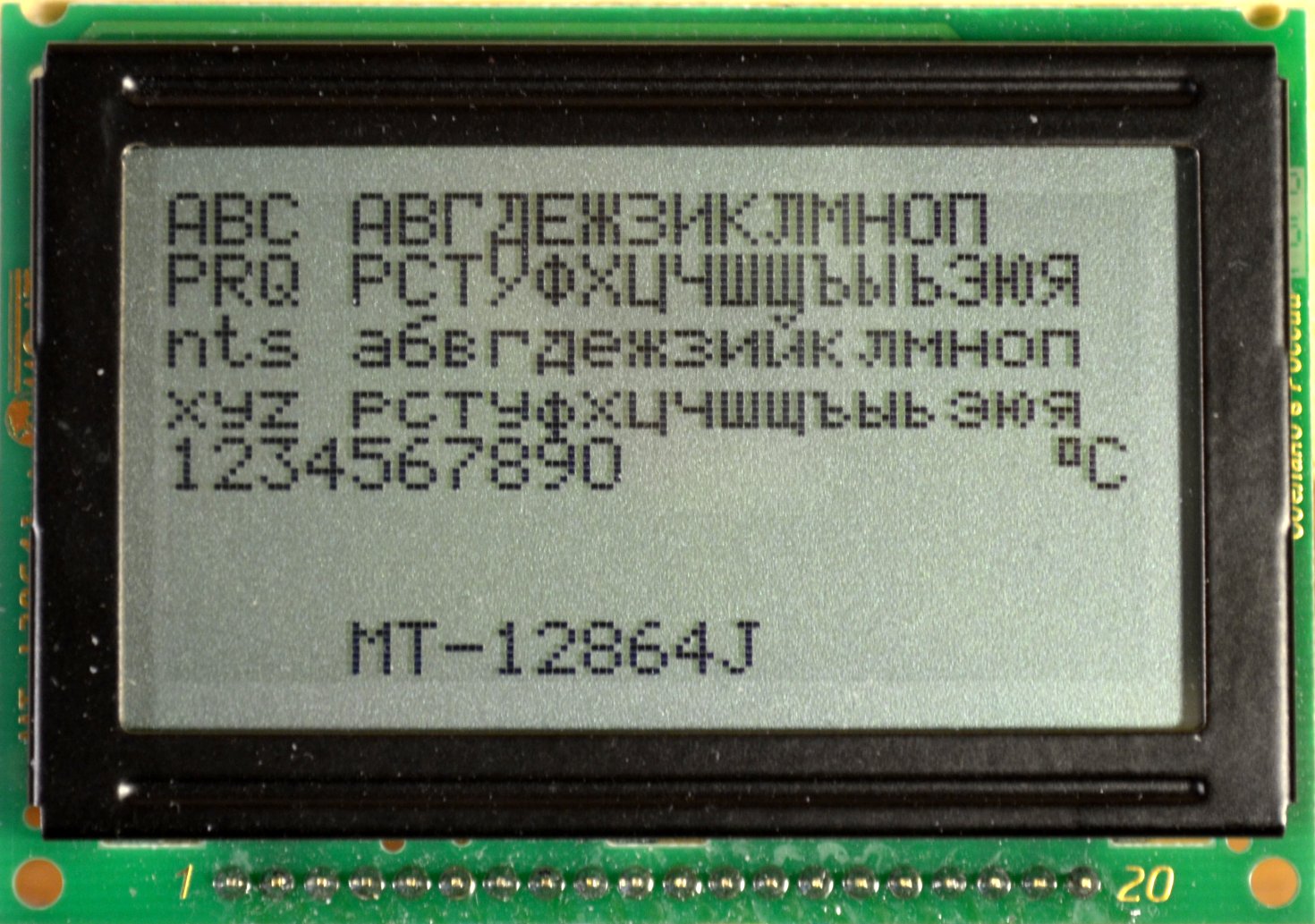
An example of displaying the MT-12864J of the Russian alphabet interspersed with Latin, as well as numbers and a degree icon, is shown in the photo:
The sketch text for this example:
Since the files with the outstr.h function and the System5x7R.h font are located in the root directory of the upgraded library, separate links should be placed on them at the beginning of the sketch using the #include directive . For English inscriptions, it is convenient to continue using the standard println / print functions , but if you need a line feed in the Russian text, you must explicitly specify the “\ n” symbol.
A revised version of the library you can download here . The unpacked library ( openGLCD folder ) should be placed in the Arduino \ libraries folder, as usual. An example of the sketch is located in the same archive separately (in the non-Examples folder of the library). Connecting the display with the controller ks0108 in accordance with this library is shown in the diagram above. If you want to additionally change the order of connecting pins, then find the PinConfig_ks0108-Uno.h file in the Arduino \ libraries \ openGLCD \ config \ ks0108 folder and edit the lines under the heading “Data pin definitions” and further, focusing on the author's corrections.
In the next publication we will try to understand the Russification of lowercase displays. As you will see, with them everything is both simpler and more complicated.
Among other things, cp437font8x8 is large for 128x64 pixels. The optimal font size for auxiliary writing on this display is System5x7. Here we will focus on the Russification of the system font, although the reader can russify any other font on this model (especially if he has a bigger screen).
What's the problem?
To begin with, let's get into the roots of the problem. The Arduino IDE is a regular Windows text editor that works in the universal UTF-8 encoding , like any other in modern versions of Windows (Notepad, for example). UTF-8 is an economical version of UNICODE multibyte encoding. In UTF-8, English-language characters, digits, comma-dots, brackets, and any other icons are represented by one byte that matches the standard ASCII character set . Therefore, their representation in the sketch code presents no difficulties: after compilation, the string of English characters is transferred to the downloaded hex file without changes and is understood by the 8-bit controller, as they say, “without translation”.
In the process of this transformation, each character, as in any program in any programming language, is represented directly in the form of its code, that is, the sequence number in the font table from which the program extracts the graphic outline of the corresponding character. In the openGLCD library's System5x7.h font file, the number of characters is represented by a font_Char_Count variable of type uint8_t , that is, it cannot exceed the value of one byte. Therefore, Cyrillic characters that occupy two bytes in UTF-8 cannot be transferred to the controller in the usual way.
Previous Attempts
Заметим, что это было не всегда так. Версии Arduino 1.0.x (и, по слухам, 1.6.0) усекали двухбайтовый код до однобайтового, банально отбрасывая старший байт (который для кириллицы, как следует из таблицы UTF-8 по ссылке выше, равен либо 0xD0, либо 0xD1). Потому для доработки шрифта в этих версиях среды годится старая библиотека GLCD v3, в которой массив шрифта просто дополнялся символами кириллических букв так, чтобы их позиции совпадали с младшим байтом кодировки UTF-8 (байты с 0x80 по 0xBF). Более подробно такая модернизация описана в статье автора «Работа с текстом на графическом дисплее». Повторяю — для нее нужна одна из версий Arduino IDE 1.0.x в совокупности с библиотекой GLCD v3, а не их более современные варианты.
В новых версиях Arduino IDE стало все сложнее. Библиотека решительно отказывается понимать двухбайтовые номера символов, выводя вместо них пустое место, потому простой переделкой шрифта тут не обойдешься. Приходится дополнить его функцией перекодировки двухбайтовых символов в однобайтовые.
В новых версиях Arduino IDE стало все сложнее. Библиотека решительно отказывается понимать двухбайтовые номера символов, выводя вместо них пустое место, потому простой переделкой шрифта тут не обойдешься. Приходится дополнить его функцией перекодировки двухбайтовых символов в однобайтовые.
Decision
The author did not go into the depths of library functions, but wrote an add-in for openGLCD as a function outstr () , which iterates through all the elements of the input line, passing them through the Switch operator . It catches Cyrillic characters from a string and replaces them with single-byte codes corresponding to the updated System5x7R.h font file .
For example, for the capital Russian letter “F”, the replacement string would be:
case'Ф': GLCD.PutChar(0xA4); break;Here 0xA4 is the low byte of the letter F encoding in UTF-8 (see the link above). In accordance with this encoding, a new System5x7R.h font file has been compiled . In principle, with this approach, in the font, you can use any encoding of Russian characters and any other glyphs that you want to insert into the font. If only their total number does not exceed 128 pieces: from the beginning of the table to the character 0x7F (127 is the last character of the standard ASCII table) it is advisable to leave the font intact.
True, a couple of liberties with an ASCII table, I allowed myself. The fact is that in the original System5x7.h fontthe degree icon is placed in the last row of the table, occupying the 0x80 character, which already refers to the Cyrillic alphabet. In order not to violate the order of constructing the Cyrillic table in accordance with UTF-8, this line is removed from the file. And the degree icon is attached instead of the ASCII character “~” (number 0x7E), which in the font was still not used for its intended purpose. But such a replacement allows you to enter the degree icon in the text of the sketch directly from the keyboard as a "~" symbol.
Another liberty is due to the fact that the author does not tolerate crossed out zero - the archaic of the times of the ADC and monochrome text displays. Because zero in the modernized font is replaced by the glyph of the letter "O". Those who adhere to puristic principles can simply delete the System5x7R.h font in the file .this insert (the old glyph of the crossed zero is left commented out, its code is 0x30).
In the modernized openGLCD library , which you can download via the link at the end of the article, one more correction was made - the order of connecting pins for displays with a ks0108 controller was changed. Why the author of the library chose such an order (see the table on the link on the official website of Arduino ) is unknown. In the modernized version, the display is connected (for example, the popular MT-12864J was chosen) according to this scheme:
Connection diagram MT-12864J
The variable resistor R1 is connected according to the manufacturer's recommendation , and the R2 resistor is used to limit the backlight current if it is connected not to a 5 V voltage, but directly to an input power source (Vin Arduino pin) with a higher voltage.
An example of displaying the MT-12864J of the Russian alphabet interspersed with Latin, as well as numbers and a degree icon, is shown in the photo:
The sketch text for this example:
The text of the sketch with the conclusion of the Russian alphabet
#include<openGLCD.h> //подключим библиотеку#include<outstr.h> //файл с функцией вывода русских букв#include<System5x7R.h> //файл с кодами русских буквvoidsetup(){
      GLCD.Init(); //инициализация
      GLCD.ClearScreen();
      }
voidloop(){
      GLCD.SelectFont(System5x7R);  //выбираем шрифт
      GLCD.CursorTo(0,0); //установим курсор в начальную позицию //выводим смешанные англо-русские строки:
      outstr("ABC АВГДЕЖЗИКЛМНОП\n");
      outstr("PRQ РСТУФХЦЧШЩЪЫЬЭЮЯ\n");
      outstr("nts абвгдежзийклмноп\n");
      outstr("xyz рстуфхцчшщъыьэюя\n");
      GLCD.println("1234567890");
      GLCD.CursorTo(19,4); //установим курсор в предпоследнюю позицию 5-й строки
      GLCD.print("~C"); //градус С
      GLCD.println("@;/.,|<>()=-_{}\"'");
            GLCD.CursorTo(4,7); //установим курсор в поз 4 строки 8
      GLCD.print("MT-12864J");
      }
Since the files with the outstr.h function and the System5x7R.h font are located in the root directory of the upgraded library, separate links should be placed on them at the beginning of the sketch using the #include directive . For English inscriptions, it is convenient to continue using the standard println / print functions , but if you need a line feed in the Russian text, you must explicitly specify the “\ n” symbol.
A revised version of the library you can download here . The unpacked library ( openGLCD folder ) should be placed in the Arduino \ libraries folder, as usual. An example of the sketch is located in the same archive separately (in the non-Examples folder of the library). Connecting the display with the controller ks0108 in accordance with this library is shown in the diagram above. If you want to additionally change the order of connecting pins, then find the PinConfig_ks0108-Uno.h file in the Arduino \ libraries \ openGLCD \ config \ ks0108 folder and edit the lines under the heading “Data pin definitions” and further, focusing on the author's corrections.
In the next publication we will try to understand the Russification of lowercase displays. As you will see, with them everything is both simpler and more complicated.