Windows Server 2008 R2 - The King is Dead, Long Live the King
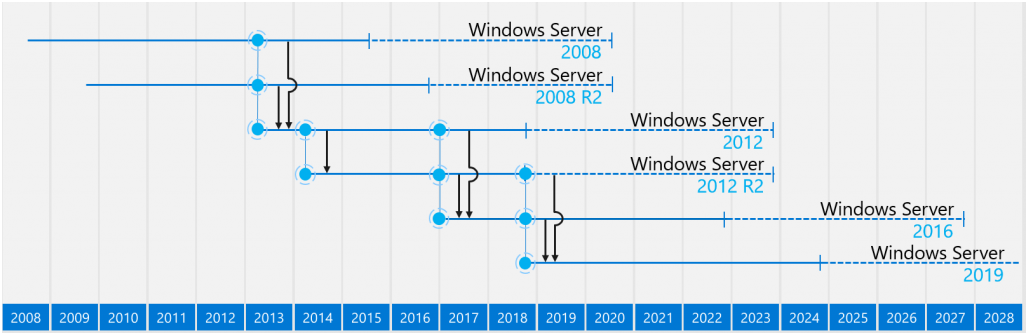
Hello, Habr! 14/01/2020 is approaching and this date marks the end of extended support for Windows Server 2008 R2, and if you are still using Windows Server 2008 R2, you should consider migrating to a more current platform.
Under the cut is a small comparison of the consumed resources of the old and new Windows Server platforms - the role of RDSH. First of all, I was interested in the opportunity to continue using the already available HP G6 / G7 servers running VMware Vsphere 5.5.
Information on the Windows Server Lifecycle is available at this Search Product Lifecycle link .
I will have two test benches:
- HP DL120 G7, 1 * CPU Intel Xeon E3-1240
- HP ML350 G6, 2 * CPU Intel Xeon E5620
The servers will run VMware ESXi 5.5, the image of VMware-ESXi-5.5.0-Update1-1746018-HP-5.75.4-Dec2014. I also tried using the VMware-ESXi-5.5.0-Update3-3116895-HP-550.9.4.26-Nov2015 image, but this does not affect the results.
But the image of VMware-ESXi-5.5.0-Update2-2403361-HP-550.9.2.40.2-Sep2015 gives distorted results, for some reason the statistics that the server shows are two times different from the real ones. With this image, the maximum that the server shows is 50 percent of the processor load, apparently some kind of bug. At first, I was delighted when I got the first results, but then I realized that something was wrong ...
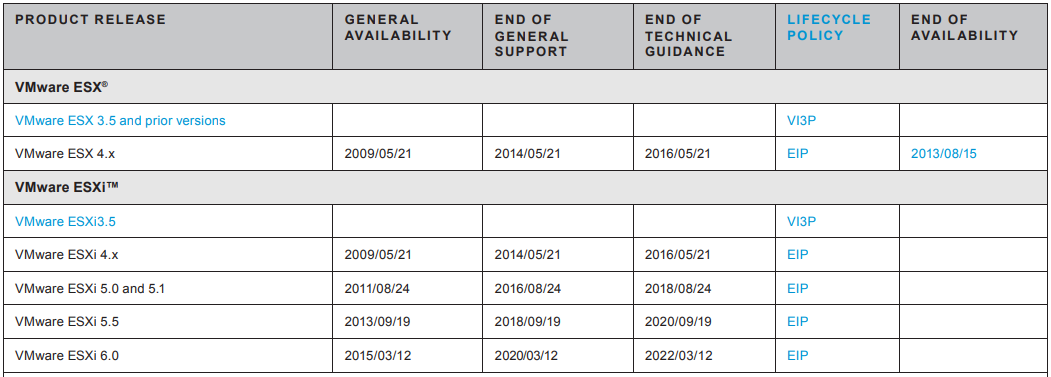
It should also be mentioned that support for VMware Vsphere 5.5 is also not eternal, and the platform is no longer relevant, and you should think about updating. Information about VMware Lifecycle is available in this VMware Lifecycle Product Matrix .
And don't forget the VMware Compatibility Guide . If we talk about the HP DL120 G7 server, this server was never present in the compatibility matrices, but ESXi 5.5 U3 is officially allowed to be installed on the HP ML350 G6 server.
Guest OS
Information about ESXi compatibility with guest OSs is also available in the VMware Compatibility Guide .
ESXi 5.5 U3 allows you to install Windows Server 2016 as a guest OS, and even version 5.5 will be enough for this. But to install Windows Server 2019 you will need ESXi version 6+, but this will not stop me from testing my plan.
I will have the following test VMs: WS2008R2SP1, WS2012R2, WS2016 and WS2019.
Agents of VMware Tools 5.5.0-10.2.5.8068406 are installed on all VMs. All updates from Microsoft for May 2019 and even some for June 2019 were installed, after which the update service was disabled.
For my tests, I performed the minimum tuning, I want everything to work with the most standard parameters. To do this, I will use local group policies, a little more about this I will write at the end.
- disabled "desktop composition"
- allowed redirection of sound and video
- Enabled RemoteFX for WS2008R2SP1 and WS2008R2SP1 Clients
- disabled font smoothing
- limited the bit depth of the color palette to 32
- limited the number of monitors to a value of 1
In order for the RemoteFX codec to start working on WS2008R2SP1, you must install the RDSH role; for newer versions, you can do this. Perhaps RemoteFX is used on WS2008R2SP1 without installing RDSH, but there are no events in the logs about the activation of this codec.
Test 1
As a test, I will use a video on YouTube with a resolution of 720p, What's new in Remote Desktop Services on Windows Server 2019 - BRK2242 .
On each of the servers, I will open one rdp session and a test video in Chrome (version 75.0.3770.80 (64bit)).
In this test, the HP t510 thin client running the HP ThinOS 4.4 OS and the Freerdp-1.1hp10d-all-4.4-x86-SQ package will be used as the client. This unit is connected to a monitor with Full HD resolution, and the thin client profile has been reset to the factory one.
I shot the graphs from the host, all the first tests will be performed on the HP DL120G7 server.

Comments on the results of the first test:
In this test, ws2008 consumes three times less processor resources, but at the same time three times more traffic than other participants in the test.
With current traffic, 66 sessions can be placed in one gigabit, but switching to a new version of the server will probably reduce by three times the number of users who can work with this processor consumption.
Visually, the picture in this presentation is acceptable on all versions of Windows Server. Of course, if you run something more dynamic, then newer versions of the servers show a picture much better. I will assume that this is due to the number of frames, more frames = smooth playback = more CPU load.
Test 2
The script for the second test remains unchanged, with the exception of using Firefox (version 67.0.2 (64bit))

Comments on the results of the second test:
Firefox paired with ws2019 shows a good result, consumes a little more processor and noticeably less traffic than ws2008.
Test 3
Chrome will be used in this test, but the client will already be a laptop with Windows 10 1903, the laptop is connected to a monitor with FullHD resolution.
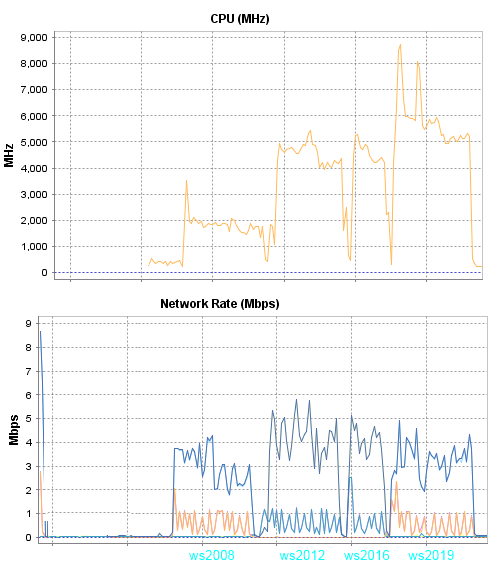
Comments on the results of the third test:
In cases with ws2008, less traffic is consumed, other changes are not significant ...
I also noticed that Chrome, when displayed against the background of the video, the progress bar consumes 1000 MHz more, but in Firefox I did not notice such an effect, and drawing progress bar on the amount of consumed resources is not affected.
Test 4
A laptop with Windows 10 paired with Firefox

Comments on the results of the fourth test:
In this server-client-browser combination, ws2019 + Firefox consumes less resources than with Chrome, but it began to consume significantly more processor when compared with the results of Test 2.
In the cases with ws2012 and ws2016, the results of all tests performed are noticeably more precisely, there is no such dispersion as ws2019.
Test 5
This test consists in starting the maximum number of rdp sessions and launching a presentation in each session. The Remote Desktop Connection Manager will help me with this , RDCM will be launched on a Windows 10 laptop.
The session resolution had to be reduced to 1440 * 900. I’ll just give a summary table as the result:

Comments on the results of the fifth test:
Unexpectedly, 2019 the server showed worse results than ws2012 and ws2016. Server 2008 was able to open 8 sessions while servers 2012/2016 can open 4 sessions, and the 5th raises the load to 100%. Server 2019 was able to work with a maximum of 4 sessions.
Firefox is not a priority browser for me, and therefore I only ran it in ws2019 to verify the numbers received.
Test 6
In this test, the HP ML350G6 server with two E5620 processors comes into play, I will test only 2008 and 2019 servers. The test is the same, starting the maximum number of sessions, only Chrome will be used.
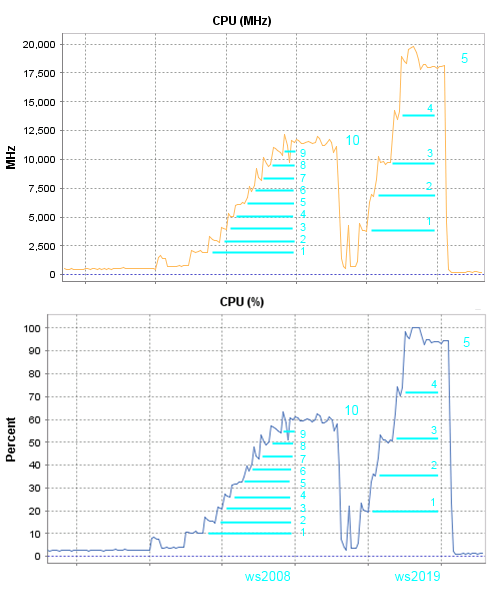
Comments on the results of the sixth test:
To run 10 sessions on the server 2008, 60 percent of the processor resources were needed, and to start only 5 sessions on the 2019 server, more than 90 percent is needed.
The final part - Tuning
I returned all the test VMs to the HP DL120G7 server and used a laptop with Windows 10 and its native screen with a resolution of 1366 * 768 as a client.
Unfortunately, I would not call attempts to reduce processor consumption successful, but it is impossible to say that there are no results either. Here is a list of all the available local group policy settings that you can use for tuning:
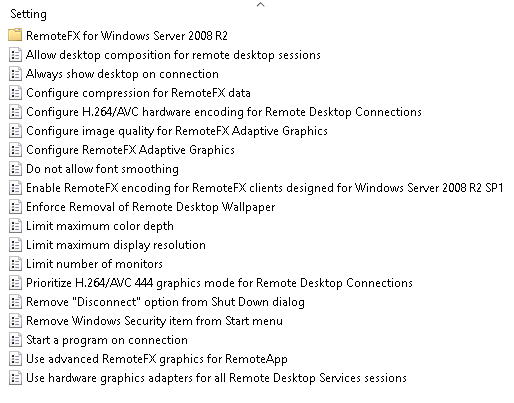
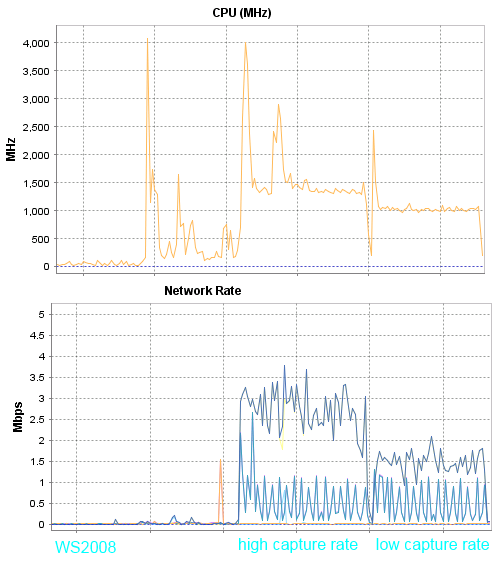
In Windows Server 2008R2, the “Optimize visual experience when using RemoteFX” options allow you to control image quality and number of frames, and this gives a noticeable result. Reducing the number of frames reduces the load on the processor and the network. For Windows Server 2019, these options do not work.
The quality of the picture in Windows Server 2019 can be controlled by the “Configure image quality for RemoteFX Adaptive Graphics” parameter, but there is nothing to change the number of frames, or I did not find such a parameter.
I tried various combinations of parameters, but I could get noticeable changes in the results in only a few cases. And the most interesting thing is that you can notice changes in traffic, but at the same time, the load on the processor changes little.
- The prioritization of H.264 / AVC 444 increased the load on the processor, but at the same time, the traffic dropped significantly from 2x to 1 megabit.
This policy setting prioritizes the H.264 / AVC 444 graphics mode for non-RemoteFX vGPU scenarios. When you use this setting on the RDP server, the server will use H.264 / AVC 444 as the codec in an RDP 10 connection where both the client and server can use H.264 / AVC 444.
- Disabling RDP compression did not reduce the load on the processor, but at the same time the traffic increased from 2x to 7 megabits.
- The inclusion of the Losles parameter for image quality leads to inadequate traffic consumption, without changing the load on the processor. For what scenarios, this option was added to me is not entirely clear.
If you enable this policy setting and set quality to Lossless, RemoteFX Adaptive Graphics uses lossless encoding. In this mode, the color integrity of the graphics data is not impacted. However, this setting results in a significant increase in network bandwidth consumption. We recommend that you set this for very specific cases only.

Summary
Previously, for the work of 10 active users, 8 nuclear servers were enough and there was still free space, now such a server is only enough for 5 users.
I think it's time to get ready to replace the HP G6 and G7 generation servers. It is a pity to part with servers that have> 100 GB of RAM installed, I assumed that they will serve further.
I do not exclude that the old processors lack hardware instructions, so I plan to get a modern server for testing in the near future. But honestly, my forecast is pessimistic, I think that getting the desired result will be possible only by brute force, an increase in the number of processor cores, and this will entail an increase in the number of required licenses and cost.
The end