
How to watch SDDL and not break your eyes on semicolons
My path to information security began with a surprising discovery: “securely ≠ encrypted”. This statement now looks simple and obvious, and in the first year awareness of this fact produced an effect comparable to the mental atomic bomb. Information security was attacked by expanding the boundaries of the subject area: it turned out that cryptography is only one line of defense, and there are also legal, organizational, and simply physical, in the end. One of the theoretical aspects was "All information security issues are described by subjects' access to objects." He learned, drew the credential and discretionary access models, told, passed and forgot.
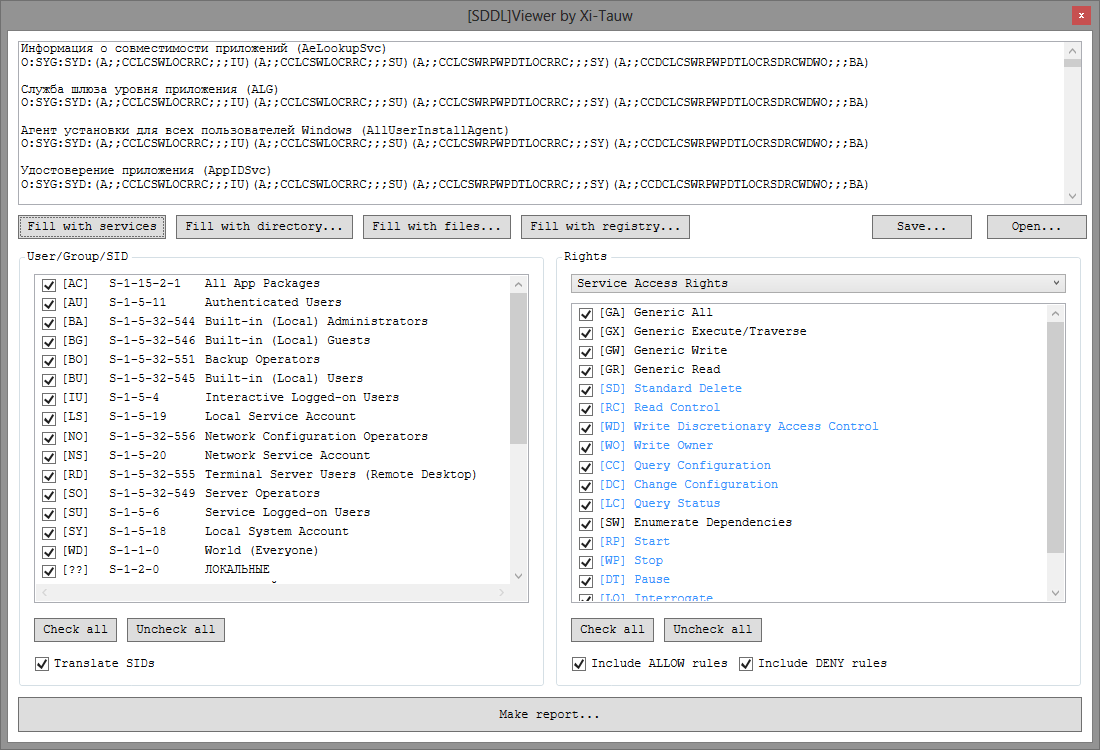
I specialize in security analysis of Windows applications. Quite often, the study of precisely different access rights takes a significant part of the study. To automate the process of searching for strange or incorrect access rights, I had to understand the SDDL (Security Descriptor Definition Language). Who is interested in learning to read rights in the form of SDDL (for example, something like O: SYG: SYD: (A ;; CCLCSWLOCRRC ;;; IU) (A ;; CCLCSWLOCRRC ;;; SU) (A ;; CCLCSWRPWPDTLOCRRC ;;; SY) (A ;; CCDCLCSWRPWPDTLOCRSDRCWDWO ;;; BA) ) and get acquainted with my utility for working with descriptors in this format, welcome to cat.
SDDL format
SDDL is a string with descriptions of access rights in text form. Most often consists of 3 parts: owner, group, and DACL access rights. Sometimes the SACL part is added - the audit part (if actions with the object fit the SACL rules, a system event will be created that is easy to track by various systems). The descriptor looks like this:
O: <owner> G: <group> D: <DACL access rules> S: <SACL audit rules>

Thus, the example above can be decomposed as follows:
- O: SY
- G: SY
- D: (A ;; CCLCSWLOCRRC ;;; IU) (A ;; CCLCSWLOCRRC ;;; SU) (A ;; CCLCSWRPWPDTLOCRRC ;;; SY) (A ;; CCDCLCSWRPWPDTLOCRSDRCWDWO ;;; BA)
The owner and group can be indicated as the SID of the user or group of the OS, or as special abbreviations. For example, in this case, the owner and group SY is the Local System Account (NT AUTHORITY \ SYSTEM). The list of abbreviations (unfortunately, not exhaustive) can be found here .
Access rules consist of enumeration of DACL flags and ACE (Access Control Entries) strings. A detailed analysis of ACE is presented here , we will consider the most important. Each ACE line is enclosed in parentheses within which the data is separated by a semicolon.
Of greatest interest are the first, third and last groups. This is the type of access (allowed “A”, prohibited “D”), a list of actions and the name of the subject of access. The first DACL rule from the example above: (A ;; CCLCSWLOCRRC ;;; IU), we will consider in detail.

- “A” - the rule allows actions to the subject;
- “CC”, “LC”, “SW”, “LO”, “CR”, “RC” - a list of allowed actions;
- “IU” - this abbreviation means the Interactive Logged-on Users group.
It remains to understand what exactly is allowed. What do these mysterious “CC”, “LC”, “SW”, “LO”, “CR”, “RC” mean?
Here we are waiting for another pitfall - it is not always possible to precisely indicate the action by reduction. They are, so to speak, context-specific. For example, if we are talking about the rights to work with services, then WP means “stopping the service”, if it’s about files, then “execution”, and if about folders, then “traverse” (access to files in a folder by name, if it’s not possible list contents). Some descriptions are here , some here , with the world on a thread.
Hey, you missed so much about DACL flags, ACE flags, inheritance
Yes, true, this is all very important and interesting, but it is not so common. I focus on mass. In the case of single manifestations of unusual flags, it will be easier to understand in manual mode.
Automation
The Sysinternals utilities really help me, namely Process Monitor and Access Check (also known as procmon and accesschk). The first allows you to look at file and registry accesses in real time, and the second allows you to collect information from the OS on security descriptors.
By the way, in the OS itself, the window with the rights looks like this if someone has not seen it:
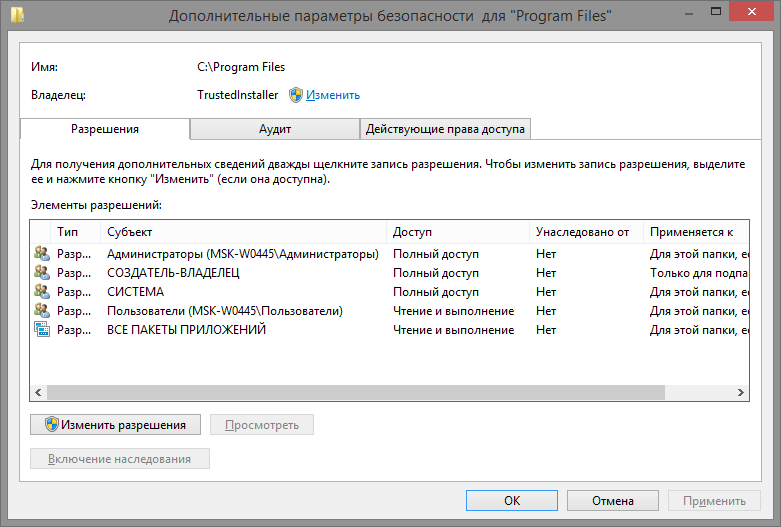
Unfortunately, accesschk output cannot be filtered by narrowing the request for rights to specific actions. Process Monitor shows only the actual calls at a particular moment and you get too accurate a request that is not directly affected. In addition, I would like to have a memo on what kind of user group is NO or NS , and what kind of actions are hidden behind CC and RC.
So a simple utility was born to view and filter SDDL records.
How to use
Working with the utility is simple, just three steps:
- Get SDDL records.
- Define rule filters.
- View report.
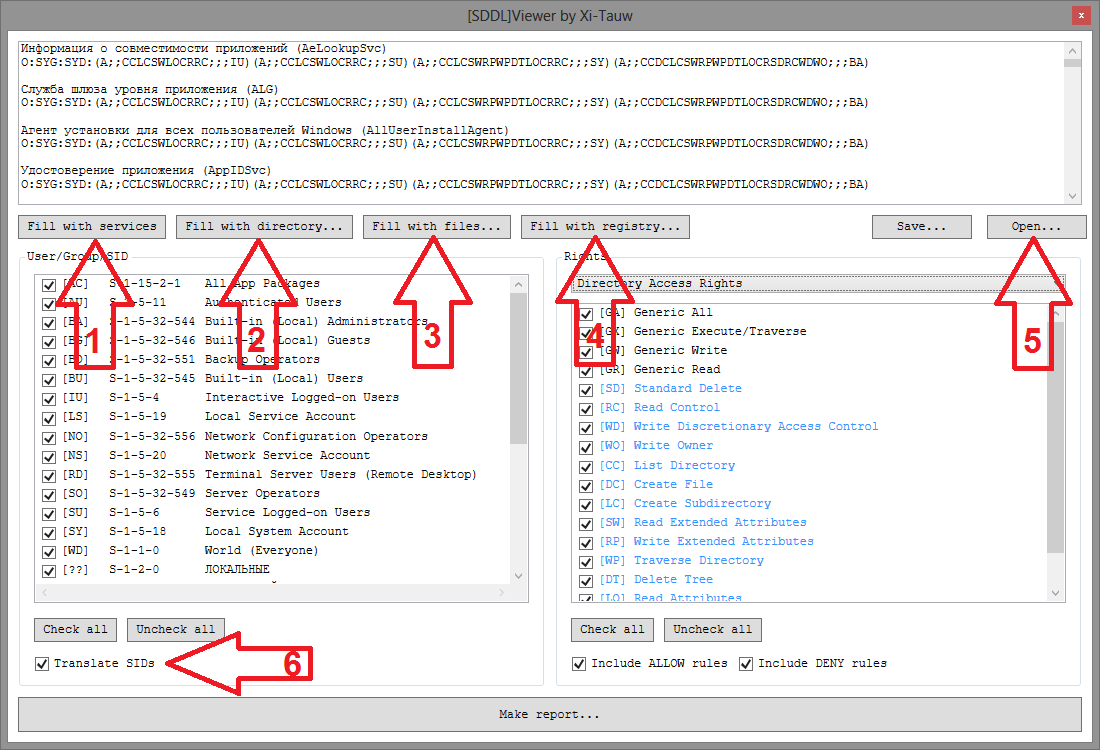
Read more about each step.
Getting SDDL. To get SDDL records, you can use the functions built into the utility (buttons 1, 2, 3 or 4), or download the list you received earlier (button 5). Please note that the request for access rights is made on behalf of the user who launched the SDDL Viewer, so in some situations it is worth running the program not only as an ordinary user, but also as an administrator. Well, in general, the field itself with SDDL lines is editable - you can at least manually rewrite it.
Filtering takes place according to two parameters: user groups and access rights. The list of groups and users is based on all the users mentioned in the SDDL. Pay attention to the checkbox Translate SIDs (6) - if it is installed, then the SIDs of users and groups will, if possible, be translated into names relative to the current computer. The list of rights is arranged a little more cleverly - you need to select the category of rights (if the SDDL is filled with the utility itself, then the necessary category is automatically selected) In addition, the rights that are present in the SDDL are more clearly highlighted in the list of rights.
The report is simply the result of decrypting SDDL and applying filters. You can find out more detailed information on each line if you select it in the list (yes, it was with this function that I got a plug, which gave rise toa little research on .NET internals ).
Summary
Source code is available on github . Binary files are also in the Release section .
My utility plans:
- Add a search to the input fields of SDDL - still only filtering is not enough.
- Add launch parameters that would allow building reports without a visual part.
- Perhaps you should add SDDL padding from processes, shared folders, and printers?
I will be glad to hear suggestions in the comments.