Microsoft Sculpt Ergonomic Desktop Suite Overview
Hello lovers of keyboard holivars! Today, under the cut for you, not only an interesting and unusual keyboard is prepared for you, but also a “pregnant” mouse from a giant with the letter M - come on in!

Earlier ergonomics of keyboards weren’t thought much, buttons do not cling to each other - and okay.

But when you press the buttons for 10-12 hours a day and 5 days a week (or even more), you involuntarily think about making the input device comfortable. Well, or pain in the hands will help you think about it.
Microsoft Natural Keyboard - a series of ergonomic keyboards, which in the arsenal of the company first appeared in 1994. Most likely, many of you met her on the model of Microsoft Natural Ergonomic Keyboard 4000 (NEK), the predecessor of the keyboard from today's review.

Surely many of you had such a clave. Well, or one of your friends had it, and you secretly dreamed about it, because among the faceless variety of ordinary keyboards, it was something futuristic.
She was dearly loved by professional typesetters. This is one of the most popular and accessible ergonomic keyboards at the time, the creators of which thought about both the user's anatomy and the fact that a person has been working with it for more than one week. The insane shape and different sizes of the buttons required getting used to, but caused a hard addiction, and the sets themselves have served some so far, even the characters have not been erased from the keys. But the kit went on sale in the “distant” 2005.
Nevertheless, the set itself had a number of drawbacks that directly stemmed from the merits: the huge size, both in terms of “width” and “length” of the keyboard - it did not fit on every table (especially if we are talking about a small exit shelf for a typical home table). High and noisy keys, collecting dirt, a clogging wheel in the central part and so on. And in general, the model, roughly speaking, is slightly outdated.
Then there was the Microsoft Natural Wireless Ergonomic Desktop 7000 kit - also a good kit, but it had new problems: the all-terrain mouse, the lost wireless connection.

And in 2013, a new model of ergonomic kits appeared, in which the manufacturer tried to take into account the shortcomings of all previous devices. Meet - Microsoft Sculpt Ergonomic Desktop(SED).

Photo from another review of this kit.
The package bundle is pretty standard for such sets: the keyboard itself, the mouse, a separate digital unit, a USB receiver, a set of batteries and instructions.

The first thing that catches your eye is not a complex relief or unusual shape of the keyboard, but the fact that glossy plastic is used on its upper part. I don’t even know how to regard this act: it’s one thing when a TV hanging on the wall is made of glossy plastic; it’s a completely different matter when it comes to the keyboard, which comes into contact with hands daily and for several hours. Thousands of facepalm-pictures and the image of the designers of the device involuntarily appear in their thoughts, who chant “Oh, that's it.” In general, a strange solution - fingerprints really remain.

The form itself remained roughly the same - with differences, but recognizable. Only if earlier the keyboard was simply waved and between the button blocks (under each arm) there was an average zoom switch (by default), then the new version does not even have this - this time there is only a cutout. And I didn’t find any functional application for him - unless it’s convenient to cling to him with your finger to move the keyboard.

Other obvious innovations include the following changes:
- The keyboard got rid of a large number of additional buttons
- The digital unit has moved to a separate building
If on previous ergonomic Microsoft keyboards fast typing turned into an automatic chatter, then this model will not be like that - we have an island keyboard with a scissor design of keys, the course of which is very small. The keys have rounded corners, there is a very comfortable gap between them, and barely noticeable recesses are used on the buttons themselves. Russian and English characters are applied in different colors.
There is no indication of Caps Lock and NumLock, although in the previous version they were. How much would the LEDs affect the battery life of the wireless keyboard? I do not think so much.

Separate space - this way it is easier to press. When instead of it there is one big tie, especially of such a “curved” shape, it is difficult to push it, if you press from the edge, and not in the center, the only exception is mechanical keyboards, however, this is not our case, and their spaces are straight. In the heroine of our review, a divided gap on the “scissor” suspension is easily pressed even in the very corner with a clearly verified effort - and this is cool.
Huge Backspace, both Shift, Enter keys - everything as I like :)
Even if you have mastered touch typing, and got used to the previous version of the keyboard, you will have a new test - to master the new location of Delete, Insert, PgUp, PgDn, Home, End, as well as a thin row of new Fn-keys. In principle, at one time I had a diNovo Edge keyboard, there were the same thin keys and I got used to them, but combinations like CTRL + Esc will not be easy for the first time.
Fn-keys, apparently, already have a different principle of operation of the pressing mechanism (not scissor), since they are pressed with a different force, sound and amplitude.


In addition to the F1-F12 functions, these keys are entrusted with multimedia features and navigation through the Windows UI - all this can be hardware-activated by using the sliding Fn switch located in the upper right corner of the keyboard.

The body profile is quite complex, however, even with the strongest pressure on the corner buttons, there are no creaks and crunches. At the bottom there is an insert-lining for the wrists of an unusual material: this is not leather, not rubber, and not even a soft touch. But something rough and pleasant to the touch.

On the bottom of the keyboard there are no usual legs for adjusting the tilt height, but the kit comes with a stand that can be used to adjust the height ... of the part of the keyboard that is under the wrist. This is unusual, but admittedly, it’s quite convenient in practice.


Moreover - magnets are used as fasteners, which also hold all the battery compartment covers on the keyboard and mouse. Great - there are no mechanical parts and fasteners, and this is a plus for durability.

The keyboard and mouse use different types of batteries. The small mouse uses large finger-type batteries (AA), and the large keyboard uses small finger-type batteries (AAA) - everything is logical, everything is in the spirit of Microsoft. But even though the batteries are in the kit, and they are inserted into the devices on one side, the contact terminals are made quite elegantly:

If in previous models the digital block was built into the keyboard itself and made it indecently huge, then in the Sculpt Ergonomic Desktop bundle it was placed in a separate module. Thin and flat, does not play along with the bends of the main keyboard - as if it were from another set. And inside, the third type of batteries is used at all - the “tablet” CR2430. Although it would seem that it makes it difficult to make a small thickening of the digital unit and use the AAA battery inside, as in the main keyboard? But so far there is what it is: you have to connect for three different power sources.

A number of useful buttons were made on the digital block module: to call the calculator application, Clear to clear the entered, Enter, and even Backspace, but there was no place for LEDs (at least NumLock).
Such an implementation of the digital block will be appreciated by those who think a lot during work. Otherwise, it will most likely be lying somewhere behind the main keyboard and mouse. And I think that this is better than holding a huge piano from the buttons on the table and trying to fit the mouse next to it, because of which the hands will be in different directions.
Cobblestone? Bitten apple? Many versions were expressed about the nature of the origin of the mouse, but almost everyone came to the conclusion that she was pregnant at the moment :)

It is unclear what guided Microsoft when making the main buttons of the device (and the working surface under the palm) of glossy plastic. Okay, they would use some tricky coating on which there would be no fingerprints ... but no, they appear here even before you take the mouse in your hand.

The mouse is also sad because of the glossy plastic.
Therefore, stock up with rags or patience. Although in addition to glossy plastic, there are also matte inserts around the perimeter, and the notch under the thumb is completely from a pleasant soft touch.

Sculpt Ergonomic Mouse is not the best choice if you have a large palm, but the owners of the “average” palm will be quite comfortable: due to the high profile and the shift of the working surface to the side of the case, the brush will lie comfortably on the device (the little finger will be on the table ), without any tension.

But even in this case, for a hand grip, the mouse is not so much uncomfortable as it is unusual. It is clearly designed for finger grip and a good carpet: on other surfaces, the mouse is "heavy" in control. And yes, left-handed people, sorry, this mouse will not suit you. Absolutely :(

Two buttons with a nice click, between them there is an equally nice and “step” wheel that supports horizontal scrolling. There are also two elastic buttons on the left side: blue “Windows” and “Back” under it.

Both the keyboard and the mouse work via the 2.4 GHz radio channel, via a USB receiver, which is initially stored inside the mouse. It is very small and located in a magnetic niche under a magnetic cover. There are also two AA batteries for power.


I almost forgot the most important thing. The well-established Microsoft BlueTrack is used as a sensor. The sensitivity of the sensor is 1000dpi - market bugs, of course, have long been telling everyone that “the more the better”, but for everyday use this permission is more than enough: for leisurely office work, playing some kind of RPG, the quest is done in the browser poke next non-stick balls; but for dynamic toys, it’s gone, first of all, because of the specifics of ergonomics. The relaxed position of the hand and the relatively low frequency of polling the sensor do not contribute to this). But what this rodent can boast of is the excellent omnivorous surfaces on which it is able to work.
In the Windows operating system, the kit is detected immediately after turning on the power to the devices and installing the USB receiver in the computer. The Microsoft Mouse and Keyboard Control Center offers several basic settings.
In OS X, the kit also immediately worked, but there were even less settings.
For Linux users, a small warning: the kit adapter is seen in the system as a joystick, so in some cases (in some games, for example) problems can occur - it is unlikely to use gamepads and steering wheels in parallel with this keyboard. But this problem has a solution .
On the one hand, ergonomics was developed by specialists. They probably did research, remade the layout ten times, moved the buttons back and forth for a hundred hours in a row. Yes, yes, they did it for sure, I even found a video: But in practice ... you take this miracle out of the box and are horrified: what is it called ergonomics? The first time you will rush between two banks: “ professionals did it, it’s ergonomic and I’m not used to it yet, but I’ll surely get used to it soon ” and “ no, you still can’t get used to it, it’s not ergonomics - it’s just been unclear what makes torment me . " Looking ahead - the first option is closer to the truth. If you don’t know the ten-finger method of typing (then it's time to send greetings to Vladimir


shahidjanyan Shahijanyanu ), then the first time you will be hard to blunt when entering text.

Horrible dream. If you know what I mean ...
It’s especially difficult for the little finger of the right hand - it will have to reach to Backspace, feel Enter and Ctrl, which surround the arrow buttons and the Ins-Del-Home-End-PgUp-PgDn gang.

It will cling to some hotkeys too. If on a regular keyboard I can easily press CTRL + P with my left hand through the left CTRL, then in the case of this keyboard this will not work. You have to press with your right hand through the right CTRL (which you will first have to find among the adjacent buttons), and this is already a template break. And some combinations familiar to you will completely fall into the keyboard cutout.
In general, be prepared for the fact that it will take time to get used to both the mouse and the keyboard. And this is the worst thing that this kit has. But you are sure to get used to it, and then you don’t want to transfer to anything else!

And now a spoonful of honey. Once again, I want to say about extremely pleasant tactile sensations from the press. The key travel is not as big as before, but not as small as on many laptop keyboards. Presses are also the golden mean, not light, but not heavy. The sound is very quiet. Buzz!
+ Attractive appearance
+ Tactically pleasant pressing of the main keys
+ Excellent keyboard ergonomics, comfortable lining under the wrist
+ The presence of a number of multimedia buttons with Fn-switch
+ No wires, buggy operation via radio,
+ Long battery life
+ Remote digital unit
- Glossy keyboard case and mouse
- will need time to adapt to the new layout
- Uncomfortable keys F1-F12 and switch their actions
- No status LEDs on CapLock / the NumLock
- Three different battery within od th set
- not the most comfortable mouse, it is only for a small arms
at the time of publication of the article sets the priceMicrosoft Sculpt Ergonomic Desktop in Yulmart was 4,780 rubles. A fairly average price tag for a high-quality mouse and keyboard - about the same amount (or slightly less) are the usual, "non-ergonomic" sets.
Here are some more kits in our store.
To get the maximum benefit and evaluate the effectiveness of this keyboard will be able to those who have a blind typing method - you need exactly 10-finger skill, and not knowing the location of the buttons that you blindly press with two or three fingers. If you are one of the owners of this valuable skill and you have to work a lot with texts, then this keyboard is definitely for you. But even you, most likely, will have to get used to the nuances of the location of some keys for some time.
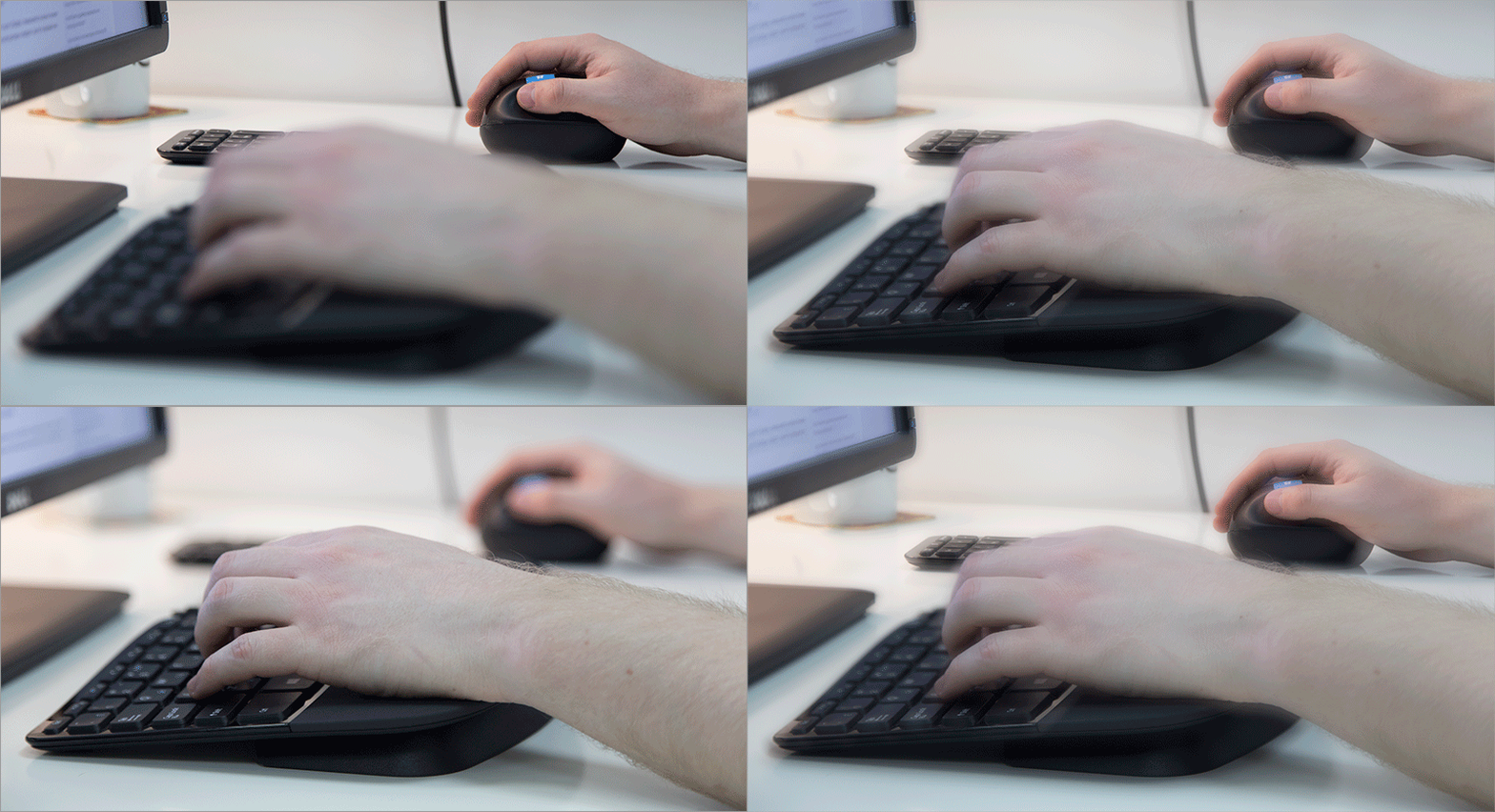
This keyboard is also suitable for other users, but the adaptation process will take longer - at first the printing speed will be lower than usual. But it’s important to understand that the pay for these flours will be the health of your body, which spends every hour on the buttons for an hour, not two, or even three. After you get used to the shape of this keyboard, you simply don’t want to change to another one.
This set definitely deserves attention, especially the keyboard - almost everything is cool in it. However, there are also "children's sores" - it is surprising that Microsoft allowed them in this revision of its ergonomic keyboards. Let's hope that the next kit will accurately take into account all the errors.
»Articles about tunnel syndrome: one , two , three.
Our previous reviews:
» LEGO Mindstorms EV3
» Levenhuk DTX90 USB Digital Microscope
History lesson
Earlier ergonomics of keyboards weren’t thought much, buttons do not cling to each other - and okay.
But when you press the buttons for 10-12 hours a day and 5 days a week (or even more), you involuntarily think about making the input device comfortable. Well, or pain in the hands will help you think about it.
Microsoft Natural Keyboard - a series of ergonomic keyboards, which in the arsenal of the company first appeared in 1994. Most likely, many of you met her on the model of Microsoft Natural Ergonomic Keyboard 4000 (NEK), the predecessor of the keyboard from today's review.
Surely many of you had such a clave. Well, or one of your friends had it, and you secretly dreamed about it, because among the faceless variety of ordinary keyboards, it was something futuristic.
She was dearly loved by professional typesetters. This is one of the most popular and accessible ergonomic keyboards at the time, the creators of which thought about both the user's anatomy and the fact that a person has been working with it for more than one week. The insane shape and different sizes of the buttons required getting used to, but caused a hard addiction, and the sets themselves have served some so far, even the characters have not been erased from the keys. But the kit went on sale in the “distant” 2005.
Nevertheless, the set itself had a number of drawbacks that directly stemmed from the merits: the huge size, both in terms of “width” and “length” of the keyboard - it did not fit on every table (especially if we are talking about a small exit shelf for a typical home table). High and noisy keys, collecting dirt, a clogging wheel in the central part and so on. And in general, the model, roughly speaking, is slightly outdated.
Then there was the Microsoft Natural Wireless Ergonomic Desktop 7000 kit - also a good kit, but it had new problems: the all-terrain mouse, the lost wireless connection.
And in 2013, a new model of ergonomic kits appeared, in which the manufacturer tried to take into account the shortcomings of all previous devices. Meet - Microsoft Sculpt Ergonomic Desktop(SED).
Photo from another review of this kit.
The package bundle is pretty standard for such sets: the keyboard itself, the mouse, a separate digital unit, a USB receiver, a set of batteries and instructions.
Appearance
The first thing that catches your eye is not a complex relief or unusual shape of the keyboard, but the fact that glossy plastic is used on its upper part. I don’t even know how to regard this act: it’s one thing when a TV hanging on the wall is made of glossy plastic; it’s a completely different matter when it comes to the keyboard, which comes into contact with hands daily and for several hours. Thousands of facepalm-pictures and the image of the designers of the device involuntarily appear in their thoughts, who chant “Oh, that's it.” In general, a strange solution - fingerprints really remain.
The form itself remained roughly the same - with differences, but recognizable. Only if earlier the keyboard was simply waved and between the button blocks (under each arm) there was an average zoom switch (by default), then the new version does not even have this - this time there is only a cutout. And I didn’t find any functional application for him - unless it’s convenient to cling to him with your finger to move the keyboard.
Other obvious innovations include the following changes:
- The keyboard got rid of a large number of additional buttons
- The digital unit has moved to a separate building
If on previous ergonomic Microsoft keyboards fast typing turned into an automatic chatter, then this model will not be like that - we have an island keyboard with a scissor design of keys, the course of which is very small. The keys have rounded corners, there is a very comfortable gap between them, and barely noticeable recesses are used on the buttons themselves. Russian and English characters are applied in different colors.
There is no indication of Caps Lock and NumLock, although in the previous version they were. How much would the LEDs affect the battery life of the wireless keyboard? I do not think so much.
Separate space - this way it is easier to press. When instead of it there is one big tie, especially of such a “curved” shape, it is difficult to push it, if you press from the edge, and not in the center, the only exception is mechanical keyboards, however, this is not our case, and their spaces are straight. In the heroine of our review, a divided gap on the “scissor” suspension is easily pressed even in the very corner with a clearly verified effort - and this is cool.
Huge Backspace, both Shift, Enter keys - everything as I like :)
Even if you have mastered touch typing, and got used to the previous version of the keyboard, you will have a new test - to master the new location of Delete, Insert, PgUp, PgDn, Home, End, as well as a thin row of new Fn-keys. In principle, at one time I had a diNovo Edge keyboard, there were the same thin keys and I got used to them, but combinations like CTRL + Esc will not be easy for the first time.
Fn-keys, apparently, already have a different principle of operation of the pressing mechanism (not scissor), since they are pressed with a different force, sound and amplitude.
In addition to the F1-F12 functions, these keys are entrusted with multimedia features and navigation through the Windows UI - all this can be hardware-activated by using the sliding Fn switch located in the upper right corner of the keyboard.
The body profile is quite complex, however, even with the strongest pressure on the corner buttons, there are no creaks and crunches. At the bottom there is an insert-lining for the wrists of an unusual material: this is not leather, not rubber, and not even a soft touch. But something rough and pleasant to the touch.
On the bottom of the keyboard there are no usual legs for adjusting the tilt height, but the kit comes with a stand that can be used to adjust the height ... of the part of the keyboard that is under the wrist. This is unusual, but admittedly, it’s quite convenient in practice.
Moreover - magnets are used as fasteners, which also hold all the battery compartment covers on the keyboard and mouse. Great - there are no mechanical parts and fasteners, and this is a plus for durability.
The keyboard and mouse use different types of batteries. The small mouse uses large finger-type batteries (AA), and the large keyboard uses small finger-type batteries (AAA) - everything is logical, everything is in the spirit of Microsoft. But even though the batteries are in the kit, and they are inserted into the devices on one side, the contact terminals are made quite elegantly:
Digital block
If in previous models the digital block was built into the keyboard itself and made it indecently huge, then in the Sculpt Ergonomic Desktop bundle it was placed in a separate module. Thin and flat, does not play along with the bends of the main keyboard - as if it were from another set. And inside, the third type of batteries is used at all - the “tablet” CR2430. Although it would seem that it makes it difficult to make a small thickening of the digital unit and use the AAA battery inside, as in the main keyboard? But so far there is what it is: you have to connect for three different power sources.
A number of useful buttons were made on the digital block module: to call the calculator application, Clear to clear the entered, Enter, and even Backspace, but there was no place for LEDs (at least NumLock).
Such an implementation of the digital block will be appreciated by those who think a lot during work. Otherwise, it will most likely be lying somewhere behind the main keyboard and mouse. And I think that this is better than holding a huge piano from the buttons on the table and trying to fit the mouse next to it, because of which the hands will be in different directions.
Mouse
Cobblestone? Bitten apple? Many versions were expressed about the nature of the origin of the mouse, but almost everyone came to the conclusion that she was pregnant at the moment :)
It is unclear what guided Microsoft when making the main buttons of the device (and the working surface under the palm) of glossy plastic. Okay, they would use some tricky coating on which there would be no fingerprints ... but no, they appear here even before you take the mouse in your hand.
The mouse is also sad because of the glossy plastic.
Therefore, stock up with rags or patience. Although in addition to glossy plastic, there are also matte inserts around the perimeter, and the notch under the thumb is completely from a pleasant soft touch.
Sculpt Ergonomic Mouse is not the best choice if you have a large palm, but the owners of the “average” palm will be quite comfortable: due to the high profile and the shift of the working surface to the side of the case, the brush will lie comfortably on the device (the little finger will be on the table ), without any tension.
But even in this case, for a hand grip, the mouse is not so much uncomfortable as it is unusual. It is clearly designed for finger grip and a good carpet: on other surfaces, the mouse is "heavy" in control. And yes, left-handed people, sorry, this mouse will not suit you. Absolutely :(
Two buttons with a nice click, between them there is an equally nice and “step” wheel that supports horizontal scrolling. There are also two elastic buttons on the left side: blue “Windows” and “Back” under it.
Both the keyboard and the mouse work via the 2.4 GHz radio channel, via a USB receiver, which is initially stored inside the mouse. It is very small and located in a magnetic niche under a magnetic cover. There are also two AA batteries for power.
I almost forgot the most important thing. The well-established Microsoft BlueTrack is used as a sensor. The sensitivity of the sensor is 1000dpi - market bugs, of course, have long been telling everyone that “the more the better”, but for everyday use this permission is more than enough: for leisurely office work, playing some kind of RPG, the quest is done in the browser poke next non-stick balls; but for dynamic toys, it’s gone, first of all, because of the specifics of ergonomics. The relaxed position of the hand and the relatively low frequency of polling the sensor do not contribute to this). But what this rodent can boast of is the excellent omnivorous surfaces on which it is able to work.
Software
In the Windows operating system, the kit is detected immediately after turning on the power to the devices and installing the USB receiver in the computer. The Microsoft Mouse and Keyboard Control Center offers several basic settings.
In OS X, the kit also immediately worked, but there were even less settings.
For Linux users, a small warning: the kit adapter is seen in the system as a joystick, so in some cases (in some games, for example) problems can occur - it is unlikely to use gamepads and steering wheels in parallel with this keyboard. But this problem has a solution .
Personal experience
On the one hand, ergonomics was developed by specialists. They probably did research, remade the layout ten times, moved the buttons back and forth for a hundred hours in a row. Yes, yes, they did it for sure, I even found a video: But in practice ... you take this miracle out of the box and are horrified: what is it called ergonomics? The first time you will rush between two banks: “ professionals did it, it’s ergonomic and I’m not used to it yet, but I’ll surely get used to it soon ” and “ no, you still can’t get used to it, it’s not ergonomics - it’s just been unclear what makes torment me . " Looking ahead - the first option is closer to the truth. If you don’t know the ten-finger method of typing (then it's time to send greetings to Vladimir
shahidjanyan Shahijanyanu ), then the first time you will be hard to blunt when entering text.
Horrible dream. If you know what I mean ...
It’s especially difficult for the little finger of the right hand - it will have to reach to Backspace, feel Enter and Ctrl, which surround the arrow buttons and the Ins-Del-Home-End-PgUp-PgDn gang.
It will cling to some hotkeys too. If on a regular keyboard I can easily press CTRL + P with my left hand through the left CTRL, then in the case of this keyboard this will not work. You have to press with your right hand through the right CTRL (which you will first have to find among the adjacent buttons), and this is already a template break. And some combinations familiar to you will completely fall into the keyboard cutout.
In general, be prepared for the fact that it will take time to get used to both the mouse and the keyboard. And this is the worst thing that this kit has. But you are sure to get used to it, and then you don’t want to transfer to anything else!
And now a spoonful of honey. Once again, I want to say about extremely pleasant tactile sensations from the press. The key travel is not as big as before, but not as small as on many laptop keyboards. Presses are also the golden mean, not light, but not heavy. The sound is very quiet. Buzz!
Pros and cons
+ Attractive appearance
+ Tactically pleasant pressing of the main keys
+ Excellent keyboard ergonomics, comfortable lining under the wrist
+ The presence of a number of multimedia buttons with Fn-switch
+ No wires, buggy operation via radio,
+ Long battery life
+ Remote digital unit
- Glossy keyboard case and mouse
- will need time to adapt to the new layout
- Uncomfortable keys F1-F12 and switch their actions
- No status LEDs on CapLock / the NumLock
- Three different battery within od th set
- not the most comfortable mouse, it is only for a small arms
at the time of publication of the article sets the priceMicrosoft Sculpt Ergonomic Desktop in Yulmart was 4,780 rubles. A fairly average price tag for a high-quality mouse and keyboard - about the same amount (or slightly less) are the usual, "non-ergonomic" sets.
Here are some more kits in our store.
The end
To get the maximum benefit and evaluate the effectiveness of this keyboard will be able to those who have a blind typing method - you need exactly 10-finger skill, and not knowing the location of the buttons that you blindly press with two or three fingers. If you are one of the owners of this valuable skill and you have to work a lot with texts, then this keyboard is definitely for you. But even you, most likely, will have to get used to the nuances of the location of some keys for some time.
This keyboard is also suitable for other users, but the adaptation process will take longer - at first the printing speed will be lower than usual. But it’s important to understand that the pay for these flours will be the health of your body, which spends every hour on the buttons for an hour, not two, or even three. After you get used to the shape of this keyboard, you simply don’t want to change to another one.
This set definitely deserves attention, especially the keyboard - almost everything is cool in it. However, there are also "children's sores" - it is surprising that Microsoft allowed them in this revision of its ergonomic keyboards. Let's hope that the next kit will accurately take into account all the errors.
»Articles about tunnel syndrome: one , two , three.
Our previous reviews:
» LEGO Mindstorms EV3
» Levenhuk DTX90 USB Digital Microscope