Android Studio hotkeys that can increase your productivity by 100%
Translation notes gorgeous Sha with medium.com
Let's get right to the point. You are not here to learn the history of my life. Let's get started.

There are a number of keyboard shortcuts that I have encountered when entering the corporate world. I distinguish them in two groups.
Do not remember where you used a certain word? Use these hotkeys to solve your problem.
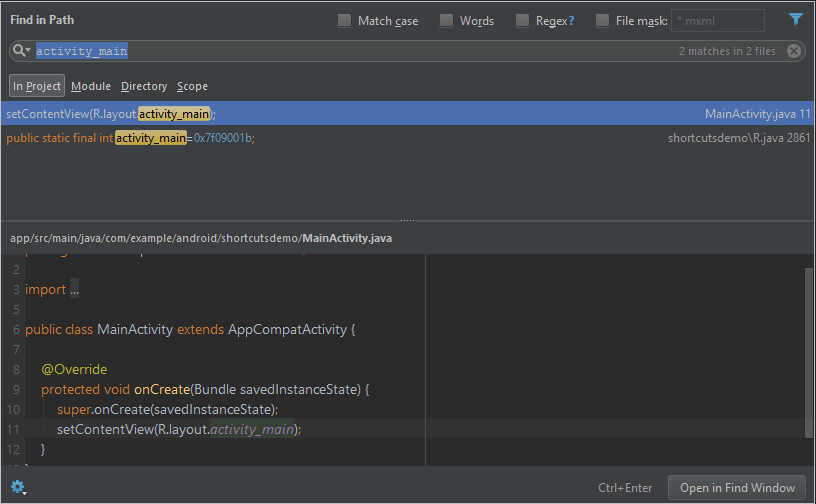
i) Ctrl + Shift + F : When you use this combination, a search box opens where you can find a word, class or any other object. AS (Android Studio) will scan the entire project to find it in the project.
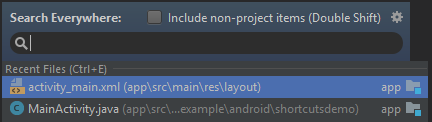
ii) Shift + Shift : Tired of using the navigation bar on the left? Then you can get to the desired file from this window, which opens by double-clicking on Shift. Just enter the beginning of the name or full name of the desired file and AS in the window will list the search results. You can also open specific settings windows using this key combination.
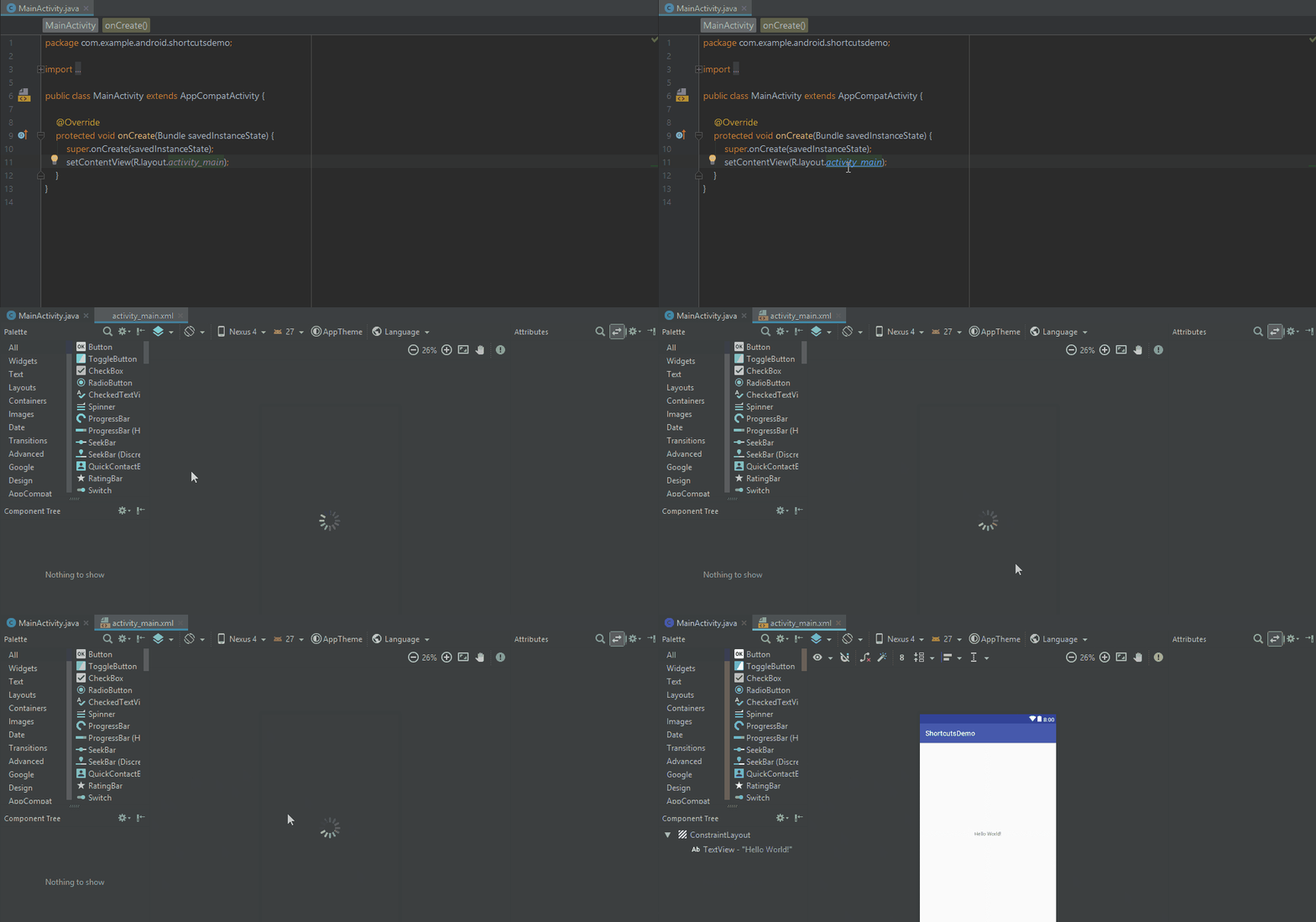
i) Ctrl + Click : Access the markup file or Java file by clicking on it while holding the Ctrl key.
ii) Alt + up / down : Peacefully navigate through the class headers and their methods using this combination.
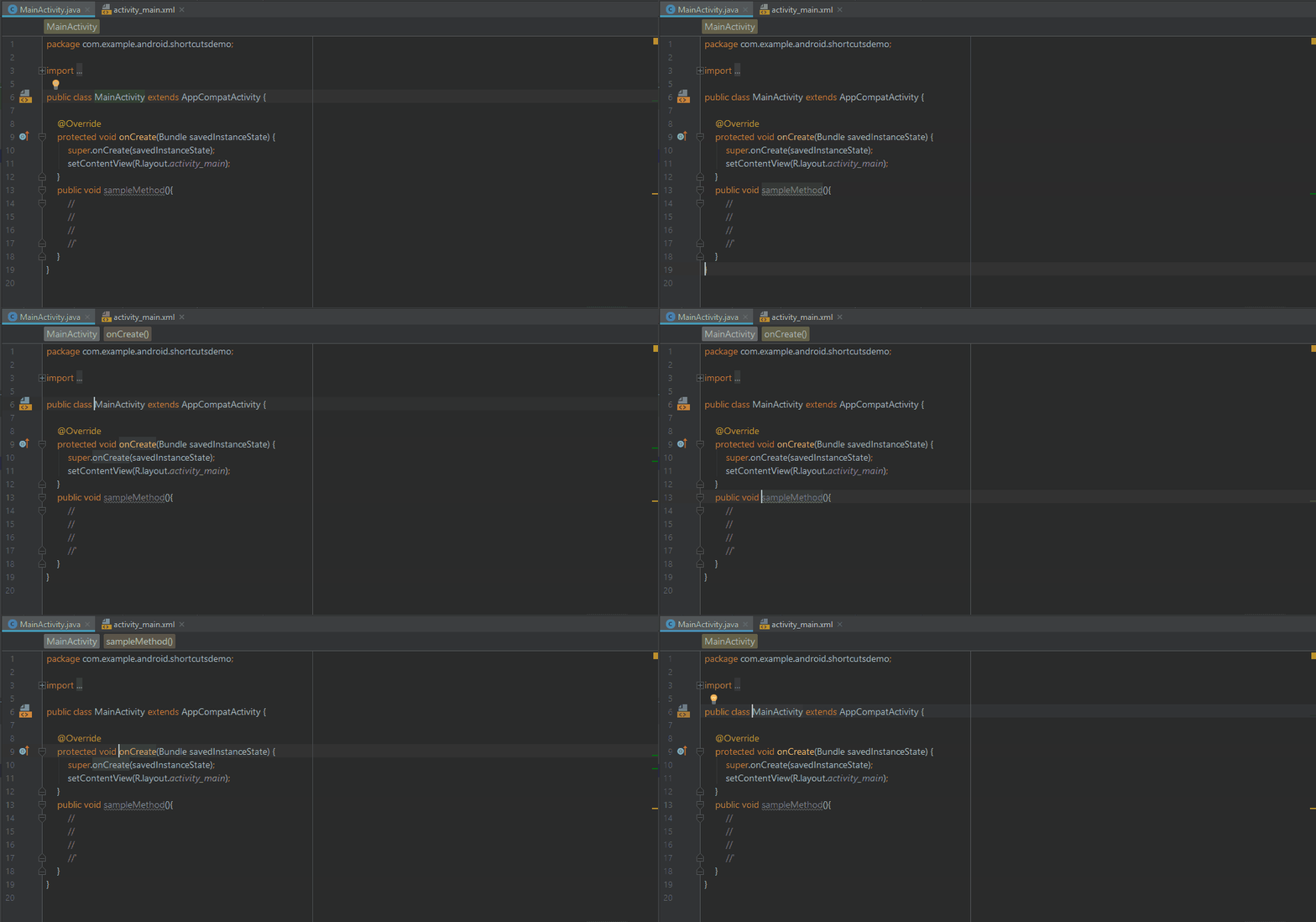
iii) Alt + left / right : Use the right / left arrows in conjunction with the Alt key to navigate open project files, such as a markup file or class file.

i) “Toast” + Tab : Typing the word “Toast” and then pressing the Tab key will generate a finished Toast template.

There are many built-in templates that will help you in your work, such as
ii) loge + Tab
iii) logd + Tab
iv) logr + Tab
and many others. The beauty of this feature is that you can add your active templates to the settings. Just use Double Shift and go to the Live Templates section, where you can add your own template.
And the most important and saving combination is
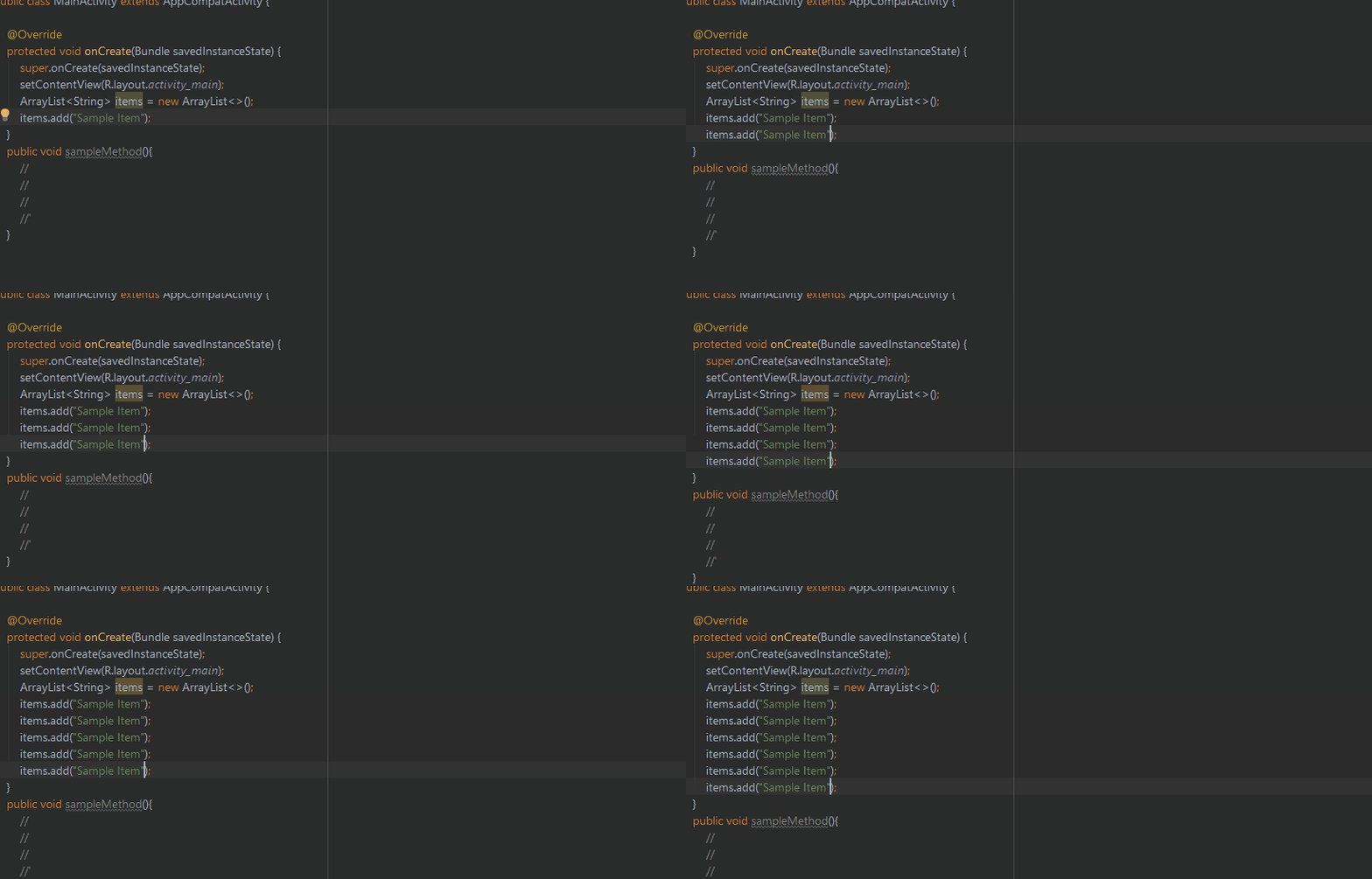
v) Ctrl + D
which automatically completely duplicates the line on which the cursor is currently located.
That's it guys.
LAST:
Want to keep your code clean? Just use
Ctrl + Shift + L
and your code in the currently selected files will be properly formatted.
PS: Over time, even more keyboard shortcuts will be added. Let them know if they were useful to you. And applause (analog of likes on medium.com; translator's note) is the best way to thank :)
Introductory spoiler
Об авторе оригинала: Шикар Ша, Android-разработчик, сертифицированный Google (Shikhar Shah, Google Certified Android Developer).
От переводчика:
Если вы найдёте какие-то неточности в переводе терминов или их искажение, а также искажение смысла статьи-оригинала, то пишите об этом в комментариях или напрямую мне в личные сообщения.
За помощь в устранении синтаксических и пунктационных ошибок спасибо ЗаЕцу ;)
От переводчика:
Если вы найдёте какие-то неточности в переводе терминов или их искажение, а также искажение смысла статьи-оригинала, то пишите об этом в комментариях или напрямую мне в личные сообщения.
За помощь в устранении синтаксических и пунктационных ошибок спасибо ЗаЕцу ;)
Transfer
Let's get right to the point. You are not here to learn the history of my life. Let's get started.
There are a number of keyboard shortcuts that I have encountered when entering the corporate world. I distinguish them in two groups.
1. Search hotkeys
Do not remember where you used a certain word? Use these hotkeys to solve your problem.
i) Ctrl + Shift + F : When you use this combination, a search box opens where you can find a word, class or any other object. AS (Android Studio) will scan the entire project to find it in the project.
ii) Shift + Shift : Tired of using the navigation bar on the left? Then you can get to the desired file from this window, which opens by double-clicking on Shift. Just enter the beginning of the name or full name of the desired file and AS in the window will list the search results. You can also open specific settings windows using this key combination.
2. Navigation hot keys
i) Ctrl + Click : Access the markup file or Java file by clicking on it while holding the Ctrl key.
ii) Alt + up / down : Peacefully navigate through the class headers and their methods using this combination.
iii) Alt + left / right : Use the right / left arrows in conjunction with the Alt key to navigate open project files, such as a markup file or class file.
Active Templates
i) “Toast” + Tab : Typing the word “Toast” and then pressing the Tab key will generate a finished Toast template.
There are many built-in templates that will help you in your work, such as
ii) loge + Tab
iii) logd + Tab
iv) logr + Tab
and many others. The beauty of this feature is that you can add your active templates to the settings. Just use Double Shift and go to the Live Templates section, where you can add your own template.
And the most important and saving combination is
v) Ctrl + D
which automatically completely duplicates the line on which the cursor is currently located.
That's it guys.
LAST:
Want to keep your code clean? Just use
Ctrl + Shift + L
and your code in the currently selected files will be properly formatted.
PS: Over time, even more keyboard shortcuts will be added. Let them know if they were useful to you. And applause (analog of likes on medium.com; translator's note) is the best way to thank :)