CredSSP encryption oracle remediation - an error occurred while connecting via RDP to a virtual server (VPS / VDS)
Starting May 8, 2018, after installing the updates on their personal computer, many users of virtual servers running Windows Server OS encountered the error " CredSSP encryption oracle remediation " when trying to connect to the remote desktop:
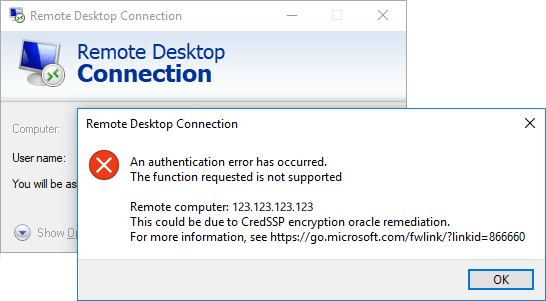
Actually, this is not a mistake, but a notification about the security problem of a long-unresolved server.
On March 13, 2018, information was released about the vulnerability in the CredSSP protocol and the first patches to close it in server operating systems. This vulnerability allows bypassing checks to execute various commands on the server on behalf of the transferred accounts, including installing and removing arbitrary software, changing and deleting data on the server, and creating accounts with arbitrary rights.
This problem was not encountered by those who timely installed cumulative updates on their server. In March, they came out for server operating systems; for desktop OS, they were automatically installed with other updates in May.
To solve the problem, the first thing you need to do is connect to it. The easiest way to do this is through the emergency mode of working with the server in your personal account - almost every provider of VPS / VDS servers has this. On VPS.house, this is done by a simple click on the screenshot of the server’s screen in your account:

Or you can temporarily simply disconnect this blocking notification about the security problem on the computer from which you are trying to connect:
Instructions for those who use the Windows HOME edition:
Instructions for those who use the edition of Windows PRO:
After performing these steps on your PC, you can connect to the server as before, but this is not a solution to the security problem .
As soon as you connect to the server, install the updates as it is done in any desktop version of Windows.

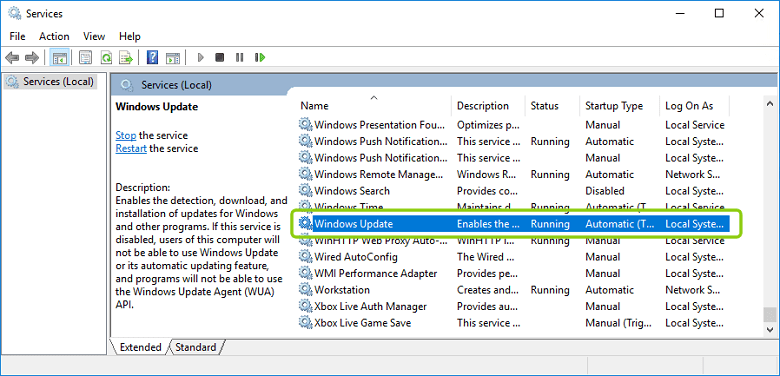
If an error occurs while trying to install, check if the “ Windows Update ” service is running . You can open the list of services along the path:
If the service does not start, check if it is allowed to start: the status should not be “ Disabled ”.
If you are using Windows Server 2012 R2 or Windows Server 2008 R2 SP1 , then you can not install all the updates, but only one that fixes this vulnerability and thereby much faster solve the problem of connecting to the server.
You can download it directly from the Microsoft website on the vulnerability description page :
• update for Windows Server 2012 R2
• update for Windows Server 2008 R2 SP1
If, after reading all of the above, you still couldn’t understand what needs to be done or if it didn’t work out, you can always recreate the server in your personal account - this feature is also available for any cloud service provider. It exists to get a server clean, as if you just ordered it, it will be empty, all your data will be lost ! You resort to it only in extreme necessity and if nothing important or requiring a long follow-up is not stored on your server and does not work.

All images of Windows Server operating systems on VPS.house by default contain all the latest updates and after reconstituting the server there will be no problems with the error "CredSSP encryption oracle remediation" when connecting to it.
Actually, this is not a mistake, but a notification about the security problem of a long-unresolved server.
On March 13, 2018, information was released about the vulnerability in the CredSSP protocol and the first patches to close it in server operating systems. This vulnerability allows bypassing checks to execute various commands on the server on behalf of the transferred accounts, including installing and removing arbitrary software, changing and deleting data on the server, and creating accounts with arbitrary rights.
This problem was not encountered by those who timely installed cumulative updates on their server. In March, they came out for server operating systems; for desktop OS, they were automatically installed with other updates in May.
To solve the problem, the first thing you need to do is connect to it. The easiest way to do this is through the emergency mode of working with the server in your personal account - almost every provider of VPS / VDS servers has this. On VPS.house, this is done by a simple click on the screenshot of the server’s screen in your account:
Or you can temporarily simply disconnect this blocking notification about the security problem on the computer from which you are trying to connect:
Instructions for those who use the Windows HOME edition:
[expand]
1. Run on your computer (the volume from which you want to connect to the server) the command line as administrator

2. Type the following text on the command line (you can copy and paste):

If, as a result of execution, you received an “Access Denied” error, then you launched the command line NOT as administrator (see the screenshot above how the command line starts correctly).
2. Type the following text on the command line (you can copy and paste):
REG ADD HKLM\SOFTWARE\Microsoft\Windows\CurrentVersion\Policies\System\CredSSP\Parameters /v AllowEncryptionOracle /t REG_DWORD /d 2If, as a result of execution, you received an “Access Denied” error, then you launched the command line NOT as administrator (see the screenshot above how the command line starts correctly).
Instructions for those who use the edition of Windows PRO:
[expand]
1. Open the Group Policy Editor. To do this, type “ gpedit.msc ” on the command line or in PowerShell or search for it on your PC using the phrase “ Edit group policy ” or “ Change group policy ” if you are working in a Russian-language interface.

If, after executing this command, you received an error stating that the command was not found or is not an internal or external command, then your Windows is not of the PRO version, but most likely HOME and you need to look at the instructions above.
2. In the tree settings folders on the left you need to open:

3. In the Credentials Delegation folder, find the Encryption Oracle Remediation option , open it, enable its use by selecting “ Enabled ” and set the value parameter in the drop-down list to “ Vulnerable ” (“Leave the vulnerability”)

If, after executing this command, you received an error stating that the command was not found or is not an internal or external command, then your Windows is not of the PRO version, but most likely HOME and you need to look at the instructions above.
2. In the tree settings folders on the left you need to open:
Computer Configuration -> Administrative Templates -> System -> Credentials DelegationКонфигурация компьютера -> Административные шаблоны -> Система -> Передача учетных данных3. In the Credentials Delegation folder, find the Encryption Oracle Remediation option , open it, enable its use by selecting “ Enabled ” and set the value parameter in the drop-down list to “ Vulnerable ” (“Leave the vulnerability”)
After performing these steps on your PC, you can connect to the server as before, but this is not a solution to the security problem .
As soon as you connect to the server, install the updates as it is done in any desktop version of Windows.
If an error occurs while trying to install, check if the “ Windows Update ” service is running . You can open the list of services along the path:
Start -> Windows Administrative Tools -> ServicesПуск -> Средства администрирования Windows -> СлужбыIf the service does not start, check if it is allowed to start: the status should not be “ Disabled ”.
If you are using Windows Server 2012 R2 or Windows Server 2008 R2 SP1 , then you can not install all the updates, but only one that fixes this vulnerability and thereby much faster solve the problem of connecting to the server.
You can download it directly from the Microsoft website on the vulnerability description page :
• update for Windows Server 2012 R2
• update for Windows Server 2008 R2 SP1
If, after reading all of the above, you still couldn’t understand what needs to be done or if it didn’t work out, you can always recreate the server in your personal account - this feature is also available for any cloud service provider. It exists to get a server clean, as if you just ordered it, it will be empty, all your data will be lost ! You resort to it only in extreme necessity and if nothing important or requiring a long follow-up is not stored on your server and does not work.
All images of Windows Server operating systems on VPS.house by default contain all the latest updates and after reconstituting the server there will be no problems with the error "CredSSP encryption oracle remediation" when connecting to it.