October 25, 2016 at 18:56
Programming Arduino with Sublime + Stino on MacOS
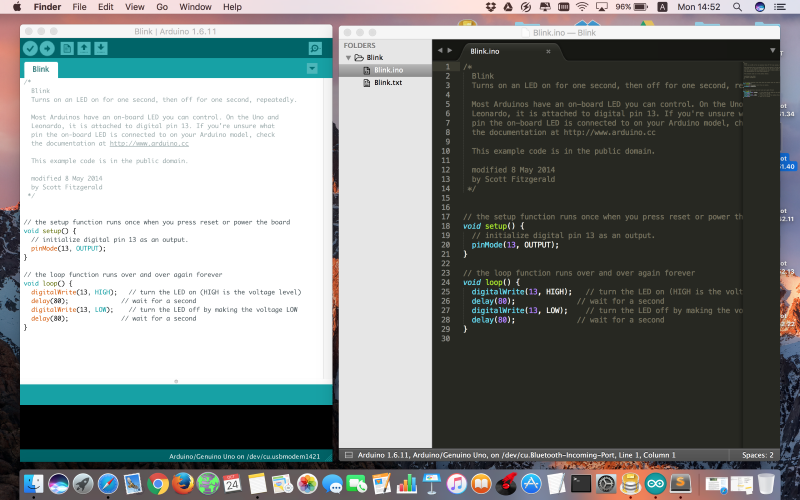
I would like to share my experience in setting up and using my favorite software products for programming Arduino controllers on Mac OS. Many people use Sublime as a good programming environment, for example, adding the Stino package allows you to write code and upload it to Arduino controllers. About how to set it all up in 10 minutes under Windows, many manuals have been written, but little has been said about how to get Mac OS to work. If you have a Mac and Arduino, welcome to cat (attention, a lot of pictures!).
So I currently have this set:
- MacBook Pro Sierra OS
- Arduino IDE 1.6.11
- Arduino AVR Boards 1.6.13
- Sublime Text 3 (build 3126)
- Stino (v2016.01.22.05.51.02)
First, install Arduino IDE, run it in the IDE itself, install the required version of Arduino AVR Boards in Board Manager, everything worked for me with version 1.6.13:

Next, download and install Sublime Text 3 . I think there shouldn’t be any special problems, and I won’t particularly focus on how to install software for the poppy, I’ll move on to the actual configuration.
I also advise you to check whether the program is loading into the Arduino controller from the Arduino IDE, if everything works, then go ahead, if not, then first find the reason.
Now we need to add the ability to install add-on packages in Sublime, for this we need Package control ( follow the instructions here ). Everything is exactly the same as on Windows, go to View -> Show Consoleand copy the code from the site there, using the link above.

Then in the Sublime Text → Preferences Package Control will appear .

Next, you need to add the repository, where we will install Stino, a package for working with Arduino.
Select Add Repository and enter the following at the bottom of the line:
https://github.com/gepd/Stino/tree/new-stino
After installing Stino, Sublime Text → Preferences → Package Control and there Install Package , then enter Stino .
Now, in Sublime Text, Arduino appears in the menu on the far right. Almost everything is configured to work with Arduino controllers, a couple of important points remain.
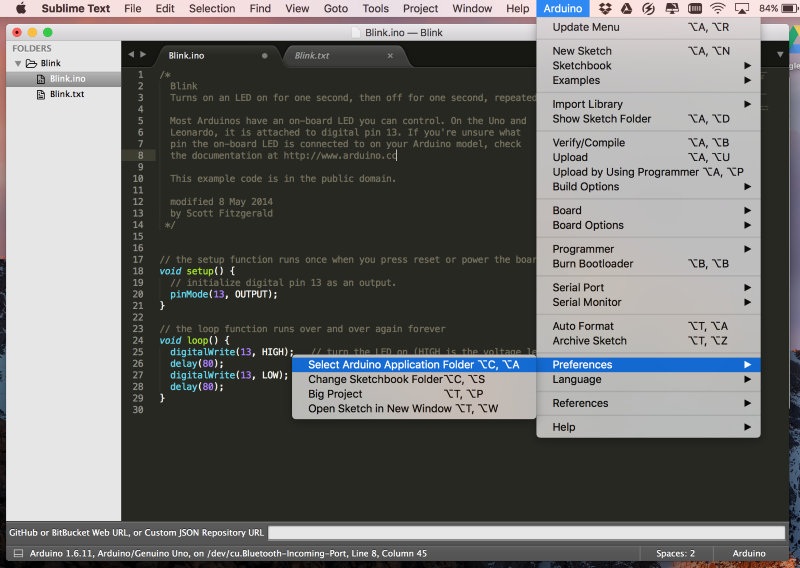
Specify the path to the folder with the Arduino IDE, for this in the Sublime program, go to the new Arduino menu that appears and there Preferences → Select Arduino Application Folder . If you have not previously installed the Arduino IDE in any other place, then by default it will be /Applications/Arduino.app .
When I installed this all the first time, I thought that everything was ready at this step, and you can already write the program in Sublime Text and boldly upload the controller to the Arduino. So I did and ran into compiler errors. What is most interesting is that everything worked fine with the Arduino IDE, but there were some problems with Sublime + Stino. A quick search for specific answers did not give anyone who advised playing with the versions of the Arduino AVR Boards, who advised switching to very early versions of the Arduino IDE, and so on. Not a single option on my Mac OS Sierra worked. After reading a few dozen pages on Stack Overflow, I found a solution why all this in a bunch works for me under Windows, but it doesn’t work under the poppy.
And so, go to the Applications folder , find Arduino there, on the double-click icon and Show Package Contents . Next, go to the folder Contens / Java / hardvare / arduino / avr and find the file platforms.txt and open it in the same Sublime Text. We go to line 101 and delete {upload.verify} there . After that, the line should look like this:
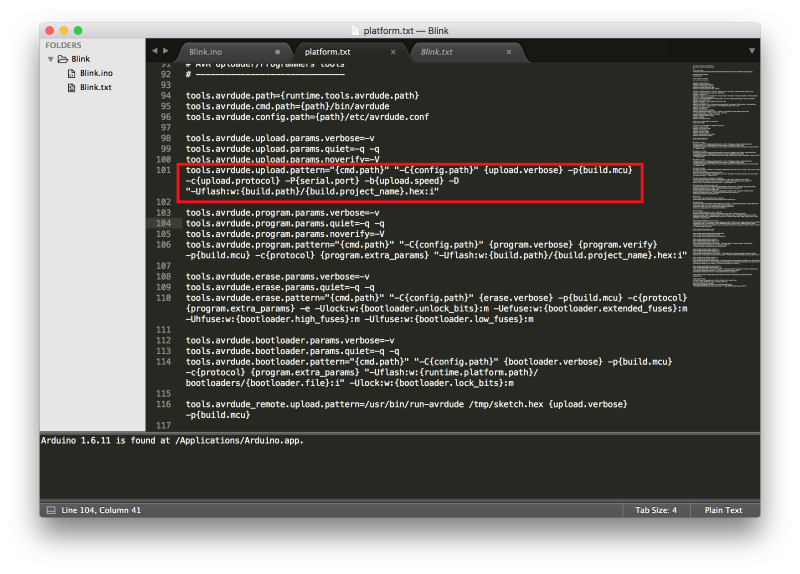
Save and restart Sublime Text and try to load the program into the Arduino controller. Do not forget to select the desired port!
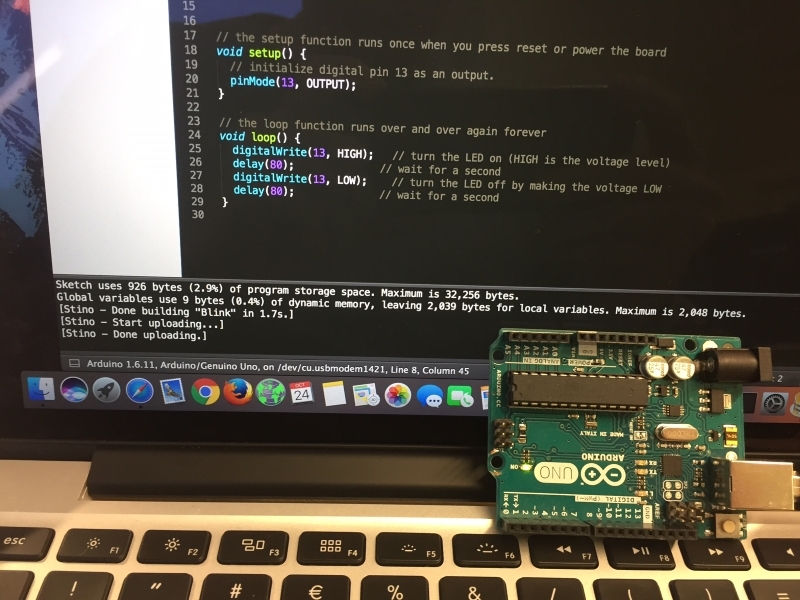
Result - everything was flooded without errors. I hope the article will be useful to those who would like to work in a convenient Sublime text and write code for Arduino controllers.