Configuring the user interface when installing applications on nanoCAD Plus 8.5

For a significant number of users, installing the application is equivalent to the appearance of a shortcut on the desktop or a button on the toolbar. In this article, we will look at the mechanism for adding menus and toolbars for custom applications installed on nanoCAD Plus 8.5, and also analyze the procedure for creating a shortcut that will allow you to run a specific user application in nanoCAD.
For those who are more interested in trying than reading the description, we immediately provide a link to the distribution package of the application “Examples of nanoCAD SDK 8.5”. After installing this application, when starting nanoCAD Plus 8.5, examples created in LISP, C ++, C #, VB.NET, JScript and VBScript will be automatically loaded, and a drop-down menu and a toolbar will be added to the user interface (as in the header screenshot) invoke example commands.
First, we will illustrate a ready-made application for installing examples that come bundled with nanoCAD Plus 8.5 - “Examples of nanoCAD SDK 8.5”, and then consider how to include a description file for menus and toolbars.
Example Installer Overview
The installer for examples for nanoCAD is a Windows Installer file called SamplesApp <version> .msi. After starting it, he will build a list of installed versions of nanoCAD compatible with the installer, and offer to choose which versions to install the application on and which ones not:
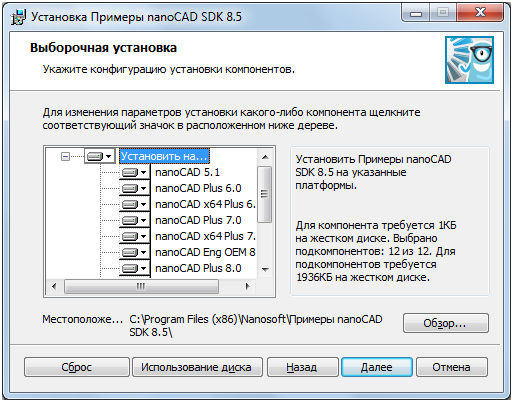
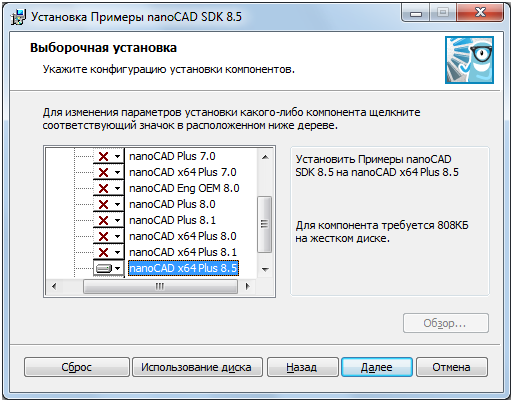
Installation folder: C: \ Program Files (x86) \ Nanosoft \ Examples of nanoCAD SDK 8.5 \ NCAD80x64.
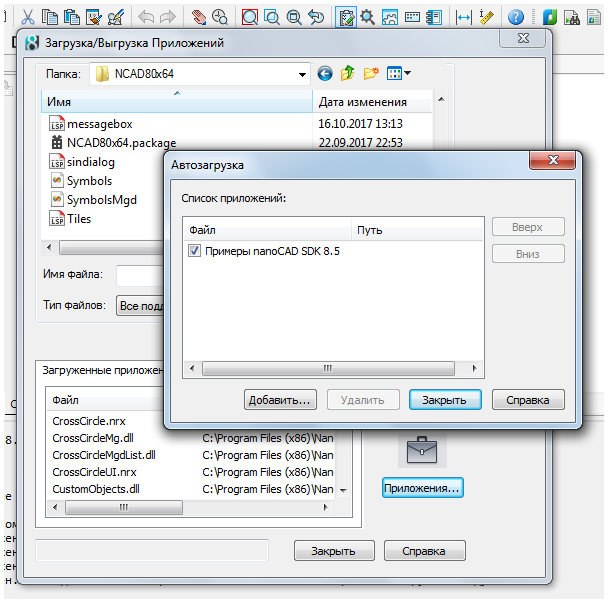
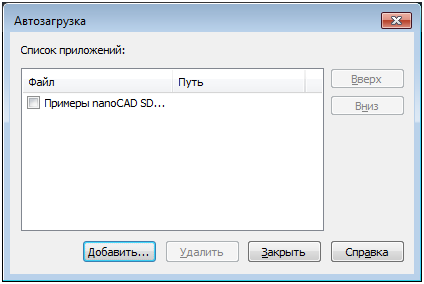
The installed application “Examples of nanoCAD SDK 8.5” should be added to the startup list:
When nanoCAD 8.5 is launched, a message about the downloaded application is displayed on the command line: You
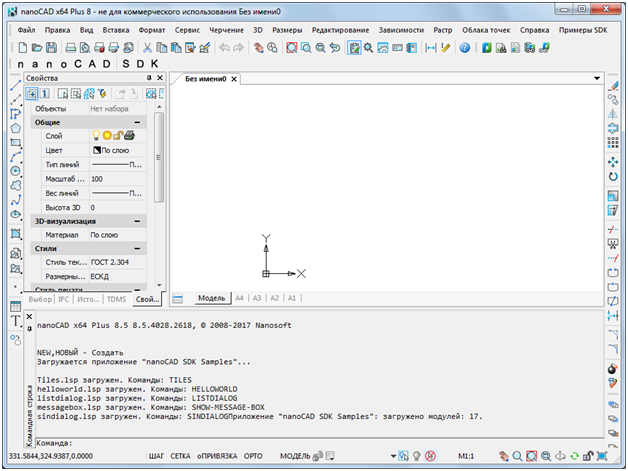
can execute downloaded commands:
• from the command line,
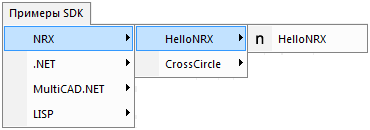
• from the drop-down menu installed with the application:
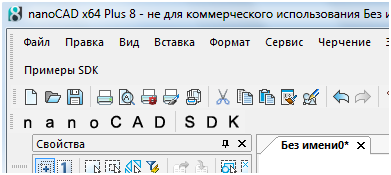
• or using nanoCAD SDK toolbarswhere some of the SDK example commands are taken out:
What installer installs
For each of the nanoCAD versions selected during the installation, the installer creates a directory with example files:
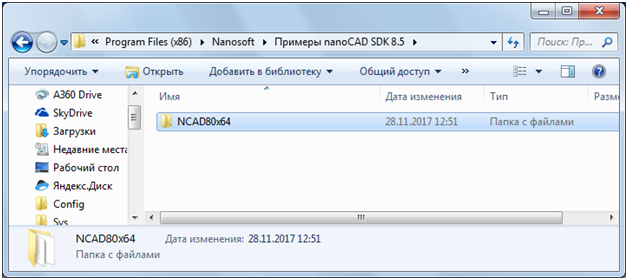
For platforms 8.0-8.5, a complete set of examples is installed (folder NCAD80x64), and for previous versions of the platform, only scripts (JS, VBS) are installed that do not require rebuilding for each platform (folders get names by version number: NC70x64, etc.). This is not a limitation of application installation technology: if you build SDK examples of all previous versions, you can create a single installer that will install a complete set of examples on all supported platforms.

Application Description File (* .package)

In addition to the application files, in the folder with the installed examples is a package file with the extension .package, which contains all the necessary information about user configurations of nanoCAD (including applications for downloading and user menus) and allows you to download the selected configuration directly at the start of nanoCAD.
Consider a batch file for loading NRX modules from a set of examples for nanoCAD. The contents of the file are the following XML structure:
Elements used to describe the package:
• ApplicationPackage
• Components
• ConfigEntry
• ComponentEntry
The main ApplicationPackage element contains the Name attribute to specify the name of the application, which will be displayed on the command line at the end of the download.
The Components element describes the components of the package: the loadable application module - the ComponentEntry element, as well as the application configuration file with the menu - ConfigEntry.
ComponentEntry contains attributes: AppName - the name of the application, ModuleName - the name of the executable module, ModuleType - the type of module. The following types are allowed:
Command line options, shortcut creation
The distribution "Examples nanoCAD SDK 8.5" adds the application to startup and it loads every time the platform starts. Consider a situation where the application does not need to be automatically downloaded, but it must be loaded when nanoCAD is launched using a special shortcut on the Windows desktop.
1. Disable startup:
2. Create a shortcut for "C: \ Program Files \ Nanosoft \ nanoCAD x64 Plus 8.5 \ nCad.exe" (assuming that you installed nanoCAD x64 Plus 8.5 on drive C, in the Program Files folder), let's call it “nanoCAD Plus 8.5 with SDK Examples” .lnk.
3. Add the following parameters to the command line:
a. -r - Name of the startup configuration (NCADSamples),
b. -p - Profile name (if not specified, matches the name of the starting configuration),
c. -g - path to the downloaded application, can be specified several times.
At the first start, a profile will be created using the new shortcut, the name of which will be indicated on the shortcut command line:
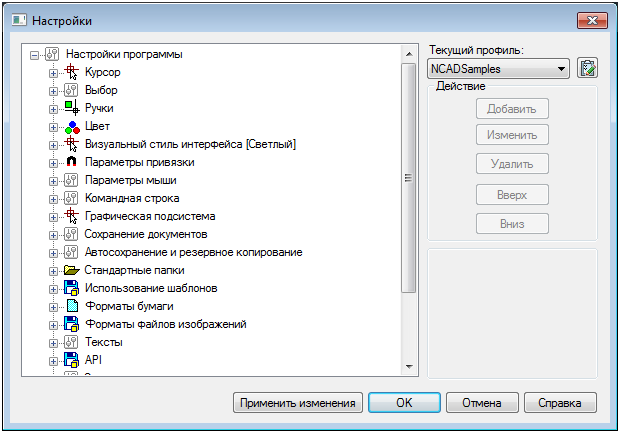
It is important not to confuse the concepts of the starting configuration and profile:
- Starting configuration - contains information about which main and which additional user interface files (* .cfg) are downloaded, as well as a link to the current profile. Designed to create independent configurations (shortcuts) in which applications are launched.
- Profile - contains the program settings. Different starting configurations can both refer to different, independent profiles, and use the same settings, referring to the same profile.
Conclusion
Sample installer source code for nanoCAD is included in the SDK. In order to assemble the installer yourself, you will need WiX Toolset version 3.8. An example file with the extension .cfg is also included in the SDK; the article describes the process of creating a custom toolbar and user menu nanoCAD .