August 15, 2017 at 13:30
Debug Xamarin projects from VirtualBox on Android emulator
The other day, I thought of trying to use Visual Studio with Xamarin to write cross-platform code for three mobile platforms at once. Since I used to deal with AndroidStudio, I lacked the ability to port code to other platforms.
The description of Visual Studio Community 2017 says it is beautiful that they say a single business logic for iOS, Android and Windows 10, a single approach to creating controls through Xamarin.Forms, its own Xamarin Instant Player emulator and other goodies. Why pay more if you can for free?
Without thinking twice, I download and start installing VisualStudio, select the necessary options and indicate the path on drive D. And almost immediately I get a warning that there is absolutely no space left on drive C. How so?
And it turns out, in addition to VisualStudio on drive C, a huge number of tools, components and utilities fall into the “Program Files” folder. As I later realized it is impossible to transfer them. They should be in the folder on the system drive (I have an SSD drive C and it has only 5 GB of free space). Of course, there is an option to create symlinks to a folder on drive D, but on a working system I'm afraid to experiment.
As a result, for the experiment I decide to install VisualStudio in the VirtualBox emulator (it is free and quite functional). Case for small. And now everything is installed, and I create the first HelloWorld C # application from templates.
I try to run on the emulator and get a bummer. It turns out that Hyper-V needs to be disabled, HAXM is not compatible with it. I do according to the instructions
I reboot the virtual machine and ... nothing. The same mistake.
Well, I think okay, I'll try through PowerShell
I reboot the virtual machine and again an error.
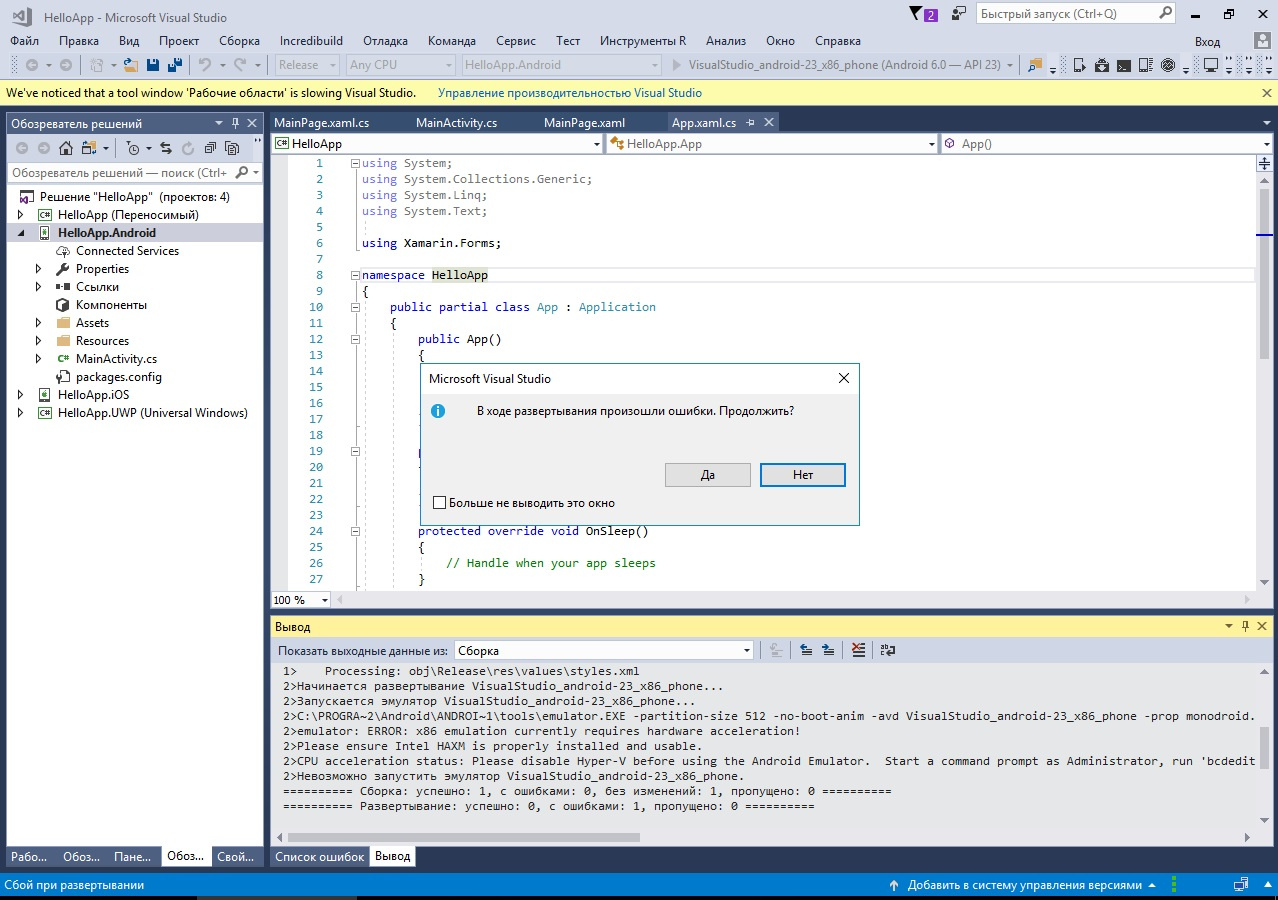
I turn off the virtual machine, and in its settings I turn off completely virtualization (System → Acceleration → Paravirtualization interface → “None” parameter), while VT-X / AMD-V remains on!

I start the virtual machine and click on the debug button in the built-in VisualStudio emulator. Now the studio happily reports that I don’t have VT-X at all (although the Intel Core i5 processor + emulation of the ICH9 chipset). What combinations have not tried - the result is one. The built-in studio emulator on VirtualBox does not start from a word at all. The same problem with AndroidStudio on the virtual machine - it does not start Android Emulator.

I'm trying to install HAXM on a virtual machine, but unfortunately to no avail.

Having scratched my brain, I come across such a feature-requestwhere users are asked to do HAXM inside VirtualBox. Apparently this is not yet implemented, unlike the same VMWare.
Well, as an experienced person, it’s not the first time to screw a tambourine. It is necessary to run the emulator on the host and give access to the virtual machine over the network. And here the problem arises - I can’t get through to the emulator. Its IP (10.0.2.15) lies outside the range of my network (192.168.1.x). Reassigning IP network cards on the host or on the virtual machine does not work. Apparently, the ADB service listens only for the 127.0.0.1 interface, as I understand it for security purposes.
Along the way, I find an interesting article about accessing the emulator from the virtual machine , but unfortunately a bit outdated (Xamarin Android Player is no longer supportedand the images for him are also not updated. The latter comes with API 23). Therefore, I decide all the same to achieve work with the android emulator.
Finally, I follow the instructions to forward the ports using the compiled program from the source (the compiled file has already gone into oblivion). The option with port forwarding using netsh does not work - you cannot specify 127.0.0.1 ( proof ) as the destination in it .
Then I do “adb kill-server” on the host and on the virtual machine. On the virtual machine I write “adb connect 192.168.1.2: 5585” and ... I get “adb server version (36) doesn't match this client (39); killing ... ". Already good, but what's the problem?
It turns out I have two adb services on the virtual machine. One service is in "C: \ Users \\ AppData \ Local \ Android \ sdk \ platform-tools" and the second is in "C: \ Program Files (x86) \ Android \ android-sdk \ platform-tools". One was installed with AndroidStudio, the second with VisualStudio. I take the one that came with AndroidStudio and try again. Hurrah! This time the connection is established! I get "connected to 192.168.1.2:5585".
In VisualStudio, my running image automatically pops up in the Android emulator on the host. The connection counter in PortForwarding shows the active connection (it should be one).

And finally here it is - the result that I have been waiting for so long:

Now a few conclusions, for which I started this test:
1. Debugging in this way is not stable. Periodically, freezes occur during the assembly of the project, errors are generated that are fixed by restarting VisualStudio and the emulator.
2. Running AndroidStudio on a virtual machine knocks out the ADB connection to the host. Therefore, for AndroidStudio on a virtual machine, you need to look for other debugging options with an emulator, or use a physical device.
3. The physical device does not need to be debugged through the network port. The virtual machine sees it as a USB device (only you need to connect it in the settings).
And a little offtopic:
Now I’m sitting and thinking, is it worth it to bother to pull the framework behind?
The description of Visual Studio Community 2017 says it is beautiful that they say a single business logic for iOS, Android and Windows 10, a single approach to creating controls through Xamarin.Forms, its own Xamarin Instant Player emulator and other goodies. Why pay more if you can for free?
Without thinking twice, I download and start installing VisualStudio, select the necessary options and indicate the path on drive D. And almost immediately I get a warning that there is absolutely no space left on drive C. How so?
And it turns out, in addition to VisualStudio on drive C, a huge number of tools, components and utilities fall into the “Program Files” folder. As I later realized it is impossible to transfer them. They should be in the folder on the system drive (I have an SSD drive C and it has only 5 GB of free space). Of course, there is an option to create symlinks to a folder on drive D, but on a working system I'm afraid to experiment.
As a result, for the experiment I decide to install VisualStudio in the VirtualBox emulator (it is free and quite functional). Case for small. And now everything is installed, and I create the first HelloWorld C # application from templates.
I try to run on the emulator and get a bummer. It turns out that Hyper-V needs to be disabled, HAXM is not compatible with it. I do according to the instructions
bcdedit /set hypervisorlaunchtype offI reboot the virtual machine and ... nothing. The same mistake.
Well, I think okay, I'll try through PowerShell
Disable-WindowsOptionalFeature -Online -FeatureName Microsoft-Hyper-V-HypervisorI reboot the virtual machine and again an error.
I turn off the virtual machine, and in its settings I turn off completely virtualization (System → Acceleration → Paravirtualization interface → “None” parameter), while VT-X / AMD-V remains on!
I start the virtual machine and click on the debug button in the built-in VisualStudio emulator. Now the studio happily reports that I don’t have VT-X at all (although the Intel Core i5 processor + emulation of the ICH9 chipset). What combinations have not tried - the result is one. The built-in studio emulator on VirtualBox does not start from a word at all. The same problem with AndroidStudio on the virtual machine - it does not start Android Emulator.
I'm trying to install HAXM on a virtual machine, but unfortunately to no avail.
Having scratched my brain, I come across such a feature-requestwhere users are asked to do HAXM inside VirtualBox. Apparently this is not yet implemented, unlike the same VMWare.
Well, as an experienced person, it’s not the first time to screw a tambourine. It is necessary to run the emulator on the host and give access to the virtual machine over the network. And here the problem arises - I can’t get through to the emulator. Its IP (10.0.2.15) lies outside the range of my network (192.168.1.x). Reassigning IP network cards on the host or on the virtual machine does not work. Apparently, the ADB service listens only for the 127.0.0.1 interface, as I understand it for security purposes.
Along the way, I find an interesting article about accessing the emulator from the virtual machine , but unfortunately a bit outdated (Xamarin Android Player is no longer supportedand the images for him are also not updated. The latter comes with API 23). Therefore, I decide all the same to achieve work with the android emulator.
Finally, I follow the instructions to forward the ports using the compiled program from the source (the compiled file has already gone into oblivion). The option with port forwarding using netsh does not work - you cannot specify 127.0.0.1 ( proof ) as the destination in it .
Then I do “adb kill-server” on the host and on the virtual machine. On the virtual machine I write “adb connect 192.168.1.2: 5585” and ... I get “adb server version (36) doesn't match this client (39); killing ... ". Already good, but what's the problem?
It turns out I have two adb services on the virtual machine. One service is in "C: \ Users \\ AppData \ Local \ Android \ sdk \ platform-tools" and the second is in "C: \ Program Files (x86) \ Android \ android-sdk \ platform-tools". One was installed with AndroidStudio, the second with VisualStudio. I take the one that came with AndroidStudio and try again. Hurrah! This time the connection is established! I get "connected to 192.168.1.2:5585".
In VisualStudio, my running image automatically pops up in the Android emulator on the host. The connection counter in PortForwarding shows the active connection (it should be one).
And finally here it is - the result that I have been waiting for so long:
Now a few conclusions, for which I started this test:
1. Debugging in this way is not stable. Periodically, freezes occur during the assembly of the project, errors are generated that are fixed by restarting VisualStudio and the emulator.
2. Running AndroidStudio on a virtual machine knocks out the ADB connection to the host. Therefore, for AndroidStudio on a virtual machine, you need to look for other debugging options with an emulator, or use a physical device.
3. The physical device does not need to be debugged through the network port. The virtual machine sees it as a USB device (only you need to connect it in the settings).
And a little offtopic:
- Running an already installed application with Xamarin.Forms takes a lot of time (much more than regular Java projects).
- In addition to the very rather large size of the application (HelloWorld takes more than 12 Mb), we get another Mono Shared Runtime (42 Mb) and Xamarin Android support (for API23 it is 23 Mb).
Now I’m sitting and thinking, is it worth it to bother to pull the framework behind?