May 12, 2017 at 11:01
Using C ++ Modules in Visual Studio 2017
- Transfer
What's new?
The Visual C ++ team is pleased to announce that in Visual Studio 2017, the quality of implementation of C ++ modules was significantly improved according to the technical specification ; we also added the ability to connect the C ++ Standard Library via module interfaces . These interfaces, as well as the support of modules by the compiler, are experimental development and will be developed in accordance with the standardization process.
Beginning of work
Support for Standard Library modules has been implemented in Visual Studio since version 2017 RTM. This feature is currently optional and disabled by default. In future versions, the modules will be installed automatically along with the headers of the Standard Library. You only need to select this option when installing or updating C ++ support.
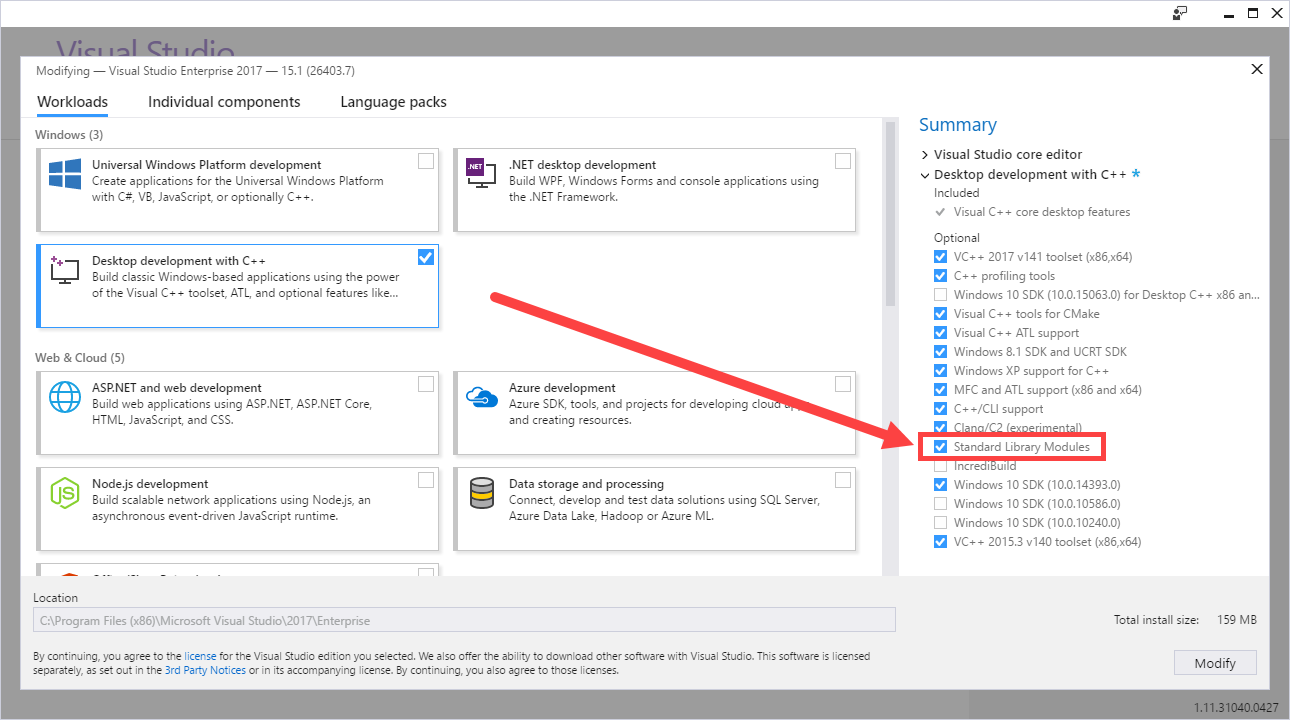
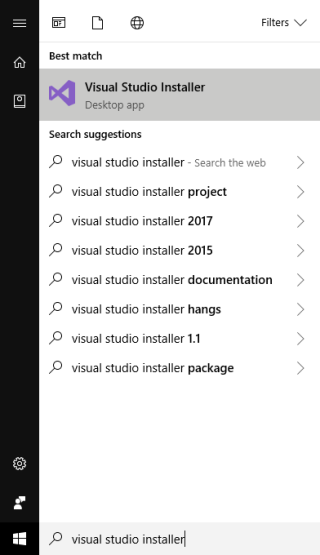
If you already installed VS 2017 but did not install the modules, this is easy to fix. Just run the installer again and select the appropriate components.
Verify installation
To check if your copy of VS 2017 is configured to support modules, compile and run the program below (name it, for example, test-vs2017-slm.cxx ) from the developer's command line. Since the modules are currently an experimental function, their support is still very poorly implemented in the VS environment.
import std.core;
int main() {
    using namespace std;
    vector v { "Plato", "Descartes", "Bacon" };
    copy(v.begin(), v.end(), ostream_iterator(cout, "\n"));
}
When compiling this code with a command
cl /experimental:module /EHsc /MD /std:c++latest test-vs2017-slm.cxxthe output should be an executable file ( test-vs2017-slm.exe ), which at startup will print the words "Plato", "Descartes" and "Bacon" - each on a separate line.
Compiler key for connecting Standard Library modules
You must add the / MD switch when compiling the source file to enable the Standard Library modules. The / MD switch initializes the C dynamic runtime library (CRT) . In debug mode, use the / MDd switch .
If you forgot to specify the / MD switch (or / MDd in debug mode), the linker will give a series of warnings and a link error LNK2019 , indicating the presence of unresolved external characters.
No other keys are required to use the Standard Library modules. These modules can only be used with the Import Libraries of the CRT Universal Library (UCRT).
Connecting Standard Library modules from the VS development environment
If you want to use the development environment instead of the command line, configure your project to use experimental modules according to the following instructions.
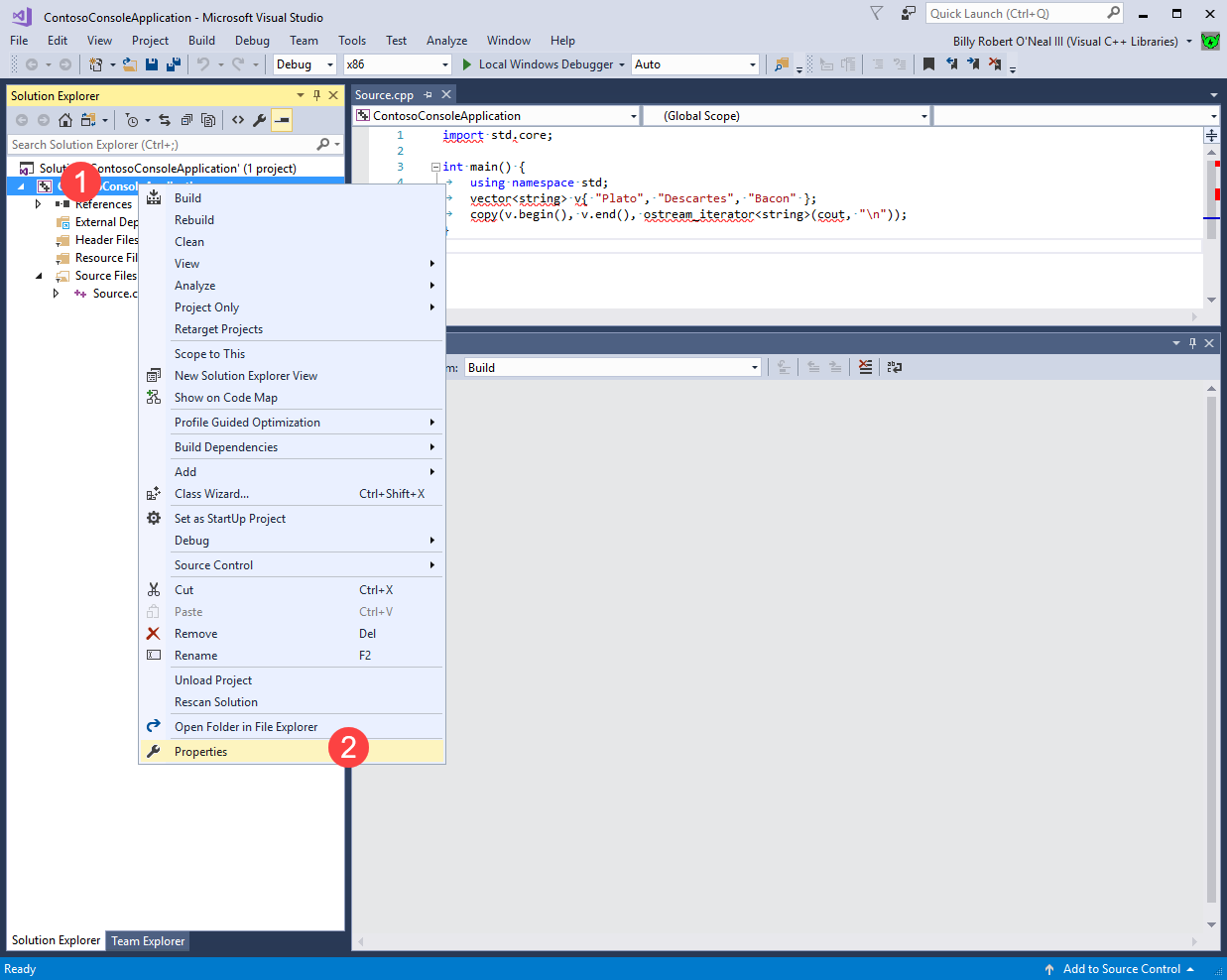
1. Open the "Properties" window of the project:
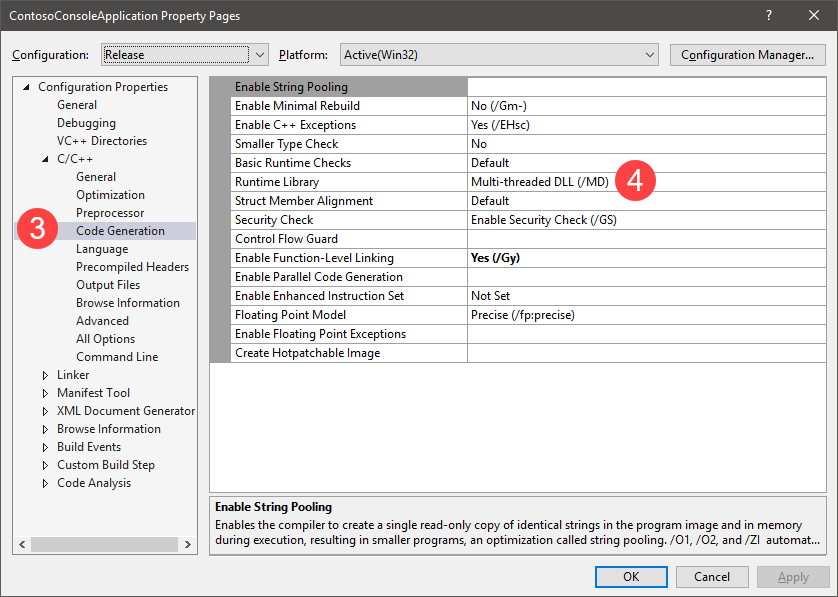
2. Go to the section “Configuration Properties” -> C / C ++ -> “Code Generation” and make sure that you have selected the Multithreaded Debug DLL or Multithreaded DLL (for debug and release modes, respectively) . These libraries are selected by default for new projects, so if you haven’t changed anything, there shouldn’t be any problems.
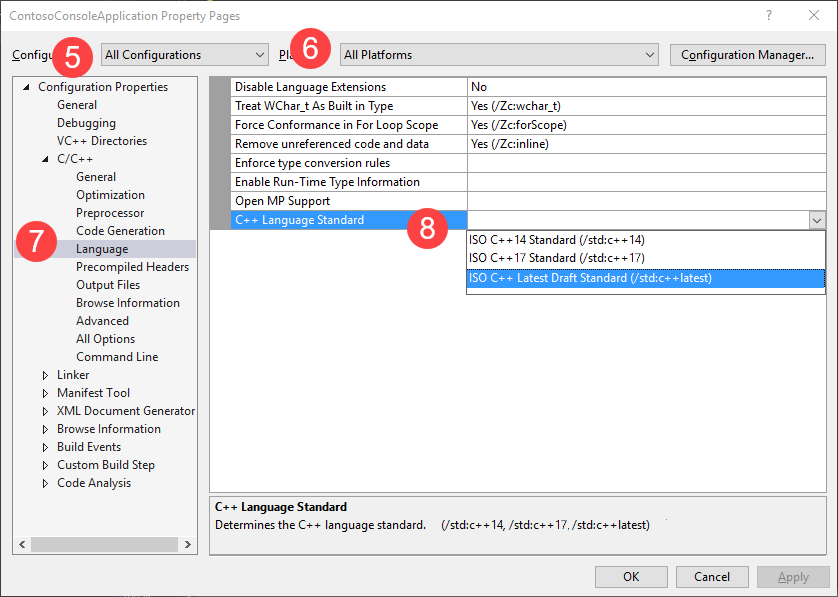
3. Go to the section “Configuration Properties” -> C / C ++ -> “Language” and make sure that support for the C ++ 17 standard is enabled. If this is not the case, select the C ++ 17 standard or the latest draft C ++ (C ++ Latest Draft Standard) from the drop-down list for the configurations that you plan to use.
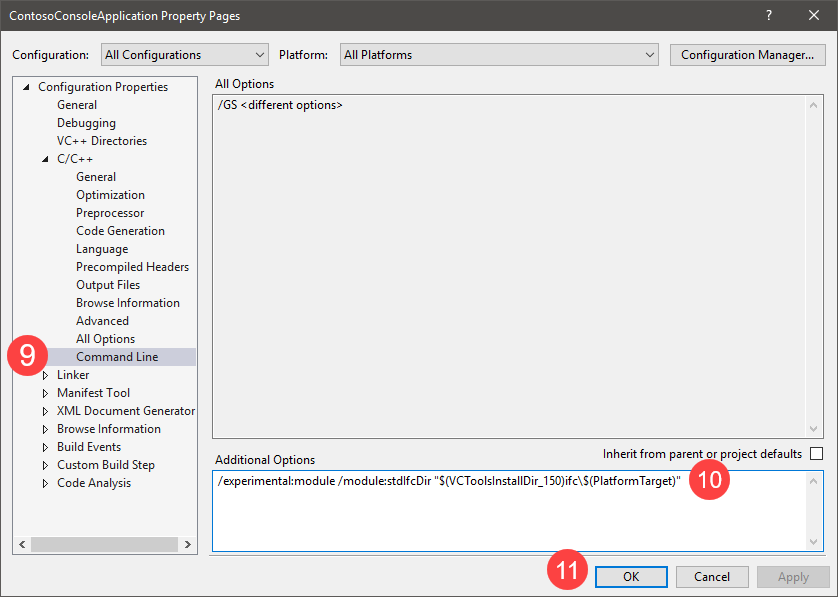
4. Enter the command / experimental: module / module: stdIfcDir "$ (VCToolsInstallDir_150) ifc \ $ (PlatformTarget) " in the section "Configuration Properties" -> C / C ++ -> "Command Line", to enable module support for the current project. Please note that this step will be discontinued in future versions of VS 2017: the environment itself will indicate the location of the module files (specified by the / module: stdIfcDir parameter ) when the C ++ module support option is enabled.
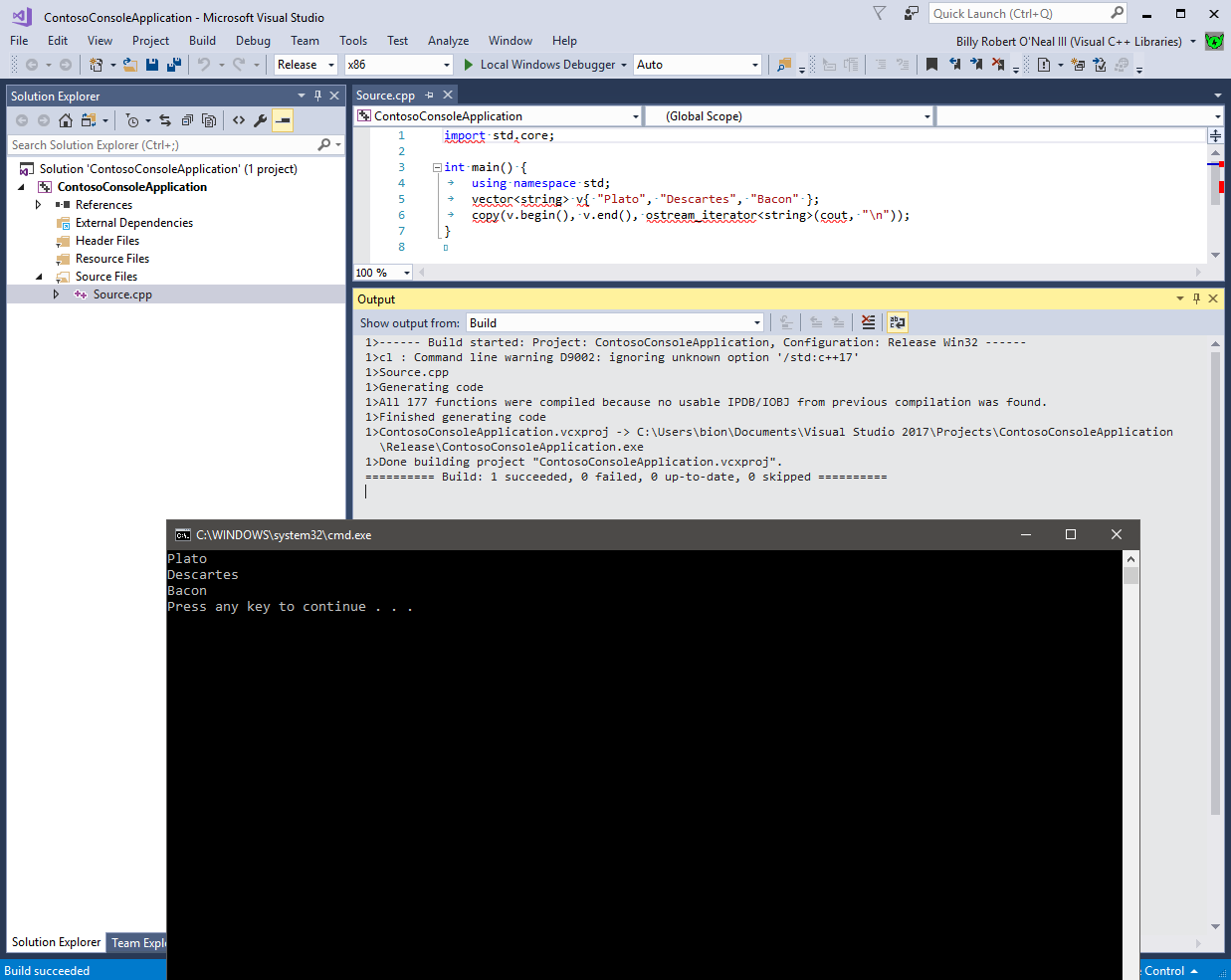
After these steps, the assembly and launch of the test program should succeed - the program will print the names of three philosophers.
Modifying the export syntax of modules
At a congress of the C ++ Standardization Committee in November 2016, a decision was made to change the syntax for exporting modules (see Problem of N1 Modules ).
It was:
export module Bank;It became:
export import Bank;The current version of Visual C ++ takes this change into account, but also allows you to use the old syntax, warning about the transition to an obsolete version. The C ++ Committee is considering assigning a new value to the old syntax that is incompatible with the previous one. We urge you to use the new syntax; support for the old syntax will be discontinued in order to comply with the draft technical specification for modules according to the amendments of the ISO C ++ committee.
Standard Library Modules (experimental function)
A key innovation in the VS2017 RTM version is support for connecting the C ++ Standard Library through modules. This is an experimental tool described in the C ++ proposal for Standard Library Modules . In the current version, the modules are organized as follows:
- std.regex provides access to the contents of the header
- std.filesystem provides access to the contents of the header
- std.memory provides access to the contents of the header
- std.threading provides access to the contents of the headers
, , , , , - std.core provides access to other contents of the C ++ Standard Library
To use these modules in your program, simply write import M at the top level of the source file , where M is the name of the module from the list above. See test case .
If you want to use modules to include headers not from the Standard Library, you can generate modules of the Standard Library using the / module: name switches (see the source note on C ++ modules ) and / module: export . If your project depends on other libraries and you want to try to compile code without any headers, you can package headers from such libraries in the same way.
Newer versions of VS will be more in line with the proposal for modules in the Standard Library.
Call to action
Download Visual Studio 2017 and try the modules with your C ++ projects and programs. To get started, you can simply replace in the source files all the #include commands of the standard headers for containers and algorithms with import std.core and add the / experimental: module and / MD or / MDd compilation keys (in debug mode) to the build definition. Let us know about the results.
Finally
As always, we welcome your feedback. Send your comments to [email protected] or leave them on Twitter @visualc or on the Microsoft Visual Cpp Facebook page .
Other issues related to using the MSVC environment in VS 2017 can be reported using the Report a Problem function from the installer or from Visual Studio itself. Leave your suggestions on the UserVoice website . Thanks!