April 26, 2017 at 11:13
New in 3CX V15.5: Receive G.711 Faxes and Updated Chrome 3CX Click-to-Call Extension
Receive faxes using the G.711 protocol
One of the new features introduced in 3CX V15.5 is support for fax reception using the G.711 protocol, that is, support for receiving fax messages in a voice stream. Faxing through G.711 has been repeatedly requested by our users on the Ideas site , and is now implemented. The fact is that not all SIP operators and analog VoIP gateways support T.38 fax. Because of this, it was not possible to use the built-in 3CX fax server in conjunction with such equipment. The problem was partially solved by connecting to a 3CX hardware fax via the FXS adapter, or using third-party software faxes.
The new fax works through G.711 as follows: the 3CX fax server recognizes and generates fax tones (“pinging”) during the first 10 seconds of the call. If the fax server “hears” the response of the subscriber’s fax machine, it continues to work using the G.711 protocol. Otherwise, the fax server switches to T.38 (which was previously supported).
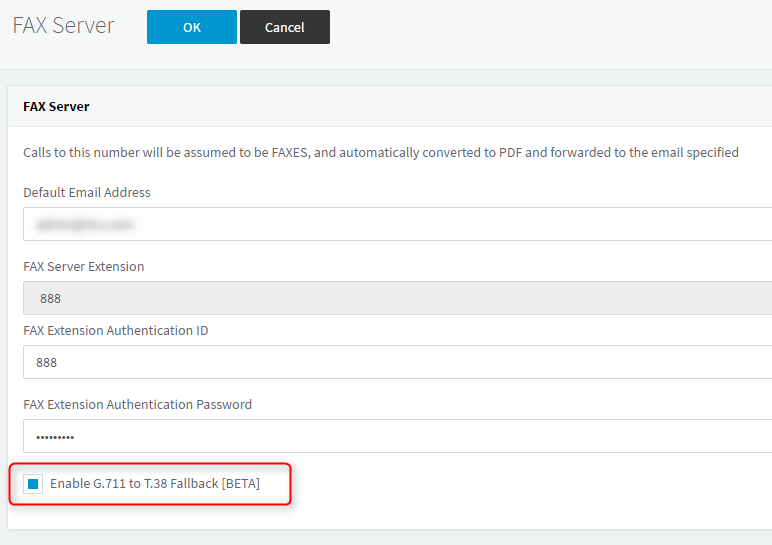
G.711 fax support is enabled in the Settings - Fax Server - checkbox “Enable G.711 fax with switching to T.38 [BETA]”.
New 3CX Click to Call Extension Features for Crome
As you may know, 3CX has released a convenient extension for the Chrome browser that allows you to call from any web page that has a phone number. The updated version of the extension has some new features.
Install the extension from the Chrome App Store . After installation, a characteristic icon will appear on the top bar of the browser.
If you go to the interface of the new 3CX web client (the URL of the web client comes in the 3CX Welcome Letter in v15.5), the extension will be configured automatically. However, it is worth considering its parameters.
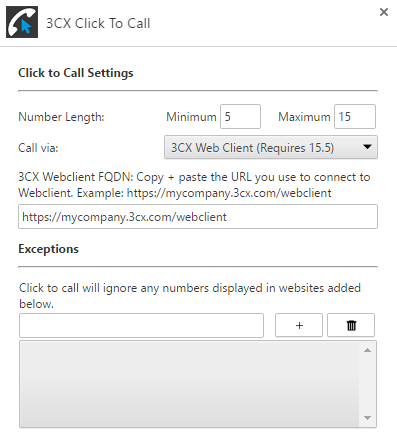
- Number Lenght - the length of the number (the number of digits), but which extension will “pay attention”.
- Call via - how calls will be made. In v15.5, you can call through 3CX Web Client. The web client URL is set automatically, but you can change it if necessary.
- Exceptions - Web sites on which you do not need to automatically recognize numbers.
If, after installing the extension, you go to a page with a phone number (for example, a customer’s card in CRM), the number will be highlighted with a blue arrow.
Click on the number, and it will be transferred to the application that is installed in the extension. For example, if this is a new 3CX web client, the number will be transferred (copied) to it.

Click Call, and the call will be initiated from the IP phone controlled by the web client.