
 April 11, 2017 at 23:14
Getting Started Python + Qt5 + QML Lesson # 1
- Tutorial
Hello. Today we will get acquainted with QML. We learn what it is and what it is eaten with. Let's create a small application using this technology.
A small digression:
QML (Qt Meta Language) is a declarative JavaScript-based programming language designed to create application design. It is part of Qt Quick, a user interface development environment that ships with Qt.
Examples of declarative languages include SQL and HTML. You can read more about QML here: documentation .
Let's start with the simplest: creating a window. We create two files base.qml and test.py with the following contents:
base.qml
import QtQuick 2.0
Rectangle {
    //задаем свойства нашему прямоугольнику
    id:green_rectangle
    width: 250; height: 250
    //цвет нашего прямоугольника
    color:"green"
    //аналогично свойству border-radius
    radius: 7
}
test.py
import sys
# Класс QUrl предоставляет удобный интерфейс для работы с Urls
from PyQt5.QtCore import QUrl
from PyQt5.QtWidgets import QApplication, QWidget
# Класс QQuickView предоставляет возможность отображать QML файлы.
from PyQt5.QtQuick import QQuickView
if __name__ == '__main__':
    app = QApplication(sys.argv)
    # Объект QQuickView, в который грузится UI для отображения
    view = QQuickView()
    view.setSource(QUrl('base.qml'))
    view.show()
    app.exec_()
    sys.exit()
The code of the test.py file should be completely understandable to you, but if it still causes you difficulties, I recommend taking the PyQt5 course here: https://pythonworld.ru/gui/pyqt5-firstprograms.html
Actually, this is the simplest example of working with qml, at the output we get a window 250X250 in size filled with green:

In QML, the primary visible element is the Rectangle element. The Rectangle element has properties for controlling the appearance and location of the element that we can set for it, for example, such:
id: (уникальный идентификационный номер, нужен для обращения к объекту)
x: y: (отступы от родителя в px)
width: height: (ширина и высота)
color: (цвет заливки)
border.color: (цвет границы)
border.width: (ширина границы)
radius: (аналогично border-radius)
Other properties we will consider a little later.
Let's complicate the task a bit: create a window in which there will be a rectangle with the inscription: "Hello World":
Rectangle {
    id:rec_main
    width: 300; height: 300
    color:"#fff"
    radius: 7
    Rectangle {
        id:rec_green
        width: 150; height: 150
        color:"green"
        radius: 7
        border.color: "#0000FF"
        border.width: 5
        anchors.verticalCenter: parent.verticalCenter
        anchors.horizontalCenter: parent.horizontalCenter
        Text {
            id: helloText
            text: "Hello world!"
            anchors.verticalCenter: parent.verticalCenter
            anchors.horizontalCenter: parent.horizontalCenter
            font.pointSize: 10; font.bold: true
        }
    }
}
Now we get the following result:
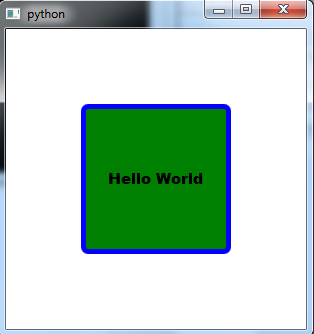
Here we center our object vertically and horizontally relative to the parent anchors.verticalCenter: parent.verticalCenter, anchors.horizontalCenter: parent.horizontalCenter. Parent allows you to contact the parent, in our case, the parent of the Text object is a Rectangle with id: rec_green.
In general, you should now understand that the QML interface is built on a hierarchy of objects. In our case, it looks like this:

They made a rectangle with the inscription. Hmm ... While this does not resemble a useful interface, let's add a button by clicking on which the inscription "Hey Programmer" will be displayed in the console.
Let's change the code a bit, now it will look like this:
import QtQuick 2.0
Rectangle {
    id:rec_white
    width: 300
    height: 300
    Rectangle {
        id:btn_green
        width: 80
        height: 40
        color:"green"
        radius: 7
        border.color: "#0000FF"
        border.width: 1
        anchors.verticalCenter: parent.verticalCenter
        anchors.horizontalCenter: parent.horizontalCenter
        Text {
            id: btn_green_label
            text: "Click me"
            anchors.horizontalCenter: parent.horizontalCenter
            anchors.verticalCenter: parent.verticalCenter
        }
        MouseArea {
            anchors.fill: parent
            onClicked: {
                console.log("Hey Programmer");
            }
        }
        }
}
As a result, we get:

Here we add a MouseArea object that allows you to work with the mouse.
anchors.fill: parent - say that the entire area of the parent will be involved.
onClicked - event of clicking a button. In our case, the function that outputs to the console is called: 'Hey Programmer'.
On this, perhaps, today and finish. In the following articles, we will examine qml in more detail.
While you may not see the benefits of using qml, but when we get to know this wonderful tool in more detail, you will understand how convenient and functional it is.
Thanks for attention. If you still have questions, ask them in the comments. I hope the article was useful to you.