Quadstor - performance and reliability
In the continuation of the article “Quadstor - a virtual SAN for budget employees”, as promised, comparative speed tests of VSAN Quadstor HA and VSAN Starwind HA. And also Quadstor HA reliability test with simulated disconnection of one of HA nodes.
To check the comparative speed tests of VSAN Quadstor and Starwind, 5 virtual machines were created based on one iron host with VMware ESXi 6.5. Virtual machines for those. the characteristics are completely identical (twin brothers) (2xCPU, RAM-3Gb, 2x1Gb LAN,).

As you can see in the figure (above): two VMs (virtual machines) under Windows Server 2008 R2 with StarWind 6 (which was), two VMs under Linux CentOS 7.3 with Quadstor 3.2.11, and one VM under Windows Server 2008 R2 for tests. Then, the Quadstor VM pairs were allocated 50 GB disks to each pair (not counting the drive for the OS) and combined into Quadstor HA, and the StarWind VM pairs were allocated 50 GB disks to each pair (not including the OS drive) and combined into Starwind HA.
Then, iSCSI connected the created disk pools with Quadstor HA and Starwind HA via iSCSI to the VMware ESXi host (Figure below).
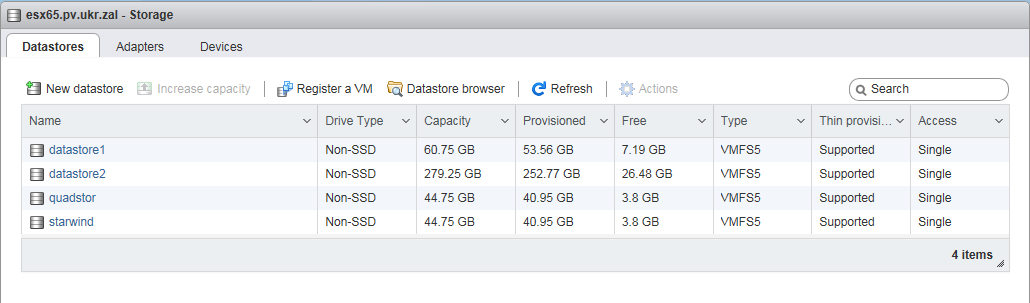
datastore1 and datastore2 are local disks of the VMware ESXi host, while quadstor and starwind are iSCSI disks. It turns out that the local datastore2 disk of the VMware ESXi host through the virtual machines is again allocated via iSCSI to the host (such as to itself).
Such a solution is convenient when, for example, there are only two powerful servers and nothing else, and you need to create a fault-tolerant cluster such as VMware HA or Hyper-V HA or Windows Server Claster, etc. Then we select the virtual machine on two servers and give out all the server disk space except for the disk with OS) by this VM, we will unite in HA and from two virtual machines we give it to iSCSI for two servers. According to iSCSI, servers understand this disk as a separate disk storage, and based on this, it is possible to build an HA cluster using two servers.
We return to our "sheep." I connect 4 disks to VM "VM_TEST" (see the figure below).
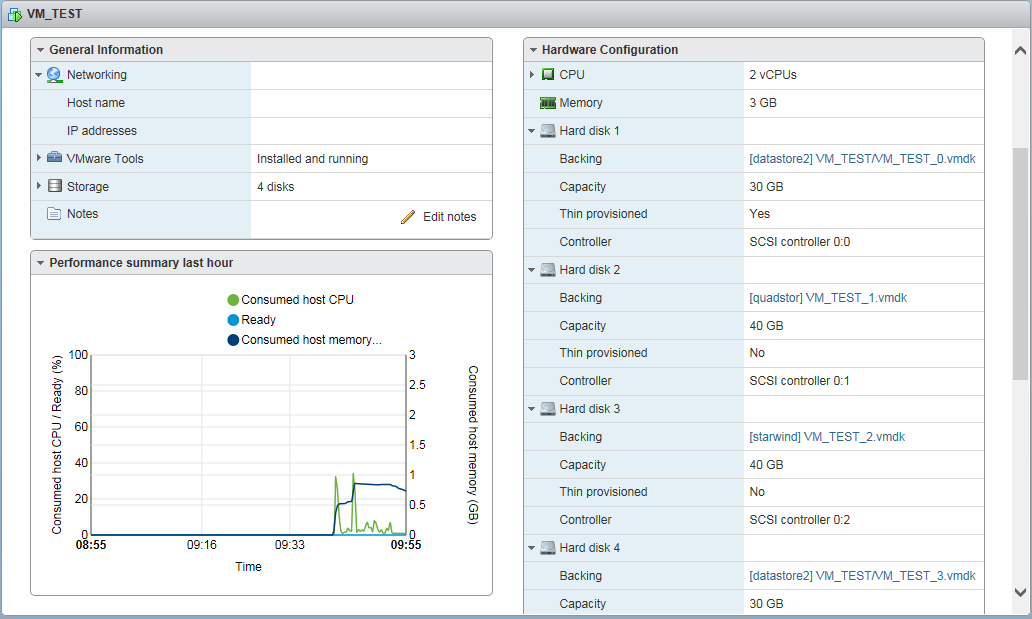
Hard disk 1 and Hard disk 4 are the local host disk (datastore2), Hard disk 2 is the Quadstor HA drive, Hard disk 3 is the Starwind HA drive.
Tests passed in two stages:
Synthetic test.
As mentioned above, 4 disks are connected to the VM_TEST VM (see figure below).
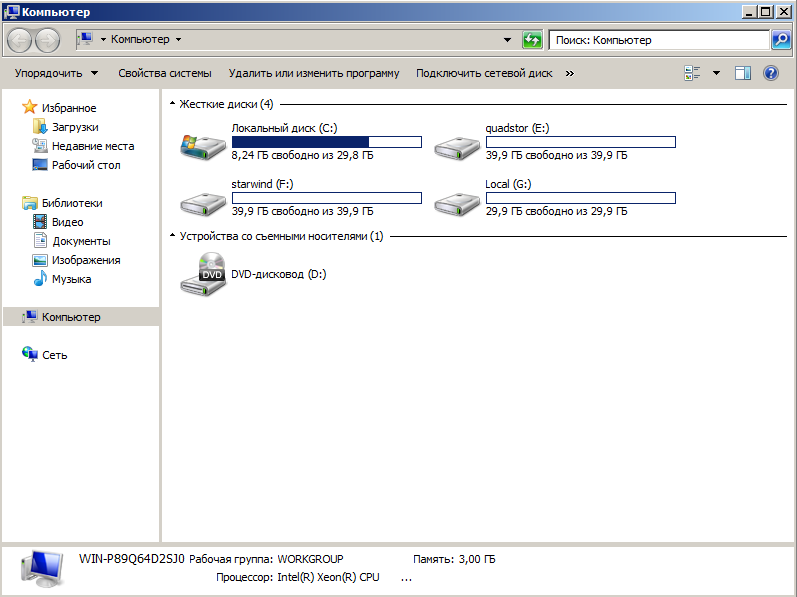
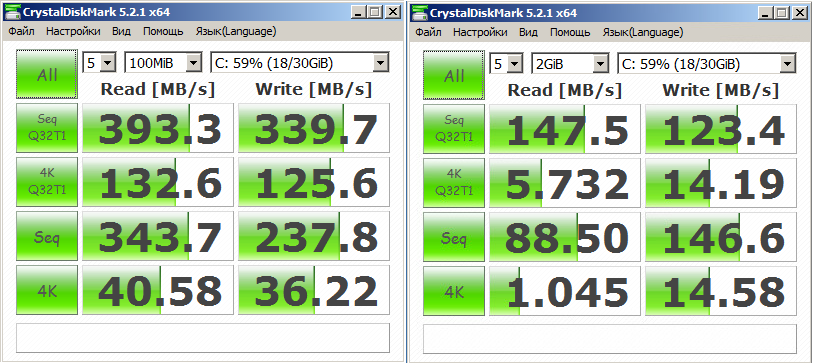
Tests for Crystal Disk Mark were launched for each disk in two modes, with 100MB of data and 2GB of data.
Test drive C: (Local, system drive) (Figure below)
Test drive E: (Quadstor drive) (Figure below)

Test drive F: (Starwind drive) (Figure below)
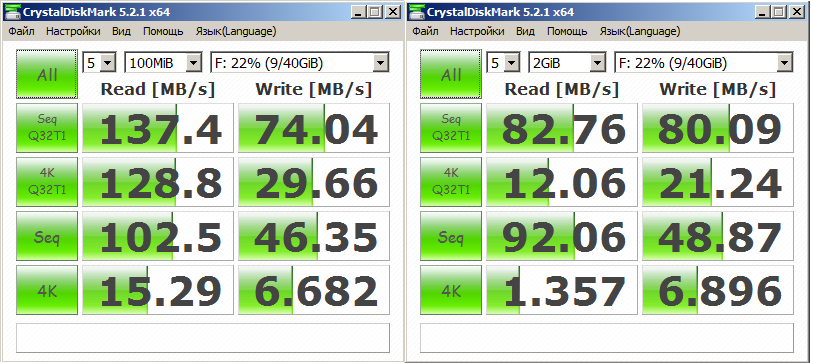
Test drive G: (Local drive) ( Fig. below)
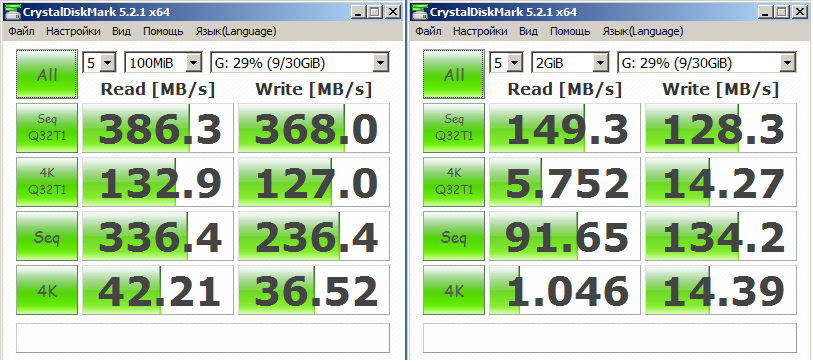
These are tests, comments are unnecessary, who knows he will understand everything. The only thing I’ll add is how strange it is that the C: drive and the G: drive are different, although this is the same local drive.
The test is a regular copy.
This test will be a little more interesting. I wrote a small bat file that copies one large file of 7.71 GB in size and many small files (about 10,000 files) with a total size of 1.94 GB.
Bat file example:
Apparently the bat file is simple, using ordinary commands, the iso file is copied and the entire folder C: \ Windows \ System32 is written to the log file (below).
====================================
"Disk Check Test" "QuadStor"
======== ===========================
"Copying a large file (size - 7.71Gb)"
-
Start 03/22/2017 - 8:26:24, 32
End 03/22/2017- 8: 31: 43,79
-
“Copying a lot of small files (size - 1,94Gb)”
-
Start 03/
22/2017- 8: 31: 43,79 End 03/22/2017- 8:32:55 , 69
-
===================================
"Disk Check Test" "Starwind"
===== ===============================
“Copying a large file (size - 7.71Gb)”
-
Start 03/
22 /2017- 8: 32: 55.72 End 03/ 22 /2017- 8: 37: 32.90
-
“Copying many small files (size - 1.94Gb) "
-
Start 03/
22 /2017- 8: 37: 32,92 End 03/ 22 /2017- 8: 38: 36,80
-
====================== ============
“Disk Check Test” “Local”
================================ ===
“Copying a large file (size - 7.71Gb)”
-
Start 03/22/2017- 8: 38: 36.82
End 03/22/2017- 8: 42: 37.31
-
“Copying many small files (size - 1 , 94Gb) ”
-
Start 03/
22 /2017- 8: 42: 37.31 End 22.03.2017- 8: 43: 32.50
-
Now let's analyze this log file a bit.
QuadStor Disk Test (E :)
Copying a large file of 7.71GB in size took 5m. 22s - this is approximately 25 Mb / s
Copying small files with a total size of 1.94 GB, took - 1m. 12s - this is approximately 27 Mb / s
Starwind disk test (F :)
Copying a large file of 7.71 GB in size took 4 m. 27s - this is approximately 29 Mb / s
Copying small files with a total size of 1.94 GB, took 1 m. 4s - this is approximately 31 Mb / s
Local disk test (G :)
Copying a large file of 7.71 GB in size took 4 m. 01s - this is approximately 33 Mb / s.
Copying small files with a total size of 1.94 GB, took - 55 s. Is approximately 36 Mb / s
Below are screenshots of the load on Linux (QuadStor) and OC Windows (Starwind) while copying files.
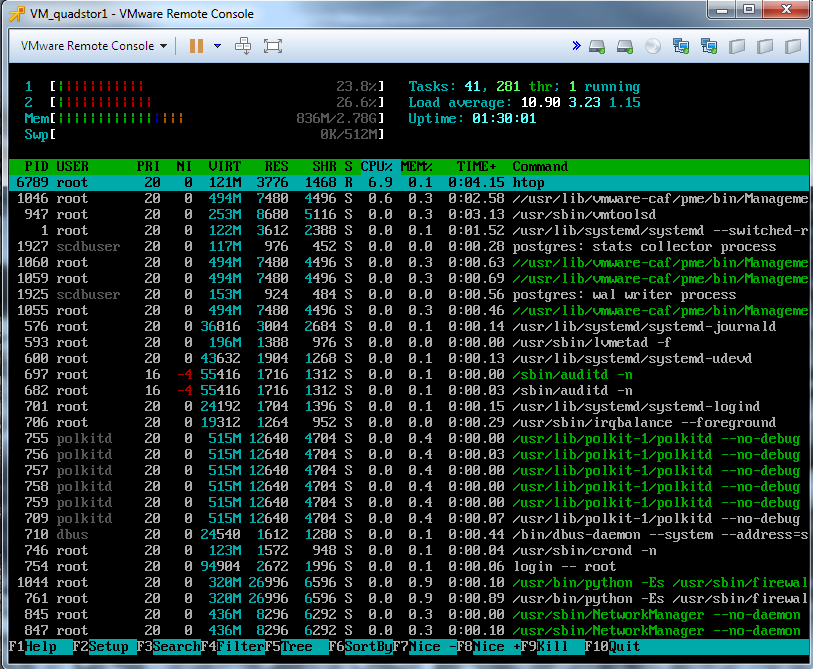
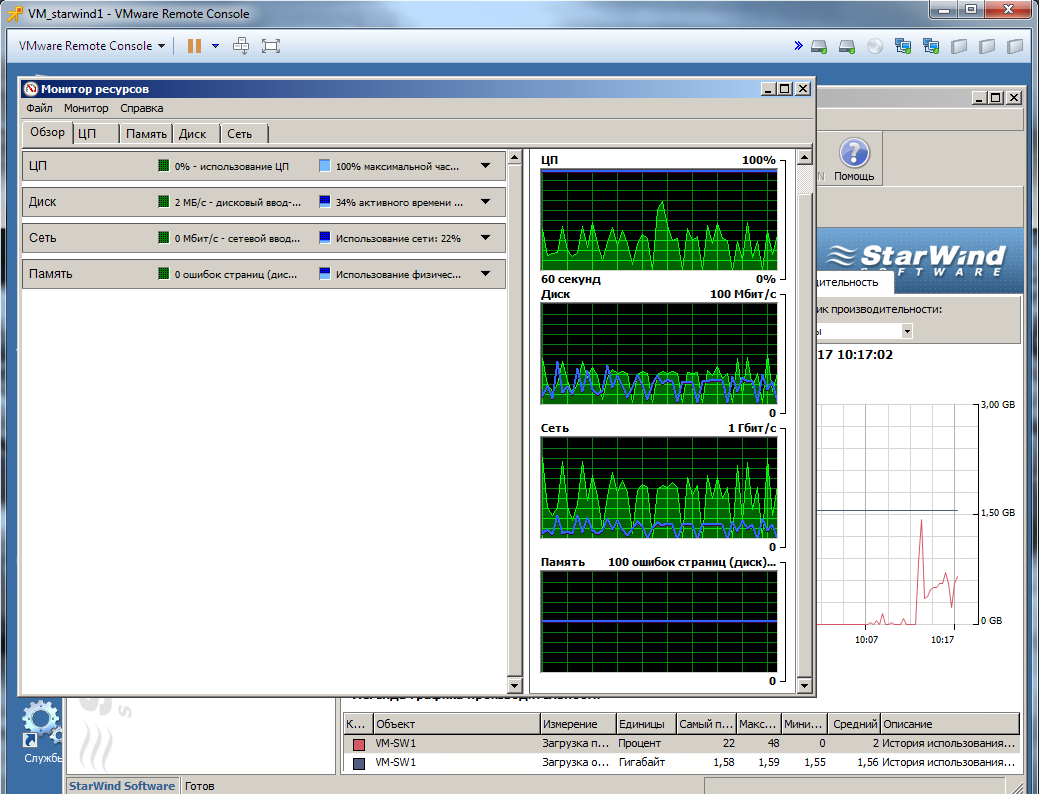
In general, you can draw conclusions yourself.
I just want to give some examples:
Standard desktop, home or work PC, file copy speed, on average 20-25 Mb / s. HP Proliant 380 G8 server, 2 disks (HDD SAS 300Gb 10k) RAID1 - file copy speed, on average 80-100 Mb / s.
The reliability check consisted in the emergency shutdown of one of the Quadstor ON nodes when recording files. Turn on copying.
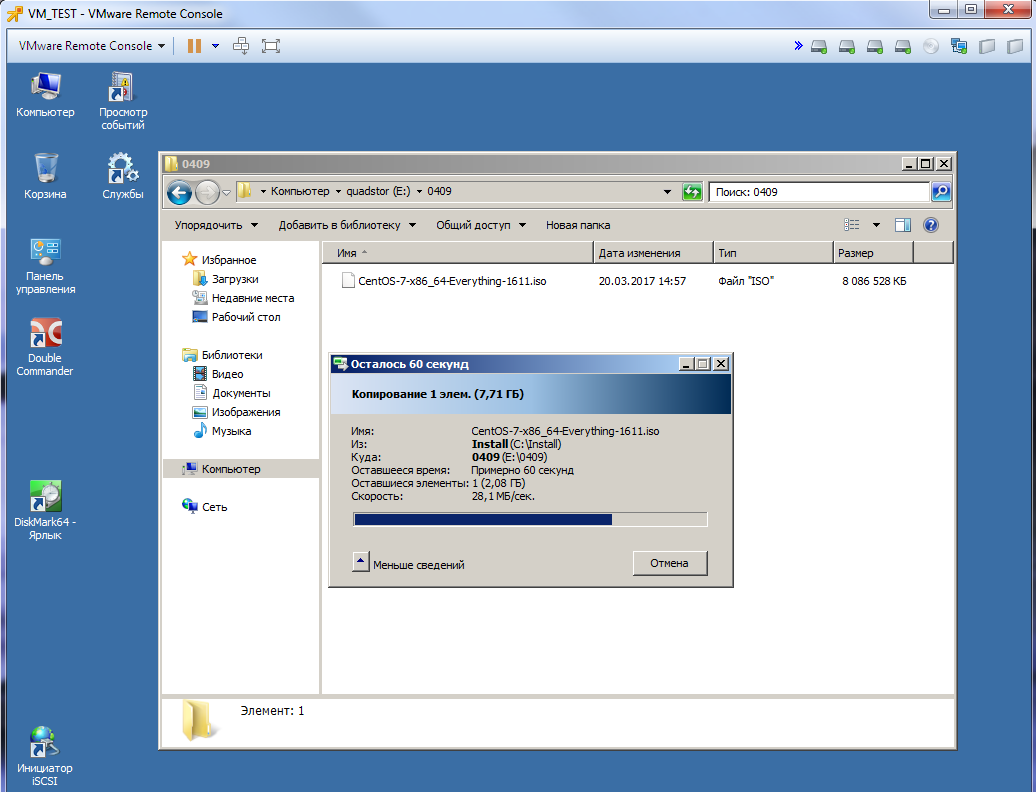
And turn off one of the nodes.

And in fact, practically nothing changes. When copying a file, when you turn off one of the nodes, copying “freezes” for 1-2 seconds. and continues on. And the load on the working node increases slightly.
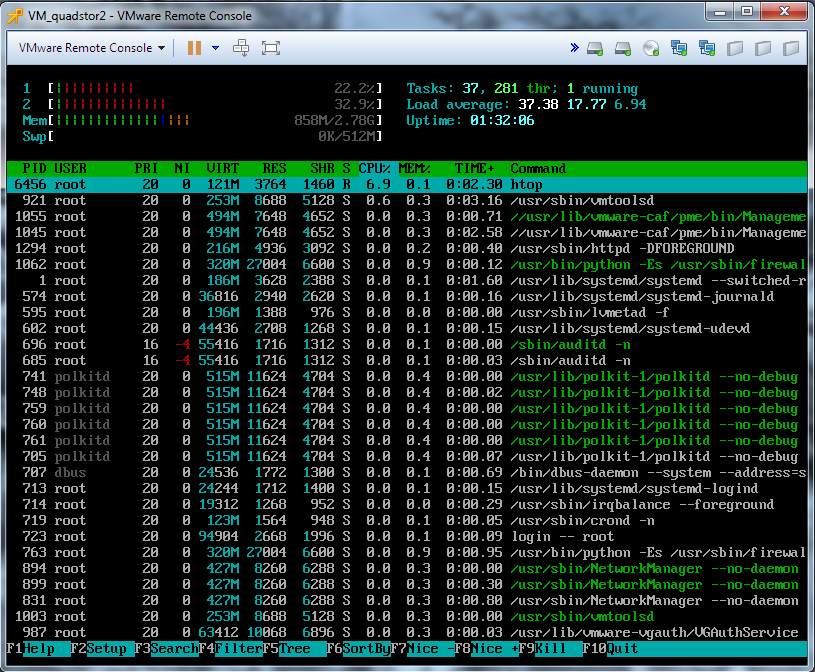
When resuming a disabled node, synchronization occurs.
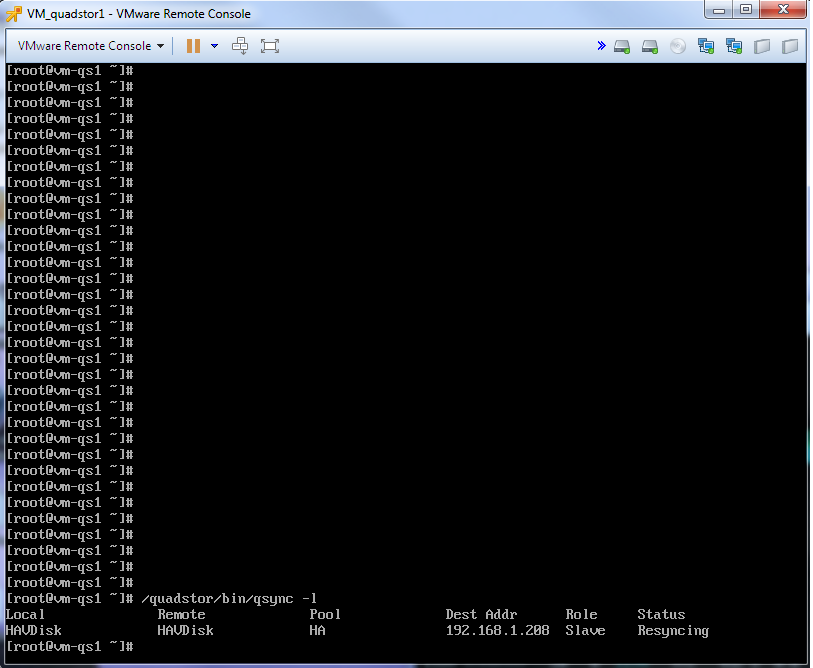
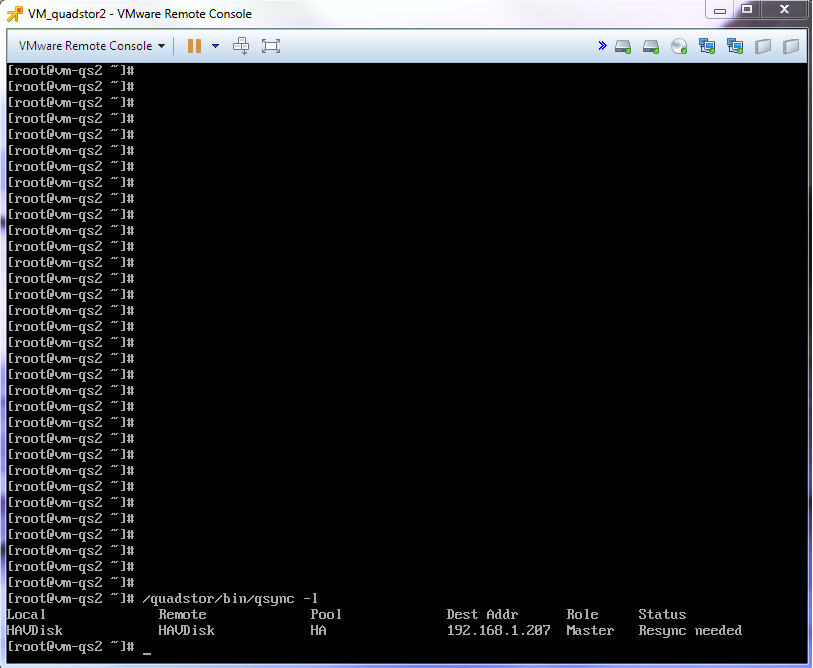
Synchronization lasted 1-2min.
Then I decided to check if I disconnected the synchronization network. This is a bit more complicated. Since the two nodes do not see each other, they became both “Master”. But this situation was decided simply. I disconnected the node that was once a “Slave”, connected the network and started the node. Nod realized that “Master” already exists and becomes “Slave” and synchronization takes place.
That's all.
Performance
To check the comparative speed tests of VSAN Quadstor and Starwind, 5 virtual machines were created based on one iron host with VMware ESXi 6.5. Virtual machines for those. the characteristics are completely identical (twin brothers) (2xCPU, RAM-3Gb, 2x1Gb LAN,).
As you can see in the figure (above): two VMs (virtual machines) under Windows Server 2008 R2 with StarWind 6 (which was), two VMs under Linux CentOS 7.3 with Quadstor 3.2.11, and one VM under Windows Server 2008 R2 for tests. Then, the Quadstor VM pairs were allocated 50 GB disks to each pair (not counting the drive for the OS) and combined into Quadstor HA, and the StarWind VM pairs were allocated 50 GB disks to each pair (not including the OS drive) and combined into Starwind HA.
Then, iSCSI connected the created disk pools with Quadstor HA and Starwind HA via iSCSI to the VMware ESXi host (Figure below).
datastore1 and datastore2 are local disks of the VMware ESXi host, while quadstor and starwind are iSCSI disks. It turns out that the local datastore2 disk of the VMware ESXi host through the virtual machines is again allocated via iSCSI to the host (such as to itself).
Such a solution is convenient when, for example, there are only two powerful servers and nothing else, and you need to create a fault-tolerant cluster such as VMware HA or Hyper-V HA or Windows Server Claster, etc. Then we select the virtual machine on two servers and give out all the server disk space except for the disk with OS) by this VM, we will unite in HA and from two virtual machines we give it to iSCSI for two servers. According to iSCSI, servers understand this disk as a separate disk storage, and based on this, it is possible to build an HA cluster using two servers.
We return to our "sheep." I connect 4 disks to VM "VM_TEST" (see the figure below).
Hard disk 1 and Hard disk 4 are the local host disk (datastore2), Hard disk 2 is the Quadstor HA drive, Hard disk 3 is the Starwind HA drive.
Tests passed in two stages:
- Synthetic test with Crystal Disk Mark v5.2
- Test the usual copy of large and small files.
Synthetic test.
As mentioned above, 4 disks are connected to the VM_TEST VM (see figure below).
Tests for Crystal Disk Mark were launched for each disk in two modes, with 100MB of data and 2GB of data.
Test drive C: (Local, system drive) (Figure below)
Test drive E: (Quadstor drive) (Figure below)
Test drive F: (Starwind drive) (Figure below)
Test drive G: (Local drive) ( Fig. below)
These are tests, comments are unnecessary, who knows he will understand everything. The only thing I’ll add is how strange it is that the C: drive and the G: drive are different, although this is the same local drive.
The test is a regular copy.
This test will be a little more interesting. I wrote a small bat file that copies one large file of 7.71 GB in size and many small files (about 10,000 files) with a total size of 1.94 GB.
Bat file example:
@echo off
set NAME=%1
set DISK=%2
set LOG=log_%date%.txt
echo ================================== >>%LOG%
echo "Тест проверки диска" %NAME%       >>%LOG%
echo ================================== >>%LOG%
echo "Копирование большого файла (размер - 7,71Gb)" >>%LOG%
echo ---------------------------------- >>%LOG%
echo Start %date%-%time%                >>%LOG%
copy /Y CentOS-7-x86_64-Everything-1611.iso %DISK%\CentOS-7-x86_64-Everything-1611.iso
echo End %date%-%time%                  >>%LOG%
echo ---------------------------------- >>%LOG%
echo "Копирование много маленьких файлов (размер - 1,94Gb)" >>%LOG%
echo ---------------------------------- >>%LOG%
echo Start %date%-%time%                >>%LOG%
xcopy /Y /E C:\Windows\System32 %DISK%\
echo End %date%-%time%                  >>%LOG%
echo ---------------------------------- >>%LOG%
Apparently the bat file is simple, using ordinary commands, the iso file is copied and the entire folder C: \ Windows \ System32 is written to the log file (below).
====================================
"Disk Check Test" "QuadStor"
======== ===========================
"Copying a large file (size - 7.71Gb)"
-
Start 03/22/2017 - 8:26:24, 32
End 03/22/2017- 8: 31: 43,79
-
“Copying a lot of small files (size - 1,94Gb)”
-
Start 03/
22/2017- 8: 31: 43,79 End 03/22/2017- 8:32:55 , 69
-
===================================
"Disk Check Test" "Starwind"
===== ===============================
“Copying a large file (size - 7.71Gb)”
-
Start 03/
22 /2017- 8: 32: 55.72 End 03/ 22 /2017- 8: 37: 32.90
-
“Copying many small files (size - 1.94Gb) "
-
Start 03/
22 /2017- 8: 37: 32,92 End 03/ 22 /2017- 8: 38: 36,80
-
====================== ============
“Disk Check Test” “Local”
================================ ===
“Copying a large file (size - 7.71Gb)”
-
Start 03/22/2017- 8: 38: 36.82
End 03/22/2017- 8: 42: 37.31
-
“Copying many small files (size - 1 , 94Gb) ”
-
Start 03/
22 /2017- 8: 42: 37.31 End 22.03.2017- 8: 43: 32.50
-
Now let's analyze this log file a bit.
QuadStor Disk Test (E :)
Copying a large file of 7.71GB in size took 5m. 22s - this is approximately 25 Mb / s
Copying small files with a total size of 1.94 GB, took - 1m. 12s - this is approximately 27 Mb / s
Starwind disk test (F :)
Copying a large file of 7.71 GB in size took 4 m. 27s - this is approximately 29 Mb / s
Copying small files with a total size of 1.94 GB, took 1 m. 4s - this is approximately 31 Mb / s
Local disk test (G :)
Copying a large file of 7.71 GB in size took 4 m. 01s - this is approximately 33 Mb / s.
Copying small files with a total size of 1.94 GB, took - 55 s. Is approximately 36 Mb / s
Below are screenshots of the load on Linux (QuadStor) and OC Windows (Starwind) while copying files.
In general, you can draw conclusions yourself.
I just want to give some examples:
Standard desktop, home or work PC, file copy speed, on average 20-25 Mb / s. HP Proliant 380 G8 server, 2 disks (HDD SAS 300Gb 10k) RAID1 - file copy speed, on average 80-100 Mb / s.
Reliability.
The reliability check consisted in the emergency shutdown of one of the Quadstor ON nodes when recording files. Turn on copying.
And turn off one of the nodes.
And in fact, practically nothing changes. When copying a file, when you turn off one of the nodes, copying “freezes” for 1-2 seconds. and continues on. And the load on the working node increases slightly.
When resuming a disabled node, synchronization occurs.
Synchronization lasted 1-2min.
Then I decided to check if I disconnected the synchronization network. This is a bit more complicated. Since the two nodes do not see each other, they became both “Master”. But this situation was decided simply. I disconnected the node that was once a “Slave”, connected the network and started the node. Nod realized that “Master” already exists and becomes “Slave” and synchronization takes place.
That's all.