
 March 14, 2017 at 11:59
8 Best WordPress Extensions to Improve the Menu on Your Site
- Transfer
- Recovery mode
To unleash the full potential of the WordPress menu, try some of the available plugins. The choice is quite wide, because plugins allow you to expand the capabilities of the menu in a variety of ways, for example, there are mega-menus, adaptive menus, and menu buttons, etc. Below is a list of the top 8, in my opinion, WordPress menu plugins.
If your site does not yet have an adaptive menu, then the Responsive Menu plugin is a good choice for every self-respecting website owner. The extension provides the ability to use many settings and has a paid and free version. The free option Responsive Menu allows you to change a lot: color, font, size, background images, the ability to deactivate menu items or change their order, change the location of the menu on the page (left, right, top or bottom), etc.

The convenience of navigation and use on sites where the menu consists of tens or hundreds of categories and elements can be improved using the mega-menu. Mega-menus allow you to place all the necessary elements without at the same time complicating the user interface. One of the best mega menu plugins is Max Mega Menu . The adaptive menus created using it can be used on devices with touch and retina screens.
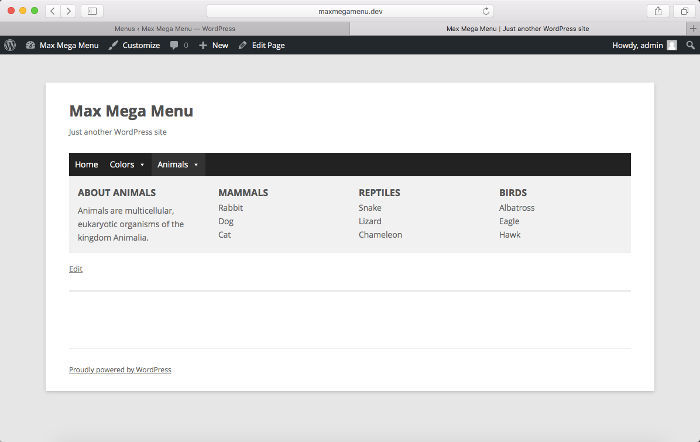
The Max Mega Menu extension uses drag-and-drop. You can simultaneously open several instances of the plugin and set up quite a few visual effects in the menu, for example, that appear when you hover over the mouse. You can make it so that when you hover or click the mouse, submenus appear, so that the image smoothly appears and disappears, so that when navigating, the submenu extends from the top or side, add icons. All this is available in the free version, and even more in the paid version.
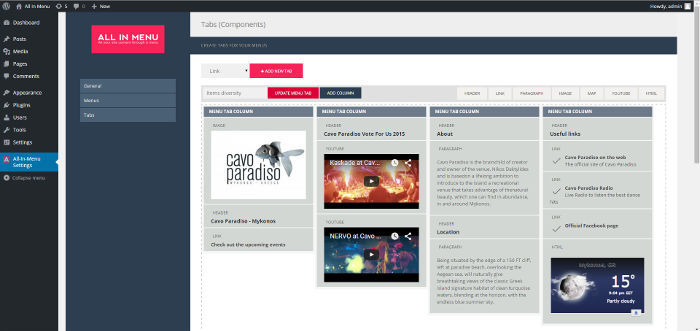
All in Menu is another WordPress extension for creating responsive and dynamic mega-menu headers. This plugin also uses drag-and-drop, but this plugin is not as popular as the Max Mega Menu and it does not have the same features for individual configuration. But this does not mean that it is not worth trying. You can configure the location of the menu items, their color and width.
If your site has significant traffic from mobile devices, you are not quite happy with how adaptive elements work on it and you would like to develop something specifically for mobile devices, it makes sense to try WP Mobile Menu . With this adaptive plugin, you can change existing menu settings. Design and functionality can be customized to suit individual requirements. You can even add widgets.

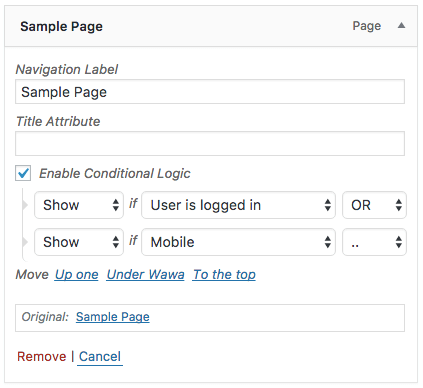
If Menu is a simple but very useful plugin. With it, you can configure the settings, taking into account which menu items are displayed and hidden. These parameters include the user's state (in the system or not), the user's role (administrator, etc.), page type (home page, etc.) and device type (for example, mobile phone). Advanced users can customize the settings themselves.
Menu Buttons is a modest, simple, but very useful extension for WordPress. From the name, you may have already guessed that it allows you to add buttons to the menu. Suppose, by default, there are no such buttons in the site design, but you would like to refresh its design a little. The plugin allows you to set the color, text color, color when you hover, the width, height and radius of the borders of the menu buttons.

In addition to menus for users, there are menus for administrators. You may also want to make changes to them. Menus is one of the menus for administrators that you can use immediately when working with multiple sites. The extension allows you to switch between the menu of sites on your network and even delete some items from the admin menu bar. This is a great way to clean up the admin interface and hide menus that you don’t use.

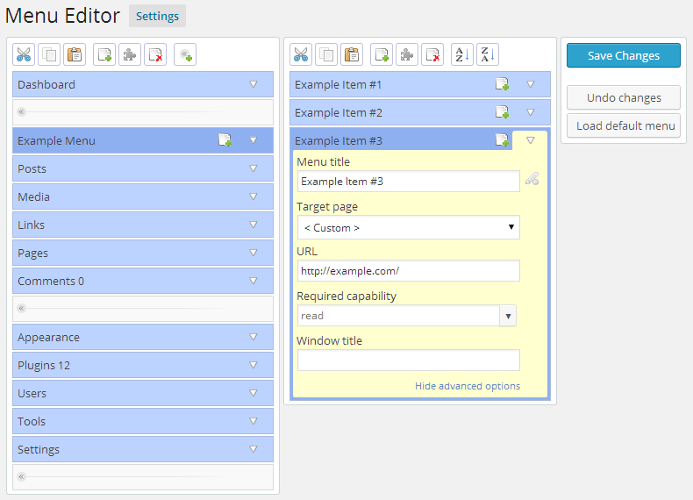
Admin Menu Editor is another plugin for making changes to the administrator’s main page. Using drag-and-drop, you can change the order of the menu, create your own menu, hide or show menu items, change access rights, etc. There is both a paid and a free version. The following advanced tools are available in the paid version: setting access rights for different roles, hiding the menu from everyone except a specific user, exporting the administrator menu.
A convenient menu is the key to convenient navigation. While your site is small and consists of several pages, structuring the menu may not be required, but as your site develops, the user and administrator menus will gradually become too bulky and inconvenient. This can be avoided by using the extensions in this article and making life easier for yourself and your users when navigating the site.
If you are looking for a shared hosting or virtual server for your WordPress site, then HOSTING.cafe can help .
1. Adaptive menu
If your site does not yet have an adaptive menu, then the Responsive Menu plugin is a good choice for every self-respecting website owner. The extension provides the ability to use many settings and has a paid and free version. The free option Responsive Menu allows you to change a lot: color, font, size, background images, the ability to deactivate menu items or change their order, change the location of the menu on the page (left, right, top or bottom), etc.
2. Max Mega Menu
The convenience of navigation and use on sites where the menu consists of tens or hundreds of categories and elements can be improved using the mega-menu. Mega-menus allow you to place all the necessary elements without at the same time complicating the user interface. One of the best mega menu plugins is Max Mega Menu . The adaptive menus created using it can be used on devices with touch and retina screens.
The Max Mega Menu extension uses drag-and-drop. You can simultaneously open several instances of the plugin and set up quite a few visual effects in the menu, for example, that appear when you hover over the mouse. You can make it so that when you hover or click the mouse, submenus appear, so that the image smoothly appears and disappears, so that when navigating, the submenu extends from the top or side, add icons. All this is available in the free version, and even more in the paid version.
3. All in Menu
All in Menu is another WordPress extension for creating responsive and dynamic mega-menu headers. This plugin also uses drag-and-drop, but this plugin is not as popular as the Max Mega Menu and it does not have the same features for individual configuration. But this does not mean that it is not worth trying. You can configure the location of the menu items, their color and width.
4. WP Mobile Menu
If your site has significant traffic from mobile devices, you are not quite happy with how adaptive elements work on it and you would like to develop something specifically for mobile devices, it makes sense to try WP Mobile Menu . With this adaptive plugin, you can change existing menu settings. Design and functionality can be customized to suit individual requirements. You can even add widgets.
5. If Menu
If Menu is a simple but very useful plugin. With it, you can configure the settings, taking into account which menu items are displayed and hidden. These parameters include the user's state (in the system or not), the user's role (administrator, etc.), page type (home page, etc.) and device type (for example, mobile phone). Advanced users can customize the settings themselves.
6. Menu Buttons
Menu Buttons is a modest, simple, but very useful extension for WordPress. From the name, you may have already guessed that it allows you to add buttons to the menu. Suppose, by default, there are no such buttons in the site design, but you would like to refresh its design a little. The plugin allows you to set the color, text color, color when you hover, the width, height and radius of the borders of the menu buttons.
7. Menus
In addition to menus for users, there are menus for administrators. You may also want to make changes to them. Menus is one of the menus for administrators that you can use immediately when working with multiple sites. The extension allows you to switch between the menu of sites on your network and even delete some items from the admin menu bar. This is a great way to clean up the admin interface and hide menus that you don’t use.
8. Admin Menu Editor
Admin Menu Editor is another plugin for making changes to the administrator’s main page. Using drag-and-drop, you can change the order of the menu, create your own menu, hide or show menu items, change access rights, etc. There is both a paid and a free version. The following advanced tools are available in the paid version: setting access rights for different roles, hiding the menu from everyone except a specific user, exporting the administrator menu.
A convenient menu is the key to convenient navigation. While your site is small and consists of several pages, structuring the menu may not be required, but as your site develops, the user and administrator menus will gradually become too bulky and inconvenient. This can be avoided by using the extensions in this article and making life easier for yourself and your users when navigating the site.
If you are looking for a shared hosting or virtual server for your WordPress site, then HOSTING.cafe can help .