Making your alarm log (archive) in Citect
Why do we do it because it’s actually not there. 
Why "your" - in case someone in the comments rolls out a certain "entity", passing it off as a journal / archive of alarms.
This is not a ready-made instruction, but rather a direction of action, so there is no tutorial tag.
The alarm log will be based on the apache web server, php language interpreter, SQLite database.
The log itself consists of:
1) file alarmlog.db - contains an archive of alarms;
2) apache web-server - processes our http requests from the web-muzzle from the SCADA system page;
3) files ( .html, .php, etc.) in the folder, for example, " C: \ alarmlog_ostrov ";
4) ODBC driver SQLite .
In the folder C: \ alarmlog_ostrov we have:
1) img folder - there is a picture of the calendar;
2) css folder - we bring beauty to the styles;
3) js folder - JavaScript calendar, taken ready on the Internet;
4) alarmlog.db - the database itself, where Citect adds its alarms;
5) front_end.html - front-end of our magazine;
6) index.php - the most important file is the "engine" of our journal;
7) my_lib.inc - file with native functions in php;
8) sqlite3_connect.php - the mechanism for connecting to the database, outward in index.php is always a "sticking out" unified interface, regardless of the type of database used (in general, there are several such files for each type of database).
INSTALL APACHE WEB SERVER
I will not describe the installation - everything is simple there. I used httpd-2.2.25-win32-x86-openssl-0.9.8y.msi.
The main thing is that the familiar icon appears in the tray 
and in the settings file C: \ Program Files (x86) \ Apache Software Foundation \ Apache2.2 \ conf \ httpd.conf the following values are:
1) ServerRoot "C: / Program Files (x86) / Apache Software Foundation / Apache2.2 "
2) Listen 80
3) LoadModule php5_module" c: /PHP/php5apache2_2.dll "(given that PHP is in the root of the C drive :)
4) AddType application / x-httpd-php .php
5) DocumentRoot "C: \ alarmlog_ostrov" taking into account that our log is located in this folder.
INSTALLING ODBC SQLITE DRIVER
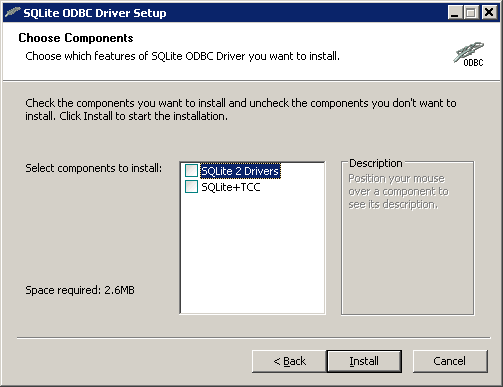
Installation is easy. I used the sqliteodbc_0.996.exe file. The driver must use 32-bit (even if you use a 64-bit OS).
In the "Choose Components" window, select "SQLite 2 Drivers".
 .
.
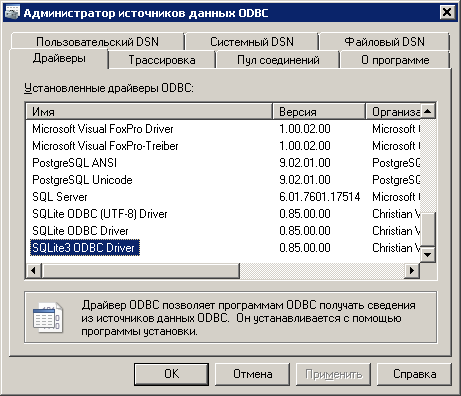
The installed ODBC driver can be observed in the ODBC Data Source Administrator.
 .
.
INSTALLING THE PHP LANGUAGE INTERPRETER
I used the version with the archive file PHP_5.4.26.zip, unpacked it into the C: / PHP folder .
The php.ini settings file must be stored in the C: / Windows folder .
CONFIGURING ODBC CONNECTIONS
The communication of the SCADA system with the alarm log database file is performed through ODBC. You must configure the data source in the ODBC Data Source Administrator.
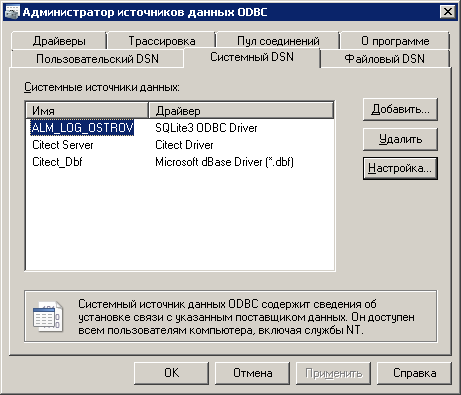
The ODBC data source is configured in the ODBC Data Source Administrator (file C: \ Windows \ SysWOW64 \ odbcad32.exe ).
In the ODBC Data Source Administrator window, go to the "SYSTEM DSN" tab.
 .
.
To add an ODBC data source, click the "Add" button, select SQLite 3 ODBC Driver from the list, click the "Finish" button.
For an ODBC connection, the following parameters must be set:
1) Source Name - ALM_LOG_OSTROV;
2) Database Name - C: \ alarmlog_ostrov \ alarmlog.db;
3) Lock Timeout (ms) - 5000;
4) Sync Mode - OFF;
5) NoWCHAR - check the box / checkbox;
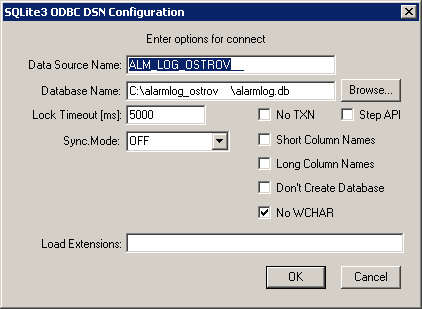 .
.
In order for the SCADA system to have write access to the file C: \ alarmlog_ostrov \ alarmlog.db, you need to give it rights like "User: All - full access".
In SCADA itself, we need to create a device in Devices, for example, alm_log_db of type SQL_DEV.
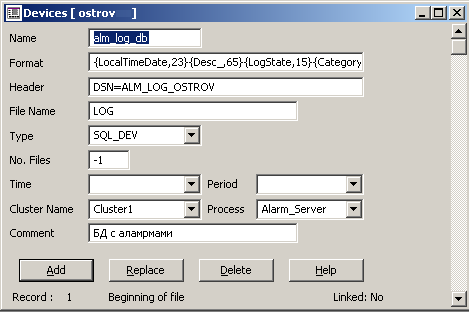 .
.
In the alarm categories, you must specify our device alm_log_db .
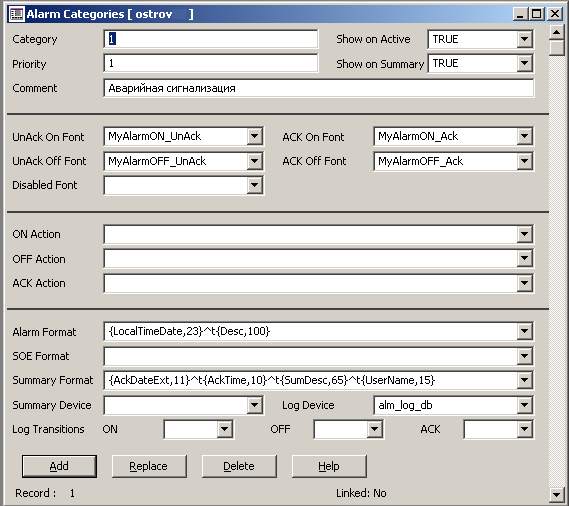 .
.
Previously used Citect 7.0 under Windows XP and the magazine was opened in a third-party Firefox application. Then we switched to Windows 7 and Citect 7.3 (now 7.5) and on the graphical page of the magazine we use the Microsoft Web Browser ActiveX element .
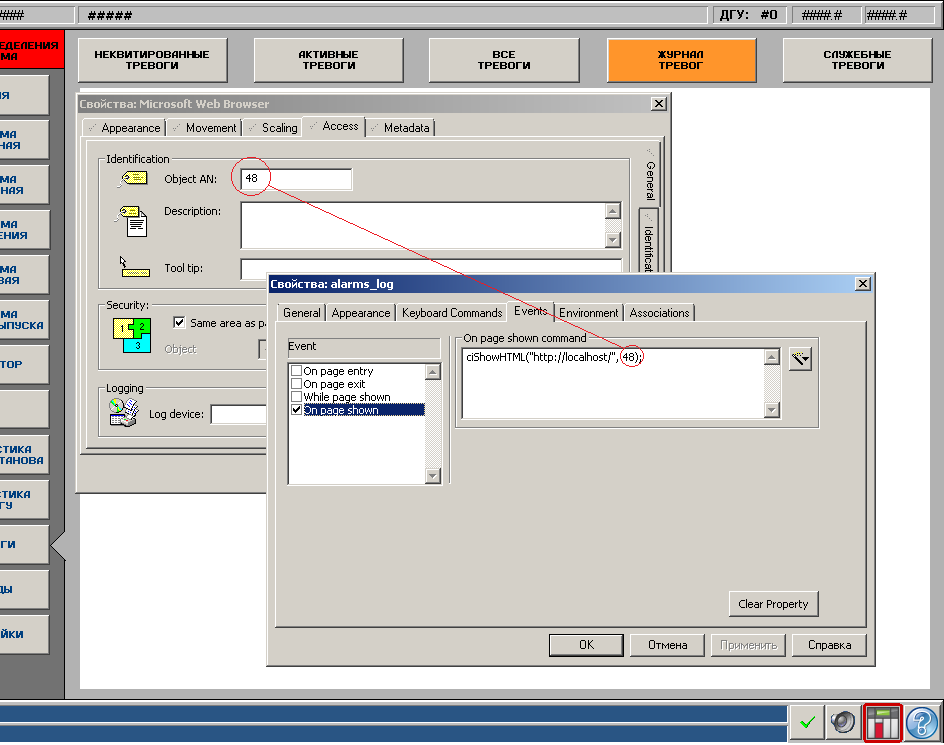 .
.
In the events of the page on “On page shown” we put a self-written wrapper function, which in ActiveX element prescribes the desired web address.
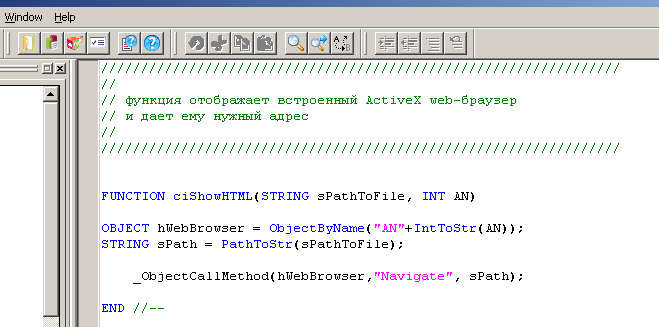 .
.
In runtime it looks like this.
 .
.
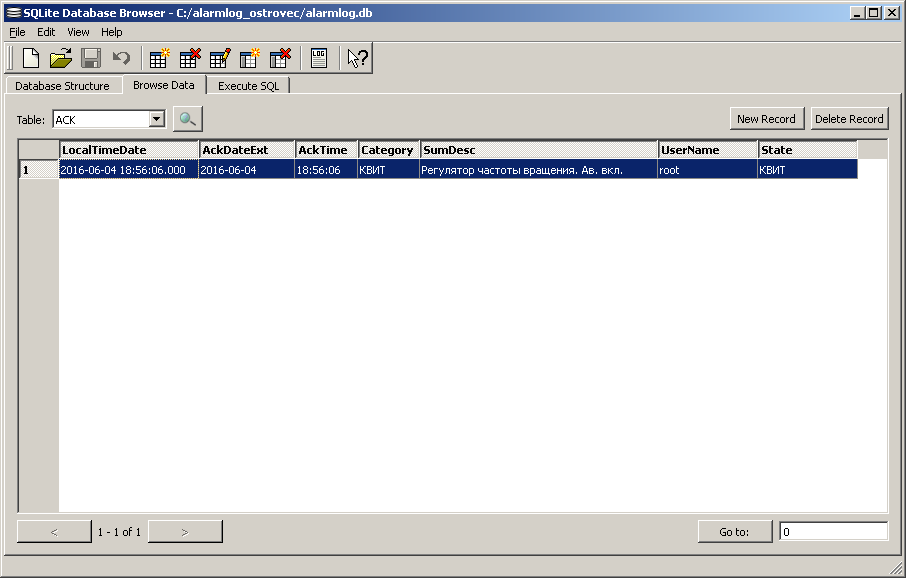
The content of the database itself looks like this:
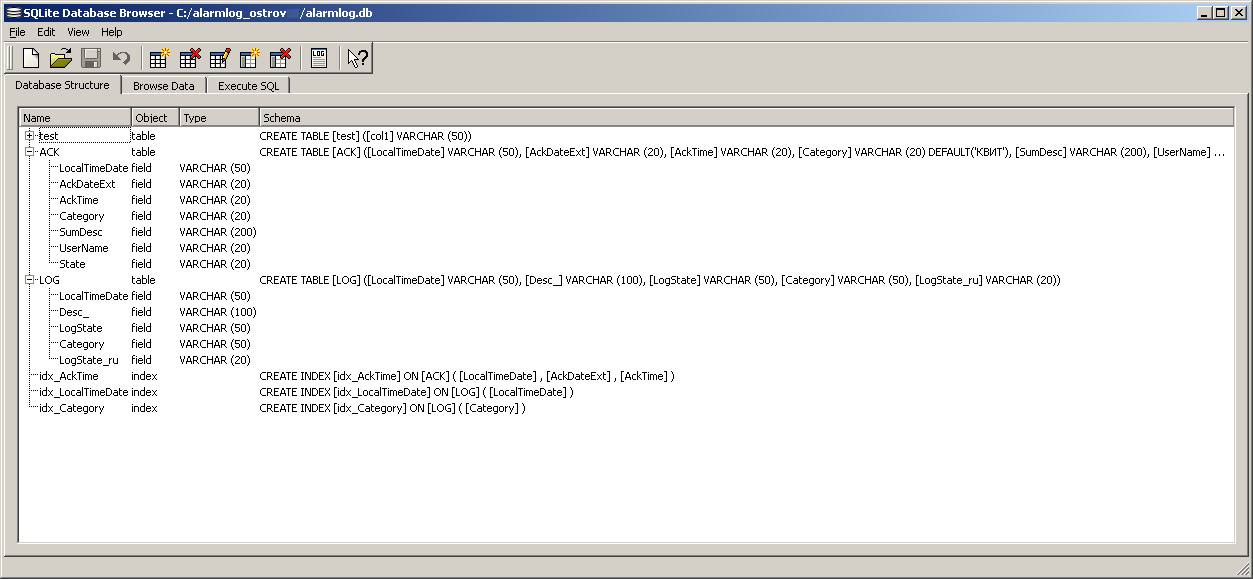 .
.
 .
.
An attempt was made to combine alarms with acknowledgment facts through two tables and a presentation mechanism, but on the target machine it was very slow (there are no brakes on the developer's virtual machine).
 .
.
Вышли из положения установкой параметра в citect.ini , который в алармы вписывает не только On, Off, но еще и Аск событие изменения состояния аларма.
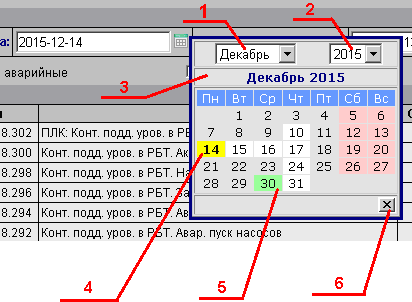
Тот самый календарь на JavaScript.
 .
.
Окно календаря журнала тревог предоставляет следующий интерфейс пользователя:
1) выпадающий список выбора месяца;
2) выпадающий список выбора года;
3) индикатор выбранных года и месяца;
4) текущий день месяца;
5) выбранный день месяца (после клика на день окно закрывается автоматически);
6) кнопка закрытия окна календаря журнала тревог.
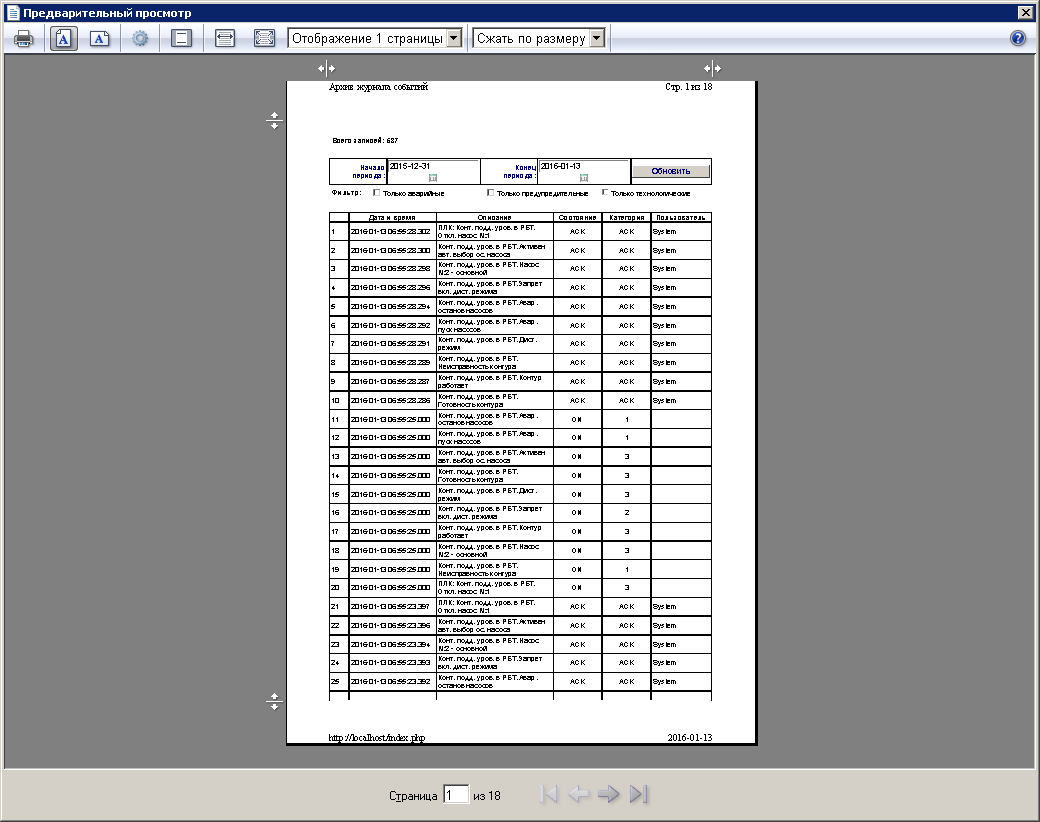
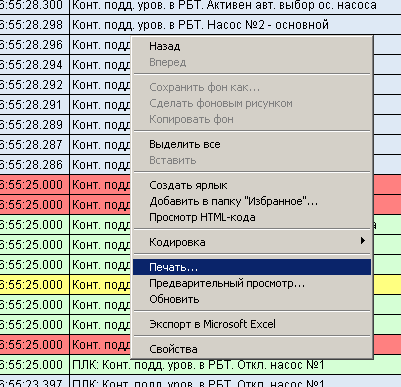
The alarm log has the ability to print a sampling result. To do this, use the "Print ..." item in the context menu, which is called up by right-clicking on the magazine canvas.
 .
.
With PDFCreator installed, we get an excellent export mechanism to pdf.
Preview allows you to adjust the appearance of the printed document.