February 8, 2016 at 22:09
Using VS Code for Web Development
VS Code (Visual Studio Code) is a relatively new text editor released by Microsoft. It, like Atom, is based on the Electron shell (written by the Atom team), radically different from the implementation of the editor itself.
VS Code has its own unique features, such as, for example, IntelliSense out of the box.
In this article, I would like to share what I found useful in VS Code for web development.
Caution! Under the cut a lot of pictures and gifs.
Visual Studio has two update channels - stable and insiders. The first is stable versions, the second is updated every week and in exchange for as many bugs as possible includes the most advanced features. You can download the latest version either by reference or by specifying update.channel as "insiders" in VS Code settings.
At the moment, in order to get decent JSX support in VS Code, a littlesweattorment and install two extensions:
JS is JSX overwrite
ESLint
The latter, however, can be replaced by XO .
If you chose ESLint, then the project should have .eslintrc as follows:
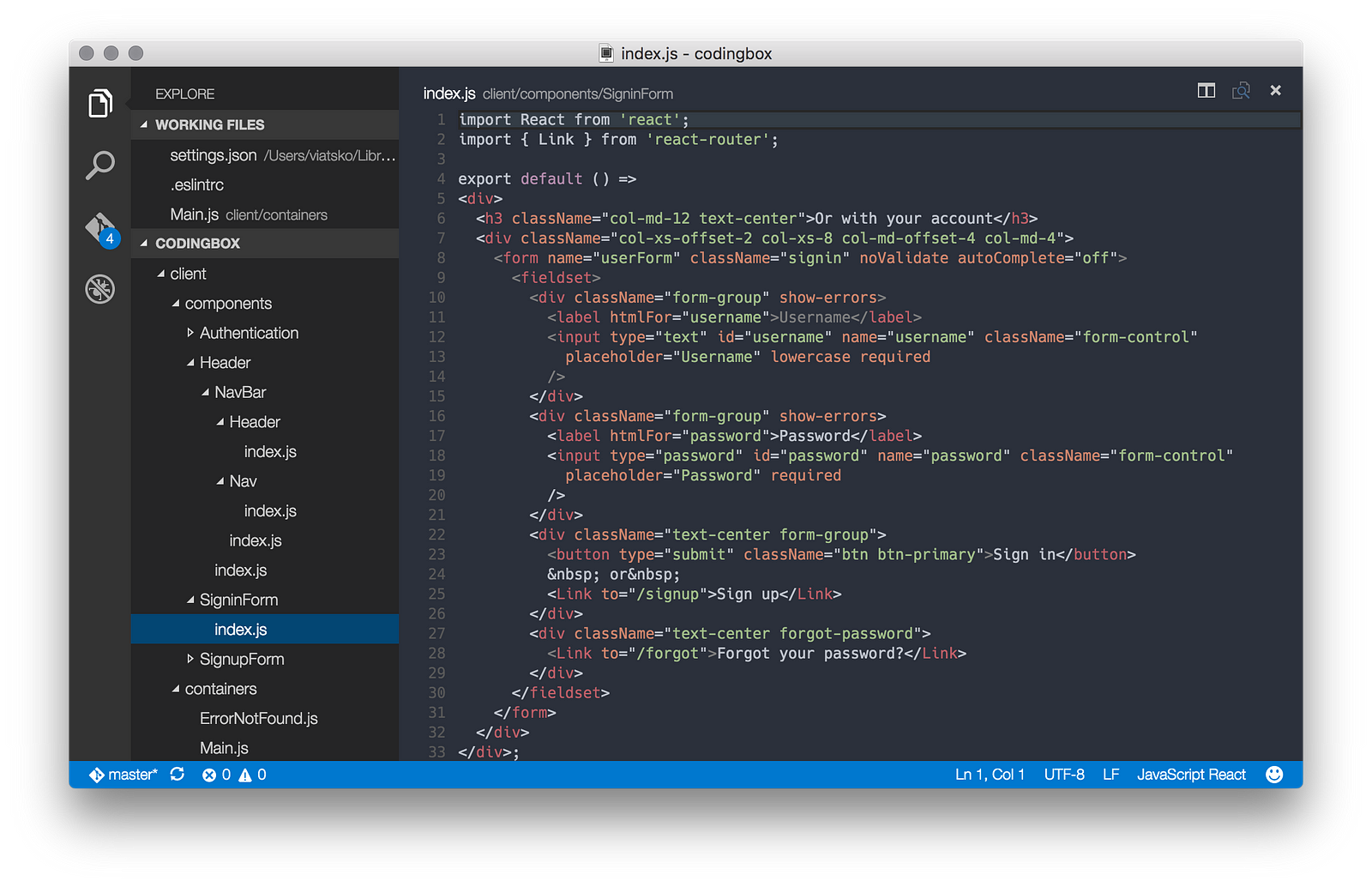
If you did everything correctly, now JSX will be highlighted without errors:
As a style file linter, I recommend the stylelint extension . It uses PostCSS as the backend , which means that any style files supported by the latter are supported.
To enable stylelint in VS Code, you will need to go to settings again and add:
I am not a fan of snippet plugins. But if you, on the contrary, are one, then on the Visual Studio Marketplace you will find a huge section with them
Formats selection
Interface to jsbeautifier.org . It is extremely useful if you often have to tidy up a completely non-fatal JS code.
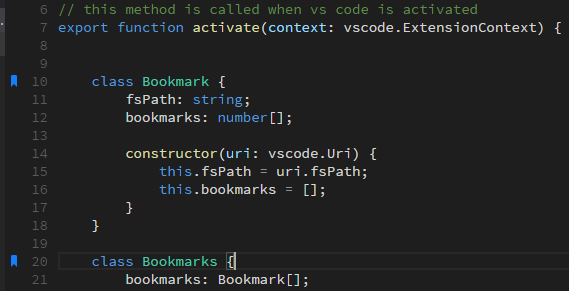
Allows you to memorize lines and quickly jump to them
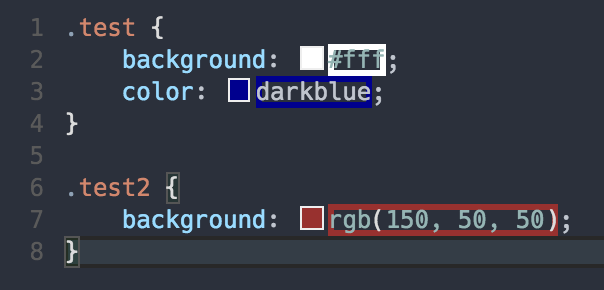
Highlights HTML colors
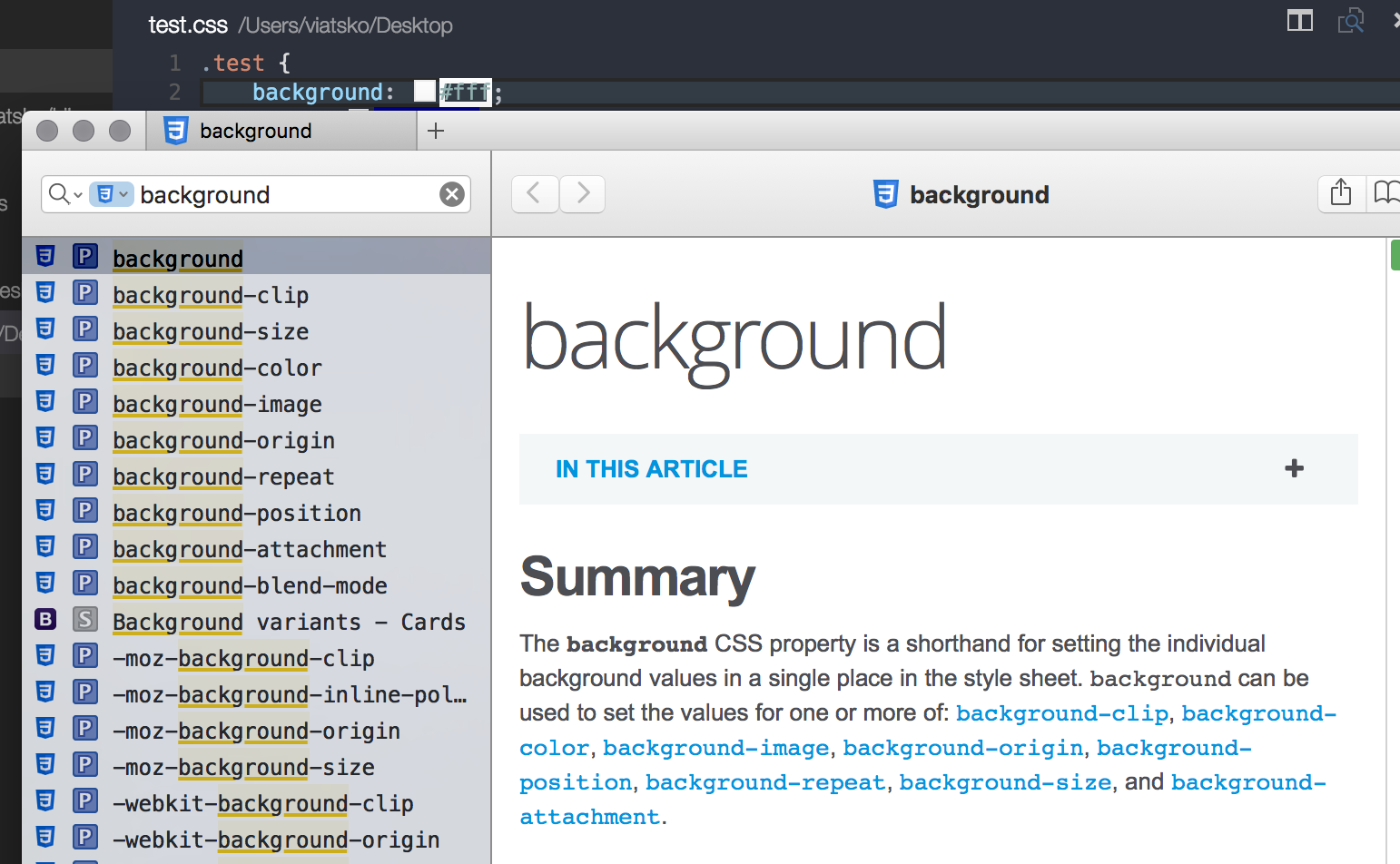
Dash Integration
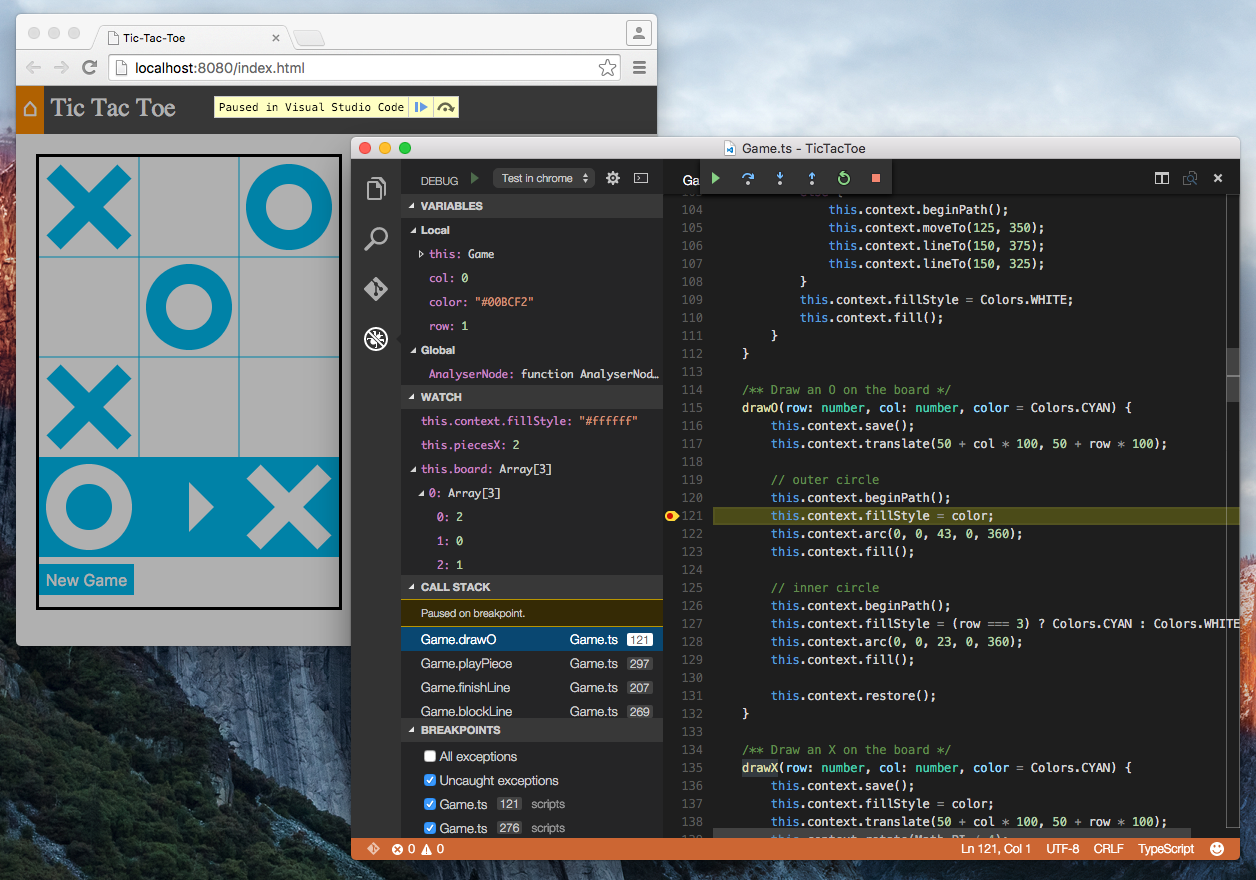
Integration with the Google Chrome debugger or other debuggers that support its protocol.
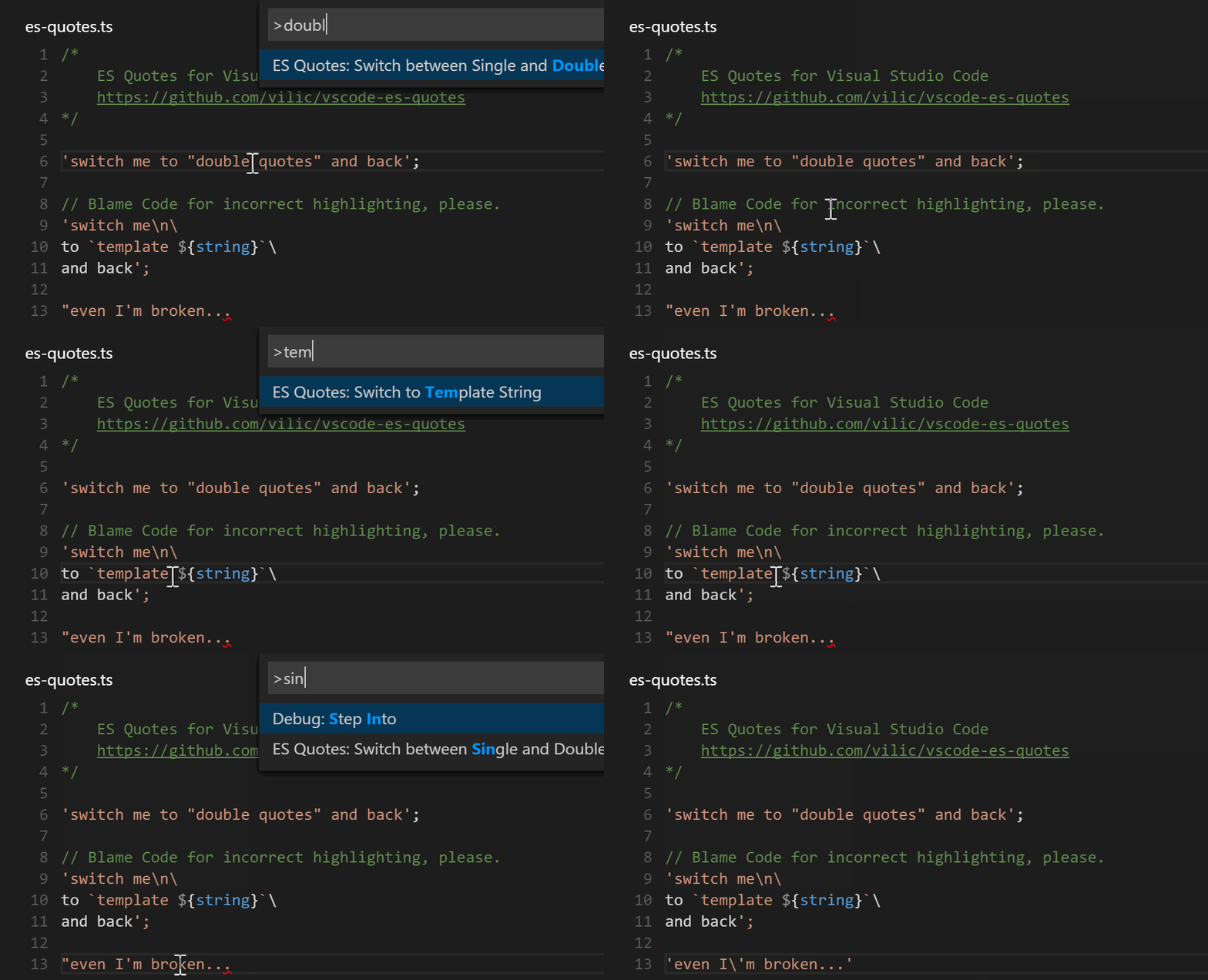
Converts quotation marks to ES string literals
Support for .editorconfig format
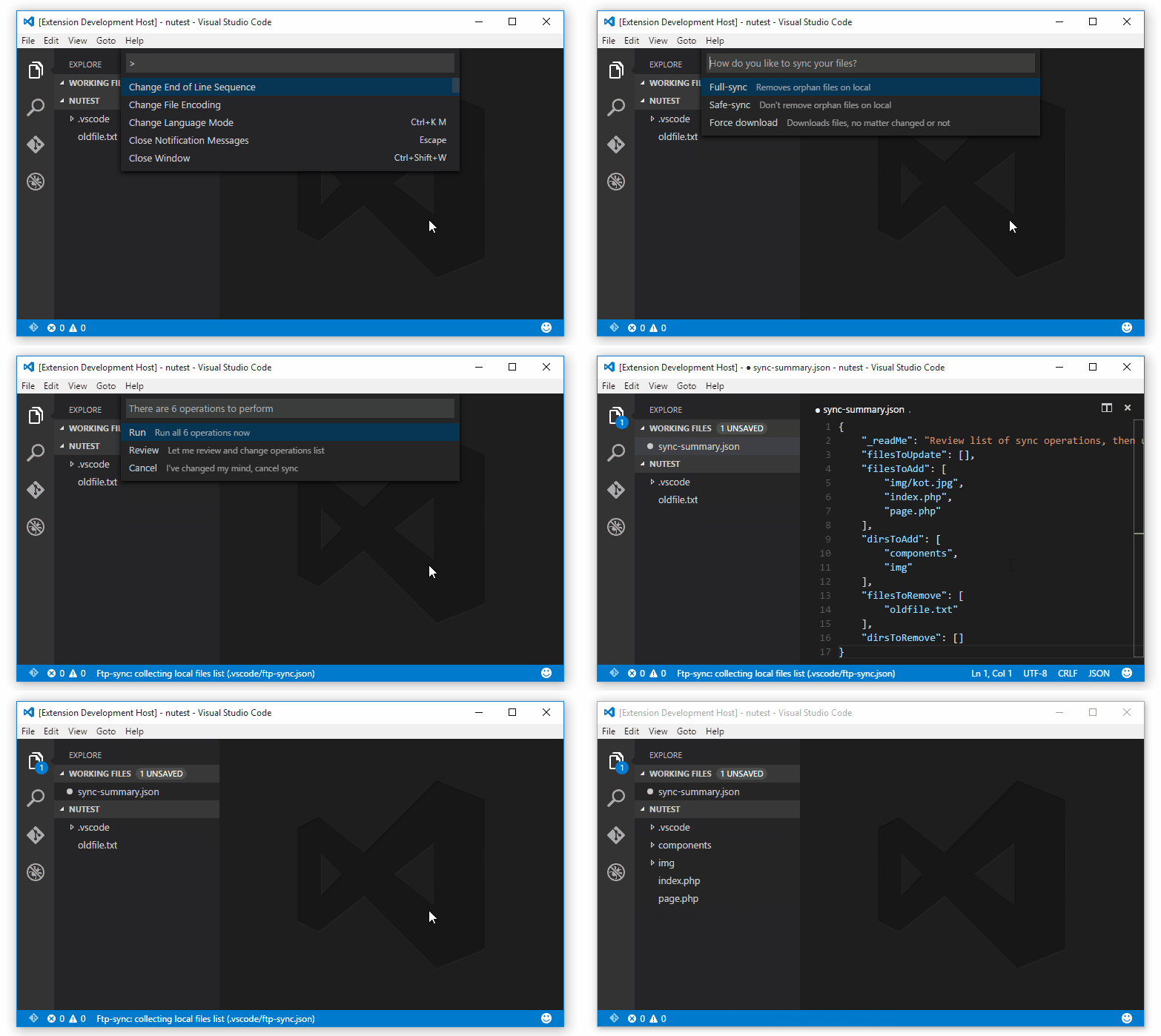
Automatically syncs files via ftp protocol
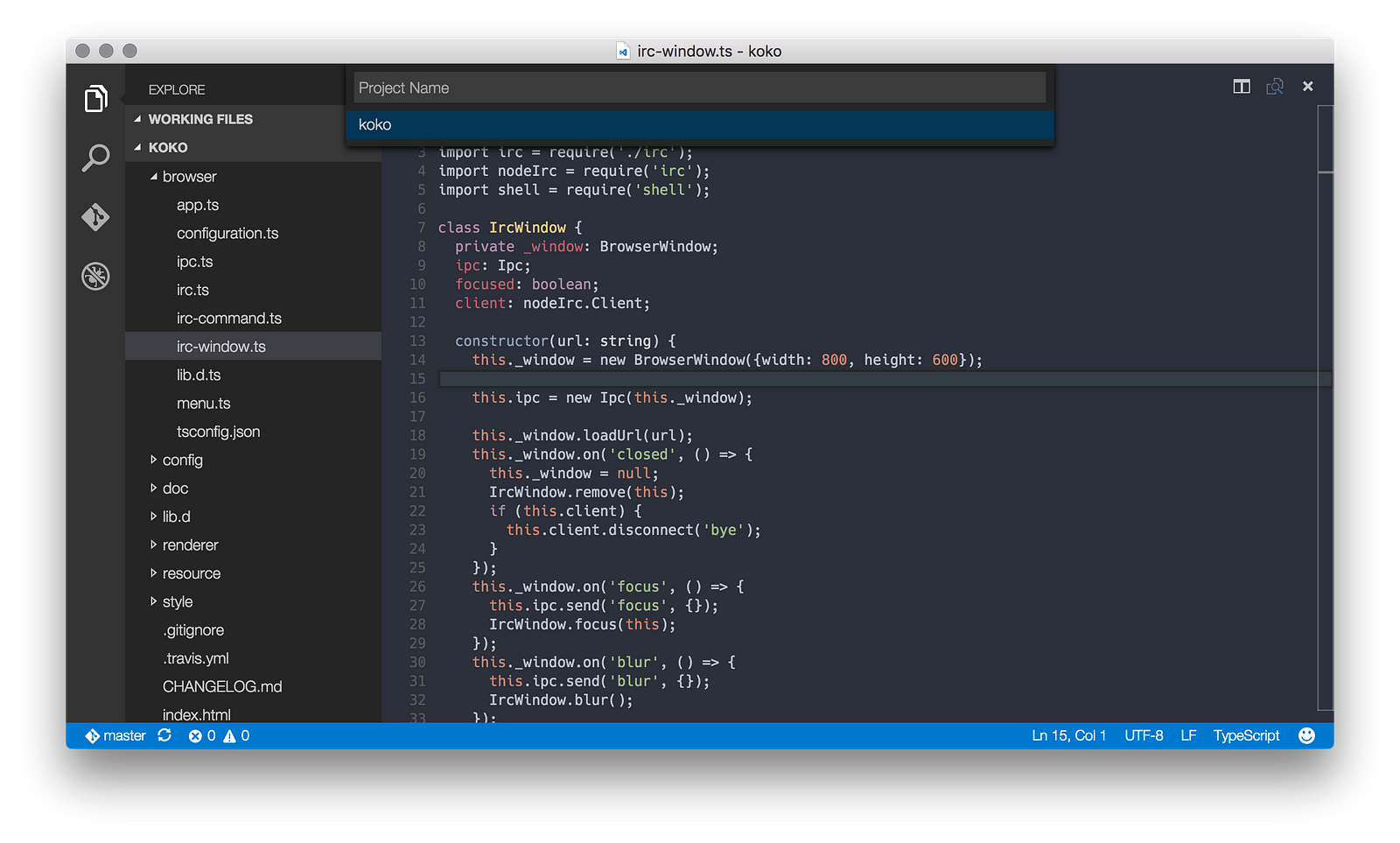
Project Manager for VS Code
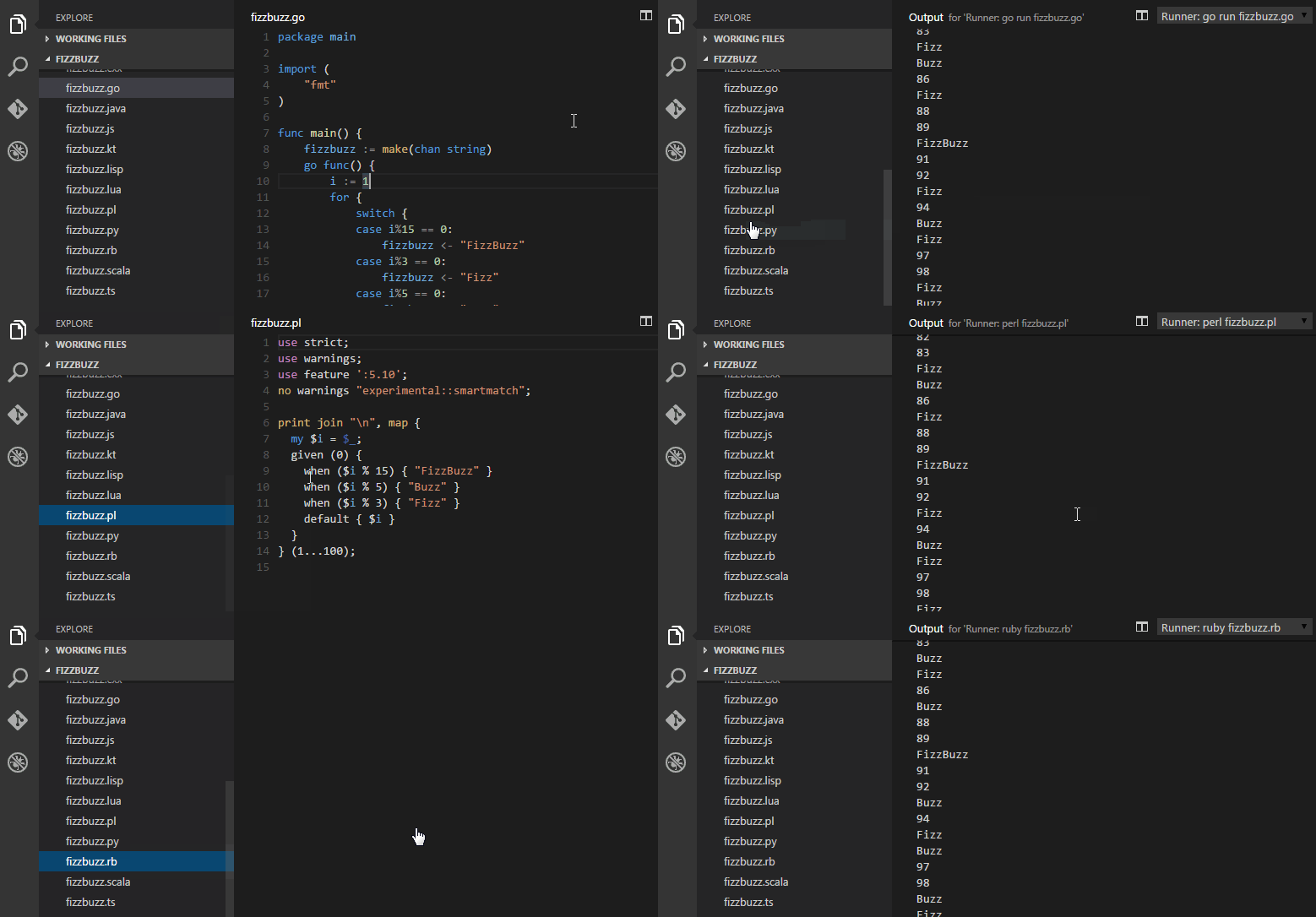
Allows you to run scripts directly from the editor
Unfortunately, VS Code does not yet support the design of the interface.
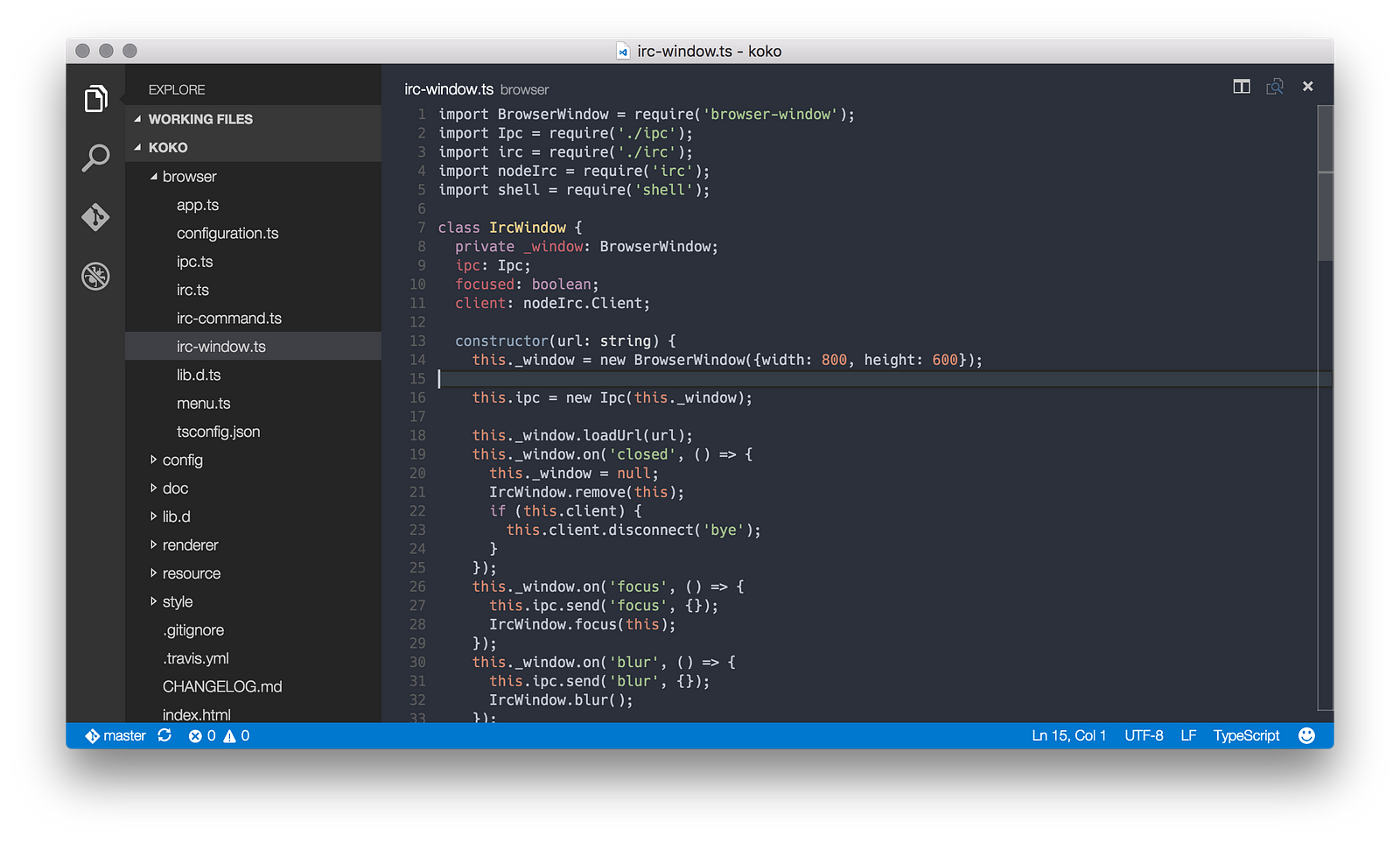
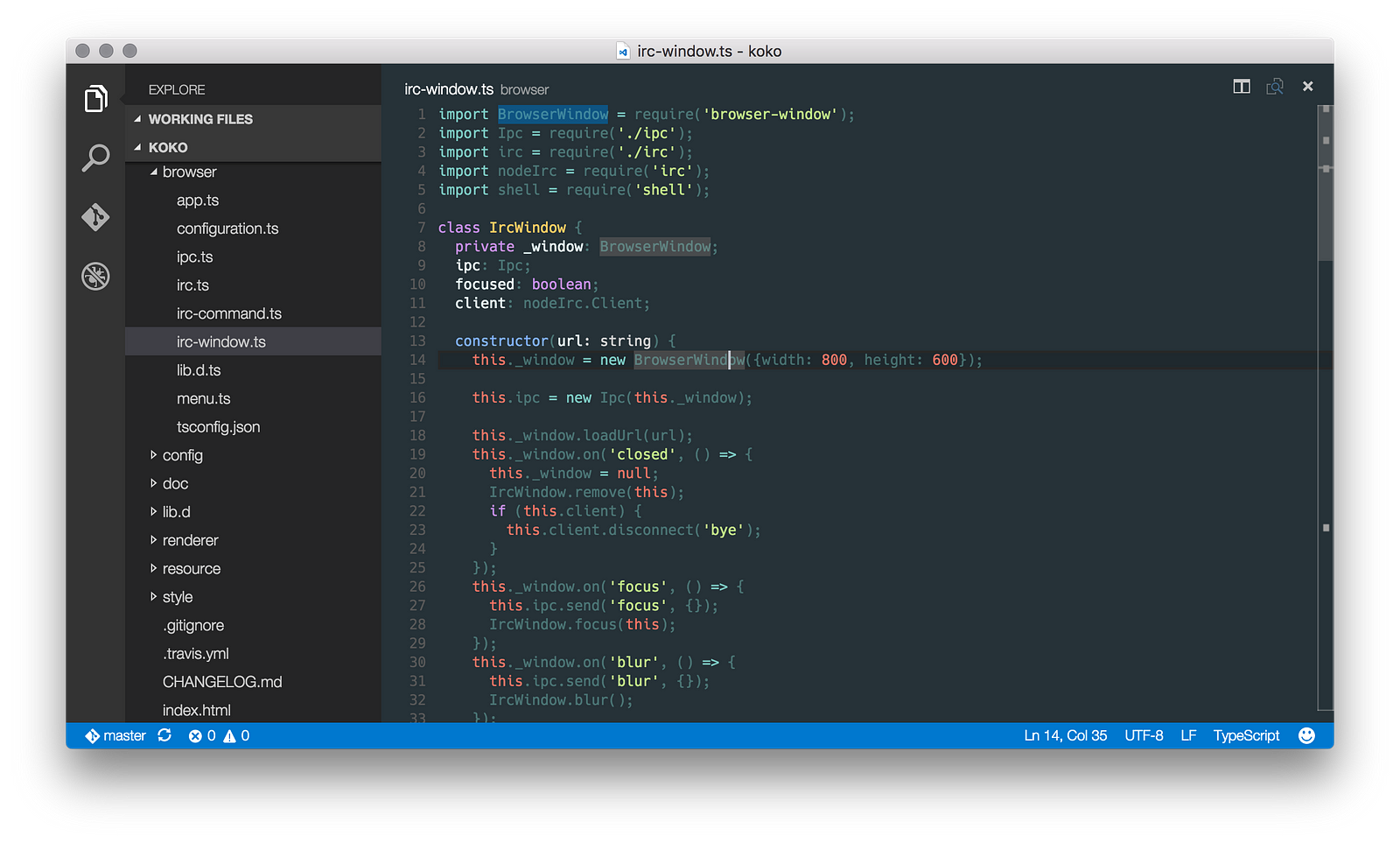
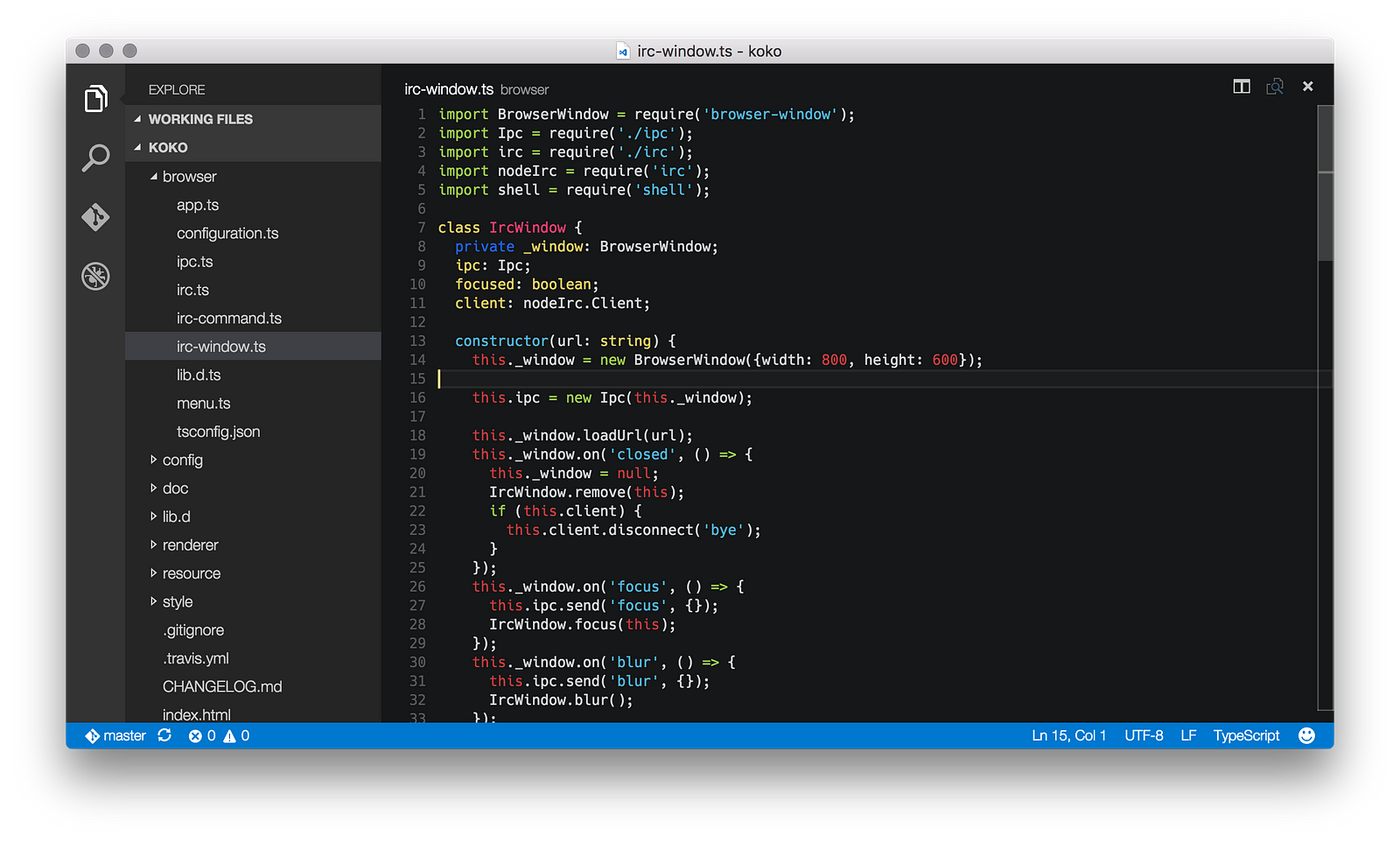
But there are many cool syntax highlighting topics. Below are some of them.
Base16 Ocean Kit
Base16 Ocean Dark - converted from Sublime Spacegray package (in the screenshot it is)
Link
Link
In VS Code, keyboard shortcuts can be changed quite easily through the Code> Preferences> Keyboard Shortcuts menu. I was a little embarrassed by the fact that under Mac Tab / Shift + Tab they are not assigned, but I am reflexively drawn in files formatted by tabs, under Mac, to use these binds. If you, too, then everything is solved with a couple of lines in keybindings.json :
For VS Code, there is the official Yo Code utility that allows you to convert many extensions from TextMate and Sublime to the Visual Studio Code format.
I hope you find something useful here. And, if you are just getting to know VS Code, the acquaintance will be pleasant. :)
We have created a list of extensions and useful resources for VS Code on github, awesome-vscode . If you have something to add to it, open the Pull Request, or just support the authors with asterisks. Unfortunately, according to awesome rules, we can only get into the awesome repository list in a few weeks, during which time we hope to collect all the best resources for the editor there!
VS Code has its own unique features, such as, for example, IntelliSense out of the box.
In this article, I would like to share what I found useful in VS Code for web development.
Caution! Under the cut a lot of pictures and gifs.
Stable vs Insiders
Visual Studio has two update channels - stable and insiders. The first is stable versions, the second is updated every week and in exchange for as many bugs as possible includes the most advanced features. You can download the latest version either by reference or by specifying update.channel as "insiders" in VS Code settings.
React and JSX
At the moment, in order to get decent JSX support in VS Code, a little
JS is JSX overwrite
ESLint
The latter, however, can be replaced by XO .
If you chose ESLint, then the project should have .eslintrc as follows:
{
  "ecmaFeatures": {
    "jsx": true
  }
}
If you did everything correctly, now JSX will be highlighted without errors:
CSS, LESS, SCSS and Stylus
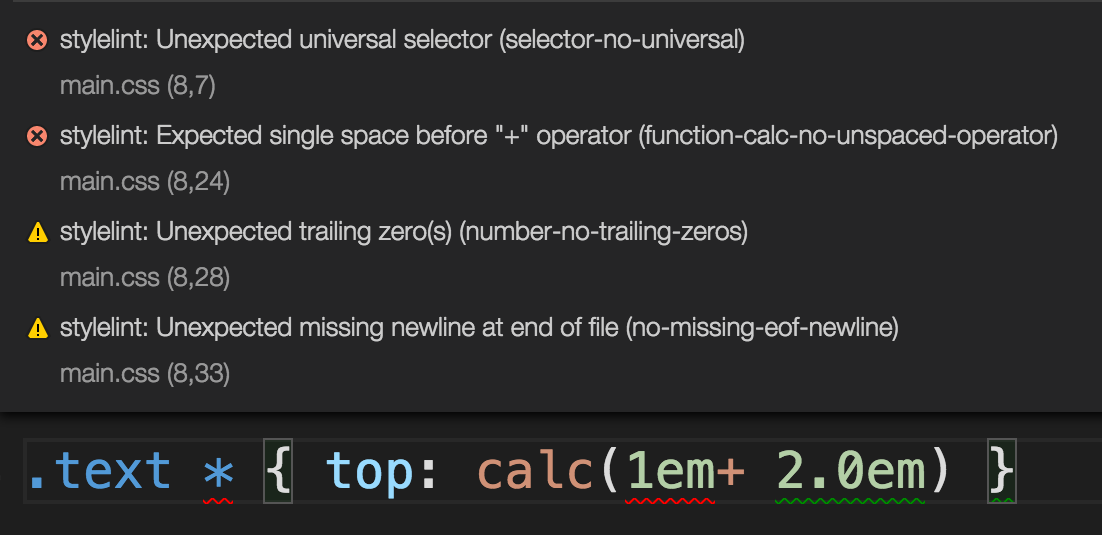
As a style file linter, I recommend the stylelint extension . It uses PostCSS as the backend , which means that any style files supported by the latter are supported.
To enable stylelint in VS Code, you will need to go to settings again and add:
{
  "stylelint.enable": true
}
Other useful plugins depending on the languages you work with
- Dart is a popular programming language in the AngularJS environment
- Flow is a plugin for flowtype , a static timer checker from facebook for JavaScript. Useful if you want to add typification to the project, but don’t want to use TypeScript for any reason.
- Handlebars - handlebars template support
- HTMLLint - will be useful again for AngularJS developers and layout designers (for obvious reasons, it is useless when working with JSX), the demo can be viewed here htmlhint.com
- Smarty - the good old template engine for PHP
- Stylus —Another one plugin for Stylus, if for some reason I didn’t like stylelint
- Swig - template for javascript, used, for example, in the project Mean.JS
- Twig - support for one of the most popular PHP template engines. Often used in symfony projects.
- XML Tools — a useful set of plugins for XML / XSLT developers
Snippets
I am not a fan of snippet plugins. But if you, on the contrary, are one, then on the Visual Studio Marketplace you will find a huge section with them
Useful Extensions
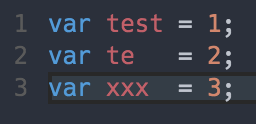
Align
Formats selection
Beautify
Interface to jsbeautifier.org . It is extremely useful if you often have to tidy up a completely non-fatal JS code.
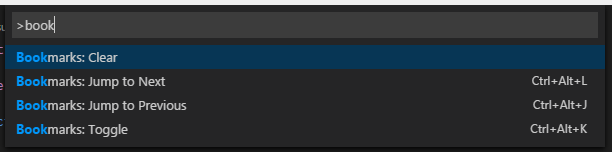
Bookmarks
Allows you to memorize lines and quickly jump to them
Color highlighter
Highlights HTML colors
Dash
Dash Integration
Debugger for Chrome
Integration with the Google Chrome debugger or other debuggers that support its protocol.
ECMAScript Quotes Transformer
Converts quotation marks to ES string literals
Editor Config for VSCode
Support for .editorconfig format
ftp-sync
Automatically syncs files via ftp protocol
Project manager
Project Manager for VS Code
Runner
Allows you to run scripts directly from the editor
Themes
Unfortunately, VS Code does not yet support the design of the interface.
But there are many cool syntax highlighting topics. Below are some of them.
Base16 ocean
Base16 Ocean Kit
Base16 Ocean Dark - converted from Sublime Spacegray package (in the screenshot it is)
Material-theme
Link
Seti
Link
Binds (keyboard shortcuts)
In VS Code, keyboard shortcuts can be changed quite easily through the Code> Preferences> Keyboard Shortcuts menu. I was a little embarrassed by the fact that under Mac Tab / Shift + Tab they are not assigned, but I am reflexively drawn in files formatted by tabs, under Mac, to use these binds. If you, too, then everything is solved with a couple of lines in keybindings.json :
[
{ "key": "tab",                 "command": "editor.action.indentLines",
                                "when": "editorTextFocus" },
{ "key": "shift+tab",           "command": "editor.action.outdentLines",
                                "when": "editorTextFocus" }
]
No extension needed?
For VS Code, there is the official Yo Code utility that allows you to convert many extensions from TextMate and Sublime to the Visual Studio Code format.
Conclusion
I hope you find something useful here. And, if you are just getting to know VS Code, the acquaintance will be pleasant. :)
We have created a list of extensions and useful resources for VS Code on github, awesome-vscode . If you have something to add to it, open the Pull Request, or just support the authors with asterisks. Unfortunately, according to awesome rules, we can only get into the awesome repository list in a few weeks, during which time we hope to collect all the best resources for the editor there!
Only registered users can participate in the survey. Please come in.
Are you using VS Code?
- 18.5% Yes, only VS Code 233
- 32.4% Yes, along with other editors 406
- 34.5% No, but I will try 433
- 14.4% No, and I won’t try 181