
 December 16, 2015 at 17:16
Intel GPA and Android Game Performance Improvement
- Transfer
The competition in the mobile entertainment market is huge. Game lovers, when they come across "brakes", do not skimp on angry reviews: "How is that? Barely pulling on my new phone, where should everything fly? In the furnace of developers! Let's have a quick game! ” Sometimes gamers, of course, go too far, but there is no smoke without fire. And if your new game got a portion of “affectionate words”, this is a serious reason to think about improving its performance. Better yet, when FPS and other such things are on the agenda even before the game enters the market.
This guide provides a step-by-step example of analyzing performance, finding bottlenecks, and optimizing graphics output in an Android game that uses OpenGL ES 3.0 . Game examplethat we use in our experiments is called the City Racer. This is a city car racing simulator. Application performance analysis was performed using the Intel Graphics Performance Analyzers (Intel GPA) toolkit .

Game City Racer
Urban environment and a car are built from approximately 230,000 polygons (690,000 peaks). Here, an overlay of diffuse materials illuminated by a single source of directional light without shadows is applied. The demos for this article contain program code, project files, and graphic resources that are needed to build and run the application. The optimizations discussed here can be turned on and off; the source and improved versions of the game are presented in the code.
This material is based on the Intel Graphics Performance Workshop for 3rd Generation Intel Core Processor (Ivy Bridge) manual that ships with the GPA. We have ported the ideas and techniques of this guide to OpenGL ES 3.0.
In the course of reviewing the material, we will go through the successive steps of optimizing the game. At each step, the application is analyzed using GPA tools to find bottlenecks. Then, in order to solve the found problem, we improve the application, after which the performance is measured again - to assess the effect of optimization. We follow the work plan that is used in the manual available in the Developer's Guide for Intel Processor Graphics .
To build a game example City Racer is usedAndroid API 20 and Android NDK 10 . Performance analysis is performed using the Intel GPA Toolkit .
Intel GPA is compatible with most Android devices. However, from those built on the x86 platform, you can get the most detailed information about profiled metrics.
Looking ahead, we want to note that during the optimization, the graphic performance of City Racer grew by 83%.
The City Racer demo game is logically divided into two parts. The first is responsible for simulating the auto racing process, the second is for displaying graphics. Racing simulation includes modeling acceleration, braking, car turns. There is also a system built on the principles of artificial intelligence, responsible for following the route and avoiding collisions. The code that implements this functionality is located in the files track.cpp and vehicle.cpp, it is not subject to optimization.
Graphics output components, the second logical part of the game, include code for rendering car models and a game scene using OpenGL ES 3.0. and our proprietary CPUT engine. The original version of the code is a typical first attempt to create a working application. Some architectural solutions used to write it limit performance.
Model grids and textures are loaded from the Media / defaultScene.scene file. Separate grids are marked according to whether they are part of a scene placed in advance, an object that is placed in the game world during the passage of the game, or a car, the output parameters of which are calculated during the simulation. In the game space, you can use several types of cameras. The main camera follows the car. An optional camera allows the user to freely view the scene. Performance analysis and code optimization are aimed at working with the camera that follows the car.
For the purposes of this guide, City Racer, at startup, is paused. This allows you to go through all the steps of profiling using identical data sets. You can remove a game from pause either by unchecking the Pause flag in its interface or by writing false to the g_Paused variable. This variable can be found at the beginning of the CityRacer.cpp file.
City Racer is a functional but non-optimized application prototype. In the initial state, it is able to generate the picture that we need, but the performance of City Racer graphics output does not suit us. The game has many technical techniques and architectural solutions that limit the speed of visualization. They are similar to those found in a typical game under development. The goal of the optimization stage when creating a game is to search for bottlenecks and eliminate them one by one by modifying the code and re-measuring performance after each change.
Please note that in this guide we cover a small set of improvements that City Racer can make. In particular, they concern only the optimization of the source code of the game, and we do not change resources, such as models and textures. A story about optimizations affecting graphic or other game resources would make our story too cumbersome, so we are not doing this here. However, with the help of Intel GPA, you can identify problems with game resources. When developing and fine-tuning a real game, resource optimization is just as important as code optimization.
The performance values that we present here are obtained on an Android device with an Intel Atom processor (Bay Trail) installed. If you repeat our tests, the results obtained may vary, but the relative rates of change in performance should be the same. The described procedures for improving the game should lead to a comparable increase in productivity.
The code, its source and improved versions, is located in the CityRacer.cpp file. Using optimizations can be turned on and off in the program interface or by modifying the values of some variables in this file.

Turning optimizations on and off in the game interface
The code below from CityRacer.cpp shows the variables responsible for turning optimizations on and off. The status of the code corresponds to the state of the above fragment of the interface.
In the manual, we will describe various optimization techniques. Each variable allows you to switch between optimized and non-optimized code. If you read the manual and simultaneously check what you learned about it on your own device, you can gradually turn on the use of optimized code variants and monitor performance changes.
The first step is to compile the game City Racer and install it on your Android device. If your system has a correctly configured Android development environment, then everything you need can be done using the buildandroid.bat file, which is located in the CityRacer / Game / Code / Android folder.
After the game is installed on the device, start the Intel GPA Monitor, right-click on the icon in the system notification area and select System Analyzer.
System Analyzer displays a list of platforms to which you can connect. Select your Android x86 device and click the Connect button.

Choosing a platform for performance analysis
When System Analyzer connects to a device, it displays a list of applications that can be profiled. Select City Racer and wait for the game to start.

List of applications displayed by System Analyzer
When the program starts, click on the frame capture button to take a snapshot of the GPU frame for analysis.

GPU frame capture for analysis
Open Frame Analyzer for OpenGL and select the just captured City Racer frame. This will allow you to analyze the performance of the GPU in detail.
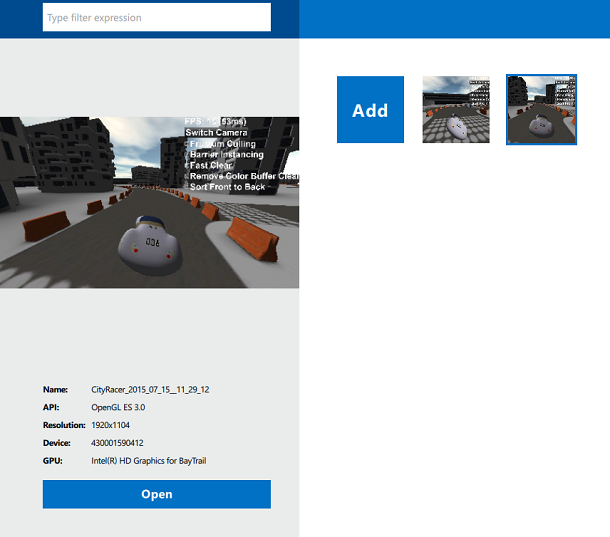
Launch Frame Analyzer for GPU Performance Research
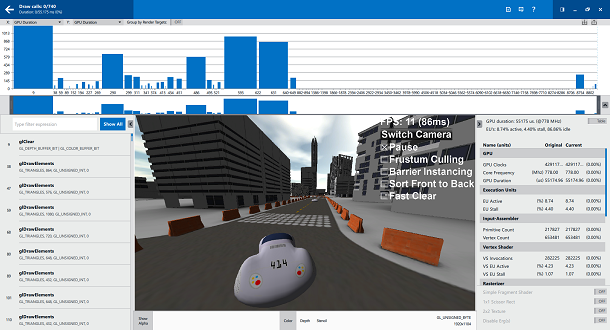
Timeline corresponding to OpenGL calls.
The timeline, which is located at the top of the screen, shows evenly distributed “ergs” - units in which the image output is measured. Usually they correspond to the calls of the OpenGL drawing commands. In order to switch to a more traditional timeline display, select the GPU Duration parameter along the X and Y axes. Thanks to this setting, we can quickly understand which ergs take up the most video core time. This will allow you to find out on what exactly should focus on optimization efforts. If none of the ergs are highlighted, the total time required by the GPU to display the frame is displayed on the right panel. In our case, it is 55 ms.

GPU time for frame output
Looking at the calls to the drawing commands, we can find that a lot of elements are being output, which, in fact, are not visible on the screen. By changing, when viewing the results of the frame analysis, the data displayed on the Y axis to Post-Clip Primitives, we can see gaps that help to understand which drawing calls are wasted due to the fact that the objects they output are completely hidden by others .

Analysis of the withdrawal of objects that are completely covered by other objects of the
Building in City Racer are grouped into groups corresponding to their spatial location. We can not display groups that are not visible without loading the GPU with the work associated with them. If, in the game’s interface, you set the Frustum Culling flag, each call to the drawing team, before it is transmitted to the video core, passes a “visibility test” in the code that runs on the central processor.
Set the Frustum Culling flag, grab another frame for analysis with System Analyzer and take a look at it with Frame Analyzer.

Analysis of the frame obtained after optimization
Analyzing the frame, we can notice that the number of drawing calls decreased by 22% - from 740 to 576. The total time required by the GPU to output the frame decreased by 18%.

The number of calls to drawing commands after optimizing clipping for the pyramid of visibility

Frame output time after optimization
Clipping along the pyramid of visibility reduces the total number of ergs, however, during the analysis of the frame, you can observe a large number of small drawing operations (highlighted in yellow). Together, these operations seriously load the video core.

Small drawing operations
Having dealt with what specific objects correspond to small ergs, we found out that their main number falls on the output of concrete blocks to which the route is limited.
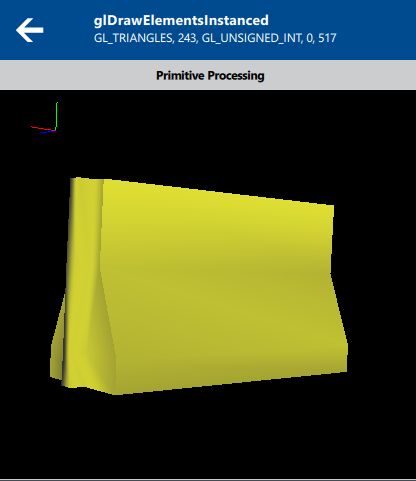
Blocks, which account for small drawing operations. You can
eliminate most of the unnecessary load on the video core by combining disparate operations to output blocks into one operation. When the Barrier Instancing flag is set, drawing the blocks present on the stage is performed as one operation. This eliminates the need for the central processor to send the video core a drawing command for each block individually.
If, after turning on the Barrier Instancing flag, you capture a frame using System Analyzer and analyze it in Frame Analyzer, you can notice a serious increase in performance.

Analysis after optimizing the output of small objects
After analyzing the frame, we see that the number of drawing calls has decreased by 90%, namely from 576 to 60.

Draw command calls before optimization

Calls to drawing teams after optimization
Now the total time of the video core needed to output the frame has been reduced by 71%, to 13 ms.

Frame output time after optimization
The term “overdraw” refers to repeatedly drawing the same pixels in the resulting image. Redrawing pixels can affect the pixel fill rate and increase the frame output time. Having studied the Samples Written metric, we can see that each pixel of the image in each frame is redrawn, on average, 1.8 times (Resolution / Samples Written).
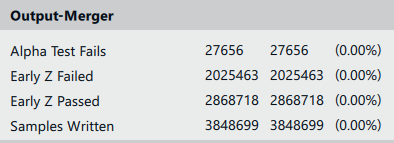
Samples Written metric before optimization
Sorting drawing calls from near to far objects is a fairly simple way to reduce the effect of redrawing. With this approach, the video core pipeline will not redraw the pixels displayed in the previous step.
Set the Sort Front to Back flag, capture a frame using System Analyzer and analyze it using Frame Analyzer.

Analysis of the results of applying call sorting to drawing commands
As a result, the Samples Written metric decreased by 6%, and the GPU runtime by 8%.

Samples Written metric after optimization

Frame output time after optimization
Studying the timeline, we noticed that the very first erg requires the maximum, for one operation, GPU time. Selecting it, we see that this is not a call to the draw command, but a call to the glClear screen clear command.

First erg

Action Performed in the First Erg The
Intel video core has a built-in ability to perform the so-called “quick clean”. It takes a small part of the time required for standard cleaning. You can perform a quick cleanup if you use black or white colors when calling glClearColor, which are set respectively to (0, 0, 0, 0) or (1, 1, 1, 1).
Set the Fast Clear flag and perform the traditional procedure for capturing a frame using System Analyzer and its analysis using Frame Analyzer.
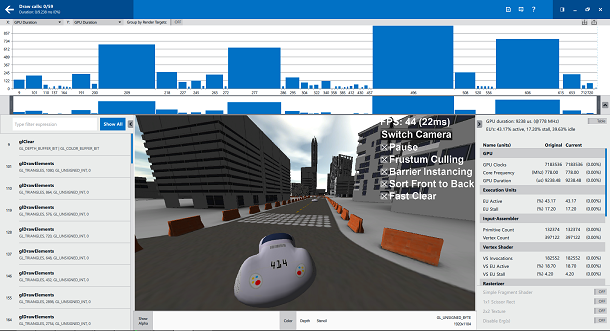
Analysis of the frame after using quick cleaning
After analyzing the frame, we see that the GPU time required to perform the cleaning operation decreased by 87%. Namely, for normal cleaning it takes about 1.2 ms., And for fast - only 0.2

GPU runtime required to perform normal cleaning

GPU runtime required to perform quick cleanup
As a result, the total frame output time was reduced by 24% to 9.2 ms.

GPU total runtime
We took a typical mobile game, which is at an early stage of development. The game was analyzed using the Intel GPA and made changes to the code designed to increase performance. Let us summarize the results of various stages of optimization in a table.
When evaluating any results of performance tests, it should be borne in mind that test software and workloads can be optimized, for example, only for Intel processors. Testing applications, such as SYSmark and MobileMark, calculate performance indicators based on measurements taken on specific computing systems. Anything can affect the results: the components of these systems, the installed software, and the test suite itself, and their sequence, too.
Any change in each of these factors can lead to a change in the test results. Therefore, when making any decisions based on information from test reports, for example, on the purchase of equipment, you should collect as much information as possible from various sources. It should be borne in mind that, for example, the tests of processor “A” working in conjunction with RAM “B” may differ from tests of the same processor in the system in which memory “B” is installed. For more information on system performance, check here .
If you sum up all the optimizations applied to City Racer, it turns out that the frame rate has increased by 300% - from 11 frames per second - to 44. Considering this result, it is worth remembering that we started with an initially very non-optimal application. Therefore, if we use the same chain of improvements that we have presented here in a real project, the performance gain may not be as significant.
A mobile game, of course, is not only performance. But no matter how brilliant the idea may be, no matter how well the game balance is calculated, no matter how incredible colors the picture shimmers, low FPS can kill anything.
In this guide, we have optimized the City Racer training game in order to give you the best weapon to fight the brakes: recommendations from the Developer's Guide for Intel Processor Graphics and Intel GPA. We wish you five-star feedback on your games.
This guide provides a step-by-step example of analyzing performance, finding bottlenecks, and optimizing graphics output in an Android game that uses OpenGL ES 3.0 . Game examplethat we use in our experiments is called the City Racer. This is a city car racing simulator. Application performance analysis was performed using the Intel Graphics Performance Analyzers (Intel GPA) toolkit .
Game City Racer
Urban environment and a car are built from approximately 230,000 polygons (690,000 peaks). Here, an overlay of diffuse materials illuminated by a single source of directional light without shadows is applied. The demos for this article contain program code, project files, and graphic resources that are needed to build and run the application. The optimizations discussed here can be turned on and off; the source and improved versions of the game are presented in the code.
Preliminary information
This material is based on the Intel Graphics Performance Workshop for 3rd Generation Intel Core Processor (Ivy Bridge) manual that ships with the GPA. We have ported the ideas and techniques of this guide to OpenGL ES 3.0.
In the course of reviewing the material, we will go through the successive steps of optimizing the game. At each step, the application is analyzed using GPA tools to find bottlenecks. Then, in order to solve the found problem, we improve the application, after which the performance is measured again - to assess the effect of optimization. We follow the work plan that is used in the manual available in the Developer's Guide for Intel Processor Graphics .
To build a game example City Racer is usedAndroid API 20 and Android NDK 10 . Performance analysis is performed using the Intel GPA Toolkit .
Intel GPA is compatible with most Android devices. However, from those built on the x86 platform, you can get the most detailed information about profiled metrics.
Looking ahead, we want to note that during the optimization, the graphic performance of City Racer grew by 83%.
About City Racer
The City Racer demo game is logically divided into two parts. The first is responsible for simulating the auto racing process, the second is for displaying graphics. Racing simulation includes modeling acceleration, braking, car turns. There is also a system built on the principles of artificial intelligence, responsible for following the route and avoiding collisions. The code that implements this functionality is located in the files track.cpp and vehicle.cpp, it is not subject to optimization.
Graphics output components, the second logical part of the game, include code for rendering car models and a game scene using OpenGL ES 3.0. and our proprietary CPUT engine. The original version of the code is a typical first attempt to create a working application. Some architectural solutions used to write it limit performance.
Model grids and textures are loaded from the Media / defaultScene.scene file. Separate grids are marked according to whether they are part of a scene placed in advance, an object that is placed in the game world during the passage of the game, or a car, the output parameters of which are calculated during the simulation. In the game space, you can use several types of cameras. The main camera follows the car. An optional camera allows the user to freely view the scene. Performance analysis and code optimization are aimed at working with the camera that follows the car.
For the purposes of this guide, City Racer, at startup, is paused. This allows you to go through all the steps of profiling using identical data sets. You can remove a game from pause either by unchecking the Pause flag in its interface or by writing false to the g_Paused variable. This variable can be found at the beginning of the CityRacer.cpp file.
Optimization potential
City Racer is a functional but non-optimized application prototype. In the initial state, it is able to generate the picture that we need, but the performance of City Racer graphics output does not suit us. The game has many technical techniques and architectural solutions that limit the speed of visualization. They are similar to those found in a typical game under development. The goal of the optimization stage when creating a game is to search for bottlenecks and eliminate them one by one by modifying the code and re-measuring performance after each change.
Please note that in this guide we cover a small set of improvements that City Racer can make. In particular, they concern only the optimization of the source code of the game, and we do not change resources, such as models and textures. A story about optimizations affecting graphic or other game resources would make our story too cumbersome, so we are not doing this here. However, with the help of Intel GPA, you can identify problems with game resources. When developing and fine-tuning a real game, resource optimization is just as important as code optimization.
The performance values that we present here are obtained on an Android device with an Intel Atom processor (Bay Trail) installed. If you repeat our tests, the results obtained may vary, but the relative rates of change in performance should be the same. The described procedures for improving the game should lead to a comparable increase in productivity.
The code, its source and improved versions, is located in the CityRacer.cpp file. Using optimizations can be turned on and off in the program interface or by modifying the values of some variables in this file.
Turning optimizations on and off in the game interface
The code below from CityRacer.cpp shows the variables responsible for turning optimizations on and off. The status of the code corresponds to the state of the above fragment of the interface.
bool g_Paused = true;
bool g_EnableFrustumCulling = false;
bool g_EnableBarrierInstancing = false;
bool g_EnableFastClear = false;
bool g_DisableColorBufferClear = false;
bool g_EnableSorting = false;
In the manual, we will describe various optimization techniques. Each variable allows you to switch between optimized and non-optimized code. If you read the manual and simultaneously check what you learned about it on your own device, you can gradually turn on the use of optimized code variants and monitor performance changes.
Optimization
The first step is to compile the game City Racer and install it on your Android device. If your system has a correctly configured Android development environment, then everything you need can be done using the buildandroid.bat file, which is located in the CityRacer / Game / Code / Android folder.
After the game is installed on the device, start the Intel GPA Monitor, right-click on the icon in the system notification area and select System Analyzer.
System Analyzer displays a list of platforms to which you can connect. Select your Android x86 device and click the Connect button.
Choosing a platform for performance analysis
When System Analyzer connects to a device, it displays a list of applications that can be profiled. Select City Racer and wait for the game to start.
List of applications displayed by System Analyzer
When the program starts, click on the frame capture button to take a snapshot of the GPU frame for analysis.
GPU frame capture for analysis
Frame study
Open Frame Analyzer for OpenGL and select the just captured City Racer frame. This will allow you to analyze the performance of the GPU in detail.
Launch Frame Analyzer for GPU Performance Research
Timeline corresponding to OpenGL calls.
The timeline, which is located at the top of the screen, shows evenly distributed “ergs” - units in which the image output is measured. Usually they correspond to the calls of the OpenGL drawing commands. In order to switch to a more traditional timeline display, select the GPU Duration parameter along the X and Y axes. Thanks to this setting, we can quickly understand which ergs take up the most video core time. This will allow you to find out on what exactly should focus on optimization efforts. If none of the ergs are highlighted, the total time required by the GPU to display the frame is displayed on the right panel. In our case, it is 55 ms.
GPU time for frame output
Optimization number 1. Pyramid clipping
Looking at the calls to the drawing commands, we can find that a lot of elements are being output, which, in fact, are not visible on the screen. By changing, when viewing the results of the frame analysis, the data displayed on the Y axis to Post-Clip Primitives, we can see gaps that help to understand which drawing calls are wasted due to the fact that the objects they output are completely hidden by others .
Analysis of the withdrawal of objects that are completely covered by other objects of the
Building in City Racer are grouped into groups corresponding to their spatial location. We can not display groups that are not visible without loading the GPU with the work associated with them. If, in the game’s interface, you set the Frustum Culling flag, each call to the drawing team, before it is transmitted to the video core, passes a “visibility test” in the code that runs on the central processor.
Set the Frustum Culling flag, grab another frame for analysis with System Analyzer and take a look at it with Frame Analyzer.
Analysis of the frame obtained after optimization
Analyzing the frame, we can notice that the number of drawing calls decreased by 22% - from 740 to 576. The total time required by the GPU to output the frame decreased by 18%.
The number of calls to drawing commands after optimizing clipping for the pyramid of visibility
Frame output time after optimization
Optimization number 2. The output of small objects
Clipping along the pyramid of visibility reduces the total number of ergs, however, during the analysis of the frame, you can observe a large number of small drawing operations (highlighted in yellow). Together, these operations seriously load the video core.
Small drawing operations
Having dealt with what specific objects correspond to small ergs, we found out that their main number falls on the output of concrete blocks to which the route is limited.
Blocks, which account for small drawing operations. You can
eliminate most of the unnecessary load on the video core by combining disparate operations to output blocks into one operation. When the Barrier Instancing flag is set, drawing the blocks present on the stage is performed as one operation. This eliminates the need for the central processor to send the video core a drawing command for each block individually.
If, after turning on the Barrier Instancing flag, you capture a frame using System Analyzer and analyze it in Frame Analyzer, you can notice a serious increase in performance.
Analysis after optimizing the output of small objects
After analyzing the frame, we see that the number of drawing calls has decreased by 90%, namely from 576 to 60.
Draw command calls before optimization
Calls to drawing teams after optimization
Now the total time of the video core needed to output the frame has been reduced by 71%, to 13 ms.
Frame output time after optimization
Optimization number 3. Sorting objects - from near to far
The term “overdraw” refers to repeatedly drawing the same pixels in the resulting image. Redrawing pixels can affect the pixel fill rate and increase the frame output time. Having studied the Samples Written metric, we can see that each pixel of the image in each frame is redrawn, on average, 1.8 times (Resolution / Samples Written).
Samples Written metric before optimization
Sorting drawing calls from near to far objects is a fairly simple way to reduce the effect of redrawing. With this approach, the video core pipeline will not redraw the pixels displayed in the previous step.
Set the Sort Front to Back flag, capture a frame using System Analyzer and analyze it using Frame Analyzer.
Analysis of the results of applying call sorting to drawing commands
As a result, the Samples Written metric decreased by 6%, and the GPU runtime by 8%.
Samples Written metric after optimization
Frame output time after optimization
Optimization number 4. Quick cleaning
Studying the timeline, we noticed that the very first erg requires the maximum, for one operation, GPU time. Selecting it, we see that this is not a call to the draw command, but a call to the glClear screen clear command.
First erg
Action Performed in the First Erg The
Intel video core has a built-in ability to perform the so-called “quick clean”. It takes a small part of the time required for standard cleaning. You can perform a quick cleanup if you use black or white colors when calling glClearColor, which are set respectively to (0, 0, 0, 0) or (1, 1, 1, 1).
Set the Fast Clear flag and perform the traditional procedure for capturing a frame using System Analyzer and its analysis using Frame Analyzer.
Analysis of the frame after using quick cleaning
After analyzing the frame, we see that the GPU time required to perform the cleaning operation decreased by 87%. Namely, for normal cleaning it takes about 1.2 ms., And for fast - only 0.2
GPU runtime required to perform normal cleaning
GPU runtime required to perform quick cleanup
As a result, the total frame output time was reduced by 24% to 9.2 ms.
GPU total runtime
conclusions
We took a typical mobile game, which is at an early stage of development. The game was analyzed using the Intel GPA and made changes to the code designed to increase performance. Let us summarize the results of various stages of optimization in a table.
| Optimization | Before | After | % Improvement |
| Pyramid clipping | 55.2 ms | 45.0 ms | 18% |
| Object output optimization | 45.0 ms | 13.2 ms | 71% |
| Sort Objects | 13.2 ms | 12.1 ms | 8% |
| Quick cleaning | 12.1 ms | 9.2 ms | 24% |
| General GPU Optimization Result | 55.2 ms | 9.2 ms | 83% |
When evaluating any results of performance tests, it should be borne in mind that test software and workloads can be optimized, for example, only for Intel processors. Testing applications, such as SYSmark and MobileMark, calculate performance indicators based on measurements taken on specific computing systems. Anything can affect the results: the components of these systems, the installed software, and the test suite itself, and their sequence, too.
Any change in each of these factors can lead to a change in the test results. Therefore, when making any decisions based on information from test reports, for example, on the purchase of equipment, you should collect as much information as possible from various sources. It should be borne in mind that, for example, the tests of processor “A” working in conjunction with RAM “B” may differ from tests of the same processor in the system in which memory “B” is installed. For more information on system performance, check here .
If you sum up all the optimizations applied to City Racer, it turns out that the frame rate has increased by 300% - from 11 frames per second - to 44. Considering this result, it is worth remembering that we started with an initially very non-optimal application. Therefore, if we use the same chain of improvements that we have presented here in a real project, the performance gain may not be as significant.
A mobile game, of course, is not only performance. But no matter how brilliant the idea may be, no matter how well the game balance is calculated, no matter how incredible colors the picture shimmers, low FPS can kill anything.
In this guide, we have optimized the City Racer training game in order to give you the best weapon to fight the brakes: recommendations from the Developer's Guide for Intel Processor Graphics and Intel GPA. We wish you five-star feedback on your games.