July 17, 2015 at 16:03
Unity Integration with Google Sheets
- Tutorial
Sooner or later, in the process of developing even the simplest game, its creators are faced with the task of data management, these can be the parameters of in-game items (units, weapons, skills), the economy in the game, localization or data necessary for the application to work.
Spreadsheets can be a convenient tool to solve this problem. They are well suited for visual display of data and visualization. Sorting and using formulas will help to achieve mathematical accuracy in calculating the economy, game cycles and level management. The advantage of Google spreadsheets is that a large number of people can work with them simultaneously online, this significantly increases the speed of development, establishes reliable and understandable communication between team members: programmers, artists, game designers.
In this article I want to tell you what benefits spreadsheets brought me, what difficulties I encountered when preparing a game for working with Google spreadsheets and also want to share a little tutorial on integrating a Unity project with Google Spreadsheets.
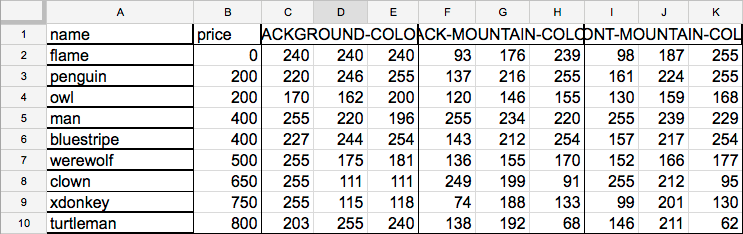
If we consider the case of our game, then we used Google tables to store data and organize the color schemes of characters, calculate their value in the in-game currency and build a system of tasks for the player. As a person who is responsible for the software part of the application, using tables has saved a lot of time, especially when it came to graphic data and collaboration with the designer.

As you may have noticed, different color schemes added a twist to a fairly simple game, made it a little more attractive and interesting for the user. Without systematization of the data, this would be practically impossible.
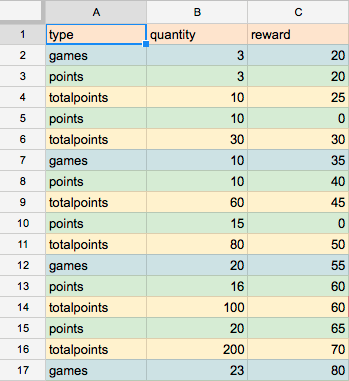
Sorting formulas and techniques helped to calculate all the parameters of in-game tasks (challenges): order, goal, reward. The correct approach to building the economy is very important for keeping the user in the game, and mobility in changing the data that the tables provide, plays into this case.
Now let's move on to the technical aspect of integrating Google spreadsheets with Unity. Unity game engine provides many ways to interact with Internet resources, including Google spreadsheets, one of them is integration based on standalone-applications. But the main challenge in this case may be using the .NET 2.0 engine.
On May 5, 2015, Google stopped supporting the legacy OAuth 1.0 authorization protocol, and all those applications that did not upgrade to the new OAuth 2.0 stopped working. It turned out that the developers of the free plugins that I used, Unity-GData and its updated version of Unity-Quicksheet did not take care of this, and I had no choice but to find a solution myself.
At first, it seemed to me that problems with authorization on Unity and C # should not arise, because the documentation on this topic is exhaustive. But it was not so simple.
Firstly, there were hitches with the authorization process itself, since some parameters for the OAuth 2.0 request were not specified in the Google Spreadsheets documentation, for example, “Access Type” and “Token Type”.
Secondly, in some updated .dll Google Data API library that I imported from the Google Data API SDK for mono, compilation errors occurred in Unity, the same thing happened with a number of old .dll from the Unity-GData plugin. I had to combine.
Thirdly, it was still necessary to add the appropriate Newtonsoft library for working with JSON requests.
Let's get down to business. The process of integrating Google spreadsheets with Unity can be divided into several stages.
- Preset Google Account
- Configure access to the Google Drive API
- Retrieving and saving data from Google spreadsheets
First you need to download unitypackage , which already has all the necessary libraries and scripts.
Preset Google Account
- Log in to your account.
- Follow the link and create a new project “Create new project”.
- On the sidebar of the developer’s console, in the “APIs & Auth” section, select the “APIs” tab.
- Go to the “Drive API” settings in the “Google Apps Api” group and connect this API to our application with the “Enable API” button.
- In the same section “APIs & Auth”, select the “Consent screen” tab. Enter the product name “Product name” and optionally indicate the address of the home page, logo and other parameters.
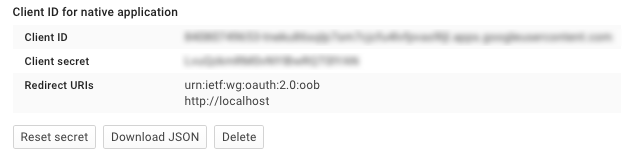
- Again, the “APIs & Auth” section, select the “Credentials” tab. We create a new Client ID for working with Auth 2.0 - the “Create client ID” button. In the dialog box, mark “Application type” as “Installed application”, and “Installed application type” as “Other”. Confirm by clicking the “Create Client ID” button.
- We got the values of Client ID, Client Secret, which will be required in the future.
Configure access to the Google Drive API
- After you have imported unitypackage, the script “SpreadsheetEntity.cs” should automatically start when Unity starts. We open the script for editing, and enter the information for authorization.
- We set the variables _ClientId and _ClientId to the Client ID and Client Secret values obtained from the developer console.
- We launch the Unity project. It automatically follows the link where, after authorization, you can get an Access Code so that the application can successfully log in with Google.
- Copy the Access Code and assign its value to the variable _AccessCode in the script “SpreadsheetEntity.cs”.
- After that, we start the project again and get the OAuth 2.0 Access Token and Refresh Token from the Unity console log, which we need for constant access to Google tables. We assign these values to the variables _AccessToken and _RefreshToken, respectively.
I will give an example script.
Here is the script
using UnityEngine;
using UnityEditor;
using System.Collections;
using System.Collections.Generic;
using Google.GData.Client;
using Google.GData.Spreadsheets;
[InitializeOnLoad]
public class SpreadsheetEntity : MonoBehaviour
{
	// enter Client ID and Client Secret values
	const string _ClientId = "";
	const string _ClientSecret = "";
	// enter Access Code after getting it from auth url
	const string _AccessCode = "";
	// enter Auth 2.0 Refresh Token and AccessToken after succesfully authorizing with Access Code
	const string _RefreshToken = "";
	const string _AccessToken = "";
	const string _SpreadsheetName = "";
	static SpreadsheetsService service;
	public static GOAuth2RequestFactory RefreshAuthenticate()
	{
		OAuth2Parameters parameters = new OAuth2Parameters()
		{
			RefreshToken = _RefreshToken,
			AccessToken = _AccessToken,
			ClientId = _ClientId,
			ClientSecret = _ClientSecret,
			Scope = "https://www.googleapis.com/auth/drive https://spreadsheets.google.com/feeds",
			AccessType = "offline",
			TokenType = "refresh"
		};
		string authUrl = OAuthUtil.CreateOAuth2AuthorizationUrl(parameters);
		return new GOAuth2RequestFactory("spreadsheet", "MySpreadsheetIntegration-v1", parameters);
	}
	static void Auth()
	{
		GOAuth2RequestFactory requestFactory = RefreshAuthenticate();
		service = new SpreadsheetsService("MySpreadsheetIntegration-v1");
		service.RequestFactory = requestFactory;
	}
	// Use this for initialization
	static SpreadsheetEntity(){
		if (_RefreshToken == "" && _AccessToken == "")
		{
			Init();
			return;
		}
		Auth();
		Google.GData.Spreadsheets.SpreadsheetQuery query = new Google.GData.Spreadsheets.SpreadsheetQuery();
		// Make a request to the API and get all spreadsheets.
		SpreadsheetFeed feed = service.Query(query);
		if (feed.Entries.Count == 0)
		{
			Debug.Log("There are no spreadsheets in your docs.");
			return;
		}
		AccessSpreadsheet(feed);
	}
	// access spreadsheet data
	static void AccessSpreadsheet(SpreadsheetFeed feed)
	{
		string name = _SpreadsheetName;
		SpreadsheetEntry spreadsheet = null;
		foreach (AtomEntry sf in feed.Entries)
		{
			if (sf.Title.Text == name)
			{
				spreadsheet = (SpreadsheetEntry)sf;
			}
		}
		if (spreadsheet == null)
		{
			Debug.Log("There is no such spreadsheet with such title in your docs.");
			return;
		}
		// Get the first worksheet of the first spreadsheet.
		WorksheetFeed wsFeed = spreadsheet.Worksheets;
		WorksheetEntry worksheet = (WorksheetEntry)wsFeed.Entries[0];
		// Define the URL to request the list feed of the worksheet.
		AtomLink listFeedLink = worksheet.Links.FindService(GDataSpreadsheetsNameTable.ListRel, null);
		// Fetch the list feed of the worksheet.
		ListQuery listQuery = new ListQuery(listFeedLink.HRef.ToString());
		ListFeed listFeed = service.Query(listQuery);
		foreach (ListEntry row in listFeed.Entries)
		{
			//access spreadsheet data here
		}
	}
	static void Init()
	{
		////////////////////////////////////////////////////////////////////////////
		// STEP 1: Configure how to perform OAuth 2.0
		////////////////////////////////////////////////////////////////////////////
		if (_ClientId == "" && _ClientSecret == "")
		{
			Debug.Log("Please paste Client ID and Client Secret");
			return;
		}
		string CLIENT_ID = _ClientId;
		string CLIENT_SECRET = _ClientSecret;
		string SCOPE = "https://www.googleapis.com/auth/drive https://spreadsheets.google.com/feeds https://docs.google.com/feeds";
		string REDIRECT_URI = "urn:ietf:wg:oauth:2.0:oob";
		string TOKEN_TYPE = "refresh";
		////////////////////////////////////////////////////////////////////////////
		// STEP 2: Set up the OAuth 2.0 object
		////////////////////////////////////////////////////////////////////////////
		// OAuth2Parameters holds all the parameters related to OAuth 2.0.
		OAuth2Parameters parameters = new OAuth2Parameters();
		parameters.ClientId = CLIENT_ID;
		parameters.ClientSecret = CLIENT_SECRET;
		parameters.RedirectUri = REDIRECT_URI;
		////////////////////////////////////////////////////////////////////////////
		// STEP 3: Get the Authorization URL
		////////////////////////////////////////////////////////////////////////////
		parameters.Scope = SCOPE;
		parameters.AccessType = "offline"; // IMPORTANT and was missing in the original
		parameters.TokenType = TOKEN_TYPE; // IMPORTANT and was missing in the original
		// Authorization url.
		string authorizationUrl = OAuthUtil.CreateOAuth2AuthorizationUrl(parameters);
		Debug.Log(authorizationUrl);
		Debug.Log("Please visit the URL above to authorize your OAuth "
		          + "request token.  Once that is complete, type in your access code to "
		          + "continue...");
		parameters.AccessCode = _AccessCode;
		if (parameters.AccessCode == "")
		{
			Application.OpenURL(authorizationUrl);
			return;
		}
		////////////////////////////////////////////////////////////////////////////
		// STEP 4: Get the Access Token
		////////////////////////////////////////////////////////////////////////////
		OAuthUtil.GetAccessToken(parameters);
		string accessToken = parameters.AccessToken;
		string refreshToken = parameters.RefreshToken;
		Debug.Log("OAuth Access Token: " + accessToken + "\n");
		Debug.Log("OAuth Refresh Token: " + refreshToken + "\n");
	}
}
I’ll note a certain feature: this script is executed when the Unity editor is launched, it’s very convenient, because all the data will already be in place before the main application code is executed, more details here .
After you have completed all the necessary steps, the project is ready to work with Google spreadsheets.
Retrieving and storing data from Google spreadsheets
At Google, the process of working with spreadsheets is well described in the above documentation for developers. But for clarity, I will give a small example. For data, I use list-based feeds, and for storage - XML files. You can find more information on working with XML in Unity here .
Code example
// modified AccessSpreadsheet Method
void AccessSpreadsheet(SpreadsheetFeed feed)
        {
                string name = _SpreadsheetName;
                SpreadsheetEntry spreadsheet = null;
                foreach (AtomEntry sf in feed.Entries)
                {
                        if (sf.Title.Text == name)
                        {
                                spreadsheet = (SpreadsheetEntry)sf;
                        }
                }
                if (spreadsheet == null)
                {
                        Debug.Log("There is no such spreadsheet with such title in your docs.");
                        return;
                }
                // Get the first worksheet of the first spreadsheet.
                WorksheetFeed wsFeed = spreadsheet.Worksheets;
                WorksheetEntry worksheet = (WorksheetEntry)wsFeed.Entries[0];
                // Define the URL to request the list feed of the worksheet.
                AtomLink listFeedLink = worksheet.Links.FindService(GDataSpreadsheetsNameTable.ListRel, null);
                // Fetch the list feed of the worksheet.
                ListQuery listQuery = new ListQuery(listFeedLink.HRef.ToString());
                ListFeed listFeed = service.Query(listQuery);
                //create list to add dynamic data
                List testEntities = new List();
                foreach (ListEntry row in listFeed.Entries)
                {
                        TestEntity entity = new TestEntity();
                        entity.name = row.Elements[0].Value;
                        entity.number = int.Parse(row.Elements[1].Value); //use Parse method to get int value
                        Debug.Log("Element: " + entity.name + ", " + entity.number.ToString());
                        testEntities.Add(entity);
                }
                TestContainer container = new TestContainer(testEntities.ToArray());
                container.Save("test.xml");
        }
// classes for xml serialization
public class TestEntity {
        public string name;
        public int number;
        public TestEntity(){
                name = "default";
                number = 0;
        }
}
[XmlRoot("TestCollection")]
public class TestContainer {
        [XmlArray("TestEntities")]
        [XmlArrayItem("testEntity")]
        public TestEntity[] testEntities;// = new skinEntity[];
        public TestContainer(){
        }
        public TestContainer(TestEntity[] arch){
                testEntities = arch;
        }
        public void Save(string path)
        {
                var serializer = new XmlSerializer(typeof(TestContainer));
                using(var stream = new FileStream(path, FileMode.Create))
                {
                        serializer.Serialize(stream, this);
                }
        }
        public static TestContainer Load(string path)
        {
                var serializer = new XmlSerializer(typeof(TestContainer));
                using(var stream = new FileStream(path, FileMode.Open))
                {
                        return serializer.Deserialize(stream) as TestContainer;
                }
        }
}
It’s worth adding that the script works only in the editor, you can’t use the functionality of Google tables on the device, at least with the versions of the plugins that I found, this is due to compatibility problems of some libraries with some platforms. The libraries I proposed in unitypackage will not compile for any platform other than the editor. If you still need to use the tables on the device, then in version 5 of Unity you can select the platform that the plug-in should support using the Plugin Inspector, and in earlier versions - put the plug-in in the desired folder, more details here .
So, spreadsheets are an indispensable tool in the game development process. They help optimize the routine work and establish the interaction of the entire team, visualize huge data arrays and use mathematics to calculate them. Integrating Google spreadsheets with Unity is a simple process, but it requires a little knowledge and effort.
Here is a link to the GitHub project.
Thank you for your attention, I hope the article was useful to you.