
 June 10, 2015 at 12:07
node.js for Java developers: first steps
- Tutorial

An experienced programmer who is confronted with new technology to solve a specific applied problem immediately raises many practical questions. How to install the platform? Where and what will be after installation? How to create a project framework, how will it be structured? How to break code into modules? How to add a library to a project? Where can I get a ready-made library that does what is needed? How and where to debug code? How to write a unit test?
Answers to these questions can be easily found on the net if you wish, but you will have to re-read a dozen articles, and there will likely be several answers to each question. Some time ago, I needed to write a small tutorial on node.js that would allow you to quickly start development and introduce new programmers to the project with this technology. It is designed for experienced Java developers who are well aware of JavaScript, but node.js is new to them as a backend platform.
I think that this article will be useful not only to developers from the Java world, but also to everyone who starts working with the platform node.js.
Installation and setup
Install node and npm
Windows
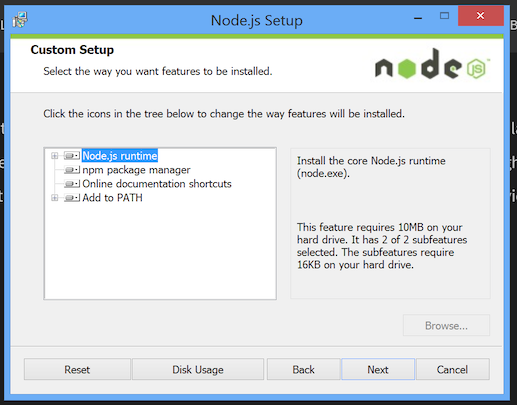
Installing node.js under Windows is done using the msi installer. To download it, go to the site https://nodejs.org and click “Install”. After downloading the installer (a file with the name node-v0.12.4-install.msi), you need to run it and follow the installation instructions.

By default, under Windows, node.js is installed in the c: \ Program Files \ nodejs folder. Also, by default, all components are installed (actually node.js, the npm package manager, a link to the documentation; in addition, the path to node and npm is written to the PATH environment variable). It is advisable to ensure that all installation components are selected.
OS X
In OS X, the easiest way to install node is through the brew package manager . To do this, run the command:
> brew install node
Node will be installed in the / usr / local / Cellar / <version> / node folder with a constant symlink / usr / local / opt / node /.
Ubuntu (x64)
To install the last branch (0.12) it is better to download the distribution from the site:
wget http://nodejs.org/dist/v0.12.4/node-v0.12.4-linux-x64.tar.gz
sudo tar -C /usr/local --strip-components 1 -xzf node-v0.12.4-linux-x64.tar.gz
The distribution package will be unpacked to the / usr / local folder in the bin, include, lib and share subfolders.
Installation Check
To verify the installation, you can run node and npm on the command line with the --version option:
> node --version
v0.12.4
> npm --version
2.10.1
Installing the plugin in IntelliJ IDEA
Run IntelliJ IDEA, go into the settings.

Find the Plugins section and click “Install JetBrains Plugin ...”.

Find the NodeJS plugin in the list, click the “Install Plugin” button. When the download is complete, the button will turn into “Restart IntelliJ IDEA” - click it to reboot the environment.

After the reboot, go to the settings and find the section Languages & Frameworks -> Node.js and NPM. Make sure that the “Node interpreter” section contains a link to the installed node executable.

In the "Sources of node.js Core Modules" section, click the "Configure" button. In the window that appears, select “Download from the Internet” and click “Configure”, while the source code for node.js is downloaded and indexed. This will allow you to view the source code during development.
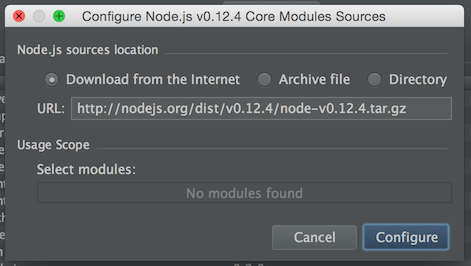
The packages section displaysglobally installed packages (see the "Global packages" section). In this window, you can add, remove and update these packages. If a blue arrow is displayed next to the package name, then an update is available. Globally, it is better to install only utility packages.
The first steps
Writing Hello World
Create an app.js file that forms and displays the corresponding line in the console:
// файл app.js
var greeting = 'hello';
greeting += ' world!';
console.log(greeting);
Run it with the command:
> node app.js
hello world!
We use REPL
By running the node command with no arguments, you can get into a REPL loop similar to a browser-based JS console. In it you can execute and check code fragments:
> node
> console.log('hello world!')
hello world!
undefined
> [1, 2, 3].reduce(function(sum, item){return sum + item}, 0)
6
Each completed line has a return result, which is also displayed in the console. The console.log () function does not return a result, so after calling it, “undefined” is displayed in the console.
In the REPL console, auto-completion works by pressing the Tab key. For example, if you write “console.” And press Tab, a list of attributes and functions of the console object is displayed.
> console.
console.__defineGetter__      console.__defineSetter__
console.__lookupGetter__      console.__lookupSetter__
console.__proto__             console.constructor
console.hasOwnProperty        console.isPrototypeOf
console.propertyIsEnumerable  console.toLocaleString
console.toString              console.valueOf
console.assert                console.dir
console.error                 console.info
console.log                   console.time
console.timeEnd               console.trace
console.warn
console.Console               console._stderr
console._stdout               console._times
> console.
To exit the console, you can press Ctrl + D.
Work with npm
Project Initialization
To initialize the project, we will execute the npm init command in the catalog of the future project and enter the necessary data in interactive mode (you can just press Enter, because the intelligible default settings are offered):
> npm init
This utility will walk you through creating a package.json file.
It only covers the most common items, and tries to guess sensible defaults.
See `npm help json` for definitive documentation on these fields and exactly what they do.
Use `npm install  --save` afterwards to install a package and
save it as a dependency in the package.json file.
Press ^C at any time to quit.
name: (nodetest)
version: (1.0.0)
description: my first node application
entry point: (index.js) app.js
test command:
git repository:
keywords:
author:
license: (ISC)
About to write to ***\package.json:
{
  "name": "nodetest",
  "version": "1.0.0",
  "description": "my first node application",
  "main": "app.js",
  "scripts": {
    "test": "echo \"Error: no test specified\" && exit 1"
  },
  "author": "",
  "license": "ISC"
}
Is this ok? (yes)
At the end of the utility, the package.json file will be created in the current directory describing the configuration of the project. It will also store information about the dependencies of the project.
Adding dependency packages to a project
To install the dependency in a project, use the npm install command. In this case, the node_modules folder will be created in the current directory, into which the downloaded package will be placed. The --save switch means that information about this dependency will also be added to package.json. For example, install the log4js package for logging:
> npm install --save log4js
log4js@0.6.25 node_modules/log4js
├── async@0.2.10
├── underscore@1.8.2
├── semver@4.3.4
└── readable-stream@1.0.33 (isarray@0.0.1, inherits@2.0.1, string_decoder@0.10.31, core-util-is@1.0.1)
After executing this command, we find that the node_modules \ open folder appears in the current directory, and an entry is added to the package.json file:
  "dependencies": {
    "log4js": "0.6.25"
  }
A dependency record can also be added to the package.json file manually, but after that you need to run npm install to load the specified dependency into the node_modules directory.
Global packages
Packages can be installed both in the project directory and globally, then they will be visible to all projects. As a rule, only packages that are utilities are installed globally, for example, the bower dependency management utility, the gulp and grunt compilers, the project expressor express express-generator, etc.
Global packages are installed:
- On Windows 8, in% USERPROFILE% \ AppData \ Roaming \ npm \ node_modules,
- On OS X, in / usr / local / lib / node_modules,
- In Ubuntu, in / usr / local / lib / node_modules.
To install a package globally, the npm command is executed with the -g switch:
npm install -g grunt
Jobs at IntelliJ IDEA
Project opening
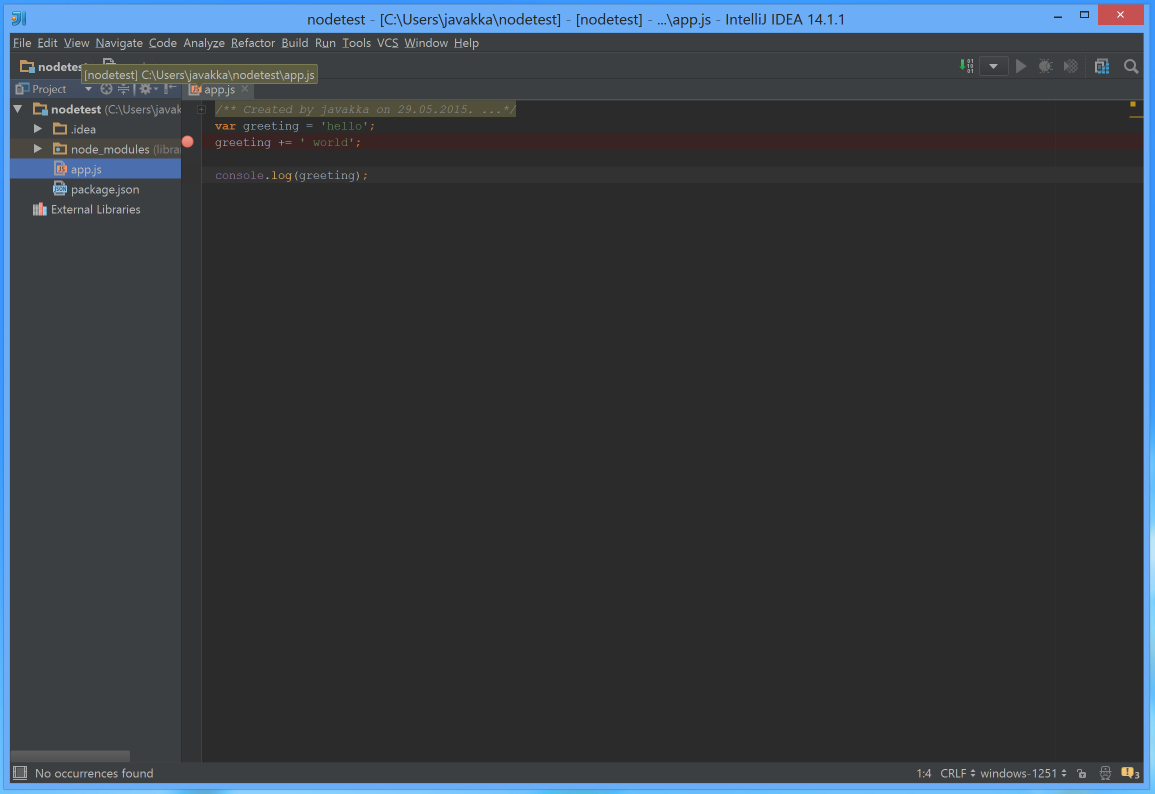
To open a project on node.js, just open the folder containing package.json.
Configure launch configuration
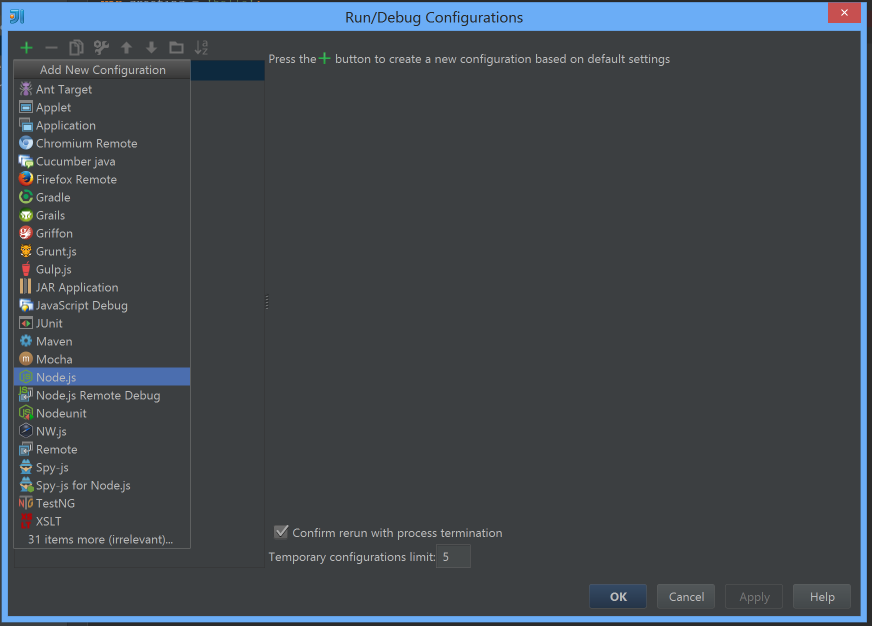
To start and debug in IntelliJ IDEA, you need to create a launch configuration. To do this, go to Run -> Run Configurations, click the plus sign in the upper left corner and select node.js:
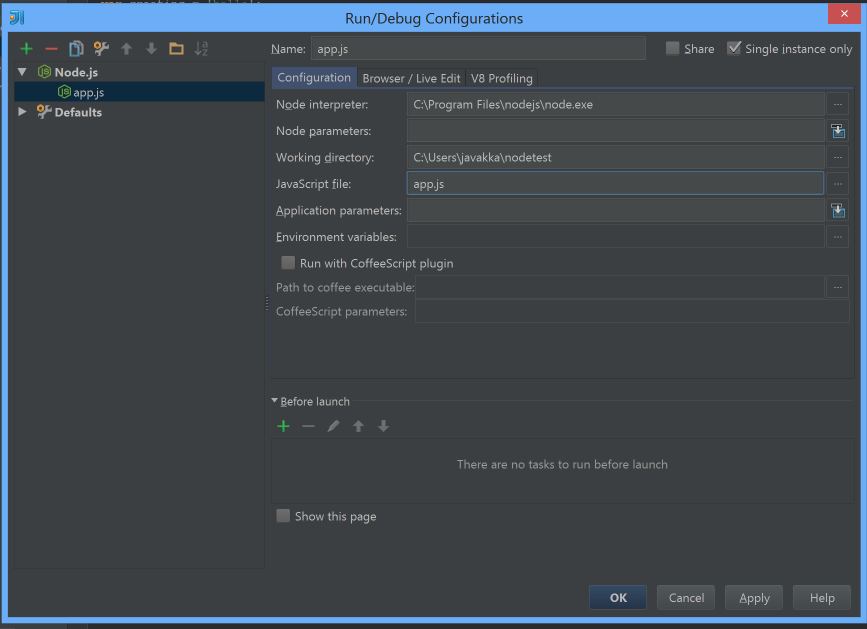
Fill in the Name and JavaScript File fields:
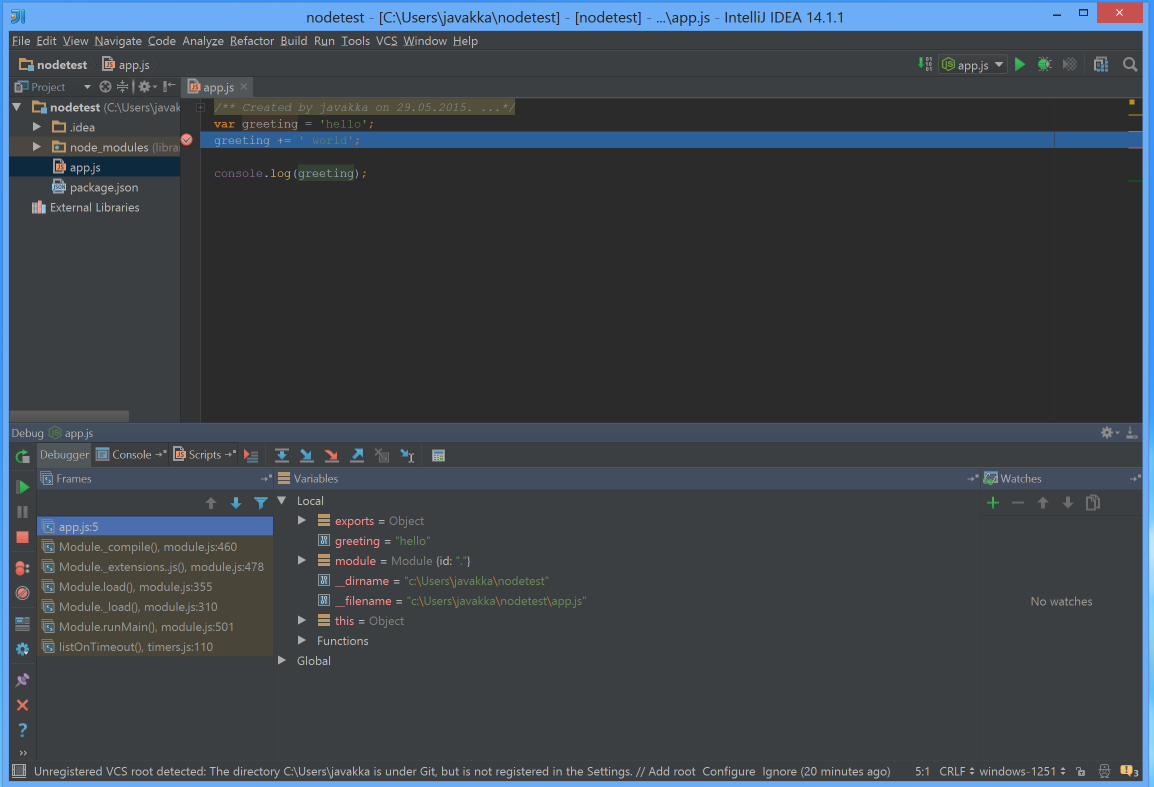
Now you can run the script in normal mode and in debug mode using the corresponding buttons on the toolbar:

Debugging
For debugging, you need to run the created configuration in Debug mode. At the same time, you can set breakpoints on the lines, "step" along the lines, look at the contents of the call stack, the values of the variables in the current context, and do everything else that is expected from the debug mode.
Modularity in node.js
In Java, the units of modularity are packages and classes. The unit of modularity in node.js is the file. To import one module into another, the module uses the local (i.e., implicitly defined in each module) function require (). Standard modules or packages installed in node_modules can be imported by a simple name:
var http = require('http');
An object that was exported by the http module will be placed in the http variable.
If you want to import not a standard module, but one of the project modules into another, then the argument for the require () function should contain the module location relative to the current module (not counting the .js extension), for example:
// файл myproject/somedir/mymodule1.js
mymodule2 = require('../anotherdir/mymodule2');
mymodule2.fun();
// файл myproject/anotherdir/mymodule2.js
module.exports.fun = function() {
    console.log('hello world!');
}
Everything that is declared in the module file is visible only inside it - except that we explicitly export it. For example, unlike JavaScript in the browser, the scope of a variable declared at the top level is limited to the module in which it is declared:
// файл mymodule.js
var enterprise = 'bloody';
The enterprise variable will only be visible inside the mymodule.js module.
To export something from a module, you can use the module.exports attribute available in any module, which by default contains an empty object. You can also use an abbreviated link to it - the module-local variable exports. The require () function, which is passed the name of our module, will return what we put in module.exports. Accordingly, if we put such an object there:
// файл mymodule.js
module.exports =  {
    fun: function() {
        console.log('hello world!');
    }
}
That is exactly what the require function returns, being called in another module:
// файл mymodule-client.js
mymodule = require('./mymodule');
mymodule.fun();
The resulting mymodule object is the same object with the fun function that was assigned to the module.exports attribute in our module.
However, in a similar way, exporting will fail:
// файл mymodule.js
exports =  {
    fun: function() {
        console.log('hello world!');
    }
}
This is because the module.exports attribute is always exported from a module. Replacing the shortened export link with another object, we did not change this attribute. The abbreviated exports link can only be used to export some particular functions or attributes:
// файл mymodule.js
exports.fun = function() {
    console.log('hello world!');
}
// файл mymodule-client.js
require('./mymodule').fun();
Testing
Mocha
To add unit testing to a project, it's best to start with the Mocha framework . It is installed as a global npm module:
npm install -g mocha
Test the module with the simplest function:
// файл mymodule.js
exports.fun = function(name) {
    return 'Привет, ' + name + '!';
}
Mocha tests are located by default in the test subfolder:
// файл test/mymodule-test.js
var assert = require('assert');
var mymodule = require('../mymodule');
describe('mymodule', function() {
    describe('#fun()', function() {
        it('должна приветствовать пользователя, имя которого передано как аргумент', function() {
            assert.equal(mymodule.fun('Сергей'), 'Привет, Сергей!');
        });
    });
});
The first argument to the describe function is a human-readable description of the behavior of the tested function or module, which will be displayed in the console when the tests are run. Here it is advisable to adhere to some structural conventions - for example, the first describe describes the name of the module, in the enclosed name the name of the function being tested. Run mocha and make sure that our function test passes:
> mocha
  mymodule
    #fun()
      ✓ должна приветствовать пользователя, имя которого передано как аргумент
  1 passing (7ms)
Using Mocha in IntelliJ IDEA
Mocha also knows how to monitor the sources and automatically run tests when the code changes. You can start it in this mode from the command line using the --watch launch option, but since we are building our workflow in IntelliJ IDEA, we will use a special launch configuration for this:

In the launch configuration window, specify the name of this configuration (Name) , as well as the path to the test directory. Save the configuration.

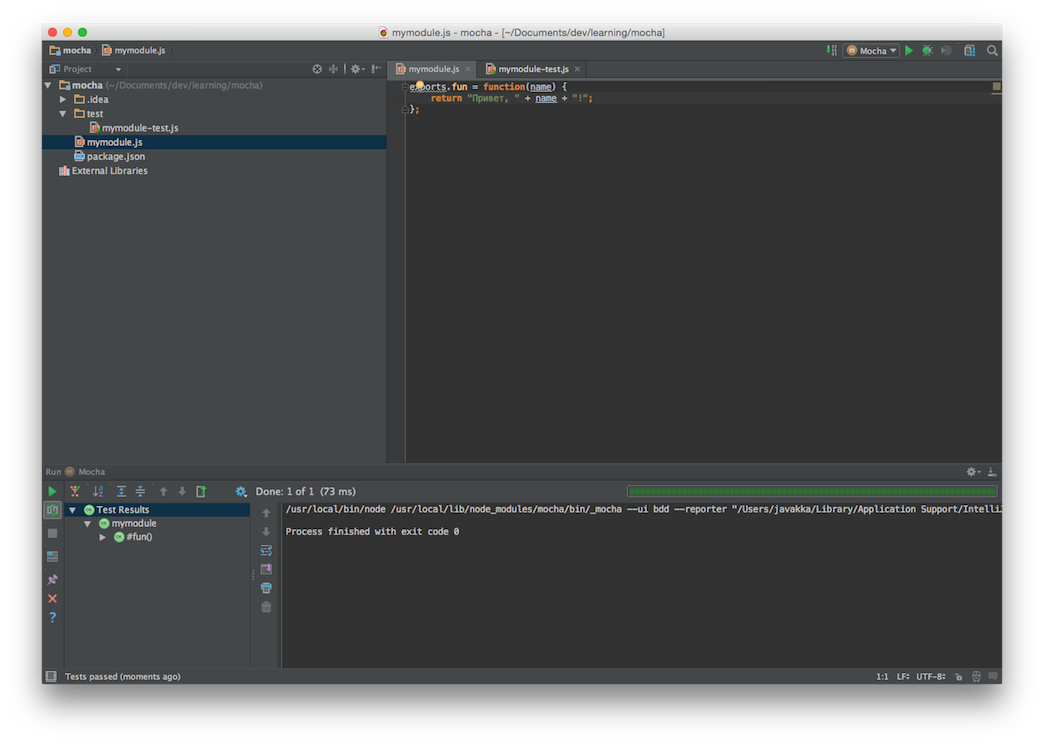
Change the function code so that it does not pass, and execute (Run) the Mocha launch configuration.

Now click the Toggle auto-test button in the panel that appears. This button enables the automatic run of tests when changing the source.

We’ll fix the function code, while Mocha will automatically run the test and show that now everything is fine:
Resources
- The documentation on node.js is the main source of information, although in some places it is rather concise and structured around standard modules.
- Npm web repository - search for libraries, information about them.
- Awesome List for node.js is an indispensable source of information about proven libraries and development solutions for node.js.
- Practices for using node.js in production - the information portal of the Joyent company engaged in supporting node.js.