
Install AirSlax on a virtual machine. Work with WiFi
Somehow I ran BackTrack r5 on VirtualBox, but I couldn’t do anything, because it needs a Wi-Fi adapter, and it saw the built-in adapter in my laptop as Ethernet, so you can’t work through it. You cannot turn on the monitoring mode on it.
Climbing a bunch of sites on the Internet, I did not find anything. I decided to start digging myself. And I did it. I must say right away, I did not install AirSlax in order to hack into other people's WiFi networks. I needed to find out who is connected to my network, but now is not about that.
I will describe the whole process, namely:
1. Installing AirSlax on a VirtualBox
2. Preparing a flash drive
3. Configuring a virtual machine
4 Working with a usb WiFi adapter
Those who know how to install AirSlax on VirtualBox can skip this and start reading about setting up a USB WiFi adapter.
Let's start.
Yes, by the way, why VirtualBox, and not VMWare?
There are several reasons:
1. With VMWare, I did not fully understand, and I have experience with VirtualBox.
2. I was unable to run AirSlax on VMWare
. Proceed.
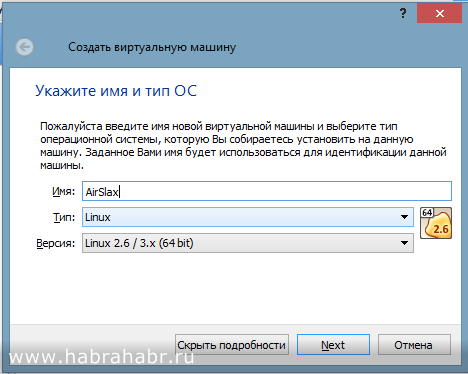
1.1 Enter a name for the virtual machine
1.2 Type Linux (Required Linux)
1.3 Version, at your discretion, but I chose Linux 2.6 / 3.x 64bit (if you have a 32-bit operating system, select 32 bit)
Now we indicate the amount of allocated memory for virtual machine
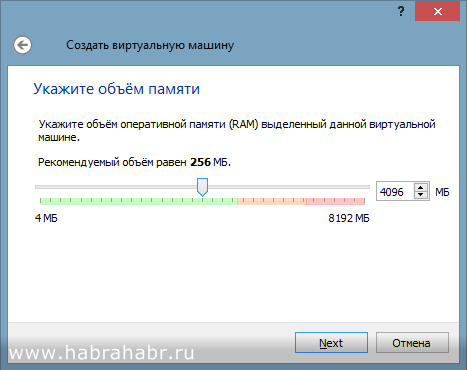
Indicate such a quantity so that you have a couple of GB left on the main operating system, optimally so:
- at 4 GB RAM ~ 2 GB on the virtual machine;
- at 8 GB of RAM ~ 4 GB per virtual machine;
- at 16 GB of RAM ~ 8 GB per virtual machine;
- at 32 GB or more, you can 8. It’s enough for her.
Since Porteus bootloader is present in AirSlax, installation on a real hard drive is not advisable. This bootloader will break your Windows bootloader.
Now, if you have not created a USB flash drive with AirSlax yet, then I described it here, and if the USB flash drive is already created, then proceed to step 3
You can download the image from here . The link leads to Yandex disk.
If you do not believe it, then go to the site www.airslax.ru and download from there yourself.
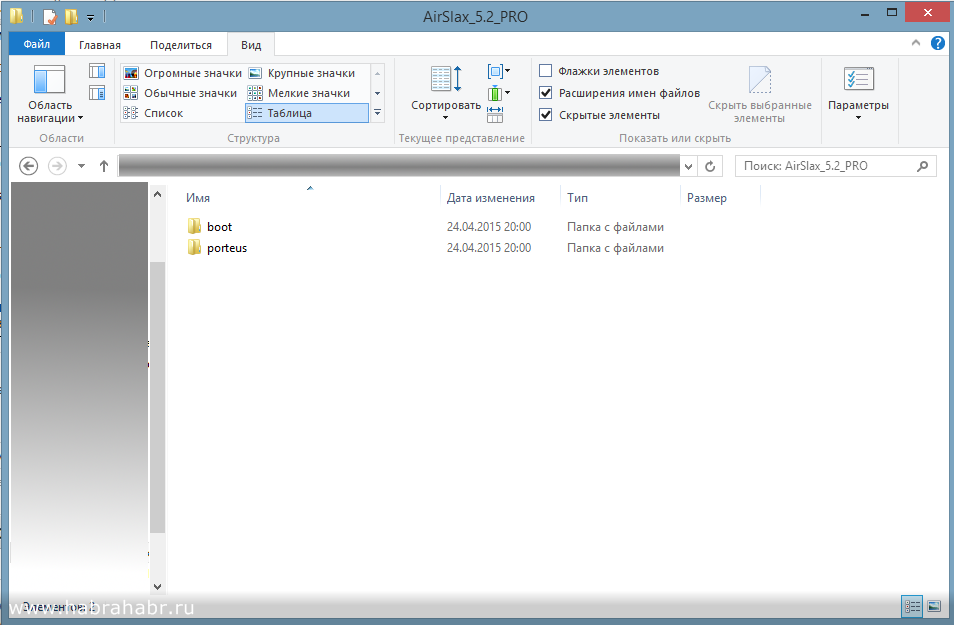
Copy the boot and porteus folders to the USB flash drive. After copying the files, go to the boot folder and open the porteus-installer-windows file:
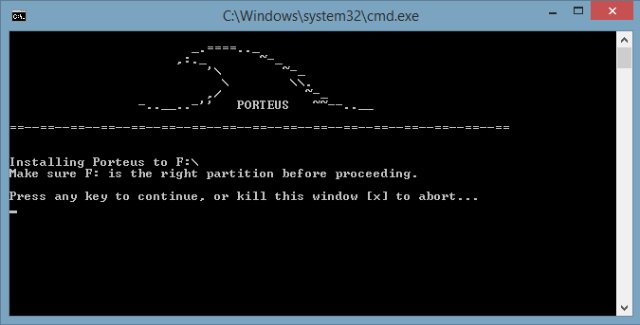
When this window appears, press any key to install porteus bootloader on the media. Make sure that you do not install the bootloader on your hard drive:
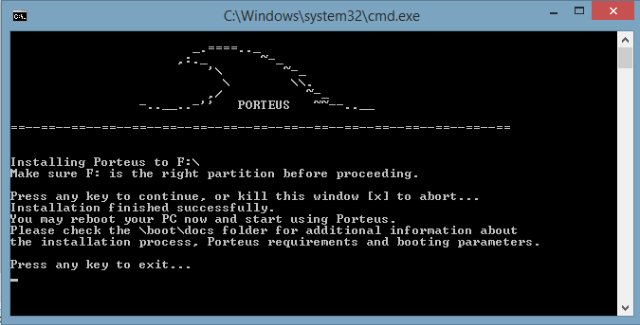
Now again press any key to exit the installer. That's all, the flash drive is ready and AirSlax is already present on the flash drive.
Now I will explain why you need a USB flash drive, as mentioned above, Porteus bootloader can ruin your system bootloader, so once you put all the files in iso, you can’t run airslax without installing porteus bootloader.
Yes, by the way, on the account of the hard disk for the virtual machine, select "Do not connect a virtual hard disk". We will do this a little later.
Somewhere on the Internet, I found an article on how to boot from a flash drive into virtualbox, maybe even read it on this site, I don’t remember exactly.
In order for VirtualBox to work with a USB flash drive, you need to write the path to the device, all the information in a vmdk file, how to do it.
To create, we need:
1. VBoxManager (vboxmanage.exe - located in the folder with VirtualBOX)
2. DiskPart (a system utility for working with disks, disk partitions)
I managed to create a regular bat file in the folder with VirtualBox, but I did not have enough permissions to creating a vmdk file, the program required administrator rights, had to be done through the command line (cmd).
I will describe how to do it through the command line, but if you want to make a bat file, then just copy the lines and edit them a bit on your own.
Open cmd (as administrator).
Enter the following: cd path to VirtualBox (I have this: "C: \ Program Files \ Oracle \ VirtualBox"). Then
VboxManage.exe internalcommands createrawvmdk -filename c: \ vbox \ usb.vmdk -rawdisk \\. \ PhysicalDrive1 I will
write the commands:
VboxManage.exe internalcommands createrawvmdk (this must be rewritten);
- filename (path to save the vmdk file);
- rawdisk (physical disk, flash drive) - how to find out what number, for this we need DiskPart.
Getting started with DiskPart.
Open another cmd, you do not need administrator rights for this utility.
Enter diskpart, if entered correctly, you will see this window:
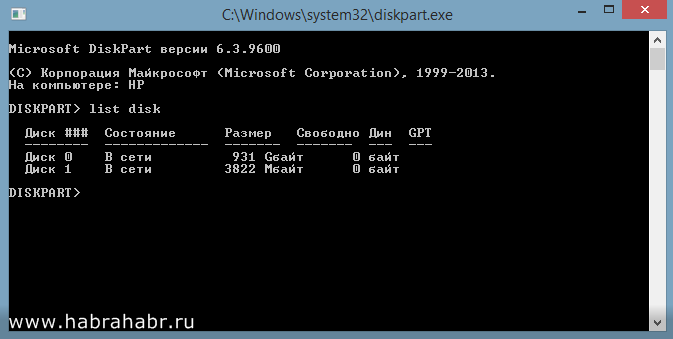
Type list disk and find the flash drive in the list. Please note, since my Disk 0 is a hard drive, and Disk 1 is a flash drive. Since Disk 1 is a flash drive, the command in VboxManager will be like this:
Switch back to cmd with the command you entered.
VboxManage.exe internalcommands createrawvmdk -filename path for vmdk -rawdisk \\. \ PhysicalDrive1 (in my case 1 is a flash drive).
Do not forget to create a folder in which you will save the vmdk file. If everything goes well, you will see
RAW host disk access VMDK file filename.vmdk created successfully.
Now we proceed directly to the configuration of the virtual machine itself.
Right-click on the virtual machine -> Settings
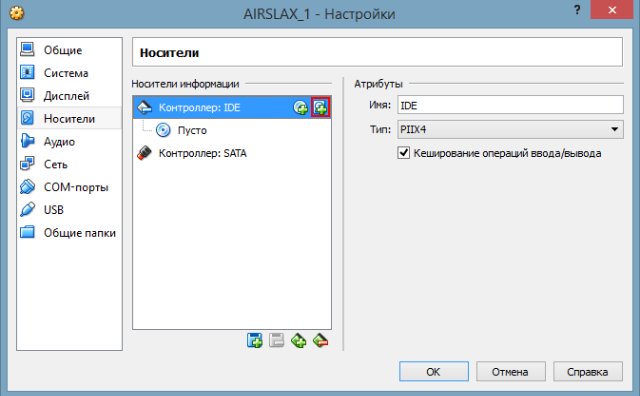
Select "Media" in the list on the left. Then click on the button highlighted in red in the picture.
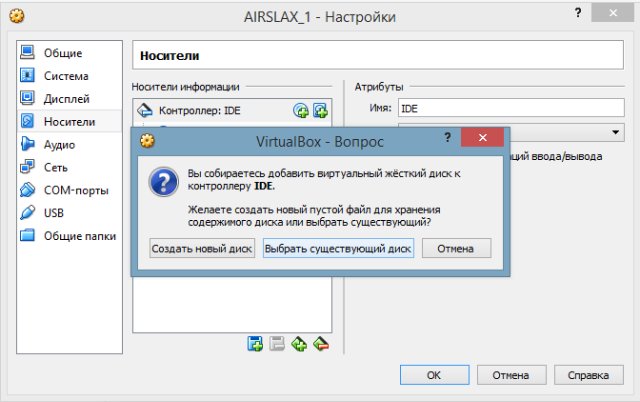
Click on the “Select an existing drive” button and select your created vmdk file.
Now let's move on to connecting USB WiFi to AirSlax in VirtualBox:
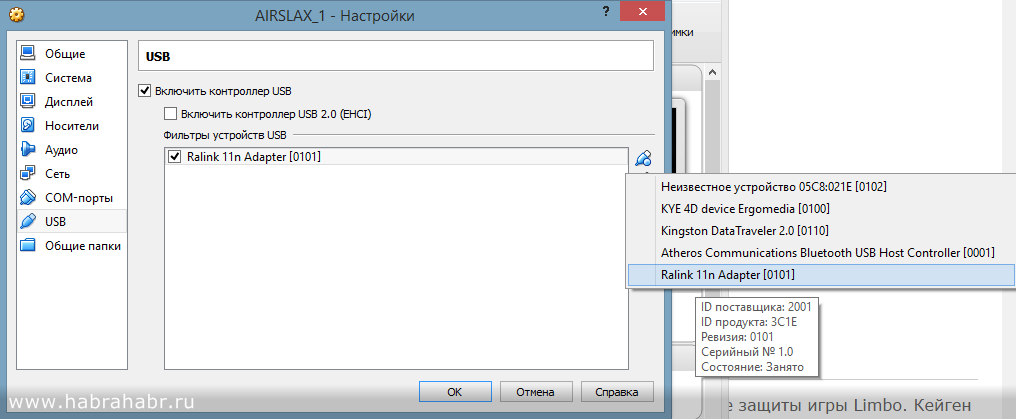
Go to the USB menu and click on the button with a green plus and select your adapter, then click “OK” and start.
If everything is configured correctly, you will see a blue menu, select Graphic Mode and wait.
As the desktop appears, you can work.
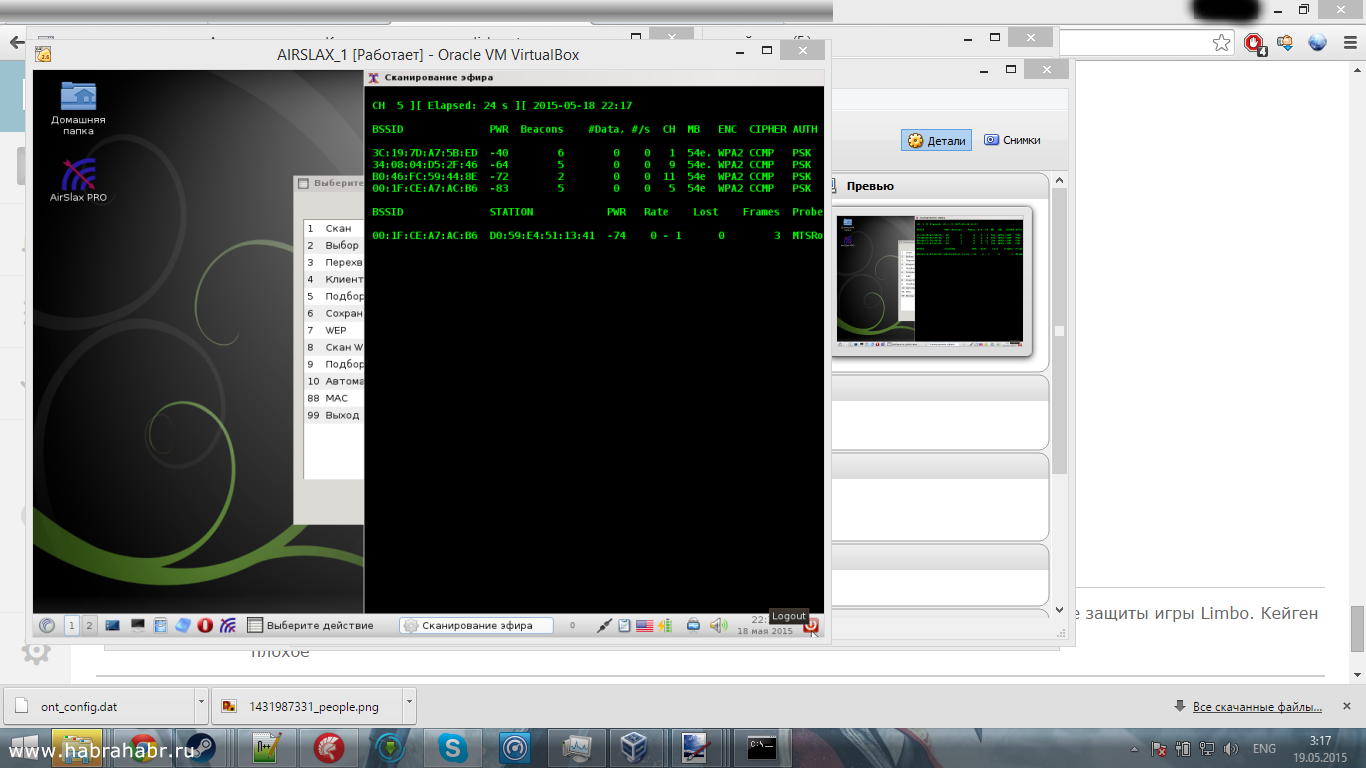
Here is a screenshot of AirSlax in VirtualBox:
I hope I haven’t killed so much time for nothing. Good luck
This article was created for educational purposes. The author of the article is not responsible for the damage caused by this program.
Climbing a bunch of sites on the Internet, I did not find anything. I decided to start digging myself. And I did it. I must say right away, I did not install AirSlax in order to hack into other people's WiFi networks. I needed to find out who is connected to my network, but now is not about that.
I will describe the whole process, namely:
1. Installing AirSlax on a VirtualBox
2. Preparing a flash drive
3. Configuring a virtual machine
4 Working with a usb WiFi adapter
Those who know how to install AirSlax on VirtualBox can skip this and start reading about setting up a USB WiFi adapter.
Let's start.
Step 1: Prepare the Virtual Machine in VirtualBox
Yes, by the way, why VirtualBox, and not VMWare?
There are several reasons:
1. With VMWare, I did not fully understand, and I have experience with VirtualBox.
2. I was unable to run AirSlax on VMWare
. Proceed.
1.1 Enter a name for the virtual machine
1.2 Type Linux (Required Linux)
1.3 Version, at your discretion, but I chose Linux 2.6 / 3.x 64bit (if you have a 32-bit operating system, select 32 bit)
Now we indicate the amount of allocated memory for virtual machine
Indicate such a quantity so that you have a couple of GB left on the main operating system, optimally so:
- at 4 GB RAM ~ 2 GB on the virtual machine;
- at 8 GB of RAM ~ 4 GB per virtual machine;
- at 16 GB of RAM ~ 8 GB per virtual machine;
- at 32 GB or more, you can 8. It’s enough for her.
Since Porteus bootloader is present in AirSlax, installation on a real hard drive is not advisable. This bootloader will break your Windows bootloader.
Now, if you have not created a USB flash drive with AirSlax yet, then I described it here, and if the USB flash drive is already created, then proceed to step 3
2. Preparing a flash drive
2.1 Download the original image
You can download the image from here . The link leads to Yandex disk.
If you do not believe it, then go to the site www.airslax.ru and download from there yourself.
2.2 Copying the downloaded image to a USB flash drive
Copy the boot and porteus folders to the USB flash drive. After copying the files, go to the boot folder and open the porteus-installer-windows file:
When this window appears, press any key to install porteus bootloader on the media. Make sure that you do not install the bootloader on your hard drive:
Now again press any key to exit the installer. That's all, the flash drive is ready and AirSlax is already present on the flash drive.
Now I will explain why you need a USB flash drive, as mentioned above, Porteus bootloader can ruin your system bootloader, so once you put all the files in iso, you can’t run airslax without installing porteus bootloader.
Yes, by the way, on the account of the hard disk for the virtual machine, select "Do not connect a virtual hard disk". We will do this a little later.
Somewhere on the Internet, I found an article on how to boot from a flash drive into virtualbox, maybe even read it on this site, I don’t remember exactly.
3. Configure the virtual machine and configure boot from the USB flash drive for VirtualBox
In order for VirtualBox to work with a USB flash drive, you need to write the path to the device, all the information in a vmdk file, how to do it.
To create, we need:
1. VBoxManager (vboxmanage.exe - located in the folder with VirtualBOX)
2. DiskPart (a system utility for working with disks, disk partitions)
I managed to create a regular bat file in the folder with VirtualBox, but I did not have enough permissions to creating a vmdk file, the program required administrator rights, had to be done through the command line (cmd).
I will describe how to do it through the command line, but if you want to make a bat file, then just copy the lines and edit them a bit on your own.
3.1 Configuring VirtualBox boot from flash drive
Open cmd (as administrator).
Enter the following: cd path to VirtualBox (I have this: "C: \ Program Files \ Oracle \ VirtualBox"). Then
VboxManage.exe internalcommands createrawvmdk -filename c: \ vbox \ usb.vmdk -rawdisk \\. \ PhysicalDrive1 I will
write the commands:
VboxManage.exe internalcommands createrawvmdk (this must be rewritten);
- filename (path to save the vmdk file);
- rawdisk (physical disk, flash drive) - how to find out what number, for this we need DiskPart.
Getting started with DiskPart.
Open another cmd, you do not need administrator rights for this utility.
Enter diskpart, if entered correctly, you will see this window:
Type list disk and find the flash drive in the list. Please note, since my Disk 0 is a hard drive, and Disk 1 is a flash drive. Since Disk 1 is a flash drive, the command in VboxManager will be like this:
Switch back to cmd with the command you entered.
VboxManage.exe internalcommands createrawvmdk -filename path for vmdk -rawdisk \\. \ PhysicalDrive1 (in my case 1 is a flash drive).
Do not forget to create a folder in which you will save the vmdk file. If everything goes well, you will see
RAW host disk access VMDK file filename.vmdk created successfully.
Now we proceed directly to the configuration of the virtual machine itself.
3.2 Connecting an external flash drive with a virtual machine
Right-click on the virtual machine -> Settings
Select "Media" in the list on the left. Then click on the button highlighted in red in the picture.
Click on the “Select an existing drive” button and select your created vmdk file.
Now let's move on to connecting USB WiFi to AirSlax in VirtualBox:
Go to the USB menu and click on the button with a green plus and select your adapter, then click “OK” and start.
If everything is configured correctly, you will see a blue menu, select Graphic Mode and wait.
As the desktop appears, you can work.
Here is a screenshot of AirSlax in VirtualBox:
I hope I haven’t killed so much time for nothing. Good luck
This article was created for educational purposes. The author of the article is not responsible for the damage caused by this program.