
 May 13, 2015 at 10:24
Arduino weather station data analysis
- Transfer
Creating your own personal weather station has become much easier than before. Given the inconsistent weather in New England, we decided that we want to create our own weather station and use MATLAB to analyze weather data.
In the article we will answer the following questions:
It is clear that the issues discussed are quite simple, but the described techniques and commands will help you solve more complex practical problems.
First, we had to decide where to place our weather station. We decided to do it on the top floor of the parking lot. The location was chosen because it was influenced by weather, but also had a roof for mounting electronics. Due to the fact that we ultimately wanted to give data to a third-party data aggregator, we had to take this into account when choosing a location and hardware.
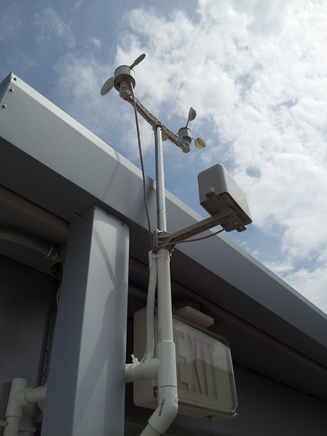
The location we chose was not within the Wi-Fi range of our building, so we had to find a way to transfer data from the station to the receiver, which was inside the neighboring building. To do this, we connected the Arduino Uno to the XBee high power transmitter. Then the data is transferred to the XBee receiving module on the Arduino Mega already inside the building. This Arduino was connected to the Internet and data is sent to the free data aggregation service, ThingSpeak.com . A complete list of the equipment that we used in our installation is given below.
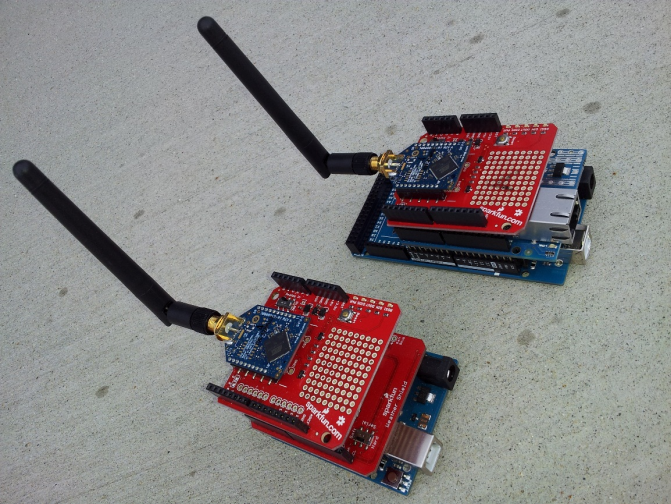
An external Arduino is installed in the garage and is responsible for collecting measurements and transmitting data to the Arduino indoors. To implement this exchange, we first connected the contacts from Weather shield and XBee shield. Then we connected the XBee shield with the Arduino Uno according to the documentation provided with the shields. The XBee shield has an XBee high power transceiver. We used the X-CTU software to program the desired recipient address and load the desired firmware into the XBee shield. An anemometer, rain wind sensors were connected to the weather shield using the RJ-45 connectors provided.
The internal Arduino is inside our building, and is responsible for receiving data from the external Arduino, for validating the data, and sending it to ThingSpeak. To build such a system, we first soldered the contacts to the Ethernet shield and the second XBee shield. Then we inserted the Ethernet shield and XBee shield in Mega Arduino as per documentation. We again used the X-CTU to program the desired recipient address and load the desired firmware onto the XBee shield.
Next, we programmed the Arduino to receive XBee messages and forward packets to ThingSpeak at a rate of once per minute. Before sending the ThingSpeak message, we set up an account and configured channel and location information. As soon as the data transfer setup was over, we began to analyze the data in MATLAB.
Please note that to reproduce the analysis presented in the article, you do not need to buy and configure equipment. The current data of our station are available on channel 12 397 .
To answer our first two questions, we use the command
8000 points is the maximum number of points that ThingSpeak allows you to request at a time. For our measurement frequency, this corresponds to approximately 6 days of measurement.
To get a better understanding of our data, we find the minimum, maximum and average values for the data we imported and we find the time for the maximum and minimum values. This gives us a quick way to validate the data from our weather station.
If we get unexpected values, such as a maximum atmospheric pressure of 40 atmospheres or a maximum temperature of 1700 degrees, we can assume that the data is incorrect. Such errors may occur due to transmission errors, voltage surges and other reasons. At the end of the article, we will show some ways of processing such “outliers,” but for the uploaded data, when this report was published, everything looks fine.
For the above code, we used the tabular data type first introduced in MATLAB R2013b. See the blog entry for further familiarization with this data type.
Since our weather station receives weather reports about once a minute, we look at the last 180 minutes to answer our question about what wind has been in the last 3 hours, and we use the Compass plot in MATLAB to see the speed and direction wind at an interesting time. This is a math compass where the North (0 degrees) is on the right and the degrees increase counterclockwise. 90 degrees represents the East (top), 180 degrees represents the south (left) and 270 degrees represents the West (bottom). If there is no wind shear due to a thunderstorm or during a frontal passage, the compass, as a rule, shows the preferred wind direction indicated by arrows of higher density on the graph. In the case of the data requested in this example, we observe the direction of the wind mainly from the south and southwest,

Now we are ready to answer our second question about how the temperature and dew point changed over the
past week. The dew point is the temperature at which air (when cooled) becomes saturated with water vapor. The higher the humidity of the air mass, the higher the dew point. The dew point is also sometimes used as a measure of discomfort. When the dew point exceeds 65 degrees (+ 18C), many people begin to say that the air is “sticky”. At the dew point of 70, many feel uncomfortable. The general estimate for the dew point, TDP, can be found using the equation and constants, as shown below:
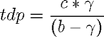
where

c
Now, having written the above equations, as MATLAB code we have:
Now that we have calculated the dew point, we are ready to visualize the data and observe their behavior over the past 5 or 6 days.

During a normal week, you can clearly see daily changes in temperature and humidity. As expected, relative humidity tends to increase at night (when the temperature drops to the dew point) and maximum temperatures are usually reached in the afternoon. The dew point temperature indicates the humidity of the air masses. When we have collected data for the publication of this example, you can see that the dew point was more than 70 degrees, which is typical of a hot and humid summer day in New England. If you run this code in MATLAB, you can get different answers, as of how you will request the latest data reported by the weather station.
The last question we wanted to answer is - does atmospheric pressure really drop before the rain? To do this, we received data from a weather station for a famous rainy day. This time, we are interested in barometric pressure and rainfall. We used a self-emptying sensor that empties when it is full. Our sensor spins and empties when 0.01 inches of precipitation falls. Our Arduino code counts the number of empties per minute and transmits the appropriate rainfall value to ThingSpeak. We use MATLAB to sample hourly samples from our data so that we can easily see the accumulation of precipitation and pressure trends.
Was it really raining on June 5th? It's hard to say if we just look at every minute of data transfer, since the maximum value is only 0.01 inches. However, if we summarize all the rainfall for June 5, we see that we received 0.48 inches of rain, which is 13% of the average monthly 3.68 inches, which shows that the day was really very rainy. To get a better idea of when the maximum rainfall fell, we converted the data to hourly data, as shown below.
After we have pre-processed our data, we are ready to visualize them. Here we use MATLAB to find the trend line to barometric pressure data. If we plot, will we see a drop in pressure before a heavy downpour?
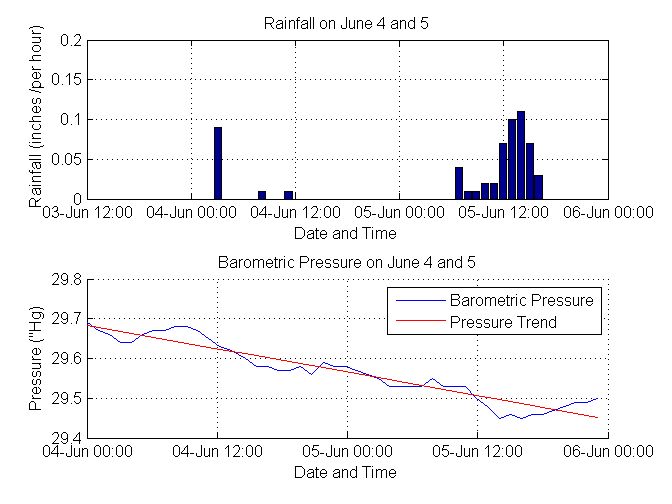
After we visualize this data and look at the trend, we clearly see that atmospheric pressure really drops exactly before the start of precipitation!
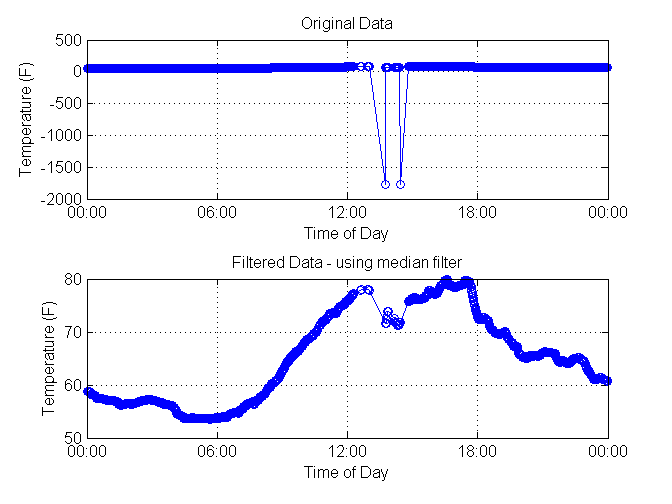
Our questions were quite simple, but sometimes there are problems with the available data. For example, on May 30, we recorded several false data on temperature. Let's see how to use MATLAB to filter them.
Removing items that did not pass the threshold test. In this case, we have some values that are obviously unreliable, such as a temperature of -1766 degrees Fahrenheit. Therefore, you can use data that includes only temperature values, between 0 and 120, which are acceptable values for a spring day in New England.
We plot the cleaned and source data.

Another way to remove bad data is to apply a median filter. The median filter does not require as much knowledge about the data set. It will simply removes values that are outside the middle of the nearest neighbors. Filtering results are a vector of the same length as the original, as opposed to deleting data points, which leads to data gaps and shortened records. This type of filter can also be used to remove noise from the signal.
Large values of n indicate the number of "neighbors" for comparison. At temperatures collected once a minute, we choose n = 5, because the temperature should not, as a rule, vary greatly within 5 minutes.
So, we analyzed the data from our weather station and answered our questions.
We also demonstrated some methods of filtering data that do not pass the initial verification.
The questions posed in the article are elementary, but think about what can be achieved by collecting data from thousands of stations? In addition, you can measure and analyze real-time changes in industrial and scientific systems and make decisions based on data.
We remind you that to reproduce the analysis presented in the article, you do not need to buy and configure the equipment. Live data from our installation is available on channel 12 397 on ThingSpeak.com.
MATLAB project code
In the article we will answer the following questions:
- In what direction did the wind blow over the past 3 hours?
- How did the temperature and dew point change over the last week?
- Does the barometric pressure actually drop as a thunderstorm approaches?
It is clear that the issues discussed are quite simple, but the described techniques and commands will help you solve more complex practical problems.
Step 1: Location of the weather station
First, we had to decide where to place our weather station. We decided to do it on the top floor of the parking lot. The location was chosen because it was influenced by weather, but also had a roof for mounting electronics. Due to the fact that we ultimately wanted to give data to a third-party data aggregator, we had to take this into account when choosing a location and hardware.
Step 2: Choosing Hardware
The location we chose was not within the Wi-Fi range of our building, so we had to find a way to transfer data from the station to the receiver, which was inside the neighboring building. To do this, we connected the Arduino Uno to the XBee high power transmitter. Then the data is transferred to the XBee receiving module on the Arduino Mega already inside the building. This Arduino was connected to the Internet and data is sent to the free data aggregation service, ThingSpeak.com . A complete list of the equipment that we used in our installation is given below.
Equipment list
- Arduino Uno with Weather shield and weather sensors
- 2x XBee Shield and 2x Extended Range XBee Modules from Digi International
- Arduino Mega with Ethernet Shield
- 2 Arduino Mounting Kits
- 2x 5V transformer for Arduino power
- XBee Explorer Dongle for programming an XBee transmitter
Step 3: Connect the weather station transmitter and program the outdoor Arduino
An external Arduino is installed in the garage and is responsible for collecting measurements and transmitting data to the Arduino indoors. To implement this exchange, we first connected the contacts from Weather shield and XBee shield. Then we connected the XBee shield with the Arduino Uno according to the documentation provided with the shields. The XBee shield has an XBee high power transceiver. We used the X-CTU software to program the desired recipient address and load the desired firmware into the XBee shield. An anemometer, rain wind sensors were connected to the weather shield using the RJ-45 connectors provided.
Step 4: Connect the Weather Station Receiver and Indoor Arduino Programming
The internal Arduino is inside our building, and is responsible for receiving data from the external Arduino, for validating the data, and sending it to ThingSpeak. To build such a system, we first soldered the contacts to the Ethernet shield and the second XBee shield. Then we inserted the Ethernet shield and XBee shield in Mega Arduino as per documentation. We again used the X-CTU to program the desired recipient address and load the desired firmware onto the XBee shield.
Next, we programmed the Arduino to receive XBee messages and forward packets to ThingSpeak at a rate of once per minute. Before sending the ThingSpeak message, we set up an account and configured channel and location information. As soon as the data transfer setup was over, we began to analyze the data in MATLAB.
Please note that to reproduce the analysis presented in the article, you do not need to buy and configure equipment. The current data of our station are available on channel 12 397 .
Step 5: answer the questions
Getting weather data from ThingSpeak
To answer our first two questions, we use the command
thingSpeakFetch[d,t,ci] = thingSpeakFetch(12397,'NumPoints',8000); % fetch last 8000 minutes of data
8000 points is the maximum number of points that ThingSpeak allows you to request at a time. For our measurement frequency, this corresponds to approximately 6 days of measurement.
tempF = d(:,4); % field 4 is temperature in deg F
baro = d(:,6); % pressure in inches Hg
humidity = d(:,3); % field 3 is relative humidity in percent
windDir = d(:,1);
windSpeed = d(:,2);
tempC = (5/9)*(tempF-32); % convert to Celsius
availableFields = ci.FieldDescriptions'
availableFields =
'Wind Direction (North = 0 degrees)'
'Wind Speed (mph)'
'% Humidity'
'Temperature (F)'
'Rain (Inches/minute)'
'Pressure ("Hg)'
'Power Level (V)'
'Light Intensity'
Calculation of some basic statistics for the observation period and their visualization
To get a better understanding of our data, we find the minimum, maximum and average values for the data we imported and we find the time for the maximum and minimum values. This gives us a quick way to validate the data from our weather station.
[maxData,index_max] = max(d);
maxData = maxData';
times_max = datestr(t(index_max));
times_max = cellstr(times_max);
[minData,index_min] = min(d);
minData = minData';
times_min = datestr(t(index_min));
times_min = cellstr(times_min);
meanData = mean(d);
meanData = meanData'; % make column vector
summary = table(availableFields,maxData,times_max,meanData,minData,times_min) % display
summary =
              availableFields               maxData          times_max
    ____________________________________    _______    ______________________
    'Wind Direction (North = 0 degrees)'      338      '10-Jul-2014 05:01:32'
    'Wind Speed (mph)'                        6.3      '10-Jul-2014 12:47:14'
    '% Humidity'                             86.5      '15-Jul-2014 04:51:24'
    'Temperature (F)'                        96.7      '12-Jul-2014 16:28:55'
    'Rain (Inches/minute)'                   0.04      '15-Jul-2014 13:47:13'
    'Pressure ("Hg)'                        30.23      '11-Jul-2014 09:25:07'
    'Power Level (V)'                        4.44      '10-Jul-2014 10:25:01'
    'Light Intensity'                        0.06      '12-Jul-2014 13:23:38'
    meanData     minData          times_min
    _________    _______    ______________________
          NaN        0      '10-Jul-2014 04:54:32'
       3.0272        0      '10-Jul-2014 01:33:14'
       57.386     25.9      '12-Jul-2014 13:39:39'
       80.339     69.6      '11-Jul-2014 06:59:54'
    5.625e-05        0      '10-Jul-2014 01:02:11'
        30.04    29.78      '15-Jul-2014 13:04:08'
       4.4149     4.38      '11-Jul-2014 09:22:06'
    0.0092475        0      '10-Jul-2014 01:02:11'
If we get unexpected values, such as a maximum atmospheric pressure of 40 atmospheres or a maximum temperature of 1700 degrees, we can assume that the data is incorrect. Such errors may occur due to transmission errors, voltage surges and other reasons. At the end of the article, we will show some ways of processing such “outliers,” but for the uploaded data, when this report was published, everything looks fine.
For the above code, we used the tabular data type first introduced in MATLAB R2013b. See the blog entry for further familiarization with this data type.
Wind visualization in the last three hours
Since our weather station receives weather reports about once a minute, we look at the last 180 minutes to answer our question about what wind has been in the last 3 hours, and we use the Compass plot in MATLAB to see the speed and direction wind at an interesting time. This is a math compass where the North (0 degrees) is on the right and the degrees increase counterclockwise. 90 degrees represents the East (top), 180 degrees represents the south (left) and 270 degrees represents the West (bottom). If there is no wind shear due to a thunderstorm or during a frontal passage, the compass, as a rule, shows the preferred wind direction indicated by arrows of higher density on the graph. In the case of the data requested in this example, we observe the direction of the wind mainly from the south and southwest,
figure(1)
windDir = windDir((end-180):end); % last 3 hours
windSpeed = windSpeed((end-180):end);
rad = windDir*2*pi/360;
u = cos(rad) .* windSpeed; % x coordinate of wind speed on circular plot
v = sin(rad) .* windSpeed; % y coordinate of wind speed on circular plot
compass(u,v)
titletext = strcat(' for last 3 hours ending on: ',datestr(now));
title({'Wind Speed, MathWorks Weather Station'; titletext})
Dew point calculation
Now we are ready to answer our second question about how the temperature and dew point changed over the
past week. The dew point is the temperature at which air (when cooled) becomes saturated with water vapor. The higher the humidity of the air mass, the higher the dew point. The dew point is also sometimes used as a measure of discomfort. When the dew point exceeds 65 degrees (+ 18C), many people begin to say that the air is “sticky”. At the dew point of 70, many feel uncomfortable. The general estimate for the dew point, TDP, can be found using the equation and constants, as shown below:
where
c
Now, having written the above equations, as MATLAB code we have:
b = 17.62;
c = 243.5;
gamma = log(humidity/100) + b*tempC ./ (c+tempC);
tdp = c*gamma ./ (b-gamma);
tdpf = (tdp*1.8) + 32;  % convert back to Fahrenheit
Visualization of temperature, air humidity and dew point versus time
Now that we have calculated the dew point, we are ready to visualize the data and observe their behavior over the past 5 or 6 days.
figure(2)
[ax, h1, h2] = plotyy(t,[tempF tdpf],t,humidity);
set(ax(2),'XTick',[])
set(ax(2),'YColor','k')
set(ax(1),'YTick',[0,20,40,60,80,100])
set(ax(2),'YTick',[0,20,40,60,80,100])
datetick(ax(1),'x','keeplimits','keepticks')
set(get(ax(2),'YLabel'),'String',availableFields(3))
set(get(ax(1),'YLabel'),'String',availableFields(4))
grid on
legend('Location','South','Temperature','Dew point', 'Humidity')
During a normal week, you can clearly see daily changes in temperature and humidity. As expected, relative humidity tends to increase at night (when the temperature drops to the dew point) and maximum temperatures are usually reached in the afternoon. The dew point temperature indicates the humidity of the air masses. When we have collected data for the publication of this example, you can see that the dew point was more than 70 degrees, which is typical of a hot and humid summer day in New England. If you run this code in MATLAB, you can get different answers, as of how you will request the latest data reported by the weather station.
Receiving and processing weather data for a rainy day in New England
The last question we wanted to answer is - does atmospheric pressure really drop before the rain? To do this, we received data from a weather station for a famous rainy day. This time, we are interested in barometric pressure and rainfall. We used a self-emptying sensor that empties when it is full. Our sensor spins and empties when 0.01 inches of precipitation falls. Our Arduino code counts the number of empties per minute and transmits the appropriate rainfall value to ThingSpeak. We use MATLAB to sample hourly samples from our data so that we can easily see the accumulation of precipitation and pressure trends.
[d,t,ci] = thingSpeakFetch(12397,'DateRange',{'6/4/2014','6/6/2014'}); % get data
baro = d(:,6); % pressure
extraData = rem(length(baro),60); % computes excess points beyond the hour
baro(1:extraData) = []; % removes excess points so we have even number of hours
rain = d(:,5); % rainfall from sensor in inches per minute
Was it really raining on June 5th? It's hard to say if we just look at every minute of data transfer, since the maximum value is only 0.01 inches. However, if we summarize all the rainfall for June 5, we see that we received 0.48 inches of rain, which is 13% of the average monthly 3.68 inches, which shows that the day was really very rainy. To get a better idea of when the maximum rainfall fell, we converted the data to hourly data, as shown below.
rain(1:extraData) = [];
t(1:extraData) = [];
rainHourly = sum(reshape(rain,60,[]))'; % convert to hourly summed samples
maxRainPerMinute = max(rain)
june5rainfall = sum(rainHourly(25:end)) % 24 hours of measurements from June 5
baroHourly = downsample(baro,60); % hourly samples
timestamps = downsample(t,60); % hourly samples
maxRainPerMinute =
    0.0100
june5rainfall =
    0.4800
Hourly cloud and pressure data visualization and pressure trend finding
After we have pre-processed our data, we are ready to visualize them. Here we use MATLAB to find the trend line to barometric pressure data. If we plot, will we see a drop in pressure before a heavy downpour?
figure(3)
subplot(2,1,1)
bar(timestamps,rainHourly) % plot rain
xlabel('Date and Time')
ylabel('Rainfall (inches /per hour)')
grid on
datetick('x','dd-mmm HH:MM','keeplimits','keepticks')
title('Rainfall on June 4 and 5')
subplot(2,1,2)
hold on
plot(timestamps,baroHourly) % plot barometer
xlabel('Date and Time')
ylabel(availableFields(6))
grid on
datetick('x','dd-mmm HH:MM','keeplimits','keepticks')
detrended_Baro = detrend(baroHourly);
baroTrend = baroHourly - detrended_Baro;
plot(timestamps,baroTrend,'r') % plot trend
hold off
legend('Barometric Pressure','Pressure Trend')
title('Barometric Pressure on June 4 and 5')
After we visualize this data and look at the trend, we clearly see that atmospheric pressure really drops exactly before the start of precipitation!
Clearing data from invalid measurements
Our questions were quite simple, but sometimes there are problems with the available data. For example, on May 30, we recorded several false data on temperature. Let's see how to use MATLAB to filter them.
[d,t] = thingSpeakFetch(12397,'DateRange',{'5/30/2014','5/31/2014'});
rawTemperatureData = d(:,4);
newTemperatureData = rawTemperatureData;
minTemp = min(rawTemperatureData) % wow that is cold!
minTemp =
  -1.7662e+03
Using a threshold filter to remove data spikes
Removing items that did not pass the threshold test. In this case, we have some values that are obviously unreliable, such as a temperature of -1766 degrees Fahrenheit. Therefore, you can use data that includes only temperature values, between 0 and 120, which are acceptable values for a spring day in New England.
tnew = t';
outlierIndices = [find(rawTemperatureData < 0); find(rawTemperatureData > 120)];
tnew(outlierIndices) = [];
newTemperatureData(outlierIndices) = [];
We plot the cleaned and source data.
figure(4)
subplot(2,1,2)
plot(tnew,newTemperatureData,'-o')
datetick
xlabel('Time of Day')
ylabel(availableFields(4))
title('Filtered Data - outliers deleted')
grid on
subplot(2,1,1)
plot(t,rawTemperatureData,'-o')
datetick
xlabel('Time of Day')
ylabel(availableFields(4))
title('Original Data')
grid on
Using a median filter to remove invalid data
Another way to remove bad data is to apply a median filter. The median filter does not require as much knowledge about the data set. It will simply removes values that are outside the middle of the nearest neighbors. Filtering results are a vector of the same length as the original, as opposed to deleting data points, which leads to data gaps and shortened records. This type of filter can also be used to remove noise from the signal.
n = 5; % this value determines the number of total points used in the filter
Large values of n indicate the number of "neighbors" for comparison. At temperatures collected once a minute, we choose n = 5, because the temperature should not, as a rule, vary greatly within 5 minutes.
f = medfilt1(rawTemperatureData,n);
figure(5)
subplot(2,1,2)
plot(t,f,'-o')
datetick
xlabel('Time of Day')
ylabel(availableFields(4))
title('Filtered Data - using median filter')
grid on
subplot(2,1,1)
plot(t,rawTemperatureData,'-o')
datetick
xlabel('Time of Day')
ylabel(availableFields(4))
title('Original Data')
grid on
Conclusion
So, we analyzed the data from our weather station and answered our questions.
We also demonstrated some methods of filtering data that do not pass the initial verification.
The questions posed in the article are elementary, but think about what can be achieved by collecting data from thousands of stations? In addition, you can measure and analyze real-time changes in industrial and scientific systems and make decisions based on data.
We remind you that to reproduce the analysis presented in the article, you do not need to buy and configure the equipment. Live data from our installation is available on channel 12 397 on ThingSpeak.com.
MATLAB project code