April 20, 2015 at 18:37
Localization of WPF applications on the fly
There are many ways to localize a WPF application, but it is difficult to find a method that allows you to change the labels of elements in automatic mode without the need to close and reopen the form or completely restart the application. In this publication, I will talk about a way to localize a WPF application that allows you to change the culture of the application without restarting the application and forms. This solution requires the use of ResourceDictionary (XAML) to translate the interface (UI), and to localize messages from the code, you can use resource files (RESX), which are convenient to use in the code and for editing which there is a plug-in with a convenient editor ( ResX Resource Manager ).
The project is written in Visaul Basic .NET, as well as in C #. I hope this makes the code easier to read for those who are not used to Visaul Basic .NET or C #.
First, create a new WPF Application project:

Next, add the Resources folder for the localization files to the project .
In the Resources folder, create a Resource Dictionary (WPF) file , call it lang.xaml and add an attribute to the already created ResourceDictionary element , which allows us to describe values with an indication of the type:
Now add the file to the application resources:
Now we need to add the localized data for the UI inside the ResourceDictionary element in the lang.xaml file :
In this case, we placed a text value (String), accessible by the m_Title key .
For other application cultures, duplicate the lang.xaml file in the Resources folder and rename it to lang. ru-RU .xaml , where ru-RU is the name of the culture ( Culture name ). After duplication, you can translate the values. It is advisable to do this after we add all the values to the lang.xaml resource file .
Now in the xaml code of the window we will add elements, and we will take the text for them using dynamic resources:
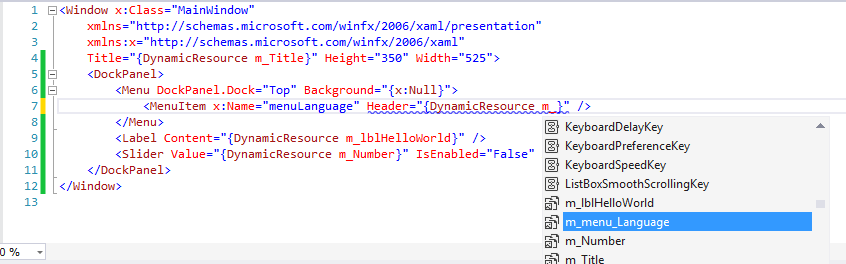
As you can see from the picture above, Visual Studio sees the resources we created earlier.
Note on the Slider element : the Value property is of type Double , so you can only use a resource of the same type.
Now let's start writing the code.
First, in the Application class ( App for C #), we indicate which cultures our application supports:
At the application level, we implement functionality that allows you to switch culture from any window without duplicate code.
We add the static Language property to the Application class ( App for C #), which will return the current culture, and changing the culture will replace the resource dictionary of the previous culture with a new one and trigger an event that allows all windows to perform additional actions when changing the culture.
Well, it remains to teach our window to switch the culture of the program. When creating a new window, add to the culture change menu all the cultures supported by the application, as well as add the event handler Application.LanguageChanged , which you previously created. We will also add a handler for clicking on the ChangeLanguageClick culture punt , which will change the culture and the LanguageChanged function for the application to handle the Application.LanguageChanged event :
The application is ready. But for complete happiness, we will configure the application so that it remembers our chosen culture when the application starts. We add the DefaultLanguage
setting to the project , specify the type System.Globalization.CultureInfo (located in the mscorlib library ) and specify the default value of the neutral culture of the project: We also add 2 additional functions to the Application class :

Now the application will start with the culture that was selected when the application was closed.
The whole project is posted on GitHub .
UDP : (2017.02.13)
In the code there is a bug with preserving the culture and initializing the program with the culture, which is not the default culture. The bug has been fixed on GitHub.
The project is written in Visaul Basic .NET, as well as in C #. I hope this makes the code easier to read for those who are not used to Visaul Basic .NET or C #.
First, create a new WPF Application project:
Do not forget to indicate a neutral culture for the entire project
- Open the project properties.
- Go to the Application tab .
- Open Assembly Information .
- Choosing a neutral culture
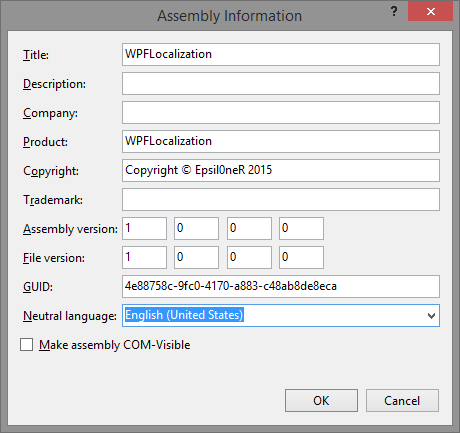
- Click OK.
Next, add the Resources folder for the localization files to the project .
In the Resources folder, create a Resource Dictionary (WPF) file , call it lang.xaml and add an attribute to the already created ResourceDictionary element , which allows us to describe values with an indication of the type:
xmlns:v="clr-namespace:System;assembly=mscorlib"
Now add the file to the application resources:
- Open the file Application.xaml ( App.xaml for C #);
- In the Application.Resources, add the ResourceDictionary element ;
- The element ResourceDictionary add an element ResourceDictionary.MergedDictionaries (here we keep all our ResourceDictionary);
- In the ResourceDictionary.MergedDictionaries element, add the ResourceDictionary element with the Source attribute , which refers to the lang.xaml file .
Result Example
Now we need to add the localized data for the UI inside the ResourceDictionary element in the lang.xaml file :
WPF Localization example In this case, we placed a text value (String), accessible by the m_Title key .
Sample data for the application
WPF Localization example Hello world! Language 20.15 For other application cultures, duplicate the lang.xaml file in the Resources folder and rename it to lang. ru-RU .xaml , where ru-RU is the name of the culture ( Culture name ). After duplication, you can translate the values. It is advisable to do this after we add all the values to the lang.xaml resource file .
Translated Resource File to Russian Culture (ru-RU)
Пример WPF локализации Привет мир! Язык 10.5 Now in the xaml code of the window we will add elements, and we will take the text for them using dynamic resources:
As you can see from the picture above, Visual Studio sees the resources we created earlier.
Note on the Slider element : the Value property is of type Double , so you can only use a resource of the same type.
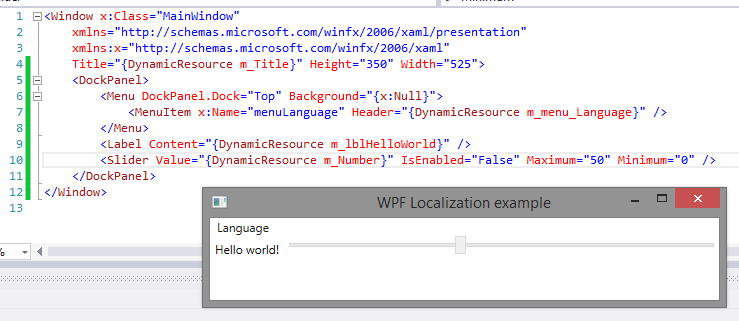
First start
We took out the window name, the menu name for changing the application culture, the text for Label and the value for the Slider element in the resources.
Now let's start writing the code.
First, in the Application class ( App for C #), we indicate which cultures our application supports:
Visual Basic .NET
Class Application
    Private Shared m_Languages As New List(Of CultureInfo)
    Public Shared ReadOnly Property Languages As List(Of CultureInfo)
        Get
            Return m_Languages
        End Get
    End Property
    Public Sub New()
        m_Languages.Clear()
        m_Languages.Add(New CultureInfo("en-US")) 'Нейтральная культура для этого проекта
        m_Languages.Add(New CultureInfo("ru-RU"))
    End Sub
End Class
C #
public partial class App : Application
{
   private static List m_Languages = new List();
	public static List Languages
	{
		get
		{
			return m_Languages;
		}
	}
	public App()
	{
		m_Languages.Clear();
		m_Languages.Add(new CultureInfo("en-US")); //Нейтральная культура для этого проекта
		m_Languages.Add(new CultureInfo("ru-RU"));
	}
}
At the application level, we implement functionality that allows you to switch culture from any window without duplicate code.
We add the static Language property to the Application class ( App for C #), which will return the current culture, and changing the culture will replace the resource dictionary of the previous culture with a new one and trigger an event that allows all windows to perform additional actions when changing the culture.
Visual Basic .NET
'Евент для оповещения всех окон приложения
Public Shared Event LanguageChanged(sender As Object, e As EventArgs)
Public Shared Property Language As CultureInfo
	Get
		Return System.Threading.Thread.CurrentThread.CurrentUICulture
	End Get
	Set(value As CultureInfo)
		If value Is Nothing Then Throw New ArgumentNullException("value")
		If value.Equals(System.Threading.Thread.CurrentThread.CurrentUICulture) Then Exit Property
		'1. Меняем язык приложения:
		System.Threading.Thread.CurrentThread.CurrentUICulture = value
		'2. Создаём ResourceDictionary для новой культуры
		Dim dict As New ResourceDictionary()
		Select Case value.Name
			Case "ru-RU"
				dict.Source = New Uri(String.Format("Resources/lang.{0}.xaml", value.Name), UriKind.Relative)
			Case Else
				dict.Source = New Uri("Resources/lang.xaml", UriKind.Relative)
		End Select
		'3. Находим старую ResourceDictionary и удаляем его и добавляем новую ResourceDictionary
		Dim oldDict As ResourceDictionary = (From d In My.Application.Resources.MergedDictionaries _
											 Where d.Source IsNot Nothing _
											 AndAlso d.Source.OriginalString.StartsWith("Resources/lang.") _
											 Select d).First
		If oldDict IsNot Nothing Then
			Dim ind As Integer = My.Application.Resources.MergedDictionaries.IndexOf(oldDict)
			My.Application.Resources.MergedDictionaries.Remove(oldDict)
			My.Application.Resources.MergedDictionaries.Insert(ind, dict)
		Else
			My.Application.Resources.MergedDictionaries.Add(dict)
		End If
		'4. Вызываем евент для оповещения всех окон.
		RaiseEvent LanguageChanged(Application.Current, New EventArgs)
	End Set
End Property
C #
//Евент для оповещения всех окон приложения
public static event EventHandler LanguageChanged;
public static CultureInfo Language {
	get
	{
		return System.Threading.Thread.CurrentThread.CurrentUICulture;
	}
	set
	{
		if(value==null) throw new ArgumentNullException("value");
		if(value==System.Threading.Thread.CurrentThread.CurrentUICulture) return;
		//1. Меняем язык приложения:
		System.Threading.Thread.CurrentThread.CurrentUICulture = value;
		//2. Создаём ResourceDictionary для новой культуры
		ResourceDictionary dict = new ResourceDictionary();
		switch(value.Name){
			case "ru-RU":
				dict.Source = new Uri(String.Format("Resources/lang.{0}.xaml", value.Name), UriKind.Relative);
				break;
			default:
				dict.Source = new Uri("Resources/lang.xaml", UriKind.Relative);
				break;
		}
		//3. Находим старую ResourceDictionary и удаляем его и добавляем новую ResourceDictionary
		ResourceDictionary oldDict = (from d in Application.Current.Resources.MergedDictionaries
									  where d.Source != null && d.Source.OriginalString.StartsWith("Resources/lang.")
									  select d).First();
		if (oldDict != null)
		{
			int ind = Application.Current.Resources.MergedDictionaries.IndexOf(oldDict);
			Application.Current.Resources.MergedDictionaries.Remove(oldDict);
			Application.Current.Resources.MergedDictionaries.Insert(ind, dict);
		}
		else
		{
			Application.Current.Resources.MergedDictionaries.Add(dict);
		}
		//4. Вызываем евент для оповещения всех окон.
		LanguageChanged(Application.Current, new EventArgs());
	}
}
Well, it remains to teach our window to switch the culture of the program. When creating a new window, add to the culture change menu all the cultures supported by the application, as well as add the event handler Application.LanguageChanged , which you previously created. We will also add a handler for clicking on the ChangeLanguageClick culture punt , which will change the culture and the LanguageChanged function for the application to handle the Application.LanguageChanged event :
Visual Basic .NET
Class MainWindow
    Public Sub New()
        InitializeComponent()
        'Добавляем обработчик события смены языка у приложения
        AddHandler Application.LanguageChanged, AddressOf LanguageChanged
        Dim currLang = Application.Language
        'Заполняем меню смены языка:
        menuLanguage.Items.Clear()
        For Each lang In Application.Languages
            Dim menuLang As New MenuItem()
            menuLang.Header = lang.DisplayName
            menuLang.Tag = lang
            menuLang.IsChecked = lang.Equals(currLang)
            AddHandler menuLang.Click, AddressOf ChangeLanguageClick
            menuLanguage.Items.Add(menuLang)
        Next
    End Sub
    Private Sub LanguageChanged(sender As Object, e As EventArgs)
        Dim currLang = Application.Language
        'Отмечаем нужный пункт смены языка как выбранный язык
        For Each i As MenuItem In menuLanguage.Items
            Dim ci As CultureInfo = TryCast(i.Tag, CultureInfo)
            i.IsChecked = ci IsNot Nothing AndAlso ci.Equals(currLang)
        Next
    End Sub
    Private Sub ChangeLanguageClick(sender As Object, e As RoutedEventArgs)
        Dim mi As MenuItem = TryCast(sender, MenuItem)
        If mi IsNot Nothing Then
            Dim lang As CultureInfo = TryCast(mi.Tag, CultureInfo)
            If lang IsNot Nothing Then
                Application.Language = lang
            End If
        End If
    End Sub
End Class
C #
namespace WPFLocalizationCSharp
{
    ///
    /// Interaction logic for MainWindow.xaml
    ///
    public partial class MainWindow : Window
    {
        public MainWindow()
        {
            InitializeComponent();
            App.LanguageChanged += LanguageChanged;
            CultureInfo currLang = App.Language;
            //Заполняем меню смены языка:
            menuLanguage.Items.Clear();
            foreach (var lang in App.Languages)
            {
                MenuItem menuLang = new MenuItem();
                menuLang.Header = lang.DisplayName;
                menuLang.Tag = lang;
                menuLang.IsChecked = lang.Equals(currLang);
                menuLang.Click += ChangeLanguageClick;
                menuLanguage.Items.Add(menuLang);
            }
        }
        private void LanguageChanged(Object sender, EventArgs e)
        {
            CultureInfo currLang = App.Language;
            //Отмечаем нужный пункт смены языка как выбранный язык
            foreach (MenuItem i in menuLanguage.Items)
            {
                CultureInfo ci = i.Tag as CultureInfo;
                i.IsChecked = ci != null && ci.Equals(currLang);
            }
        }
        private void ChangeLanguageClick(Object sender, EventArgs e)
        {
            MenuItem mi = sender as MenuItem;
            if (mi != null)
            {
                CultureInfo lang = mi.Tag as CultureInfo;
                if (lang != null) {
                    App.Language = lang;
                }
            }
        }
    }
}
The application is ready. But for complete happiness, we will configure the application so that it remembers our chosen culture when the application starts. We add the DefaultLanguage
setting to the project , specify the type System.Globalization.CultureInfo (located in the mscorlib library ) and specify the default value of the neutral culture of the project: We also add 2 additional functions to the Application class :
Visaul Basic .NET
    Private Sub Application_LoadCompleted(sender As Object, e As NavigationEventArgs) Handles Me.LoadCompleted
        Language = My.Settings.DefaultLanguage
    End Sub
    Private Shared Sub OnLanguageChanged(sender As Object, e As EventArgs) Handles MyClass.LanguageChanged
        My.Settings.DefaultLanguage = Language
        My.Settings.Save()
    End Sub
C #
In App.xaml, we add the LoadCompleted event handler to the Application element :
Add the App.LanguageChanged event handler to the constructor of the App class :
private void Application_LoadCompleted(object sender, System.Windows.Navigation.NavigationEventArgs e)
{
	Language = WPFLocalizationCSharp.Properties.Settings.Default.DefaultLanguage;
}
private void App_LanguageChanged(Object sender, EventArgs e)
{
	WPFLocalizationCSharp.Properties.Settings.Default.DefaultLanguage = Language;
	WPFLocalizationCSharp.Properties.Settings.Default.Save();
}
In App.xaml, we add the LoadCompleted event handler to the Application element :
LoadCompleted="Application_LoadCompleted"Add the App.LanguageChanged event handler to the constructor of the App class :
App.LanguageChanged += App_LanguageChanged;Now the application will start with the culture that was selected when the application was closed.
The whole project is posted on GitHub .
UDP : (2017.02.13)
In the code there is a bug with preserving the culture and initializing the program with the culture, which is not the default culture. The bug has been fixed on GitHub.