# Effective Touch Typing Training Method: Implementation Experience in IT Education
For developers and technical specialists, typing speed and accuracy directly impact productivity. A computer science instructor at a medical university developed a touch typing training method using the ten-finger approach that instills the skill in 89.5% of students over just four sessions. The main tool is a customized Excel file displaying finger zones on the keyboard at the top of the screen. The method's key advantage is integrating typing practice into subject-specific studies, which boosts student engagement.
Fundamentals of the Method: From Theory to Practice
Traditional touch typing approaches often run into a common issue: students keep staring at the keyboard, which slows muscle memory development. The method's creator proposed a solution integrated into the computer science curriculum. Instead of standalone typing lessons, practice texts incorporate material from the current topic—for example, terms from medical informatics or syllabus excerpts. This tackles two goals at once: mastering the subject matter and building typing skills without veering off into unrelated topics.
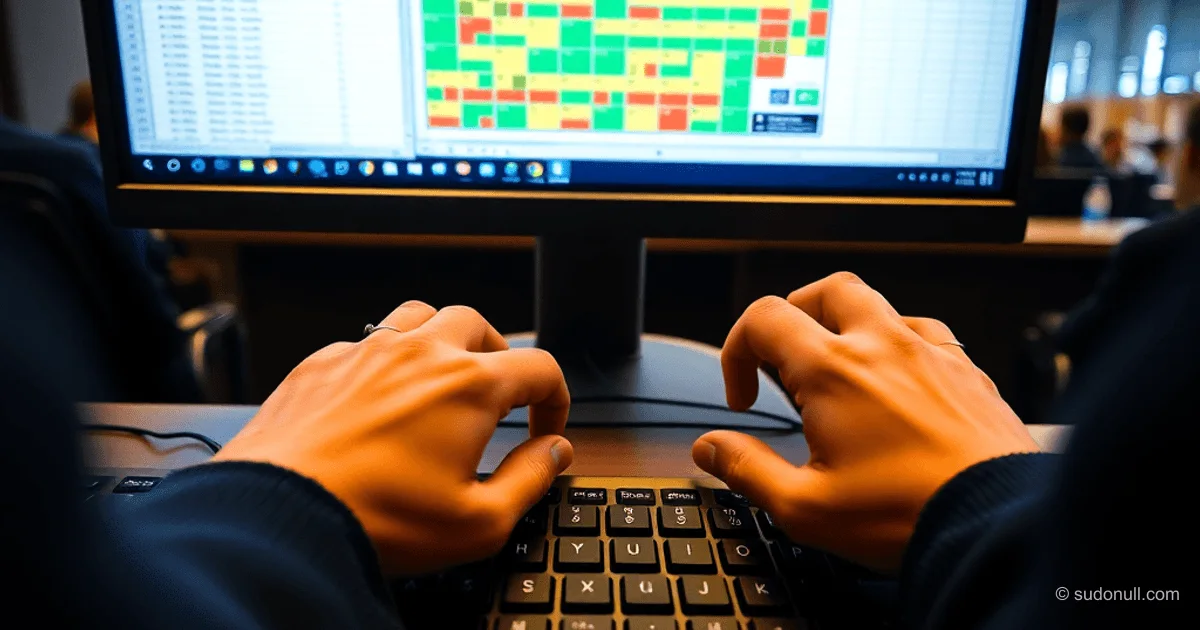
The key element is a visual cue with color-coded finger zones. Initially, physical cards were used, but they were inconvenient: students had to twist their heads between the card, the text, and the screen, breaking their focus. The fix came from moving the keyboard layout to the screen via Excel. The top row of the table is expanded to insert a keyboard image, then "frozen" using the Freeze Panes feature. Now, as the text scrolls, the diagram stays visible, keeping everything in the student's field of view.
The method follows the standard finger zone distribution recommended by the Ministry of Education (Bosova textbook for 7th grade). Each finger handles a specific keyboard sector, minimizing movement range. For example, the left ring finger controls the Q, A, Z keys and number keys 1, 4, 7 in the top row.
Technique in Action: Three Stages of Key Pressing
Proper hand movement is crucial for speed and comfort. The author outlines three sequential stages:
- Wrist movement from the home position to the target key. The motion should be smooth, without jerks, involving the entire forearm.
- Finger press on the key without hesitation. Emphasis is on minimal effort—modern keyboards require just a light touch.
- Wrist return to the home position immediately after the key registers. This creates rhythm and reduces strain.
Exceptions are the ASDF keys (left hand) and JKL; keys (right hand), plus the spacebar—no wrist movement needed there. The home position ("home keys") serves as the reference point and rest spot for fingers. Sticking to it builds the foundation for automation, letting students focus on the text content rather than hunting for keys.
Common Challenges and How to Overcome Them
During training, students encounter recurring issues. The method includes targeted techniques to address them:
- Keyboard ergonomics: Standard keyboards have slanted rows (a holdover from typewriters). This forces diagonal wrist movement instead of vertical. The solution is targeted exercises along those slanted rows, gradually building the correct trajectory.
- Returning to home position: Many try to "stretch" a finger to the key, leaving the hand in limbo. Stressing a mandatory return after every press ingrains proper movement memory. A screen covering the keyboard during tests enforces this.
- Visual dependency: The urge to glance at the keys. The on-screen diagram gradually replaces physical peeking and eventually becomes unnecessary as automation kicks in. Early on, students check the diagram; by course end, they rely solely on the text screen.
- Finger stretching: Instead of moving the whole wrist, students stretch their fingers. Training emphasizes wrist shifts, reducing strain and speeding up typing. Exercises feature sequences requiring minimal movement range.
Measuring Progress and Final Testing
The method's effectiveness is verified through a standardized test: typing a pangram (a phrase containing every letter of the alphabet). For English speakers, it's "The quick brown fox jumps over the lazy dog"; for Russian speakers, "Withesh zhe also etikh myagkikh frantsuzskikh bulok, da vypey chayu." The test is done blind: keyboard covered by a screen, with the instructor observing technique.
A key feature is the built-in typing speed meter in the Excel file. It tracks characters per minute without macros to avoid glitches. It works simply: the student starts typing, notes start and end times. Excel formulas auto-calculate speed based on characters typed and time elapsed. Exercises are leveled by difficulty, from basic movements to professional terms.
Key Takeaways
- Integration into the curriculum boosts motivation: students see real value in typing texts tied to their field, especially valuable for technical majors.
- On-screen visual cue eliminates looking away from the monitor, speeding up automation and cutting cognitive load.
- Clear three-stage technique minimizes errors and fatigue during long sessions—critical for developers glued to keyboards all day.
- Standardized pangram test provides objective skill assessment, adaptable to any language or IT context (e.g., using code snippets).
- Results in 4 sessions prove the method works: 89.5% of participants master touch typing without visual aids, ideal for short IT company bootcamps.
The method has proven its worth with 364 medical students. Two no-shows didn't pick it up, but the rest passed the test with flying colors. It's easily adaptable for IT courses—like training junior developers in programming basics, where fast code typing is essential. For tech pros, touch typing isn't just convenient—it's a productivity booster.
— Editorial Team






No comments yet.