
RAID 1 on NAS Synology
Good afternoon!
Not so long ago, olekl asked us to talk about RAID 1 in Synology, namely
Did you ask? We answer!
So, 2-disk drives are increasingly in demand among home users and small companies, where a small amount of storage and fault tolerance are required. The Synology product line includes as many as 7 (seven) 2-disk NAS drives. These are models:
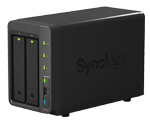 DS214 + and
 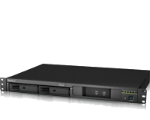 RS214 segment smb
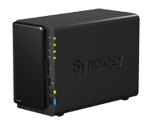 DS214 segment soho
DS214play , 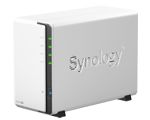 DS213air , DS213j and DS214se home segment.
Diagnostics and hot swapping
Synology uses 2 procedures for diagnosing hard drive malfunctions: checking the surface of the drive, which is started when a new array is created and subsequently scheduled (at the request of the user) and receiving real-time SMART data. Using these procedures allows you to track and timely prevent the failure of two drives simultaneously.
Often, with the wrong choice of a hard disk, it crashes out of the system. Moreover, the state of the surface of the disk and its smart remain in order. The reason for such crashes is the thoughtfulness of the disk and its non-response within 7 seconds (controller wait time). Therefore, it is better to choose NAS or Enterprise series drives.
If, according to the results of the diagnostics, Synology issued a warning that the hard drive is malfunctioning, it is recommended to replace it. To do this, depending on the model of the device, you will have to turn it off (DS213air, DS213j, DS214se) or simply, eject the “hot” disk. After installing a new disk (and in the DS214play model you don’t even need to unscrew the screws for this - the drive rails are screwless) you need to open the Synology web interface, log in and open Storage Manager. Here, we first turn off the sound signal with the corresponding button on the taskbar, and then with the control button we start the partition recovery procedure.
Depending on the size of the disk, it can last from several hours to 1 day.
RAID 1 from two disks from different manufacturers.
Everything is simple here: we work on a smaller / slower disk.
Since RAID 1 involves simultaneous recording to both disks, when you install a slow and fast drive in one partition, the fast one will constantly wait until its slow comrade completes it. Such configurations are viable but not recommended for use .
Synology device failure, data recovery from disks.
It is extremely unlikely, but still, Synology may fail: improper shutdown (by power), physical impact, or just an accident. At such a moment, the user must first make sure that everything is in order with the data. So what is on the disks? Everything is extremely simple:
Section 1 - The DSM OS itself is integrated into RAID 1, regardless of the number of bays in the device.
Section 2 - swap common to all linux OS
Section 3 - User data. The most important partition for you and for the NAS :)
When using RAID 1, the usual ext4 partition is created on the disk, where the data falls. It is mounted in the system as / volume1
Having connected the drive from Synology to a PC under Linux, we will see all 3 partitions and can easily pull out the data.
If you are not familiar Linuxom, then connect the drive to a PC running the Windows , swing and run UFS Explorer Professional Recovery and read the data (alas, to write the program to ext4 does not know how).
Also a fresh solution - the ability to build a clusterHigh Availability from two identical devices. Of the dual-drive, this is only the DS713 +.
In fact, when building this cluster, we get almost RAID 1 from two devices (“almost” because the transition time from active to passive is about 40 seconds). Read more on synology.com website.
And finally: by installing hard drives from your old Synology into a new one, you can read all the data stored on these drives. In some cases, migration will be required.
The site thg.ru published a series of articles that tells about NAS Synology, and set them up. By Link - Lesson 4, All About Using RAID.
I hope everything is clear and simple. If you have any questions, I will be happy to answer them in the comments or by calling Synology support:
+7 (499) 704-4539 for Moscow
8 (804) 333-4601 for the regions of Russia (the call is free)
Not so long ago, olekl asked us to talk about RAID 1 in Synology, namely
- raid 1, one drive failure, diagnostic and hot swap procedure
- raid 1 of two disks from different manufacturers
- raid 1, device failure, rescue data from the disk using OS tools
Did you ask? We answer!
So, 2-disk drives are increasingly in demand among home users and small companies, where a small amount of storage and fault tolerance are required. The Synology product line includes as many as 7 (seven) 2-disk NAS drives. These are models:
DS214 + and RS214 segment smb DS214 segment soho DS214play , DS213air , DS213j and DS214se home segment. Diagnostics and hot swapping
Synology uses 2 procedures for diagnosing hard drive malfunctions: checking the surface of the drive, which is started when a new array is created and subsequently scheduled (at the request of the user) and receiving real-time SMART data. Using these procedures allows you to track and timely prevent the failure of two drives simultaneously.
Often, with the wrong choice of a hard disk, it crashes out of the system. Moreover, the state of the surface of the disk and its smart remain in order. The reason for such crashes is the thoughtfulness of the disk and its non-response within 7 seconds (controller wait time). Therefore, it is better to choose NAS or Enterprise series drives.
If, according to the results of the diagnostics, Synology issued a warning that the hard drive is malfunctioning, it is recommended to replace it. To do this, depending on the model of the device, you will have to turn it off (DS213air, DS213j, DS214se) or simply, eject the “hot” disk. After installing a new disk (and in the DS214play model you don’t even need to unscrew the screws for this - the drive rails are screwless) you need to open the Synology web interface, log in and open Storage Manager. Here, we first turn off the sound signal with the corresponding button on the taskbar, and then with the control button we start the partition recovery procedure.
Depending on the size of the disk, it can last from several hours to 1 day.
RAID 1 from two disks from different manufacturers.
Everything is simple here: we work on a smaller / slower disk.
Since RAID 1 involves simultaneous recording to both disks, when you install a slow and fast drive in one partition, the fast one will constantly wait until its slow comrade completes it. Such configurations are viable but not recommended for use .
Synology device failure, data recovery from disks.
It is extremely unlikely, but still, Synology may fail: improper shutdown (by power), physical impact, or just an accident. At such a moment, the user must first make sure that everything is in order with the data. So what is on the disks? Everything is extremely simple:
Section 1 - The DSM OS itself is integrated into RAID 1, regardless of the number of bays in the device.
Section 2 - swap common to all linux OS
Section 3 - User data. The most important partition for you and for the NAS :)
When using RAID 1, the usual ext4 partition is created on the disk, where the data falls. It is mounted in the system as / volume1
Having connected the drive from Synology to a PC under Linux, we will see all 3 partitions and can easily pull out the data.
If you are not familiar Linuxom, then connect the drive to a PC running the Windows , swing and run UFS Explorer Professional Recovery and read the data (alas, to write the program to ext4 does not know how).
Also a fresh solution - the ability to build a clusterHigh Availability from two identical devices. Of the dual-drive, this is only the DS713 +.
In fact, when building this cluster, we get almost RAID 1 from two devices (“almost” because the transition time from active to passive is about 40 seconds). Read more on synology.com website.
And finally: by installing hard drives from your old Synology into a new one, you can read all the data stored on these drives. In some cases, migration will be required.
The site thg.ru published a series of articles that tells about NAS Synology, and set them up. By Link - Lesson 4, All About Using RAID.
I hope everything is clear and simple. If you have any questions, I will be happy to answer them in the comments or by calling Synology support:
+7 (499) 704-4539 for Moscow
8 (804) 333-4601 for the regions of Russia (the call is free)