
Working with tables in MultiCAD.NET. Part 1. Creating a report based on a template

With this publication, we will open a series of articles about the capabilities and features of the API for working with tables in MultiCAD.NET.
As you know, almost no drawing is complete without tabular design: tables are used to create objects containing quantitative information about the design, lists of elements, specifications, etc. A typical task that designers are faced with is creating a tabular report on the selected drawing objects. Automation of this task will save the user from routine work, thereby reducing the time spent and the number of errors.
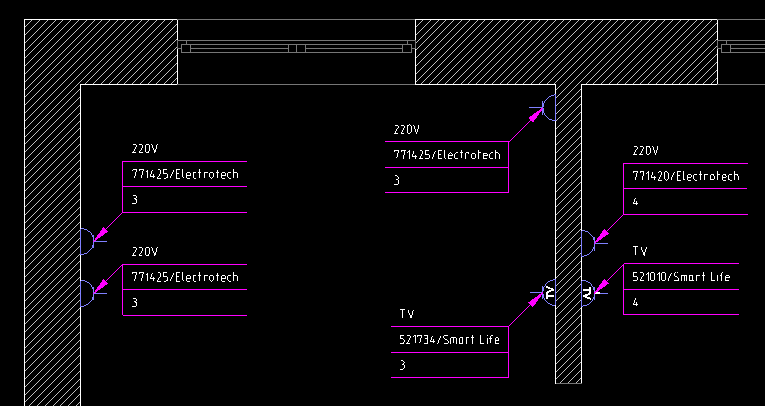
As an example, we consider the formation of the final list of electrical appliances according to the layout plan of the equipment (or, more simply, according to the drawing illustrating the distribution of electrical outlets across the premises).
Each outlet is marked with a multi-level leader that contains the following information:
- outlet type
- article / manufacturer,
- Room number for installation.
The process of solving the problem can be divided into three stages:
- creating your own table template for the report,
- template loading and sequential filling of the table with data,
- pagination and page insertion of the table.
Creating a table template
Table reports are usually generated on the basis of standard templates, for the creation of which the table UI is most often used. However, for demonstration purposes, we will create our own template using MultiCAD.NET software. The general view of the final table will look as follows:

The values of the cells correspond to the number of installed electrical outlets of a particular model in a particular room. The table will also contain two headers: a regular footer, which, if the table is split, will be added to each page of the report except the first, and a footer of the first page.
An example of a method that creates such a template and saves it to a file with the specified name
bool CreateTemplate(string FileName)
{
  McTable table = new McTable();
  table.DefaultCell.HorizontalTextAlign = HorizTextAlign.Center;
  table.DefaultCell.VerticalTextAlign = VertTextAlign.Center;
  table.Columns.AddRange(0, 2);
  table.Columns[0].Width = 55;
  table.Columns[1].Width = 10;
  // Добавляем секцию верхнего колонтитула первой страницы
  table.Rows.InsertSection(SectionTypeEnum.HeaderFirst, 0, 2);
  System.Drawing.Rectangle rect = new System.Drawing.Rectangle(0, 0, 1, 0);
  table.Merge(rect);
  table[0, 0].TextHeight = 3.5;
  table.Rows[0].Height = 10;
  table[0, 0].Value = "Ведомость электрических розеток по номеру помещения";
  foreach (var cell in table.Rows[0].Cells)
    cell.SetBorderLineweight(BorderTypesEnum.ButBottom, -9);
  table.Rows[1].Height = 8;
  foreach (var cell in table.Rows[1].Cells)
  {
    cell.TextHeight = 2.5;
  }
  table[1, 0].Value = "Артикул изделия";
  table[1, 1].Value = "#room";
  // Добавляем секцию верхнего колонтитула
  table.Rows.InsertSection(SectionTypeEnum.Header, 2);
  table.Rows[3].Height = 8;
  foreach (var cell in table.Rows[3].Cells)
  {
    cell.TextHeight = 2.5;
  }
  table[3, 0].Value = "Артикул изделия";
  table[3, 1].Value = "#room";
  // Добавляем секцию данных
  table.Rows.InsertSection(SectionTypeEnum.None, 4);
  table.Rows[5].Height = 6;
  table[5, 0].Value = "#code";
  // Сохраняем таблицу во внешний файл
  if (!table.SaveToFile(FileName))
  {
    return false;
  }
  return true;
}
The proposed table structure and cell format can be changed in the template in accordance with user preferences using the table editor.
In this implementation, the template cells contain special identifier strings "#code" and "#room", which, when filling out the table, will determine which data should be written to a specific cell. This will ensure the correct filling of the table even with a possible change in the number of rows and columns in the template.
Report generation
The algorithm for constructing the report table can be divided into the following steps:
- registration of the report generation team,
- selection on the drawing of all callouts containing a description of electrical outlets,
- loading a template, launching a spreadsheet editor for a possible template change,
- structuring the data of the selected objects for subsequent writing to the table,
- filling in the table headers (table name, column names according to the number of rooms),
- filling in the rows of the table.
The full sample code is available at this link , and we will dwell on some key points.
Register Reporting Team
Add the “main” application method, which is the command handler
smpl_CreateTableReportand will contain the implementation of the algorithm:[CommandMethod("smpl_CreateTableReport", CommandFlags.NoCheck | CommandFlags.NoPrefix)]
public void smpl_CreateTableReport()
{
// Код примера
}
Select Objects
The selection of objects of the “leader for multi-layer structures” type is carried out in a standard way, by setting the object filter:
McObjectId[] idSelecteds = ObjectFilter.Create(true).AddType(McNoteMultilayer.TypeID).GetObjects().ToArray();
if (idSelecteds == null || idSelecteds.Length == 0)
{
  return;
}
As a result of selecting objects by filter, we got an Id array of all leaders in the drawing. Id can get the contents of the lines of each leader:
McNoteUnitCollection units=(McNoteMultilayer)id.GetObject()).Units;
To fill the table, it will be convenient to write the contents of all selected objects into a single data structure suitable for searching and sorting elements. In this example, a structure is used from nested dictionaries of the form: <article <room number, quantity >> .
Download Template
We assume that we have already created a template of the desired structure using the method
CreateTemplate()and saved it in a file, for example, “C: \ template.dat” . The table is loaded from an external file using the method McTable.LoadFromFile(). Let's create a table object, load the structure and content for it from the created template, and also call the table editor to give the user the opportunity to make changes to the template, if any. Of course, the table template must be written in a format that allows you to save not only the contents, but also the structure and formatting of the table.const string FileName = "C:\\template.dat";
McTable Table = new McTable();
if (!Table.LoadFromFile(FileName))
{
return;
}
Table.OnEdit();

After that, you can start filling out the table. The process consists in sorting, sequentially sorting the data obtained from leader lines and adding them as the values of the corresponding cells. Given the variety of possible implementations, we will not dwell on this point; You can familiarize yourself with the solution that was used to write this example in the source code of the project.
Pagination of the table
We should also mention such a useful feature when working with tables as pagination. By default, the report is presented in the form of a single table, the size of which with a large number of rows can be critical. You can break a table into pages with a restriction of their height using the method
McTable.PagesTable.SetPageHeight().The following code fragment will break a table into pages with a height of no more than 50:const double pageHeight = 50;
double tableHeight = Table.DbEntity.BoundingBox.SizeByY;
if (tableHeight > pageHeight)
{
Table.Pages.SetPageHeight(pageHeight);
}

An additional way is to insert a forced page break using the method
McTable.PagesTable.SetPageBreak(). For example, to split a table into two pages in a row with index 7:Table.Pages.SetPageBreak(7);
The result will be a table consisting of two pages:

After the table has been split by any of these methods, it is necessary to set the insertion point of each of the pages relative to the insertion point of the table using the method
McTable.PagesTable.SetOriginPage(), the first argument of which is the page number, and the second is the point coordinates. For example, to place pages with an interval of 5 units:for (int n = 0; n < Table.Pages.Count; n++)
{
Table.Pages.SetOriginPage(n, new Point3d(n * (tableWidth + 5 * Table.DbEntity.Scale), 0, 0));
}
Download an application in AutoCAD
As usual, our example will run in the nanoCAD environment after loading the built library and running the registered command
smpl_CreateTableReport. To run MultiCAD.NET applications in an AutoCAD environment, a special adapter application (Object Enabler) is required. It should be noted that the standard MultiCAD Enabler for AutoCAD does not contain tools for working with objects from the namespace Multicad.Symbols, therefore, to run applications dealing with such objects, you must first download the GraphiCS or MechaniCS SPDS applications that contain all the primitives, including tables and callouts. Discussion of the article is also available on our forum: forum.nanocad.ru/index.php?showtopic=6510 .
Translation of the article into English:Tables in MultiCAD.NET. Generating reports based on table templates .
See also:
Working with tables in MultiCAD.NET. Part 2. Creation and editing
Working with tables in MultiCAD.NET. Part 3. External table files and data exchange with Microsoft Excel