May 20, 2013 at 17:44
Getting Started Windows Phone 8 Development: Lesson 3. Page Navigation and Passing Settings
- Transfer
- Tutorial
Beginning of Windows Phone 8 Development: lesson 1. Application layout and event handler
Beginning of Windows Phone 8 Development: lesson 2. Accessing local application storage
Beginning of Windows Phone 8 Development: lesson 3. Navigating through pages and passing parameters
Beginning of Windows Phone 8 Development: lesson 4. Communication with services and data binding
As stated in previous lessons, Windows Phone 8 apps use XAML pages. This means that they can be taken almost like regular web pages. Also, each application has its own navigation. For example, in a news application, there is a main page that displays categories of news. After selecting a category, you go to a page where all the news related to this topic is shown. Well, then you already choose which news you want to read completely.
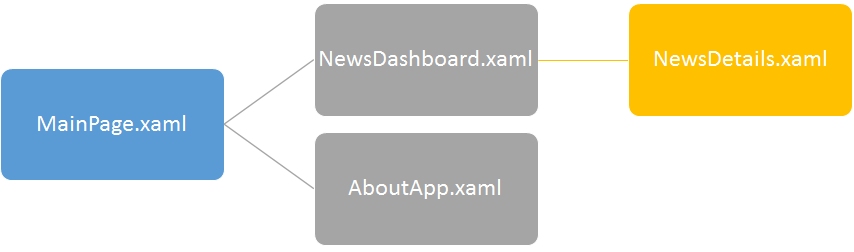
We’ll talk more about data binding and choosing the right element in the next lesson, but now we’ll learn how to navigate through pages and pass parameters between them.
Two pages. On the main one, that is, on Page 1, we will enter a line and transfer it to Page 2, where we will also show it.
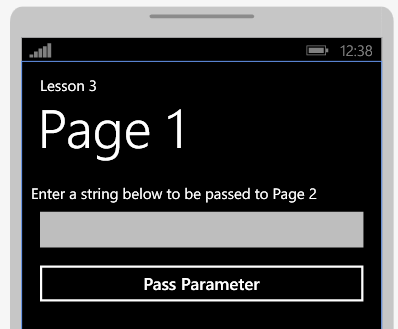
As you probably already guessed, we again use StackPanel and TextBlock to display a message to the user, TextBox to capture a line and a button to go to Page 2.

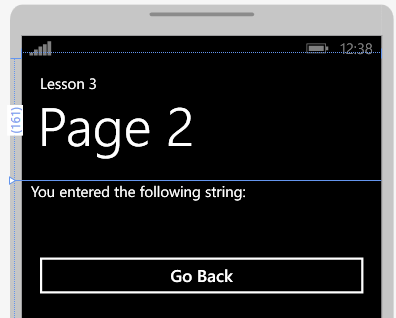
Create a StackPanel with two TextBlocks: one to inform the user, and the second to display the line passed from Page 1. And also the Back button to go to the previous page.

On page 1, double-click on the PassParameter button to create an event handler. To go to another page, use the NavigationService.Navigate function, passing the desired URI to it:

And if you need to pass parameters, then this is done in this way:

Here we defined the UserString parameter and passed the string entered by the user from the TextBox element into it. I myself am a web developer, and you can imagine my surprise when I saw this way of passing parameters and calling pages. The only difference is that the Response.Redirect function is called on the web.
Personally, I prefer to use the string.Format function, since it’s easier to add a large number of parameters and use curly braces and an index without worrying about strings.
The code for the button that calls Page 2 and passes the parameters to it is:

The logic of Page 2 is pretty simple. Just get the parameter and display its value in the TextBox. To get the parameters, use the NavigationContext:

Add an event handler for the Back button:

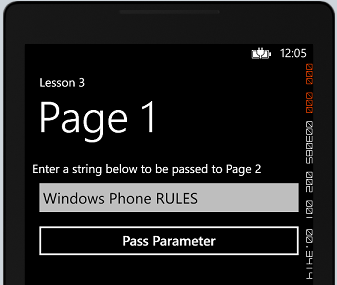
Press F5 and wait for the download. After loading our application, enter a message in the field and click on the Pass Parameter button:
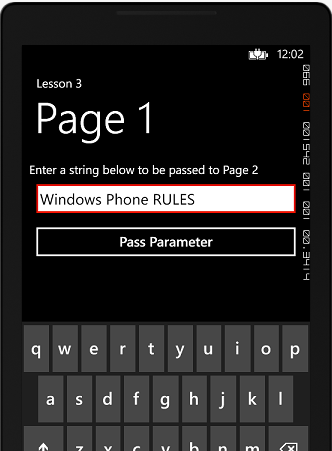
And on Page 2 we see something similar:
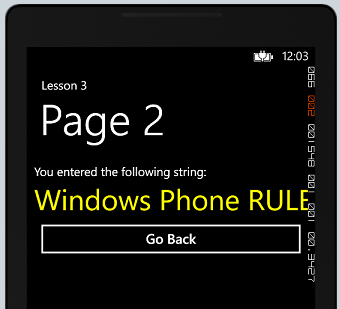
After clicking on the Go Back button, we return to Page 1 again.
To navigate between pages in our Windows Phone 8 application, we used the NavigationService.Navigate function. And to transfer the parameters, they were attached to the desired URI, as is done on the web. To obtain the transferred parameters, the NavigationContext function was used.
Beginning of Windows Phone 8 Development: lesson 2. Accessing local application storage
Beginning of Windows Phone 8 Development: lesson 3. Navigating through pages and passing parameters
Beginning of Windows Phone 8 Development: lesson 4. Communication with services and data binding
As stated in previous lessons, Windows Phone 8 apps use XAML pages. This means that they can be taken almost like regular web pages. Also, each application has its own navigation. For example, in a news application, there is a main page that displays categories of news. After selecting a category, you go to a page where all the news related to this topic is shown. Well, then you already choose which news you want to read completely.
We’ll talk more about data binding and choosing the right element in the next lesson, but now we’ll learn how to navigate through pages and pass parameters between them.
And it will all look like this ...
Two pages. On the main one, that is, on Page 1, we will enter a line and transfer it to Page 2, where we will also show it.
As you probably already guessed, we again use StackPanel and TextBlock to display a message to the user, TextBox to capture a line and a button to go to Page 2.
The code
It looks like Page 2
Create a StackPanel with two TextBlocks: one to inform the user, and the second to display the line passed from Page 1. And also the Back button to go to the previous page.
The code
Passing parameters
On page 1, double-click on the PassParameter button to create an event handler. To go to another page, use the NavigationService.Navigate function, passing the desired URI to it:
The code
NavigationService.Navigate ( new Uri("/Page2.xaml", UriKind.Relative));
And if you need to pass parameters, then this is done in this way:
The code
NavigationService.Navigate (new Uri("/Page2.xaml?UserString="+ SomeText.Text, UriKind.Relative));
Here we defined the UserString parameter and passed the string entered by the user from the TextBox element into it. I myself am a web developer, and you can imagine my surprise when I saw this way of passing parameters and calling pages. The only difference is that the Response.Redirect function is called on the web.
Personally, I prefer to use the string.Format function, since it’s easier to add a large number of parameters and use curly braces and an index without worrying about strings.
The code for the button that calls Page 2 and passes the parameters to it is:
The code
private void PassParameter_Click(object sender, RoutedEventArgs e)
{
	NavigationService.Navigate(new Uri(string.Format("/Page2.xaml?UserString={0}", SomeText.Text), UriKind.Relative));
}
Getting parameters
The logic of Page 2 is pretty simple. Just get the parameter and display its value in the TextBox. To get the parameters, use the NavigationContext:
The code
private void PhoneApplicationPage_Loaded_1(object sender, RoutedEventArgs e)
{
	SomeText.Text = NavigationContext .QueryString["UserString"] .ToString();
}
Add an event handler for the Back button:
The code
private void GoBack_Click(object sender, RoutedEventArgs e)
{
	NavigationService.GoBack();
}
Testing!
Press F5 and wait for the download. After loading our application, enter a message in the field and click on the Pass Parameter button:
And on Page 2 we see something similar:
After clicking on the Go Back button, we return to Page 1 again.
To summarize
To navigate between pages in our Windows Phone 8 application, we used the NavigationService.Navigate function. And to transfer the parameters, they were attached to the desired URI, as is done on the web. To obtain the transferred parameters, the NavigationContext function was used.