MiniFilter driver development
Somehow I had the opportunity to run into the task of managing access and redirecting requests to the file system as part of certain processes. It was necessary to implement a simple, easily configurable solution.
I decided to develop a MiniFilter driver that is configured using a text file.
Consider what MiniFilter is in general terms:
Filtering is carried out through the so-called Filter Manager, which comes with the Windows operating system, is activated only when loading mini filters. Filter Manager connects directly to the file system stack. Mini filters are registered for processing data on input / output operations using the Filter Manager functionality, thus obtaining indirect access to the file system. After registering and starting, the mini-filter receives a set of data on the I / O operations that were specified during configuration, and if necessary, can make changes to these data, thereby affecting the operation of the file system.
The following diagram shows in simplified form how the Filter Manager functions.
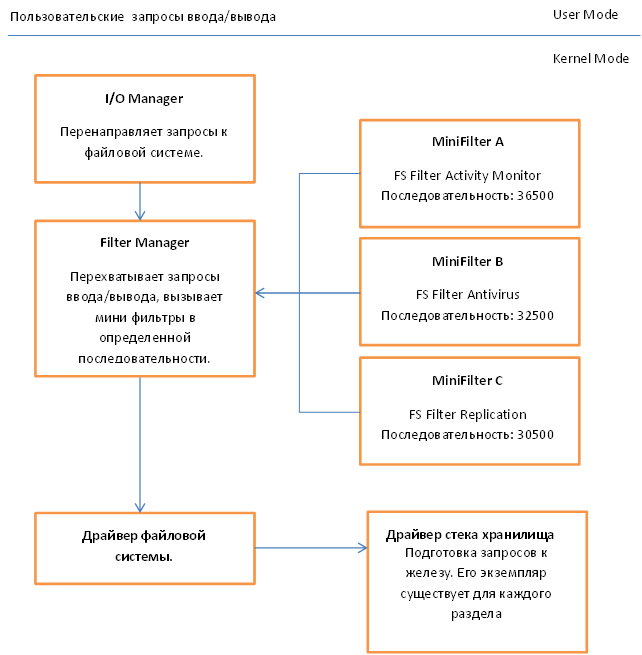
You can obtain more detailed theoretical information on the MSDN website using the link at the end of the article. Enough is not bad, everything is taken apart.
We will move towards development and consider some basic structures that need to be filled.
General global data.
In this structure we will store the link to the object of our driver and the link to the filter instance. I want to note that PFLT_FILTER uniquely identifies a mini filter and remains constant for the entire duration of the driver. Used when activating or stopping the filtering process.
Register filter
Here it is worth stopping at several fields:
Next, consider the structure of Callbacks:
Here we indicate that we will intercept the CreateFile operation, we also indicate the functions that will be called, respectively, before and after the operation on the file is performed.
Next, I give the code of the functions that are called when the filter is initialized and disabled.
I think the code does not need additional comments, since everything is fairly standard. I only note that our driver will not work for the network.
Now let's look at the driver initialization function:
The registration of the mini filter is carried out by calling the FltRegisterFilter function, into which we pass theDriverObject received at the input, the FilterRegistration structure described earlier and a variable link where the created filter instance fileManager.pFilter will be placed. To start the filtering process, you need to call the FltStartFiltering function (fileManager.pFilter).
I also note that the configuration file is downloaded and processed by the following calls ConfigInfo = ReadConfigurationFile (); and ParseConfigurationFile (ConfigInfo), respectively.
Data from the configuration file is converted to the next set of structures.
The head structure is CONFIGURATION_MAP, which stores a link to the description of the ProcessRule process, as well as a pointer to the next element. In turn, PROCESS_CONFIGURATION_RULE stores a link to the process name and directly to the I / O redirection rule structure, which, like REDIRECT_MAP, is a linked list.
Consider the driver unload function, it is quite simple:
Here we just unregister the filter and release all of our configuration structures.
Now let's turn to the most interesting part, namely to the function that deals with the redirection of input / output operations. Since we have a fairly simple driver, we will do this right in PreFileOperationCallback.
We determine the main variables, and also check if we have already received something filtered, and if so, then this operation must be skipped, otherwise we can get recursion of calls, which can lead to BSOD.
Here we turn to the data of structures received from FilterManager. PFLT_CALLBACK_DATA structure - stores data on the current input / output operation, the FilterManager is guided by the fields of this structure when accessing the file system. Accordingly, if we want to change the behavior of Windows when accessing files or directories, we must reflect this in PFLT_CALLBACK_DATA. More specifically, we are interested in the field Data-> Iopb-> TargetFileObject, using it we can get the path to the file in the current section and later change it if necessary, thus changing the behavior of the OS. PCFLT_RELATED_OBJECTS - contains objects associated with this I / O operation, such as a link to a file, section, etc. Check that the elements of the structure we need are filled. We also check that the function in the context of which we are executing is really MJ_CREATE.
In this section of code, we allocate memory for the path and process name. I can’t imagine what size the string will be, so select the maximum possible WCHAR string. I will not consider the source code GetProcessImageName, I can only say that it returns the full path to the file in the following form: \ Device \ HarddiskVolume4 \ Windows \ notepad.exe. that is, the section, well, actually, the path to the file.
The FindRuleByProcessName function, if successful, returns the first element of the linked list containing the redirection rules for the current process, otherwise NULL.
We free up unnecessary memory and check that we got some kind of object, not NULL. redirectRuleItem = rule-> ProcessRule.Rule - access to the first rule for this process.
We start the passage according to all the rules for this process, compare the link to the current file with what we have in the configuration. If it matches, we try to get additional information about the file, for example, to which section it belongs. To do this, use the FltGetFileNameInformation function.
If everything is ok, try to select the section, and then form the final line. Final path = Current section + Where to send the I / O request.
Next, we configure the system structures so that File Manager once again processes this request, but only now in a different way. To do this, it is important to put the following values for the Data-> IoStatus.Information = IO_REPARSE and Data-> IoStatus.Status = STATUS_REPARSE; fields, as well as specify a new path to the file FileObject-> FileName.Buffer = fullPath.Buffer ;. As a result of the function, return FLT_PROP_COMPLETE.
Do not forget to go to the next element of the redirection list. Return FLT_PREOP_SUCCESS_NO_CALLBACK if you do nothing with the current Filter Manger operation.
At the moment, I / O redefinition works only within the framework of one section, as soon as I debug the option with support for several sections, I will post it.
It is necessary to install a mini filter using a specially designed inf file, an example that you will find in the sources for this article.
The configuration file has the following form:
The file should be located in the root of the C drive, the name should be: minifilter.conf.
So, we have the ability to redirect file I / O requests, however, to implement, in addition, let's say, a mechanism for denying access to a file is quite simple. It is necessary to select the file to which access must be denied and specify the following value for the field of the system structure Data-> IoStatus.Status = STATUS_ACCESS_DENIED ;. Remember to return FLT_PROP_COMPLETE as the result of the function.
To start or stop the service, I use KMD Manager. To analyze PoolTag memory leaks. As for debugging, you can use DbgView, however, for Windows Vista and higher, you need to activate debugging messages. To do this, create a DWORD registry key in the following path HKEY_LOCAL_MACHINE \ SYSTEM \ CurrentControlSet \ Control \ Session Manager \ Debug Print Filter with the name DEFAULT and value eight.
To start the driver in the 64-bit version of Windows 7, you will need to disable driver signature verification, to do this, restart the computer, press F8 at system startup and select Disable Driver Signature Enforcement, or use the Driver Signature Enforcement Overrider (DSEO) utility. This utility will allow you to activate the test mode for debugging drivers and sign the desired driver with a fake certificate, which will ultimately allow you to use it without problems.
Regardless of whether logging is enabled or not, after starting the service in DbgView you should observe something similar.
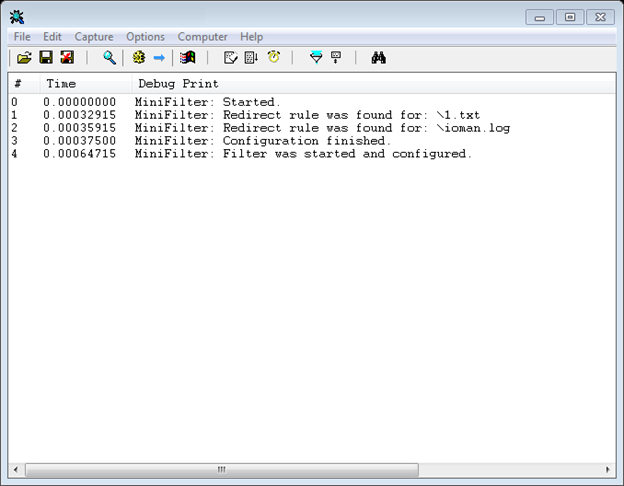
And so our driver will look in DeviceTree

I can add that the code is still quite raw and needs to be improved, but overall it works fine. Actually, if you have a BSOD, it's not my fault). Tested only on Windows 7 X86 and Windows 7 IA64.
Link to sources and utilities: publish.rar
What to read:
PS. I want to note that I am not a professional in system programming, so this article does not claim to be complete. By the nature of my activity, I am engaged in development for Microsoft Dynamics CRM (.net, asp.net, etc.).
I will be glad to your comments.
I decided to develop a MiniFilter driver that is configured using a text file.
Consider what MiniFilter is in general terms:
Filtering is carried out through the so-called Filter Manager, which comes with the Windows operating system, is activated only when loading mini filters. Filter Manager connects directly to the file system stack. Mini filters are registered for processing data on input / output operations using the Filter Manager functionality, thus obtaining indirect access to the file system. After registering and starting, the mini-filter receives a set of data on the I / O operations that were specified during configuration, and if necessary, can make changes to these data, thereby affecting the operation of the file system.
The following diagram shows in simplified form how the Filter Manager functions.
You can obtain more detailed theoretical information on the MSDN website using the link at the end of the article. Enough is not bad, everything is taken apart.
We will move towards development and consider some basic structures that need to be filled.
General global data.
typedefstruct _MINIFILTER
{
	PDRIVER_OBJECT pDriverObject;
	PFLT_FILTER pFilter;
} MINIFILTER, *PMINIFILTER;
MINIFILTER fileManager;
In this structure we will store the link to the object of our driver and the link to the filter instance. I want to note that PFLT_FILTER uniquely identifies a mini filter and remains constant for the entire duration of the driver. Used when activating or stopping the filtering process.
Register filter
CONST FLT_REGISTRATION FilterRegistration = {
    sizeof( FLT_REGISTRATION ),         //  Size
    FLT_REGISTRATION_VERSION,           //  Version0,                                  //  FlagsNULL,                               //  Context
    Callbacks,                          //  Operation callbacks
    FilterUnload,                     //  FilterUnload
    FilterLoad,                    //  InstanceSetupNULL,            //  InstanceQueryTeardownNULL,            //  InstanceTeardownStartNULL,         //  InstanceTeardownCompleteNULL,                 //  GenerateFileNameNULL//  NormalizeNameComponent
};
Here it is worth stopping at several fields:
- Callbacks - a link to a structure that determines what and with what functions we are going to process.
- FilterUnload is a function that will be called when the filter is disabled.
- FilterLoad is the function that will be called when the filter is initialized.
Next, consider the structure of Callbacks:
const FLT_OPERATION_REGISTRATION Callbacks[] = {
    { IRP_MJ_CREATE,
      0,
      PreFileOperationCallback,
      PostFileOperationCallback },
    { IRP_MJ_OPERATION_END }
};
Here we indicate that we will intercept the CreateFile operation, we also indicate the functions that will be called, respectively, before and after the operation on the file is performed.
Next, I give the code of the functions that are called when the filter is initialized and disabled.
NTSTATUS FilterLoad(IN PCFLT_RELATED_OBJECTS  FltObjects,
	IN FLT_INSTANCE_SETUP_FLAGS  Flags,
	IN DEVICE_TYPE  VolumeDeviceType,
	IN FLT_FILESYSTEM_TYPE  VolumeFilesystemType){
	if (VolumeDeviceType == FILE_DEVICE_NETWORK_FILE_SYSTEM) {
       return STATUS_FLT_DO_NOT_ATTACH;
    }
    return STATUS_SUCCESS;
}
NTSTATUS FilterUnload( IN FLT_FILTER_UNLOAD_FLAGS Flags ){
	return STATUS_SUCCESS;
}
I think the code does not need additional comments, since everything is fairly standard. I only note that our driver will not work for the network.
Now let's look at the driver initialization function:
NTSTATUS DriverEntry( IN PDRIVER_OBJECT theDriverObject, IN PUNICODE_STRING theRegistryPath ){
  int i;
  NTSTATUS status;
  PCHAR ConfigInfo;
  UNICODE_STRING test;
  DbgPrint("MiniFilter: Started.");
  // Register a dispatch functionfor (i = 0; i < IRP_MJ_MAXIMUM_FUNCTION; i++)
  {
      theDriverObject->MajorFunction[i] = OnStubDispatch;
  }
  theDriverObject->DriverUnload  = OnUnload;
  fileManager.pDriverObject = theDriverObject;
  status = FltRegisterFilter(theDriverObject, &FilterRegistration, &fileManager.pFilter);
  if (!NT_SUCCESS(status))
  {
	   DbgPrint("MiniFilter:  Driver not started. ERROR FltRegisterFilter - %08x\n", status);
	   return status;
  }
  ConfigInfo = ReadConfigurationFile();
  if(ConfigInfo != NULL && NT_SUCCESS(ParseConfigurationFile(ConfigInfo)))
  {
		ExFreePool(ConfigInfo);
		DbgPrint("MiniFilter: Configuration finished.");
  }else
  {
	    if(ConfigInfo != NULL)ExFreePool(ConfigInfo);
	    FltUnregisterFilter( fileManager.pFilter );
	    DbgPrint("MiniFilter: Driver configuration was failed. Driver not started.");
		return STATUS_DEVICE_CONFIGURATION_ERROR;
  }
  status = FltStartFiltering( fileManager.pFilter );
  if (!NT_SUCCESS( status )) {
         FltUnregisterFilter( fileManager.pFilter );
		 FreeConfigInfo();
		 DbgPrint("MiniFilter:  Driver not started. ERROR FltStartFiltering - %08x\n", status);
		 return status;
  }
   DbgPrint("MiniFilter: Filter was started and configured.");
   return STATUS_SUCCESS;
}
The registration of the mini filter is carried out by calling the FltRegisterFilter function, into which we pass theDriverObject received at the input, the FilterRegistration structure described earlier and a variable link where the created filter instance fileManager.pFilter will be placed. To start the filtering process, you need to call the FltStartFiltering function (fileManager.pFilter).
I also note that the configuration file is downloaded and processed by the following calls ConfigInfo = ReadConfigurationFile (); and ParseConfigurationFile (ConfigInfo), respectively.
Data from the configuration file is converted to the next set of structures.
typedefstructFILE_REDIRECT_RULE
{
    UNICODE_STRING From;
    UNICODE_STRING To;
	structFILE_REDIRECT_RULE *NextRule;
}FileRedirectRule, *PFileRedirectRule;
structPROCESS_CONFIGURATION_RULE
{
    UNICODE_STRING ProcessName;
	structFILE_REDIRECT_RULE *Rule;
};
typedefstructCONFIGURATION_MAP
{structPROCESS_CONFIGURATION_RULEProcessRule;structREDIRECT_MAP *NextItem;
}ConfigurationMap ,*PConfigurationMap;
The head structure is CONFIGURATION_MAP, which stores a link to the description of the ProcessRule process, as well as a pointer to the next element. In turn, PROCESS_CONFIGURATION_RULE stores a link to the process name and directly to the I / O redirection rule structure, which, like REDIRECT_MAP, is a linked list.
Consider the driver unload function, it is quite simple:
VOID OnUnload( IN PDRIVER_OBJECT DriverObject ){
	FltUnregisterFilter(fileManager.pFilter);
    FreeConfigInfo();
	DbgPrint("MiniFilter: Unloaded");
}
Here we just unregister the filter and release all of our configuration structures.
Now let's turn to the most interesting part, namely to the function that deals with the redirection of input / output operations. Since we have a fairly simple driver, we will do this right in PreFileOperationCallback.
FLT_PREOP_CALLBACK_STATUS
PreFileOperationCallback(
    __inout PFLT_CALLBACK_DATA Data,
    __in PCFLT_RELATED_OBJECTS FltObjects,
    __deref_out_opt PVOID *CompletionContext
    ){
	NTSTATUS status;
	PFILE_OBJECT FileObject;
	PFileRedirectRule redirectRuleItem;
	PFLT_FILE_NAME_INFORMATION pFileNameInformation;
	PConfigurationMap rule;
	UNICODE_STRING fullPath;
	UNICODE_STRING processName;
	PWCHAR Volume;
	FLT_PREOP_CALLBACK_STATUS returnStatus = FLT_PREOP_SUCCESS_NO_CALLBACK;
	if(FLT_IS_FS_FILTER_OPERATION(Data))
	{
		return FLT_PREOP_SUCCESS_NO_CALLBACK;
	}
We determine the main variables, and also check if we have already received something filtered, and if so, then this operation must be skipped, otherwise we can get recursion of calls, which can lead to BSOD.
if (FltObjects->FileObject != NULL && Data != NULL) {
		FileObject = Data->Iopb->TargetFileObject;
                if(FileObject != NULL && Data->Iopb->MajorFunction == IRP_MJ_CREATE)
				{
Here we turn to the data of structures received from FilterManager. PFLT_CALLBACK_DATA structure - stores data on the current input / output operation, the FilterManager is guided by the fields of this structure when accessing the file system. Accordingly, if we want to change the behavior of Windows when accessing files or directories, we must reflect this in PFLT_CALLBACK_DATA. More specifically, we are interested in the field Data-> Iopb-> TargetFileObject, using it we can get the path to the file in the current section and later change it if necessary, thus changing the behavior of the OS. PCFLT_RELATED_OBJECTS - contains objects associated with this I / O operation, such as a link to a file, section, etc. Check that the elements of the structure we need are filled. We also check that the function in the context of which we are executing is really MJ_CREATE.
processName.Length = 0;
processName.MaximumLength = NTSTRSAFE_UNICODE_STRING_MAX_CCH * sizeof(WCHAR);
processName.Buffer = ExAllocatePoolWithTag(NonPagedPool, processName.MaximumLength,CURRENT_PROCESS_TAG);
RtlZeroMemory(processName.Buffer, processName.MaximumLength);
status =  GetProcessImageName(&processName);
In this section of code, we allocate memory for the path and process name. I can’t imagine what size the string will be, so select the maximum possible WCHAR string. I will not consider the source code GetProcessImageName, I can only say that it returns the full path to the file in the following form: \ Device \ HarddiskVolume4 \ Windows \ notepad.exe. that is, the section, well, actually, the path to the file.
if(NT_SUCCESS(status))
					{
						if(LoggingEnabled()== 1)
						{
							DbgPrint("MiniFilter: Process: %ws", processName.Buffer);
						}
					}
					else
					{
						return FLT_PREOP_SUCCESS_NO_CALLBACK;
					}
				    rule = FindRuleByProcessName(&processName,GetRedirectionMap());
The FindRuleByProcessName function, if successful, returns the first element of the linked list containing the redirection rules for the current process, otherwise NULL.
ExFreePool(processName.Buffer);
					if(rule != NULL){
						if(LoggingEnabled() == 1)
						{
							DbgPrint("MiniFilter: File name %ws", FileObject->FileName.Buffer);
						}
						redirectRuleItem = rule->ProcessRule.Rule;
We free up unnecessary memory and check that we got some kind of object, not NULL. redirectRuleItem = rule-> ProcessRule.Rule - access to the first rule for this process.
while(redirectRuleItem)
						{
				if(RtlCompareUnicodeString(&FileObject->FileName ,&redirectRuleItem->From, FALSE) == 0)
							{
								status = FltGetFileNameInformation( Data,
												FLT_FILE_NAME_NORMALIZED |
												FLT_FILE_NAME_QUERY_ALWAYS_ALLOW_CACHE_LOOKUP,
												&pFileNameInformation );
We start the passage according to all the rules for this process, compare the link to the current file with what we have in the configuration. If it matches, we try to get additional information about the file, for example, to which section it belongs. To do this, use the FltGetFileNameInformation function.
if(NT_SUCCESS(status))
								{
									fullPath.Length = 0;
								        fullPath.MaximumLength = NTSTRSAFE_UNICODE_STRING_MAX_CCH
                                                                    * sizeof(WCHAR);
									fullPath.Buffer = ExAllocatePoolWithTag(NonPagedPool,
                                                                    fullPath.MaximumLength, FULL_PATH_TAG);
									RtlZeroMemory(fullPath.Buffer, fullPath.MaximumLength);
									Volume = wcssplt(pFileNameInformation->Volume.Buffer,
                                                                     redirectRuleItem->From.Buffer );
									RtlAppendUnicodeToString(&fullPath, Volume);
									RtlAppendUnicodeToString(&fullPath, redirectRuleItem->To.Buffer);
									ExFreePool(Volume);
									ExFreePool(FileObject->FileName.Buffer);
If everything is ok, try to select the section, and then form the final line. Final path = Current section + Where to send the I / O request.
									FileObject->FileName.Length = fullPath.Length;
									FileObject->FileName.MaximumLength = fullPath.MaximumLength;
									FileObject->FileName.Buffer = fullPath.Buffer;
									Data->Iopb->TargetFileObject->RelatedFileObject = NULL;
									Data->IoStatus.Information = IO_REPARSE;
									Data->IoStatus.Status = STATUS_REPARSE;
									DbgPrint("MiniFilter: Redirect done %ws", fullPath.Buffer);
									return FLT_PREOP_COMPLETE;
Next, we configure the system structures so that File Manager once again processes this request, but only now in a different way. To do this, it is important to put the following values for the Data-> IoStatus.Information = IO_REPARSE and Data-> IoStatus.Status = STATUS_REPARSE; fields, as well as specify a new path to the file FileObject-> FileName.Buffer = fullPath.Buffer ;. As a result of the function, return FLT_PROP_COMPLETE.
	}
							}
							redirectRuleItem = redirectRuleItem->NextRule;
						}
					}
				}
	}
	return FLT_PREOP_SUCCESS_NO_CALLBACK;
}
Do not forget to go to the next element of the redirection list. Return FLT_PREOP_SUCCESS_NO_CALLBACK if you do nothing with the current Filter Manger operation.
At the moment, I / O redefinition works only within the framework of one section, as soon as I debug the option with support for several sections, I will post it.
It is necessary to install a mini filter using a specially designed inf file, an example that you will find in the sources for this article.
The configuration file has the following form:
#minifilter config start
{
	#logging : off
		#process : \Device\HarddiskVolume4\Windows\notepad.exe
		{
			#rule : redirect
			{
				#from : \test.txt
				#to   : \data\test.txt
			}
			#rule : redirect
			{
				#from : \ioman.log
				#to   : \IRCCL.ini
			}
		}
}
The file should be located in the root of the C drive, the name should be: minifilter.conf.
So, we have the ability to redirect file I / O requests, however, to implement, in addition, let's say, a mechanism for denying access to a file is quite simple. It is necessary to select the file to which access must be denied and specify the following value for the field of the system structure Data-> IoStatus.Status = STATUS_ACCESS_DENIED ;. Remember to return FLT_PROP_COMPLETE as the result of the function.
To start or stop the service, I use KMD Manager. To analyze PoolTag memory leaks. As for debugging, you can use DbgView, however, for Windows Vista and higher, you need to activate debugging messages. To do this, create a DWORD registry key in the following path HKEY_LOCAL_MACHINE \ SYSTEM \ CurrentControlSet \ Control \ Session Manager \ Debug Print Filter with the name DEFAULT and value eight.
To start the driver in the 64-bit version of Windows 7, you will need to disable driver signature verification, to do this, restart the computer, press F8 at system startup and select Disable Driver Signature Enforcement, or use the Driver Signature Enforcement Overrider (DSEO) utility. This utility will allow you to activate the test mode for debugging drivers and sign the desired driver with a fake certificate, which will ultimately allow you to use it without problems.
Regardless of whether logging is enabled or not, after starting the service in DbgView you should observe something similar.
And so our driver will look in DeviceTree
I can add that the code is still quite raw and needs to be improved, but overall it works fine. Actually, if you have a BSOD, it's not my fault). Tested only on Windows 7 X86 and Windows 7 IA64.
Link to sources and utilities: publish.rar
What to read:
PS. I want to note that I am not a professional in system programming, so this article does not claim to be complete. By the nature of my activity, I am engaged in development for Microsoft Dynamics CRM (.net, asp.net, etc.).
I will be glad to your comments.