
 December 21, 2012 at 10:31
Introduction to the development of WinRT-applications in HTML / JavaScript. From template to data application
- Tutorial
With this article, we are opening a series of materials devoted to the basics of developing WinRT-applications in HTML / JS for Windows 8. We will successively go from a starting almost empty template to a full-fledged application with a server part and live tiles.
The first part is devoted to creating a simple version of an application that reads external data via RSS feeds based on a standard template. The result should be a working prototype of the application, capable of displaying news from several RSS feeds and displaying them on three types of pages: hub (first page), group and details.
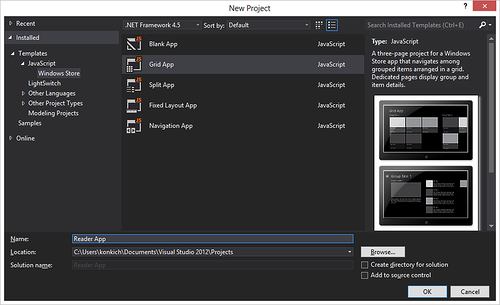
Open Visual Studio 2012, choose to create a new project ( File -> New -> Project ... ). Next, in the templates, select the project in JavaScript -> Windows Store . Indicate that you will use the Grid App template . Enter any project name, for example, Reader App . Examine the project structure:
Also, by default, the WinJS library is connected to the project, which contains sets of styles for dark and light themes and auxiliary functions and objects in JavaScript.
Try to launch the application by pressing F5 , the green arrow, or by choosing Debug -> Start Debugging . Learn how the application works:

Return to Visual Studio and stop debugging ( Shift + F5 , a red square or select Debug -> Stop Debugging from the menu ).
Open the js \ data.js file . It announces several important functions and objects that we will also use.
The first step is to get rid of the lines of code that generate sample data. To do this, delete the following lines:
If you run the application, it will continue to work, only there will be no data in it. Stop debugging and return to the data.js file . Let's briefly go through its structure so that further actions are understood:
A list is created that will be used to associate data with the display. In it we will enter those blocks of information that we want to display on the screen.
Based on the list, a grouped collection is created, when created with the help of special functions it is indicated how the elements of the collection are divided into separate groups.
Through the define function in the WinJS library (Namespace), a global Data object is registered, which will be available from other parts of the program to work with our data. Links to a grouped collection, a list of groups inside it, and a number of functions described in the data.js file and used to work with the collection and extract data are registered inside the object.
The remaining 4 functions ( getItemReference , getItemsFromGroup , resolveGroupReference and resolveItemReference ) are used to compare objects, retrieve subsets of elements belonging to the same group, determine the group by key and element by a set of unique identifiers.
Now is the time to start adding our own data. As sources, we will use external RSS feeds.
Go back to the beginning of the file and after the line “use strict” describe the blogs from which you will display information:
To describe each blog (content group) we specify:
To turn links into data on a computer, information on them must be downloaded. To do this, after the line var list = new WinJS.Binding.List (); add a new getBlogPosts function , which will just be loading:
In this function, we go through all the blogs in a loop, for each link through the WinJS.xhr function , create an asynchronous Promise wrapper around the XMLHttpRequest request and after receiving the result (then) we pass the received response to the processing in the processRSSFeed function , which we will describe below.
To process the stream, add one more function below - processRSSFeed :
In this function, we take advantage of the fact that at the input we have an XML file with a known structure (RSS 2.0) that you can navigate through using the DOM model, in particular, the querySelector function , using which you can extract the necessary data from the received document.
We will convert the received text value of the last update date to the desired format using the globalization functions available through the WinRT API.
At the end, we pass the document for further processing to the getItemsFromRSSFeed function , which selects individual posts and puts them in the posts collection .
Add the following function below:
In this function, we loop through all the posts in the received stream, select the necessary fields from the XML description (title, publication date, content, etc.), and then collect the necessary information into one object ( postItem ), which we add to list of posts.
Pay attention to the formatting of dates and the binding of each post to the corresponding group. Also note that to increase the security of the resulting post content, we bring to a static view using the toStaticHTML function .
Add the following line below to start reading blogs:
Run the application for debugging: As you can see, it is already using our new data, however, there are several "problem" zones that need to be fixed:

We will deal with these tasks in the following articles.
The first part is devoted to creating a simple version of an application that reads external data via RSS feeds based on a standard template. The result should be a working prototype of the application, capable of displaying news from several RSS feeds and displaying them on three types of pages: hub (first page), group and details.
Creating an application from a template
Open Visual Studio 2012, choose to create a new project ( File -> New -> Project ... ). Next, in the templates, select the project in JavaScript -> Windows Store . Indicate that you will use the Grid App template . Enter any project name, for example, Reader App . Examine the project structure:
- package.appxmanifest - application manifest that describes the key settings, features used, application name, tiles and other parameters;
- default.html - formal application start page;
- pages \ groupedItems - folder with html-, js- and css-files for the page for representing content groups (loaded into the start page);
- pages \ groupDetail - a folder with html-, js- and css-files for the page displaying a group of news (entries in an rss-stream) corresponding to one stream;
- pages \ itemDetail - folder with html-, js- and css-files for the page displaying each of the news separately;
- js \ data.js - js-file describing the work with data (contains demo data wired inside);
- js \ default.js - describes the events necessary to initialize the application;
- js \ navigator.js - describes the logic of transitions between pages and the necessary events and objects for this;
- images \ logo.png - image used for square tiles;
- images \ smalllogo.png - an image used when listing an application in the operating system, for example, when searching or selecting applications for search or sharing;
- images \ splashscreen.png - boot image displayed when opening the application;
- images \ storelogo.png - the image used in the application store interface (Windows Store).
Also, by default, the WinJS library is connected to the project, which contains sets of styles for dark and light themes and auxiliary functions and objects in JavaScript.
Try to launch the application by pressing F5 , the green arrow, or by choosing Debug -> Start Debugging . Learn how the application works:
- Try clicking on a separate gray tile or on the group header.
- Try clicking the back button in the inner pages.
- Try putting the app in Snapped mode.
Return to Visual Studio and stop debugging ( Shift + F5 , a red square or select Debug -> Stop Debugging from the menu ).
Replacing data sources
Open the js \ data.js file . It announces several important functions and objects that we will also use.
The first step is to get rid of the lines of code that generate sample data. To do this, delete the following lines:
- Insert data into a list:
// You can add data from asynchronous sources whenever it becomes available. generateSampleData().forEach(function (item) { list.push(item); }); - Generating sample data:
    // Returns an array of sample data that can be added to the application's
    // data list.
    function generateSampleData() {
        var itemContent = "Curabitur class … ";
        var itemDescription = "Item Description: Pellente…";
        var groupDescription = "Group Description: Lorem …";
        …
        return sampleItems;
    }
If you run the application, it will continue to work, only there will be no data in it. Stop debugging and return to the data.js file . Let's briefly go through its structure so that further actions are understood:
var list = new WinJS.Binding.List();A list is created that will be used to associate data with the display. In it we will enter those blocks of information that we want to display on the screen.
var groupedItems = list.createGrouped(
        function groupKeySelector(item) { return item.group.key; },
        function groupDataSelector(item) { return item.group; }
    );
Based on the list, a grouped collection is created, when created with the help of special functions it is indicated how the elements of the collection are divided into separate groups.
WinJS.Namespace.define("Data", {
        items: groupedItems,
        groups: groupedItems.groups,
        getItemReference: getItemReference,
        getItemsFromGroup: getItemsFromGroup,
        resolveGroupReference: resolveGroupReference,
        resolveItemReference: resolveItemReference
    });
Through the define function in the WinJS library (Namespace), a global Data object is registered, which will be available from other parts of the program to work with our data. Links to a grouped collection, a list of groups inside it, and a number of functions described in the data.js file and used to work with the collection and extract data are registered inside the object.
The remaining 4 functions ( getItemReference , getItemsFromGroup , resolveGroupReference and resolveItemReference ) are used to compare objects, retrieve subsets of elements belonging to the same group, determine the group by key and element by a set of unique identifiers.
Now is the time to start adding our own data. As sources, we will use external RSS feeds.
Important : in this article, in order to simplify the code, we will use only RSS feeds to receive data, however, adding support for Atom streams should not be difficult, since they have a similar structure and the key difference will be in the addressing of the desired data fields.
Go back to the beginning of the file and after the line “use strict” describe the blogs from which you will display information:
        var blogs = [
            {
                key: "ABlogging",
                url: "http://blogs.windows.com/windows/b/bloggingwindows/rss.aspx",
                title: 'Blogging Windows', rsstitle: 'tbd', updated: 'tbd',
                dataPromise: null
            },
            {
                key: "BExperience",
                url: 'http://blogs.windows.com/windows/b/windowsexperience/rss.aspx',
                title: 'Windows Experience', rsstitle: 'tbd', updated: 'tbd',
                dataPromise: null
            },
            {
                key: "CExtreme",
                url: 'http://blogs.windows.com/windows/b/extremewindows/rss.aspx',
                title: 'Extreme Windows', rsstitle: 'tbd', updated: 'tbd',
                dataPromise: null
            }];
To describe each blog (content group) we specify:
- the key is key (since the sorting of groups will be by key, we also added Latin letters at the beginning of the group for an explicit sorting task - in a real project this can be done in a more elegant way),
- link to the RSS feed - url ,
- stream name - title ,
- a few stubs:
- the real name of the blog is rsstitle ,
- date of update ( updated ),
- pointer to dataPromise - a “promise” to download this stream and process it.
To turn links into data on a computer, information on them must be downloaded. To do this, after the line var list = new WinJS.Binding.List (); add a new getBlogPosts function , which will just be loading:
function getBlogPosts(postsList) {
        blogs.forEach(function (feed) {
            // Создание Promise
            feed.dataPromise = WinJS.xhr( { url: feed.url } ).then(
                function (response) {
                    if (response) {
                        var syndicationXML = response.responseXML || (new DOMParser()).parseFromString(response.responseText, "text/xml");
                        processRSSFeed(syndicationXML, feed, postsList);
                    }
                }
            );
        });
        return postsList;
    }
In this function, we go through all the blogs in a loop, for each link through the WinJS.xhr function , create an asynchronous Promise wrapper around the XMLHttpRequest request and after receiving the result (then) we pass the received response to the processing in the processRSSFeed function , which we will describe below.
Note : for the blogs we use, there is no need for additional verification that we received a response in the form of XML (responseXML is available), however, in the general case this is not true: some blogs give the RSS feed as text content due to incorrect server / engine settings, which needs to be further processed if we want to work with it as an XML file.
To process the stream, add one more function below - processRSSFeed :
    function processRSSFeed(articleSyndication, feed, postsList) {
        // Название блога
        feed.rsstitle = articleSyndication.querySelector("rss > channel > title").textContent;
        // Используем дату публикации последнего поста как дату обновления
        var published = articleSyndication.querySelector("rss > channel > item > pubDate").textContent;
        // Преобразуем дату в удобрый формат
        var date = new Date(published);
        var dateFmt = new Windows.Globalization.DateTimeFormatting.DateTimeFormatter(
           "day month.abbreviated year.full");
        var blogDate = dateFmt.format(date);
        feed.updated = "Обновление: " + blogDate;
        // Обработка постов
        getItemsFromRSSFeed(articleSyndication, feed, postsList);
    }
In this function, we take advantage of the fact that at the input we have an XML file with a known structure (RSS 2.0) that you can navigate through using the DOM model, in particular, the querySelector function , using which you can extract the necessary data from the received document.
We will convert the received text value of the last update date to the desired format using the globalization functions available through the WinRT API.
At the end, we pass the document for further processing to the getItemsFromRSSFeed function , which selects individual posts and puts them in the posts collection .
Add the following function below:
function getItemsFromRSSFeed(articleSyndication, feed, postsList) {
        var posts = articleSyndication.querySelectorAll("item");
        // Цикл по каждому посту в потоке
        var length = posts.length;
        for (var postIndex = 0; postIndex < length; postIndex++) {
            var post = posts[postIndex];
            // форматирование даты
            var postPublished = post.querySelector("pubDate").textContent;
            var postDate = new Date(postPublished);
            var monthFmt = new Windows.Globalization.DateTimeFormatting.DateTimeFormatter("month.abbreviated");
            var dayFmt = new Windows.Globalization.DateTimeFormatting.DateTimeFormatter("day");
            var yearFmt = new Windows.Globalization.DateTimeFormatting.DateTimeFormatter("year.full");
            var timeFmt = new Windows.Globalization.DateTimeFormatting.DateTimeFormatter("shorttime");
            var postContent = toStaticHTML(post.querySelector("description").textContent);
            var postItem = {
                index: postIndex,
                group: feed,
                // заголовок поста
                title: post.querySelector("title").textContent,
                // дата и отдельные компоненты
                postDate: postDate,
                month: monthFmt.format(postDate).toUpperCase(),
                day: dayFmt.format(postDate),
                year: yearFmt.format(postDate),
                time: timeFmt.format(postDate),
                // содержимое поста
                content: postContent,
                // ссылка на пост
                link: post.querySelector("link").textContent
            };
            postsList.push(postItem);
        }
    }
In this function, we loop through all the posts in the received stream, select the necessary fields from the XML description (title, publication date, content, etc.), and then collect the necessary information into one object ( postItem ), which we add to list of posts.
Pay attention to the formatting of dates and the binding of each post to the corresponding group. Also note that to increase the security of the resulting post content, we bring to a static view using the toStaticHTML function .
Note : in the general case of working with RSS feeds from uncontrolled sources, you need to carefully monitor (and examine) the data received. In practice, some of the data for the desired fields may be missing, so before retrieving the text content (textContent), you must make sure that the previous operation returned a non-null value. In some cases, the full content of the post may be hidden behind the encoded or full-text elements, or not at all. There are also known cases when the server returns the date in the wrong format, as a result of which the standard parser throws an exception.
Add the following line below to start reading blogs:
list = getBlogPosts(list);Run the application for debugging: As you can see, it is already using our new data, however, there are several "problem" zones that need to be fixed:
- no pictures
- in separate lines the strange "undefined" is displayed,
- on the main page, the entire list is immediately displayed from the stream, but I want to limit it to several entries.
We will deal with these tasks in the following articles.