
 January 16, 2011 at 23:39
Install Juniper JunOS 10 M / T series

This article describes how to install Juniper JunOS version 10.4 for M / T series routers on a VMware virtual stand and then convert it to QEMU Image for use in the GNS3 environment.
About versions
We are installing the latest version of JunOS, but I want to note that installing earlier versions is done in the same way, so you can take any JunOS OS install media without hesitation, there are also no technical caveats regarding domestic versions containing critical modules.
General idea
JunOS is based on FreeBSD and partly on x86 hardware , as I mentioned in my previous article.
The plan is:
creating a virtual machine -> installing FreeBSD -> installing JunOS on FreeBSD, after having cheated the PIC -> completing the installation of JunOS -> converting to QEMU.
Under the cut a lot of screenshots.
Let's get started
At the end of the article I give a link to supporting material.
And so we create a virtual machine with a similar configuration:
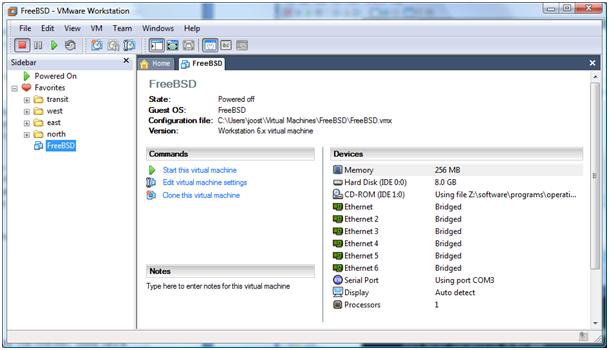
RAM should set 512MB at the time of installation, then at your discretion.
NIC is better to take one, then it will not be difficult to use more.
An 8GB HDD is enough, really no more than 2.5GB will be taken.
As a basis, I took 4.11-RELEASE-i386-miniinst.iso
To emulate the console interface, you can use the HW Virtual Serial Port from the HW-Group, create a pair of COM ports, bind to a couple. Assign one to a virtual machine (in our case COM3), and connect to the other console.
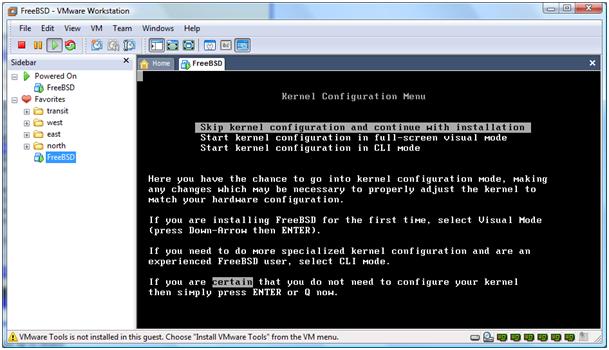

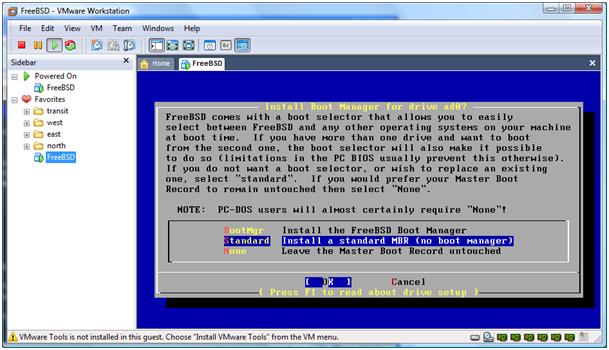
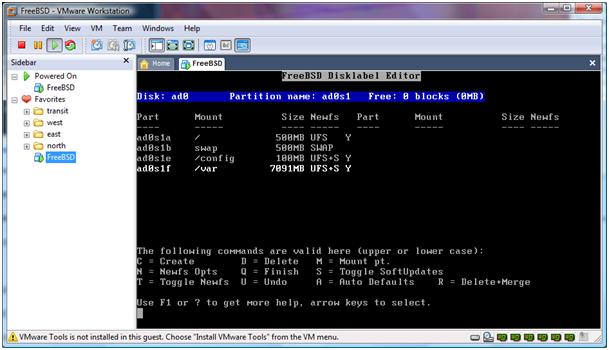
Partition the disk:
- Press "c", set the value "500M" <press enter>, then select "FS", then enter "/" <press enter>
- Press "c", set the value "500M" <press enter>, then select "Swap"
- Press the "c", put the value "100M" <press enter>, then select "FS", then enter "/ config" < press enter>
- Press "c", agree with the set value <press enter>, select "FS", enter "/ var" <press enter>, thereby obtaining a section the size of which was left unused after creating the previous ones.
- Press “q” to complete this operation.
We select ”Exit”

We select the source of the CD / DVD
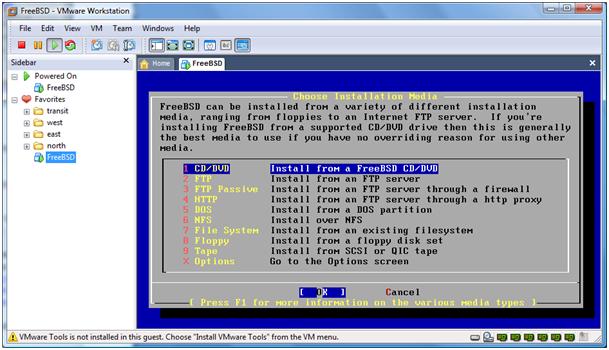
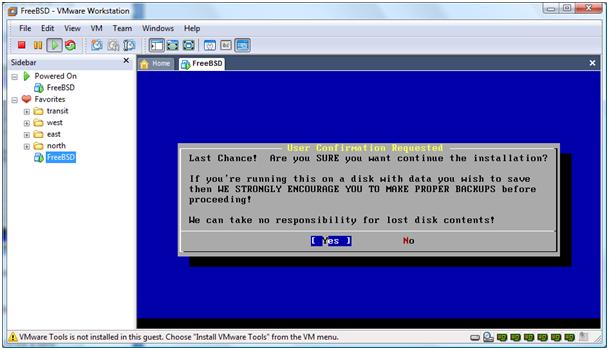
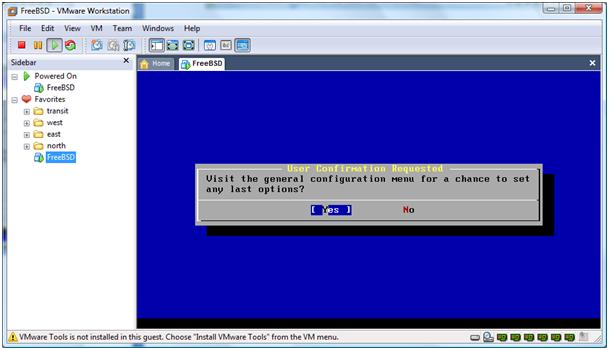
We set the root password, after we
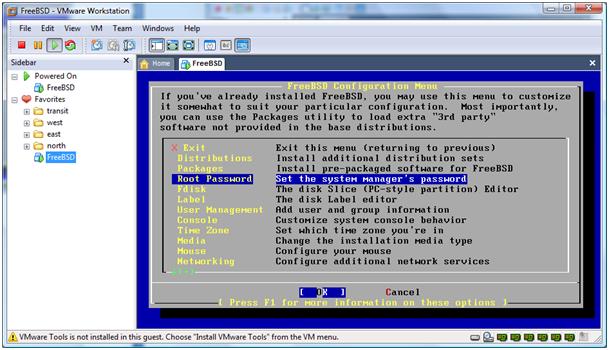
Configure the network:
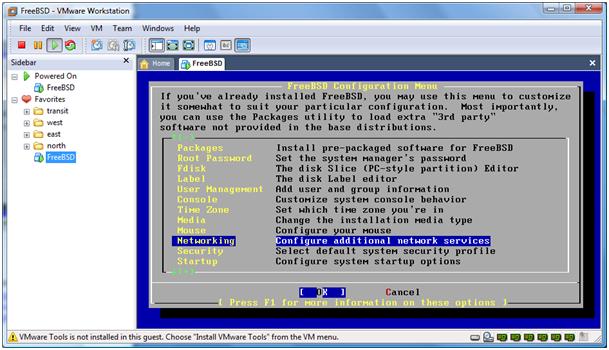
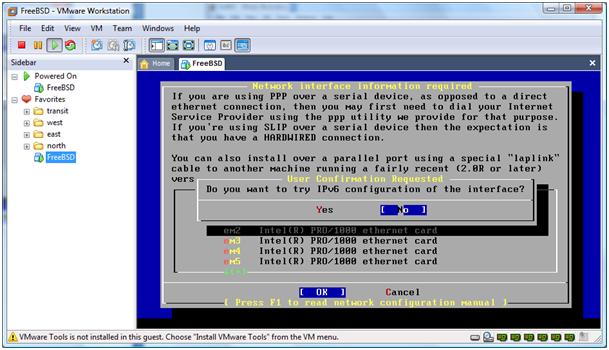
We choose our adapter:
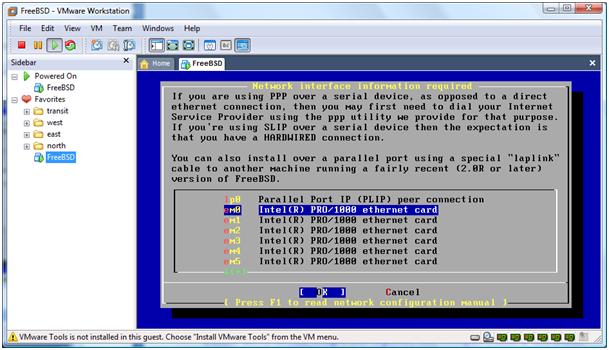
Although if, for example, you made a bridge to your network and there is DHCP, you can get it automatically.

Or ask manually: We

agree with c:

Exit and <
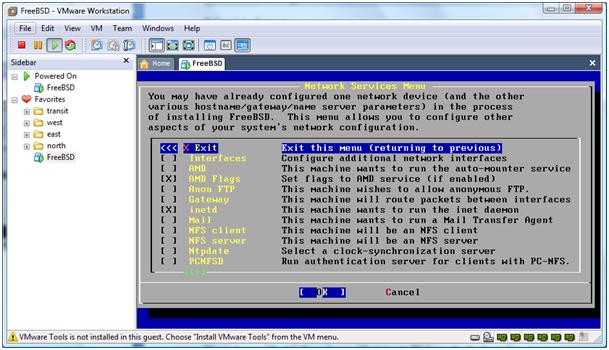
Find the point “Exit install” and exit.

All of our FreeBSDs are ready to install JunOS.
An important point: you need to make an edit to the virtual machine configuration.
File with the VMX extension:
Find the line
scsi0.present = "TRUE"and replace the value with FALSE
line,
scsi0.virtualDev = "lsilogic"just delete it.
We save the file, run our virtual system, these edits will eliminate problems with SCSI, Junper is loaded exclusively with the IDE.
Soon it will be JunOS ...
The next step is to copy to / var / tmp, the archive with install media JunOS.
I leave the way for you to do this, for example, raise FTP on a machine and download it on FreeBSD
It is important that before downloading the file via FTP, the client switch to binary mode.
Maybe it will be easier for you to mount USB to a virtual machine or something else.
And we have jinstall-xxx-xxx-signed.tgz in / var / tmp, now we need to do a deceptive trick:
Perform something like: I also advise you to remove unnecessary folders and files from unpacking and install: After installation, we will reboot. Wait until the installation is complete and the login prompt appears.
#mkdir blah;cd blah;tar zxvf ../jinstall-xxx-xxx-signed.tgz

#mkdir blah;cd blah;tar zxvf ../jinstall-xxx-xxx.tgz

#mkdir blah;cd blah;tar zxvf ../pkgtools.tgz

#cp -v /usr/bin/true bin/checkpic

Вот она наша маленькая хитрость, от проверки PIC

#tar zcvf ../pkgtools.tgz *

#cd ../;rm -rf blah

#tar zcfv /var/tmp/jinstall-xxx-xxx.tgz *
#pkg_add -f jinstall-xxx-xxx.tgz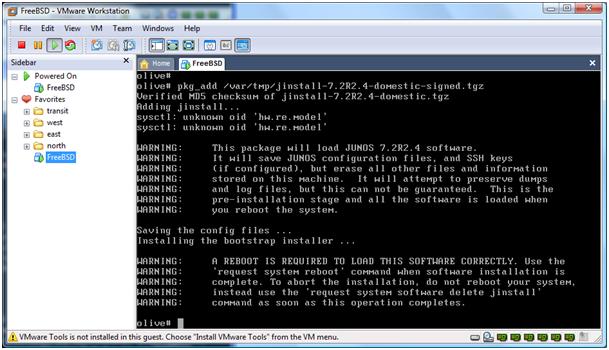
shutdown -r now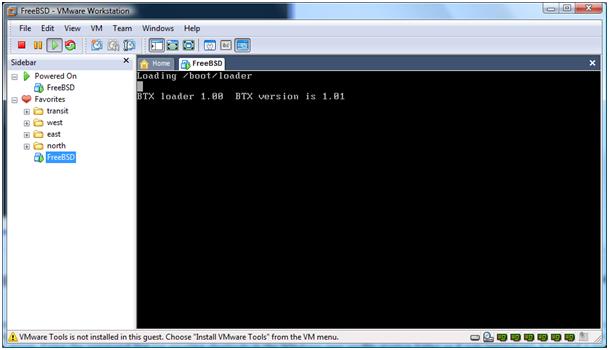
Log in, enter cli with the same name command, correctly terminate JunOS work with the request system halt command
Conversion
To use our virtual router in the GNS3 environment, an image for QEMU is required.
To get it, we use the qemu-img utility, which is part of QEMU. The command for converting from me looks like this:
qemu-img convert juniper.vmdk -O qcow juniper.imgAfter receiving the coveted image, create a new juniper router profile in QEMU, add an instance to the workspace and launch it.
All the same familiar BTX loader inscription, on the advice received in the comments to the first article, will not just wait, but open the console and be able to observe the JunOS boot. And at the end of time we will see a greeting.
Toward the close of show version :
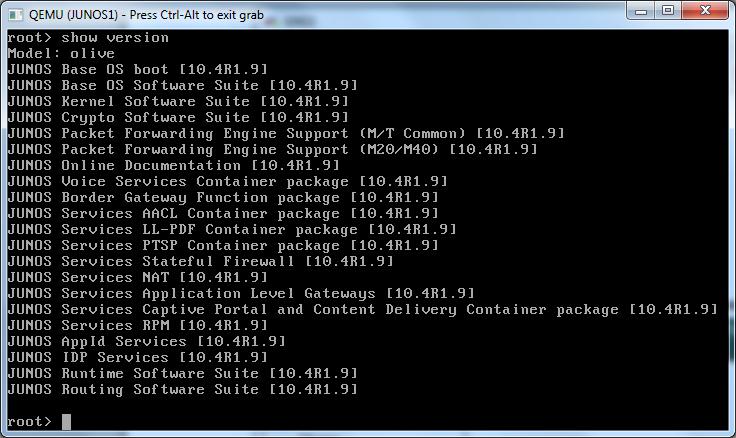
Now we have JunOS 10, we can begin to experiment.
The following article is a JunOS build based on the J series recovery image.
Conclusions on the possibilities of virtualizing JunOS on a PC, examples of what is “good” and what is completely “bad”.
Supporting materials:
Joost's Blog - joost.blogsite.org/wordpress/?p=15
zloBlog - www.zlonet.ru/page/ustanovka-junos-10-na-pc
Thanks for attention.
UPD 17.01: Error correction.