March 12, 2010 at 19:43
Easy control of the Music Player Daemon in the Gnome Panel
 Disclaimer: this article is for dummies like me.
I use MPD as a media player, which is very convenient: the daemon is very small and economical, and it works very reliably and quickly.
In order not to spoil these qualities, I wanted to manage it from Gnome as easily, simply and without overhead. There is a special applet of the Gnome music-applet panel in the repository, but it pulls a lot of dependencies, is not very convenient, and in general I didn’t have a relationship with it. In the end, I settled on the most straightforward decision.
Need MPC
MPC (Music Player Command) is a tiny utility for managing MPD from the command line. If you are already tense, you can exhale, we will not issue commands for control manually.
So, put MPC:
sudo aptitude install mpcCreate buttons on the panel
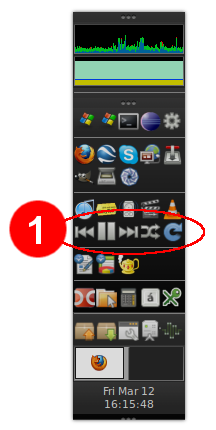
You need to add a few buttons to your taste, for example, as in picture 1 above.
There is one caveat in my configuration. I use a vertical panel, because on a wide screen it allows you to use the screen space more efficiently. But by default, the launch buttons are scaled to fit the width of the panel, which is
I found a very convenient panel applet Launchers List, enabling labels mow up and down in the required amounts:
sudo aptitude install quick-lounge-appletAfter doing this, right click on an empty space on the panel and select the Add to ... Plesk Panel . Then right click on the “handle” of the freshly added applet and Preferences :

So, the recommended commands are as follows:
mpc prev- previous track.mpc toggle- play / pause.mpc next- next track.mpc random- play scatter on / offmpc update- re-scan the directory with music files.
You can find out about all the features of mpc in the usual way:
man mpcI used standard icons as buttons for buttons, for example, from the catalog
/usr/share/icons/Humanity/actions/16/.Promoting
For the most beautiful, you can use standard notifications to Ubunt so that after pressing the button it looks like this for a while:

To do this, we will use the notify-send utility , which is part of the libnotify-bin package:
sudo aptitude install libnotify-binas well as a small script that needs to be saved (say, under the name mpd -control ) somewhere (for example, in ~ / bin), give the right to execute:
chmod +x mpd-controland then run it instead of mpc. It also supports 5 of the above commands (prev, next, toggle, random and update).
Update: for the most severe - the idea was developed and made by an HTTP server in Python for a more advanced display of prompts.
See it once?
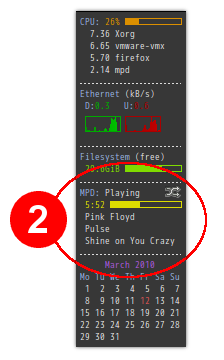
Sometimes it’s interesting what exactly is playing. Personally, I use the usual conky to satisfy my curiosity , which has in its extensive arsenal of sensors and data on the status of MPD. It looks something like Figure 2 on the right.
Finishing touches
Still sometimes I want to control playback without a mouse and from any application. If you want this and you have Compiz installed, you can assign the appropriate commands to the CompizConfig Settings Manager (
sudo aptitude install compizconfig-settings-manager), including the multimedia buttons on the keyboard: 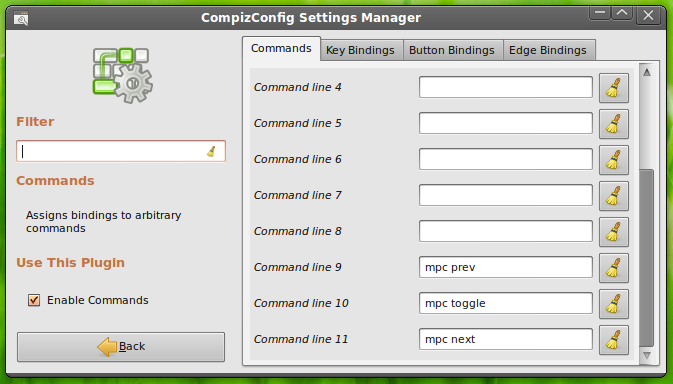
That's all.