December 4, 2008 at 01:10
Tale of Big Brother: Linux OS on Toshiba Portege SS S4 / 275PNHW
After a three-day struggle with the baby Libretto, I got up with the right foot and went to work. Standing in the subway car, I thought about my failures ... and it dawned on me, once at work I saw a laptop that no one needed;) rather than trying to revive it;)
When I came to work, I reported my thoughts to the management. After lunch, I got a Toshiba Portege SS S4 / 275PNHW, but then I did not know what was waiting for me!

For half a day I was waiting for a miracle: installed Linux on an almost normal laptop of 2002. So let's see what kind of device it is.
This laptop belongs to the Portege 2001 series and is called DynaBook. There are very few descriptions of this unit on the Internet.
This laptop is lightweight and has a very nice ergonomics.
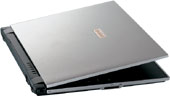
Inside:
Toshiba HDD MK400GAH on 40GB 1.8 "

256 MB SDRAM, PIII 750 Mhz
This series has a very thin LCD screen
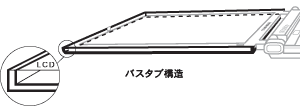
and a powerful small Li-ion battery.
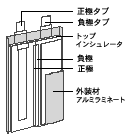
There are also two USB ports, WiFi, SD-card reader, PCMCIA slot
Summary table:
Together with the laptop I got USB Floppy (Noname), USB CD-ROM MiniCD Archos.
Having inserted the disk and started the machine, I realized that the boot does not work from the CD-ROM ... But I still had a flop, after I made the installation method I had already tried with floppy, I saw a familiar inscription saying that floppy was not found.
But there is also network boot (PXE)! So this is the only way at the moment.
So let's get started with PXE installation.
First you need to connect the laptop to the network.

Next, on the Linux machine, you need to configure DHCP and TFTP servers.
In ubuntu they must first be installed
Next, you need to configure the DHCP server:
And tftp-hpa
In the folder / var / lib / tftpboot you need to unzip netinstall.tar.gz from the Ubuntu archive
That's it! The servers are configured, now you can connect from the client, set the download over the network on the laptop and start! and get the installation download! Then I think everything is clear;)
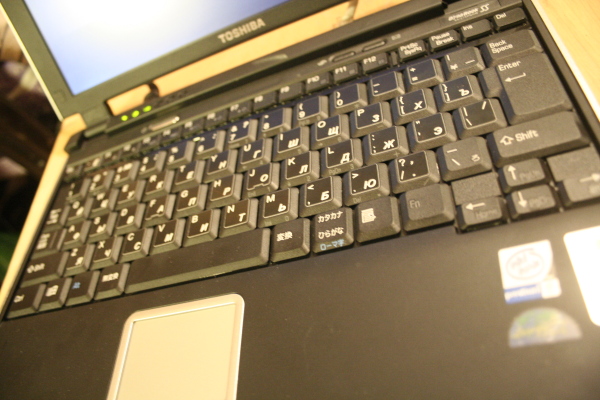
It is a pity that this laptop comes from Japan and little can be found about it on the Internet, you have to do everything at random ...
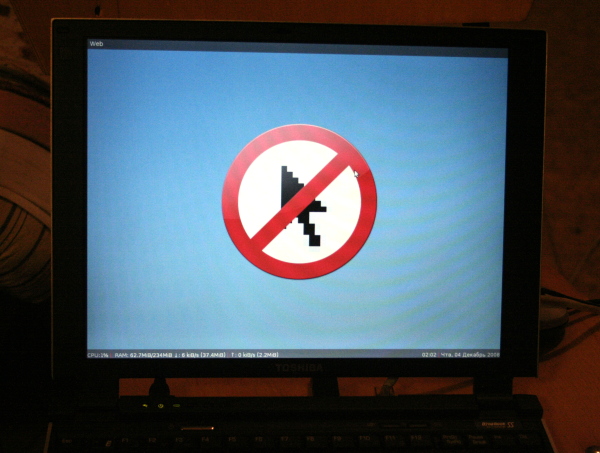
When I came to work, I reported my thoughts to the management. After lunch, I got a Toshiba Portege SS S4 / 275PNHW, but then I did not know what was waiting for me!
Description
For half a day I was waiting for a miracle: installed Linux on an almost normal laptop of 2002. So let's see what kind of device it is.
This laptop belongs to the Portege 2001 series and is called DynaBook. There are very few descriptions of this unit on the Internet.
This laptop is lightweight and has a very nice ergonomics.
Inside:
Toshiba HDD MK400GAH on 40GB 1.8 "
256 MB SDRAM, PIII 750 Mhz
This series has a very thin LCD screen
and a powerful small Li-ion battery.
There are also two USB ports, WiFi, SD-card reader, PCMCIA slot
Summary table:
| PM | ALi 7101 Power Management Controller |
| Sound | ALi Audio Accelerator WDM Driver |
| Modem | TOSHIBA Software Modem AMR |
| HDC | ALi M5229 PCI Bus Master IDE Controller |
| HDD | MK400GAH |
| Video | Trident Video Accelerator CyberBlade XP Ai1 |
| Monitor | Toshiba Internal 1024x768 Panel |
| IrDA | ALi Serial Infrared Controller |
| Mouse | Alps PointiFailed-device |
| PCMCIA | Toshiba ToPIC100 CardBus Controller |
| LAN | Intel 8255x-based PCI Ethernet Adapter (10/100) |
| Wifi | Melco AIRCONNECT WLI-PCM-L11 |
| USB | NEC PCI to USB Open Host Controller x2 |
| Sdc | TOSHIBA SD Card Controller Type-A |
OS installation
Together with the laptop I got USB Floppy (Noname), USB CD-ROM MiniCD Archos.
Having inserted the disk and started the machine, I realized that the boot does not work from the CD-ROM ... But I still had a flop, after I made the installation method I had already tried with floppy, I saw a familiar inscription saying that floppy was not found.
But there is also network boot (PXE)! So this is the only way at the moment.
So let's get started with PXE installation.
First you need to connect the laptop to the network.
Next, on the Linux machine, you need to configure DHCP and TFTP servers.
Server Configuration
In ubuntu they must first be installed
apt-get install tftpd-hpa
apt-get install dhcp3-server
mkdir -p / var / www / ubuntu-606-server-i386 /
mount -o loop /dl/ubuntu-6.06-server-i386.iso / var / www / ubuntu-606-server-i386 /
tar xzvf /dl/netboot.tar.gz -C / var / lib / tftpboot
Next, you need to configure the DHCP server:
/etc/dhcp3/dhcpd.conf
ddns-update-style none;
option domain-name "hifichoice.com";
option domain-name-servers 83.146.21.6, 212.158.248.5;
ping-check = 1;
default-lease-time 600;
max-lease-time 7200;
log-facility local7;
subnet 192.168.95.0 netmask 255.255.255.0 {
range 192.168.95.100 192.168.95.150;
option routers 192.168.95.1;
filename = "pxelinux.0";
next-server 192.168.95.20;
}
And tftp-hpa
/ etc / default / tftpd-hpa
RUN_DAEMON = "yes"
OPTIONS = "- l -s / var / lib / tftpboot"
In the folder / var / lib / tftpboot you need to unzip netinstall.tar.gz from the Ubuntu archive
That's it! The servers are configured, now you can connect from the client, set the download over the network on the laptop and start! and get the installation download! Then I think everything is clear;)
PS
It is a pity that this laptop comes from Japan and little can be found about it on the Internet, you have to do everything at random ...
Good luck to everyone in reviving the piece of iron;)